.NET on AWS Blog
Supercharge Your IDE: Custom .NET MCP Servers for Amazon Q Developer
The rise of Generative AI (GenAI) and the new ecosystem around it have fundamentally changed how developers write, debug, and ship software. What once required hours of context-switching between documentation, Stack Overflow, and IDE windows, can now be accomplished in minutes with AI-assisted development.
Tools like Amazon Q Developer bring intelligent code suggestions, automated test generation, security scanning, and natural language-driven development directly into the developer’s workflow.
But the real power of GenAI tools isn’t just in what they know out of the box—it’s in how they learn to understand your environment. Enterprise applications often rely on internal APIs, proprietary SDKs, custom databases, and domain-specific frameworks that general-purpose AI models have never seen. This is where the Model Context Protocol (MCP) becomes a game-changer.
By connecting AI assistants to live, contextual data sources through MCP servers, developers can:
- Reduce context-switching by providing access to internal documentation, APIs, and schemas directly in the IDE
- Accelerate onboarding by giving new team members AI-guided access to internal systems
- Get more accurate suggestions and output from the AI assistants.
GenAI tools, when paired with the right context, don’t just autocomplete code — they become intelligent development partners that understand your stack.
In this blog post, I’ll walk you through how to build your custom MCP server in .NET and integrate it with Amazon Q Developer to enhance your coding assistant’s capabilities. Though the focus here is on .NET and Amazon Q Developer, the same can be applied to other runtimes and AI coding assistants.
MCP Servers
Model Context Protocol (MCP) is an open standard introduced by Anthropic that defines a structured way for AI models to interact with external tools, data sources, and services. Think of it as a universal adapter that allows AI assistants to reach beyond their training data and connect to live, dynamic information.
An MCP server exposes a set of tools — discrete, callable functions that an AI model can invoke to retrieve data, perform actions, or interact with external systems. Using a machine-readable format, you describe these tools so that the AI knows what each tool does, what inputs it expects, and what outputs it returns.
Key Concepts
- Tools: Functions the AI can call (e.g.,
get_customer_orders,query_inventory,run_sql) - Resources: Data objects the AI can read (e.g., files, database records, API responses)
- Prompts: Reusable prompt templates that guide AI behavior for specific tasks
- Transport Layer: MCP supports multiple transport mechanisms, including stdio (standard input/output) and HTTP with Server-Sent Events (SSE)
MCP servers can be local (running on the developer’s machine) or remote (hosted as a service), making them flexible for both individual and team-wide use cases.
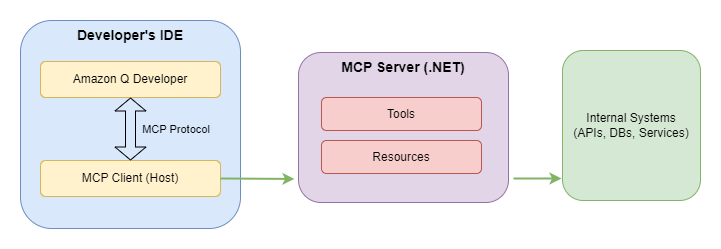
Figure 1: MCP Server integration with IDE
Part 1: Custom MCP Server in .NET
Building a custom MCP server in C#/.NET is straightforward using the ModelContextProtocol NuGet package, the official .NET SDK for MCP maintained by Microsoft and .NET community.
Prerequisites:
- Visual Studio Code or Visual Studio installed
- Amazon Q Developer extension installed (
amazonwebservices.amazon-q-vscode) - .NET 8 SDK or later
- An AWS Builder ID or AWS IAM Identity Center account
- Node.js installed (to test custom MCP Server locally without using AI client)
Step 1: Create a New .NET Console Project
dotnet new console -n MyMcpServer
cd MyMcpServer
Step 2: Add the MCP NuGet Package
dotnet add package ModelContextProtocol
dotnet add package Microsoft.Extensions.Hosting
dotnet add package Npgsql
Step 3: Define Your MCP Tools
Create a file called PostgresDBTools.cs and define your tools using the [McpServerTool] attribute:
using ModelContextProtocol.Server;
using System.ComponentModel;
using Npgsql;

[McpServerToolType]
public static class PostgresDBTools
{
    const string DB_CONN_STRING_ENV_VAR = "DB_CONN_STRING";
    const string DEFAULT_SCHEMA = "employee";
    static string _connectionString;

    static PostgresDBTools()
    {
        _connectionString = Environment.GetEnvironmentVariable(DB_CONN_STRING_ENV_VAR) ?? string.Empty;
    }

    [McpServerTool, Description("Get all column names from the specified table in specified schema.")]
    public static async Task<List<string>> GetColumnNames(string tableName, string schema = DEFAULT_SCHEMA)
    {
        using var connection = new NpgsqlConnection(_connectionString);
        await connection.OpenAsync();

        var command = new NpgsqlCommand(
            "SELECT column_name FROM information_schema.columns WHERE table_schema = @schema AND table_name = @tableName",
            connection);
        command.Parameters.AddWithValue("@schema", schema);
        command.Parameters.AddWithValue("@tableName", tableName);

        var columnNames = new List<string>();
        using var reader = await command.ExecuteReaderAsync();
        while (await reader.ReadAsync())
        {
            columnNames.Add(reader.GetString(0));
        }
        return columnNames;
    }

    [McpServerTool, Description("Get all table names from the specified schema.")]
    public static async Task<List<string>> GetTableNames(string schema = DEFAULT_SCHEMA)
    {
        //Code excluded for brevity. Follow implementation in GetColumnNames.
        //"SELECT table_name FROM information_schema.tables WHERE table_schema = @schema",
    }

    [McpServerTool, Description("Get records from the specified table in specified schema.")]
    public static async Task<List<Dictionary<string, object>>> GetRecords(string tableName, string schema = DEFAULT_SCHEMA)
    {
        var quotedSchema = new NpgsqlCommandBuilder().QuoteIdentifier(schema);
        var quotedTable = new NpgsqlCommandBuilder().QuoteIdentifier(tableName);

        using var connection = new NpgsqlConnection(_connectionString);
        await connection.OpenAsync();

        var command = new NpgsqlCommand($"SELECT * FROM {quotedSchema}.{quotedTable} LIMIT 100", connection);
        using var reader = await command.ExecuteReaderAsync();

        var results = new List<Dictionary<string, object>>();
        while (await reader.ReadAsync())
        {
            results.Add(Enumerable.Range(0, reader.FieldCount)
                .ToDictionary(i => reader.GetName(i), i => reader.GetValue(i)));
        }
        return results;
    }
}
You can add more tools or methods to fetch specific information from a database. For example, you can add a method (MCP server tool) to get precise column definitions for a table with this query:
SELECT
column_name, data_type, character_maximum_length,
numeric_precision, numeric_scale,
is_nullable, column_default, ordinal_position
FROM information_schema.columns
WHERE table_schema = @schema AND table_name = @tableName
Step 4: Configure the MCP Server Host
Update Program.cs to wire up the MCP server using .NET Generic Host:
using Microsoft.Extensions.DependencyInjection;
using Microsoft.Extensions.Hosting;
using ModelContextProtocol.Server;
var builder = Host.CreateApplicationBuilder(args);
// Register MCP server with stdio transport
builder.Services
.AddMcpServer()
.WithStdioServerTransport()
.WithToolsFromAssembly();
await builder.Build().RunAsync();
Step 5: Build and Test
dotnet build
To test your MCP server locally before connecting it to Amazon Q Developer, you use the MCP Inspector tool:
npm install -g @modelcontextprotocol/inspector
mcp-inspector dotnet run --project full-path-to-MyMcpServer
This opens a browser-based UI where you should add the required environment variables (DB_CONN_STRING for the sample MCP service created here) and connect to the MCP server. Once connected, you can browse registered tools, invoke them with test inputs, and inspect responses — all without an AI client.
Project Structure
MyMcpServer/
├── MyMcpServer.csproj
├── Program.cs
├── Tools/
│ ├── PostgresDBTools.cs
Security
The code snippets given here are only for reference. You must consider and implement the following security guidelines before using them in a real development environment:
- Validate and sanitize inputs passed to the MCP server.
- Avoid adding tools (methods) that perform create, update, or delete operations in the database.
- Do not hard-code secrets or secure configurations in the MCP server code; use environment variables, AWS Secrets Manager, or other security config services.
- If you’re exposing MCP servers over HTTP (remote), protect the endpoint from external/public access.
- Conduct security audits of custom implementations.
- Implement monitoring and logging for all MCP server operations.
- Implement proper error handling that doesn’t leak sensitive information, e.g., reading records from tables or other data sources containing secure or confidential information.
Part 2: Amazon Q Developer + MCP
Amazon Q Developer is AWS’s AI-powered coding assistant, available as an extension in Visual Studio Code, Visual Studio, Eclipse, JetBrains IDEs, and the AWS Management Console. It supports the Model Context Protocol natively, allowing developers to connect custom MCP servers and extend Q Developer’s capabilities with domain-specific knowledge and tools.
Setting Up MCP with Amazon Q Developer in Visual Studio Code or Visual Studio
Step 1: Install the Amazon Q Developer Extension
Open VS Code, navigate to the Extensions Marketplace, and search for Amazon Q. Install the extension and sign in with your AWS Builder ID or IAM Identity Center credentials.
Step 2: Configure the MCP Server
Amazon Q Developer reads MCP server configurations from a JSON file. Create or edit the MCP configuration file at:
- macOS/Linux: ~/.aws/amazonq/mcp.json
- Windows: %USERPROFILE%\.aws\amazonq\mcp.json
Add your MCP server entry:
{
"mcpServers": {
"my-dotnet-mcp-server": {
"command": "dotnet",
"args": [
"run",
"--project",
"/path/to/your/McpServer/McpServer.csproj"
],
"env": {
"DB_CONN_STRING": "your-db-connection-string",
"API_KEY": "your-api-key"
}
}
}
}
Step 3: Restart Amazon Q Developer
After saving the configuration, reload Visual Studio Code or Visual Studio. Amazon Q Developer will automatically start the MCP server process and register any available tools. You can verify the connection by opening the Amazon Q chat panel — the list of registered tools will show up as available for use.
Step 4: Use MCP Tools in Chat
Once connected, you can invoke MCP tools directly from the Amazon Q Developer chat interface using natural language:
"Create a DAL class to perform CRUD operations on employee table - using ADO.NET"
Amazon Q will identify the relevant MCP tool, call it with the appropriate parameters, and incorporate the live data into its response.
Prompts
The following are some of the use cases or prompts that will invoke the custom-built PostgresDB MCP server
- Create a Web API controller to perform CRUD operations on employees table in xyz schema
- What are the columns in employee table in xyz schema?
- Create postgres insert scripts to add 2 sample records in employee table.
- Create a Data Entity / Class for employee table.
- Create a DAL class to perform CRUD operations on employee table – using ADO.NET.
- Create sample JSON for employee table.
- Get employees from employee table.
- How many employees joined in 2025?
- How many employees are from Engineering department?
Use Cases
MCP servers unlock a wide range of practical use cases for enterprise development teams. Here are some of the most impactful:
- Internal API Documentation & Code Generation. Connect your MCP server to internal OpenAPI/Swagger specs so Amazon Q Developer can generate accurate client code, request/response models, and integration tests based on your actual API contracts — not generic examples.
- Database Schema Exploration. Expose your database schema through MCP tools so developers can ask natural language questions like “What tables are related to customer orders?” and get accurate, schema-aware SQL queries generated on the fly.
- CI/CD Pipeline Insights. Build MCP tools that query your CI/CD system (e.g., AWS CodePipeline, Jenkins, GitHub Actions) to surface build statuses, recent failures, and deployment history directly in the developer’s chat interface.
- Incident Response and Runbooks. Connect your MCP to your internal runbook repository and monitoring systems so on-call engineers can ask
"What are the remediation steps for an Amazon DynamoDB throttling alert?"and get contextually accurate guidance. - Cloud Resource Discovery. Expose AWS resource metadata (Amazon EC2 instances, Amazon S3 buckets, AWS Lambda functions) through MCP tools. This will help developers understand the current state of their infrastructure and generate accurate IaC (Infrastructure as Code) templates.
Conclusion
The combination of Amazon Q Developer and custom MCP servers represent a powerful new paradigm for AI-assisted software development. By extending Amazon Q’s capabilities with domain-specific tools built in .NET, development teams can bridge the gap between general-purpose AI and the unique, complex environments of real-world enterprise applications.
With MCP, your AI assistant is no longer limited to what it learned during training. It can query your internal APIs, explore your database schemas, surface your runbooks, and interact with your proprietary systems — all in real time, directly from your IDE.
The .NET ecosystem makes building MCP servers approachable for any C# developer. With just a few NuGet packages and familiar patterns like dependency injection and the Generic Host, you can have a production-ready MCP server running in hours, not days.
Teams that invest in building a library of well-designed MCP servers today will have a significant productivity advantage tomorrow — onboarding faster, shipping higher-quality code, and spending more time solving interesting problems instead of hunting for context.
Call to Action
Build your custom MCP server and supercharge Amazon Q Developer in your IDE.
Here’s everything you need to get started — whether you’re a .NET developer or working in another language.
Get Started with Amazon Q Developer
Install Amazon Q Developer in your IDE: Documentation | Visual Studio Code Marketplace | JetBrains Marketplace | Visual Studio Marketplace
Amazon Q Developer Documentation: https://docs.aws.amazon.com/amazonq
MCP with Amazon Q Developer (Official Docs): Using MCP with Amazon Q Developer
MCP Configuration in the IDE: MCP configuration for Q Developer in the IDE
Build MCP Servers — In language of your choice
ModelContextProtocol SDKs: https://github.com/modelcontextprotocol
Amazon Q Developer CLI & MCP Workshop (hands-on lab): AWS Workshop
MCP Official Resources
MCP Official Documentation & Specification: https://modelcontextprotocol.io
Pre-built MCP Servers: https://github.com/modelcontextprotocol/servers
MCP Inspector (local testing tool): https://github.com/modelcontextprotocol/inspector
Start building your first MCP server today — your future self (and your team) will thank you.