IBM & Red Hat on AWS
Optimize GPU workloads on Amazon EKS and ROSA with IBM Turbonomic
Organizations running GPU-powered generative AI (GenAI) inference workloads on Amazon Elastic Kubernetes Service (Amazon EKS) and Red Hat OpenShift Service on AWS (ROSA) can improve GPU utilization and reduce costs as they scale inference services into production.
GPU instances in the Amazon Elastic Compute Cloud (Amazon EC2) P5en, P5, and G6e families deliver the compute power these workloads require. When inference workloads don’t fully use their allocated GPU capacity, the result is wasted spend.
IBM Turbonomic helps close this gap by continuously analyzing application demand against GPU supply in your Amazon EKS and ROSA clusters. It generates optimization actions (scaling, resizing, and rebalancing) that maintain application performance while improving GPU utilization and reducing cost.
This post walks through how to configure IBM Turbonomic to optimize GPU-backed large language model (LLM) inference workloads on Amazon EKS and ROSA. You’ll connect your cluster, integrate Prometheus metrics, and review the optimization actions Turbonomic generates. For GPU optimization on Amazon EC2 instances outside of Kubernetes, see Optimizing GPU-powered AI workloads on Amazon EC2 with IBM Turbonomic.
The GPU optimization challenge
Amazon EKS and ROSA schedule GPU resources through the Kubernetes device plugin framework, which by default treats GPUs as discrete, schedulable integer units. Both services support the following GPU sharing mechanisms that overcome this default behavior:
- NVIDIA time-slicing: Allows multiple workloads to share a single GPU through software time-multiplexing.
- Multi-Instance GPU (MIG): Provides hardware-level partitioning with dedicated compute and memory per instance.
- Dynamic Resource Allocation (DRA): Provides attribute-based GPU scheduling through Kubernetes-native APIs.
These mechanisms address GPU sharing but not when to scale, where to place workloads, or how to right-size allocations as demand changes. For LLM inference, GPU utilization fluctuates based on request concurrency, model size, and batch configuration.
By default, the Kubernetes HorizontalPodAutoscaler (HPA) on Amazon EKS and ROSA scales on CPU and memory metrics reported by the kubelet. GPU utilization and inference-specific signals such as time-to-first-token, request queue depth, or request concurrency require additional components such as the NVIDIA Data Center GPU Manager (DCGM) Exporter paired with a Prometheus Adapter, or Kubernetes Event-Driven Autoscaling (KEDA), to expose custom metrics to HPA.
Node-level autoscalers like Karpenter on Amazon EKS and AutoNode (Red Hat build of Karpenter) on ROSA Hosted Control Plane (HCP) provision or reclaim GPU nodes as demand changes. However, GPU utilization alone is an unreliable autoscaling signal for inference because a serving engine can remain near 100% utilization across a wide range of request volumes. Leading indicators such as queue depth and response latency more accurately signal when additional capacity is needed.
IBM Turbonomic adds an application-aware optimization layer on top of Amazon EKS and ROSA. Rather than replacing the GPU sharing mechanisms these services provide, Turbonomic works across them, analyzing the full stack from application performance indicators to GPU hardware and generating actions that keep workloads within their SLOs while maximizing efficiency.
How IBM Turbonomic optimizes GPU workloads
IBM Turbonomic integrates with Amazon EKS and ROSA through two components deployed inside your cluster:
- Kubeturbo connects to the control plane, discovers the full resource topology, monitors GPU utilization and GPU memory via the NVIDIA device plugin, and executes optimization actions through Kubernetes APIs.
- Prometurbo connects to a Prometheus server and collects application-level metrics using PromQL queries, including response time, throughput, queuing time, and concurrency for LLM inference services.
Together, these components give Turbonomic a complete view of GPU consumption and application performance. Turbonomic correlates GPU signals with application SLOs to determine the appropriate response:
- High GPU utilization + degrading response time: Scale out inference replicas to add capacity to help assure performance.
- Low GPU utilization + SLOs met: Consolidate workloads or resize resource allocations downward for efficiency and cost savings.
- High concurrency + increasing queue depth: Proactively add capacity before an SLO breach occurs to help assure performance.
Unlike Kubernetes HPA, which reacts to a single metric against a static threshold, Turbonomic evaluates combined signals to generate actions in four categories:
- Horizontal scaling: Scale inference replicas up or down based on SLO-driven signals like response time and request queuing.
- Container resizing: Adjust CPU and memory requests and limits to eliminate over-provisioning.
- Pod rebalancing: Move pods across GPU nodes to improve utilization and reduce hotspots.
- GPU placement: Optimize workload placement across GPU nodes and MIG partitions.
At the infrastructure layer, Turbonomic manages node group sizing, Amazon EC2 instance right-sizing, and node provisioning or deprovisioning as cluster demand changes. For these decisions, Turbonomic collects AWS metrics through Amazon CloudWatch. When you enable automation, Turbonomic executes actions directly; otherwise, they appear as recommendations for manual review.
Solution architecture
At the Kubernetes layer, GenAI inference services run on GPU worker nodes while Prometheus collects GPU utilization, memory, response time, and throughput metrics. At the infrastructure layer, Turbonomic maps Amazon EC2 instances, node groups, and AWS accounts into its Supply Chain model.
Turbonomic ingests signals from both layers and executes optimization actions through Kubernetes APIs. When pod-level demand exceeds node capacity, Turbonomic triggers node group scaling. When GPU nodes are underutilized, it consolidates pods and scales down.
The following diagram (Figure 1) shows how IBM Turbonomic integrates with Amazon EKS and to optimize GPU-backed inference workloads across these two layers.
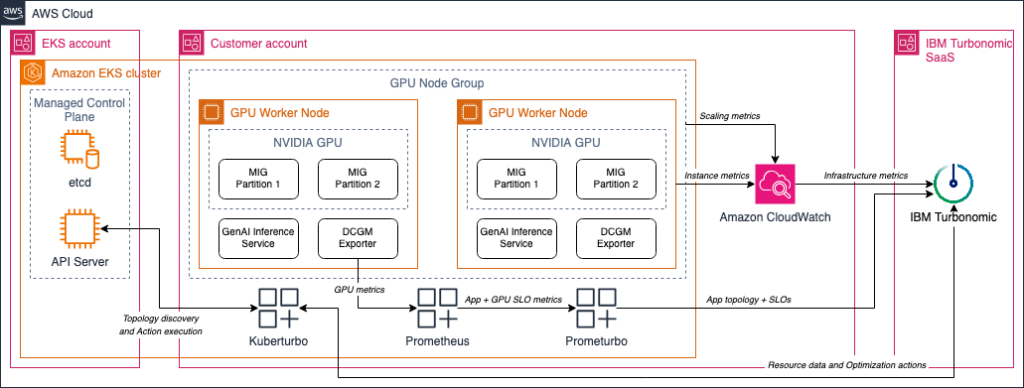
Figure 1. IBM Turbonomic optimizing GPU-backed inference workloads on Amazon EKS.
Prerequisites
Before you begin, confirm the following requirements are in place:
- An active AWS account with AWS Identity and Access Management (IAM) permissions to create and manage Amazon EKS or ROSA HCP clusters and GPU node groups
- An Amazon EKS or ROSA cluster running GPU-enabled worker nodes on supported Amazon EC2 GPU instance types
- NVIDIA drivers and the Kubernetes device plugin installed on GPU-enabled worker nodes
- For MIG environments, MIG configured through the NVIDIA MIG Manager
- aws CLI, kubectl, eksctl, rosa CLI, and oc CLI installed and configured
- Access to IBM Turbonomic (SaaS or self-hosted) with permissions to deploy Kubeturbo and Prometurbo
- A service account with cluster-level read permissions for Kubeturbo discovery, as documented in the Kubeturbo deployment requirements
- A Prometheus server accessible from within the cluster, with metrics configured for your inference services
Cost considerations
Deploying this walkthrough incurs costs for Amazon EC2 GPU instances, Amazon EKS or ROSA cluster, and IBM Turbonomic licensing
Review IBM Turbonomic SaaS pricing on the AWS Marketplace. For compute rates, see the Amazon EC2 pricing page. For cluster management fees, see Amazon EKS pricing and ROSA pricing. Use the AWS Pricing Calculator to estimate total costs.
To avoid unnecessary charges, follow the cleanup steps at the end of this post.
Implementation
This section walks through connecting your Amazon EKS or ROSA cluster to IBM Turbonomic, integrating Prometheus for application-aware optimization, and reviewing optimization actions.
Step 1: Connect your cluster to Turbonomic
Turbonomic connects to Amazon EKS and ROSA clusters through Kubeturbo, which runs as a pod inside your cluster and communicates with both the Kubernetes API server and IBM Turbonomic.
- Sign in to IBM Turbonomic. Choose Settings, then choose Target configuration.
- Choose Add Target. In the target catalog, locate Container Platform and choose Kubernetes or Red Hat OpenShift depending on your environment. Choose Connect Target.
- Enter a unique cluster name and specify the deployment namespace (default: turbonomic). Configure optional settings for cluster role, container image registry, and proxy as needed.
- Download the generated deployment script. Run it from a terminal with kubectl access (Amazon EKS) or oc access (ROSA) to the target cluster.
- Return to the Turbonomic UI and choose I ran the script. Confirm your cluster appears with a connected status.
The following image (Figure 2) shows the IBM Turbonomic target configuration page where you add a Kubernetes or OpenShift cluster.
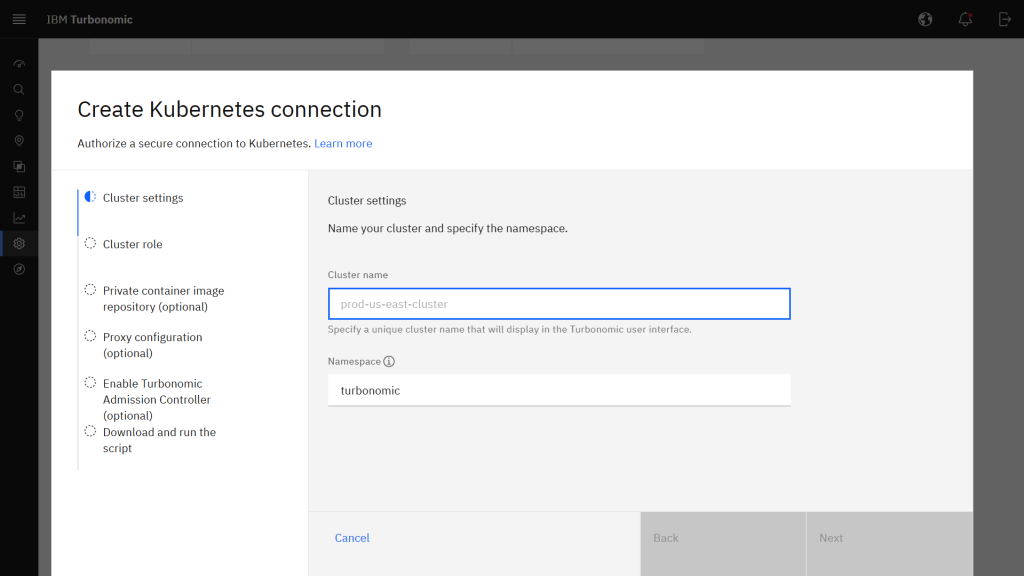
Figure 2. Adding a Kubernetes cluster as a target in IBM Turbonomic.
For detailed configuration options, see the IBM documentation for connecting Kubernetes clusters and connecting Red Hat OpenShift clusters.
Step 2: Add Prometheus as a monitoring target
Connecting Prometheus provides application-aware optimization by incorporating LLM inference performance signals into Turbonomic’s scaling decisions.
- On the Target configuration page, choose Add Target. Locate Observability and choose Prometheus. Choose Connect Target.
- Provide the Prometheus server address, account namespace, and service account name.
- Select the inference services you want Turbonomic to monitor using Prometurbo.
- Download and run the generated script in your cluster to deploy Prometurbo.
- Return to the Turbonomic UI, confirm the host and version details, and choose I ran the script.
The following image (Figure 3) shows Prometheus listed as an Observability target in the Turbonomic target catalog.
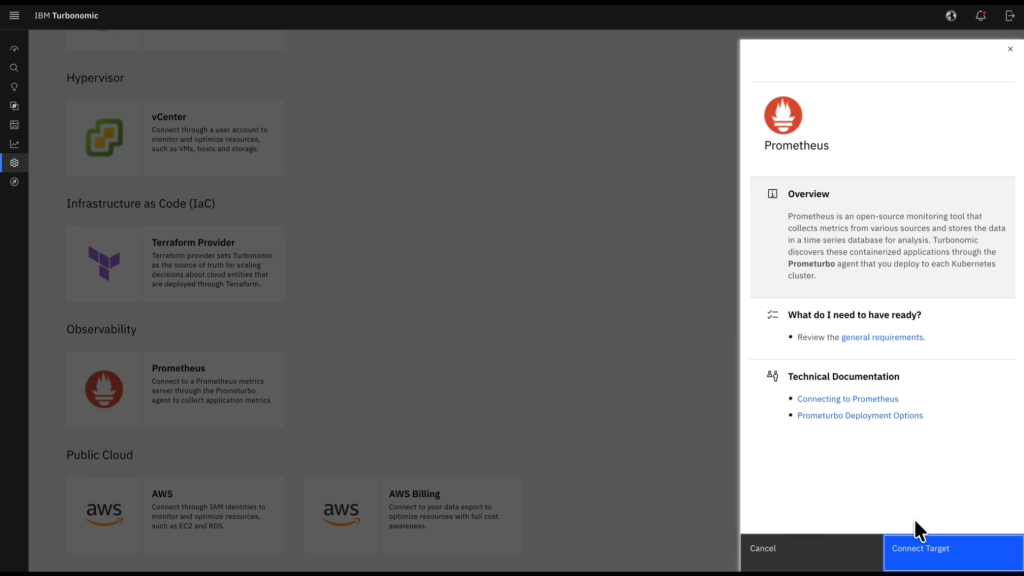
Figure 3. Adding Prometheus as a monitoring target in IBM Turbonomic.
For details, see the IBM documentation for configuring Prometheus targets.
Step 3: Validate discovery and review actions
After both targets are connected, confirm your cluster resources appear correctly and review the optimization actions Turbonomic generates.
Validate resource discovery:
- Open the Supply Chain view on the Turbonomic home page.
- Locate your Amazon EKS or ROSA cluster using the search function.
- Confirm that workloads, pods, containers, GPU-enabled worker nodes, and namespaces appear in the topology.
If GPU resources don’t appear, check target connection status under Settings > Target configuration.
The following image (Figure 4) shows the Turbonomic Supply Chain view displaying your cluster’s resource topology.
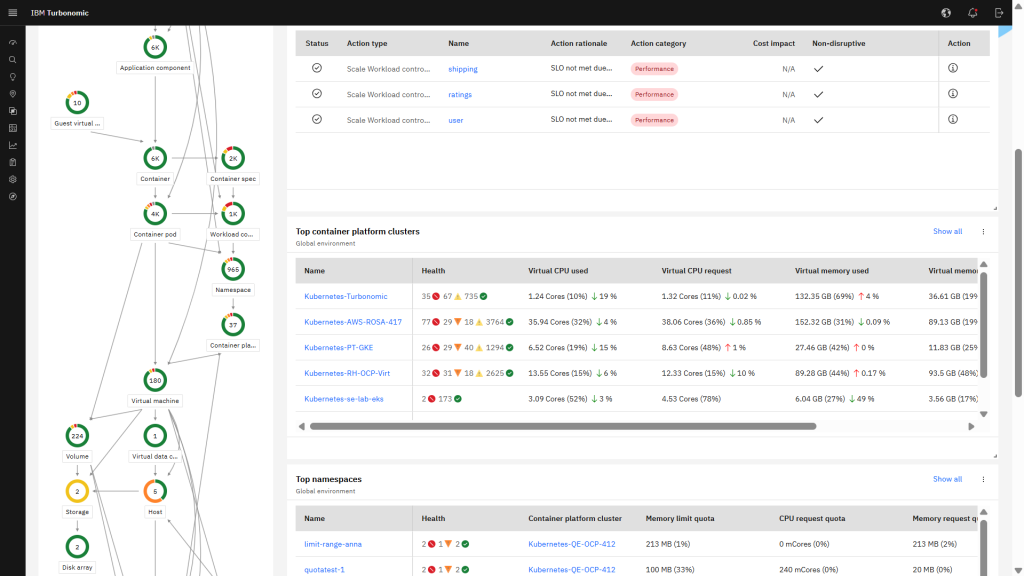
Figure 4. Supply Chain view showing discovered Kubernetes resources.
Review optimization actions:
- Navigate to the Actions view and filter by your cluster or namespace.
- Review generated actions for your GPU-backed workloads. Each action includes the rationale, performance impact, and cost impact.
For GenAI inference workloads, expect actions such as:
- Scale Workload Controller: Increase or decrease inference replicas based on response time or request queuing signals.
- Move Container Pod: Redistribute workloads across GPU nodes to improve utilization.
- Resize Container: Adjust CPU and memory allocations to right-size containers.
Step 4: Enable automation (optional)
By default, Turbonomic displays actions as recommendations. You can configure automation policies to execute approved action types automatically.
- Navigate to Settings > Policies > Automation policies.
- Review automation modes for relevant action types: container resizing, workload scaling, and pod placement.
- Choose the mode that fits your operational requirements: Manual, Recommend, or Automatic.
- Review utilization and scaling constraints to confirm automated actions align with your operational boundaries.
The following image (Figure 5) shows the Turbonomic automation policy creation interface with action type selectors, automation mode options, and scaling constraint fields.
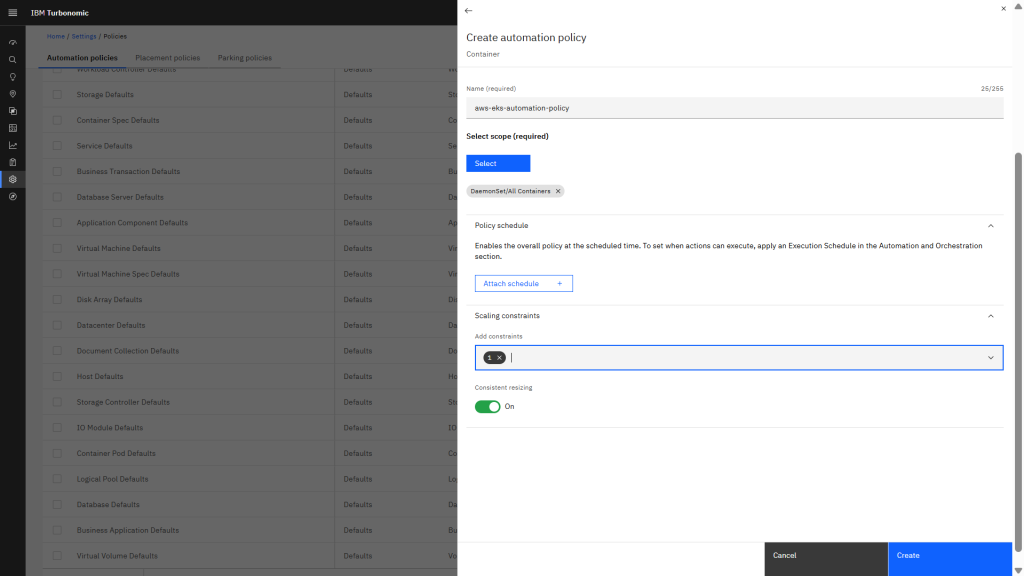
Figure 5. Turbonomic automation policy configuration.
Using NVIDIA MIG with Turbonomic
NVIDIA MIG partitions a single physical GPU into isolated instances with dedicated compute, memory, and cache. IBM Turbonomic supports MIG optimization on Amazon EC2 instances with NVIDIA A100, H100, and H200 GPUs (such as P4d, P5, and P5en), configured through the NVIDIA GPU Operator’s MIG Manager. Each partition appears to Kubernetes as a schedulable resource.
IBM Turbonomic discovers MIG partitions and incorporates them into its placement analysis. When GPU utilization and memory indicate a workload can run on a smaller MIG slice, Turbonomic generates placement actions to consolidate. When application SLOs degrade, Turbonomic recommends moving workloads to larger MIG profiles or full GPU resources. Teams configure MIG for hardware isolation while Turbonomic continuously optimizes workload distribution across partitions based on real application demand.
Cleaning up
To avoid ongoing charges after completing this walkthrough, remove the resources created during testing. Follow the steps for your cluster type.
For Amazon EKS:
- Delete test inference workloads:
kubectl delete deployment <inference-workload-name> -n <namespace>
- Delete GPU node groups created for this walkthrough:
eksctl delete nodegroup –cluster <cluster-name> –name <gpu-nodegroup-name>
- If the entire cluster is no longer needed:
eksctl delete cluster –name <cluster-name>
For ROSA:
- Delete test inference workloads:
oc delete deployment <inference-workload-name> -n <namespace>
- Delete GPU machine pools:
rosa delete machinepool –cluster <cluster-name> <machinepool-name>
- If the entire cluster is no longer needed:
rosa delete cluster –cluster <cluster-name>
Remove Turbonomic configuration:
- In IBM Turbonomic, navigate to Settings > Target configuration and delete the Kubernetes or OpenShift target.
- Delete the Prometheus target if you added one for this walkthrough.
- Remove any IAM roles, service accounts, or access credentials created specifically for Turbonomic.
Verify removal: Check the Amazon EC2 console or AWS Cost Explorer to confirm no GPU instances remain running.
Summary
In this post, we showed how to configure IBM Turbonomic to optimize GPU-powered GenAI inference workloads on Amazon EKS and ROSA. Both services provide GPU sharing mechanisms (time-slicing, MIG, and DRA) that support sub-GPU allocation.
Turbonomic adds the continuous, application-aware optimization layer on top, analyzing demand and generating actions (horizontal scaling, container resizing, pod rebalancing, and GPU placement) that maintain SLOs while improving GPU utilization across these sharing configurations.
Get started
To get started, explore IBM Turbonomic on the AWS Marketplace. For more information about running GPU workloads on Amazon EKS, see the Amazon EKS documentation. To learn about GPU scheduling on ROSA, see the ROSA documentation.