Microsoft Workloads on AWS
How to automate your Microsoft Windows Server upgrades using AWS Systems Manager – Update
Introduction
Keeping Microsoft Windows Server current is an ongoing challenge, and two end-of-support (EOS) milestones make it especially pressing. Windows Server 2012 and 2012 R2 reached end of support on October 10, 2023, and Windows Server 2016 extended support ends on January 12, 2027. After these dates, Microsoft no longer provides security updates or patches, which leaves unsupported servers exposed to security and compliance risks.
This blog post focuses on one option to address that challenge: how you can automate an in-place Windows Server upgrade using AWS Systems Manager (SSM) Automation. We will walk you through the prerequisites, supported upgrade paths, and the step-by-step process to upgrade your instances to a supported version of Windows Server with minimal manual effort.
Overview
AWS Systems Manager is one of several options you can use to upgrade your existing instances to the latest version of Windows Server (Figure 1). In this blog post, we will share how to automate a Windows Server in-place upgrade process using AWS Systems Manager (SSM). We released a video that details this option. You can visit our AWS Online Tech Talks channel (and hit Subscribe if you have not already done so) and check out our Navigate the Windows Server end of support challenge with AWS tech talk. We recommend fast forwarding to 34:36 to see the solution in action.
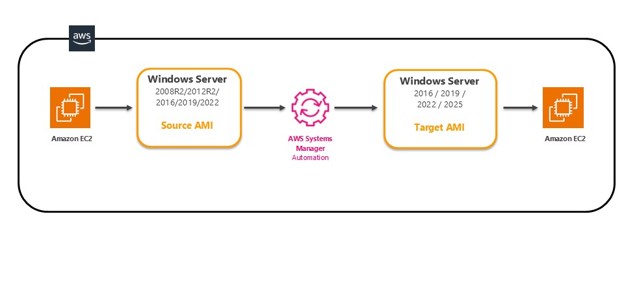
Figure 1. Upgrade process using AWS SSM
Prerequisites
To complete this upgrade, you’ll need to meet the following prerequisites:
- This automation works on Windows Server 2008 R2, 2012 R2, 2016, 2019, 2022.
- Note: For Windows Server 2008 R2, the Amazon Elastic Compute Cloud (Amazon EC2) instance will be upgraded to Windows Server 2012 first and then to Windows Server 2016 or 2019.
- An existing Amazon EC2 instance that needs to be upgraded.
- SSM agent installed and working on the instance you intend to upgrade.
- TLS 1.2 should be enabled for this automation to work on the instance.
- At least 20 GB of free space on the root for the upgrade to succeed.
- If the instance is joined to an existing Active Directory domain, we recommend that you specify a SubnetID that does not have connectivity to Active Directory to avoid hostname conflicts.
- The instance must have an outbound network connectivity to reach the AWS Systems Manager endpoints. If the instance can reach the internet, either through an internet gateway, if it is in a public subnet, or through a NAT gateway if it is in a private subnet, the automation will work. Alternatively, you can use AWS PrivateLink (VPC Endpoints) for SSM to keep traffic private.
- You will also need an AWS Identity and Access Management (IAM) role to allow for the Amazon EC2 instance to communicate with SSM and execute the upgrade process on your behalf. For instructions on how to create the necessary role, please refer to the IAM documentation.
**Please note that although the automation document allows you to upgrade licensed and bring your own license (BYOL) versions of Windows Server, there are some additional steps needed. Details can be found in our documentation.
Limitations
This automation method doesn’t support upgrading Windows domain controllers, clusters, or Windows desktop operating systems. Additionally, it doesn’t support Amazon EC2 instances for Windows Server with the following roles installed:
- Remote Desktop Session Host (RDSH)
- Remote Desktop Connection Broker (RDCB)
- Remote Desktop Virtualization Host (RDVH)
- Remote Desktop Web Access (RDWA)
Supported upgrade paths
The AWS Systems Manager automation runbook AWSEC2-CloneInstanceAndUpgradeWindows supports the following upgrade paths:
- Windows Server 2008 R2 to Windows Server 2016.
- Windows Server 2012 R2 to Windows Server 2016.
- Windows Server 2012 R2 to Windows Server 2019.
- Windows Server 2012 R2 to Windows Server 2022.
- Windows Server 2016 to Windows Server 2019.
- Windows Server 2016 to Windows Server 2022.
- Windows Server 2016 to Windows Server 2025.
- Windows Server 2019 to Windows Server 2022.
- Windows Server 2019 to Windows Server 2025.
- Windows Server 2022 to Windows Server 2025.
Upgrading your Windows Server instance
Let’s detail the steps to complete this upgrade using the automation method. You might want to keep a scratch pad handy to keep track of the various information needed for the automation.
Before we proceed with the OS upgrade, let’s take note of the following items . You will need them later.
- In the AWS Management Console, get the Instance ID of Windows 2012 (Figure 2).
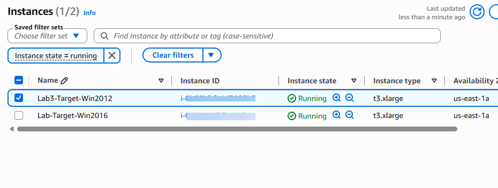
Figure 2. Windows 2012 EC2 instance in AWS Console
- Take note of the public SubnetID by looking at the EC2 instance Networking properties (Figure 3).
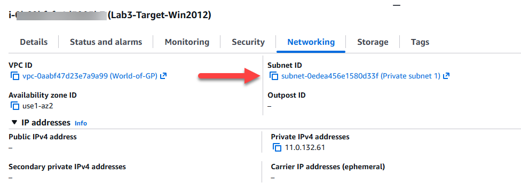
Figure 3. EC2 instance networking properties
- In the AWS Identity IAM console, select the IAM rolethat you created that has access to SSM.
Below (Figure 4) is the Policy name, which you need to attach to the role and which is associated with the instance.
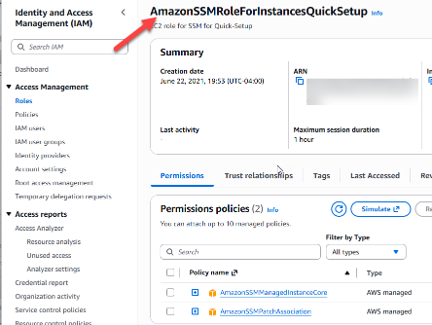
Figure 4. SSM policy in the IAM console
- If you are using a Key Pair to access the instance, this is a perfect time to also capture the password as it will be needed to access the upgraded machine at the end of the session (Figure 5). By selecting Connect using Fleet Manager, and clicking on Get password, it will ask you to provide the private key to decrypt the Administrator password. Save this for later.
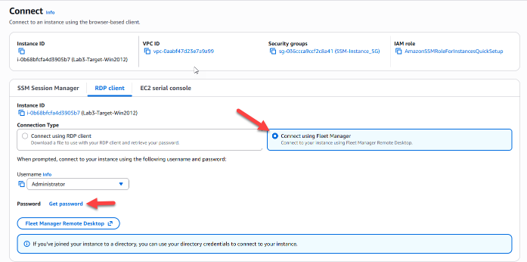
Figure 5. Getting instance password if using Key pair
- Upload the private key and Decrypt password (Figure 6). The next screen (Figure 7), the password will be decrypted in clear text.
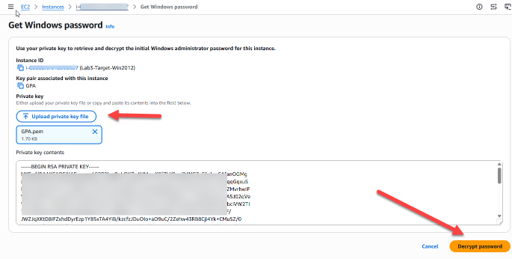
Figure 6. Decrypt the password
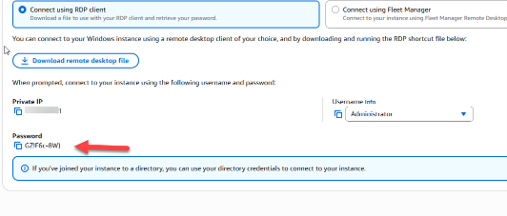
Figure 7 . Location of password
- Now, let’s RDP into Windows 2012 instance. I have used Fleet Manager Remote Desktop feature in Systems Manager to connect to my instance securely. As you can see in the screenshot in Figure 5, the Windows 2012R2 machine has several applications loaded on the desktop and installed on the system. Ensure that your instance has at least 20GB of free disk space. You can always expand the EBS Volume, by using the console, and then use the msc tool on Windows to expand it.
In the meantime we will use this instance as a reference to review if the upgrade completed successfully.
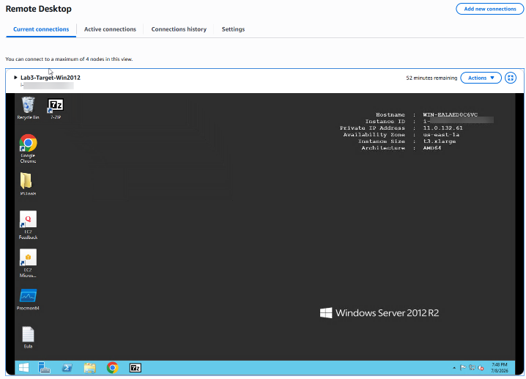
Figure 8. Windows 2012 in RDP session
We are ready to upgrade Windows Server 2012 R2.
- Open the AWS Systems Manager console and select Automation (Figure 9), which is found under the Change Management
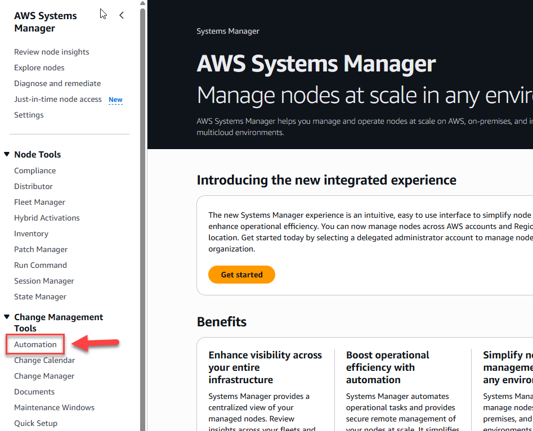
Figure 9. AWS Systems Manager automation in AWS Console
- Select Execute runbook (Figure 10)
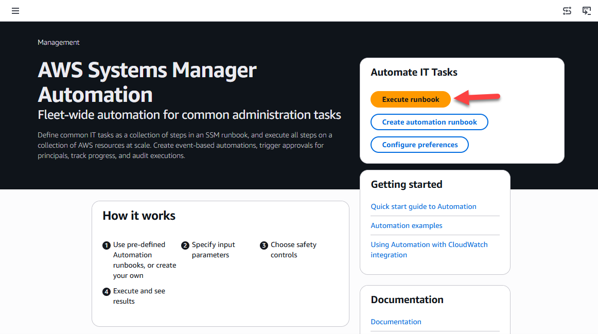
Figure 10. Executing the automation in AWS Console
- In the Search field (Figure 11), type “clone” to create a filter. A set of automation documents will appear. Select the document named AWSEC2-CloneInstanceAndUpgradeWindows.
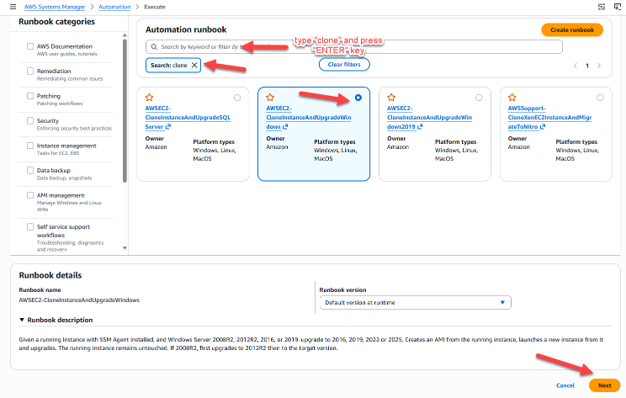
Figure 11. Automation document in AWS Console
- Once you have loaded the document, review the various options. In this example we will just look for our instance by using the “Show managed instances” (Figure 12)
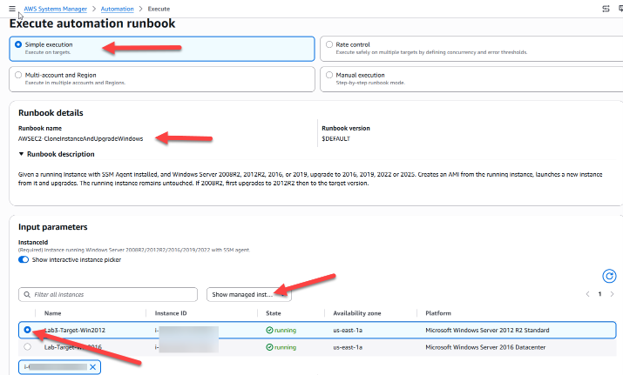
Figure 12 Running the automation in AWS Console
- On the next screen (Figure 13), pick the instance to upgrade. If you have a meaningful name for the instance, use that. If not, input the InstanceID you provided previously.
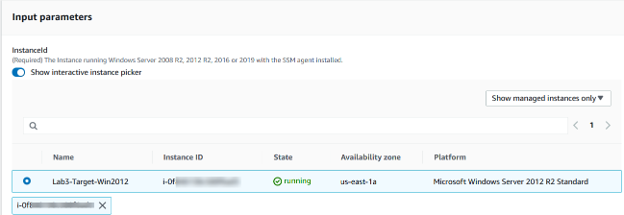
Figure 13. Select the EC2 instance in the AWS Systems Manager console
- Complete the sections highlighted (Figure 14), and input the information you collected previously:
- IamInstanceProfile
- SubnetId
- TargetWindowVersion
- KeepPreUpgradeImageBackup (optional)
- If the instance you are trying to upgrade is using the BYOL option, the field“BYOLWindowsMediaSnapshotid” needs to be filled with the Snapshot ID of your EBS volume of the Windows Server 2012R2 installation media. When you complete this section, go to the bottom of the page, and select Execute.
Please Note: Windows 2012R2 can only be upgraded to Windows server 2022 directly
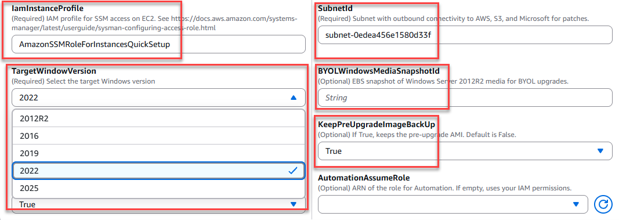
Figure 14. Provide the upgrade parameters
- At this point, if you have selected the correct options, you should see theExecution detail page, as shown (Figure 15). Please note that the entire process might take over two hours to complete. For Windows Server 2008 R2, the automation will first upgrade the instance to Windows Server 2012R2, followed by the target version of Windows Server you selected.
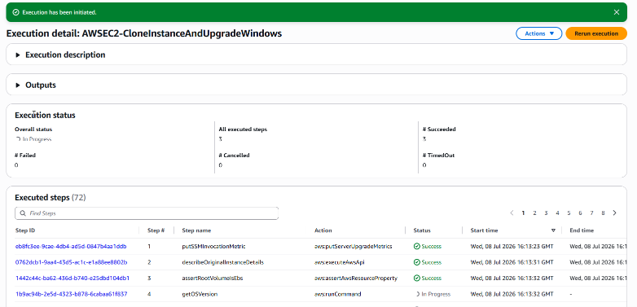
Figure 15. Execution detail in Systems Manager
- Now that the image creation is complete, let’s go to the Amazon EC2 console (Figure 16).
On the left pane, under Images, select AMI. Then make sure that you are selecting the AMIs that are Owned by me. You might have a few AMIs in the list. Look for the Creation date when you launched the automation upgrade.
Another clue is to search using the attribute AMI name : upgraded. Once you have found your AMI, select Launch instance from AMI.
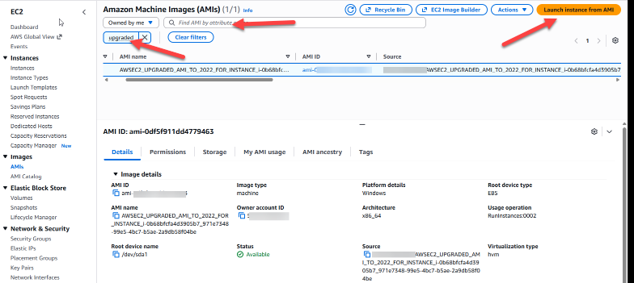
Figure 16. AMI in EC2 console
- TheLaunch an Instance screen will open. Select the instance type you want to launch. This is an opportunity for you to right size your instance based on usage metrics. Remember that to access the upgraded instance you will need to use the password captured at the beginning from the Windows 2012R2 system. Once you have selected the Instance Type, Key pair (optional), Network Settings, Security Group, and under Advanced Details, the IAM instance profile, you should be ready to launch the instance. If all the required parameters have been addressed, once you click on Launch instance, you should see the following screen (Figure 17).
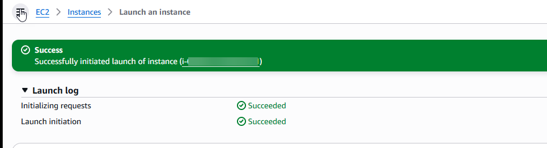
Figure 17. Successfully Initiated the launch of the new instance
- Validate that the new upgraded instance is accessible, and connect (Figure 18) via remote desktop protocol (RDP) by using the original password we copied earlier in the process, or use the Key Pair.In the Amazon EC2 console, choose the newly upgraded instance and select Connect.
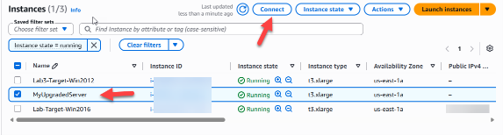
Figure 18. Connect to upgraded EC2 instance in AWS Console
- In the Connect window (Figure 19), select RDP and you can use the password captured earlier on. Please be aware that it takes a couple of minutes for the instance to register into Systems Manager. To connect to the instance you will need the password (Figure 20) that was encrypted on the original machine. In a later step we will generate a new password, which is optional.
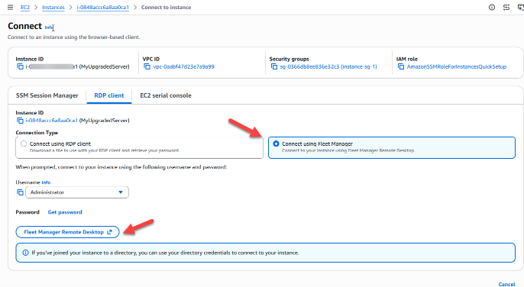
Figure 19. Connect to the upgraded instance with Fleet Manager Remote Desktop
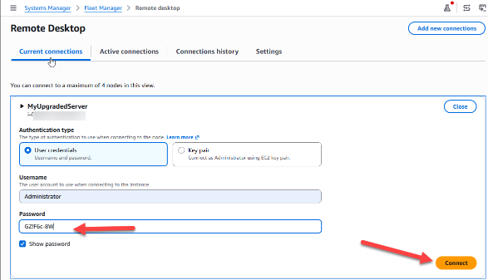
Figure 20. Connecting to RDP
- Once you log in (Figure 21), you should see the applications on the server. In this case, it will be the same applications that were on the Windows 2012 R2 system.
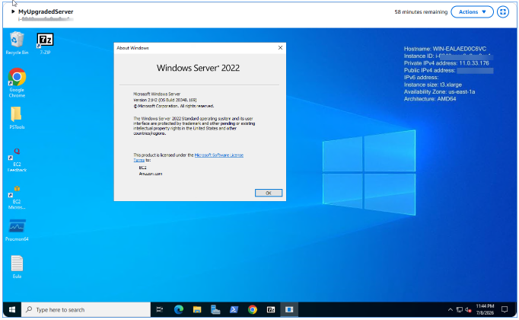
Figure 21. Upgraded instance in RDP
- The last step is to generate a new password, so that we can leverage our Key pair we used when we launched the instance. We will first validate the settings on the upgraded instance by launching the Amazon EC2Launch settings (Figure 22), on the instance. Make sure that Set administrator account and Randon (retrieve from console) is checked.
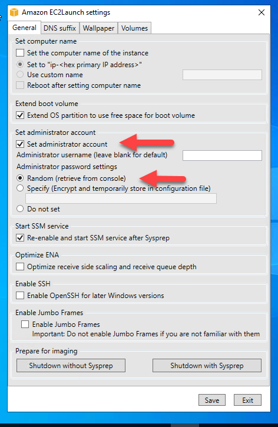
Figure 22. Amazon EC2Lauch settings verify Administrator account
- After confirming, open an elevated PowerShell terminal window (Figure 23) and enter the following command:
& "C:\Program Files\Amazon\EC2Launch\EC2Launch.exe" reset -c
Figure 23. Reset EC2Launch settings
- The last step is to Stop the instance in the EC2 Console, and restart it. From now on you will be able to use the Key pair to decrypt the new password that was generated.
Congratulations, you have automatically upgraded your server from Windows 2012 R2 to Windows 2022!
Please note: Prior to putting the system back into production, you should verify and validate application functionality to ensure there are no compatibility issues.
Cleanup
Since this blog post is a how-to, there are no cleanup steps required. The step-by-step approach shows you exactly how to automate your upgrade.
Conclusion
To get started, explore the following resources: