Microsoft Workloads on AWS
Managing SQL Server Encryption Keys Across AWS Regions for Disaster Recovery
Introduction
This blog post shows you how to back up, replicate, and restore the Microsoft SQL Server encryption key hierarchy across AWS Regions. This approach lets encrypted databases recover successfully during cross-region disaster recovery (DR) events on Amazon Elastic Compute Cloud (Amazon EC2).
Cross-region DR planning for SQL Server on Amazon EC2 focuses on database replication and backup strategies. Encryption key management is critical. Many organizations overlook this aspect until a DR test fails. SQL Server uses a layered encryption hierarchy. Missing any key in the chain causes recovery to fail.
This blog walks through each layer of the hierarchy. You’ll learn how to store and replicate key material across AWS Regions using AWS Secrets Manager and Amazon Simple Storage Service (Amazon S3).
Solution overview
SQL Server uses a layered encryption hierarchy. Each key protects the one below it. Missing any link at any level during DR means encrypted data becomes inaccessible.
Figure 1 shows the cross-region architecture for replicating encryption key material from the primary region to the DR region using Secrets Manager and Amazon S3.
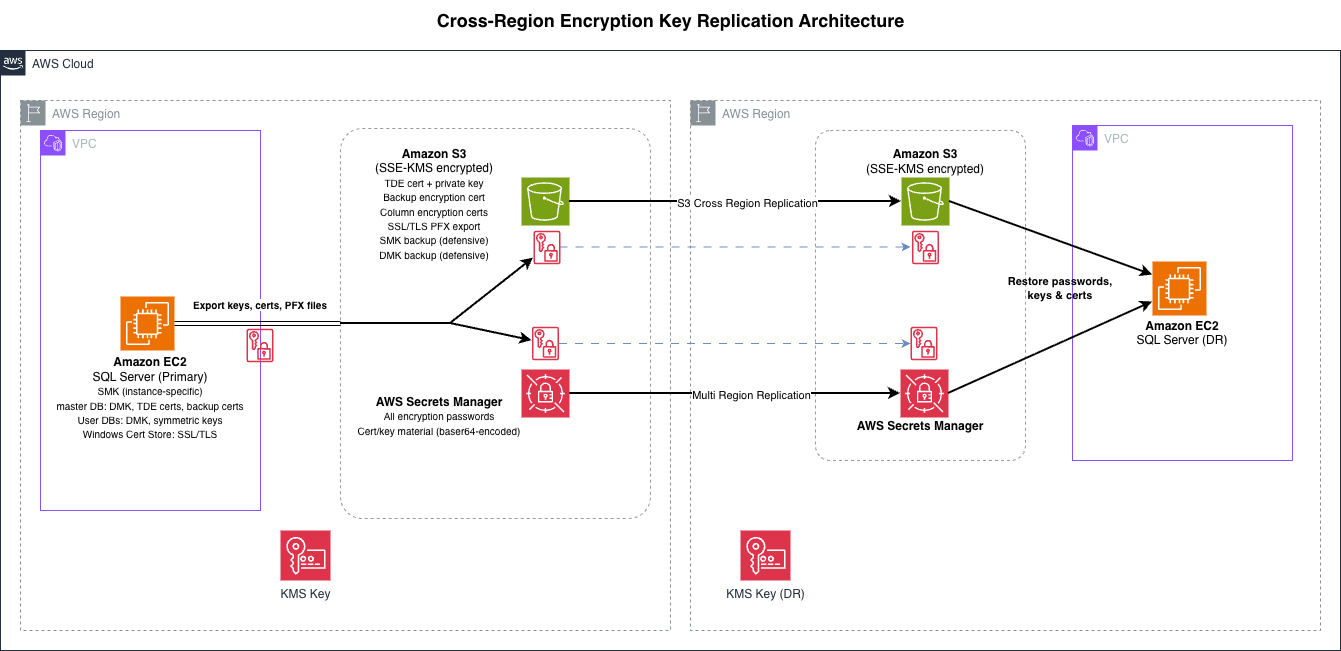
Figure 1 – Cross-region encryption key replication architecture
Prerequisites
To follow the steps in this post, you will need:
- SQL Server 2016 or later Amazon EC2 Windows instances in both Regions
- Two AWS Regions configured (a primary and a DR region)
- An Amazon S3 bucket with cross-region replication (CRR) enabled
- AWS Secrets Manager access in both Regions
- An AWS Key Management Service (AWS KMS) key in the DR Region for server-side encryption
- AWS Command Line Interface (AWS CLI) and AWS Tools for PowerShell installed on the EC2 instances
- An AWS Identity and Access Management (IAM) instance profile attached to the EC2 instances with permissions to access Secrets Manager and Amazon S3 in both Regions (For details see the Secrets Manager and Amazon S3 access control documentation)
This post covers SQL Server’s native encryption hierarchy. If you use Extensible Key Management (EKM) with a third-party provider, your DR steps will differ.
The steps in this post apply when you restore SQL Server data (via backup/restore, log shipping, or Always On availability groups) to a different, pre-existing EC2 instance in the DR Region. If you replicate the entire EC2 instance using AWS Elastic Disaster Recovery (AWS DRS) or cross-region AMI copy, the master database and SMK travel with it and the key chain remains intact.
Walkthrough
The SQL Server Encryption Hierarchy
Figure 2 shows the SQL Server encryption key hierarchy. Each layer protects the one below it, and the walkthrough sections that follow cover each layer and the steps required to restore the chain on a DR instance.
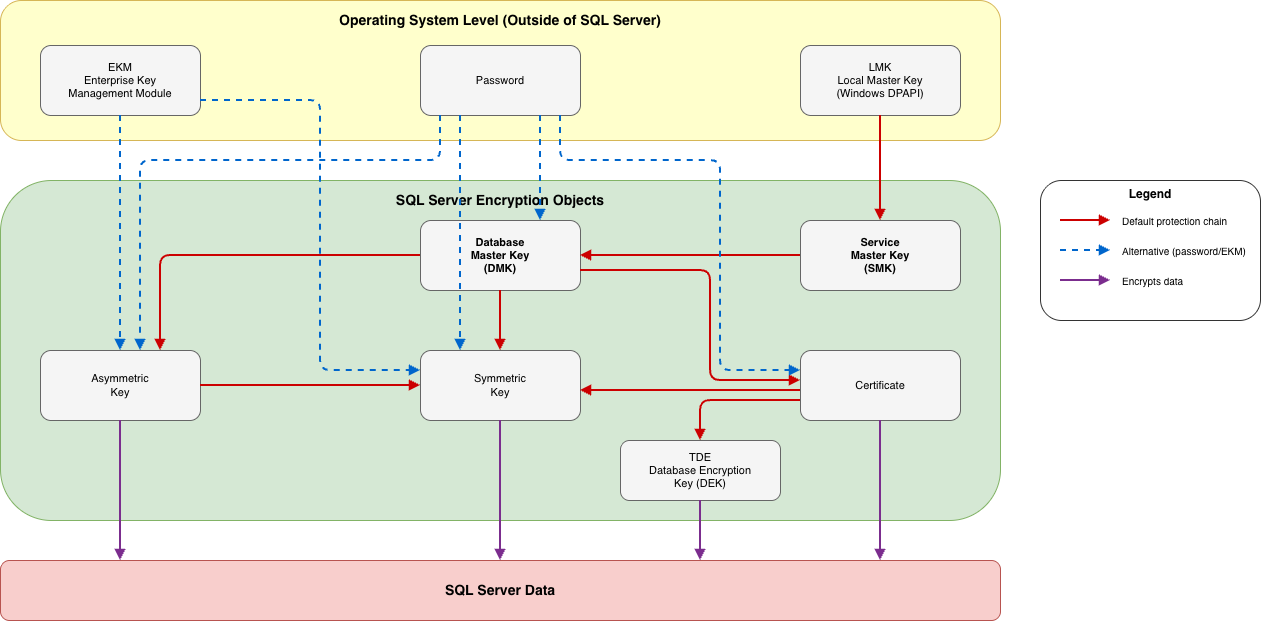
Figure 2 – SQL Server encryption key hierarchy
Separately, SSL/TLS certificates for encrypted connections live in the Windows Certificate Store, outside of this internal hierarchy.
The following examples show how different SQL Server encryption features traverse this hierarchy, and what that means for DR.
How Transparent Data Encryption uses the hierarchy: SMK → DMK (in master) → TDE certificate (in master) → Database Encryption Key (in user database). The certificate and its private key are the mandatory DR items. Export them, recreate them on the DR instance’s master, and the restored database’s DEK is accessible.
How encrypted backups with certificates use the hierarchy: SMK → DMK (in master) → backup certificate (in master) → backup media encryption. This follows the same path as TDE. Export the backup certificate and private key, recreate on the DR instance, and you can restore the encrypted backup.
How column-level encryption uses the hierarchy: SMK → DMK (in user database) → symmetric key (in user database) → column data. This is the scenario where DMK re-encryption matters. After restoring the database to a DR instance, the new SMK cannot open the user database’s DMK. You must re-encrypt the DMK using its password to restore auto-open and make the symmetric keys accessible.
Service Master Key and Database Master Key
SQL Server generates the SMK automatically during installation and is unique to each instance. SQL Server creates one DMK per database and DMK is encrypted by the SMK, enabling SQL Server to open the DMK automatically without a password (auto-open).
In a cross-region DR scenario, you restore databases to a different SQL Server instance that has its own SMK. This means:
- The DR instance’s master database already has a functioning DMK. You don’t restore the primary instance’s master database DMK. Instead, you recreate TDE certificates from exported .cer/.pvk files (covered in the next section), and they are protected by the DR instance’s own DMK automatically.
- User databases restored to the DR instance retain their original DMK, but the new SMK cannot open it. If a user database has column-level encryption keys protected by its DMK, you must re-encrypt the DMK with the new instance’s SMK (covered in the column-level encryption section).
Same-instance recovery backups
Backing up the SMK and DMK to files is a best practice for same-instance recovery scenarios (for example, SMK corruption or accidental regeneration), but these backup files are not used during cross-region DR to a different instance. The DR instance has its own SMK, and the DMK re-encryption step uses the password, not a backup file.
-- Back up the Service Master Key (same-instance recovery)
BACKUP SERVICE MASTER KEY TO FILE = 'D:\Backup\SMK.bak'
ENCRYPTION BY PASSWORD = '<strong_password>';

-- Back up the Database Master Key (same-instance recovery, run per database)
USE [MyDatabase];
BACKUP MASTER KEY TO FILE = 'D:\Backup\DMK_MyDatabase.bak'
ENCRYPTION BY PASSWORD = '<strong_password>';
TDE certificates
Transparent Data Encryption (TDE) uses a Database Encryption Key (DEK) that is protected by a certificate in the master database. Without this certificate and its private key on the DR instance, you cannot attach or restore a TDE-encrypted database.
-- Export the TDE certificate and private key
BACKUP CERTIFICATE MyTDECert
TO FILE = 'D:\Certs\MyTDECert.cer'
WITH PRIVATE KEY (
    FILE = 'D:\Certs\MyTDECert_key.pvk',
    ENCRYPTION BY PASSWORD = '<strong_password>'
);
On the DR instance, restore the certificate before restoring the database:
-- Import the TDE certificate and private key
CREATE CERTIFICATE MyTDECert
FROM FILE = 'D:\Certs\MyTDECert.cer'
WITH PRIVATE KEY (
    FILE = 'D:\Certs\MyTDECert_key.pvk',
    DECRYPTION BY PASSWORD = '<strong_password>'
);
Column-level encryption keys
Symmetric and asymmetric keys used for column-level encryption are stored inside the database. Their DR behavior depends on what protects them:
- Protected by the DMK: No key export needed, the keys travel inside the database. Store the DMK password in Secrets Manager.
- Protected by a certificate: That certificate must be backed up and restored on the DR instance, just like a TDE certificate.
- Protected by a password: No extra DR steps, store the passwords in AWS Secret Manager.
Protected by the DMK
When symmetric or asymmetric keys are protected by the database’s DMK, they travel inside the database during backup/restore or AG replication. You don’t need a separate key export on the primary. However, after restoring the database to the DR instance, the new SMK cannot open the DMK, so you must re-encrypt it.
On the primary, store the DMK password in AWS Secrets Manager with multi-region replication.
On the DR instance, re-encrypt the DMK with the new instance’s SMK:
--Re-encrypt the DMK with the new instance’s SMK
USE [MyDatabase];
OPEN MASTER KEY DECRYPTION BY PASSWORD = '<strong_password>';
ALTER MASTER KEY ADD ENCRYPTION BY SERVICE MASTER KEY;
CLOSE MASTER KEY;
If this step is skipped, any certificate, symmetric key, or asymmetric key protected by that database’s DMK will be inaccessible.
Protected by a certificate
When a certificate protects symmetric or asymmetric keys, you must export that certificate from the primary instance and restore it on the DR instance before applications can access the keys.
On the primary, back up the certificate and its private key:
--Export certificate and the private key
BACKUP CERTIFICATE MyColumnEncCert
TO FILE = 'D:\Backup\MyColumnEncCert.cer'
WITH PRIVATE KEY (
    FILE = 'D:\Backup\MyColumnEncCert_key.pvk',
    ENCRYPTION BY PASSWORD = '<strong_password>'
);
On the DR instance, restore the certificate before accessing the encrypted columns:
--Import the certificate and the private key
CREATE CERTIFICATE MyColumnEncCert
FROM FILE = 'D:\Backup\MyColumnEncCert.cer'
WITH PRIVATE KEY (
    FILE = 'D:\Backup\MyColumnEncCert_key.pvk',
    DECRYPTION BY PASSWORD = '<strong_password>'
);
SSL/TLS certificates for encrypted connections
SQL Server can use an SSL/TLS certificate to encrypt client connections. These certificates live in the Windows Certificate Store on the EC2 instance, not inside SQL Server.
# Export the SSL certificate with private key
$password = Read-Host -Prompt "Enter password for SSL certificate export" -AsSecureString
$cert = Get-ChildItem -Path Cert:\LocalMachine\My |
    Where-Object { $_.Subject -like "*sql-primary*" }

Export-PfxCertificate -Cert $cert `
    -FilePath "D:\Backup\SQLServerSSL.pfx" `
    -Password $password
On the DR instance:
# Import the certificate
$password = Read-Host -Prompt "Enter password for SSL certificate import" -AsSecureString
Import-PfxCertificate -FilePath "D:\Restore\SQLServerSSL.pfx" `
    -CertStoreLocation Cert:\LocalMachine\My `
    -Password $password

# Grant the SQL Server service account read access to the private key
# This is required — SQL Server will fail to start with the certificate otherwise
# Use certlm.msc, right-click the certificate, select All Tasks > Manage Private Keys,
# and grant Read permission to the SQL Server service account
Alternatively, use AWS Certificate Manager (AWS Private CA) or an internal CA to issue a new certificate on the DR instance, avoiding private key transfer across Regions.
Storing and replicating key material across regions
All key backups, certificate exports, and PFX files need to be available in the DR Region before an incident. Use Amazon S3 as the primary store for certificate and key files, and Secrets Manager for passwords and metadata.
AWS Secrets Manager with multi-region replication
Secrets Manager supports native multi-region secret replication. Secrets replicate automatically and are accessible using the same secret name in the DR Region. Secrets Manager is the natural home for passwords and small metadata. It has a 65KB size limit per secret. You can also store base64-encoded certificate files here as a convenience copy, but S3 is the primary store for binary files.
Certificate and key files are stored primarily in S3 as shown in the following section. If you also want to store a secondary copy in Secrets Manager for automation or programmatic access, base64-encode the files and store them as a JSON secret. The following example stores a TDE certificate and its private key:
# Base64-encode and store TDE cert in Secrets Manager
$cert = [Convert]::ToBase64String([IO.File]::ReadAllBytes("D:\Certs\MyTDECert.cer"))
$key  = [Convert]::ToBase64String([IO.File]::ReadAllBytes("D:\Certs\MyTDECert_key.pvk"))
$secret = @{ certificate=$cert; privateKey=$key; password="<strong_password>" } | ConvertTo-Json

# Write JSON to a temp file to preserve quotes when passing to the AWS CLI
$tempFile = [IO.Path]::GetTempFileName()
[IO.File]::WriteAllText($tempFile, $secret)

aws secretsmanager create-secret --name "sqlserver/tde/MyTDECert" `
    --secret-string "file://$tempFile" --region us-east-1

Remove-Item $tempFile

# Replicate to DR region
aws secretsmanager replicate-secret-to-regions `
    --secret-id "sqlserver/tde/MyTDECert" `
    --add-replica-regions Region=us-west-2,KmsKeyId=<dr-region-kms-key-arn> `
    --region us-east-1
Use the same pattern for other certificate and key files if you want to store secondary copies in Secrets Manager.
Amazon S3 with cross-region replication
Amazon S3 stores certificate and key files natively without encoding. S3 is a data plane service for GET and PUT operations, meaning it is designed to remain accessible even during control plane disruptions. S3 with server-side encryption with AWS KMS (SSE-KMS) and CRR provides a resilient primary storage path for certificate files, private keys, and PFX exports.
Write-S3Object -BucketName my-sql-certs-primary `
    -File "D:\Certs\MyTDECert.cer" `
    -Key "tde-certs/MyTDECert.cer" `
    -ServerSideEncryption "aws:kms" `
    -ServerSideEncryptionKeyManagementServiceKeyId "arn:aws:kms:us-east-1:123456789012:key/my-key-id"
When using S3 CRR with SSE-KMS, the destination bucket must use a KMS key in the destination Region. The source Region KMS key cannot decrypt objects in the DR Region. The S3 replication role also requires kms:Decrypt permission on the source KMS key and kms:Encrypt on the destination KMS key.
For most environments, choose one — S3 for certificate and key files, Secrets Manager for passwords. If your DR requirements justify the additional operational overhead, you can store certificate files in both, but each additional copy increases the surface area you need to secure and audit.
What to store where
| Item | Primary Storage | Replication Method | Notes |
| TDE certificate + private key | S3 (SSE-KMS) | S3 CRR | Convenience copy in Secrets Manager (base64) |
| Column encryption certificates | S3 (SSE-KMS) | S3 CRR | Convenience copy in Secrets Manager (base64) |
| SSL/TLS PFX export | S3 (SSE-KMS) | S3 CRR | Convenience copy in Secrets Manager (base64) |
| All passwords (DMK, cert private keys, PFX) | Secrets Manager | SM multi-region replication | Primary and only store for secrets |
Post-failover validation
Figure 3 shows the order of operations for restoring a TDE-encrypted database on the DR instance.
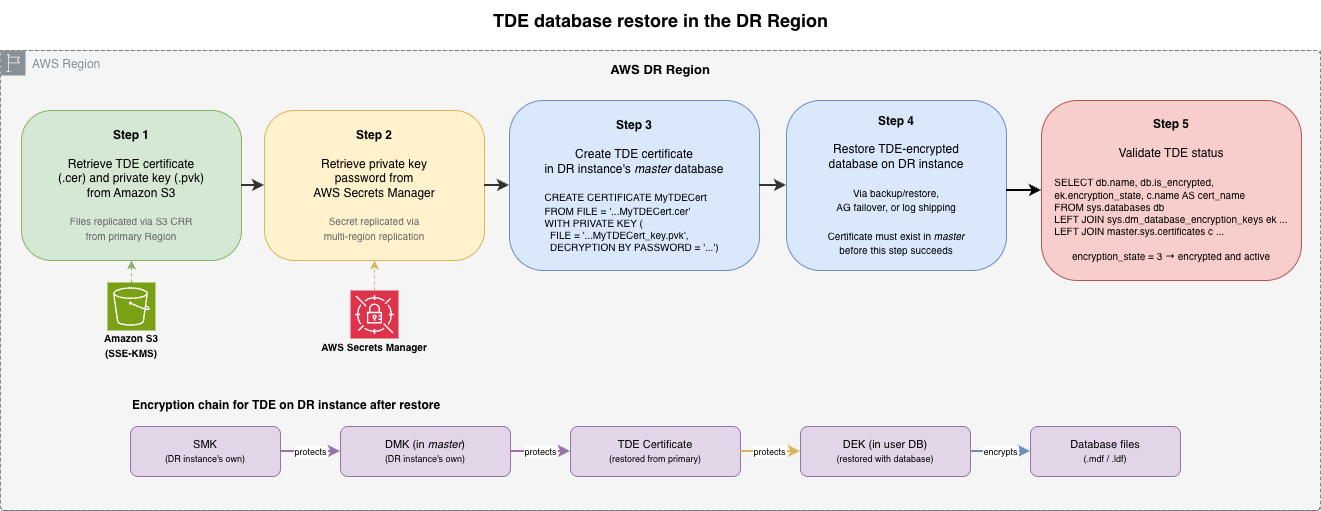
Figure 3 – TDE database restore in the DR Region
After restoring databases on the DR instance, run the following queries to validate each encryption feature covered in this post. Run the queries that apply to your environment:
-- TDE: verify the TDE certificate is linked and encryption is active
SELECT db.name, db.is_encrypted, ek.encryption_state, ek.key_algorithm, c.name AS cert_name
FROM sys.databases db
LEFT JOIN sys.dm_database_encryption_keys ek ON db.database_id = ek.database_id
LEFT JOIN master.sys.certificates c ON ek.encryptor_thumbprint = c.thumbprint;

-- Column-level (DMK-protected): verify DMK is encrypted by the new instance's SMK
USE [MyDatabase];
SELECT k.name, e.crypt_type_desc
FROM sys.symmetric_keys k
JOIN sys.key_encryptions e ON k.symmetric_key_id = e.key_id
WHERE k.name = '##MS_DatabaseMasterKey##';
-- A row with crypt_type_desc = 'ENCRYPTION BY SERVICE MASTER KEY' confirms auto-open is functional

-- Column-level (certificate-protected): verify symmetric key opens and data decrypts
-- DecryptByKey() returns NULL silently if the key is not open or the certificate is missing
OPEN SYMMETRIC KEY MySymKey DECRYPTION BY CERTIFICATE MyColumnEncCert;
SELECT TOP 1 DecryptByKey(EncryptedColumn) FROM dbo.SensitiveTable;
CLOSE SYMMETRIC KEY MySymKey;
Cleanup
To avoid ongoing charges, delete the resources you created in both Regions:
- Delete local certificate and key export files from D:\Backup\ and D:\Certs\ after confirming they are stored in S3 and Secrets Manager.
- Delete the Secrets Manager secrets (and their replicas) created for passwords and certificate storage.
- Delete the S3 objects (certificate files, key backups) from both the primary and replica buckets.
- If you created S3 buckets specifically for this walkthrough, delete the replication rules and then the buckets.
- Delete any KMS keys created for this walkthrough (schedule for deletion; KMS keys have a mandatory waiting period).
- Terminate any EC2 instances launched for testing.
- Delete associated EBS volumes if not set to auto-delete on termination.
Conclusion
The SQL Server encryption hierarchy is a chain. SMK protects DMK, DMK protects certificates, certificates protect DEKs and symmetric keys. A missing link at any level during DR means encrypted data is inaccessible.
Back up each layer of the encryption hierarchy. Store the exports in Secrets Manager and Amazon S3 with cross-region replication. Validate the chain after failover. These steps ensure your encrypted SQL Server databases recover successfully across regions.
To get started, identify which encryption features your SQL Server databases use. Back up the key material using the steps in this post. Run a DR test to validate the full chain.
For a broader view of SQL Server DR strategies on AWS, refer to the Architect a disaster recovery for SQL Server on AWS blog series. For details on the encryption hierarchy itself, see the SQL Server encryption hierarchy documentation.
Additional resources:
- Replicate secrets across regions in the Secrets Manager documentation
- Setting up replication in the Amazon S3 documentation
- AWS Elastic Disaster Recovery for full-instance replication scenarios