AWS Spatial Computing Blog
Embodied AI Blog Series, Part 1: Getting Started with Robot Learning on AWS Batch
We have reached a milestone in technical evolution: the ability to use advanced AI models to influence not only the digital world but also the physical one. We are moving from AI that generates text to AI that moves atoms — augmenting our daily lives by folding clothes, organizing logistics, and reasoning through complex physical tasks. However, successfully integrating technology that interacts with the unstructured, dynamic physical world demands more than just code; it requires repeatability, massive scale, and rigorous study.
The solution lies in robot learning: a shift from classical, model-based control to data-driven paradigms that unlock unprecedented capabilities in autonomous systems. This is a multi-layered lifecycle involving physical and simulated hardware integration, unified teleoperation and control, dataset collection and augmentation, policy training and evaluation, and inference optimization.
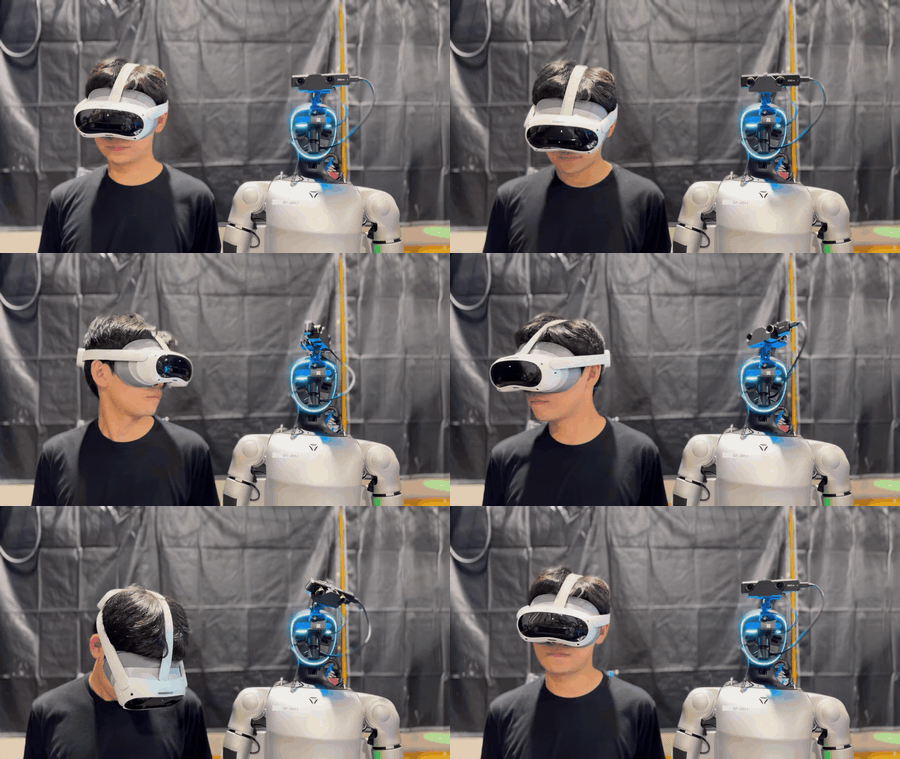
Human operator and robot perform synchronized neck movements through TWIST2’s teleoperation interface, demonstrating the hardware integration, control and data collection process
Over the past two years, the robot learning community has hit an inflection point. Imitation learning frameworks like Diffusion Policy and Action Chunking Transformers (ACT) have proven effective for learning manipulation tasks from demonstrations, while generalist vision-language-action (VLA) models, such as π0 (Pi Zero), NVIDIA Isaac GR00T, and Molmo-Act, are combining visual perception with natural language understanding to generalize across tasks and embodiments. Alongside these methodological leaps, World modeling approaches like NVIDIA Cosmos Predict allow robots to simulate and predict future states before acting, and reinforcement learning methods like HIL-SERL combine human feedback with RL to achieve sample-efficient learning or model task reward given the current state. Crucially, open-source projects like LeRobot from Hugging Face are democratizing this stack, providing the standardized dataset, training pipelines and evaluation benchmark needed to contribute to these developments.
NVIDIA Isaac GR00T distinguishes itself as a general-purpose foundation model for robot learning. It is open-source, enabling developers to pre-train or fine-tune it on their own data. In particular, GR00T N1.5 3B was trained on a vast “data pyramid” of real-world demonstrations, synthetic data from Isaac Lab, and internet-scale video. It offers strong generalization capabilities across different tasks and embodiments. By fine-tuning GR00T N1.5, teams can leverage this pre-trained knowledge to achieve high performance with significantly fewer demonstrations — reducing training time from months to hours — while maintaining the flexibility to deploy on either edge or cloud. For commercial use of pre-trained GR00T based models, please refer to the latest licensing requirements from NVIDIA.

GR00T N1.5 model fine tuned on less than 60 demonstrations with simulatedSO-ARM101 showcases vision-guided manipulation in the leisaac kitchen scene, successfully grasping and placing oranges into a bowl with smooth movements and fault tolerance
In part 1 of this blog series, we will demonstrate how to build a scalable infrastructure to easily fine-tune Isaac GR00T N1.5 3B on AWS. By combining the elasticity of the cloud with NVIDIA’s advanced robot learning stack, you can accelerate your development cycle — rapidly iterating on policies, managing large-scale datasets, and validating performance in high-fidelity simulation.
Solution Overview
The following architecture diagram shows what you will deploy — a scalable, end-to-end VLA fine-tuning pipeline within a secure Amazon VPC. The workflow begins with raw datasets and base model stored in Amazon S3, HuggingFace or local storage. To ensure consistency, AWS CodeBuild compiles the training environment, encapsulating NVIDIA Isaac GR00T dependencies into a Docker image and stores it in Amazon ECR.
When a fine-tuning job is submitted, AWS Batch dynamically provisions cost-effective Amazon EC2 instances with GPU, pulling the container and executing the training workload. These instances mount a shared Amazon Elastic File System (Amazon EFS) volume to persist model checkpoints and logs in real-time.
Parallel to training, an Amazon DCV-enabled EC2 instance runs NVIDIA Isaac Lab for simulation and evaluation. By mounting the same EFS volume, this instance enables immediate visualization of training metrics (via TensorBoard) and policy evaluation using the latest checkpoints, creating a seamless feedback loop.
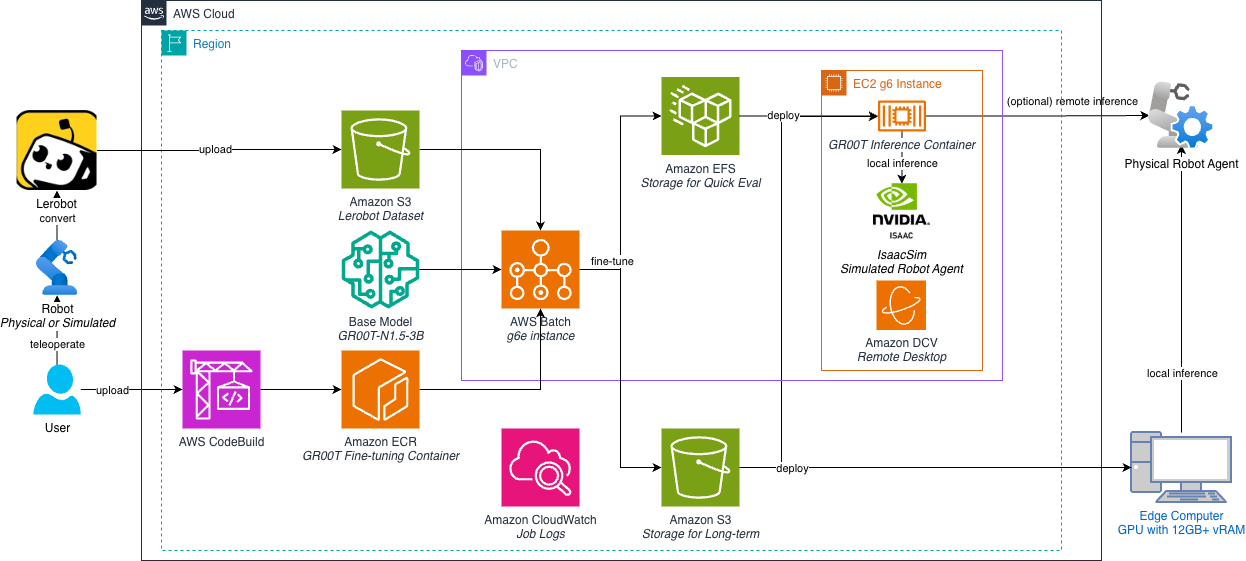
Let’s look at the steps to deploy this fine-tuning pipeline, then train and evaluate the fine-tuned policy in simulation.
Prerequisites
In this post, you will use AWS CDK (AWS Cloud Development Kit, a framework for defining cloud infrastructure using familiar programming languages) to deploy the AWS Batch resources.
- Install AWS CDK
npm install -g aws-cdk - Clone the repo
git clone https://github.com/aws-samples/sample-embodied-ai-platform.git cd sample-embodied-ai-platform - Install Python dependencies for the CDK app:
cd training/gr00t/infra pip install -r requirements.txt - Bootstrap CDK (can be skipped if you have already done so for this account/region)
Note: Replace
YOUR_AWS_PROFILEandYOUR_AWS_REGIONwith your credentials profile and target region.cdk bootstrap --profile YOUR_AWS_PROFILE --region YOUR_AWS_REGION
1. Review the Lerobot dataset for imitation learning
A dataset collected from teleoperating a simulated SO-ARM101 to pick up an orange and place it on a plate is provided in the repo. You can download and review the provided simulation dataset with Git LFS.
To install Git LFS, check out this website for instructions.
git lfs pull
The sample dataset will be available in the training/sample_dataset directory.
Alternatively, if you have another Lerobot compatible dataset, you can review it with the Lerobot dataset visualizer. Make sure the dataset has the modality.json file in the meta folder for a custom embodiment. Refer to the Isaac GR00T finetuning documentation for more details about the requirement for modality.json.
With the provided training script, when the
modality.jsonfile is missing in your dataset, the SO-ARM with dual-camera setup will be automatically applied.
2. Set up the fine-tuning pipeline
By default, the following steps assume the use of the us-west-2 region for fine-tuning but any region with G6e, P4d or P5 instance family is supported.
In this section, you will create a reusable pipeline to fine-tune GR00T using AWS Batch on EC2, so future fine-tuning runs on new datasets or models are as simple as submitting a new job with different environment variables.
While an one-off training job is easy to start in a Jupyter notebook (e.g., using Amazon SageMaker CodeEditor/JupyterLab and follow the Hugging Face Lerobot × NVIDIA guide), machine learning engineering teams often demand reliable, repeatable and cost efficient pipelines due to frequent dataset or model updates. Training physical AI models also commonly involves simulations with a multi-container setup. AWS Batch provides a secure, scalable, structured way to do this.
Ensure you have enough quota to launch a g6e.2xlarge (or larger) instance. You may request more compute resources (we recommend at least 8 vCPUs for “Running On-Demand G and VT instances”) in your chosen region (e.g., us-west-2) via the AWS Service Quotas console.
Deploy the AWS CDK Stacks
AWS CDK stacks are provided in the repo to help you get started quickly. The stacks will automatically create necessary resources for the fine-tuning pipeline as listed in the table below:
| Resource | Name | Purpose |
|---|---|---|
| VPC | BatchVPC |
Isolated virtual network with public/private subnets and NAT gateway |
| Security Group | BatchEFSSecurityGroup |
Security group allowing NFS traffic between Batch instances and EFS |
| Elastic File System | BatchEFS |
Shared storage for model checkpoints and training logs |
| (Optional) S3 Bucket | IsaacGr00tCheckpointBucket |
S3 bucket for storing the fine-tuning model checkpoints |
| (Optional) CodeBuild | Gr00tContainerBuild |
AWS CodeBuild project to build and push the fine-tuning Docker image to ECR |
| Elastic Container Registry | gr00t-finetune |
Container registry for the fine-tuning Docker image |
| EC2 Launch Template | BatchLaunchTemplate |
EC2 configuration with increased root volume for running large container images |
| Batch Compute Environment | IsaacGr00tComputeEnvironment |
AWS Batch compute environment for GPU instances |
| Batch Job Queue | IsaacGr00tJobQueue |
AWS Batch job queue for submitting and managing fine-tuning jobs |
| Batch Job Definition | IsaacGr00tJobDefinition |
AWS Batch job definition template for container specifications |
| EC2 Instance | DcvInstance |
EC2 instance for visualizing simulation and evaluation of the fine-tuned policy with Amazon DCV |
To deploy the stacks, run the following command (make sure your AWS profile / IAM role allows the creation of the resources above):
# From the root directory of the repo
cd training/gr00t/infra
cdk deploy IsaacGr00tBatchStack IsaacLabDcvStack --profile YOUR_AWS_PROFILE --region YOUR_AWS_REGION
By default, the Batch stack will package the infra folder and upload to AWS CodeBuild, build the container image from the Dockerfile and push it to Amazon ECR. This usually takes 10-20 minutes to complete. If you want to use your existing container image, you can supply a custom ECR image URI as environment variable when deploying the stacks to skip CodeBuild:
ECR_IMAGE_URI=<ECR_IMAGE_URI> cdk deploy IsaacGr00tBatchStack IsaacLabDcvStack
Other Deployment Paths
Multiple paths are available to set up the infrastructure based on your environment and preferences. In this blog, you will deploy everything automatically with AWS CDK from your local machine. This path is chosen to allow quick setup or programmatic customization. If you’d like to create all resources step-by-step via AWS Console to better understand the configuration of AWS Batch resources and get familiar with AWS console navigation, you can follow the console walkthrough path.
3. Submit and monitor fine-tuning jobs
With the AWS Batch resources in place, you can run fine-tuning jobs repeatably. Now every time you collect / add a new dataset (e.g. for a new embodiment or task), you can simply update the job environment variables and submit a new job to the job queue. AWS Batch will automatically start and stop the compute resources as needed.
To submit a job, you can use the AWS Batch console or the AWS CLI.
- Option A – AWS Batch console: On the left navigation pane, select Jobs and choose Submit new job on the top right. For Name enter
IsaacGr00tFinetuning, for Job definition selectIsaacGr00tJobDefinition, for Job queue selectIsaacGr00tJobQueueand choose Next. You can leave the rest as default and choose Next again and Submit job.
By default, the job will fine-tune GR00T on the sample dataset provided in the repo. If you want to fine-tune on a specific dataset, you can update the Environment variables under Container overrides. For example, you can set
HF_DATASET_IDto fine-tune on a custom Lerobot dataset. See the sample environment variables file for the list of configurable environment variables. - Option B – AWS CLI: Make sure the AWS CLI is installed and configured with the correct profile and region. Then simply run the following command to submit a job:
aws batch submit-job \
--job-name "IsaacGr00tFinetuning" \
--job-queue "IsaacGr00tJobQueue" \
--job-definition "IsaacGr00tJobDefinition" \
--container-overrides "environment=[{name=HF_DATASET_ID,value=<YOUR_HF_DATASET_ID>}]"
Optionally add the following to override the region with
--region <REGION>, the profile with--profile YOUR_AWS_PROFILEand environment variables with--container-overrides "environment=[{name=HF_DATASET_ID,value=<YOUR_HF_DATASET_ID>}]"
By default, the job fine-tunes GR00T for 6000 steps, saving the model checkpoints every 2000 steps. This usually takes up to 2 hours on a g6e.4xlarge instance. You can change the number of steps and save frequency by overriding the
MAX_STEPSandSAVE_STEPSenvironment variables when submitting the job. If you want to fine-tune the model faster, you can request more GPUs for the job by overriding theGPU - optionalfield and adding theNUM_GPUSenvironment variable with the number of GPUs you want to use. See the GR00T component documentation for more details.
Monitor job progress
You can use the console or CLI to track status and stream logs.
-
- Option A – AWS Batch console
- Go to Jobs, select the
IsaacGr00tJobQueuejob queue and choose Search. You should see the job you submitted in the list and its status. - Click into the job you submitted and select the Logging tab. You should see the logs in real time.
- Go to Jobs, select the
- Option B – AWS CLIProvide the
JOB_ID(e.g. from the abovebatch submit-joboutput) and optionally setREGIONandPROFILEto run the following commands. Check job status:REGION=<REGION> PROFILE=<PROFILE> JOB_ID=<JOB_ID>; aws batch describe-jobs --jobs "$JOB_ID" \ --query 'jobs[0].{status:status,statusReason:statusReason,createdAt:createdAt,startedAt:startedAt,stoppedAt:stoppedAt}' \ --output table --region "$REGION" --profile "$PROFILE"Once the job is in RUNNING status, you can stream logs in real time:
REGION=<REGION> PROFILE=<PROFILE> JOB_ID=<JOB_ID>; aws logs tail /aws/batch/job \
    --log-stream-names "$(aws batch describe-jobs --jobs "$JOB_ID" --query 'jobs[0].container.logStreamName' --output text --region "$REGION" --profile "$PROFILE")" \
    --follow --region "$REGION" --profile "$PROFILE"
- Option A – AWS Batch console
Note: While your job is running, you can also monitor training progress and visualize metrics in real-time using the evaluation environment described in section 4 below. This allows you to track training performance and inspect checkpoints as they become available, rather than waiting for the entire fine-tuning process to complete.
4. Evaluate the fine-tuned policy
You can monitor the training process and evaluate the fine-tuned policy with a simulated and optionally a physical SO-ARM101. You can also visualize the tensorboard logs as the training progresses.
Once checkpoints are available, you will be able to start the GR00T policy server in the DcvInstance and launch IsaacLab to visualize and evaluate the fine-tuned policy in a simulated environment.
When you deployed the CDK stacks in section 2, the Amazon DCV EC2 instance will take a few minutes to initialize and run the user data script. Once logged in to the instance, you can run
sudo cat /var/log/dcv-bootstrap.summaryin the terminal to check the status, if you see 19STEP_OKs andSTEP_OK:EFS mountas the last one, the instance is ready. This stack mounts the same EFS connected to the Batch stack at/mnt/efs, so you can live-inspect tensorboard logs and model checkpoints while jobs run.
- Log into the DCV instance and visualize TensorBoard and inspect checkpointsCheck the output of the deployed
IsaacLabDcvStack(from CLI or CloudFormation console) to get the DCV instance public IP address (DCVWebURL) and credentials (DCVCredentials), then go to the IP address to log in to the DCV session.
Note: There may be a warning of “Your connection is not private” in the browser. You can ignore it and proceed to the next step or use the DCV Client to connect to the instance. If the DCV interface is loaded but you get an error of “no session found”, try again in 10 minutes. See the user data script for troubleshooting and customization options.
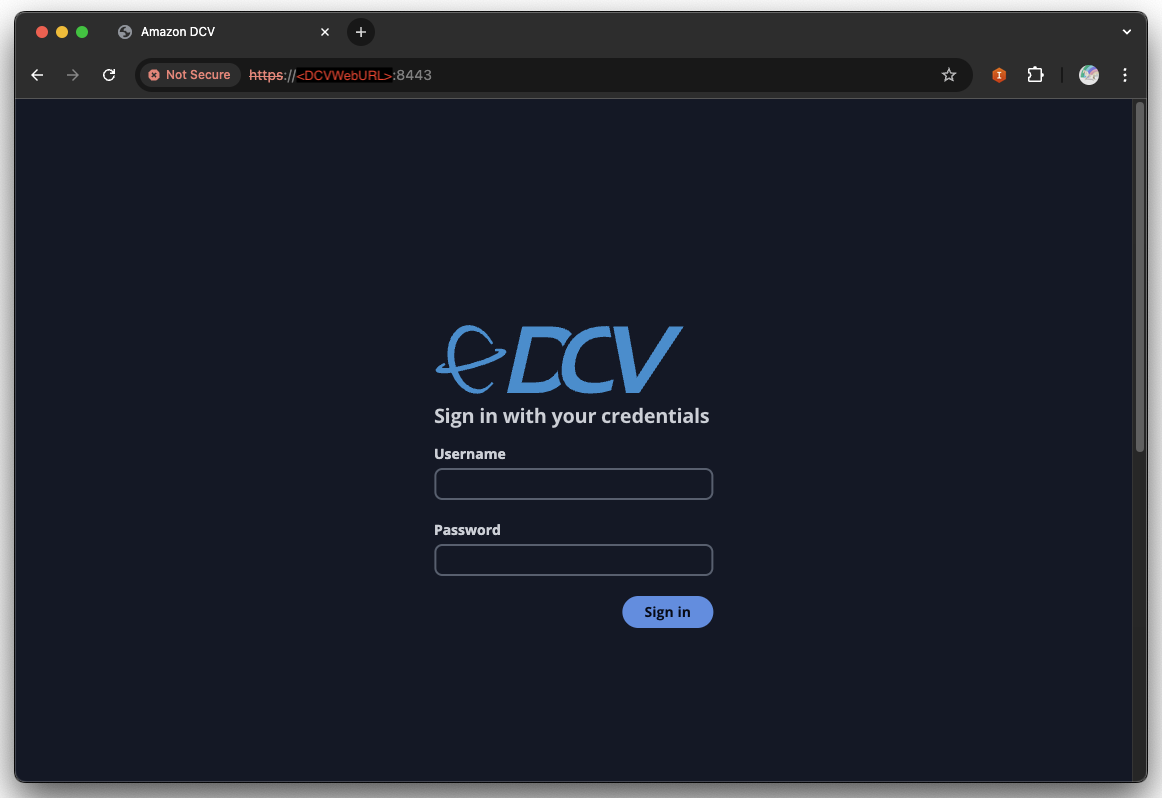
Once logged in, you can open a terminal using
Ctrl + Alt + T(orControl + Option + Ton macOS) and you should have the tensorboard logs in the/mnt/efs/gr00t/checkpoints/runsdirectory.ls -l /mnt/efs/gr00t/checkpoints/runsRun the following command to start the tensorboard server:
# If the conda environment is not activated, run: conda activate isaac
tensorboard --logdir /mnt/efs/gr00t/checkpoints/runs --bind_all
The tensorboard server should be running on port 6006. You can access it either directly in the DCV instance by “Ctrl + clicking” on the auto-generated URL or on any client (e.g. your local laptop browser) by using the
DcvInstancepublic IP address, e.g.http://<DCV_INSTANCE_PUBLIC_IP>:6006.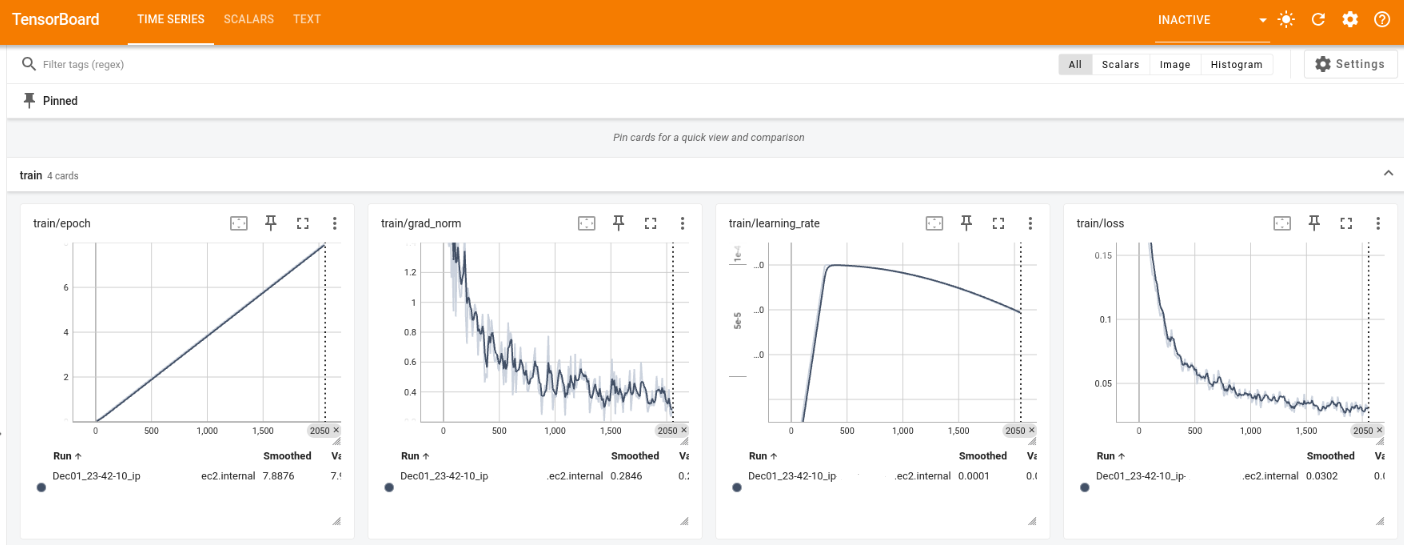
Real-time visualization of GR00T fine-tuning progress showing four key training metrics: epoch progression (left), gradient norm stabilization (center-left), learning rate schedule (center-right), and loss convergence (right).
Once the fine-tuning job is completed, you can inspect the model checkpoints in the
/mnt/efs/gr00t/checkpointsdirectory. - Run the Isaac GR00T container and start the policy serverGo to Amazon Elastic Container Registry console and select the
gr00t-finetunecontainer repository. Click on View push commands on the top right to view the first command to authenticate to ECR. The command should look like:aws ecr get-login-password --region <REGION> | docker login --username AWS --password-stdin <ECR_PREFIX>Get the
<ECR_IMAGE_URI>by copying the URI of the latest image tag (e.g.1234567890.dkr.ecr.us-west-2.amazonaws.com/gr00t-finetune:latest), and run the following command to pull the image and start an interactive shell with EFS mounted as read-only:docker run -it --rm --gpus all --network host -v /mnt/efs:/mnt/efs:ro --entrypoint /bin/bash <ECR_IMAGE_URI>In the container, pick a checkpoint by its
<STEP>(e.g.6000) and start the server:MODEL_STEP=<STEP> # e.g. 6000 MODEL_DIR="/mnt/efs/gr00t/checkpoints/checkpoint-$MODEL_STEP" python scripts/inference_service.py --server \ --model_path "$MODEL_DIR" \ --embodiment_tag new_embodiment \ --data_config so100_dualcam \ --denoising_steps 4You should see the following output when the server is ready:
Server is ready and listening on tcp://0.0.0.0:5555 - Run the leisaac kitchen scene orange picking taskOpen another terminal on the DCV instance and run the following script to launch the leisaac kitchen scene orange picking task. This will connect a simualted SO-ARM101 to the GR00T policy server running in the container:
# If the conda environment is not activated, run: conda activate isaac
cd /home/ubuntu/leisaac
OMNI_KIT_ACCEPT_EULA=YES python scripts/evaluation/policy_inference.py \
    --task=LeIsaac-SO101-PickOrange-v0 \
    --policy_type=gr00tn1.5 \
    --policy_host=localhost \
    --policy_port=5555 \
    --policy_timeout_ms=5000 \
    --policy_action_horizon=16 \
    --policy_language_instruction="Pick up an orange and place it on the plate" \
    --device=cuda \
    --enable_cameras
IsaacSim may take a few minutes to initialize for the first time.
Make sure the inference server is running in the container before running this script. It may take 3 – 5 minutes for the scene to load and show
[INFO]: Completed setting up the environment...in the terminal, which indicates the scene is ready to play. You can ignore the[Warning]messages in yellow and[Error]messages in red. Once the scene is loaded, you should see the simulated SO-ARM101 picking up the orange and placing it on the plate. You can reset and randomize the scene by selecting the IsaacSim application window and pressingr, or stop the simulation by pressingCtrl+Cin the terminal.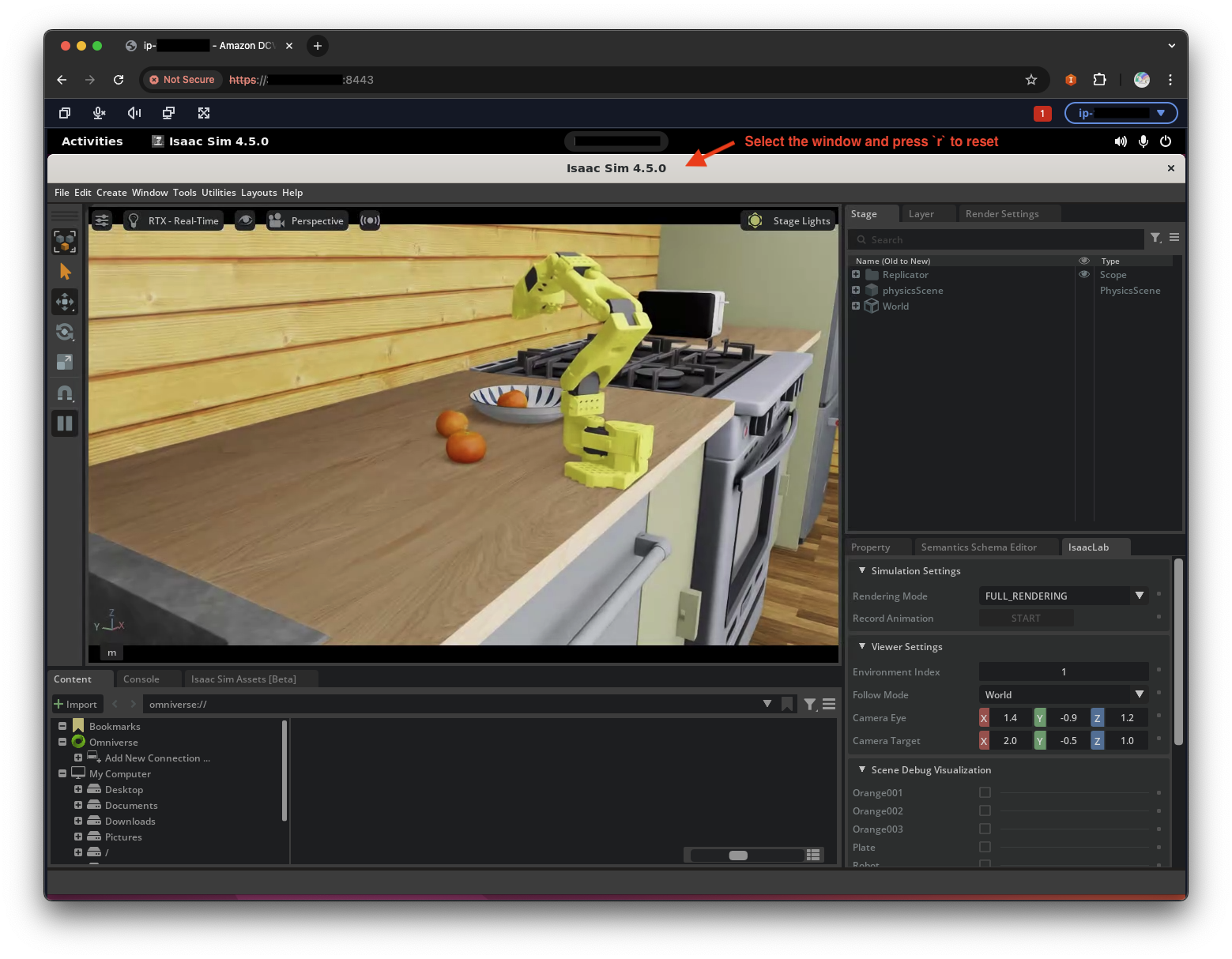
Congratulations! You have successfully fine-tuned GR00T and evaluated the fine-tuned policy in simulation. If you have a physical SO-ARM101 with wrist and front cameras, you can also evaluate policy with a local physical SO-ARM101 by connecting a local client to the remote GR00T policy server. Continue with the following steps:
- Assemble and calibrate SO-ARM101 with dual cameras following the Lerobot guide
- Follow Isaac GR00T official guide to install dependencies on your local machine and run Isaac GR00T example client to control your physical SO-ARM101
If you also have a local GPU machine, you can run both GR00T policy server and example client locally. Refer to the Isaac-GR00T guide for more details.
Clean up
To avoid ongoing charges, tear down the resources you created with cdk destroy command.
# From repo root
cd training/gr00t/infra

# Destroy DCV stack first (terminates EC2 instance and releases EIP)
cdk destroy IsaacLabDcvStack --force

# Destroy Batch stack (removes Batch resources, EFS, VPC if created by CDK)
cdk destroy IsaacGr00tBatchStack --force
Conclusion
In this post, we built a scalable, repeatable robot learning pipeline on AWS using AWS Batch, Amazon ECR, and Amazon EFS, coupled with an interactive evaluation environment powered by Amazon DCV. By automating infrastructure provisioning and container management, you can focus on what matters most: iterating on datasets and policies to solve complex physical tasks.
This architecture provides a solid foundation for scaling robot learning workflows. Whether you are fine-tuning foundational models like NVIDIA Isaac GR00T or training policies from scratch with open-source frameworks like LeRobot, the combination of elastic compute and shared storage enables rapid experimentation and seamless feedback loops between training and simulation.
Useful Resources
- Robotics Fundamentals Learning Path | NVIDIA
- Robot Learning: A Tutorial – a Hugging Face Space by lerobot
- Enhance Robot Learning with Synthetic Trajectory Data Generated by World Foundation Models | NVIDIA Technical Blog
- NVIDIA Isaac GR00T in LeRobot
- Amazon FAR – TWIST2: Scalable, Portable, and Holistic Humanoid Data Collection System
- LightwheelAI/leisaac: LeIsaac provides teleoperation functionality in IsaacLab using the SO101Leader (LeRobot), including data collection, data conversion, and subsequent policy training.