AWS Storage Blog
Gain workload-specific storage insights with Amazon S3 Storage Lens groups
As industries generate and store growing volumes of data, gaining meaningful insights into storage usage becomes increasingly complex. You need to understand your data growth patterns and drivers while optimizing storage investments across different business units and workloads. However, obtaining the necessary visibility by data categories, departments, or applications remains operationally difficult, limiting the ability to achieve effective data management and operational insights.
Amazon S3 Storage Lens provides visibility into storage usage through standard dimensions such as AWS accounts, regions, and buckets. S3 Storage Lens groups extend this by letting you track and analyze Amazon S3 objects using custom attributes such as tags, prefixes, suffixes, object size, and object age, including all prefix patterns. S3 Storage Lens groups transform broad metrics into workload-specific insights for example, application teams monitoring storage metrics for logs with tag-based filters, healthcare providers tracking imaging types with suffix filters, and media firms analyzing assets organized by prefixes.
In this post, we show you how to use S3 Storage Lens groups through two real-world examples. We cover how to identify older application logs that meet specific age and size criteria, and how to pinpoint aging image files across multiple S3 buckets and accounts, giving you the workload specific visibility needed to make informed data management decisions. These examples reflect common operational challenges faced by application teams and media storage teams alike.
Prerequisites
Before you begin, make sure you have the following in place:
- An active AWS account with access to S3 and an existing S3 Storage Lens dashboard with Advanced Metrics and Recommendations enabled (note: Advanced metrics have associated costs — see S3 pricing for details). For a walkthrough on setting up an S3 Storage Lens dashboard, follow the step-by-step instructions in the S3 User Guide: Create an Amazon S3 Storage Lens dashboard.
- Your AWS Identity and Access Management (AWS IAM) principal must have the following permissions:
s3:GetStorageLensConfigurations3:ListStorageLensConfigurations
s3:CreateStorageLensGroups3:UpdateStorageLensGroups3:DeleteStorageLensGroup - Your S3 Storage Lens groups must be created in the same AWS Region as your S3 Storage Lens dashboard. The examples in this post use US East (N. Virginia) us-east-1.
Solution Overview
There are three key steps to visualize data insights through S3 Storage Lens groups; each step links to detailed AWS documentation for further guidance:
Step 1: Create Storage Lens groups – Define your groups using custom metadata filters such as prefix, tags, or object age.
Step 2: Attach Storage Lens groups to dashboards – Associate your groups with an existing Storage Lens dashboard to begin collecting metrics.
Step 3: Visualize Storage Lens group metrics – Once data appears (up to 48 hours), filter your dashboard by group to analyze usage trends.
It takes up to 48 hours for data to appear after initial setup. Once ready, you can filter by S3 Storage Lens group to analyze up to 15 months of historical usage trends. Note that there is a default quota of 50 groups per region per account. These groups display aggregated usage metrics (such as total storage and object count) based on your custom metadata filters.
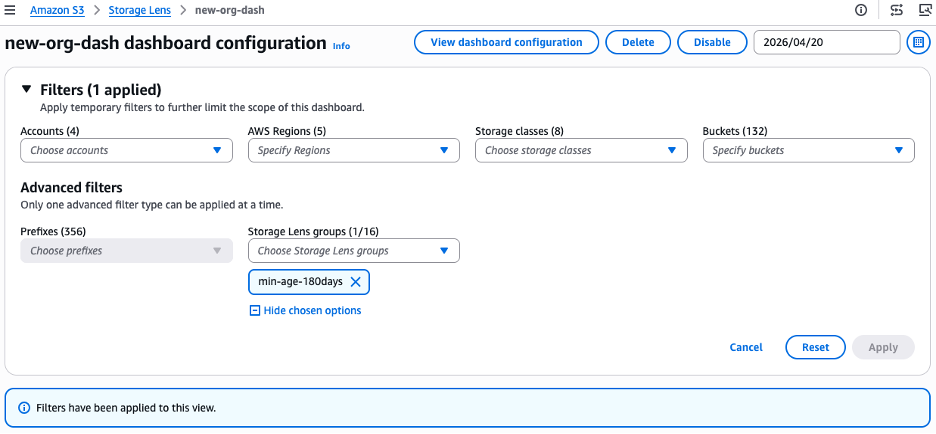
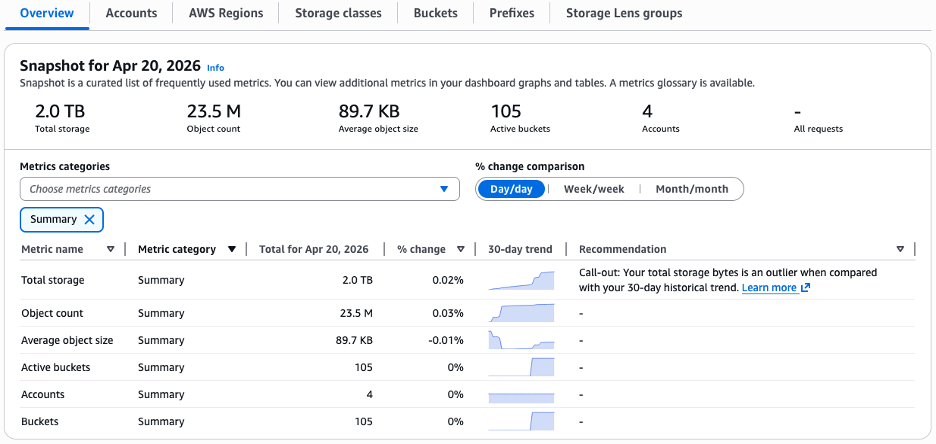
Here we are applying an S3 Storage Lens group filter “min-age-180days”. Once the filter is applied, the dashboard updates to display metrics scoped only to objects matching the group’s criteria. Here, in the overview tab, we can see that 2.0 TB of storage across 23.5 million objects meet the 180-day age threshold. Notice the recommendation callout: S3 Storage Lens has flagged total storage as an outlier compared to the 30-day trend, signaling unexpected growth in this segment.
Infrastructure as Code & Automation
While this walkthrough focuses on the AWS Management Console experience, you can fully automate the creation and management of S3 Storage Lens groups at scale.
- AWS CLI: Use the
aws s3control create-storage-lens-groupcommand to deploy your filters programmatically. - AWS SDKs: Use the
CreateStorageLensGroupAPI operation available in your preferred language SDK (such as Boto3 for Python, Go, or Java) to dynamically integrate group filters into your DevOps deployment pipelines.
Now let’s explore two real-world examples that demonstrate the value S3 Storage Lens groups can provide across common customer scenarios.
Use Case 1: Identifying aged logs and planning transition to S3 Glacier Instant Retrieval
Application teams commonly store high-volume logs in S3 that are accessed frequently for the first 90 days and then infrequently thereafter. For a DevOps team managing log retention at scale, transitioning aged logs to S3 Glacier Instant Retrieval through lifecycle policies can significantly reduce storage costs. To plan this transition effectively, the team needs to know:
- Which S3 buckets contain these logs
- The count and total size of logs older than 90 days
- Specifically, logs larger than 128 KB tagged as datatype: logs
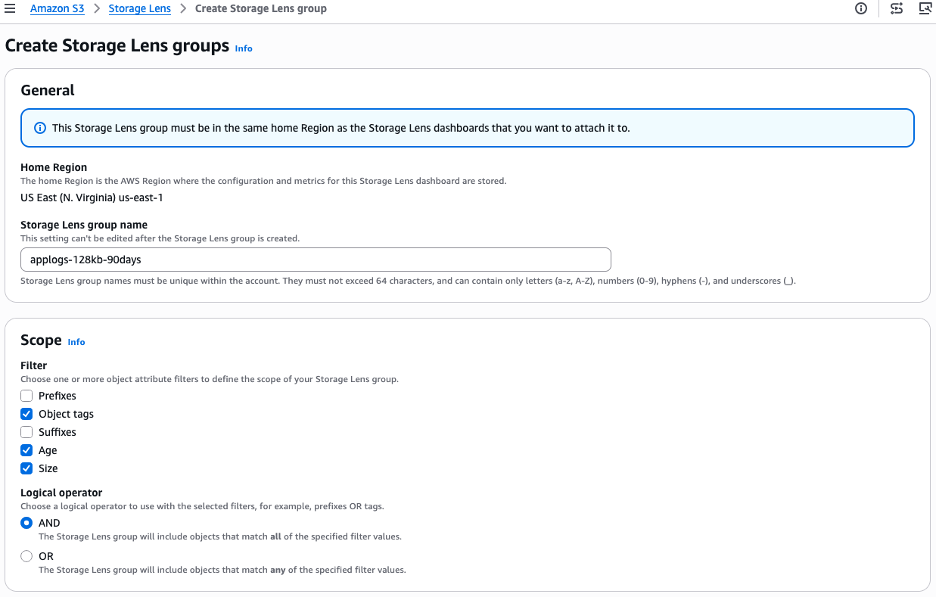
Action plan: Create an S3 Storage Lens group with three attribute filters Object tags, Object age, and Object size, combined with the AND logical operator. This scopes the group to exactly the objects under consideration for lifecycle transition.
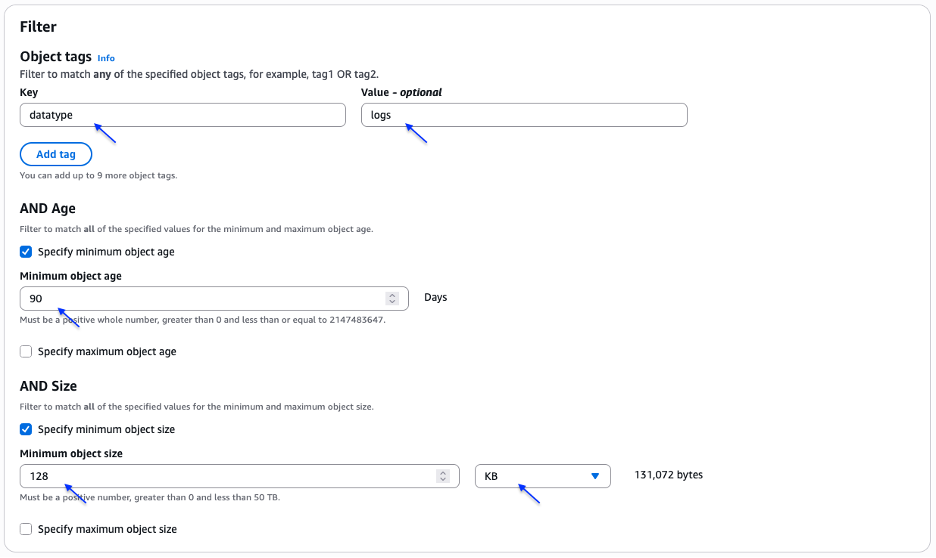
Now, define the filter scope. Set the tag details (key & value) to datatype: logs, the minimum object age to 90 days, and the minimum object size to 128 KB. Finally, choose Create Storage Lens group.
Once the S3 Storage Lens group is created and attached to a dashboard, access the dashboard and apply a filter to select this group. The dashboard will display an overview of S3 objects matching the scope: minimum object size = 128 KB, minimum object age = 90 days, and object tag = datatype: logs.
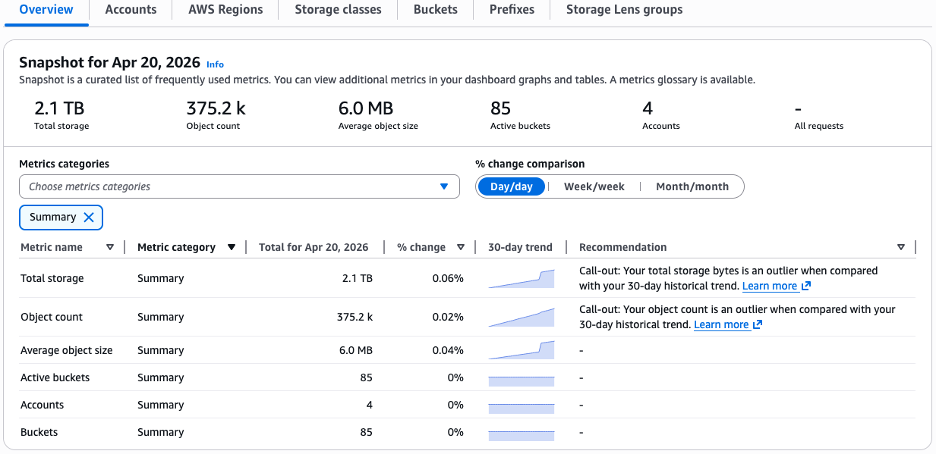
With these insights, the DevOps team can determine exactly how much storage and how many objects fall within the scope of the planned lifecycle transition to S3 Glacier Instant Retrieval.
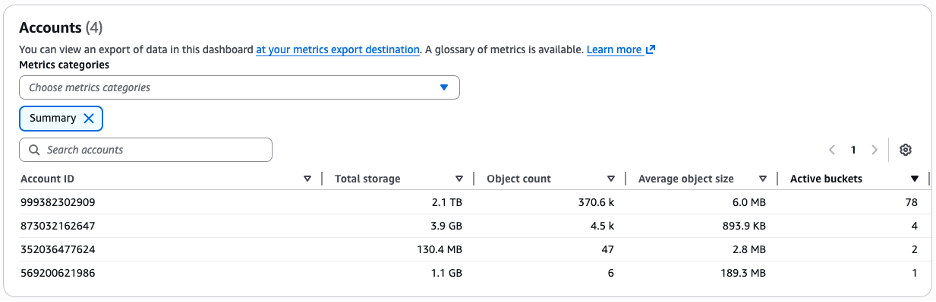
Under the Accounts tab, you can view account-level aggregation to see which specific accounts and how many buckets contain these objects.
Under the Buckets tab, you can identify which specific buckets hold the qualifying logs, directly informing S3 Lifecycle policy targeting. The identified object count, total storage size, and average object size can then be used with the S3 pricing calculator to calculate S3 Glacier Instant Retrieval transition costs.
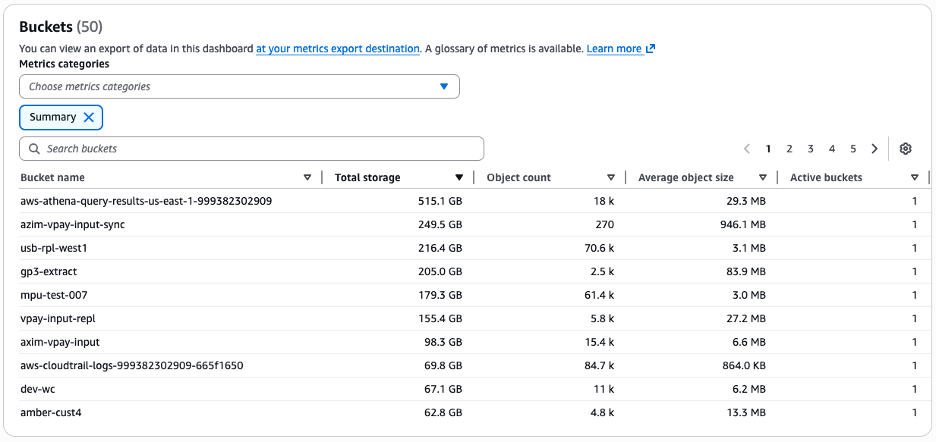
The S3 Storage Lens dashboard displays only the top 50 buckets based on your selected sorting metric. To access a comprehensive list of all buckets within the scope of selected filter, you must use the metrics export.
Use Case 2: Filtering and archiving aged digital images across S3 buckets at scale
Media companies, content platforms and healthcare organizations frequently store large volumes of images across many S3 buckets. Over time, older image assets such as files with extensions such as .jpg, .png, or .jpeg, become candidates for cold storage transitions to reduce costs. A media storage team wants to identify which buckets contain images older than 1 year to plan archival strategies.
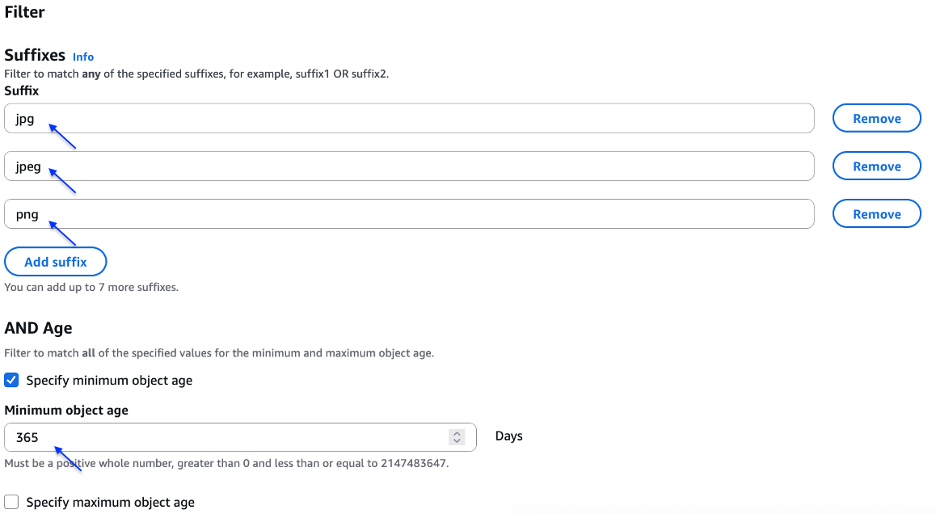
Action plan: Create an S3 Storage Lens group with two attribute filters: Suffixes (.jpg, .png, .jpeg) and Object age (minimum 1 year), combined with the AND logical operator.
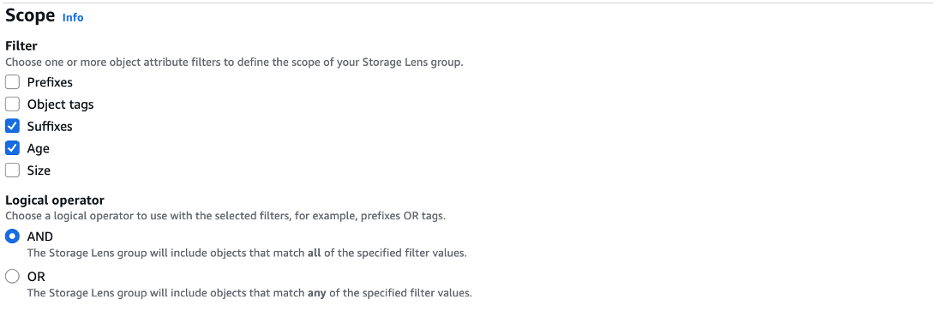
Now, define the filter scope. Set the 3 suffixes to jpg, jpeg, and png, and set the minimum object age to 365 days. Finally, choose Create Storage Lens group.
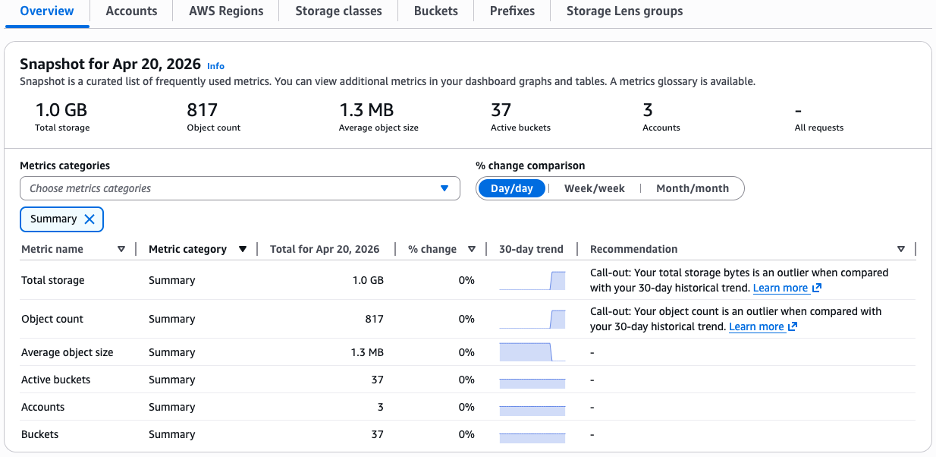
Once the S3 Storage Lens group is attached to a dashboard, apply the group filter to see storage metrics focused on image files older than 1 year. The results immediately surface the total count and distribution of qualifying objects. For example, the overview tab reveals 817 images older than 1 year spread across 37 buckets providing the media team with targeted data for transition planning.
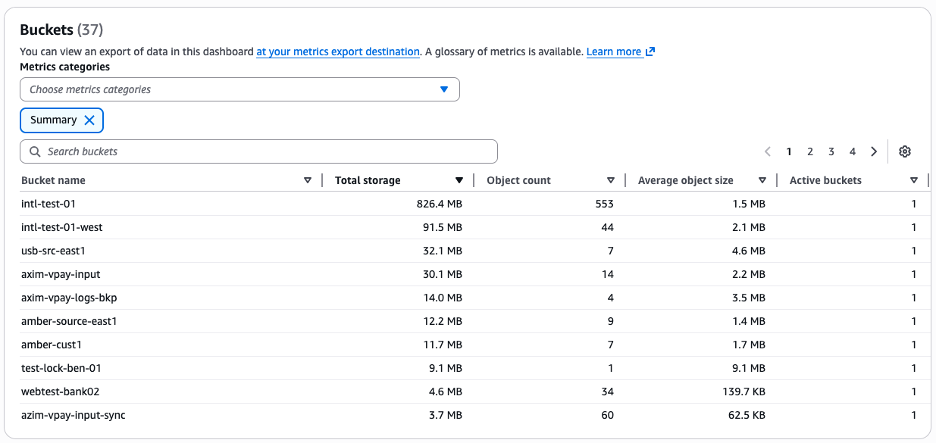
Under the Buckets tab, the aggregated bucket view identifies exactly which buckets contain these older image files, enabling the media team to configure S3 Lifecycle policies for the specific buckets that hold the most aging content.
Cleaning up
Disable Advanced Metrics and Recommendations on your S3 Storage Lens dashboard if you enabled it specifically for this walkthrough. Advanced Metrics incur ongoing charges based on the number of objects analyzed. To disable, edit your S3 Storage Lens dashboard configuration in the S3 console and turn off Advanced Metrics and Recommendations.
Deleting an S3 Storage Lens group removes it from any dashboards it is attached to. Historical metric data for the group remains available until the retention period expires.
Conclusion
In this post, we discussed how to use Amazon S3 Storage Lens groups to create custom storage groupings using filters such as object tags, prefixes, suffixes, object size, and object age, and derive workload-specific insights from those custom datasets.
For DevOps teams managing log retention, media companies handling large image archives, or any team that needs to analyze a specific subset of their data, S3 Storage Lens groups make S3 Storage Lens even more powerful for your analysis and data management decisions.
With full prefix pattern support, S3 Storage Lens groups cover all prefix patterns, making it easier than ever to align your storage monitoring with how your data is organized. We encourage you to explore S3 Storage Lens groups in your own environment and share your feedback with us.