AWS Storage Blog
Real-time fleet tracking using AWS IoT Core, Amazon S3 Tables, and Amazon Quick Sight
The fast pace of the logistics industry necessitates real-time vehicle fleet tracking for maintaining a competitive edge and meeting customer expectations. Traditional methods often provide delayed or incomplete information, leading to inefficiencies and missed opportunities. The demand for accurate, up-to-the-minute data on vehicle locations, driver behavior, and route performance has never been higher. Companies need a robust solution that can handle unexpected concurrency peaks and the complexities of modern fleet operations.
Advancements in technology have paved the way for comprehensive real-time fleet tracking solutions, using GPS technology, telematics, and advanced data analytics. Amazon Web Services (AWS) addresses these challenges through a comprehensive set of cloud services designed for scalability, reliability, and real-time analytics. AWS IoT Core enables secure, scalable vehicle-to-cloud communication for millions of connections. Amazon S3 Tables delivers high-performance storage optimized for analytical queries on fleet telemetry data, enabling both real-time and historical analysis. Amazon Quick Sight delivers interactive geospatial dashboards for monitoring vehicle positions and patterns. Amazon Kinesis Data Streams and Amazon Data Firehose handle data ingestion and automated delivery pipelines. Together, these services enable organizations to continuously capture, efficiently store, and transform fleet data into actionable operational insights.
In this post we explore a powerful cloud-based fleet tracking solution that transforms raw telemetry data into actionable insights, helping businesses improve operational efficiency, reduce costs, and enhance customer satisfaction through better route planning, proactive maintenance, and data-driven decision-making.
Solution overview
This solution consists of three main components:
- Vehicles connected to AWS IoT Core upload real-time location and telemetry data.
- Amazon S3 Tables stores location data from the data streams.
- Amazon Quick Sight visualizes vehicle status on an interactive dashboard with maps.
Architecture diagram
The following diagram outlines the solution architecture.
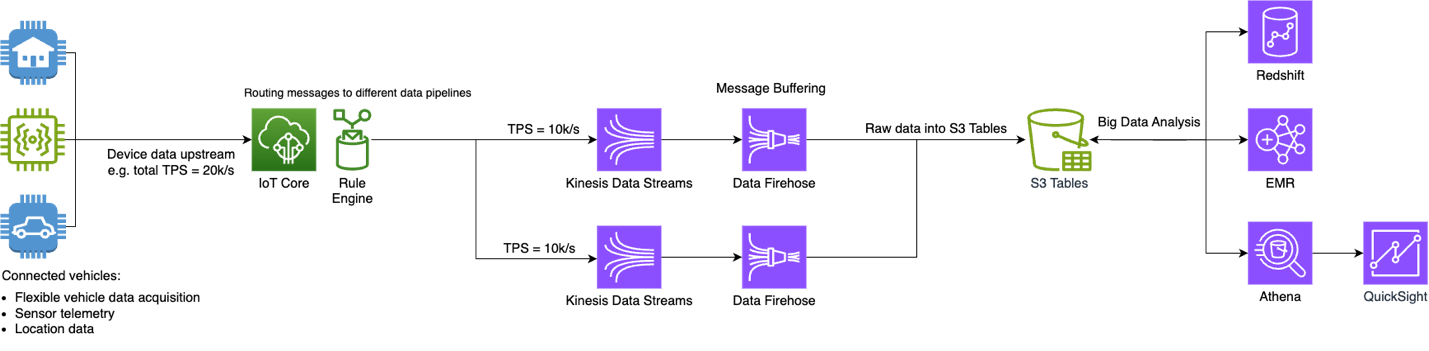
AWS IoT Core: The communication hub between cloud and vehicles
To address the challenge of real-time fleet monitoring, AWS IoT Core serves as the central communication hub between vehicles and cloud services. This serverless solution securely manages device authentication and data encryption while handling millions of concurrent messages. Its MQTT protocol implementation reduces TCP session overhead, making it ideal for vehicle-based systems where network conditions can be unpredictable. The service’s ability to handle over 1 million concurrent reconnect or publish requests per second provides reliable data transmission even during peak operational periods.
Amazon Kinesis Data Streams: High-throughput data ingestion in real-time
Building on the real-time data requirements of modern fleet operations, Amazon Kinesis Data Streams provides seamless integration with AWS IoT Core for continuous data processing. It buffers incoming telemetry data and enables high-throughput batch access for analysis, effectively resolving the scaling challenges of direct storage solutions. Its flexible capacity modes adapt to varying business needs, while native cloud integration supports multiple downstream processing options through AWS Lambda functions and Amazon Data Firehose.
Amazon Data Firehose: Automatic and resilient data delivery pipeline
To transform raw fleet data into actionable insights, Data Firehose creates an automated and resilient delivery pipeline. As a serverless service, it efficiently processes data from Kinesis Data Streams and delivers it to data lakes in Amazon S3 in optimized formats without ingestion concurrency limits. Data Firehose has built-in support for format conversion from JSON to Apache Parquet and custom transformations through Lambda functions. This means that data is properly prepared for analysis while maintaining operational reliability.
Amazon S3 Tables: Optimized data storage
For managing the vast amounts of fleet telemetry data, S3 Tables provides a specialized storage solution using the Apache Iceberg format. This service delivers faster query performance and up to ten times more transactions per second compared to unmanaged Apache Iceberg tables in general-purpose S3 buckets, while maintaining compatibility with standard SQL query engines. These capabilities are crucial for analyzing both real-time vehicle locations and historical fleet movement patterns efficiently.
Quick Sight: Insights visualization and business intelligence with generative AI
To complete the fleet management solution, Quick Sight transforms the collected data into meaningful visualizations that support data-driven decision making. Its built-in geospatial capabilities enable fleet managers to create interactive dashboards displaying real-time vehicle positions, historical routes, and movement patterns. This visual approach to data analysis helps optimize routes, improve resource allocation, and monitor operational status across the entire fleet.
Implementation steps
This solution is implemented in 4 steps:
- Create the Iceberg tables in S3 Tables as the IoT fleet data storage target.
- Set up data streaming pipelines with Kinesis Data Streams and Data Firehose, which buffers and transforms the JSON messages into Iceberg formats.
- Simulate vehicle fleet telemetry and geolocation data and upload to AWS IoT Core.
- Configure Amazon Athena to query data and create dashboards to visualize vehicle data in Quick Sight.
1. S3 Tables configuration
In this step, you create the Iceberg tables in S3 Tables as the IoT fleet data storage target.
1.1 Create a table bucket, a table namespace, and a table
Follow the tutorial “Step 1 and Step 2” to set up your S3 Tables on the AWS Management Console. Create a table bucket with the name “tablebucketpoc” and enable Integration with AWS analytics services. Create a table namespace “fromfirehose” referred to as database in AWS Lake Formation. Create a table named “mqttpayload” to store vehicle data.
If you prefer AWS Command Line Interface (AWS CLI), then these are the command guides (change to your own AWS Region and AWS account ID):
1.2 Grant Lake Formation permissions to Iceberg table
Follow the tutorial “Step 3” to grant permissions on the Lake Formation console. You need to create an AWS Identity and Access Management (IAM) role “role_firehose_s3table”, create a resource link named “resourcelink” for the S3 Table namespace, and grant permissions of the resource link and the table “mqttpayload” to the IAM role.
Along with operations on the console operations, you can also use the following AWS CLI commands. Replace us-xxxx-x with your own AWS Region, replace arn:aws:iam::xxx:role/role_firehose_s3table with your IAM role Amazon Resource Name (ARN) mentioned previously, and replace 5853xxxxx with your AWS account ID.
If you received AccessDeniedException like the following, then add your IAM role or IAM user as Data lake administrators on the Lake Formation console.

1.3 Query data with SQL in Athena
Follow “Step 4” and use Athena to verify that you can successfully query the data. Copy the following SQL command into Athena query editor and choose Run:
After successful query, you should see the following:

If the Athena console throws the following error, then confirm your configuration according to the section “Step 3 Grant permission for Admin role (optional)”.

2. Configure data ingestion
In this step you set up data streaming pipelines with Kinesis Data Streams and Data Firehose, which buffer and transform the JSON messages into Iceberg formats.
2.1. Create a Kinesis Data Stream
Open the Amazon Kinesis console. Choose Create data stream. Specify the configuration, such as the Data stream name “kds_for_firehose”, Capacity mode “Provisioned”, and Provisioned shards “1”, and choose Create data stream.
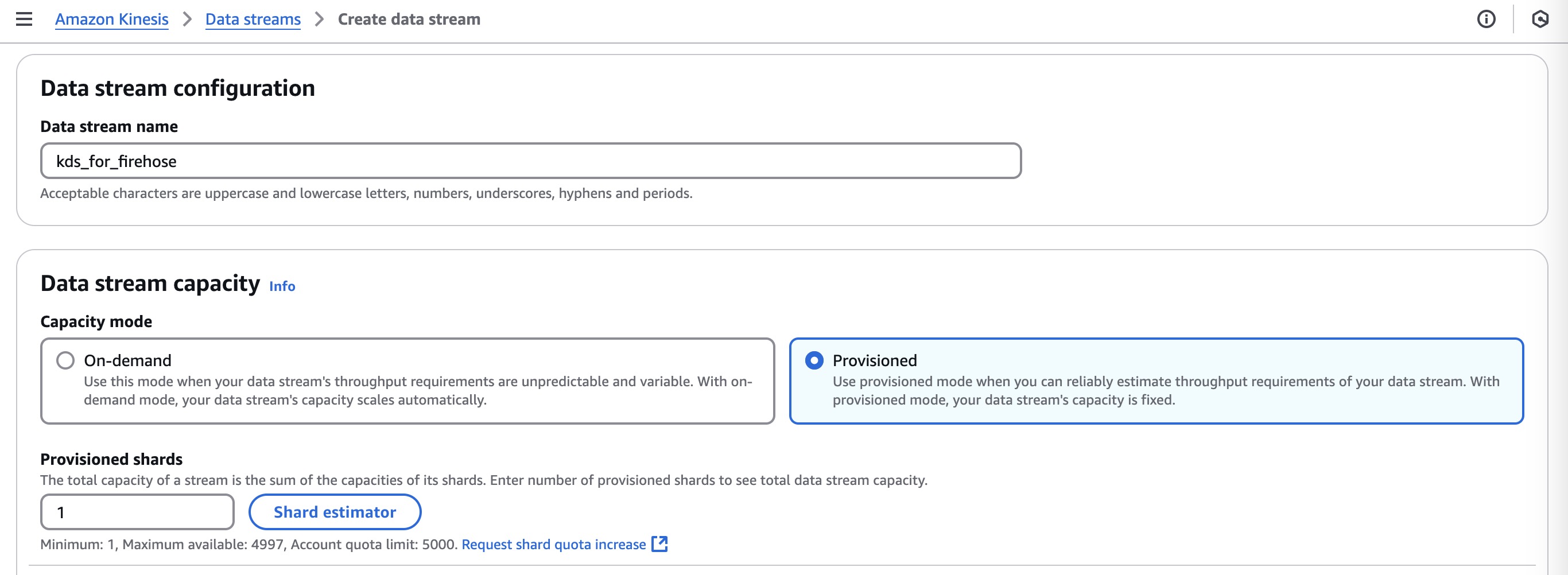
Record the ARN of the Kinesis Data Stream, such as “arn:aws:kinesis:us-xxxx-x:5853xxxxx:stream/kds_for_firehose”.
2.2. Create a Firehose stream
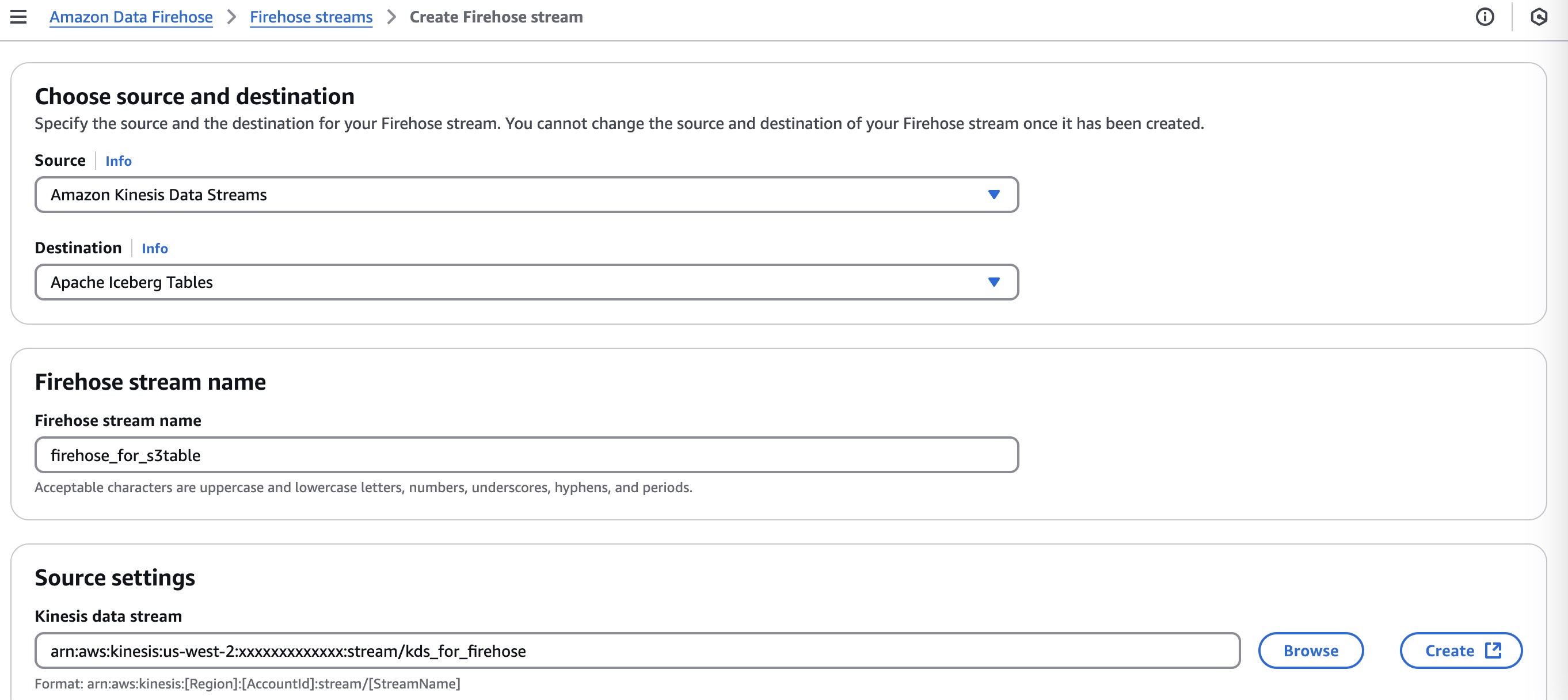
A. Open the Data Firehose console. Choose Create Firehose stream.
Specify the configuration as follows:
- Source: “Amazon Kinesis Data Streams”.
- Destination: “Apache Iceberg Tables”.
- Firehose stream name: “firehose_for_s3table”.
- Kinesis data stream: “arn:aws:kinesis:us-xxxx-x:5853xxxxx:stream/kds_for_firehose”.
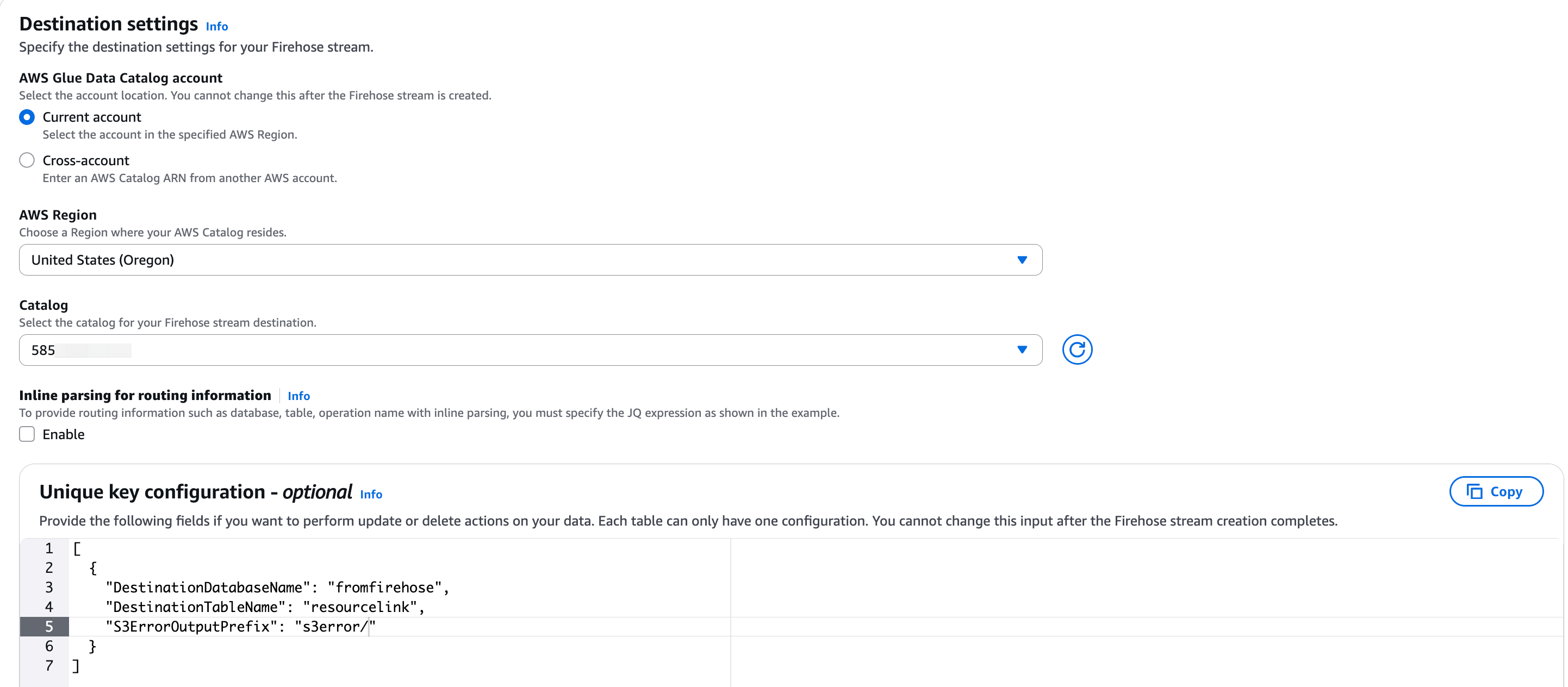
B. In the preceding Destination settings, fill the Unique key configuration with the following values:
[
{
"DestinationTableName": "mqttpayload",
"DestinationDatabaseName": "resourcelink",
"S3ErrorOutputPrefix": "s3error/"
}
]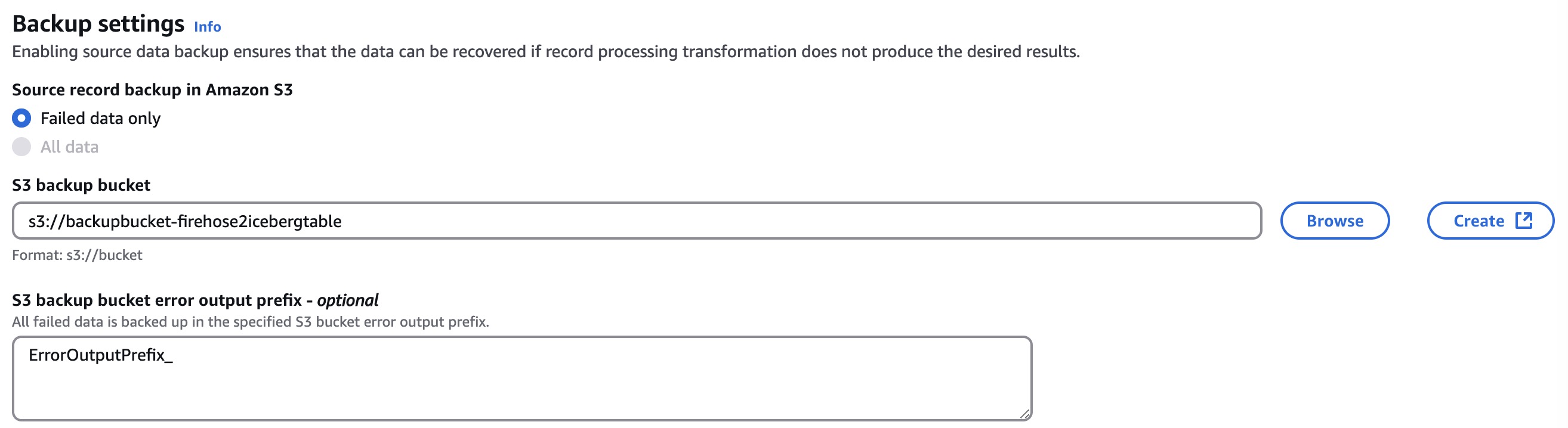 C. Create a general purpose S3 bucket, and in Backup settings specify the bucket to store any backup data in case of format transformation failure or delivery failure, as shown in the following figure.
In the scenarios for smart devices and connected vehicles, concurrent publish requests can reach 100,000s or even higher. Furthermore, these messages often need different routing destinations. To handle this efficiently, you can create separate Kinesis Data Streams and Data Firehose delivery streams for different data pipelines, as shown in the preceding architecture. Then, repeat the steps in Section 2.
3. Setting up IoT devices
In this step you simulate vehicle fleet telemetry and geolocation data and upload to AWS IoT Core.
3.1. Create the AWS IoT Core rule to route messages to Kinesis Data Stream
Use the route engine of AWS IoT Core to transfer messages to other AWS services. Open Message routing>Rules on the AWS IoT Core console. Choose Create rule. Specify the rule properties.
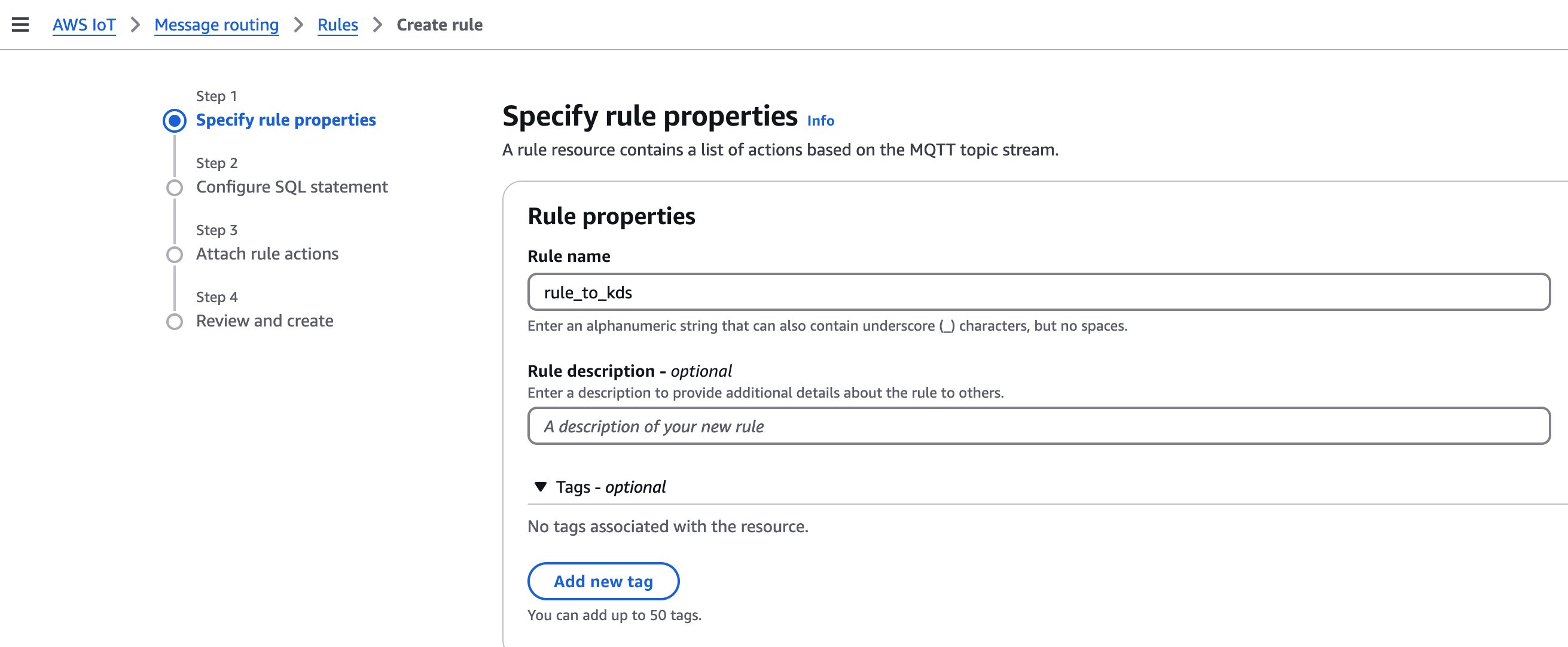 For example, rule name: “rule_to_kds”
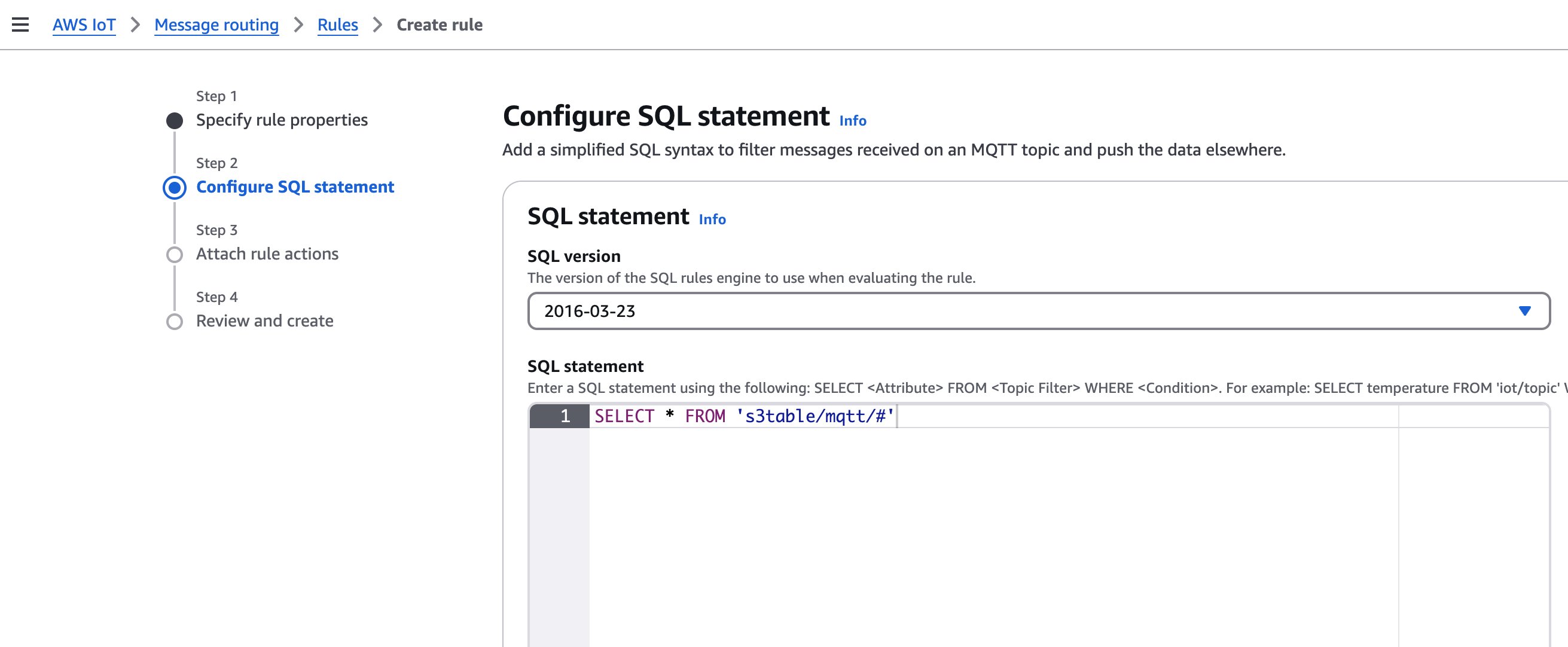 SQL statement:
 SELECT * FROM 's3table/mqtt/#'
Action 1: target service: “Kinesis Data Stream”, Stream name: “kds_for_firehose”, Partition key: “${topic(3)}”, IAM role: “arn:aws:iam::5853xxxxx:role/role_iotrule_kds”.

Error action: “Republish to AWS IoT topic”, Topic: “error”, IAM role: “role_republishTo_IoTCore_errorTopic”. With error action enabled, messages that fail to be delivered can be retransferred to other AWS services. This keeps messages from unexpected loss, for example in the throttling cases.

3.2. Set up MQTT client on the console
Next, you simulate some vehicle data and publish them to an MQTT topic.
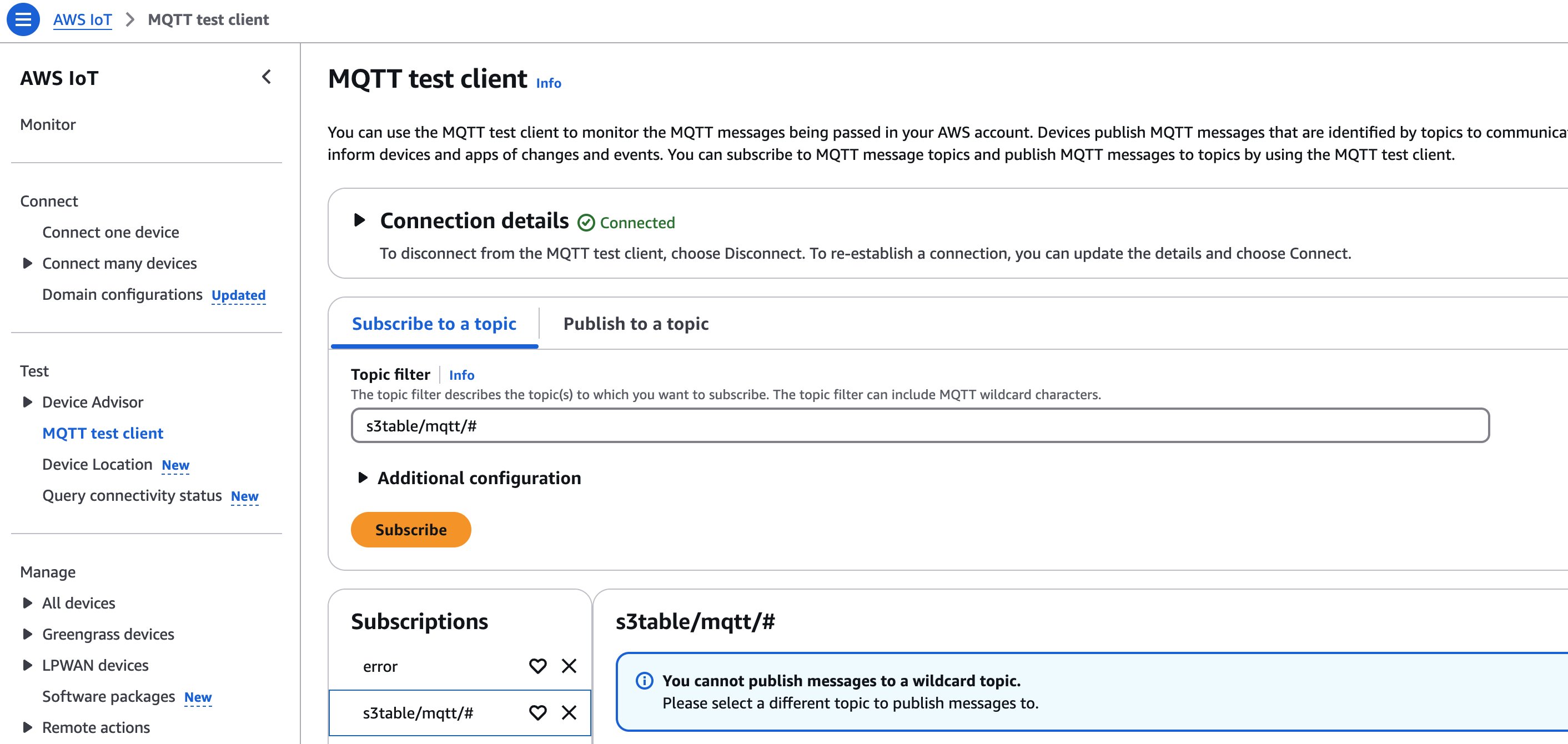
Open MQTT test client on the AWS IoT Core console. Fill the Topic filter of Subscribe to the topic s3table/mqtt/# and error. Choose Subscribe. You should see these two topics under Subscriptions, as shown in the following figure.
3.3. Publish vehicle status data
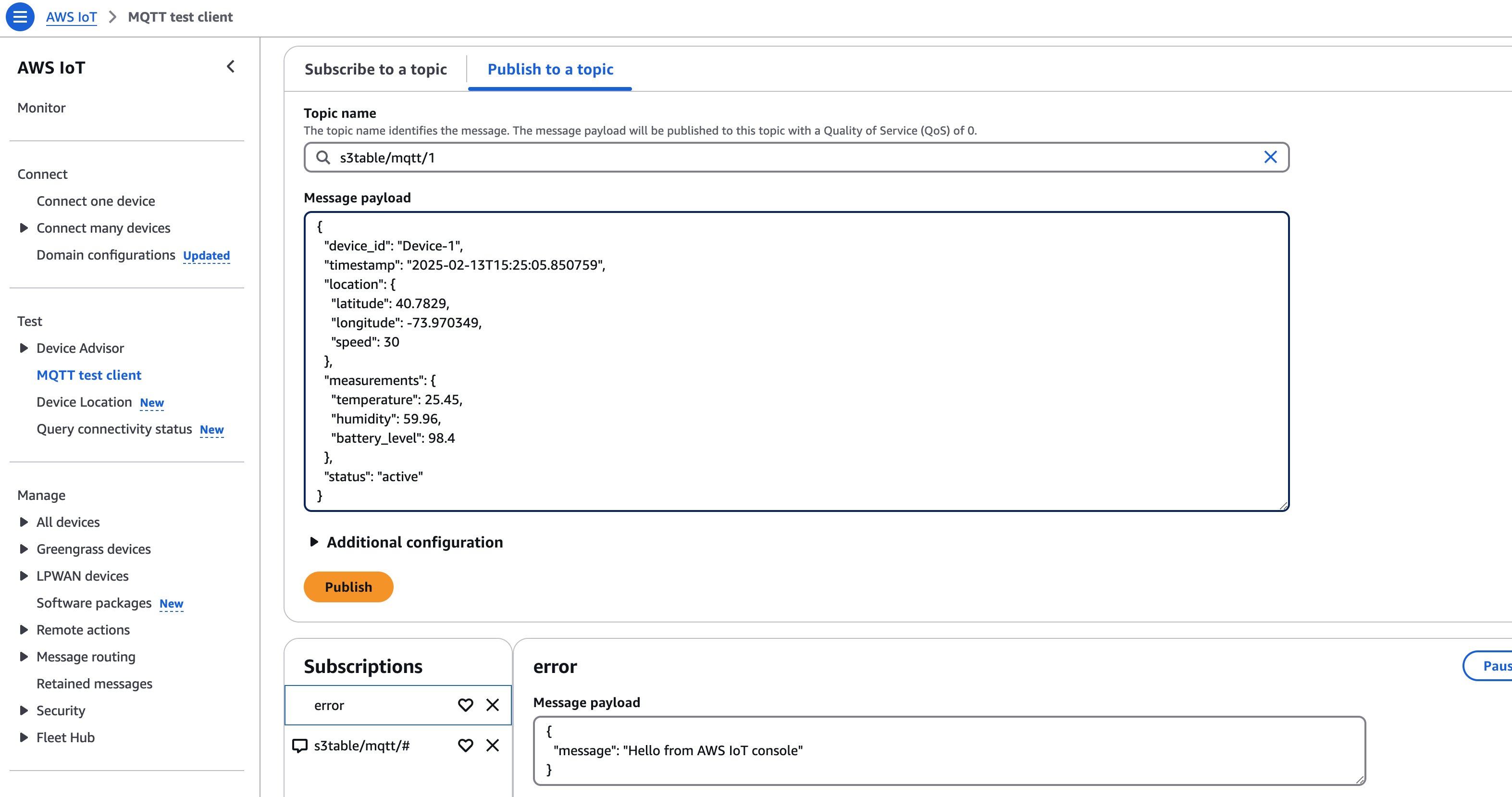
Remain on the MQTT test client console, and choose Publish to a topic. Set the Topic name as “s3table/mqtt/1”. Replace the Message payload with the following JSON message:
Choose Publish, then you should see a message notification in Subscriptions, as shown in the following figure.
Read the AWS IoT Core documentation about MQTT protocols and implementation best practices.
If implementing this solution in a production system, then design the MQTT topics and JSON payload accordingly. For example, modify device_id to “Device-1”, “Device-2”, and “Device-3”, and modify the topic to “s3table/mqtt/1”, “s3table/mqtt/2”, and “s3table/mqtt/3”.
4. Setting up Quick Sight visualization
In this step you configure Athena to query data and create dashboards to visualize vehicle data in Quick Sight. Start by signing in to the Quick Sight console to check whether you have existing users and administration right. If no Quick Sight user exists, then refer to the Quick Sight setting-up documentation and configure the user.
4.1. Assign the S3Table permission to your Quick Sight user
A. Open the IAM roles console. Search for the role named “aws-quicksight-service-role-xx”. Choose that auto-generated role.
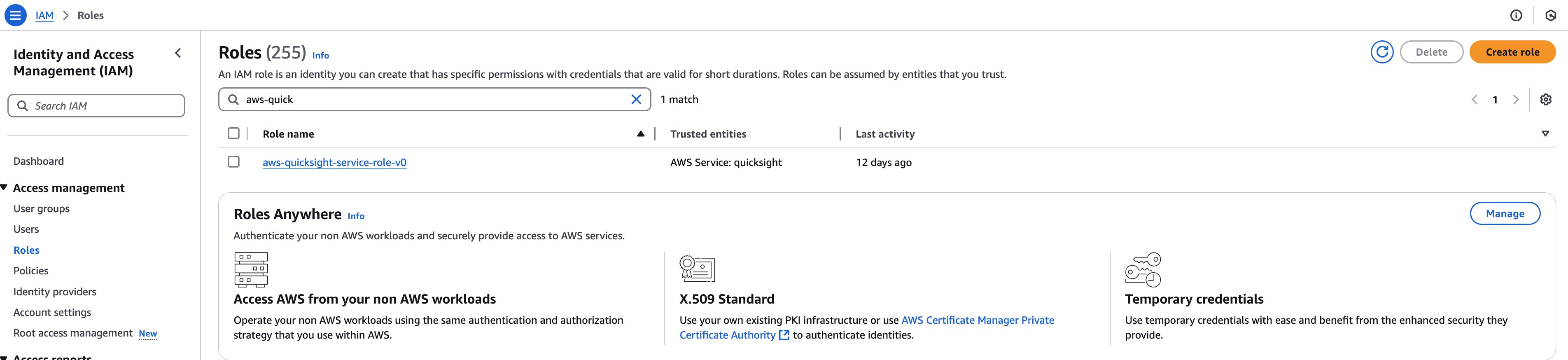
Choose Add permissions > Create inline policy, specify a policy name (for example “policy_quicksight_for_s3tables”), and fill the policy in JSON format:
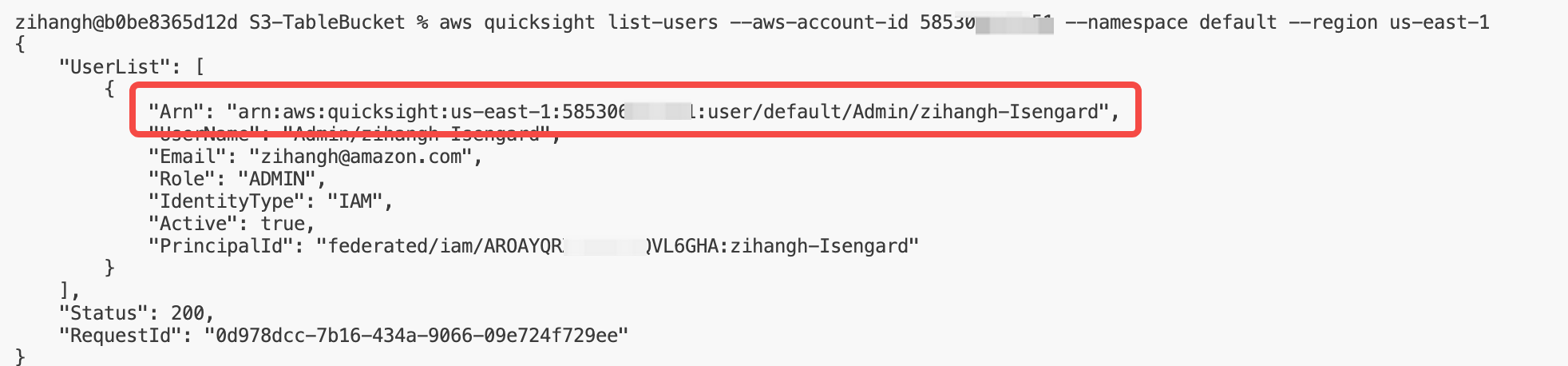
B. List the users of Quick Sight with AWS CLI as shown in the following (replace with your AWS Region and AWS account ID):aws quicksight list-users --aws-account-id 5853xxxxx --namespace default --region us-xxxx-xRecord the user ARN from the response, as shown in the following figure.
C. Grant the permission to your Quick Sight user through the following AWS CLI commands (change to your own AWS Region, AWS account ID, and user ARN):
4.2. Create a new dataset in Quick Sight
A. Go to the Analyses section in the Quick Sight console.
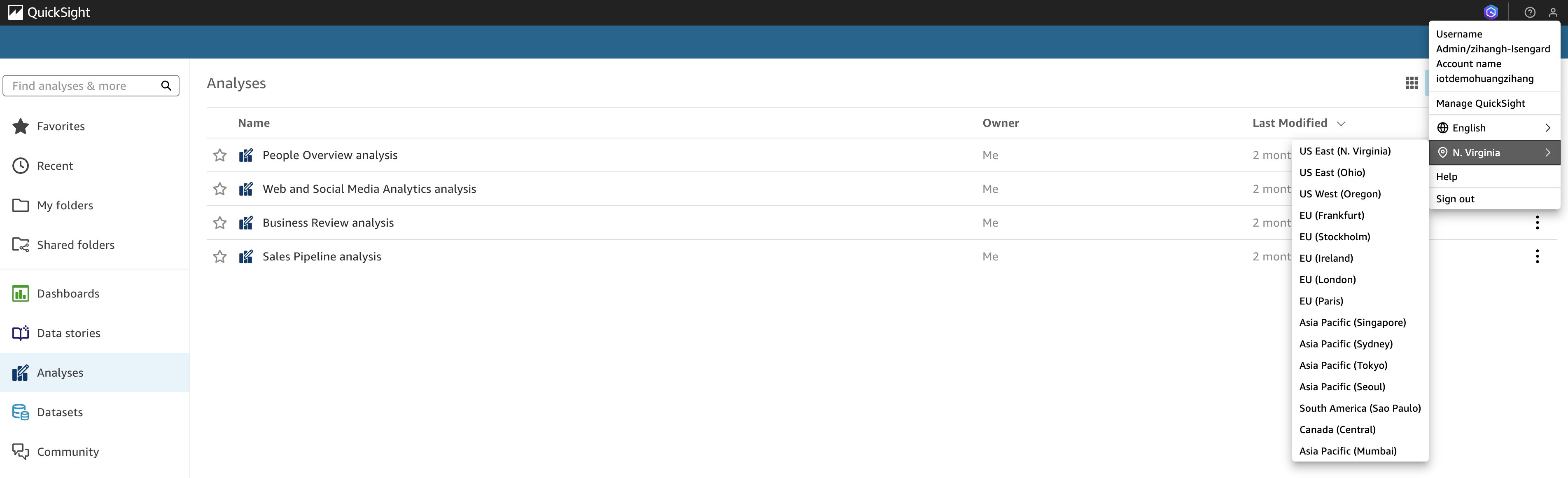
Check that you’re on the correct AWS Region on the Quick Sight console—observe the following screenshot. Quick Sight can only access the Amazon S3 resources in the same Region.
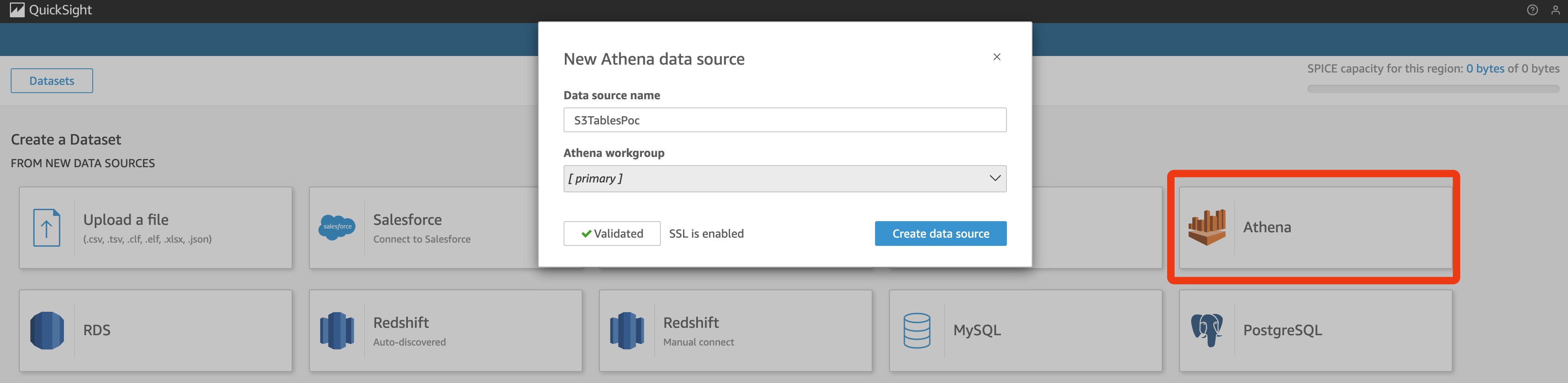
B. Choose New dataset. Choose Athena for FROM NEW DATA SOURCES.
Enter a name for Data source name, for example “S3TablesPoc”. Choose [primary] for the Athena workgroup. Then, choose Create data source.
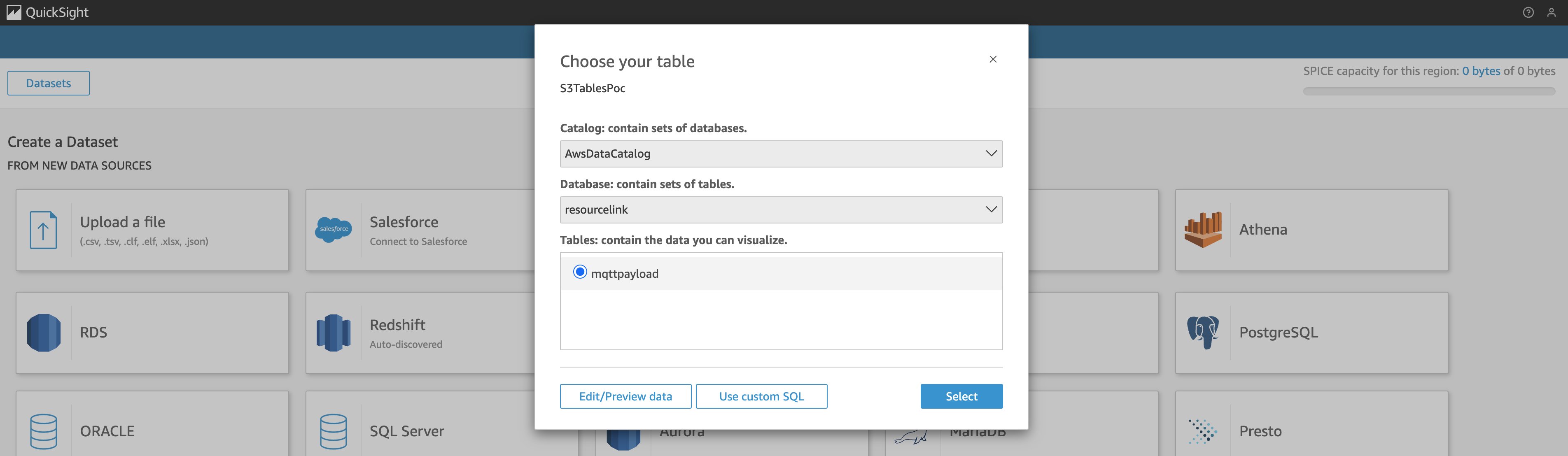
C. Choose AwsDataCatalog for Catalog, resourcelink for Database, and choose mqttpayload in Tables.
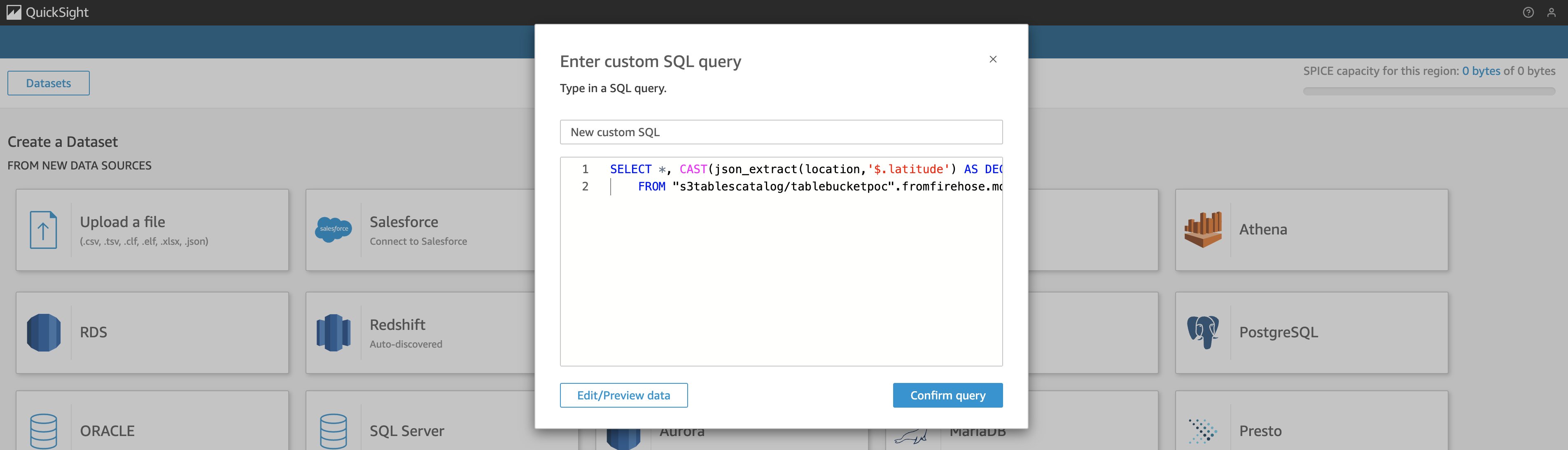
D. Choose Use custom SQL. Paste the following SQL query, and choose Confirm query.
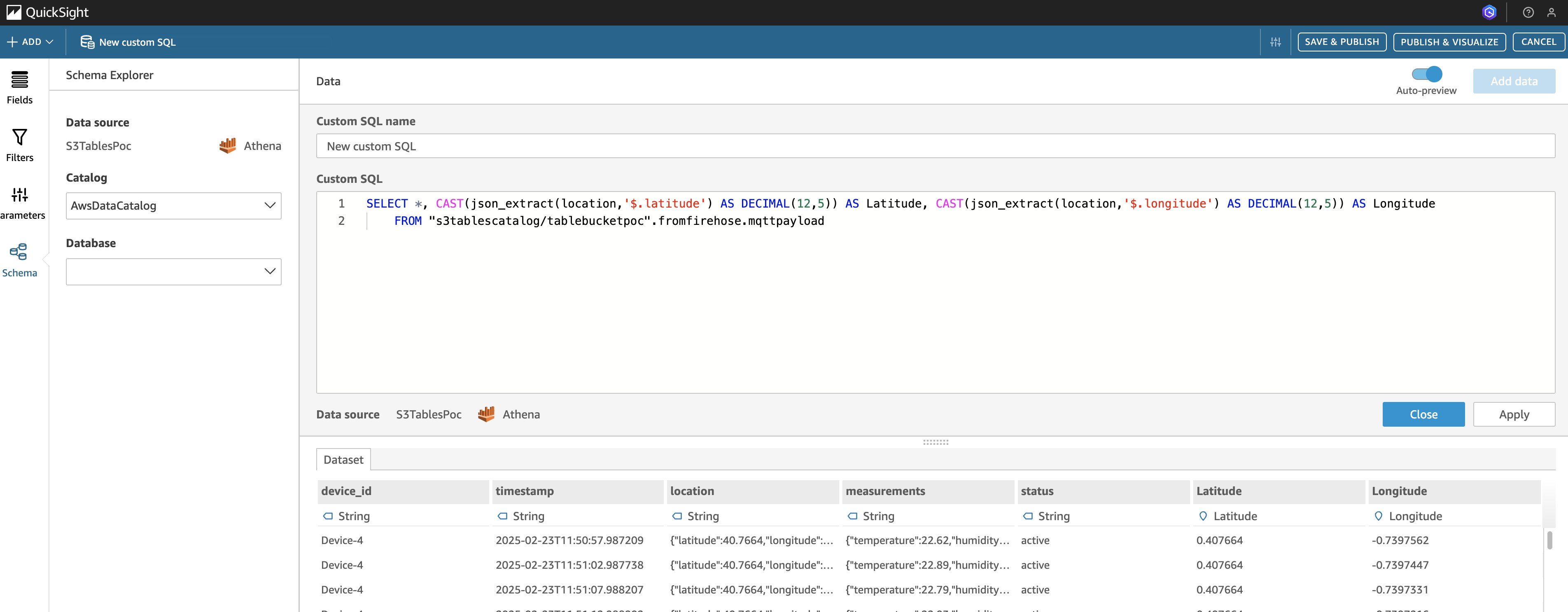
E. Choose Directly query your data. Then choose Edit/Preview data.

The console jumps to the Schema Explorer of Quick Sight. You can already see the query results with latitude and longitude values, as shown in the following figure:
F. Choose Fields on the left panel. You can see the field list. Choose the extension button (the three dots) beside Latitude, then choose Add to coordinates, as shown in the following figure.

G. Choose Create new geospatial coordinates, then Add. Enter a name for Name your coordinates, for example “Longitude-Latitude”. Choose Latitude for Field to use for latitude, and Longitude for Field to use for longitude, as shown in the following figure.
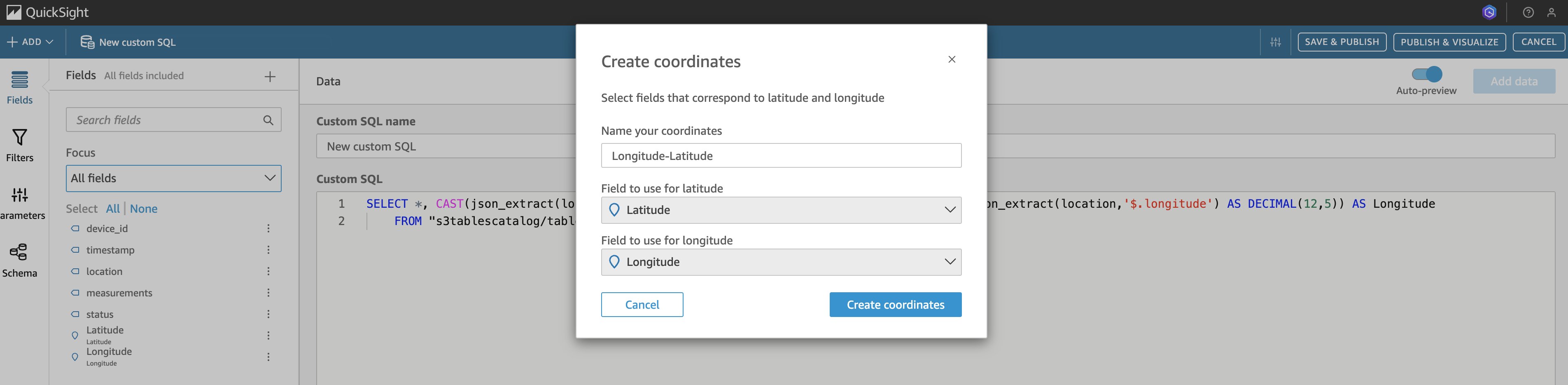
H. Choose Create coordinates. You should observe the newly created geospatial hierarchy in the field list.

I. Enter your own name (for example “custom SQL for S3 Table”) for Custom SQL name. Choose SAVE & PUBLISH on the top right of the Quick Sight console. Choose CLOSE next to PUBLISH & VISUALIZE.
4.3. Create a new analysis in Quick Sight
A. Go to the Analyses section of the Quick Sight console. Choose New analysis on the top right. Choose your dataset custom SQL for S3 Table. Choose USE IN ANALYSIS.
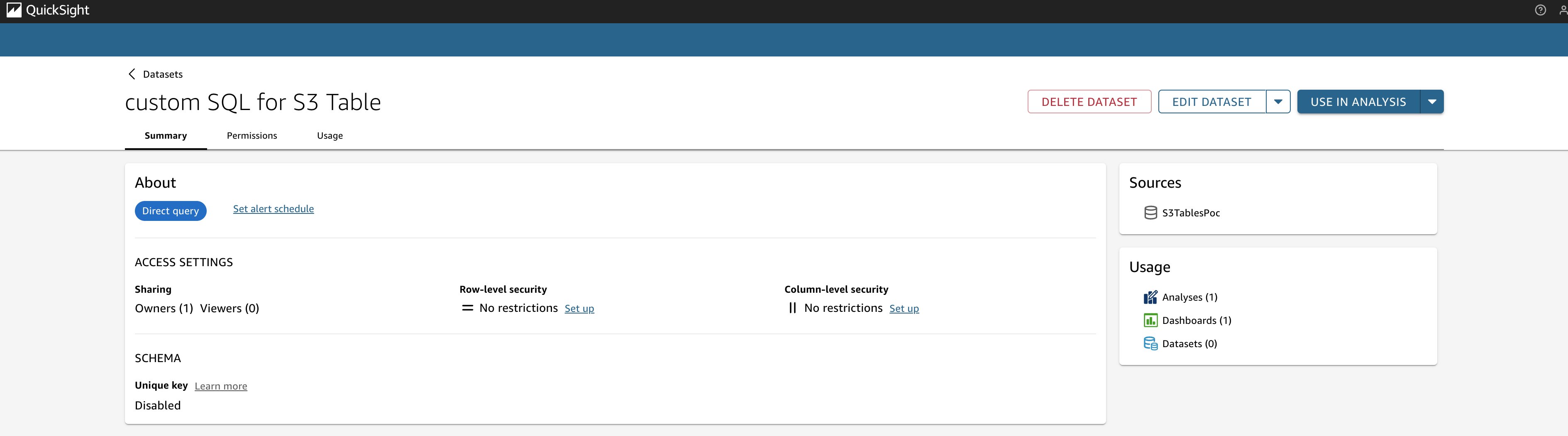
B. Choose CREATE.
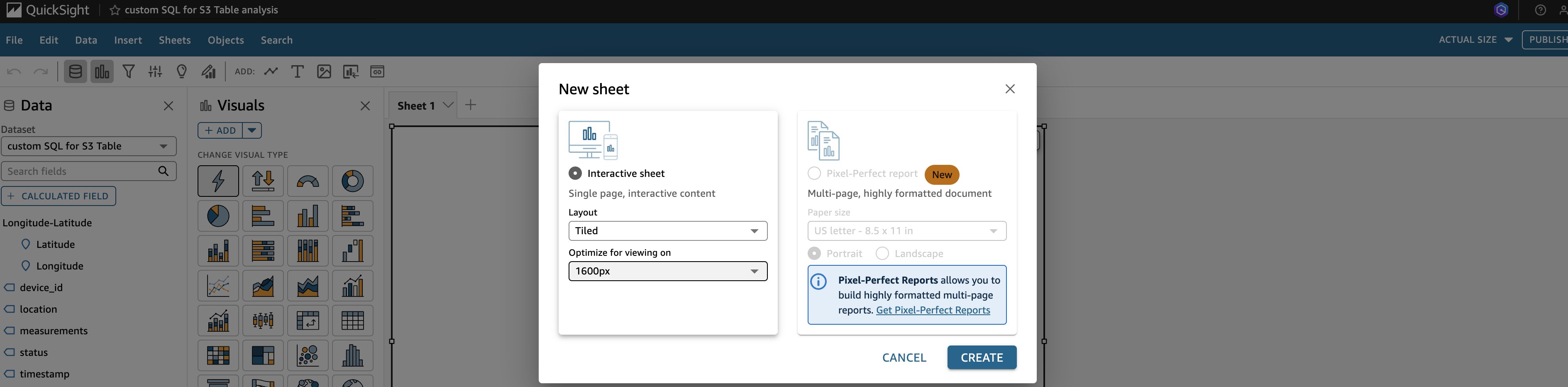
You should get an empty new sheet as shown in the preceding figure.
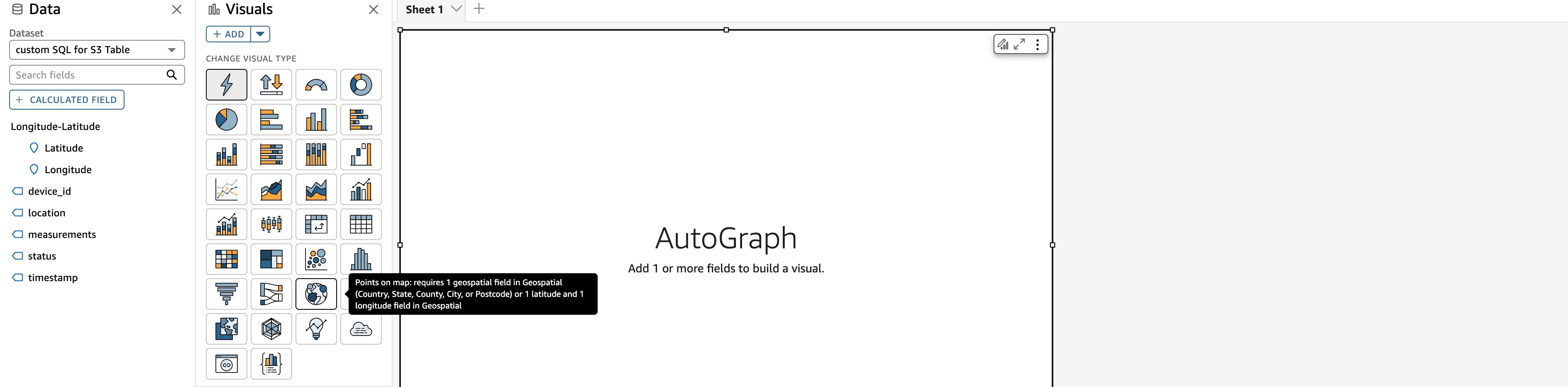
C. Choose the visual type Points on map.
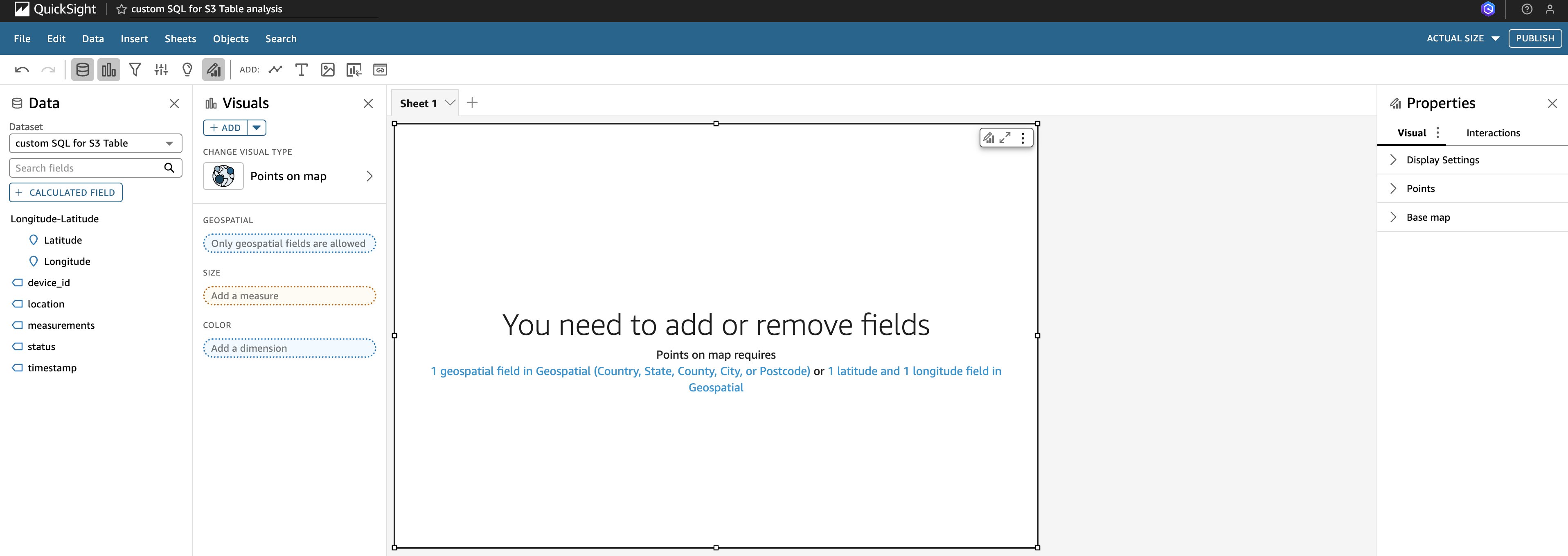
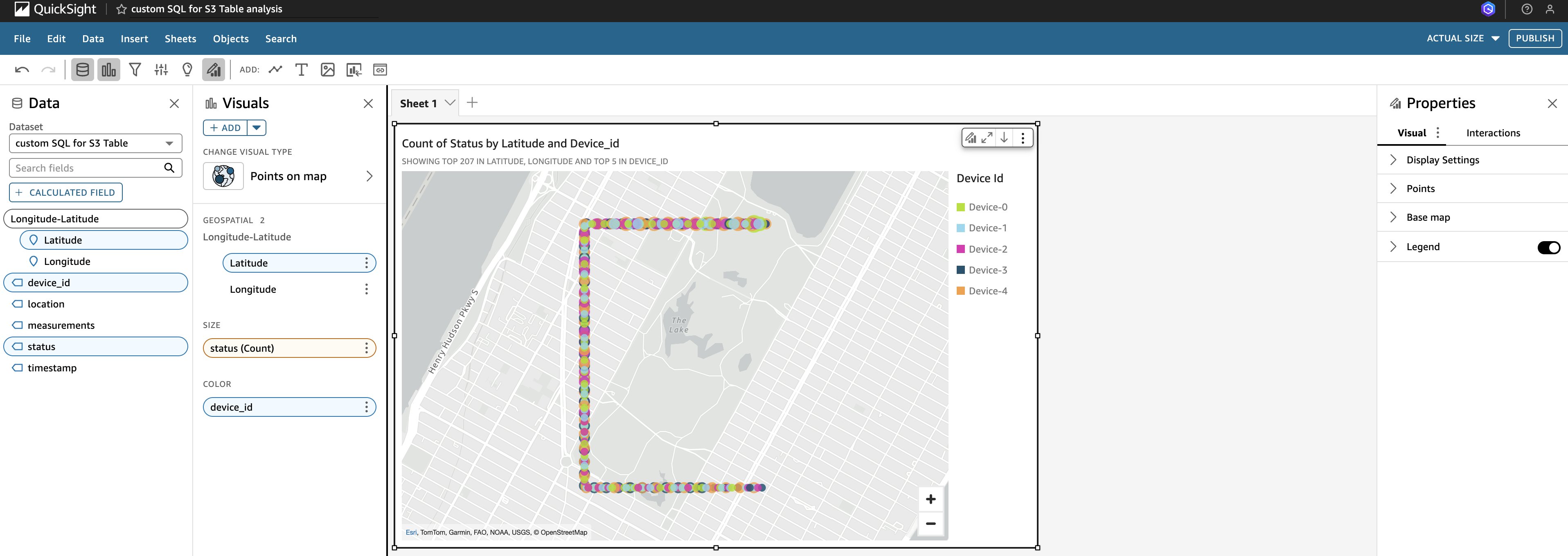
Drag the field Longitude-Latitude into GEOSPATIAL – Only geospatial fields are allowed. Drag status into SIZE – Add a measure. Drag device_id into COLOR – Add a dimension. Then the map with data points should show up as shown in the following figure.
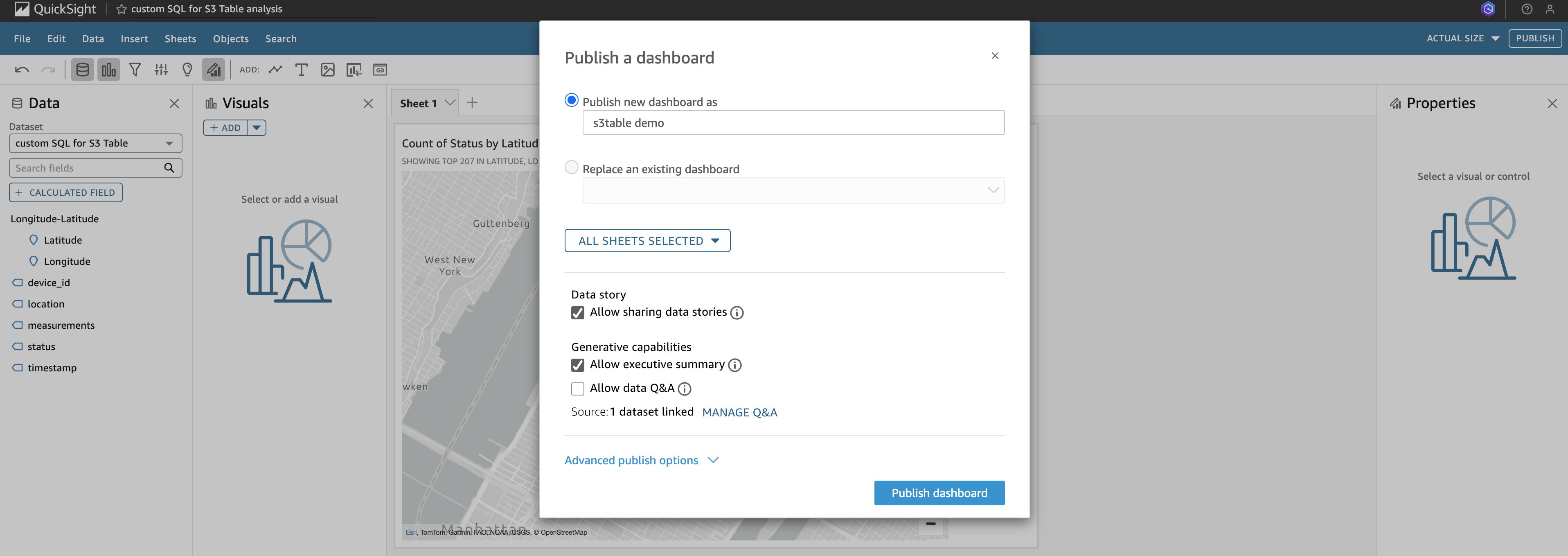
D. Choose PUBLISH on the top right of the console. Enter a name for the new dashboard, for example “s3table demo”. Then choose Publish dashboard.
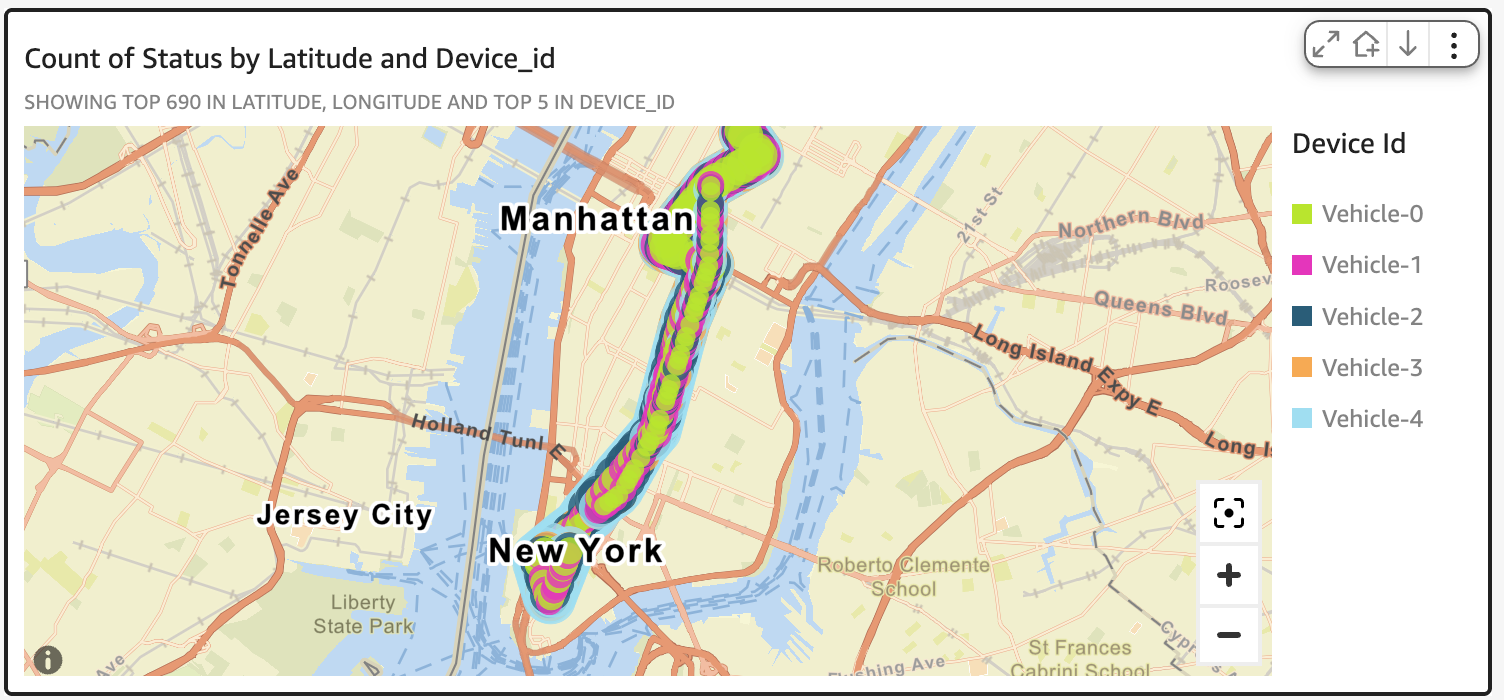
E. Finally, finish the geospatial visualization in Quick Sight with simulated vehicle data from AWS IoT Core and S3 Tables. The sample dashboard is shown in the following figure.
Conclusion
Real-time fleet management is crucial for fast-paced logistics operational efficiency. We’ve used AWS services such as Amazon S3 Tables, AWS IoT Core, Amazon Quick Sight, Amazon Kinesis Data Streams, and Amazon Data Firehose to create a powerful solution that transforms how businesses monitor and optimize their vehicle fleets. This AWS-powered solution revolutionizes fleet management with real-time tracking and advanced analytics. Using AWS IoT Core for secure device connectivity, Data Firehose for streamlined data ingestion, S3 Tables for high-performance storage, and Quick Sight for intuitive visualizations, the system offers a comprehensive, scalable, and cost-effective approach to fleet optimization. The seamless integration of these services enables swift, data-driven decision-making, enhancing operational efficiency and reducing costs. Businesses can adopt this solution to gain a competitive edge in the rapidly evolving transportation industry. This integrated AWS approach stands out as a powerful tool for success in the digital age as companies seek to optimize their vehicle fleet operations.
Call to action
S3 Tables is a new bucket type launched at AWS re:Invent 2024 that supports the Apache Iceberg format. Learn more about its powerful analytics functionalities: Working with Amazon S3 Tables and table buckets and Discover Amazon S3 Tables.