AWS Storage Blog
Simplify compliance-driven Amazon S3 data movement with multi-criteria filtering
Organizations routinely need to move a subset of their stored data from one location to another, such as a compliance audit that requires all PDFs from a specific quarter, a company reorganization that splits one tenant’s records into an isolated bucket, or a regulatory mandate that demands financial documents older than 7 years be archived separately. In all these use cases, you need to move some objects, not all of them, and you need a record of what moved.
Amazon Simple Storage Service (Amazon S3) stores hundreds of trillions of objects for customers across different industries. Amazon S3 Batch Operations can process billions of objects in a single job with built-in retries, progress tracking, and completion reports. Together, they provide the foundation for large-scale, selective data movement without custom infrastructure. The challenge starts when your criteria get specific: multiple file extensions in one job, filtering by last-modified date instead of creation date, selecting non-current versions, or combining all of these in a single pass. The built-in prefix and suffix filters fall short.
In this post, we walk through the Migration utility for S3, an open source Python CLI tool that combines Amazon S3 Inventory reports with S3 Batch Operations to perform filtered migrations. You will learn how to move only the objects matching your criteria (date ranges, file types, prefixes, version status) across same-account or cross-account boundaries, with a full audit trail of every object processed.
Benefits of the Migration Utility for S3
S3 supports on-demand manifest generation for Batch Operations jobs. It handles prefix filtering, creation date ranges, and single-suffix selection. So why would you reach for this tool instead?
The Migration Utility for S3 fills four gaps that, at the time of writing, on-demand manifests can’t address:
- Multiple file extensions in one job – On-demand filtering accepts a single suffix. If you need .pdf, .csv, and .json objects in the same migration, you would need three separate jobs. The tool handles multiple file types in one job.
- LastModifiedDate filtering – On-demand manifests support
CreatedAfterandCreatedBefore, which reflect the object’s creation date. If an object was overwritten (same key, new content), the creation date stays the same. This tool filters byLastModifiedDate, which captures the most recent write. - Non-current version selection – For versioned buckets, on-demand manifests operate on the current version only. The tool can select non-current versions, all versions, or latest-only, depending on your needs.
- Combined criteria in a single pass – The tool can combine date range, multiple extensions, and version status, generating one manifest and one Batch Operations job.
The following table provides guidance when deciding between on-demand manifests and inventory-based filtering with the S3 migration tool.
| Criteria | On-demand manifests | S3 migration tool |
| Setup time | None (built-in) | 24-48 hours for first inventory report |
| Single suffix filter | Yes | Yes |
| Multiple suffixes in one job | No | Yes |
| Date filter type | Creation date | Last modified date |
| Combined multi-criteria | Limited | Full (date + type + prefix + version) |
| Repeated runs | Regenerates each time | Filter once, rerun against cached inventory |
| Best for | Urgent, one-shot, single-suffix jobs | Complex filtering, repeated migrations, versioned buckets |
Solution overview
The following diagram illustrates the solution architecture.
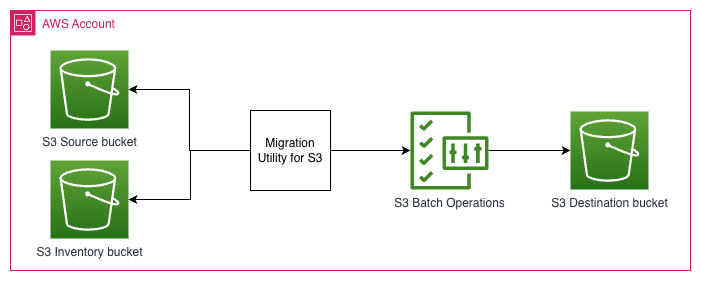
The tool breaks the migration into three phases:
- Phase 1: Inventory discovery – The tool reads pre-generated S3 Inventory manifests. You get a consistent point-in-time snapshot of the bucket that works the same whether you have a thousand objects or a billion, with no runtime API throttling.
- Phase 2: Filtering and processing – Your filtering criteria (date ranges, file extensions, prefix patterns, versioning selection) get applied against the inventory data. The output is a CSV manifest containing only the objects that match.
- Phase 3: Batch execution – That filtered manifest gets submitted as an S3 Batch Operations job. From here, the service handles retries, progress tracking, and completion reports. No servers to run, no AWS Lambda functions to maintain.
The tool offers the following key capabilities:
- Date range filtering by
LastModifiedDate(for example, “Give me everything modified in Q3 2024”) - Multi-extension filtering across .pdf, .csv, .json, or other combinations you need, in a single job
- Prefix-based selection scoped to an org structure like
customer-001/orteam-finance/ - Version-aware migration that checks versioning status on both source and destination buckets automatically, then copies all versions or latest-only depending on destination support (override with
--is-latest) - Cross-account support with permission checks that happen before execution starts
- Pre-flight security validation covering AWS Identity and Access Management (IAM) roles, bucket encryption, and cross-account policies, all verified up front so you don’t discover a misconfiguration halfway through a 10-million-object job
Solution walkthrough
In this post, we provide an illustrative example to demonstrate how to use the tool. For this use case, your compliance team needs all PDF and CSV files from Q3 2024 pulled out of a production bucket and into a dedicated archive. These steps walk you through setting up and running a Batch Operations job from scratch.
Prerequisites
Before you begin, make sure you have:
- An AWS account with administrative access
- The AWS Command Line Interface (AWS CLI) v2 installed and configured
- Python 3.9+ installed
- A source S3 bucket with data to migrate
- A destination S3 bucket (same or different account)
- Basic familiarity with IAM roles and S3 bucket policies
Configure S3 Inventory on the source bucket
S3 Inventory generates a daily or weekly report listing every object in your bucket. The tool reads these reports instead of making runtime List Objects calls, which means no throttling issues even on buckets with hundreds of millions of objects.
Configure S3 Inventory with the following command:
aws s3api put-bucket-inventory-configuration \
    --bucket source-bucket \
    --id daily-inventory \
    --inventory-configuration '{
        "Destination": {
            "S3BucketDestination": {
                "AccountId": "123456789012",
                "Bucket": "arn:aws:s3:::source-bucket",
                "Format": "CSV",
                "Prefix": "inventory-reports/"
            }
        },
        "IsEnabled": true,
        "Id": "daily-inventory",
        "IncludedObjectVersions": "All",
        "OptionalFields": [
            "Size", "LastModifiedDate", "StorageClass", "ETag"
        ],
        "Schedule": { "Frequency": "Daily" }
    }'
Wait for the first report before proceeding. S3 Inventory reports are generated within 24-48 hours after initial configuration.
Verify the inventory is ready:
aws s3 ls s3://source-bucket/inventory-reports/source-bucket/daily-inventory/
Create IAM role for S3 Batch Operations
Create an IAM role that S3 Batch Operations assumes to copy objects.
Use the following code for your trust policy:
{
    "Version": "2012-10-17",
    "Statement": [{
        "Effect": "Allow",
        "Principal": { "Service": "batchoperations.s3.amazonaws.com" },
        "Action": "sts:AssumeRole"
    }]
}
Use the following code for your permission policy (same-account):
{
    "Version": "2012-10-17",
    "Statement": [
        { "Sid": "ReadSource", "Effect": "Allow",
          "Action": ["s3:GetObject", "s3:GetObjectVersion"],
          "Resource": "arn:aws:s3:::source-bucket/*" },
        { "Sid": "WriteDestination", "Effect": "Allow",
          "Action": ["s3:PutObject", "s3:PutObjectAcl"],
          "Resource": "arn:aws:s3:::destination-bucket/*" },
        { "Sid": "ReadInventoryAndWriteReports", "Effect": "Allow",
          "Action": ["s3:GetObject", "s3:PutObject"],
          "Resource": "arn:aws:s3:::source-bucket/inventory-reports/*" }
    ]
}
For cross-account migrations, additional bucket policies and trust relationships are required. See the Cross-Account S3 Migration Setup Guide for detailed IAM policy templates.
Install and configure migration tool
Install and configure the tool with the following commands:
git clone https://github.com/awslabs/migration-utility-for-s3.git
cd migration-utility-for-s3
pip install -r requirements.txt
The tool requires boto3, pandas, and click. Verify your AWS credentials are configured:
aws sts get-caller-identity
Run filtered migration
Let’s explore a use case of compliance-driven archival. Use the following command to migrate Q3 2024 PDF and CSV files to an archive bucket:
python main.py \
  --source-bucket ecommerce-orders \
  --dest-bucket ecommerce-archive-q3-2024 \
  --inventory-name daily-inventory \
  --start-date 01-07-2024 \
  --end-date 30-09-2024 \
  --file-types pdf,csv \
  --account-id 123456789012 \
  --role-arn <S3BatchOperationsRole ARN> \
  --region us-east-1
Dates use DD-MM-YYYY format.
When you run the preceding command, the workflow completes the following steps:
- Locate the latest inventory manifest for
ecommerce-orders. - Download and decompress the inventory CSV files.
- Filter objects by
LastModifiedDate(01-07-2024 to 30-09-2024) and file extensions (.pdf, .csv). - Generate a filtered CSV manifest and upload it to S3.
- Create an S3 Batch Operations job with the filtered manifest.
- Display the job ID for monitoring.
The tool automatically detects versioning status on both source and destination buckets:
- When both buckets are versioned and you don’t pass
--is-latest, all object versions get copied. This preserves the full version history. - When the source is versioned but the destination is not, the tool automatically copies only the latest version of each object.
- Pass
--is-latestto force latest-version-only behavior even when both buckets support versioning.
We used this on a customer engagement where the production bucket was versioned (hundreds of versions per config file accumulated over 3 years) but they only wanted the current state in the archive. We addressed the issue with one flag:
# Archive only latest version of JSON files from 2024
python main.py \
--source-bucket application-data \
--dest-bucket application-data-archive \
--inventory-name daily-inventory \
--start-date 01-01-2024 \
--end-date 31-12-2024 \
--file-types json \
--is-latest \
--account-id 123456789012 \
--role-arn <S3BatchOperationsRole ARN> \
--region us-east-1
Monitor and verify results
Track the Batch Operations job status:
aws s3control describe-job \
  --account-id 123456789012 \
  --job-id <JOB_ID_FROM_STEP_4> \
  --region us-east-1
Check the completion report (stored in your source bucket under the inventory reports prefix) for a breakdown of successful copies, failures, and total objects processed.
Verify objects in the destination bucket:
aws s3 ls s3://ecommerce-archive-q3-2024/ --recursive --summarize
Run the tool with –dry-run first on any new bucket. It processes the inventory and applies filters without submitting the Batch Operations job, showing you the filtered object count, total size, and sample keys so you can spot configuration issues before committing to a real copy.
Cleaning up
To avoid incurring ongoing charges, delete the resources you created. Refer to the Clean Up section in the Readme file.
Conclusion
In this post, we walked through setting up S3 Inventory to snapshot a source bucket, creating a scoped IAM role for S3 Batch Operations, and running a filtered migration that picked out only Q3 2024 PDF and CSV files from a large dataset, without using custom copy logic. You can define what moves (by date, file type, prefix, or version status), S3 Batch Operations handles execution at scale, and the completion report gives compliance teams a line-by-line record of what succeeded and what didn’t.
We have used this pattern across various customer engagements: separating tenant data during company reorganizations, archiving financial records for regulatory retention, and migrating media files across accounts after acquisitions. The scenarios differ, but the pipeline stays the same: inventory, filter, batch copy. Clone the Migration Tool, configure S3 Inventory on a test bucket, and run a filtered migration. You should produce a working job in under an hour.
For cross-account migrations, the Cross-Account S3 Migration Setup Guide covers the bucket policies and trust relationships you will need. After data lands in the destination, add S3 Lifecycle policies to tier older objects into S3 Glacier. Use Batch Operations job tagging to track migration costs per team or project in AWS Cost Explorer. Finally, tune your S3 Inventory report frequency based on how often your source bucket changes.
If you have questions or want to share how you’ve used this tool in your environment, leave a comment.