AWS Storage Blog
Simplify workforce data access with AWS Transfer Family web apps and Terraform
Enterprises increasingly need direct access to data stored in Amazon Simple Storage Service (Amazon S3) for analytics, reporting, collaboration, and decision-making. Enabling this access for non-technical users can be challenging: training staff on the AWS Management Console, building custom portals, or adopting third-party tools each carry trade-offs in cost, complexity, or security posture. And as organizations grow, configuring identity providers, defining access, and maintaining consistent deployments across environments introduces its own operational complexity that is difficult to scale.
AWS Transfer Family web apps address the access challenge by providing a fully managed, browser-based portal where authenticated users can browse, upload, and download S3 data—without desktop clients, custom code, or console access. Web apps integrate with AWS IAM Identity Center for authentication and Amazon S3 Access Grants for fine-grained, identity-based permissions, all in a branded experience you don’t have to host or maintain. To address scaling challenges, the AWS Transfer Family Terraform module provides a repeatable, infrastructure-as-code approach to deploying and managing web apps consistently across environments.
In this post, we introduce AnyCompany Financial Solutions, a fictional financial services company whose requirements reflect common enterprise access control challenges, and walk you through how to deploy the Terraform module to build a solution that meets those requirements. You will learn how to provision IAM Identity Center users and groups, configure S3 Access Grants, apply custom branding, and integrate AWS CloudTrail for audit logging — and how to adapt the same pattern for your own organization.
Solution overview
This post uses AnyCompany Financial Solutions, a fictional financial services company, to demonstrate how organizations can implement this solution. AnyCompany has the following requirements:
- Accountants need to upload quarterly financial reports to Amazon S3
- Auditors need read-only access to download and review those same reports
- Users should not need AWS console access or technical training
- IT must enforce segregation of duties between roles
- Access provisioning must be repeatable and auditable across environments
The core challenge is delivering a branded file transfer experience with managed, fine-grained access controls. The following diagram illustrates the solution architecture using AWS services.
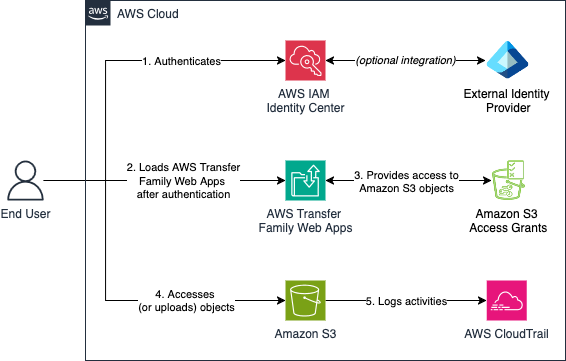 Figure 1: Architecture diagram of the solution
The architecture consists of the following key components:
- AWS Transfer Family web apps
- Fully managed, browser-based portal for S3 object operations
- Custom branding with logo, favicon, and page title
- AWS IAM Identity Center
- Centralized authentication for web app users
- User and group management
- Integration with existing SAML identity providers with multi-factor authentication (MFA) support
- Amazon S3 Access Grants
- Fine-grained, identity-based permissions at the user and group level
- Path-level access control within S3 buckets
- Separation of duties between teams (for example, read-only vs. read/write)
- AWS CloudTrail
- Audit logging for all object operations
- Compliance and monitoring support
The Terraform module ties these components together, so you can provision the entire stack (identity, permissions, branding, and logging) in a single, repeatable deployment.
Prerequisites
The following prerequisites are required to complete this solution:
- An AWS account with permissions to create resources in AWS Identity and Access Management (IAM)
- An IAM or federated user with permissions to create and administer the following:
- S3 buckets, bucket policies, and CORS configurations
- IAM roles and policies
- Amazon CloudWatch Logs and log groups
- AWS Key Management Service (KMS) keys, key policies, and aliases
- An existing IAM Identity Center instance with users already provisioned (see Getting started with IAM Identity Center for setup guidance)
- The IAM Identity Center instance Amazon Resource Name (ARN) and identity store ID for your existing instance
- Existing IAM Identity Center user names or group names to which you want to grant S3 access
- Familiarity with your IAM Identity Center user and group structure (see Changing permissions for an IAM user to learn how to set up IAM permissions and define permission boundaries)
- Terraform version v1.5.0 or greater
Clone repository
Clone the repository using the git clone command as shown in the following example:git clone https://github.com/aws-ia/terraform-aws-transfer-family.git
This example uses the transfer-web-app module as its core component. This module encapsulates the logic needed to deploy Transfer Family web apps with IAM Identity Center authentication and S3 Access Grants. The module is called from the main.tf file in the examples/sample-web-app directory. Navigate to the example directory using the following command:
cd examples/sample-web-app
Set up values for Terraform variables
Next, assign appropriate values to the Terraform variables. The README.md file for the module provides a description of the Terraform variables. For this walkthrough, we create a local terraform.tfvars file in the examples/sample-web-app directory using the following command:
touch terraform.tfvars
Configure IAM Identity Center connection
For the AnyCompany Financial Solutions use case, we use their existing IAM Identity Center instance with existing users. Add the following to your terraform.tfvars file, replacing the values with those from your IAM Identity Center instance:
This Terraform module also supports creating a new IAM Identity Center instance and test users for testing or development purposes. To create test resources, set create_identity_center_instance = true and create_test_users_and_groups = true in your variables file. See the module README for full details.
Configure existing users and groups
Edit the imported-users.tf file to reference your existing IAM Identity Center users. For AnyCompany Financial Solutions, we configure two users that has already configured before in IAM Identity Center:
- John Doe (accountant) – Needs read/write access to upload quarterly reports
- Jane Smith (auditor) – Needs read-only access to review reports
Users must already exist in your IAM Identity Center instance before deployment. During deployment, you configure access permissions to the S3 bucket that Terraform creates using two key properties within the access_grants configuration:
- s3_path specifies which objects or prefixes within the newly created bucket users or groups can access, with the path automatically prefixed with the bucket name during deployment
- permission defines the level of access granted to those paths in the newly created bucket
Add the following code to the imported-users.tf file:
Alternatively, you can configure access by group. Edit the imported-groups.tf file to reference existing IAM Identity Center groups. Groups must already exist in your IAM Identity Center instance before deployment.
For this example, we will be granting different permissions to two users, as detailed in the following table.
| s3_path | Permission | Grantee (User) |
|---|---|---|
| /* | READWRITE | John Doe (accountant) |
| READ | Jane Smith (auditor) |
Configure custom branding (optional)
You can customize the logo, favicon, and title instead of using the provided defaults. Add your logo and favicon files to the examples/sample-web-app directory, then add the following branding variables to your terraform.tfvars file:
Configure resource tags
Configure tags for resource organization by adding the tags variable to your terraform.tfvars file and modifying the values as needed:
We recommend adding a tag with Name as the key and a unique string as the value to quickly identify your web apps and related resources.
Start deployment
Before starting the deployment, configure the AWS Command Line Interface (AWS CLI) credentials for Terraform using the service account created in the prerequisites. Then complete the following steps:
- Run terraform init to download the modules and initialize the directory
- Run terraform plan and examine the output
- Run terraform apply and allow the process to complete
If terraform apply completes successfully, the output should appear as shown in the following screenshot.
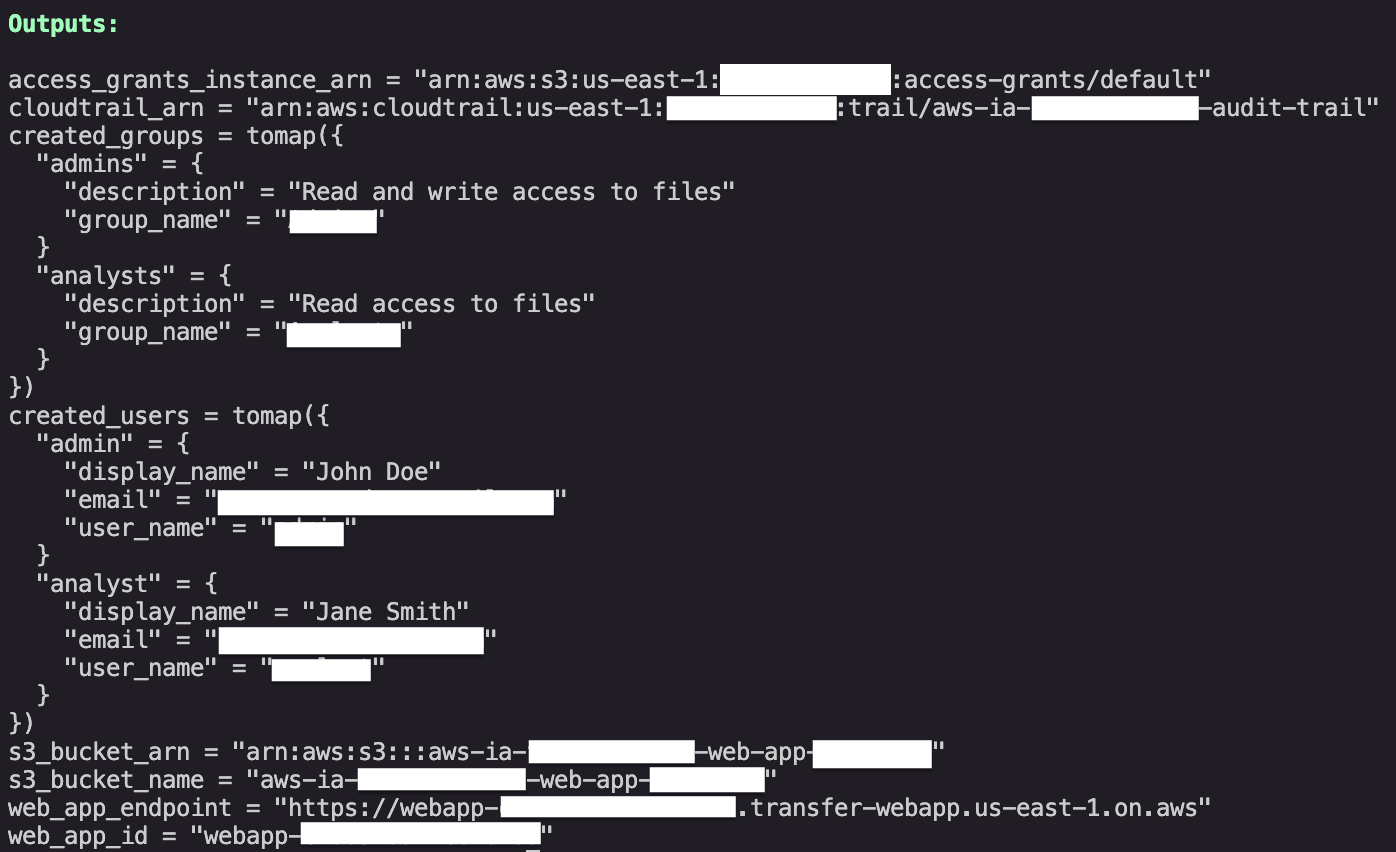 Figure 2: Example successful output after terraform apply
To view the resources created by Terraform, use the terraform state list and terraform state show commands.
Test web apps
After deployment is complete, retrieve the web apps endpoint URL using the following command:terraform output web_app_endpoint. Users will sign in with their existing IAM Identity Center credentials. If MFA is configured in your IAM Identity Center instance, users will be prompted to complete MFA steps during sign-in. The command returns a URL for the web apps (for example, https://w-1234567890abcdef.transfer.us-east-1.amazonaws.com).
Test read/write access
Complete the following steps to test read/write access for the accounting team:
- Open the web apps endpoint URL in your browser
- Choose Sign in with IAM Identity Center
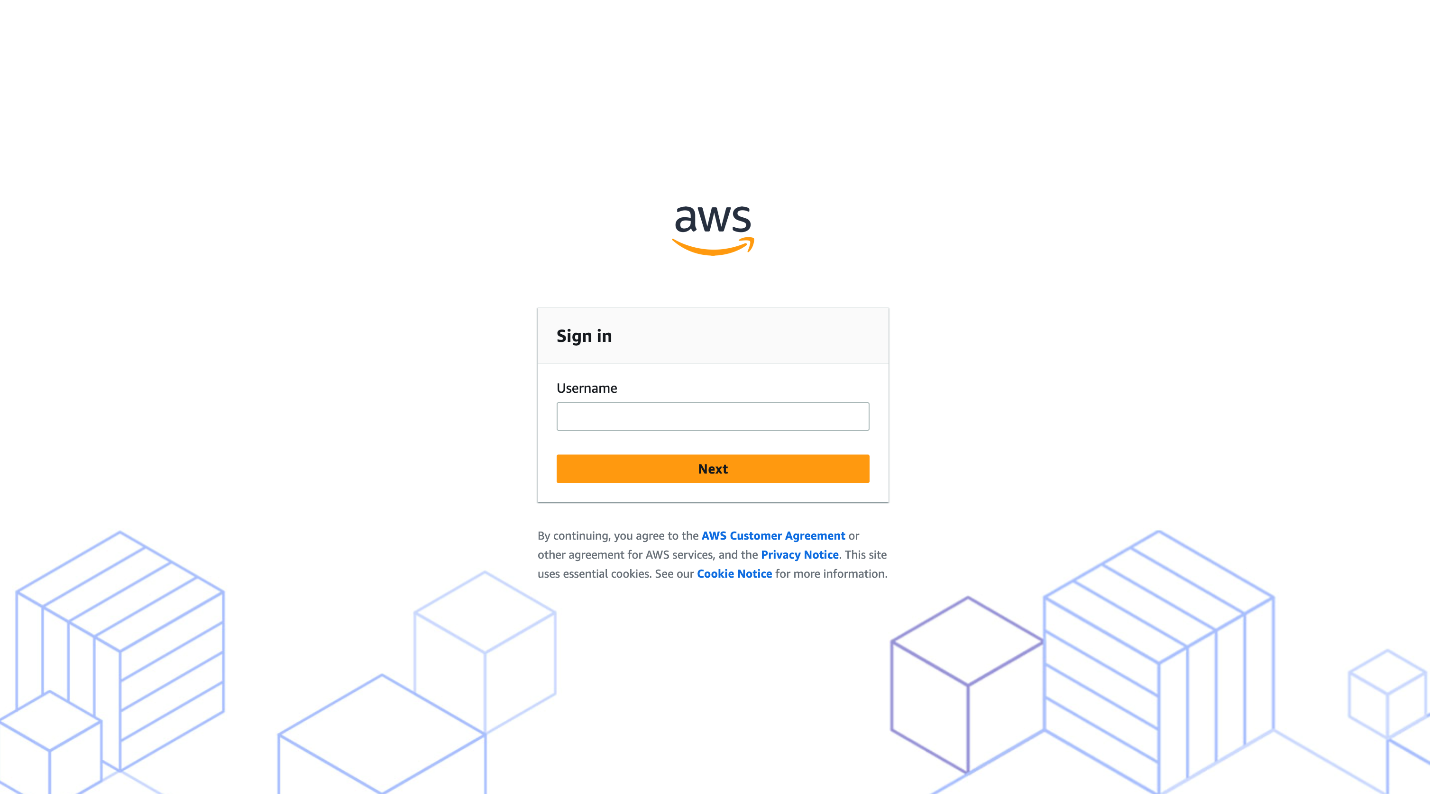 Figure 3: Login page using IAM Identity Center
- Enter the accountant user credentials and complete MFA verification
- Choose Upload and select a test file (for example, Q4-2025-Financial-Statements.pdf)
- Verify that the file appears in the file listing
- Choose the file and verify that you can download it
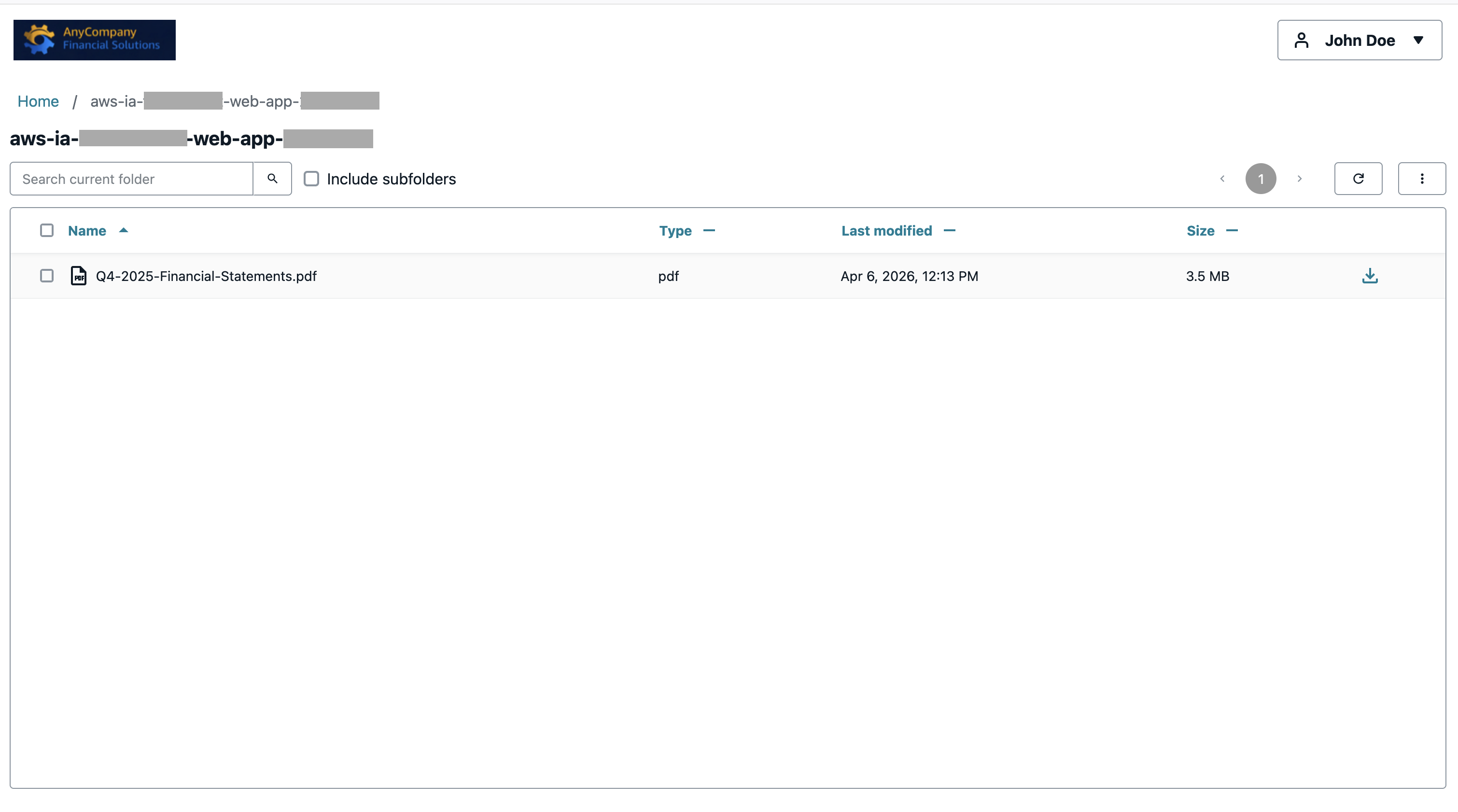 Figure 4: Successful file upload for Q4-2025-Financial-Statements.pdf
Test read-only access
Complete the following steps to test read-only access for the auditor team:
- Sign out of the accountant session
- Sign in with the auditor user credentials
- Verify that the uploaded file is visible in the file listing
- Choose Download and verify that the file downloads successfully
- Verify that no Upload option is available, confirming read-only access
Figure 5: Viewing uploaded file Q4-2025-Financial-Statements.pdf with the options menu (three dots) greyed out
This confirms that access controls are working correctly—accountants have read/write access while auditors have read-only access, maintaining proper segregation of duties.
Best practices
The Terraform module provisions a secure, functional baseline, but there are additional steps you should take before running this solution in production. This section covers recommended practices for monitoring user activity, hardening your security posture, and scaling your deployment over time.
Monitoring and auditing
CloudTrail automatically logs user activities through the web apps, including file uploads, downloads, and deletions. You can also create a subscription on the related Amazon Simple Storage Service (Amazon SNS) topic to get the periodic notifications of the user activities. To monitor and review this activity, consider the following steps:
- Navigate to the CloudTrail console and filter events by event source transfer.amazonaws.com
- Set up Amazon CloudWatch alarms for suspicious activities such as unusual download volumes or access outside business hours
- Review S3 Access Grants evaluation logs to audit permission decisions
- Use AWS CloudTrail Lake to run SQL-based queries on your event history for compliance reporting
- Create a subscription on Amazon SNS. Navigate to the Amazon SNS console and choose Topics in the navigation pane. Choose the SNS topic created in the example (aws-ia-…-…-cloudtrail-alerts) and choose Create Subscriptions. Select the applicable protocol and add the details, then choose Create subscription
Security best practices
Consider the following security best practices:
- Enable MFA in IAM Identity Center for all users accessing sensitive data. See MFA for Identity Center directory users for setup instructions
- Amazon S3 server-side encryption is enabled by default using AWS managed keys (SSE-S3). For higher compliance requirements, consider using AWS KMS customer managed keys
- Review and rotate S3 Access Grants permissions quarterly to maintain least privilege access
- Consider implementing virtual private cloud (VPC) endpoints for Amazon S3 for private connectivity if users access the web apps from within your VPC
- Follow IAM Identity Center security best practices for enterprise identity management
Scaling considerations
This Terraform module can scale to support hundreds of users across multiple groups. To add new users or groups after initial deployment, complete the following steps:
- Update the imported-users.tf or imported-groups.tf files with new entries
- Run terraform plan to preview the changes
- Apply the updates with terraform apply
Use Terraform workspaces or separate state files to deploy this solution across development, staging, and production environments with environment-specific configurations.
Cost and pricing
The following table summarizes the main cost components for this solution. Actual costs depend on usage patterns, data volumes, and your AWS pricing tier.
| Service | Pricing | Notes |
|---|---|---|
| AWS Transfer Family web apps | $0.50 per hour per unit | One Transfer Family web app unit can provide up to 250 unique sessions per 5-minute period |
| Amazon S3 storage | Standard storage rates | Based on data volume stored |
| Amazon S3 request costs | Per GET/PUT operation | Based on file transfer volume |
| AWS CloudTrail data events | $0.10 per 100,000 events | After 250,000 free events per month |
For the AnyCompany scenario with two users (one accountant and one auditor), the estimated monthly cost is approximately $58–70, plus S3 storage and request costs based on actual usage.
For detailed pricing information, see AWS Transfer Family Pricing.
Clean up
To delete the resources associated with this example, ensure that your AWS CLI credentials are configured as described earlier, and change your directory to examples/sample-web-app/. Run the following command to delete the resources that Terraform created:terraform destroy. Resources created outside of Terraform must be deleted manually. Additionally, S3 buckets must be empty before Terraform can delete them. You can empty a bucket on the S3 console or using the AWS CLI.
Conclusion
In this post, we demonstrated how to use the Transfer Family Terraform module to deploy a complete, branded web-based data access experience for your workforce. The solution combines Transfer Family web apps, IAM Identity Center, and S3 Access Grants into a single, repeatable Terraform deployment—avoiding the manual configuration typically required to set up secure, role-based S3 access for non-technical users.Using an example use case, we showed how accountants and auditors can access the same S3 bucket through a branded portal with different permission levels, enforcing segregation of duties without requiring AWS expertise from either role. Try deploying this solution in your AWS account today and adapt it to your organization’s specific access control requirements.
Next steps
- Explore the Transfer Family Terraform module repository for advanced configuration options, including custom domain names and additional IAM role configurations
- Learn more about S3 Access Grants for fine-grained, identity-based access control at scale
- Review IAM Identity Center best practices for enterprise identity management
- Refer to Transfer Family web apps documentation for a full list of supported features and configuration options