AWS Cloud Financial Management
Ask AWS FinOps Agent resource-level cost questions with AWS Billing and Cost Management Data Hub (preview)
Your teams ask resource-level cost questions every month: which resources drove last month’s cost increase, which team owns those resources, and how the total ties to the invoice. To answer these questions, you can now use AWS Billing and Cost Management Data Hub, in public preview, with AWS FinOps Agent and ask your questions in plain language. Another way to answer these questions is to export your cost and usage data and build your own pipeline to query the export. With Data Hub, you can use a managed data layer that AWS FinOps Agent queries with SQL on your behalf. AWS provisions the data, refreshes the data, and maintains the schema for you, so you can start asking resource-level questions as soon as your dataset is ready.
Note that Data Hub is in preview release and is subject to change.
In this post, we show examples of how AWS FinOps Agent uses Data Hub to answer four types of questions:
- Which resources drove last month’s cost increase?
- What did each team spend, and which resources have no cost center tag?
- Which AWS Identity and Access Management (AWS IAM) principals drove our AI spend?
- How does last month’s total break down by invoice and by charge type
Customers who have used Data Hub with AWS FinOps Agent describe the value in their own words. Sicredi puts it this way:
“At Sicredi, we believe artificial intelligence creates the most value when it expands what people can do. With the support of Data Hub and AWS FinOps Agent, our team turns complex cost and usage data into more accessible insights, strengthening analysis, speeding up decisions, and supporting increasingly data-driven management.”
Richard Hennig, FinOps Engineer, Confederação Sicredi
Attribute cost changes down to the individual resource
To act on an increase in Amazon Elastic Compute Cloud (Amazon EC2) spend, you need two things: the instances that caused the increase and the hours those instances ran. You can get that detail from AWS Data Exports. You export AWS Cost and Usage Report 2.0 (CUR 2.0) data to an Amazon Simple Storage Service (Amazon S3) bucket. Then you query the export with Amazon Athena or load the export into a data warehouse. With Data Hub, you can also ask AWS FinOps Agent the same resource-level questions directly, from a dataset that AWS manages for you.
With Data Hub, when you ask AWS FinOps Agent which Amazon EC2 resources had the biggest cost increase last month, the agent finds your dataset in Data Hub, reads the dataset schema, and runs a read-only SQL query. The agent compares effective cost between the two months, so usage covered by Reserved Instances or Savings Plans appears at the price you paid, not at the On-Demand rate. In the following example, the 15 resources with the largest increase cost $104.25 in September, and all 39 new resources cost $108.14. Eight of the 15 resources are instances, and the other seven are Amazon Elastic Block Store (Amazon EBS) volumes, which AWS bills under Amazon EC2. None of the 15 resources had cost in August. To read the full query, expand the data-hub-start-query-execution step in the agent’s reasoning, marked by the red square.
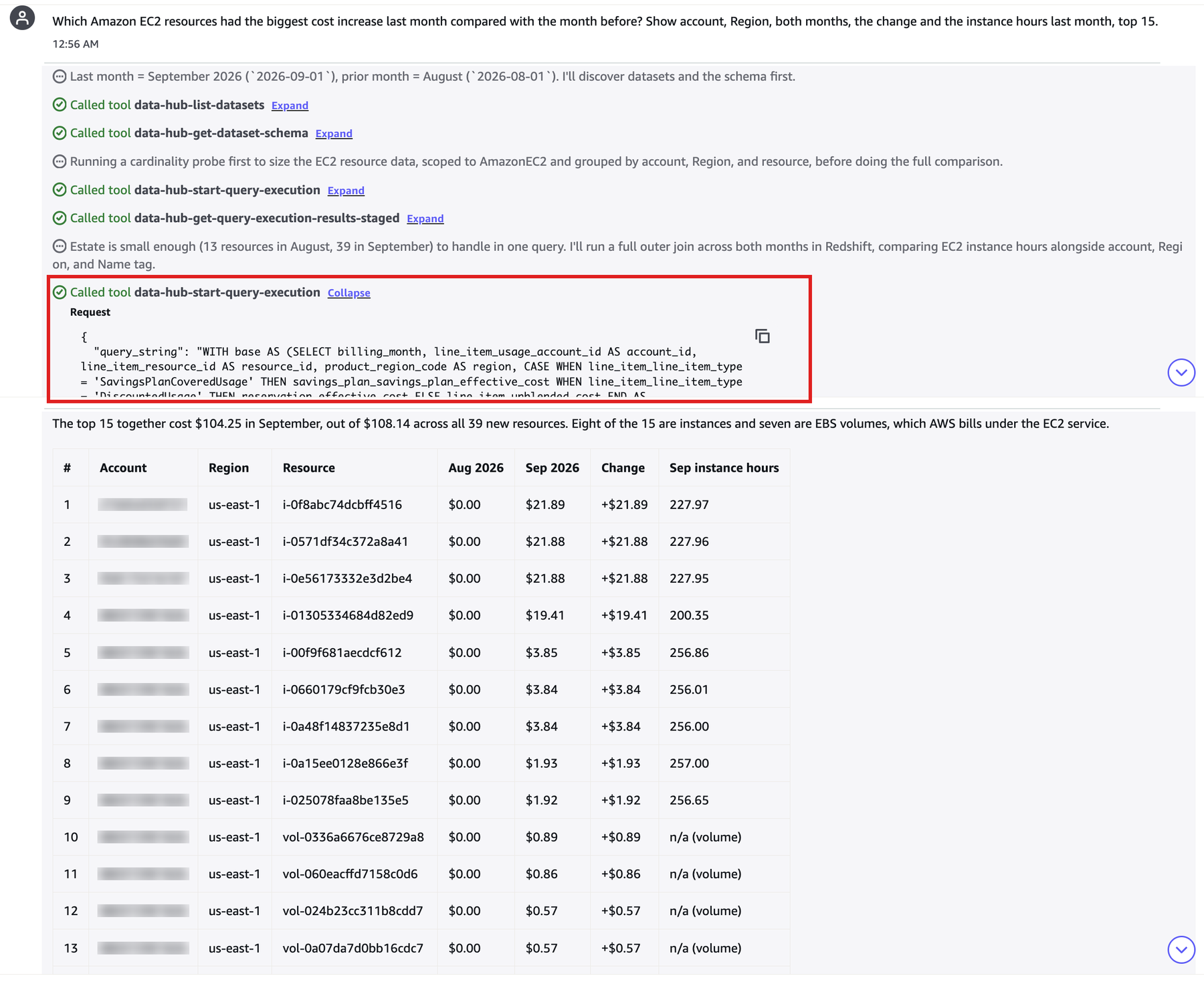
Figure 1: Resource-level cost attribution in AWS FinOps Agent
freee K.K. used AWS FinOps Agent with Data Hub to find the cause of a cost spike:
“When our AWS costs spike, our SRE team needs to pinpoint exactly which resources in which services are driving the increase and how long those resources ran. We also need data spanning a certain period to understand trends, such as daily trends over a month and monthly trends over a year. For this reason, we previously ran SQL queries against AWS Cost and Usage Reports (CUR) through an Amazon Athena environment that we had to build, operate, and maintain ourselves. This time, we simply asked the AWS FinOps Agent in natural language from Data Hub. It identified the resource IDs and daily costs behind the increase, and when we followed up, it returned their runtime hours too. This investigation needed no SQL queries and no Athena environment, so the effort they would have taken was zero. We expect the AWS FinOps Agent alone to cover many of our use cases for cost-spike root cause analysis.”
Ryu Yokoji, Co-Founder / Chief AI Officer, freee K.K.
Charge spend back to the team that owns it
A showback report assigns each cost to the team accountable for it. Ownership lives in two places: the cost allocation tags on your resources and the account structure of your organization in AWS Organizations. With Data Hub, tags, resource identifiers, and account details sit in the same rows as the cost, so you can cover cost, ownership, and untagged resources in one question.
In a single conversation, AWS FinOps Agent reports what each Project tag value cost last month, then lists the resources that carry no cost center tag and what each resource cost. In the demo organization:
- 1,000 resources carry no Project tag and cost $242.57.
- 1,025 resources carry no cost center tag and cost $160.96.
- 46 of those 1,025 resources cost $0.10 or more each and account for $155.98.
Tagging those 46 resources closes almost all of the cost center gap. The following screenshot shows both answers.
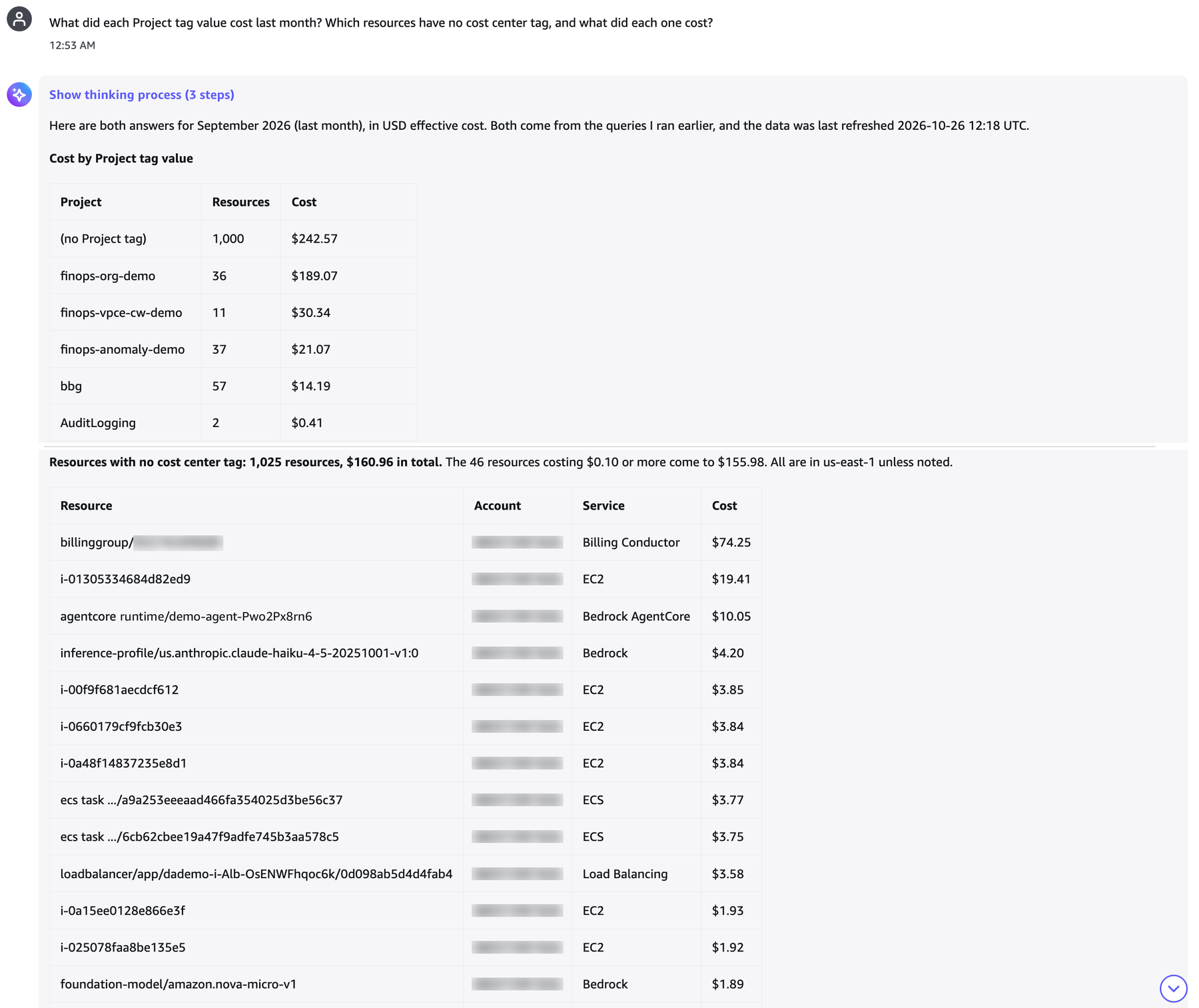
Figure 2: Showback by team using cost allocation tags, and the resources that have no cost center tag
Break down AI spend by the IAM principal that made the call
With generative AI, cost depends on who makes each request. Amazon Bedrock charges by usage, such as input and output tokens, and requests come from IAM users, roles, and assumed role sessions across many applications and teams. The caller is therefore a useful way to view AI spend.
AWS supports IAM principal cost allocation for Amazon Bedrock. After you turn on IAM principal data, AWS records which IAM principal made each Amazon Bedrock model inference call. AWS stores the principal’s ARN in the line_item_iam_principal column. With Data Hub, you get that column in the same rows as the rest of your cost and usage data, together with the account, Region, and tags. The usage type identifies the model and whether the tokens are input or output, for example USE1-NovaPro-input-tokens. From one dataset, you can move from the whole AI bill to a principal, a model, a token type, or a team.
When you ask AWS FinOps Agent to show your AI spend by IAM principal, the agent finds the line_item_iam_principal column in the dataset schema, groups role sessions under their role, and ranks the roles by spend. In the demo organization, AI spend was $6.10 in September and $28.02 for October month to date, all on Amazon Bedrock. The following screenshot shows the agent steps, the start of the SQL query, and the answer.
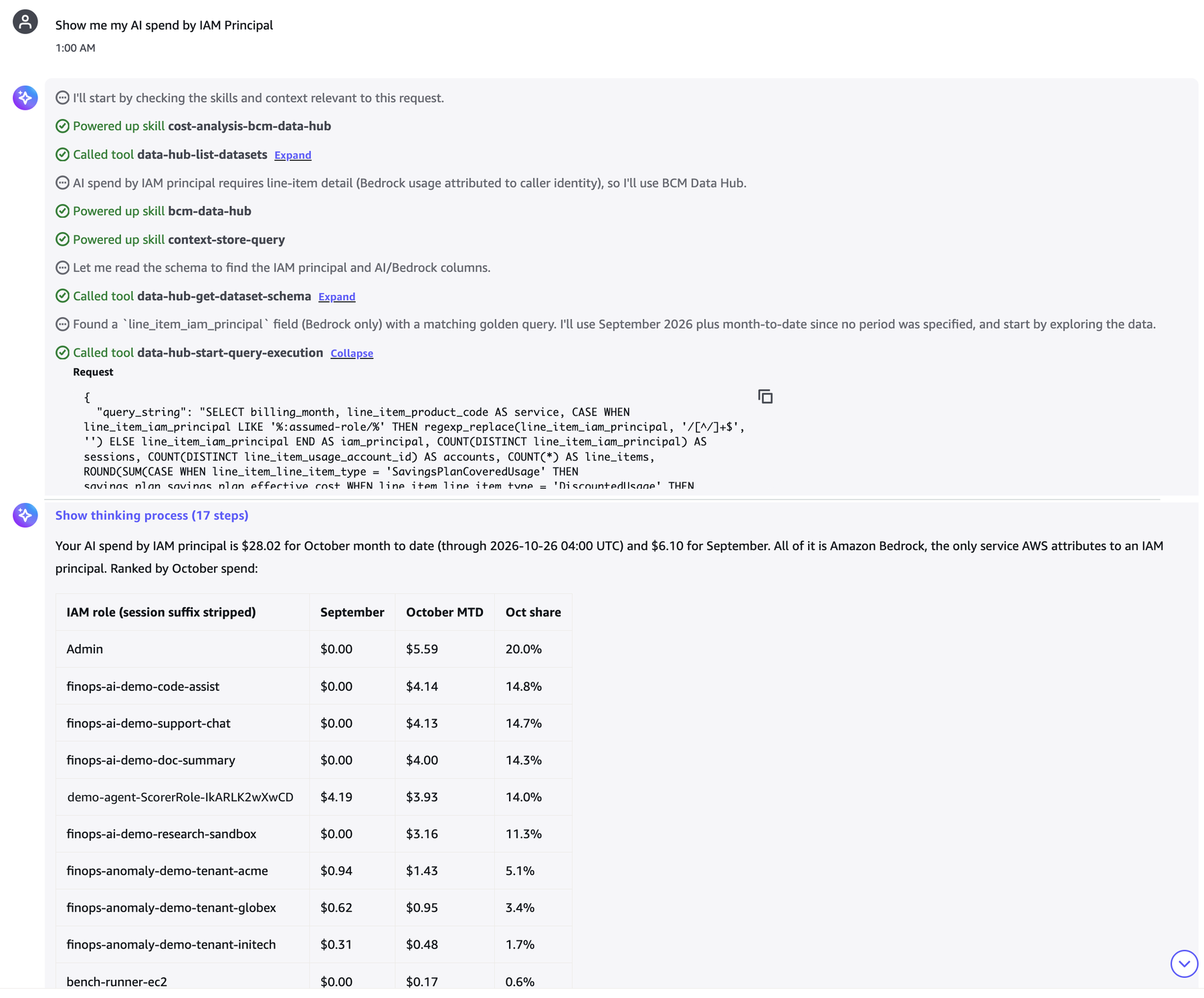
Figure 3: AI spend by IAM principal in AWS FinOps Agent
Talkdesk used the same approach to reconcile the Amazon Bedrock usage reported by its AI Gateway with its AWS bill:
“We route our Amazon Bedrock traffic through our AI Gateway, and we wanted to reconcile the usage it reports with our AWS bill. Data Hub has our cost and usage down to each resource, kept current by AWS, so AWS FinOps Agent could correlate model, requester and day and pinpoint the ARN making requests directly to Bedrock. We got to the answer ourselves, without building or maintaining a data pipeline. It’s now our go-to tool for investigating cost anomalies.”
Talkdesk
To attribute this spend to your own teams, tag the IAM users and roles that call Amazon Bedrock, then activate those tags as cost allocation tags in the Billing and Cost Management console. Keep the following in mind:
- Tag the principals: Apply tags such as department, cost-center, team, or project to the IAM users and roles.
- Allow time for the tags to appear: A tag becomes available for activation only after the principal makes at least one Amazon Bedrock API call. The tag can take up to 24 hours to appear on the Cost Allocation Tags page. After you activate the tag, allow up to 24 more hours for the tag to apply.
- Keep tag values low in cardinality: Avoid unique session IDs, timestamps, or random GUIDs as tag values.
Reconcile cost and usage data to your invoices
At month-end close, finance teams need an AWS total that ties to the invoice, with a breakdown that traces back to the charges AWS billed. With Data Hub, you can access your billed cost and usage line items, including the invoice that each charge belongs to. From that dataset, AWS FinOps Agent breaks a month’s total down by invoice and by charge type. The agent then checks each invoice total against the invoice amounts from the ListInvoiceSummaries API, so you can confirm that your cost and usage data matches your invoices before you close the month.
In the following example, the September 2026 total is $910.77 across two invoices:
- $461.81 of usage
- $234.90 of fees
- A $216.00 Savings Plans recurring fee
- -$1.94 of credits
The Savings Plans covered usage and negation rows cancel each other out.
AWS FinOps Agent shows the SQL it ran next to each answer, so anyone who asks where a number came from can read the query or run the query themselves. The following screenshot shows the breakdown by invoice and by line item type.
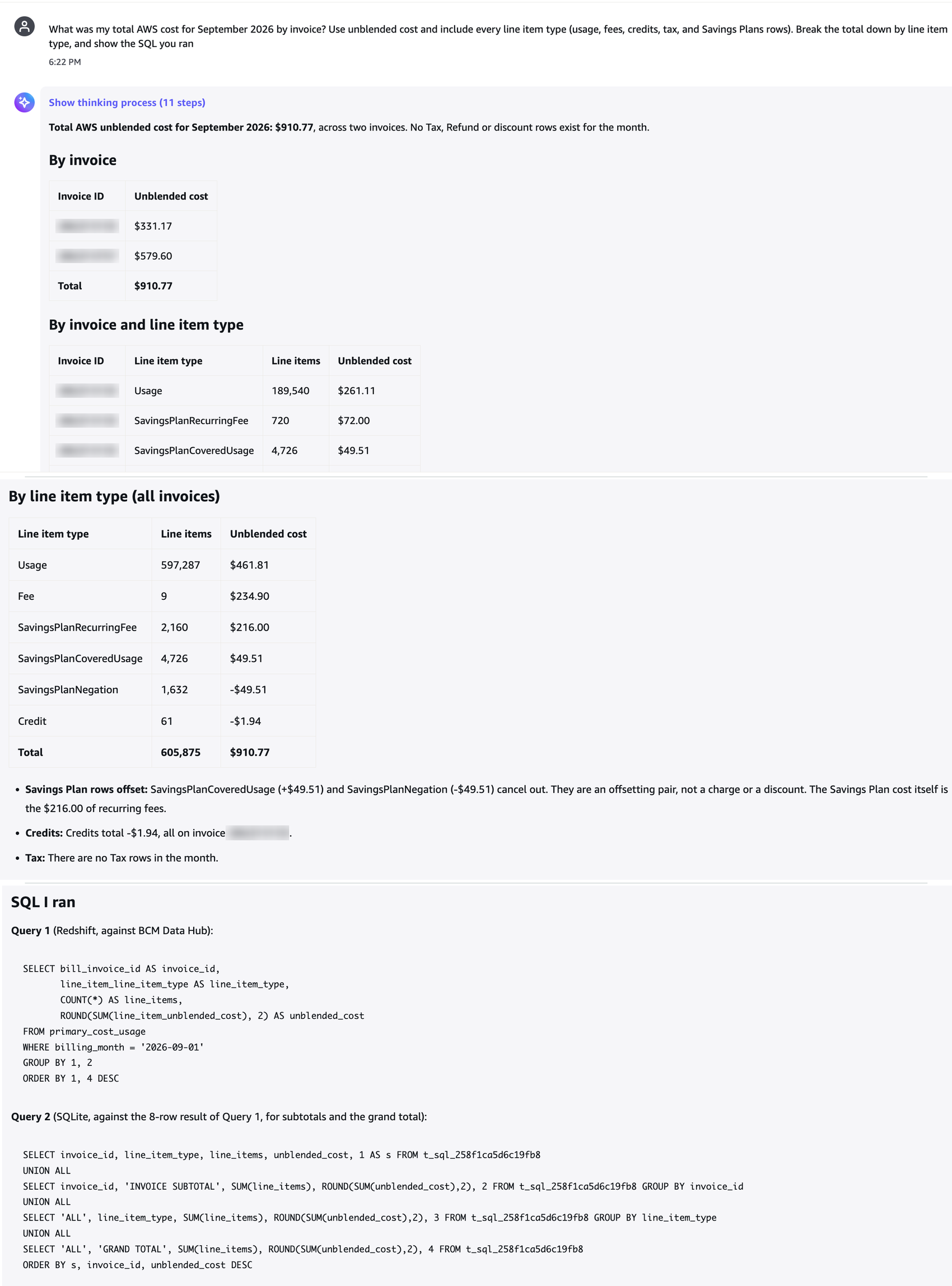
Figure 4: Last month’s total by invoice and by line item type
Key capabilities in public preview
Public preview includes the following capabilities:
- A managed cost and usage dataset: An administrator creates a dataset once. AWS provisions the data, refreshes it, and keeps the schema current. The dataset carries 13 months of hourly, resource-level data: the 12 months loaded at creation plus the current month. The data uses one schema, cost_usage, which follows the published CUR 2.0 data dictionary. AWS adds new columns and charge types to that schema, so you do not rewrite a query to reach them.
- SQL queries by AWS FinOps Agent: Plain-language questions become read-only SQL against the dataset, and the agent states the SQL alongside the answer
- Coverage across your organization: A dataset created from the management account covers the member accounts in your organization. Accounts that join the organization later are also covered.
Before it writes SQL, the agent reads the schema of the dataset. The following screenshot shows the columns that cover resource tags, cost categories, and the IAM principal. Resource tags and cost categories are stored as JSON strings. The line_item_iam_principal column holds the ARN of the principal that made the call. It is populated only if IAM principal data is turned on, and it covers Amazon Bedrock model inference calls.
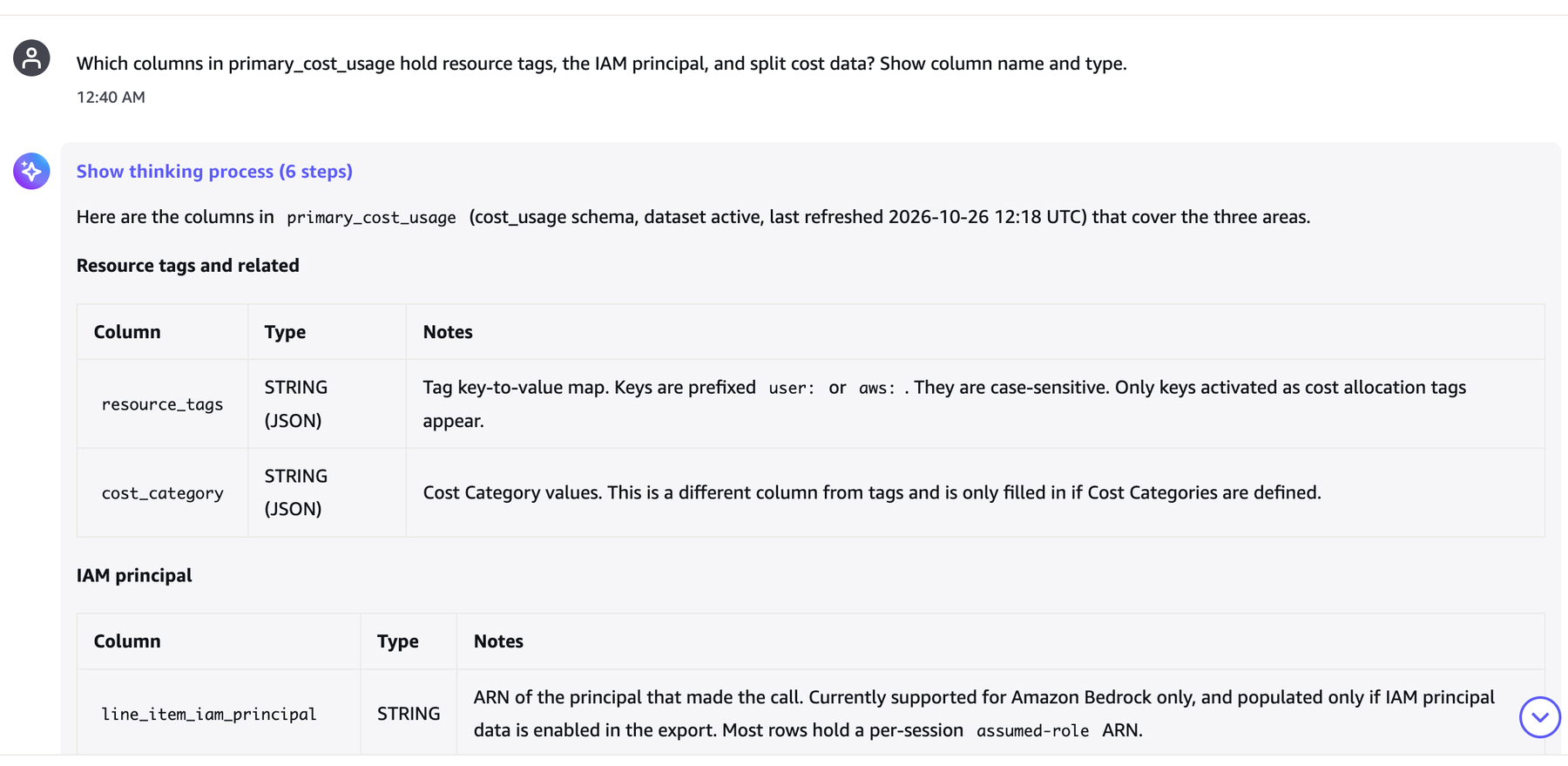
Figure 5: Columns of the cost and usage dataset for tags and the IAM principal
Getting started
This section walks you through creating a dataset and asking your first question.
Prerequisites
Before you start, make sure that you have the following:
- An AWS Organizations management account, and access to the AWS Billing and Cost Management console in the US East (N. Virginia) Region.
- IAM permissions to create a dataset, and to grant the Data Hub read and query actions.
- An AWS FinOps Agent that you can connect to the dataset.
- For AI spend by IAM principal: IAM principal data turned on, and the tags on your IAM principals activated as cost allocation tags.
Create your first dataset
To create your first dataset, complete the following steps:
1. Open the console. Sign in to the AWS Billing and Cost Management console with your management account in the US East (N. Virginia) Region.
2. Go to the Data Hub page. Choose Create dataset.
The Data Hub page lists the datasets in your account. Before you create the first one, the list is empty, and Create dataset is available at the top of the list and in the middle of the table. The following screenshot shows the page, with red rectangles around the two Create dataset buttons.
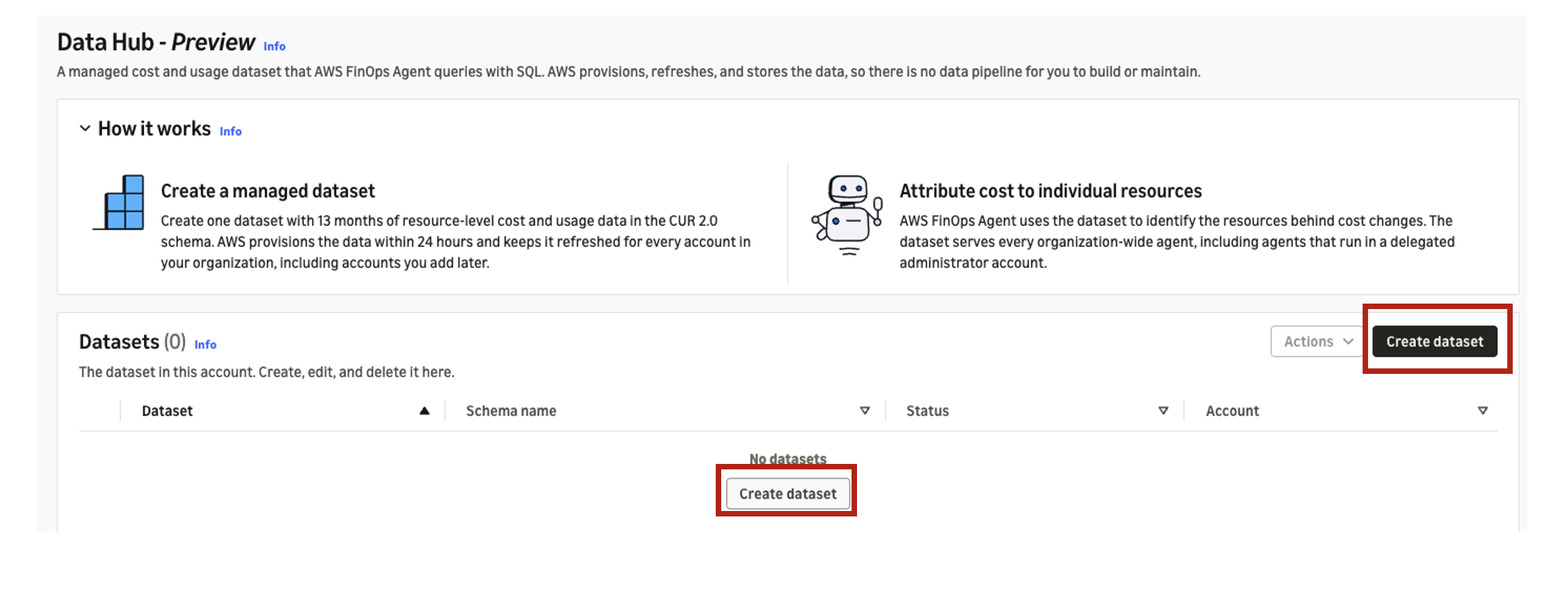
Figure 6: The Data Hub page before you create a dataset
3. Choose a schema. Public preview offers one, cost_usage, based on the CUR 2.0 schema.
4. Name the dataset. Use lowercase letters, numbers, and underscores, beginning with a letter or a number.
On the Create dataset page, you enter a name and choose the schema. The page shows that the dataset covers the accounts in your organization, including accounts added later. The page also shows the account where AWS provisions the dataset. Tags are optional. The following screenshot shows the page. The red rectangle marks the Create dataset button to choose when you are done.
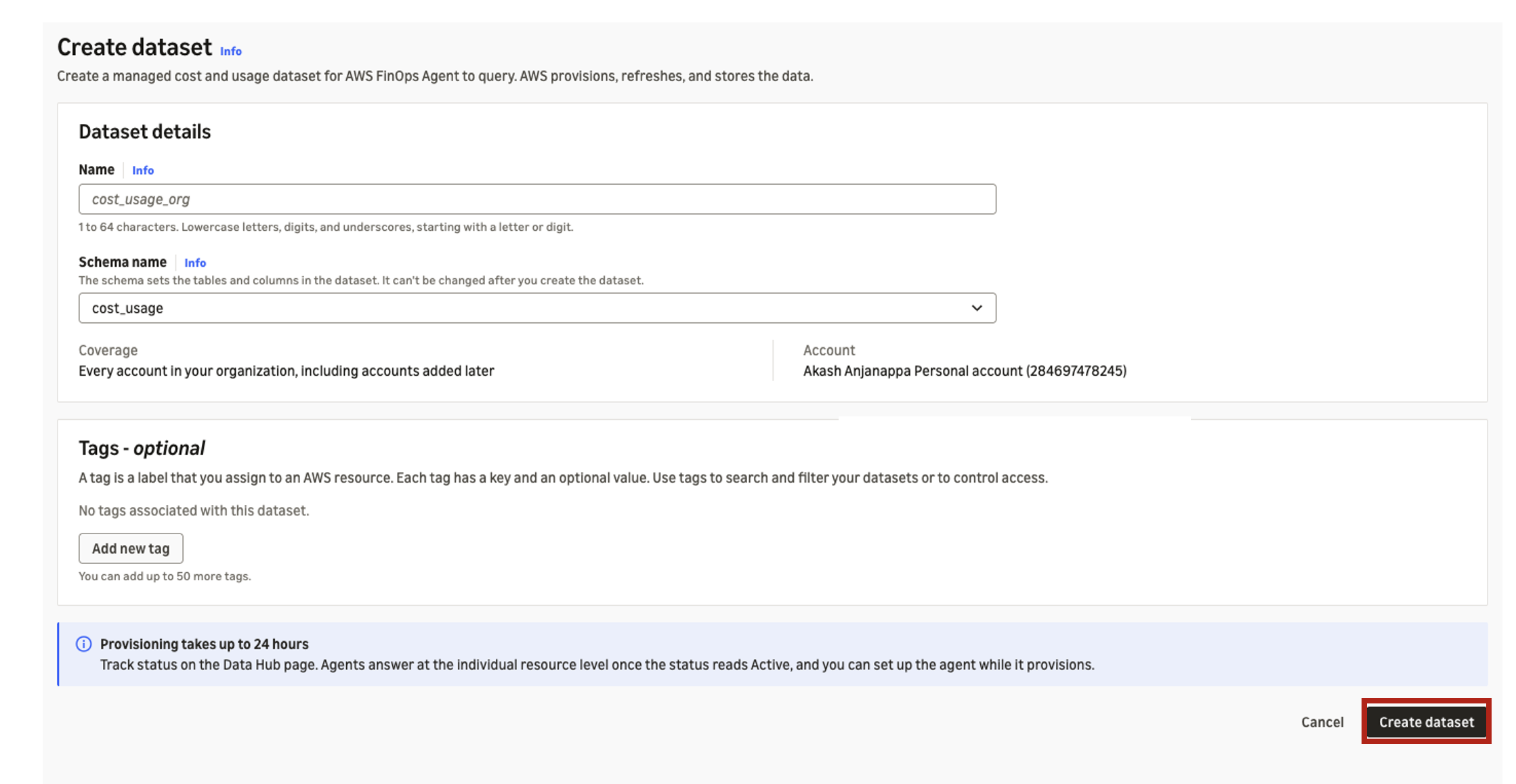
Figure 7: The Create dataset page
5. Create it. AWS provisions the dataset and loads 12 months of history. Provisioning takes up to 24 hours, and the Data Hub page reports the dataset status while provisioning runs. For details, see Create a dataset on the Data Hub page in the AWS Billing and Cost Management User Guide.
When you choose Create dataset, the console confirms the request and returns to the Data Hub page. The following screenshot shows the confirmation for a dataset named cur2.

Figure 8: Confirmation that the dataset was created
6. Grant the permissions. Add the Data Hub read and query actions to your IAM policy, so that AWS FinOps Agent can reach the dataset.
7. Connect AWS FinOps Agent. When you create a new agent, select Use Data Hub for this agent. For an existing agent, choose Connect on the agent’s Data Hub tab.
8. Ask your first question. A good place to start is a resource-level question that your team asks every month, such as which Amazon EC2 resources had the biggest cost increase last month.
Availability and pricing
Data Hub is available in public preview in the US East (N. Virginia) Region. A dataset created in the management account covers cost and usage data for the member accounts in your organization. There is no charge for Data Hub during public preview.
Conclusion
In this post, we showed how you can ask AWS FinOps Agent resource-level cost questions with Data Hub in AWS Billing and Cost Management. You saw examples of how AWS FinOps Agent can attribute cost to resources, charge spend back to teams, break down AI spend by IAM principal, and split a month’s total by invoice and by charge type.
To get started, create a dataset from the AWS Billing and Cost Management console. Connect AWS FinOps Agent to it, and ask which resources or IAM principals drove last month’s largest increases. To learn more, see the following resources:
- Data Hub (preview) in the AWS Billing and Cost Management User Guide
- AWS Billing and Cost Management User Guide
- AWS FinOps Agent User Guide
If you want help applying this to your own organization, contact your AWS account team.