AWS Big Data Blog
Access Amazon S3 data files directly using AWS Lake Formation permissions
Data scientists and ML engineers often need to access raw data files in Amazon Simple Storage Service (Amazon S3) for machine learning training, data exploration, and generative AI workflows. However, when table-level access is governed by AWS Lake Formation, accessing the underlying S3 files has required maintaining separate permission mechanisms. S3 bucket policies or AWS Identity and Access Management (IAM) role policies create operational overhead and risk of permission drift.
Lake Formation now supports direct access to S3 data file locations for tables whose permissions it manages. Previously, data scientists with Lake Formation permissions on AWS Glue Data Catalog tables could query them using spark.sql(). Now, they can also read and write the underlying S3 data files using spark.read.parquet() or spark.read.csv() from Amazon EMR Spark jobs, Amazon SageMaker Unified Studio notebooks with EMR compute, and custom applications. All access is governed by the same Lake Formation permissions.
This capability is powered by the new GetTemporaryDataLocationCredentials() API, which vends temporary credentials scoped to registered S3 locations when callers have appropriate Lake Formation permissions on the corresponding Data Catalog tables. This eliminates the need to manage separate S3 bucket policies for file-level access while maintaining fine-grained access control in Lake Formation for table-based access. It enables your data scientists to explore S3 datasets securely, accelerate machine learning pipelines, and build generative AI workflows without compromising governance.
In this post, we demonstrate reading from and writing to Lake Formation-managed S3 locations using Apache Spark jobs from EMR. Lake Formation credential vending for S3 location access is available in EMR release label 7.13 and later, Boto3 1.42.29 and later, AWS Java SDK 2.41.32 and later, and AWS Command Line Interface (AWS CLI) version 2.33.1 and later.
Key use cases for Lake Formation permissions to S3 locations
- Unified permissions for Analytics and Machine Learning pipelines – Data scientists can access both structured tables through SQL queries and underlying data files through programmatic APIs for machine learning and AI workloads. They are empowered to use tools of their choice – for example, use Amazon Athena for SQL analytics with the table names while read and write to the underlying files in their SageMaker notebook or Spark application with spark.read.parquet(“s3://bucket/database_path/table_files/).
- Enable AI ready data lakes – Machine learning pipelines can read training data directly from governed data lakes. Generative AI applications can access foundation model training datasets, and data exploration workflows to use native file APIs while maintaining centralized governance and compliance.
- Reduced operational complexity – Operations teams don’t need to maintain separate permission policies – one in Lake Formation for table access and another in S3 bucket policies or AWS Identity and Access Management (IAM) roles for file access. This reduces the risk of permission mismatches and avoids inconsistent access control.
- Unified audit capability – Auditors do not need to examine multiple log sources, such as S3 Access Logs, AWS CloudTrail events from different services, to understand who accessed what data and when. With this feature, you get a unified CloudTrail audit trail showing both table access through SQL engines and file access through direct APIs, with each access event linked to the Lake Formation permission grant.
What customers are saying
“Through our close collaboration with AWS, Lake Formation’s new S3 location-based permissions have transformed how we manage data governance at Intuit. By unifying two separate access mechanisms for the same data into one unified permission model, we’ve dramatically reduced complexity and streamlined our auditing process. This is exactly the kind of simplification that lets our teams move faster without compromising security, ensuring we maintain the strict compliance and governance standards our regulators expect.”
— Tapan Upadhyay, Group Engineering Manager, Intuit
Lake Formation Credential Vending Plugin for AWS SDK v2 for Java
Lake Formation has made available a specialized library AWS Lake Formation Credential Vending Plugin for AWS SDK V2 for Java. The Java plugin intercepts S3 requests for data, checks Lake Formation permissions for the requested location, and provides temporary scoped credentials to the client if permissions are granted in Lake Formation. If the S3 location access permissions are not managed by Lake Formation, the plugin checks for access in Amazon S3 Access Grants and lastly falls back to IAM permissions. The plugin is supported independently of Spark and comes as an enhancement to EMR Spark Full Table Access (FTA) mode, starting in EMR 7.13 and later. The plugin is integrated at the S3A level. Therefore, any client of S3A can enable it by setting the S3A configurations, in addition to the EMR Lake Formation Full Table Access (FTA) configuration as follows:
With the Java plugin, you can enable governance for data lake resources in your custom applications with Lake Formation permissions – managing both fine grained access for users requiring restricted access on Data Catalog tables while providing direct S3 object level access to use-cases that require them.
Note: (1) The principal that will be accessing direct S3 locations of the tables will require full table access. That is, Lake Formation SELECT permission on all columns and rows of the table is required. (2) The Spark cluster needs FTA configuration. (3) Currently, Apache Iceberg table format is not supported with this plugin.
Solution overview
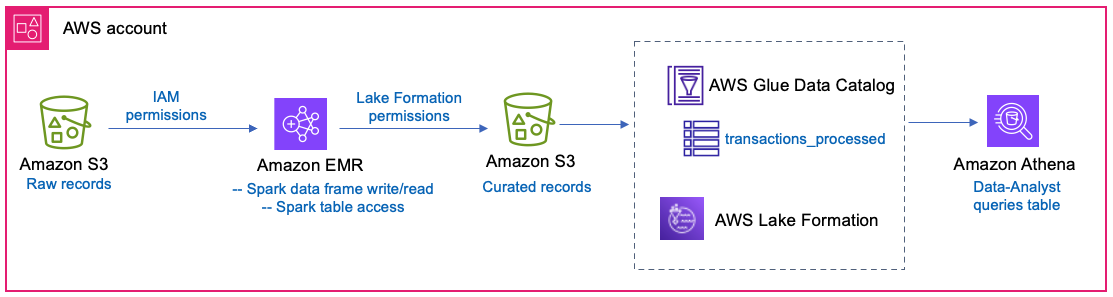
A financial services company runs daily ETL jobs using Spark in EMR. They process raw transaction records in S3 and store the processed records in another S3 location. The transformed Parquet data is registered with Lake Formation and cataloged as a table in Data Catalog. The ETL job will have direct IAM access to the raw data location, while it uses Lake Formation permissions to write to and read from the curated table location. Downstream, a data-analyst role will query the curated table, with restricted column access. The solution is shown in Figure 1.
Figure 1 – Architecture shows EMR Spark writing curated records to the S3 location of a table using Lake Formation permissions while Data-Analyst queries the same table with Lake Formation fine grained access control in Athena.
Prerequisites
To get started exploring this feature, we recommend you have the following setup.
- An AWS account with a Lake Formation administrator configured. Refer to Data lake administrator permissions and Set up AWS Lake Formation. You can also refer to the blog Simplify data access for your enterprise using Amazon SageMaker Lakehouse for the Lake Formation admin setup in your AWS account. For ease of following along, you can use an IAM administrator role, registered as a Lake Formation administrator role.
- An S3 bucket to host the sample table data.
- An IAM role to register the preceding table data in your S3 with Lake Formation. Refer the permissions policy and trust policy for this role in Requirements for roles used to register locations.
- To run the Spark code in EMR, you can choose to run the code in either SageMaker Unified Studio with EMR compute or use EMR cluster from EMR console. In the case of SageMaker Unified Studio domain and project, the Lake Formation permissions for the table location will be granted to the project execution role. In this post, we will illustrate using an EMR on EC2 cluster and a runtime role to submit the Spark script as a step to the cluster. For instructions to launch an EMR on EC2 cluster with Lake Formation full table access enabled, refer to instructions here – Lake Formation full table access for Amazon EMR on EC2 and Introducing runtime roles for Amazon EMR steps: Use IAM roles and AWS Lake Formation for access control with Amazon EMR. Fine Grained Access Control (FGAC) option is not supported for Spark on EMR with this feature since S3 location permission is full file path access.
- An IAM role Data-Analyst, with permissions as detailed in Data analyst permissions.
Solution walkthrough
First, we will get the setup ready with S3, sample database, table, and data. We will add a raw data set to S3 location, create a table with parquet data in another S3 location that represents the curated dataset for further downstream consumption. We will register the table data location with Lake Formation and grant permissions for the EMR run time role and Data-Analyst role.
Your S3 bucket will have the following structure.
Raw data – s3://<your-bucket-name>/raw/transactions/dt=2024-03-21/
Process data for table – s3://<your-bucket-name>/processed/transactions/
Spark script – s3://<your-bucket-name>/scripts/
Logs for the EMR cluster – s3://<your-bucket-name>/logs/
Step 1 – Create a parquet table in Data Catalog
From the Athena console query editor, create a table in Data Catalog. Replace amzn-s3-demo-bucket with your bucket name.
Step 2 – Register S3 location and grant table permission to IAM roles in Lake Formation
2.1 Register the table data location s3://<your-bucket-name>/processed/transactions/ with Lake Formation in Lake Formation mode using the custom S3 registration IAM role. For details on how to register locations with Lake Formation, refer Adding an Amazon S3 location to your data lake.
2.2 Grant DESCRIBE permission on the database finance_db and ALL permission on the table transactions_processed to your EMR runtime role.
2.3 Grant Data location permission to EMR runtime role on the curated table’s location. This is to allow writing to that location.
2.4 Grant DESCRIBE permission on the database finance_db and SELECT permission on the table transactions_processed to your Data-Analyst role. Exclude the columns transaction_id and account_number while granting SELECT permissions on the table to the Data-Analyst role.
For details on how to grant Lake Formation permissions, refer Granting database permissions using the named resource method; Granting table permissions using the named resource method and Granting data location permissions.
Step 3 – Run ETL script in EMR
3.1 Download the script bdb-5860-script.py.
3.2 Edit the S3 bucket name placeholder in the script (RAW_PATH and TABLE_PATH) to your resource names and upload to your S3 path s3://<your-bucket-name>/scripts/.
3.3 Make sure your EMR runtime role has access to the script location in its IAM policy permissions.
3.4 Submit and run the script as a step to the EMR cluster, following instructions at Add a Spark step.
What does the script do?
It populates raw records of transaction data into a Spark data frame, writes to the raw data bucket location using IAM permissions on the EMR runtime role. We apply some transformations and write directly to the S3 location of the table that is registered with Lake Formation, from the data frame using Spark’s native Parquet writer.
The following figure shows the stdout of the step.
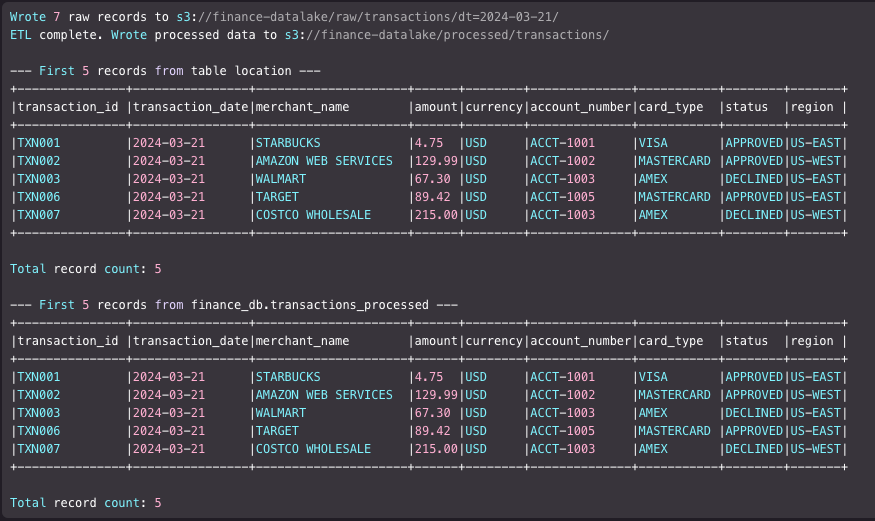
The Java plugin integrated into EMR 7.13 automatically handles the access for the table’s data location registered with Lake Formation, so you don’t need to manually call the GetTemporaryDataLocationCredentials() API. In this example, the table data location s3://<your-bucket-name>/processed/transactions/ is registered with Lake Formation, for which EMR runtime role is granted ALL permissions. The direct S3 location access support by Lake Formation allows reading and writing to the location directly using Spark data frame.
Step 4 – Run query as Data-Analyst using Athena
Log in as the Data-Analyst role to the Athena console. Run a select query on the table as follows.
The Data-Analyst role should see all but two columns of the table.

With these steps complete, we’ve read from and written to direct S3 locations using Spark data frames with the syntax s3://bucketname/prefix/, and accessed the same data using database_name.table_name syntax with Lake Formation permissions. This shows fine-grained access at table level and coarse-grained access at the file path level.
Clean up
To avoid incurring costs, clean up the resources you created for this post.
- Delete the Data Catalog database and tables. This removes the related Lake Formation permissions too. Remove the S3 bucket registration from Lake Formation.
- Delete the data files, logs, and the PySpark script of this post from your S3 bucket.
- Terminate the EMR cluster.
Conclusion
In this post, we showed how to use Lake Formation’s direct S3 location access to read and write data files using Spark data frames from Amazon EMR, while maintaining unified governance through Lake Formation permissions. We walked through the GetTemporaryDataLocationCredentials() API and the AWS Lake Formation Credential Vending Plugin for AWS SDK v2 for Java, which is integrated into EMR release labels 7.13 and later.
This capability unifies permission management for both fine-grained table-based access and direct S3 file path access in Lake Formation. Your data scientists can now use spark.read.parquet() and spark.write alongside spark.sql(), governed by the same permissions, audited in the same CloudTrail logs, and managed from a single console.
To get started, launch an EMR 7.13 cluster and start exploring the feature. Here are some additional resources:
- Lake Formation documentation on Accessing Amazon S3 locations
- EMR documentation on S3 path-based access using Lake Formation for Amazon EMR Spark
Acknowledgements: We would like to thank all the team members who worked to launch this feature successfully – Rajas Bhate, Akhil Yendluri, Kunal Parikh, Sharda Khubchandani, Dhananjay Badaya, Santhosh Padmanabhan, Nitin Agrawal, Ajithesh Srinivasa Raghavan and Sandeep Adwankar.