AWS Big Data Blog
Long-term system tables retention in Amazon Redshift with Amazon S3 Tables
Amazon Redshift system tables capture a continuous stream of operational signals: every query that runs, every connection that is made. This data powers observability, performance analysis, and compliance auditing across your data warehouses. Until now, the system tables retained this critical data for only 7 days, making long-term compliance and auditing difficult without custom workarounds.
Amazon Redshift system table integration with Amazon S3 Tables, a capability of Amazon Simple Storage Service (Amazon S3), automatically delivers your system table logs data to Amazon S3 Tables and stores them in Apache Iceberg format. You can configure retention periods for Amazon Redshift system table beyond the current 7-day limit, giving you extended compliance, auditing, and cross-warehouse observability without custom ETL pipelines or cluster resource consumption. Your data is open, durable, and queryable from Amazon Redshift, Amazon Athena, AWS Glue, Amazon EMR, or other Apache Iceberg-compatible engines.
In this post, we walk through how the Amazon Redshift system table integration delivers log data to Amazon S3 Tables. This feature is supported on RA3 and RG provisioned clusters and Amazon Redshift Serverless workgroups.
The challenge
If you run Amazon Redshift, you often face operational challenges driven by the 7-day system table retention limit:
- Limited query trend visibility: You want to compare how the same query performed 30 days ago compared to today. When performance shifts gradually, extended baselines enable data-driven root cause analysis rather than reactive troubleshooting.
- Enable before-and-after comparisons: When you add a new workload, change instance type, or adjust Workload Management (WLM) queues, you want to measure the impact precisely. Extended retention preserves the baseline data you need.
- Unlock seasonal capacity planning: Month-end spikes, quarter-close surges, and annual peaks require months of historical data to identify and plan. Extended retention reveals seasonal patterns across months and years.
- Custom ETL pipeline overhead: To work around the retention limit, teams build custom pipelines that copy system table data hourly/daily into persistent tables within Amazon Redshift Managed Storage. These pipelines consume cluster resources, compete with production workloads, and require ongoing engineering maintenance. When Amazon Redshift updates system table schemas and data sharing configurations, these pipelines require manual intervention and create gaps in records.
- Compliance requirements: Regulated industries are required to maintain audit trails spanning months or years. The 7-day limit requires custom infrastructure to meet these requirements. Amazon S3 Tables integration for Amazon Redshift system tables now addresses this.
How it works
Amazon Redshift system tables integration with Amazon S3 Tables is a fully managed capability that automatically writes Amazon Redshift system table data to Amazon S3 tables in Apache Iceberg format. AWS handles partitioning, compression, and retention management automatically. The log writing process runs in an isolated background process that alleviates resource contention with production workloads. AWS manages the pipelines for you.
The feature supports over 25 system views at launch – see the supported system views documentation.
Setting up
Follow these steps to enable system table integration with Amazon S3 Tables from the Amazon Redshift console:
- Open the Amazon Redshift console and navigate to the System table integrations page. You can also access this from the detail page of your provisioned cluster or Serverless workgroup.
- Choose Create System table integration. This launches the configuration wizard.
- Select the Amazon Redshift Provisioned cluster or Amazon Redshift Serverless workgroup that you want to enable the feature on.
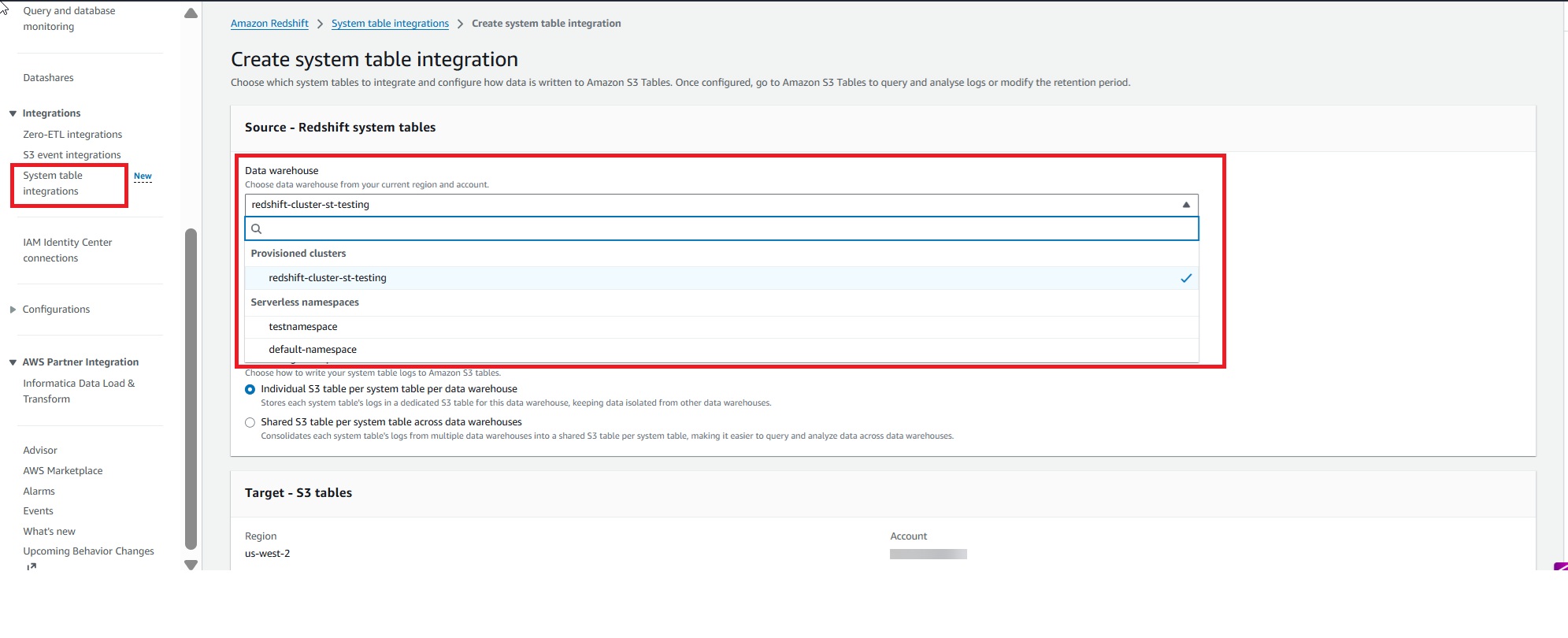
Figure 1: Selecting the Amazon Redshift data warehouse in the System table integration wizard
- Choose the system views to publish from the Available system tables list. Select individual SYS_* views, or choose Select all supported system tables to publish all current and future supported views. If you select all, new views added in the future are automatically included without requiring a configuration change.
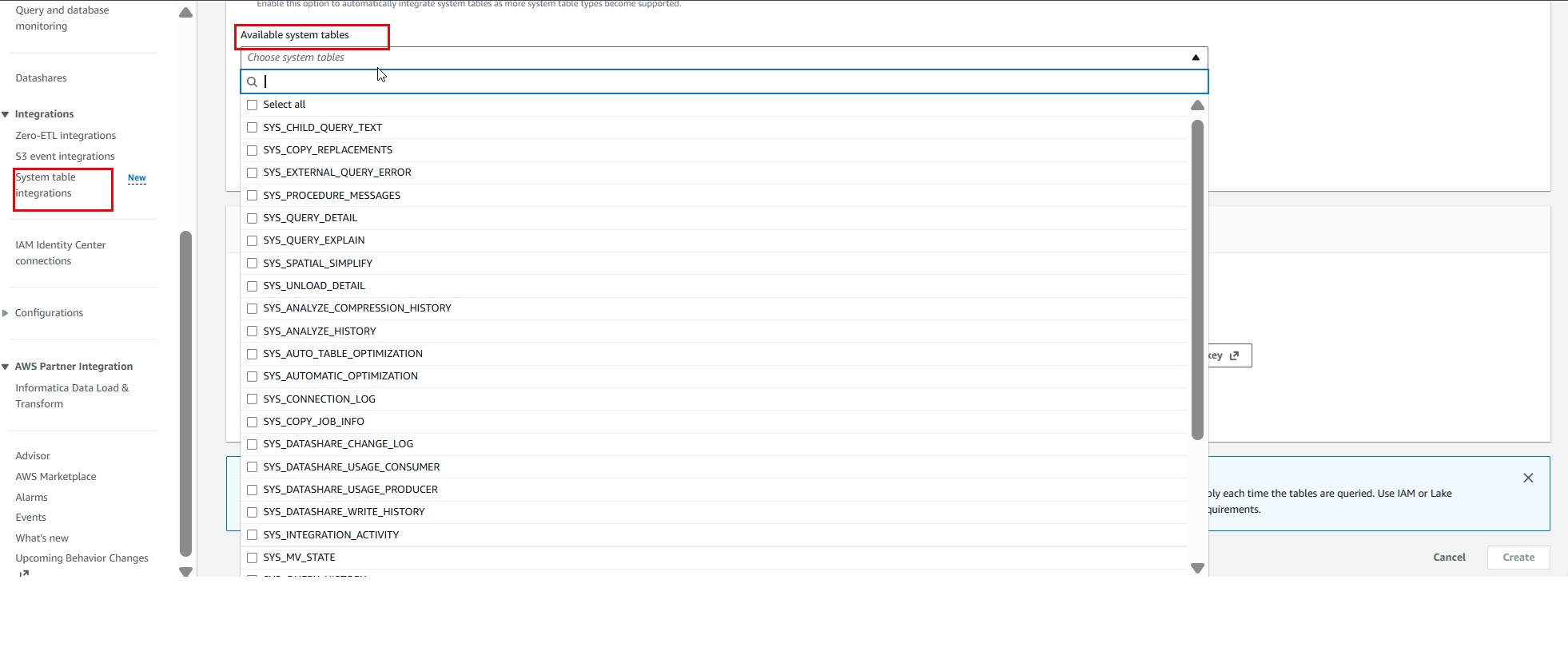
Figure 2: Choosing the system views to publish from the Available system tables list
- Select the deployment model. Choose how data is organized in Amazon S3 Tables:
- Individual S3 table per system table per data warehouse to keep this warehouse’s data in its own set of tables.
- Shared S3 table per system table across data warehouses to consolidate data from multiple warehouses in the account into a shared set of tables.
- Optionally configure encryption with an AWS Key Management Service (AWS KMS) customer managed key. By default, data is encrypted with Amazon S3-managed key (SSE-S3) encryption.
- Save your changes. Amazon Redshift begins publishing the selected views to Amazon S3 Tables and continues adding new records on a fixed frequency.
To verify the integration is active:
- Navigate to your cluster or workgroup detail page.
- Check the integration status and the last ingestion time for each view.
- You can also view the published data from the Amazon S3 Tables console.
After it’s enabled, Amazon Redshift writes log data to Amazon S3 tables periodically through an isolated background process, separate from production workloads. To start querying the retained logs, you will need to perform a one-time setup that connects your Amazon Redshift environment to Amazon S3 Tables data through AWS Glue Catalog. Complete the following steps:
- Set up an AWS Identity and Access Management (IAM) role with the necessary permissions for AWS Glue Data Catalog and Amazon S3 Tables access, then associate it with your Amazon Redshift cluster or Amazon Redshift serverless namespace.
- In AWS Glue Data Catalog, create a resource link that points to the Amazon S3 Tables database where your logs reside.
- In Amazon Redshift, create an external schema that references the resource link:
- With this in place, you can query your historical system table data using familiar 2-part notation:
Because access to Amazon S3 Tables is read-only, the integrity of your audit trails is inherently preserved.
For detailed setup instructions including IAM policy examples, see Registering the S3 Tables bucket with AWS Glue Data Catalog.
Your data is now in Apache Iceberg
Your system table data is stored in Apache Iceberg, an open table format, so you have the freedom to choose a compatible query engine. Your observability and auditing data works with the tool you already use.
You can analyze your operational data using:
- Amazon Redshift: After the S3 table bucket is integrated with AWS Glue Data Catalog, create an external schema in Amazon Redshift pointing at the resource link to query the retained tables.
- Amazon Athena: Run serverless SQL queries against historical logs with zero infrastructure provisioning.
- AWS Glue: Build automated data processing and transformation jobs on top of your operational data.
- Amazon EMR: Run Spark-based analytics at scale for complex cross-warehouse analysis.
Because the data is stored in open Apache Iceberg format in Amazon S3 Tables, you can query it with Amazon Redshift, Amazon Athena, AI agent skills for natural-language queries, Amazon SageMaker Unified Studio, an Iceberg-compatible engine, business intelligence (BI) tools, and observability systems.
Cost efficiency
Log delivery from Amazon Redshift to Amazon S3 Tables incurs no additional cost. You only pay for Amazon S3 Tables storage, maintenance, and querying the data with the engine of your choice.
Solution overview
The following scenarios illustrate how Amazon Redshift system tables integration with Amazon S3 Tables addresses common operational, compliance, and observability challenges across your Amazon Redshift environment. We also built a dedicated skill, querying-aws-redshift, for this feature and embedded it into the AWS MCP Server so you can query Amazon Redshift system tables from Amazon S3 Tables.
Scenario 1: Track query trends over time
With months or years of SYS_QUERY_HISTORY data retained, you can trace how individual queries perform over extended periods. You can compare execution time, queue time, and resource consumption for a query across days, weeks, or months.
You can pinpoint exactly when performance started degrading and correlate it with what changed: a new schema, a spike in data volume, or an additional concurrent workload. Extended retention turns troubleshooting into proactive, data-driven root cause analysis.
Scenario 2: Assess workload impact before and after changes
Every workload change affects your system: a new ETL pipeline, an instance type change, a Workload Management (WLM) queue adjustment, or a new team of analysts running ad hoc queries. The question is always: how did this change affect performance?
With Amazon S3 Tables integration for Amazon Redshift system table, you can make data-driven decisions with confidence. Query SYS_QUERY_HISTORY to compare execution times, queue wait durations, and concurrency scaling events from the weeks before a change versus the weeks after. If you onboarded a new reporting workload two weeks ago and want to understand its effect on existing queries, the data to confirm that is already there, with zero custom pipeline required.
Scenario 3: Build observability dashboards
Your system table data is stored in Apache Iceberg and cataloged in AWS Glue, which means an observability or business intelligence (BI) tool that reads Apache Iceberg can connect directly to it. Visualize workload distribution trends in Amazon Quick Sight for executive reporting. Use Amazon SageMaker Unified Studio for deeper analytical exploration or to power AI-driven insights from your operational data. Beyond AWS services, connect your preferred third-party observability systems and BI tools to track query volumes, monitor connection patterns, set up alerts for anomalies, or correlate Amazon Redshift operational data alongside application-level logs.
Your observability and auditing data works with tools that you already use. Direct access to durable, structured operational data, with a tool you prefer.
Scenario 4: Plan capacity with seasonal context
Workload demand varies throughout the year. Month-end close, quarter-end reporting, annual planning cycles, and promotional events all create predictable usage spikes, but only if you have enough historical data to see the pattern.
With extended retention, you can analyze utilization trends across multiple business cycles. Identify when you consistently approach capacity limits, measure how demand shifts quarter over quarter, and validate whether your provisioned resources align with actual usage.
Scenario 5: Maintain compliance audit trails
For regulated industries, extended retention delivers a fully managed audit trail with built-in integrity.
SYS_CONNECTION_LOG records every authentication attempt. SYS_USERLOG captures user account changes. SYS_QUERY_HISTORY documents every query executed against your warehouse.
Configure retention to match your organization’s data retention policies: whether that is 90 days, one year, or multiple years. The read-only access policy helps prevent records from being altered after they are written, including by administrators.
Scenario 6: Centralize fleet observability across your warehouse
If you run multiple Amazon Redshift warehouses, you benefit from a unified view of operational data. The feature supports two deployment patterns to match your organizational structure:
- Individual tables per warehouse: Each warehouse writes to its own dedicated Amazon S3 tables, providing complete data isolation for compliance-sensitive environments. To query multiple warehouses, a
UNIONoperation is required. - Shared tables: Warehouses across the same account and same AWS Region write to a single shared set of Amazon S3 tables, with data distinguished by the
warehouse_namecolumn. Filter by warehouse for instant cross-cluster analysis.
Best practices
- Identify warehouses with logs requiring isolation for privacy reasons and select the individual table per warehouse option for those. For the remaining warehouses, use the Shared tables (consolidated) option for ease of management.
- Align retention duration with your compliance requirements. Configure the minimum retention period that satisfies your compliance requirements to reduce storage costs.
- When querying retained system tables, filter on metadata columns such as
warehouse_account_id,warehouse_region_name,warehouse_namespace_arn,warehouse_name, ands3_tables_ingestion_timeto reduce scan scope and improve performance. This is particularly important when querying large volumes of historical data across multiple warehouses. - Rely on the built-in read-only access for audit trail integrity. Use the Amazon S3 Tables configuration APIs to manage retention and encryption settings.
- Plan your encryption strategy early. Choose your encryption key carefully at setup, as changes require recreating the integration. If you anticipate consolidating warehouses in the future, choose a shared AWS KMS key from the start.
Conclusion
Amazon Redshift system table integration with Amazon S3 Tables replaces custom ETL pipelines with a fully managed solution to preserve your Amazon Redshift operational data. With automatic Apache Iceberg-based storage, open format queryability, and built-in audit integrity, you get months or years of observability data, fully managed. You can enable it through the AWS Management Console, AWS Command Line Interface (AWS CLI), or AWS SDKs.
To learn more, visit the Amazon Redshift system tables documentation.