AWS Big Data Blog
Modernize game intelligence with generative AI on Amazon Redshift
Game studios generate massive amounts of player and gameplay telemetry, but transforming that data into meaningful insights is often slow, technical, and dependent on SQL expertise. With the new Amazon Redshift integration for Amazon Bedrock Knowledge Bases, teams can unlock instant, AI-powered analytics by asking questions in natural language. Analysts, product managers, and designers can now explore Amazon Redshift data conversationally—no query writing required—and Amazon Bedrock automatically generates optimized SQL, executes it on Amazon Redshift, and returns clear, actionable answers. This brings together the scale and performance of Amazon Redshift with the intelligence of Amazon Bedrock, enabling faster decisions, deeper player understanding, and more engaging game experiences.
Amazon Redshift can be used as a structured data source for Amazon Bedrock Knowledge Bases, allowing for natural language querying and retrieval of information from Amazon Redshift. Amazon Bedrock Knowledge Bases can transform natural language queries into SQL queries, so users can retrieve data directly from the source without needing to move or preprocess the data. A game analyst can now ask, “How many players completed all the levels in a game?” or “List the top 5 players by the number of times the game was played,” and Amazon Bedrock Knowledge Bases automatically translates that query into SQL, runs the query against Amazon Redshift, and returns the results—or even provides a summarized narrative response.
To generate accurate SQL queries, Amazon Bedrock Knowledge Bases uses database schema, previous query history, and other domain or business knowledge such as table and column annotations that are provided about the data sources. In this post, we discuss some of the best practices to improve accuracy while interacting with Amazon Bedrock using Amazon Redshift as the knowledge base.
Solution overview
In this post, we illustrate the best practices using gaming industry use cases. You will converse with players and their game attempts data in natural language and get the response back in natural language. In the process, you will learn the best practices. To follow along with the use case, follow these high-level steps:
- Load game attempts data into the Redshift cluster.
- Create a knowledge base in Amazon Bedrock and sync it with the Amazon Redshift data store.
- Review the approaches and best practices to improve the accuracy of response from the knowledge base.
- Complete the detailed walkthrough for defining and using curated queries to improve the accuracy of responses from the knowledge base.
Prerequisites
To implement the solution, you need to complete the following prerequisites:
- Create an Amazon Redshift Serverless workgroup or provisioned cluster. For setup instructions, refer to Creating a workgroup with a namespace or Get started with Amazon Redshift Serverless data warehouses, respectively. The Amazon Bedrock integration feature is supported in both Amazon Redshift provisioned and serverless.
- Create an AWS Identity and Access Management (IAM) role. For instructions, refer to Creating or updating an IAM role for Amazon Redshift ML integration with Amazon Bedrock.
- Associate the IAM role to a Redshift instance.
- Set up the required permissions for Amazon Bedrock Knowledge Bases to connect with Amazon Redshift.
Load game attempts and players data
To load the datasets to Amazon Redshift, complete the following steps:
- Open Amazon Redshift Query Editor V2 or another SQL editor of your choice and connect to the Redshift database.
- Run the following SQL to create the data tables to store games attempts and player details:
- Download the game attempts and players datasets to your local storage.
- Create an Amazon Simple Storage Service (Amazon S3) bucket with a unique name. For instructions, refer to Creating a general purpose bucket.
- Upload the downloaded files into your newly created S3 bucket.
- Using the following COPY command statements, load the datasets from Amazon S3 into the new tables you created in Amazon Redshift. Replace
<<your_s3_bucket>>with the name of your S3 bucket and<<your_region>>with your AWS Region:
Create knowledge base and sync
To create a knowledge base and sync your data store with your knowledge base, complete these steps:
- Follow the steps at Create a knowledge base by connecting to a structured data store.
- Follow the steps at Sync your structured data store with your Amazon Bedrock knowledge base.
Alternatively, you can refer Step 4: Set up Bedrock Knowledge Bases in Accelerating Genomic Data Discovery with AI-Powered Natural Language Queries in the AWS for Industries blog.
Approaches to improve the accuracy
If you’re not getting the expected response from the knowledge base, you can consider these key strategies:
- Provide additional information in the Query Generation Configuration. The knowledge base’s response accuracy can be improved by providing supplementary information and context to help it better understand your specific use case.
- Use representative sample queries. Running example queries that reflect common use cases helps train the knowledge base on your database’s specific patterns and conventions.
Consider a database that stores player information using country codes rather than full country names. By running sample queries that demonstrate the relationship between country names and their corresponding codes (for example, “USA” for “United States”), you help the knowledge base understand how to properly translate user requests that reference full country names into queries using the correct country codes. This approach helps connect natural language requests and your database’s specific implementation details, resulting in more accurate query generation.
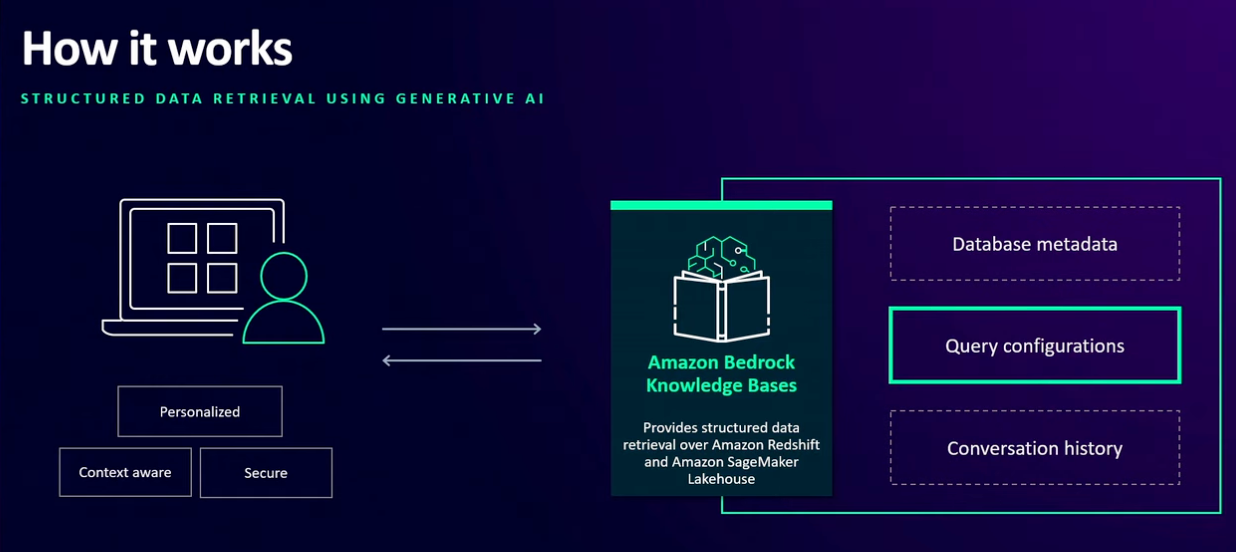
Before we dive into more optimizations options, let’s explore how you can personalize the query engine to generate queries for a specific query engine. In this walkthrough, we use Amazon Redshift. Amazon Bedrock Knowledge Bases analyzes three key components to generate accurate SQL queries:
- Database metadata
- Query configurations
- Historical query and conversation data
The following graphic illustrates this flow.
You can configure these settings to enhance query accuracy in two ways:
- When creating a new Amazon Redshift knowledge base
- By editing the query engine settings of an existing knowledge base
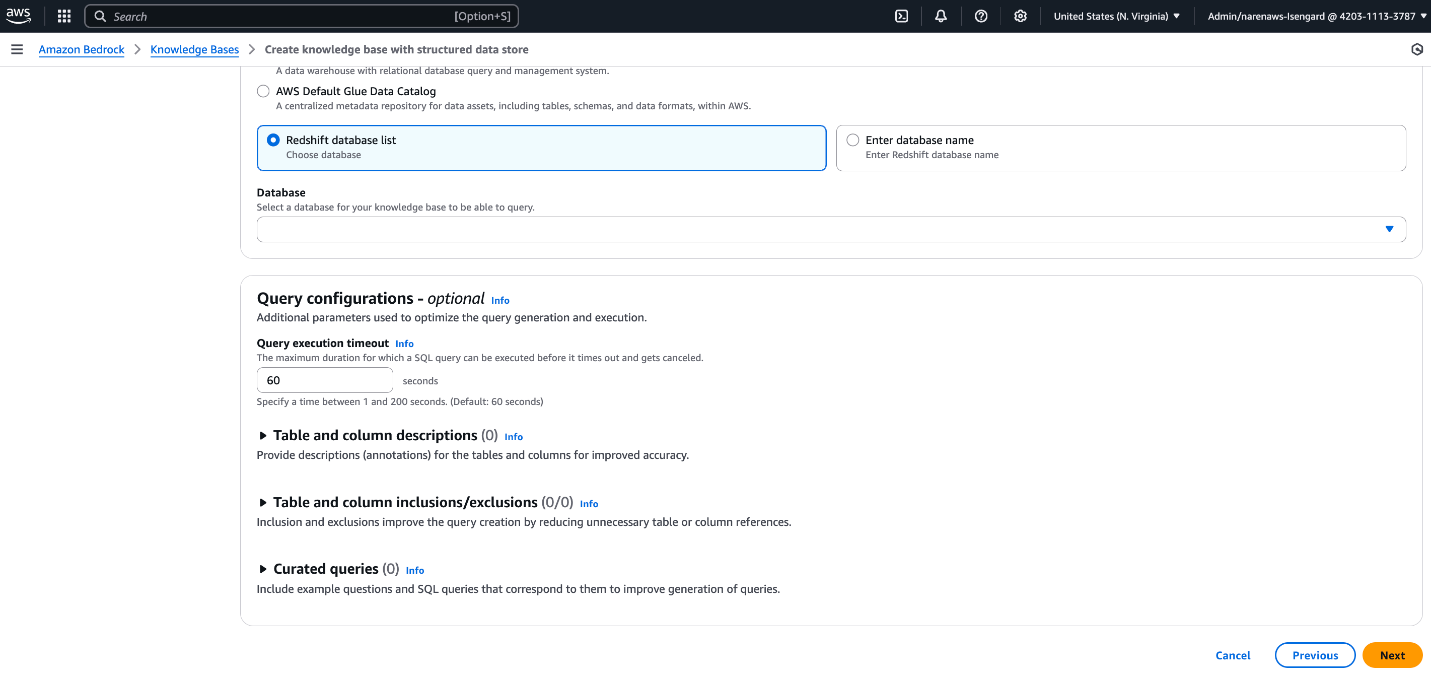
To configure setting when creating new knowledge base, follow steps on Create a knowledge base by connecting to a structured data store and configure below parameters in (Optional) Query configurations section as shown in following screenshot:
- Table and column descriptions
- Table and column inclusions/exclusions
- Curated queries
To configure setting when editing the query engine of an existing knowledge base, follow these steps:
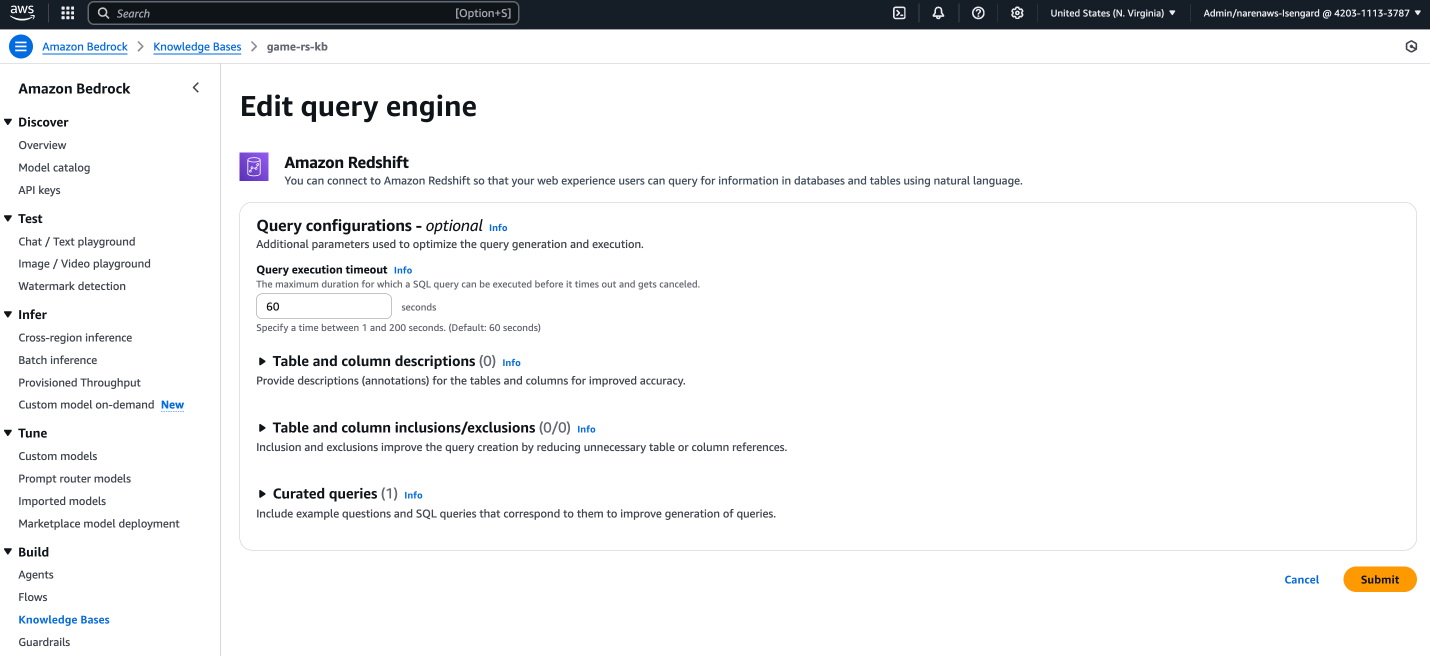
- On the Amazon Bedrock console in the left navigation pane, choose Knowledge Bases and select your Redshift Knowledge Base.
- Choose your query engine and choose Edit,
- Configure below parameters in (Optional) Query configurations section as shown in following screenshot:
- Table and column descriptions
- Table and column inclusions/exclusions
- Curated queries
Let’s explore the available query configuration options in more detail to understand how these help the knowledge base generate a more accurate response.
Table and column descriptions provide essential metadata that helps Amazon Bedrock Knowledge Bases understand your data structure and generate more accurate SQL queries. These descriptions can include table and column purposes, usage guidelines, business context, and data relationships.
Follow these best practices for descriptions:
- Use clear, specific names instead of abstract identifiers
- Include business context for technical fields
- Define relationships between related columns
For example, consider a gaming table with timestamp columns named t1, t2, and t3. Adding these descriptions helps the knowledge base generate appropriate queries. For example, if t1 is play start time, t2 is play end time, and t3 is record creation time, adding these descriptions will indicate to the knowledge base to use t2–t1 for finding the game duration.
Curated queries are a set of predefined question and answer examples. Questions are written as natural language queries (NLQs) and answers are the corresponding SQL query. These examples help the SQL generation process by providing examples of the kinds of queries that should be generated. They serve as reference points to improve the accuracy and relevance of generative SQL outputs. Using this option, you can provide some example queries to the knowledge base for it understand custom vocabulary also. For example, if the country field in the table is populated with a country code, adding an example query will help the knowledge base to convert the country name to a country code before running the query to answer questions on the data of players in a specific country. You can also provide some example complex queries to help the knowledge base to respond to more complex questions. The following is an example query that can be added to the knowledge base:
With table and column inclusion and exclusion, you can specify a set of tables or columns to be included or excluded for SQL generation. This field is crucial if you want to limit the scope of SQL queries to a defined subset of available tables or columns. This option can help optimize the generation process by reducing unnecessary table or column references. You can also use this option to:
- Exclude redundant tables, for example, those generated by copying the original table to run a complex analysis
- Exclude tables and columns containing sensitive data
If you specify inclusions, all other tables and columns are ignored. If you specify exclusions, the tables and columns you specify are ignored.
Walkthrough for defining and using curated queries to improve accuracy
To define and use curated queries to improve accuracy, complete the following steps.
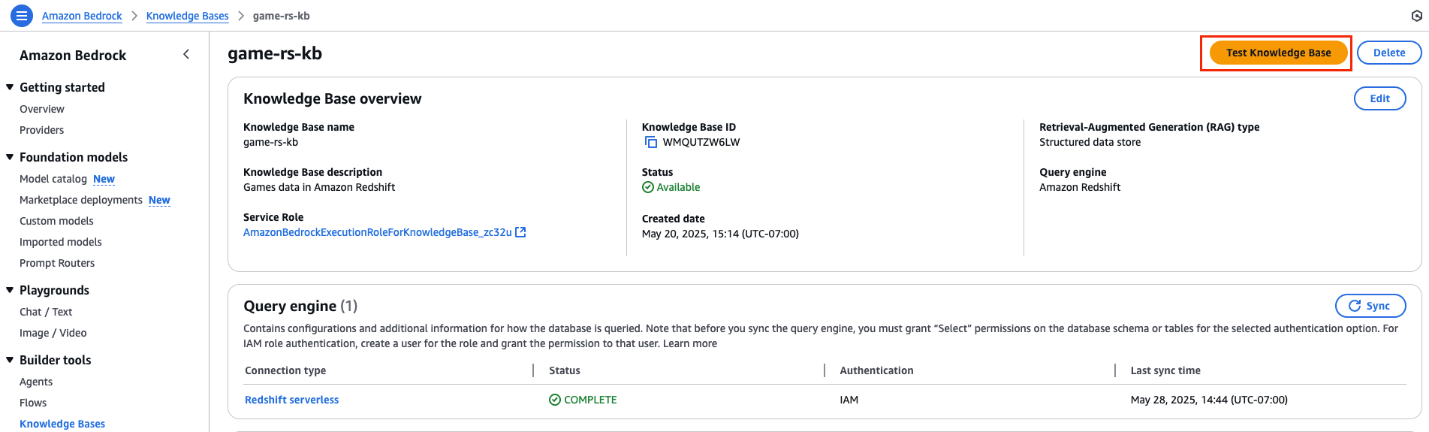
- On the AWS Management Console, navigate to Amazon Bedrock and in the left navigation pane, choose Knowledge Bases. Select the knowledge base you created with Amazon Redshift.
- Choose Test Knowledge Base, as shown in the following screenshot, to validate the accuracy of the knowledge base response.
- On the Test Knowledge Base screen under Retrieval and response generation, choose Retrieval and response generation: data sources and model.
- Choose Select model to pick a large language model (LLM) to convert the SQL query response from the knowledge base to a natural language response.
- Choose Nova Pro in the popup and choose Apply, as shown in the following screenshot.
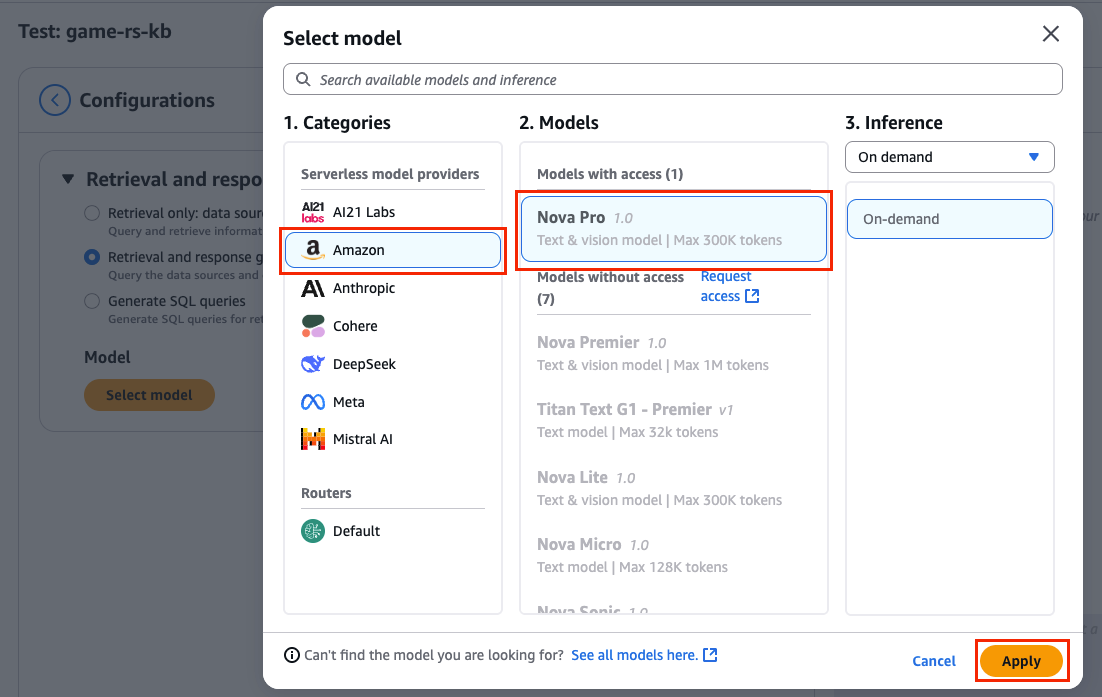
Now you have Amazon Nova Pro connected to your knowledge base to respond to your queries based on the data available in Amazon Redshift. You can ask some questions and verify them with actual data in Amazon Redshift. Follow these steps:
- In the Test section on the right, enter the following prompt, then choose the send message icon, as shown in the following screenshot.
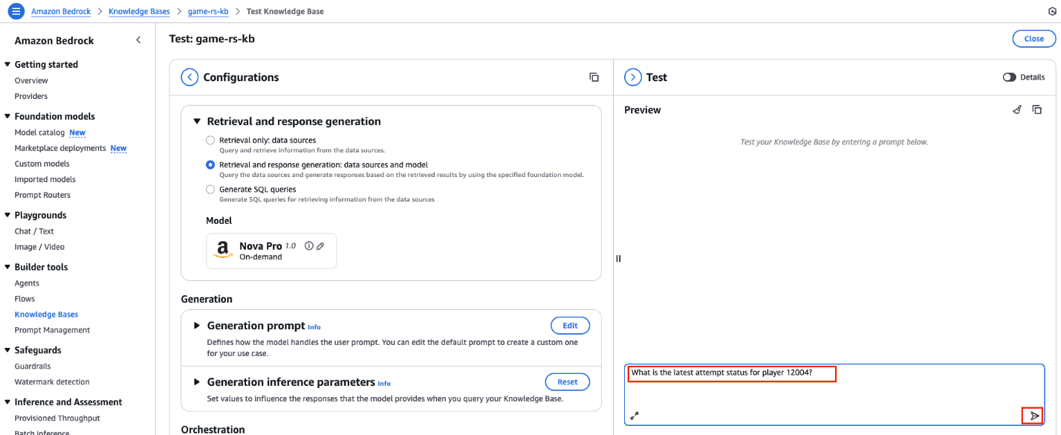
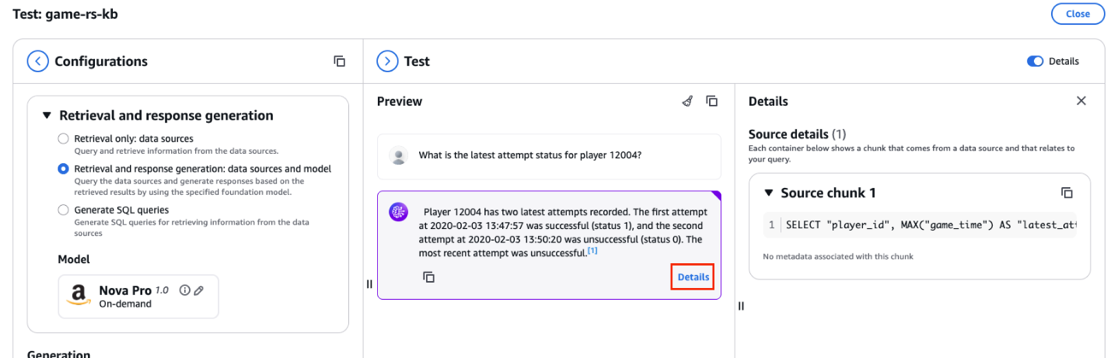
- Amazon Nova Pro generates a response using the data stored in the Redshift knowledge base.
- Choose Details to see the SQL query generated and used by Amazon Nova Pro, as shown in the following screenshot.
- Copy the query and enter it in query editor v2 of the Redshift knowledge base, as shown in the following screenshot.
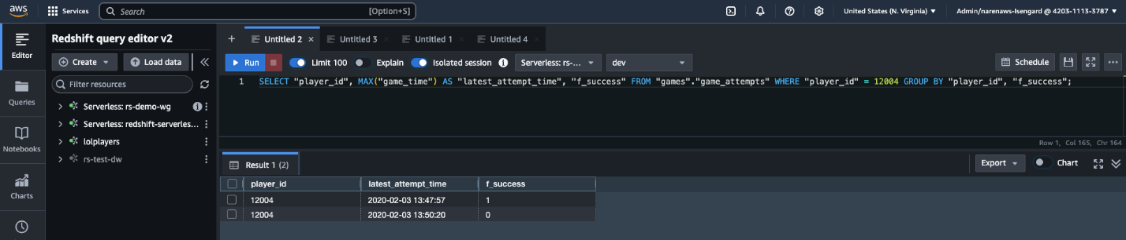
- Verify that the response generated by Amazon Nova Pro in natural language matches the data in Amazon Redshift and that the generated SQL query is also accurate.
You can try some more questions to verify the Amazon Nova Pro response, for example:
But what if the response generated by the knowledge base isn’t accurate? In those cases, you can add additional context the knowledge base can use to provide more accurate responses. For example, try asking the following question:
In this case, the response generated by the knowledge base doesn’t match the actual player count in Amazon Redshift. The knowledge base reported about 13,589 players and generated the following query to get the player count:
The following screenshot shows this question and result.
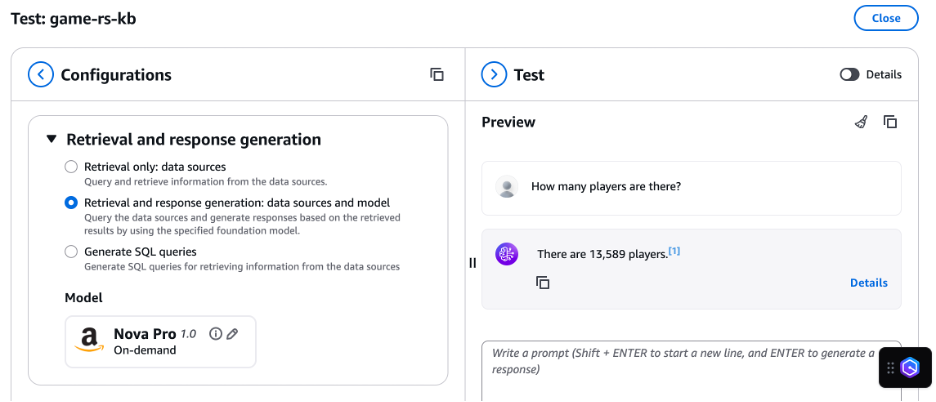
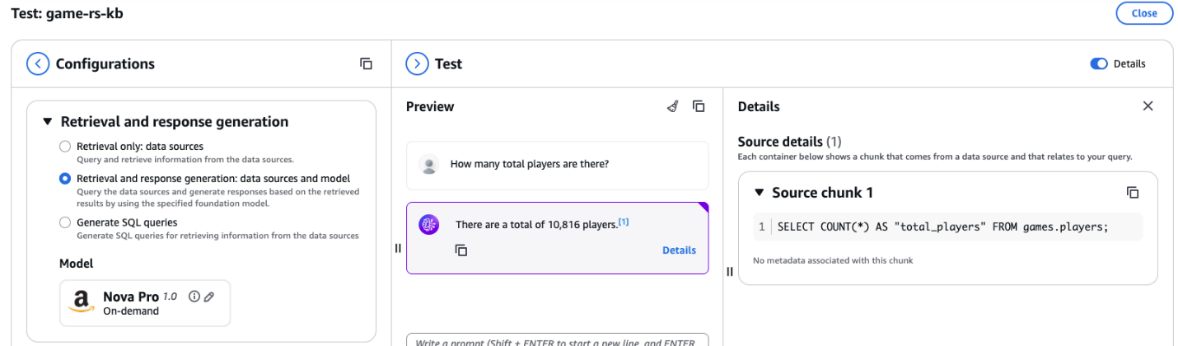
The knowledge base should have used the players table in Amazon Redshift to find the unique players. The correct response is 10,816 players.
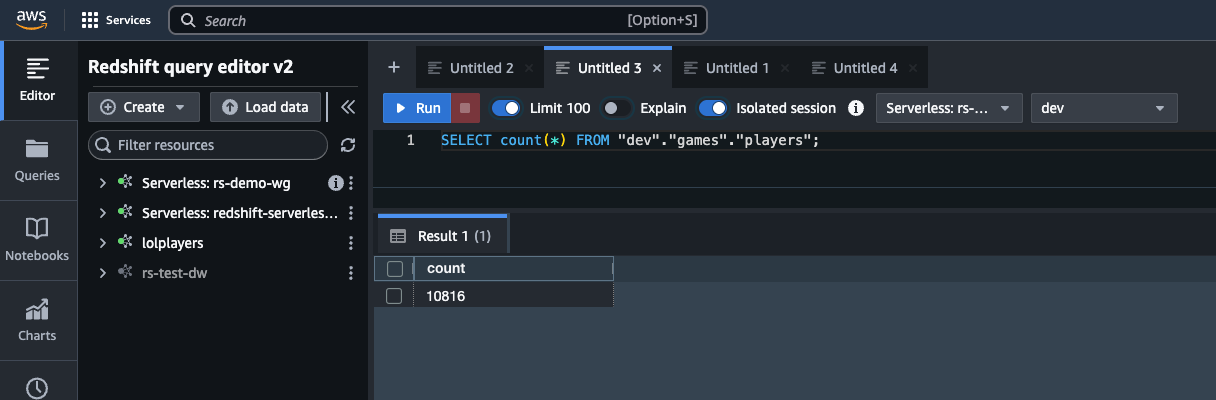
To help the knowledge base, add a curated query for it to use the players table instead of the attempts table to find the total player count. Follow these steps:
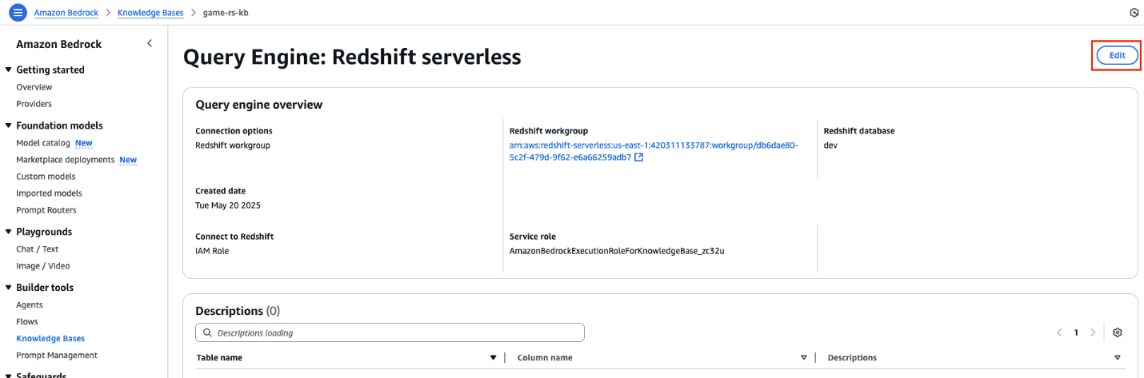
- On the Amazon Bedrock console in the left navigation pane, choose Knowledge Bases and select your Redshift Knowledge Base.
- Choose your query engine and choose Edit, as shown in the following screenshot.
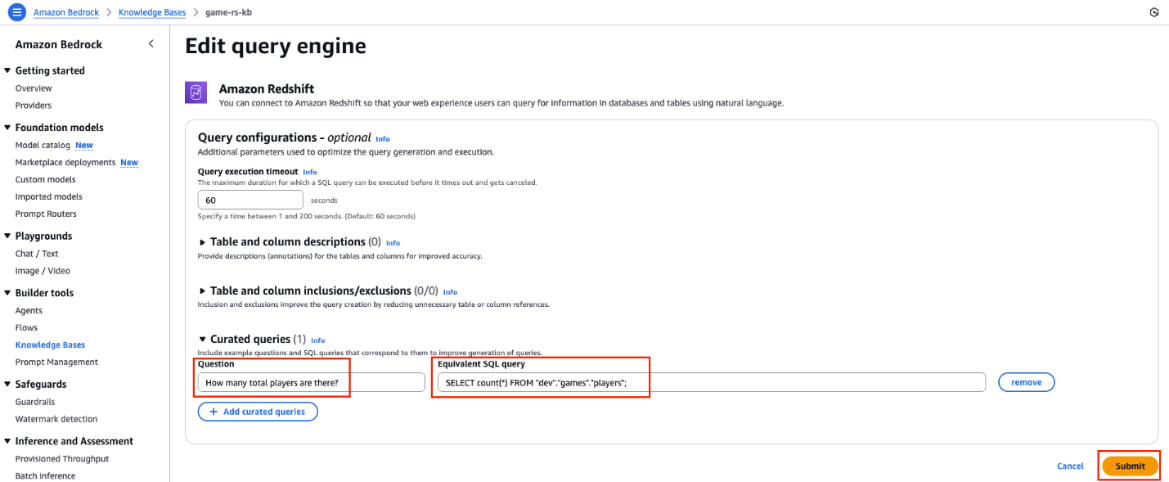
- Expand the Curated queries section and enter the following:
- In the Questions field, enter
How many total players are there?. - In the Equivalent SQL query field, enter
SELECT count(*) FROM “dev”,“games”,“players”;. - Choose Submit, as shown in the following screenshot.
- Navigate back to your knowledge base and query engine. Choose Sync to sync the knowledge base. This starts the metadata ingestion process so that data can be retrieved. The metadata allows Amazon Bedrock Knowledge Bases to translate user prompts into a query for the connected database. Refer to Sync your structured data store with your Amazon Bedrock knowledge base for more details.
- Return to Test Knowledge Base with Amazon Nova Pro and repeat the question about how many total players there are, as shown in the following screenshot. Now, the response generated by the knowledge base matches the data in player table in Amazon Redshift, and the query generated by the knowledge base uses the curated query with the player table instead of the attempts table to determine the player count.
Cleanup
For the walkthrough section, we used serverless services, and your cost will be based on your usage of these services. If you’re using provisioned Amazon Redshift as a knowledge base, follow these steps to stop incurring charges:
- Delete the knowledge base in Amazon Bedrock.
- Shut down and delete your Redshift cluster.
Conclusion
In this post, we discussed how you can use Amazon Redshift as a knowledge base to provide additional context to your LLM. We identified best practices and explained how you can improve the accuracy of responses from the knowledge base by following these best practices.
About the authors

Narendra Gupta
Narendra is a Specialist Solutions Architect at AWS, helping customers on their cloud journey with a focus on AWS analytics services. Outside of work, Narendra enjoys learning new technologies, watching movies, and visiting new places.