AWS Database Blog
Deploy Amazon RDS for Oracle on AWS Outposts
Organizations in highly regulated industries, such as financial services, healthcare, government, and telecommunications, often need to run Oracle databases on premises to meet data residency, regulatory compliance, or data sovereignty requirements. Similarly, companies across various industries run latency-sensitive applications in distributed field sites that require sub-millisecond database access.
Amazon RDS for Oracle on AWS Outposts brings the fully managed Amazon Relational Database Service (Amazon RDS) experience to your on-premises environment. With it, you can run Oracle databases locally while offloading undifferentiated database administration work to AWS. You get the same automated provisioning, patching, backup, recovery, and monitoring capabilities available for RDS for Oracle in AWS Regions, now in your own data center.
Organizations already using RDS in AWS Regions can now manage their on-premises Oracle databases using the same APIs, tools, and console, reducing operational complexity across hybrid environments. Managing these on-premises Oracle databases, including patching, backups, high availability, and recovery, adds significant operational overhead.
In this post, we walk through the process of creating an Amazon RDS for Oracle DB instance on AWS Outposts using the AWS Management Console and AWS Command Line Interface (CLI). We also discuss disaster recovery options, backup and recovery compatibility matrix.
Overview of solution
Amazon RDS on AWS Outposts extends Amazon RDS to AWS Outposts rack environments (both 1st generation and 2nd generation racks). With the addition of Oracle as a supported engine, you can now deploy RDS for Oracle Database 19c and 26ai, including both Enterprise Edition (EE) and Standard Edition Two (SE2), using the Bring Your Own License (BYOL) model.
Amazon RDS for Oracle on Outposts provides the same managed capabilities you get in the AWS Cloud:
- Automated backups – Back up your database to Amazon Simple Storage Service (Amazon S3) in the parent AWS Region for cloud-based storage or locally on the Outpost. Local backups on Outposts are not charged, while Region backups follow standard Amazon RDS pricing.
- Multi-AZ deployments – Amazon RDS creates a primary DB instance on one AWS Outpost and synchronously replicates the data to a standby DB instance on a different Outpost. For more information, see Working with Multi-AZ deployments for Amazon RDS on AWS Outposts. Local backups are not supported with Multi-AZ deployments.
- Read replicas – Create read replicas on a different Outpost rack (same Region) and read scaling. Other read replica combinations are not supported.
- Point-in-time recovery (PITR) – Restore a DB instance either in the parent AWS Region or on another Outpost rack.
- Monitoring – Amazon CloudWatch metrics and alarms, Enhanced Monitoring with OS-level metrics.
- Encryption at rest – AWS Key Management Service (AWS KMS) encryption (all DB instances on Outposts are encrypted).
- Oracle multitenant architecture – CDB/PDB support with single-tenant or multi-tenant configurations.
- Authentication – Password authentication and Kerberos authentication through AWS Directory Service.
- Storage autoscaling – General Purpose SSD storage (gp2 on Gen1 racks, and gp2 and gp3 on Gen2 racks).
- Automated patching and minor version upgrades – Amazon RDS provides newer versions of each supported database engine so you can keep your DB instance up-to-date. Newer versions can include bug fixes, security enhancements, and other improvements for the database engine.
Supported instance types:
- 1st generation Outposts racks: db.m5 and db.r5 instance families.
- 2nd generation Outposts racks: db.m7i and db.r7i instance families.
Availability: RDS for Oracle on Outposts is available in all commercial AWS Regions where RDS on AWS Outposts is available.
Prerequisites
Before you begin, make sure you have the following in place:
- An AWS Outposts rack (Gen1 or Gen2) installed and operational in your on-premises data center.
- A virtual private cloud (VPC) with at least one subnet associated with your Outpost.
- For Multi-AZ deployments: two Outposts racks, each attached to a different Availability Zone, connected through a customer-managed local network.
- Sufficient compute and storage capacity on your Outpost for the desired DB instance class.
- Oracle licenses (BYOL model) for the edition you plan to deploy.
- Network connectivity between your Outpost and the parent AWS Region.
- Each Outpost has finite compute and storage. If there isn’t enough capacity, the DB instance creation request fails.
For the full list of prerequisites, see Prerequisites for Amazon RDS on AWS Outposts.
Walkthrough
In the following steps, we create an RDS for Oracle DB instance on an Outpost.
Deploy using the AWS Management Console
Complete the following steps to create an RDS for Oracle DB instance from the console.
Step 1: Choose the database location
- Open the Amazon RDS console and choose Create database.
- Under Database location, select On-premises to deploy on your Outpost.
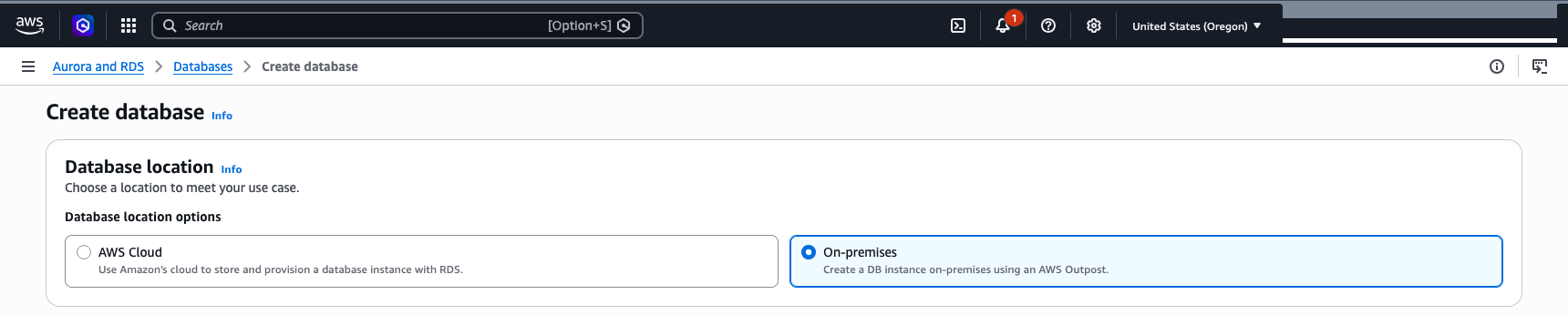
Figure 1: Select On-premises as the database location
Step 2: Configure Outposts connectivity
- Under On-premises creation method, confirm that RDS on Outposts is selected.
- Choose the VPC that has a subnet associated with your Outpost. Only VPCs with an Outpost subnet are listed.
- Choose a security group that allows the appropriate inbound traffic to your database.
- For DB subnet group, select Create new and choose the Outpost subnet. Alternatively, select Choose existing if you already have a DB subnet group configured. For Multi-AZ deployments, your subnet group must include subnets from at least two Outposts in different Availability Zones.
- Under Access type, select the connectivity option that fits your use case: Private, Customer-owned IP address (CoIP), or Public.
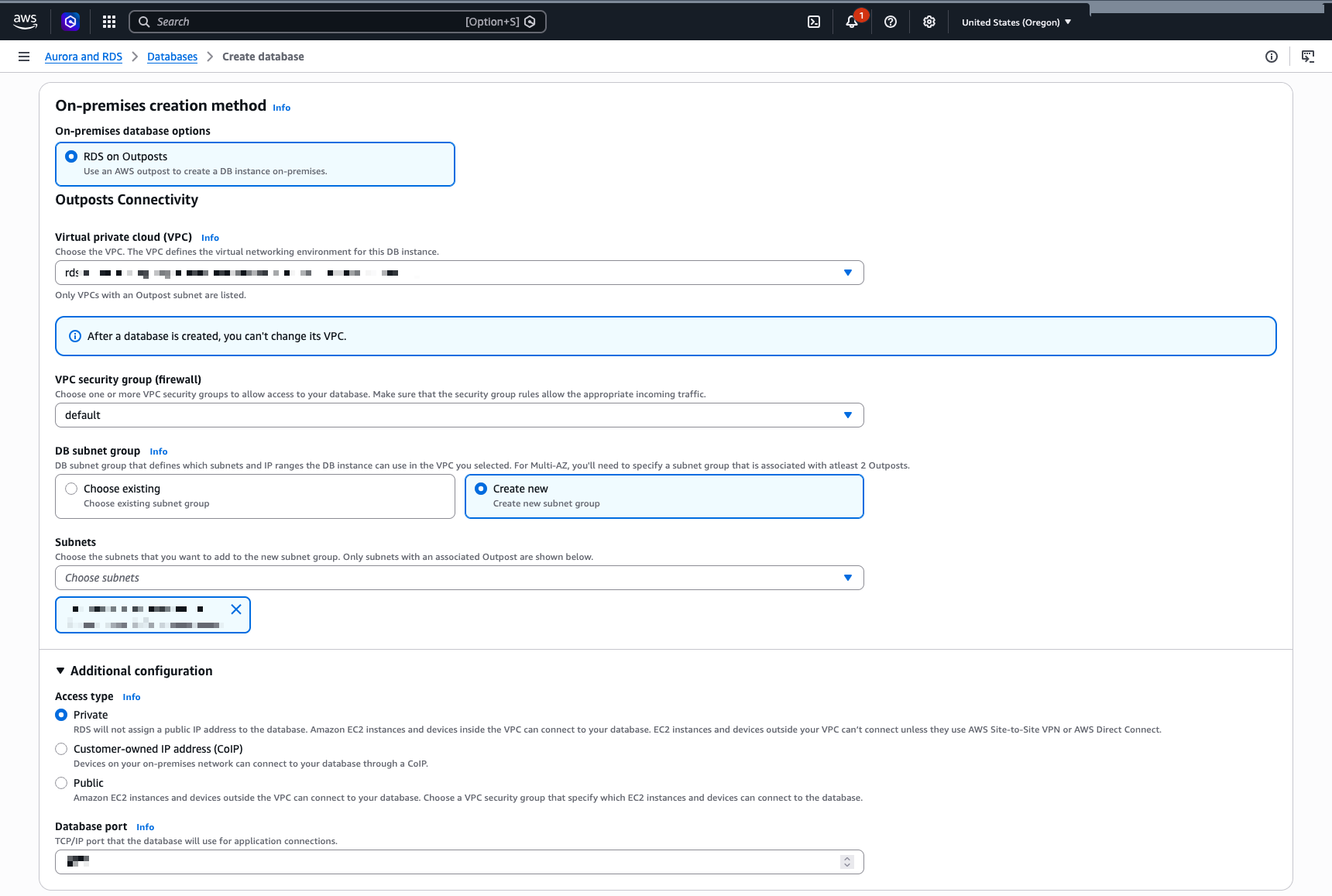
Figure 2: Configure Outposts connectivity, VPC, subnet group, and access type
Step 3: Select the Oracle engine and configure instance settings
- Under Engine type, select Oracle.
- Choose the engine type based on your preference.
- Optionally, enable Oracle multitenant architecture and choose between Single-tenant configuration and Multi-tenant configuration for your CDB.
- Choose the Oracle version you want to deploy.
- Enter DB identifier and Tenant database name.
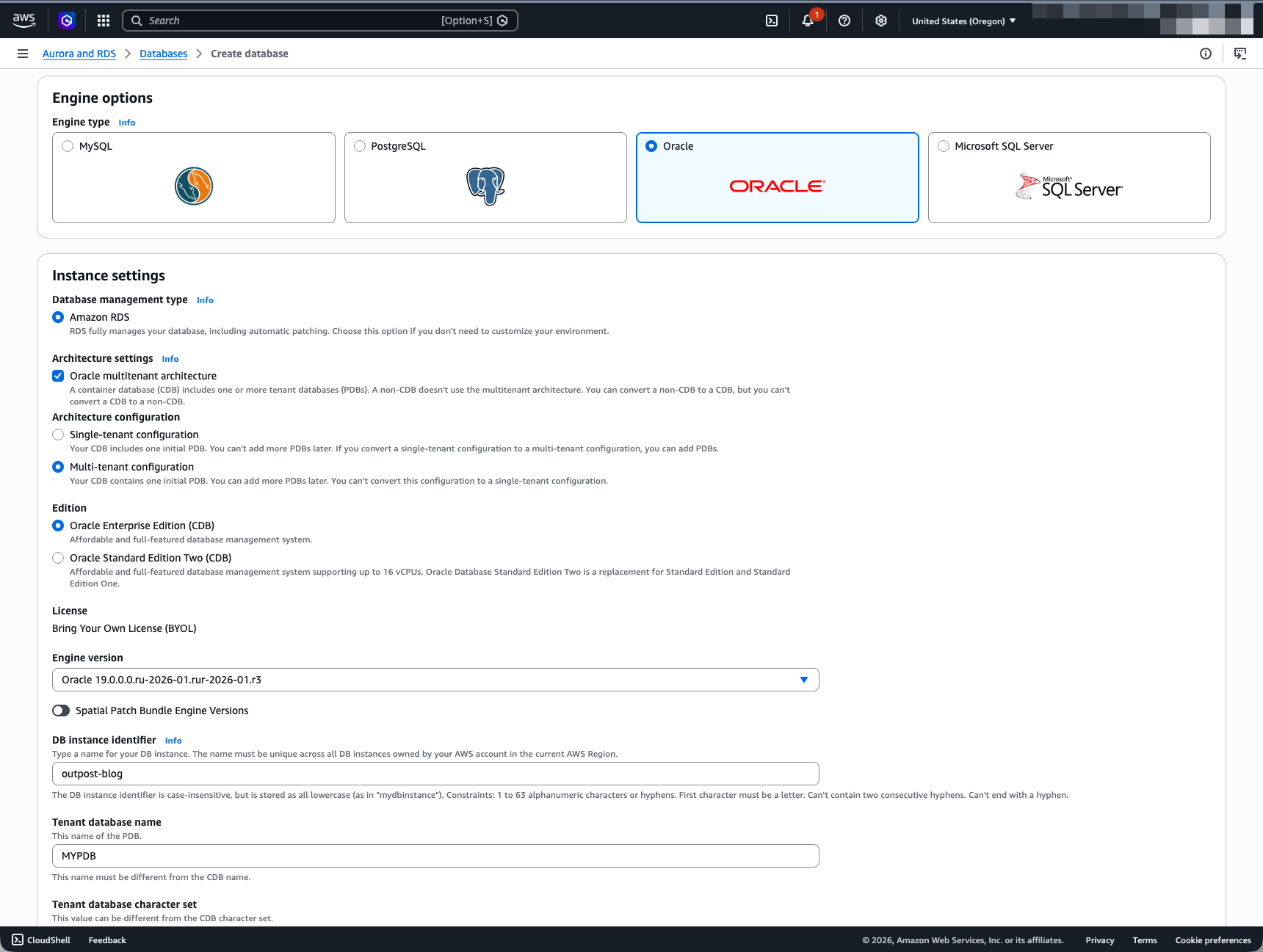
Figure 3: Select Oracle engine type, edition, version, and instance settings
Step 4: Configure credentials and instance class
- Enter Master username.
- Choose Credentials management based on your preference.
- Choose Database authentication method.
- Choose DB instance class based on your Outpost rack configuration.
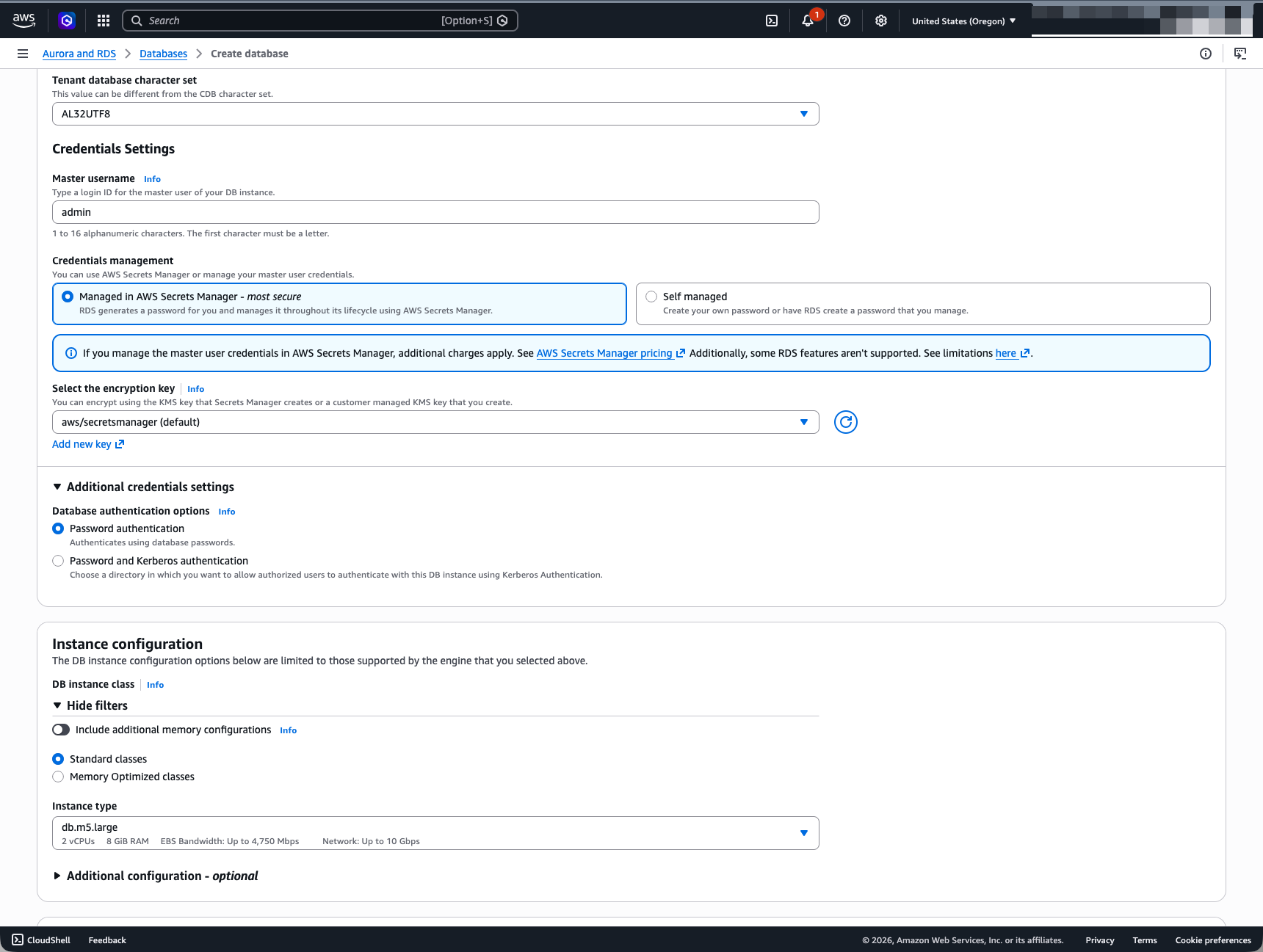
Figure 4: Configure credentials management, authentication, and DB instance class
Step 5: Configure storage and availability
- Choose Storage type based on your Outpost rack configuration.
- Enter Allocated storage and optionally enable storage autoscaling.
- Choose your Multi-AZ deployment preference.
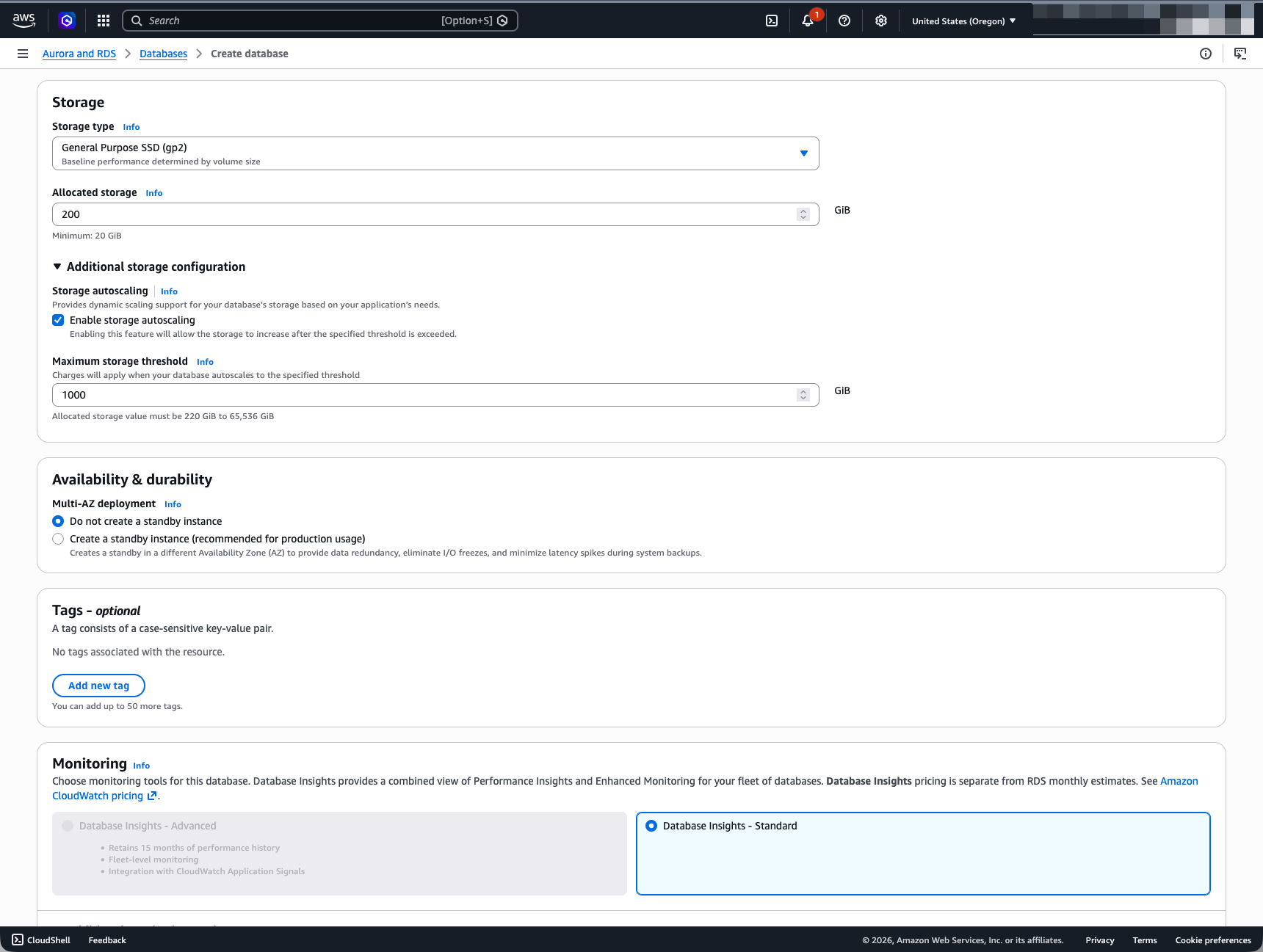
Figure 5: Configure storage, autoscaling, and Multi-AZ settings
Step 6: Configure monitoring, logging, and additional settings
- Choose monitoring options and backup target based on your preference.
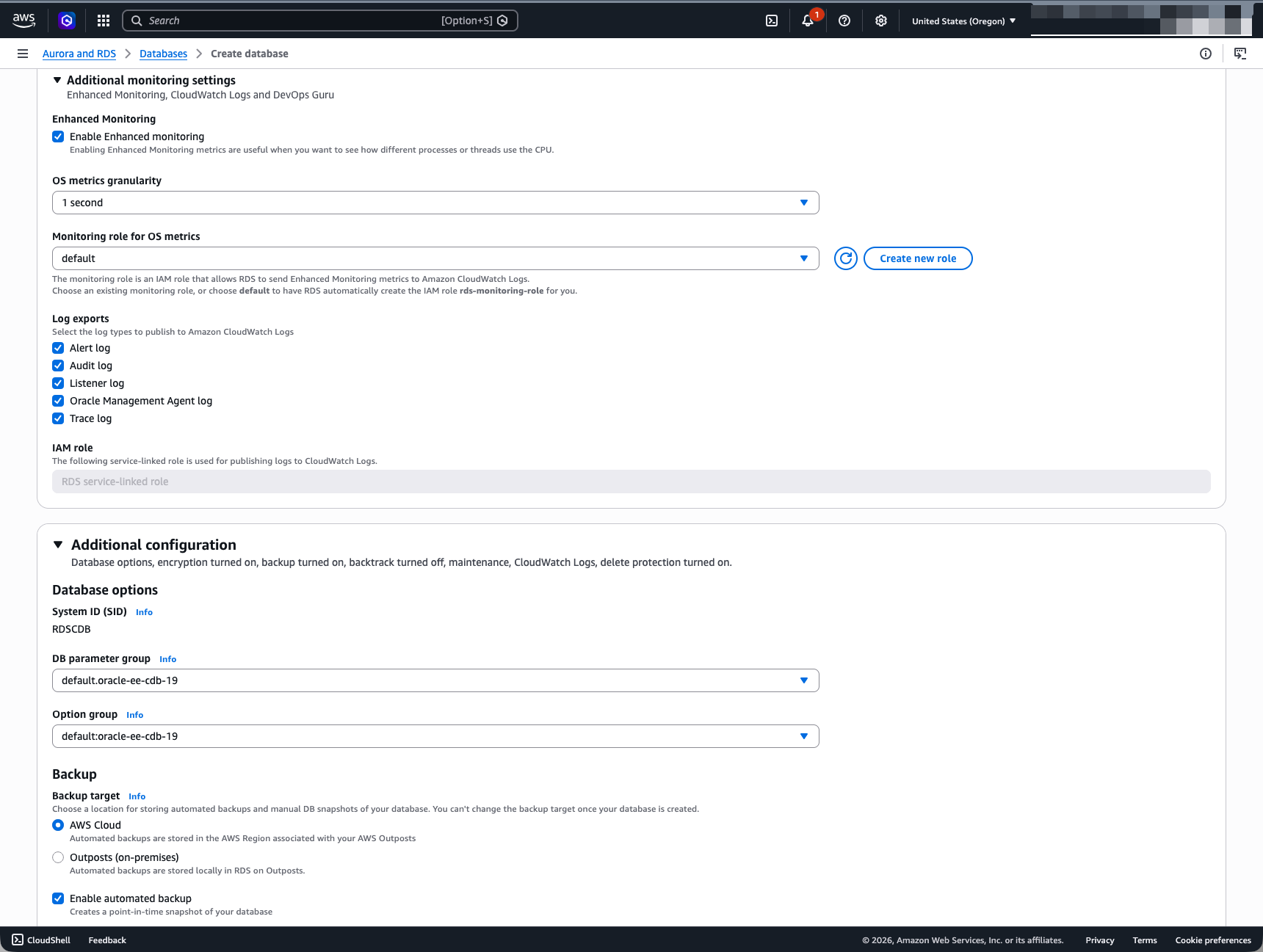
Figure 6: Configure monitoring, log exports, database options, and backup settings
Step 7: Configure encryption, maintenance, and create the database
- Choose backup retention based on your preference.
- All RDS on Outposts DB instances must be encrypted. Choose your AWS KMS key.
- Review all settings and choose Create database.
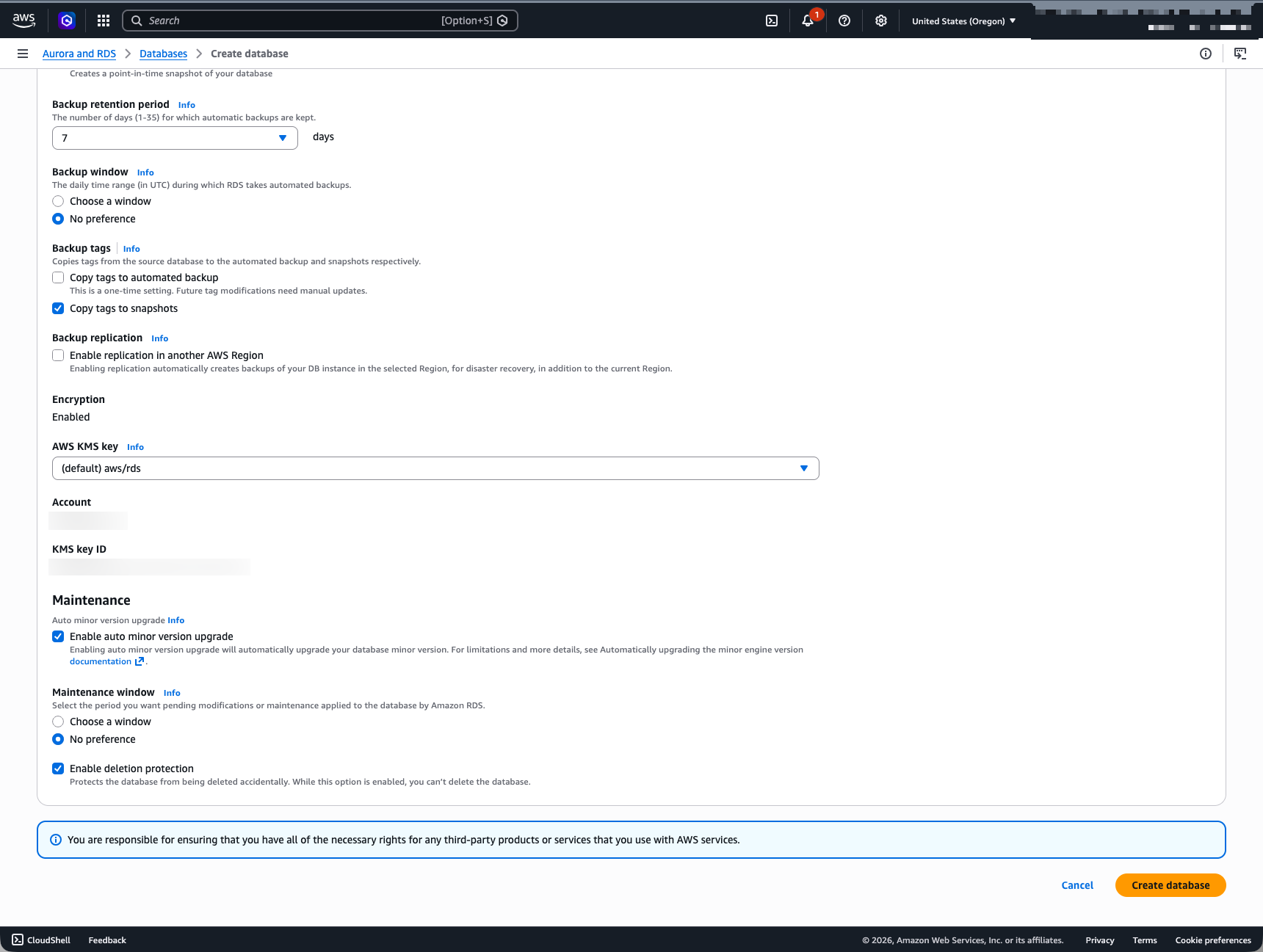
Figure 7: Configure encryption, maintenance, and create the database
It takes several minutes for the DB instance to be created. You can monitor the status on the Databases page of the RDS console. When the status changes from Creating to Available, your RDS for Oracle instance on Outposts is ready to use.
Deploy using the AWS CLI
As an alternative to the preceding console walkthrough, you can deploy RDS for Oracle on Outposts using the AWS CLI. The following steps walk through creating the required networking resources and launching the DB instance. Replace the placeholder values (shown as <...>) with values from your environment. We didn’t perform steps 1 to 5 in the preceding console method, because we had already created those resources.
Step 1: Create a VPC
Note the VpcId from the output.
Step 2: Create a subnet on your Outpost
Note the SubnetId from the output.
Step 3: Associate the local gateway route table with the VPC
Step 4: Create and attach an internet gateway
Note the InternetGatewayId, then attach it to your VPC:
Step 5: Create a DB subnet group
Step 6: Create the RDS for Oracle DB instance
A few notes on the commands:
- Credentials –
--manage-master-user-passworddelegates credential management to AWS Secrets Manager. Replace it with--master-user-password <password>only if you need to manage the password yourself. - Encryption –
--storage-encryptedis required. All RDS on Outposts instances must be encrypted at rest. - Instance class – db.m5.large is for Gen1 Outpost racks. For Gen2 racks, use db.r7i or db.m7i instance families based on your EC2 instance configuration.
- Multi-AZ – To add a standby, append
--multi-azand make sure your DB subnet group includes subnets from two Outposts in different Availability Zones.
Disaster recovery options
RDS for Oracle on Outposts provides multiple disaster recovery strategies:
- Point-in-time recovery – When backups are stored in the AWS Region, you can restore a DB instance either in the parent AWS Region or on another Outpost rack within the same Region.
- Read replicas – Maintain a continuously replicated copy of your database on a different Outpost rack. In the event of a disaster, promote the read replica to a standalone DB instance for faster recovery compared to restoring from backups alone.
- Multi-AZ failover – With Multi-AZ deployments, RDS automatically fails over to the standby instance on the second Outpost rack if the primary becomes unavailable.
The following table summarizes backup and restore compatibility:
| Manual DB snapshot | Restore a DB instance in Outposts | Restore a DB instance in AWS Region |
| Backups stored in AWS Region | Supported | Supported |
| Backups stored in AWS Outposts | Supported | Not Supported |
| Automated backup with PITR | Restore a DB instance in Outposts | Restore a DB instance in AWS Region |
| Backups and logs stored in AWS Region | Supported | Supported |
| Backups and logs stored in AWS Outposts | Supported | Not Supported |
Considerations for Amazon RDS for Oracle on AWS Outposts
- RDS for Oracle on Outposts uses the BYOL model only. Consult your Oracle licensing advisor for license applicability on AWS Outposts.
- Supported database versions are currently Oracle Database 19c and 26ai.
- Supported database editions are Enterprise Edition and Standard Edition Two.
- Automated backups and manual snapshots are stored in AWS Regions when using Multi-AZ deployments or read replicas. Local backups to S3 on Outposts are not supported in Multi-AZ configuration.
- RDS for Oracle option groups that require an AWS Identity and Access Management (IAM) role to be associated (such as S3 Integration and EFS Integration) are not supported.
- All RDS on Outposts DB instances are encrypted at rest with AWS KMS. Unencrypted instances are not supported.
- Your DB instance continues to run locally if connectivity to the AWS Region is lost, but you can’t create or modify instances or perform backups until connectivity is restored.
- You are charged an hourly On-Demand DB instance management fee. Database storage on Outposts is not charged separately. Local backups incur no additional charge. Backups stored in the AWS Region follow standard RDS pricing. For details, see the RDS on Outposts pricing page.
- Each routing domain must be configured for CoIP during LGW Route Table creation.
Cleanup
To avoid ongoing charges, delete the RDS for Oracle DB instance on Outpost if you no longer need it:
- On the Amazon RDS console, choose Databases.
- Select your DB instance and choose Actions, then Delete.
- If deletion protection is enabled, you must first modify the instance to disable it.
Conclusion
In this post, we walked through the steps to deploy an Amazon RDS for Oracle DB instance on AWS Outposts. With this launch, you can run a fully managed Oracle database on premises with the same operational experience as in the AWS Cloud, including automated backups to the AWS Region, patching, monitoring, encryption, Multi-AZ high availability, and read replicas for disaster recovery, while meeting your data residency and low-latency requirements.
To get started, see the Amazon RDS on AWS Outposts documentation.