AWS Database Blog
Understanding how backups work in Amazon Aurora
Amazon Aurora customers frequently ask why their backup storage costs fluctuate and how data changes affect backup billing. Although the Amazon Aurora public documentation covers backup configuration, understanding the internal mechanics of how backup storage is consumed and billed can help you optimize costs under different workload patterns.
In this post, we dive deep into the Aurora backup architecture, how it differs from Amazon Relational Database Service (Amazon RDS) backups, and the Amazon CloudWatch metrics available to monitor your backup storage usage. Through detailed scenarios and visualizations, we demonstrate how workload patterns and retention periods impact backup costs. We also explore cross-Region backup options and share recommended practices to optimize your backup storage consumption.
Overview of backups in Aurora
Amazon Aurora provides the following backup features to provide various use cases:
- Automated backups – Creates daily backups automatically with retention periods of 1-35 days. This incurs no additional charge for backup storage up to 100% of your total database storage for each Aurora cluster. For complete backup storage pricing details, see Amazon Aurora pricing.
- Manual snapshots – On-demand DB snapshots that persist until explicitly deleted.
- Cross-Region backups – Copying snapshots across AWS Regions for disaster recovery.
- Backup window – Configuration to control when the automated backups should occur, typically during off-peak hours.
- AWS Backup integration – Managed backup service integration for longer automated backup retention capabilities at a single place.
At the architecture level, Aurora is configured with a continuous backup approach. The continuously backed up data is stored in an internal Amazon Simple Storage Service (Amazon S3) bucket asynchronously, allowing point-in-time recovery (PITR) to any second within the retention period. The Aurora backup architecture uses its distributed storage layer to provide zero-impact backups that don’t affect database performance, with data automatically replicated across three Availability Zones for high durability.
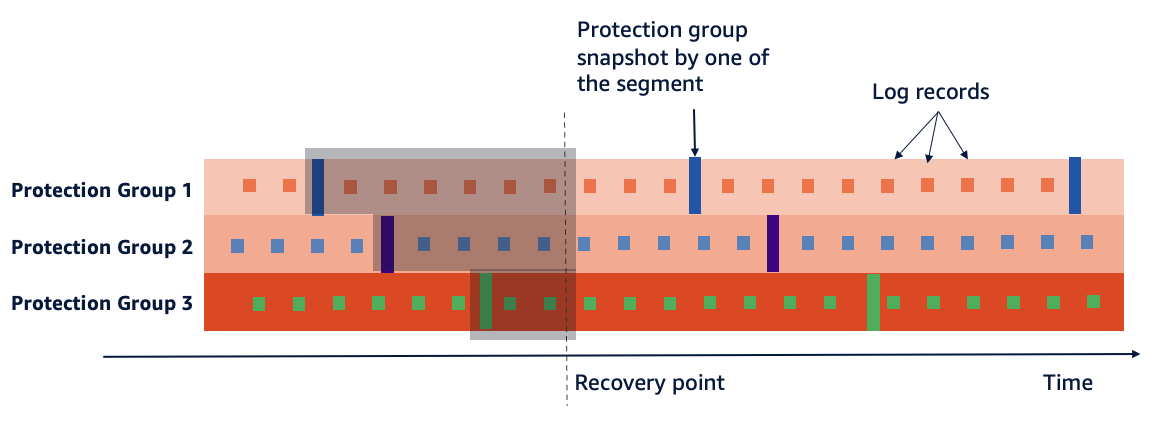
To understand how Aurora’s backup process works, it helps to know how Aurora organizes its storage. Aurora’s database volume is divided into 10 GB chunks called segments, which are distributed across hundreds of storage nodes. Each segment is replicated six times across three Availability Zones as a protection group with a mix of full segments (containing both data pages and log records) and tail segments (containing only log records) to provide fault tolerance while optimizing storage costs. This partitioned architecture is fundamental to how Aurora performs its backups, as each protection group is backed up independently and in parallel.
The following diagram shows how the continuous backup of log records and segment snapshots happen individually for each protection group in parallel. It also shows how it comes together as a cluster storage for a specific snapshot restore as the recovery point with a combination of segment snapshots and log records.
When Aurora performs backups, it doesn’t directly read from the DB instance. Instead, the backup process operates at the storage layer, capturing data directly from the distributed storage volume. This approach has several architectural advantages:
- The backup process doesn’t consume DB instance resources or impact performance, because the work is offloaded to the storage layer.
- Aurora maintains a distributed storage system where data is stored in 10 GB segments across hundreds of storage nodes grouped as protection groups depending on your storage requirement. During backups, these protection groups are backed up in parallel, enabling rapid backup operations regardless of database size. This allows the restore also to be also done in parallel for each of these protection groups and their segments. The recovery points starts with the latest available segment snapshot for each of the protection groups followed by the delta change records to be applied respectively.
- The continuous backup capability is implemented through a change tracking mechanism at the storage level. As data changes are written to the storage volume, these changes are also asynchronously streamed to an internal S3 bucket, creating a continuous backup stream.
- For PITR, Aurora combines the base backup with the continuous stream of changes, allowing restoration to a given second within the retention period.
- Daily backups as part of the automated backup configuration are handled automatically after the initial full backup, where Aurora only backs up incremental changes, minimizing storage costs.
- The cluster storage layer handles backup encryption transparently when the source database is encrypted, maintaining security throughout the backup chain.
This architecture allows Aurora to provide consistent backups without locking tables, blocking transactions, or stalling I/O operations, maintaining stable database performance while providing data protection. If you choose to manage backups using AWS Backup, those snapshots created are considered manual DB cluster snapshots. These will be full backups, which will be of the same size as the cluster at its point of creation. For more information about using AWS Backup, see Using AWS Backup to protect Amazon Aurora databases.
How Aurora backup differs from Amazon RDS backup
Aurora and standard RDS backups share some common principles such as backup window, restore options and AWS Backup integration, but differ significantly under the hood because of Aurora cluster storage architecture compared to Amazon Elastic Block Store (Amazon EBS) usage in RDS.
| Aspect | Amazon Aurora | Amazon RDS |
| Backup Architecture | Operates at the distributed storage layer | Operates at the Amazon EBS volume level |
| Backup Granularity | Continuous backup | EBS based incremental backups |
| Performance Impact | No performance impact during backup operations | May experience performance degradation during backup windows for Single AZ setup |
| Backup Speed | Faster backup creation due to parallel operations across storage segments | Slower, sequential backup process |
| Point-in-Time Recovery (PITR) | Does not require transaction log replay and significantly faster | Requires transaction log replay which increases time to PITR |
CloudWatch metrics for Aurora backups
Amazon CloudWatch offers three metrics related to backups for Aurora to review and monitor the amount of storage used by your Aurora backups:
|
Description | Storage Components |
BackupRetentionPeriodStorageUsed |
Amount of backup storage used for storing automated backups (in bytes) | Depends on cluster volume size and data changes (writes/updates) |
SnapshotStorageUsed |
Amount of backup storage used for manual snapshots beyond retention period (in bytes) | The size of each snapshot is the size of the cluster volume at the time you take the snapshot. |
TotalBackupStorageBilled |
Total billed backup usage in bytes for cluster | BackupRetentionPeriodStorageUsed + SnapshotStorageUsed – free tier |
We recommend setting up CloudWatch alarms on these metrics to proactively monitor your backup storage usage. A steadily increasing BackupRetentionPeriodStorageUsed value indicates a high rate of data changes within your retention window, which might signal an opportunity to review your retention period. A high SnapshotStorageUsed value suggests that manual snapshots are accumulating beyond the retention period—review and delete any snapshots that are no longer needed. You can also track TotalBackupStorageBilled over time to understand your overall backup cost trend and identify unexpected spikes. As a general rule, if TotalBackupStorageBilled consistently exceeds your total cluster volume size, it’s worth investigating whether your retention period, snapshot management practices, or data change patterns can be optimized.
How the workload pattern and retention period impact backup cost
As discussed earlier, the backup is continuous and the automated backup stores the required information to be able to restore the cluster at a point in time in the retention window. For databases where high throughput of changes occur, the size of the automated backup grows over time. If the database stops experiencing significant changes, you can expect the size of the automated backup to decrease, as the previously stored changes exit the retention window.
Scenario 1: Manual backups with single table operation
In this scenario, we examine how manual backup sizes are affected by insert and delete operations on a single table.
- Create a new table, insert 10 GB of data, and take a manual backup named scenario-1-backup-1.
- Insert an additional 10 GB into the same table, bringing the total to 20 GB, and take a manual backup named scenario-1-backup-2.
- Delete the 10 GB of data added in step 2 and take a manual backup named scenario-1-backup-3.
- Insert 10 GB of new data into the same table (which reuses the space freed in step 3) and take a manual backup named scenario-1-backup-4.
- Insert another 10 GB of new data into the same table, bringing the total to 30 GB, and take a manual backup named scenario-1-backup-5.
Note: In Aurora PostgreSQL, there can be minor deviations based on vacuuming for how much it gets freed.
The following table shows the approximate size of each manual snapshot and explains why:
| Manual Backup | Table Size | Snapshot Size | Explanation |
| scenario-1-backup-1 | 10 GB | 10 GB | Initial 10 GB of data inserted. |
| scenario-1-backup-2 | 20 GB | 20 GB | Additional 10 GB inserted, total is now 20 GB. |
| scenario-1-backup-3 | 10 GB | 20 GB | 10 GB deleted, but cluster volume size remains 20 GB because DELETE operations free space for reuse but don’t shrink the volume. |
| scenario-1-backup-4 | 20 GB | 20 GB | 10 GB inserted into the freed space & volume size unchanged. |
| scenario-1-backup-5 | 30 GB | 30 GB | Additional 10 GB inserted, expanding the volume. |
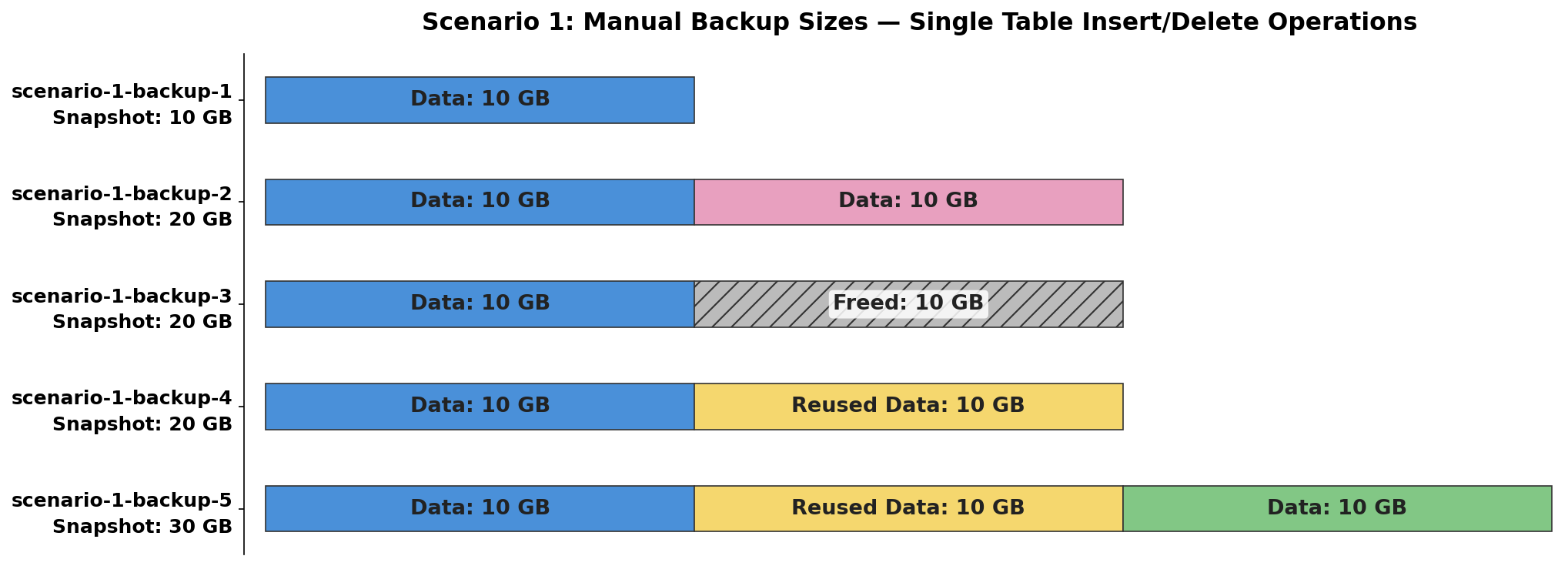
The size of these manual snapshots is typically close to the VolumeBytesUsed value. One important point about this scenario is that scenario-1-backup-3 remains at 20 GB, because deleting data from a table doesn’t decrease the volume size but only frees space for future use. This is because dynamic resizing in Aurora doesn’t apply when deleting rows using the DELETE statement. However, if you’re using a partitioned table and drop a partition, you should see a reduction in size as demonstrated in the next scenario. Regarding costs, Aurora provides unlimited free storage for manual snapshots that fall within the automated backup retention period. After a manual snapshot is outside this period, it incurs charges based on the snapshot sizes mentioned earlier, billed per GB-month.
Scenario 2: Manual backups with multiple table operations
In this scenario, we examine how manual backup sizes are affected by creating and dropping tables.
- Create a new table, insert 10 GB of data into it and take a manual backup named scenario-2-backup-1.
- Create one more table, insert 10 GB of data into it and take a manual backup named scenario-2-backup-2.
- Drop one of the table created earlier and take a manual backup named scenario-2-backup-3.
- Create another new table, insert 10 GB into and take a manual backup named scenario-2-backup-4.
The following table shows the approximate size of each manual snapshot and explains why:
| Backup | Tables size | Snapshot Size | Explanation |
| scenario-2-backup-1 | 10 GB | 10 GB | A table with 10 GB |
| scenario-2-backup-2 | 20 GB | 20 GB | Two tables with 10 GB each. |
| scenario-2-backup-3 | 10 GB | 10 GB | One table dropped. Unlike row-level DELETE, dropping a table triggers dynamic resizing, which reclaims the storage. |
| scenario-2-backup-4 | 20 GB | 20 GB |
Another table added leading to expanding the volume again. Now we have total of two tables with 10 GB each, |
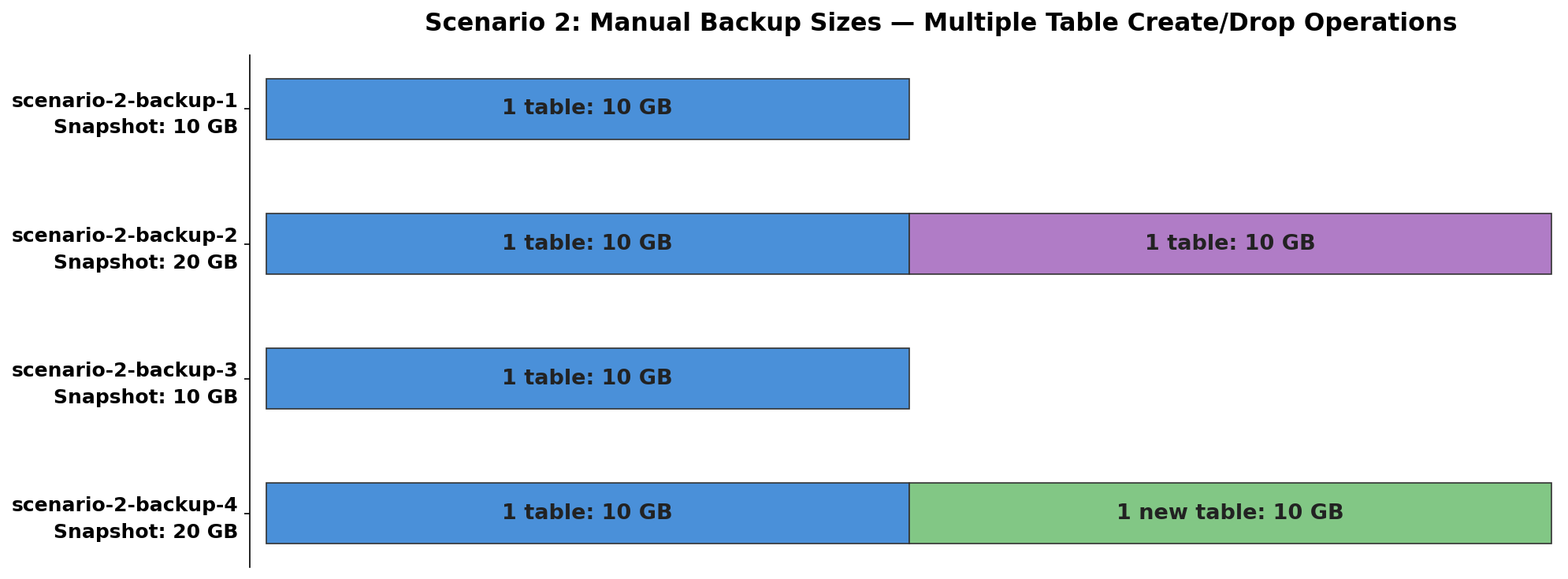
In this case too, the size of these manual snapshots is approximately equal to the VolumeBytesUsed value. One notable point in this scenario is that dynamic resizing was triggered in the third step and storage shrank when you dropped a table. This is why the scenario-2-backup-3 backup decreased to around 10 GB. Similar to the earlier scenario, you are not charged for these manual backups within the retention period. After they’re past the retention period, you are charged based on the sizes mentioned earlier, billed per GB-month.
Scenario 3: Automated backups with inserts on a given table
This scenario illustrates how automated backup storage grows with an insert-only workload and how the retention window affects the change records retained.
Setup:
- A table with an initial insert of 10 GB.
- Automated backups enabled with a 3-day retention period.
- The workload consists of insert-only operations – no updates or deletes.
As data is inserted, Aurora’s automated backup tracks two components:
- Base image – The cumulative snapshot of all data pages, which grows as new data is inserted and does not shrink in an insert-only workload.
- Change records – The page-level changes retained within the 3-day retention window to enable point-in-time recovery. As the retention window slides forward, older change records are applied to the base image.
The following table shows the approximate BackupRetentionPeriodStorageUsed calculation for each day:
| Day | Data Inserted | Table Size | Base Image | Change Records (CR) Retained | BackupRetentionPeriodStorageUsed |
| 1 | 10 GB | 10 GB | 10 GB | Day 1 (10 GB) | 10 GB + change records for 10 GB |
| 2 | 10 GB | 20 GB | 20 GB | Day 1–2 (10 GB + 10 GB) | 20 GB + change records for 20 GB |
| 3 | 20 GB | 40 GB | 40 GB | Day 1–3 (10 GB + 10 GB + 20 GB) | 40 GB + change records for 40 GB |
| 4 | 0 GB | 40 GB | 40 GB | Day 2–4 (10 GB + 20 GB + 0GB) | 40 GB + change records for 30 GB |
| 5 | 0 GB | 40 GB | 40 GB | Day 3–5 (20 GB + 0 GB + 0GB ) | 40 GB + change records for 20 GB |
| 6 | 30 GB | 70 GB | 70 GB | Day 4–6 (0 GB + 0 GB + 30 GB) | 70 GB + change records for 30 GB |
| 7 | 40 GB | 110 GB | 110 GB | Day 5–7 (0 GB + 30 GB + 40 GB) | 110 GB + change records for 70 GB |
| 8 | 0 GB | 110 GB | 110 GB | Day 6–8 (30 GB + 40 GB + 0 GB) | 110 GB + change records for 70 GB |
| 9 | 0 GB | 110 GB | 110 GB | Day 7–9 (40 GB + 0 GB + 0 GB) | 110 GB + change records for 40 GB |
| 10 | 0 GB | 110 GB | 110 GB | Day 8–10 (0 GB + 0 GB + 0 GB) | 110 GB (no change records) |
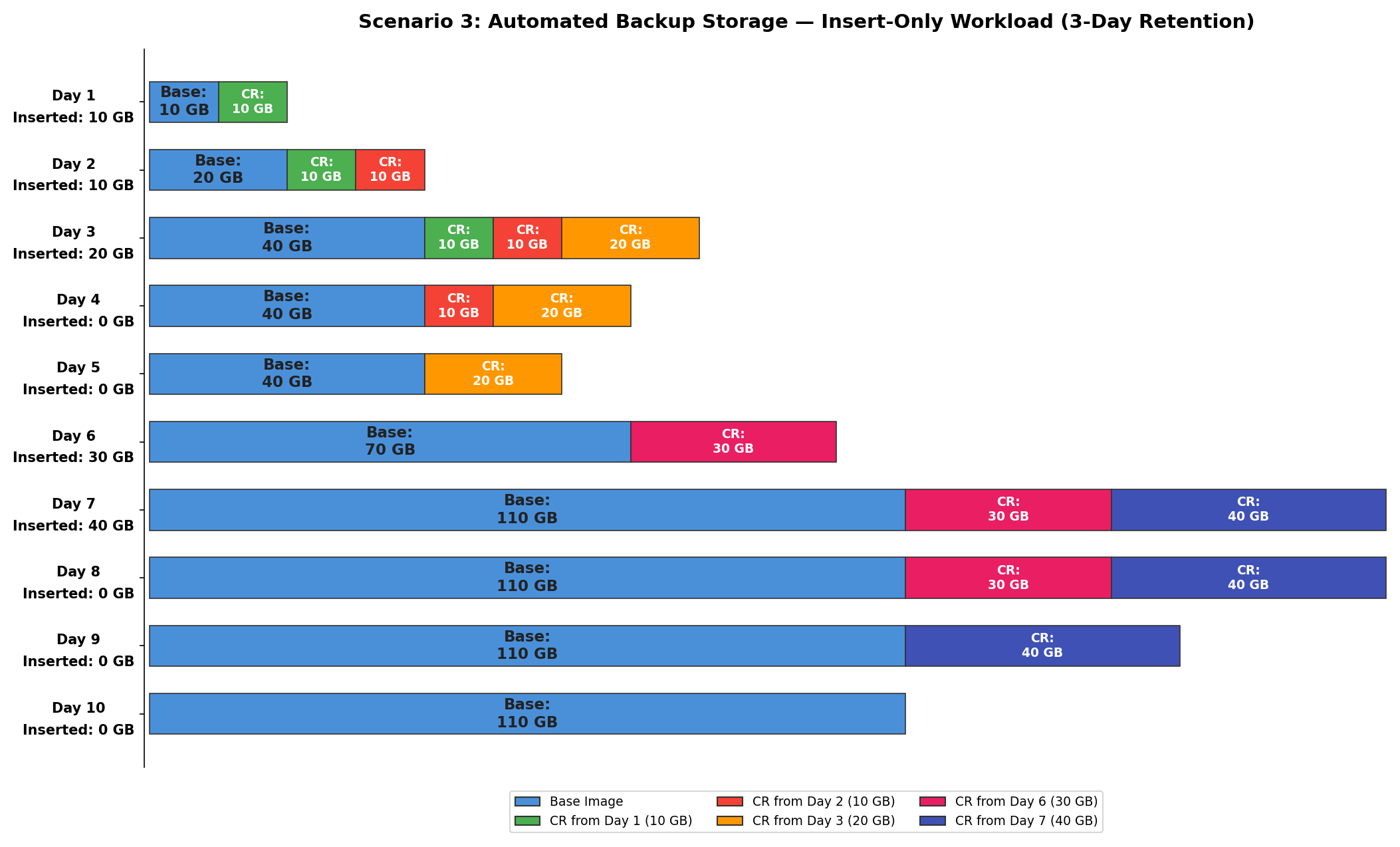
The backup is from each protection group at the individual page level for both the base image and change records. It is important to understand that the change records here are not the transaction logs, but the changes at the level of data pages. In other words, the size of these change records is proportional to the quantity of actual data changes. For example, if a single update query is run to update 10GB of data, it’s not the single query that is stored as change records, but the data changes for those 10GB stored data pages to allow restoration for any given point of time.
As you continue to insert data, the base backup image continues to grow, and the movement of the retention window only impacts the change records. For example, on Day 4 the 10 GB change records from Day 1 are no longer retained because they fall outside the 3-day window. Days with no inserts reduce backup storage over time, as older change records exit the retention window with no new ones being added (see Days 8–10). The cost of backup storage, which is calculated for each day, is the value of BackupRetentionPeriodStorageUsed (which combines the actual data pages at the time of backup creation for individual backups and the change records storage usage for its backup retention window) minus the VolumeBytesUsed value at the time of backup creation. For example, on Day 7 the billable backup storage would be approximately the change records for 70 GB, since the 110 GB base image is covered by the free tier (up to 100% of cluster volume size).
Scenario 4: Automated backups with updates and deletes on a given table
This scenario illustrates how automated backup storage is affected when the same portion of data is repeatedly updated. Unlike Scenario 3 where only new data is inserted, updates modify existing data pages, which means Aurora must retain previous versions of those pages to support point-in-time recovery within the retention window. Deletions behave similarly, with the difference that the freed pages can be reused for future insertions within the same table.
Setup:
- A table with an initial bulk insert of 100 GB.
- Automated backups enabled with a 3-day retention period.
- The workload repeatedly updates the same 10 GB portion of the table—no new data is added, so the table size remains constant at 100 GB.
In an update workload, Aurora’s automated backup tracks two components:
- Base image – The current data pages plus any previous versions of updated pages that are still needed for PITR within the retention window. This causes the base image to temporarily grow beyond the table size.
- Change records – The page-level changes retained within the 3-day retention window. As the window slides forward, older change records and their corresponding previous page versions are applied to the base image.
The following table shows the approximate BackupRetentionPeriodStorageUsed calculation for each day:
| Day | Update Size | Table Size | Base Image | Previous Versions Retained | Change Records | BackupRetentionPeriodStorageUsed |
| 1 | 100 GB (initial insert) | 100 GB | 100 GB | None | Day 1: 100 GB insert | 100 GB + change records for 100 GB |
| 2 | 10 GB | 100 GB | 110 GB | 10 GB (Day 1 version) | Day 1–2: 100 GB + 10 GB | 110 GB + change records for 110 GB |
| 3 | 10 GB | 100 GB | 120 GB | 10 GB (Day 1) + 10 GB (Day 2) | Day 1–3: 100 GB + 10 GB + 10 GB | 120 GB + change records for 120 GB |
| 4 | 0 GB | 100 GB | 110 GB | 10 GB (Day 2 version) | Day 2–4: 10 GB + 10 GB | 110 GB + change records for 20 GB |
| 5 | 0 GB | 100 GB | 100 GB | None (all old versions expired) | Day 3–5: 10 GB | 100 GB + change records for 10 GB |
| 6 | 10 GB | 100 GB | 110 GB | 10 GB (Day 5 version) | Day 4–6: 10 GB | 110 GB + change records for 10 GB |
| 7 | 10 GB | 100 GB | 120 GB | 10 GB (Day 5) + 10 GB (Day 6) | Day 5–7: 10 GB + 10 GB | 120 GB + change records for 20 GB |
| 8 | 0 GB | 100 GB | 110 GB | 10 GB (Day 6 version) | Day 6–8: 10 GB + 10 GB | 110 GB + change records for 20 GB |
| 9 | 0 GB | 100 GB | 100 GB | None | Day 7–9: 10 GB | 100 GB + change records for 10 GB |
| 10 | 0 GB | 100 GB | 100 GB | None | Day 8–10: none | 100 GB |
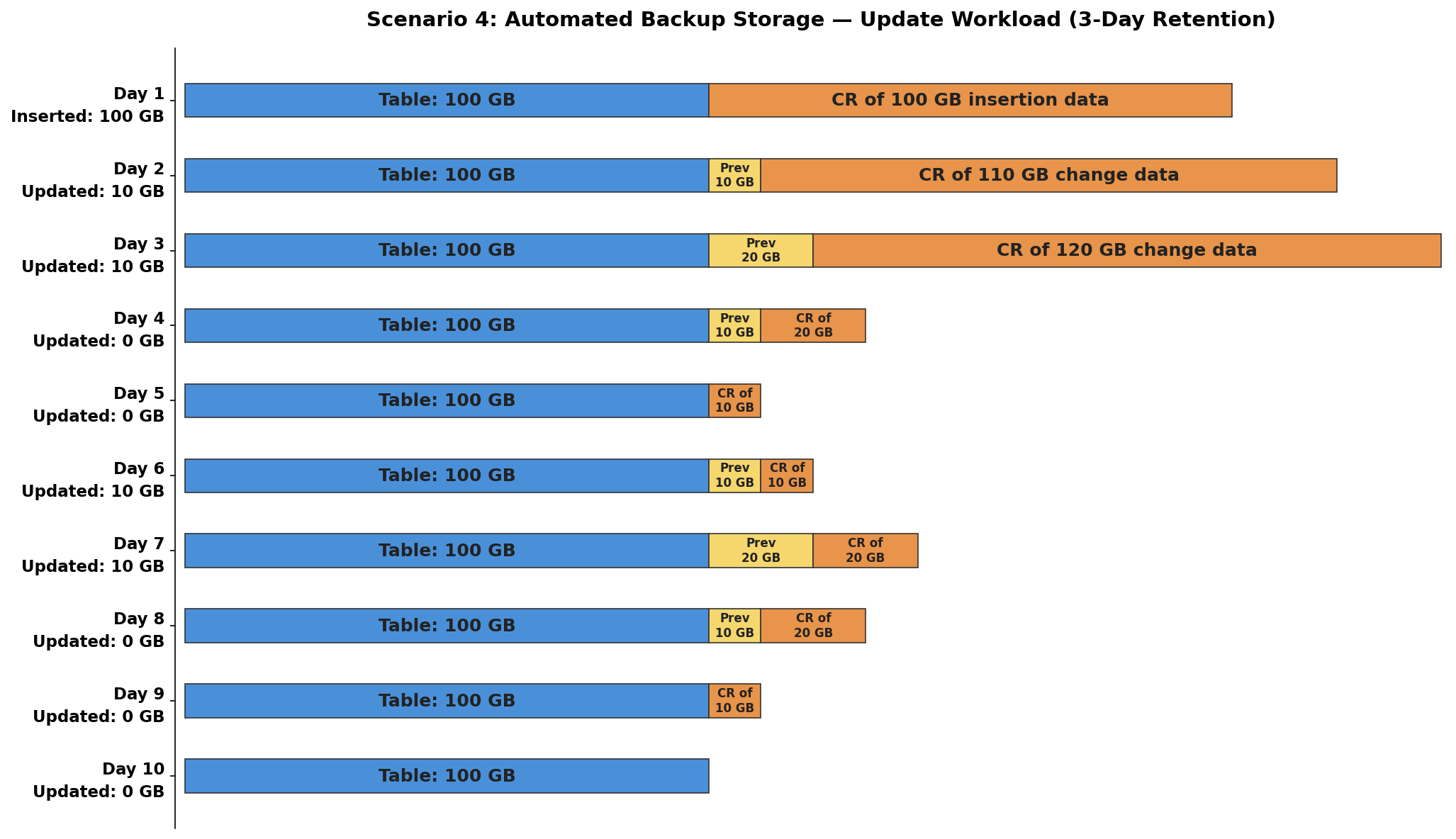
With regards to the base image, the database’s table-level row change doesn’t create the new base image directly, but persisted only as change records first. Creation of a new base image is based on internal thresholds that depend on the number of change records and its size of changes. These conditions constrain the quantity of change records to be processed by the segments during the restore process in an acceptable range.
Previous page versions are kept only as long as the retention window requires them. For example, the Day 1 version of the updated pages is retained through Day 3, but dropped on Day 4 when Day 1 exits the 3-day window. The backup storage follows a cyclical pattern that mirrors the update activity, it grows when updates occur and shrinks back as those changes exit the retention window. Unchanged data (the remaining 90 GB) is retained in the base image throughout, even beyond the retention period, because it is required to restore the complete table state at any point in time within the retention window.
Cross-Region backup options
Aurora offers three distinct approaches to multi-Region database architectures: global databases, cross-Region read replicas, and cross-Region snapshot copies. Although all these solutions enable multi-Region presence, they serve different use cases and come with unique cost implications.
Global databases
Amazon Aurora Global Database represents a sophisticated approach, where secondary Regions maintain storage-level copies of the primary database and allow read scaling capabilities. Additionally, this option allows a headless cluster configuration without dedicated compute resources. This architecture significantly reduces costs while maintaining the ability to promote a secondary Region during disaster recovery scenarios, typically achieving a Recovery Point Objective (RPO) of a few seconds and a Recovery Time Objective (RTO) of the time taken for the addition of instances into the headless clusters which generally takes less than 10 minutes. However, prior reader instances on the secondary Regions can bring down this RTO to less than 1 minute by allowing direct switchover/failover action depending on the scenario. These secondary Region clusters are configured with their own automated backups and retention period to be capable of its own PITR. Note that the secondary Region cluster follows the same pattern as the primary Region in terms of backup storage billed and we recommend controlling it with the backup retention window according to your requirements for optimization.
Cross-Region read replicas for Aurora MySQL
Cross-Region read replicas provide a more traditional approach with active compute resources in secondary Regions. Although this approach also helps distribute read workloads globally, it comes with higher compute costs because of the mandatory continuous running of compute resources in secondary Regions. This is required because the replication works by applying the transaction logs at the secondary Region, namely binary logs for MySQL. The replication lag in cross-Region read replicas typically varies because of the logical replay of the actual query, which marks the RPO dependent on factors such as long-running queries and other workload patterns. Similar to that of global clusters with active reader instances, RTO is less than 1 minute with the action as promoting this as a standalone cluster. Similar to global clusters, these secondary Region clusters are configured with their own automated backups and retention period to be capable of its own PITR.
Cross-Region snapshot copy
A cross-Region snapshot copy approach provides a way to have a copy of a given Aurora cluster snapshot (either a manual snapshot or an automated backup’s snapshot) in the secondary Region. These operations can be automated using integrations of other AWS services such as Amazon EventBridge and AWS Lambda; however, a major consideration here is the limitation of recovery only towards the snapshot creation timestamps. This leads to a larger RPO, which can vary depending on the frequency of snapshot creations and the action to copy them to a secondary Region. Additionally, the RTO depends on a new cluster creation in secondary Region as the restore from the copied snapshot, which depends on the overall storage size and the instance’s creation time. An added disadvantage here in terms of cost is that each copy of a snapshot is a full snapshot and therefore is equal to that of the volume size at its creation time. You must also include the cost from the data transfer, which also varies based on the size of the snapshot as per Amazon Aurora pricing. If you must use this disaster recovery approach, consider manually deleting the older snapshots beyond your window managed for disaster recovery in the secondary Region.
How to choose your cross-Region backup approach
The choice between these approaches ultimately depends on your specific requirements. The global database with headless cluster approach is particularly attractive for disaster recovery scenarios where cost optimization is important and immediate read access in secondary Regions isn’t necessary. If you are primarily focused on disaster recovery with minimal RPO requirements, you might find the headless cluster approach more cost-effective, potentially reducing secondary Region costs compared to traditional global database deployments. However, maintaining a cross-Region snapshot copy can also be an option if the RPO can tolerate the added delay and the overhead managing the snapshots on the secondary Region.
How to optimize the amount of backup storage consumed
The amount of backup storage used depends primarily on the following factors:
- How long automated backups are retained to provide the flexibility for PITR.
- The data change rate within the backup retention window impacting the amount of the changes to be stored.
- How many snapshots are created and retained beyond the backup window.
- The size of your cluster storage, which decides the baseline for your automated backups.
Carefully evaluate the use of automatic backups and manual snapshots in the context of your data retention policies and disaster recovery requirements for each individual workload. Verify that the backup retention period for automated backups configured for each DB cluster matches the intended workload and your retention policies.
Reduce the backup retention period where appropriate, to reduce the amount of data changes stored in automated backups. Because the amount of backup storage used for automated backups depends on the rate of data changes, reducing the backup retention period can have the most significant cost savings for workloads with high data change velocity. This includes data changes that affect a large portion of the total data set, such as workloads with daily data refreshes, or large daily or more frequent extract, transform, and load (ETL) jobs.
If your data change rate is low, and you need to retain backups for a period of 35 days or fewer, it might be more cost-effective to extend the backup retention period, rather than using a shorter retention period and using manual snapshots. Each manual snapshot is billed equivalent at the storage volume size at the time it was created. Regularly list and review your stored manual snapshots in the context of your data retention policy and delete snapshots if they are no longer needed.
Review your snapshot copy operations and processes to verify they meet but don’t exceed your needs. Each copy results in a new snapshot being billed for the full storage size of the source volume at the time of the initial snapshot creation. Copying a snapshot to different Regions multiplies the amount of data changes stored in backups across all those Regions.
Conclusion
In this post, we discussed how Amazon Aurora provides robust and continuous backup capabilities that take advantage of its unique distributed storage architecture. The continuous backup approach, where changes are streamed to an S3 bucket in real time asynchronously, allows for point-in-time recovery without impacting database performance.
The CloudWatch metrics for Aurora backups provide visibility into the backup storage consumption and cost implications. The automated backup storage usage can vary significantly based on workload patterns, data change rates, and the configured retention periods. By managing manual snapshots judiciously, minimizing unnecessary snapshot copy operations, and right-sizing the automated backup retention periods, you can optimize your Aurora backup storage consumption and costs.
To get started, review your current backup configuration in the Amazon RDS console. For more details on Aurora backup and restore, see Backing up and restoring an Amazon Aurora DB cluster in the Aurora documentation.