Migration & Modernization
Automating EC2 License Migration from AWS Marketplace to BYOL
Managing software licenses in the cloud can be complex, especially when working at scale and looking to leverage licenses you already own. Many customers run Amazon EC2 instances with operating systems like SUSE Linux Enterprise Server (SLES), Red Hat Enterprise Linux (RHEL), and Fortinet. These operating systems include licensing costs bundled into the hourly instance price. However, if you already own licenses for these operating systems, you can reduce costs by switching to a Bring Your Own License (BYOL) model. This post shows you how to automate this migration process using a Python-based tool that handles the technical complexity of converting any license-included Linux-based AMI from AWS Marketplace to BYOL.
The challenge of license migration
When you launch an EC2 instance with a license-included Amazon Machine Image (AMI), the operating system license is bundled into your hourly compute costs. If your organization already owns licenses for these distributions, you’re essentially paying twice: once for your existing licenses and again through the Amazon EC2 pricing model.
While an EC2 instance may appear as a single entity, it’s composed of interconnected components working together. At its core, the EC2 instance provides the compute resources and includes properties like instance type, AMI, and IAM role. Connected to the instance are one or more Elastic Network Interfaces (ENIs) that provide network connectivity: during license migration, preserving these ENIs ensures your instance retains its IP addresses. Finally, the storage layer consists of one or more Amazon Elastic Block Store (EBS) volumes containing your operating system, applications, and data. The migration process preserves all these volumes so they can be reattached to the newly created instance, maintaining your complete configuration and data.
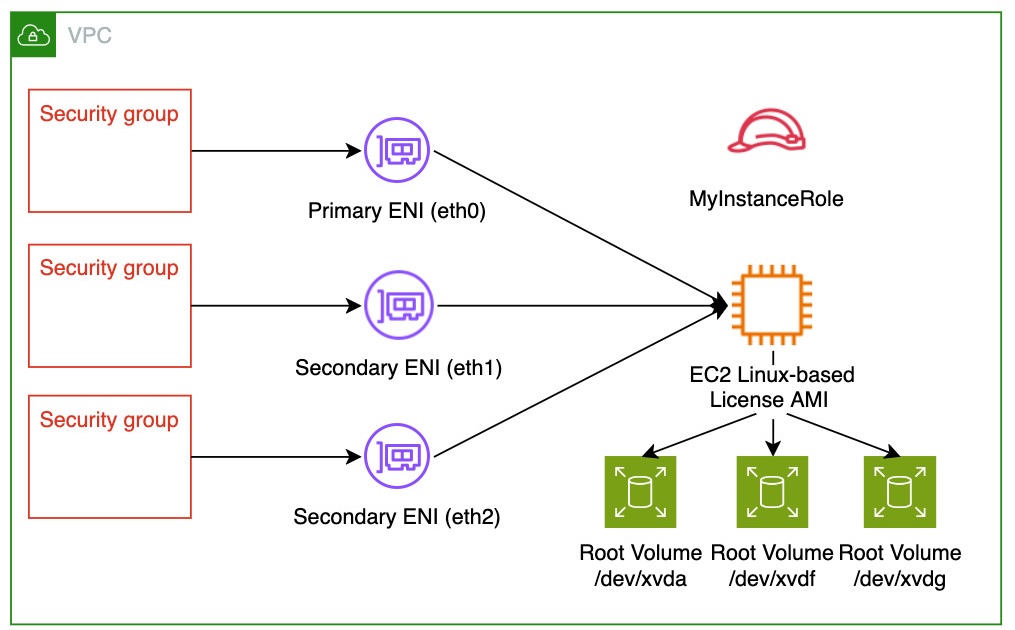
Figure 1: Architecture diagram showing an EC2 instance with attached Elastic Network Interface (ENI), associated security groups, and connected EBS volumes for storage
Manually converting a Linux-based EC2 instance launched from an AWS Marketplace AMI to BYOL involves multiple steps: creating backups, detaching volumes and network interfaces, terminating the original instance, launching a new instance with a BYOL AMI, and reattaching all components. This process is time-consuming, error-prone, and requires careful attention to preserve instance configuration, networking, IAM roles, and storage settings.
How the migration tool works
The migration tool automates the entire conversion process while preserving your instance configuration. Here’s what happens during migration:
The tool validates your instance to confirm it’s stopped, is not an Amazon EC2 Spot Instance, and meets other prerequisites. It creates an AMI backup of your original instance before making any changes, giving you a recovery point if needed. The tool then detaches all EBS volumes and network interfaces, removes delete-on-termination flags to protect your data, and terminates the original instance.
Next, it launches a new instance using a BYOL AMI while maintaining your original instance type, network configuration, security groups, IAM instance profile, placement settings, and metadata options. The tool reattaches your original EBS volumes in the correct order, reconnects network interfaces, and restores volume delete-on-termination settings to match your original configuration.
Key features and safeguards
The migration tool includes safeguards to protect your infrastructure. It performs dry-run validation to check prerequisites without making changes. The tool creates automatic AMI backups before any modifications and preserves all instance tags, security groups, and IAM roles. It maintains your network configuration, including Elastic IPs and secondary network interfaces, and includes comprehensive logging for troubleshooting and audit purposes.
The tool supports multiple Linux distributions including SLES, RHEL, Fortinet, and other BYOL-compatible operating systems. It handles instances with multiple EBS volumes and network interfaces and works across AWS regions.
Important: An AMI backup is created by default before making changes, providing a recovery point. If you use the --skipami flag, no backup is created. Restarting is supported if the process is interrupted, but is not guaranteed in all scenarios. For production workloads, we recommend keeping the default AMI backup enabled. If you want to skip the AMI compatibility verification, use the --skip-ami-verification flag. This check is not guaranteed to be fully accurate in all cases, so experienced users who have independently confirmed their target AMI is compatible may prefer to bypass it.
Getting started with the migration tool
Before using the migration tool, you need an AWS account with appropriate IAM permissions for EC2 operations. Your instance must be in a stopped state (the tool validates this before proceeding). You must have valid licenses for the target operating system and Python 3 with boto3 installed in the environment where you’ll execute the tool (e.g., AWS CloudShell). Make sure you have network connectivity to AWS APIs in your target region.
To migrate an instance, first download the script from the GitHub repository and stop the instance you want to convert. Then run the script with your instance ID and region:
python3 script.py --instanceid i-1234567890abcdef0 --region us-east-1
The script will validate your instance and display configuration details. It will ask you to confirm before it makes any changes. The migration typically takes 15 to 20 minutes depending on the number and size of attached volumes.
For testing purposes, you can perform a dry run to validate prerequisites without making changes:
python3 script.py --instanceid i-1234567890abcdef0 --region us-east-1 --dryrun
If you want to skip the AMI backup creation (not recommended for production), use the --skipami flag. To bypass the confirmation prompt in automated workflows, add the --yes flag. We named this flag like this intentionally to serve as a deliberate reminder that skipping confirmation in production environments carries a risk.
Note: Additional flags are available. Run --help to see all options.
What to expect after migration
After migration completes, confirmed by a successful message in the tool, your new instance will have a different ID. All EBS volumes, network interfaces, Elastic IPs, and security groups remain attached and configured as before. Your instance will use a BYOL AMI, eliminating the bundled license from AWS Marketplace. From this point onward, you are responsible for activating BYOL on the instance.
The tool provides a detailed comparison between your original and new instance configurations, highlighting any differences. Review this output to confirm all settings transferred correctly. Your original instance AMI backup remains available for recovery if needed.
Cost optimization benefits
Migrating to BYOL can typically reduce your Amazon EC2 costs by 15–40%. Instances launched from license-included AWS Marketplace AMIs include licensing fees in the hourly rate, which can be eliminated if you already own valid licenses.
You can use AWS Cost Explorer to compare your costs before and after migration. Tag your migrated instances to track savings over time and identify additional migration opportunities.
Cleaning up
The migration tool creates an AMI backup of your original instance. If you no longer need this backup after confirming your new instance works correctly, you can deregister the AMI and delete associated snapshots to avoid ongoing storage costs. In the EC2 console, navigate to AMIs, find the backup AMI created during migration, and deregister it. Then navigate to Snapshots and delete the snapshots associated with that AMI.
Keep backups for at least 30 days after migration to allow time for thorough testing and validation.
Conclusion
In this post, we walked you through how to migrate EC2 instances from license-included AWS Marketplace AMIs to BYOL using an automated Python-based tool. This approach reduces manual effort, minimizes errors, and helps you optimize costs by leveraging your existing software licenses.
The migration tool handles the technical complexity of instance conversion while preserving your configuration and data. You can use this solution to migrate individual instances or scale it across your fleet using automation frameworks like AWS Systems Manager or AWS Lambda.
For more information about BYOL on AWS, see the Amazon EC2 pricing page and the AWS License Manager documentation. To learn more about EC2 instance management, visit the Amazon EC2 User Guide. Have you migrated instances to BYOL? Share your experiences in the comments below.