Microsoft Workloads on AWS
Automate Microsoft SQL Server Developer Deployments on Amazon RDS
Introduction
We recently announced that Amazon Relational Database Service (Amazon RDS) for SQL Server supports Microsoft SQL Server Developer Edition using your own installation media through the custom engine version (CEV) feature. This capability enables you to use SQL Server Developer Edition in development and testing environments without incurring additional licensing costs, while benefiting from Amazon RDS automated management features such as backups, patching, and monitoring.
SQL Server Developer Edition is a free, fully featured edition with Enterprise Edition capabilities for non-production use such as development, testing, and staging. With SQL Server Developer Edition on RDS, you get those same capabilities in a managed environment with production consistency, and you only pay for AWS infrastructure, not SQL Server licensing.
In a previous blog post, we provided step-by-step instructions for deploying SQL Server Developer Edition on Amazon RDS using the AWS Management Console. These steps include downloading the SQL Server installation and Cumulative Update files, then uploading them to Amazon S3. You then use the uploaded files to create a CEV before proceeding to create the RDS for SQL Server Developer Edition instance. This process involves manual steps, is prone to human error, and does not scale well for environments that need to deploy rapidly and at scale.
To address this, this blog provides an automated and repeatable way to deploy SQL Server Developer Edition on Amazon RDS at scale and across AWS accounts.
Solution overview
You deploy an AWS CloudFormation stack using the CloudFormation template provided in this post. The stack creates an AWS Systems Manager Automation document in the account and region you specify. You then run the automation document on demand to deploy SQL Server Developer edition on RDS. Figure 1 shows the automation workflow.
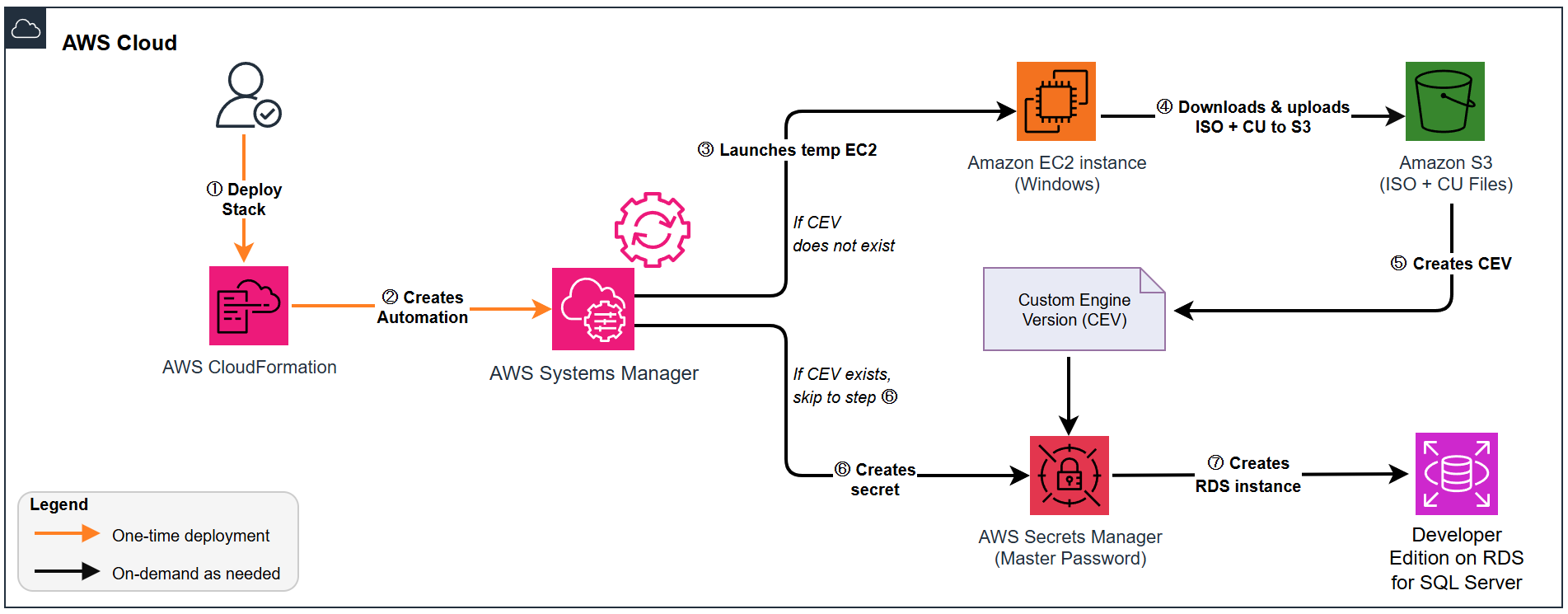
Figure 1: Solution architecture
Automation workflow
The Systems Manager Automation document creates the following resources when executed:
- An AWS Secrets Manager secret to store the master password.
- An Amazon Simple Storage Service (Amazon S3) bucket to store the installation files for SQL Server Developer Edition.
- A temporary Amazon Elastic Compute Cloud (Amazon EC2) instance for downloading and uploading the SQL Server Developer installation and Cumulative Update files to the Amazon S3 bucket.
- A temporary security group that is associated with the Amazon EC2 instance.
- Custom engine version (CEV).
- A DB Subnet Group (if one does not exist).
- A SQL Server Developer Edition on RDS DB Instance.
The automation workflow performs the following actions:
- If you specify that the required installation files (SQL Server Developer Edition and Cumulative Update) do not currently exist in Amazon S3, it launches a temporary Amazon EC2 instance in the subnet with outbound access to the internet.
- Installs the necessary tools, downloads the installation files, uploads them to the specified Amazon S3 bucket, and then terminates the Amazon EC2 instance.
- Uses the installation files to create the CEV.
- Once it confirms the CEV creation is successful, it creates a Secrets Manager secret, and a DBSubnetGroup (if you specified that one does not exist).
- Creates the RDS for SQL Server.
Prerequisites
This solution assumes that you have the following in place:
- A VPC with at least 2 subnets in different Availability Zones (for the RDS DB subnet group).
- At least one subnet with outbound internet access for the temporary Amazon EC2 instance to download files.
- An Amazon S3 bucket in the same region as the deployment, named with the preconfigured prefix (default: rds-sqldev).
Walkthrough
Create the Amazon S3 bucket.
The Systems Manager automation document expects an Amazon S3 bucket with a specific name prefix. In this step, you will create the required Amazon 3 bucket.
- Navigate to the Amazon S3 console.
- Select General purpose buckets, then select Create bucket.
- For the Bucket name, enter a name that begins with rds-sqldev (e.g. rds-sqldev-testing01). This prefix is required. If you prefer to use a different prefix, you must use the same when deploying the CloudFormation stack in the next section.
- Leave everything else as default and select Create bucket.
Create the Systems Manager Automation Document
In this step, you use the CloudFormation template to create the Systems Manager Automation document. Complete the following steps to deploy the CloudFormation stack that will create the automation runbook.
- Download the CloudFormation template.
- Navigate to the CloudFormation console.
- In the Create stack menu, choose With new resources (standard).
- Select upload a template file, choose the file you downloaded, and choose Next.
- On the Specify stack details page, enter a value for Stack name and enter the name of the Amazon S3 bucket you created earlier. This Amazon S3 bucket is where the SQL Server Developer Edition installation files and Cumulative Updates will be uploaded. Choose Next.
- On the Configure stack options page, choose Next.
- On the Review and create page, check the box next to I acknowledge that AWS CloudFormation might create IAM resources.
- Choose Submit and wait for the stack creation to complete.
- To locate the name of the SSM document created by CloudFormation, select your stack from the list and then the Outputs tab. Locate the value next to AutomationDocumentName. The document name should start with Deploy-RDS-SQLServer-DevEdition followed by the name of the stack, as shown in Figure 2. You will need this in the next step.
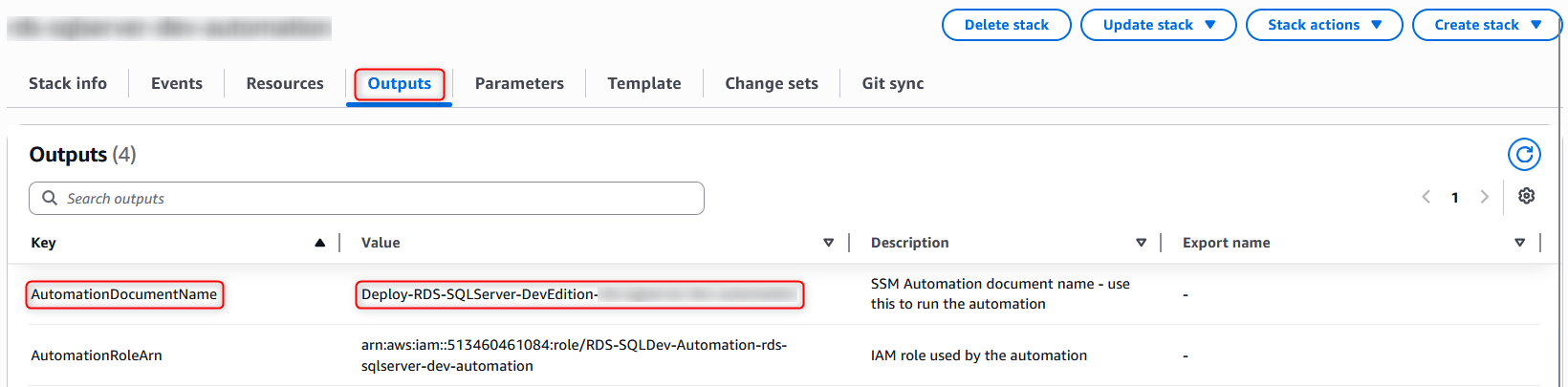
Figure 2 – View the CloudFormation output
Run the automation to deploy SQL Server Developer Edition on Amazon RDS
Now that you have the SSM Automation document created, you can run the automation on demand to deploy SQL Server Developer Edition on Amazon RDS. Complete the following steps to deploy SQL Server Developer Edition on Amazon RDS using the automation document:
- Navigate to the Systems Manager console.
- In the left-side menu, choose Automation.
- On the Automation page, choose Execute runbook.
- On the Choose runbook page, select Owned by me.
- In the search box, enter the name of the Systems Manager document you obtained from the CloudFormation stack previously and press, enter as shown in Figure 3.
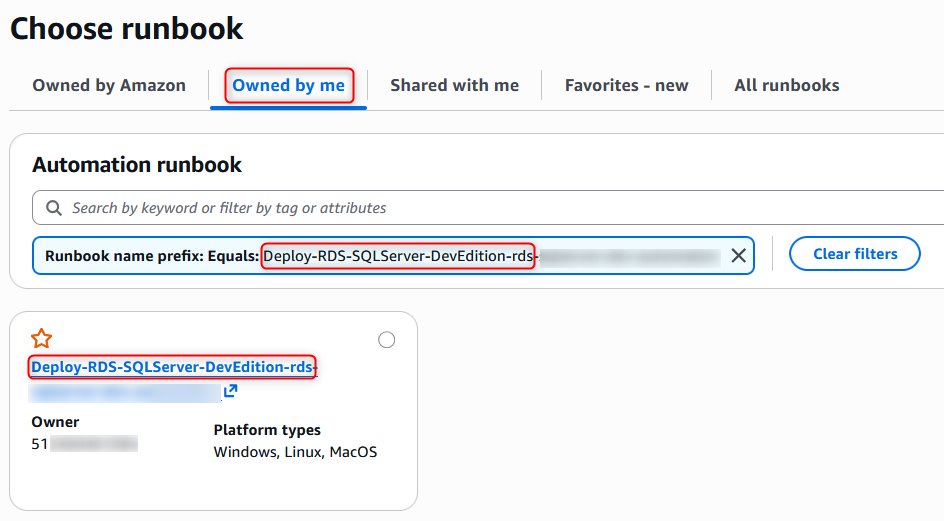
Figure 3: Locate the automation document in Systems Manager
- Select the document and choose Next.
- In the Input parameters section, many of the parameters have been prepopulated. For the first run, you must provide the following parameters as shown in Figure 4:
a. EC2SubnetId – Subnet ID with internet access for the temporary EC2 instance (required if FilesAlreadyInS3 is false).
b. S3BucketName – The Amazon S3 bucket you created previously for the SQL Server installation files.
c. DBInstanceIdentifier – The name for the database.
d. DBSubnetGroupName – Existing DB Subnet Group name (leave empty to create one).
e. SubnetIds – Comma-separated subnet IDs for creating a new DB subnet group. Required if DBSubnetGroupName is empty. Must span at least 2 AZs.
f. VpcSecurityGroupId – The security group to assign to the RDS database. This must be in the same VPC as the DB subnet group.
g. EngineVersion – SQL Server engine version (e.g. 16.00.4215.2).
h. KBNumber – Cumulative update KB number. This must match the engine version. Make sure you have specified a supported configuration. As of the time of writing, Developer Edition on RDS for SQL Server supports SQL Server 2022 CU 21 (16.00.4215.2) and SQL Server 2019 CU 32 GDR (15.00.4455.2).Note: To list all supported engine versions for Developer Edition CEV creation, use the following AWS CLI command:aws rds describe-db-engine-versions \ --engine sqlserver-dev-ee \ --output json \ --query " { DBEngineVersions: DBEngineVersions[?Status=='requires-custom-engine-version'].{ Engine: Engine, EngineVersion: EngineVersion, Status: Status, DBEngineVersionDescription: DBEngineVersionDescription } }"You can check Microsoft’s website for the KB numbers for the SQL Server 2019 Cumulative Update and SQL Server 2022 Cumulative Update builds.
i. CEVAlreadyExists – set this to false
j. FilesAlreadyInS3 – set this to false
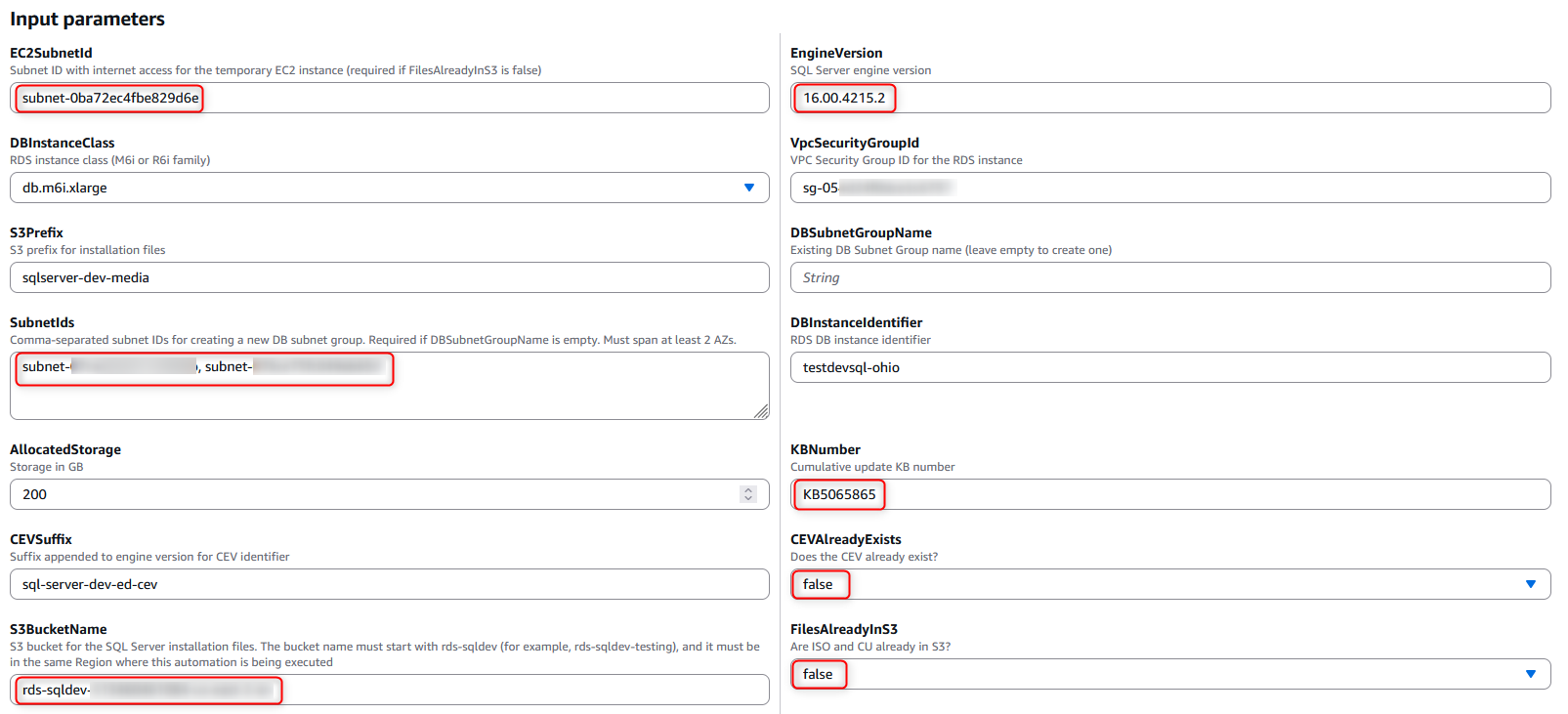
Figure 4: Automation parameters
8. Select Execute. You can view the execution steps as shown in Figure 5.
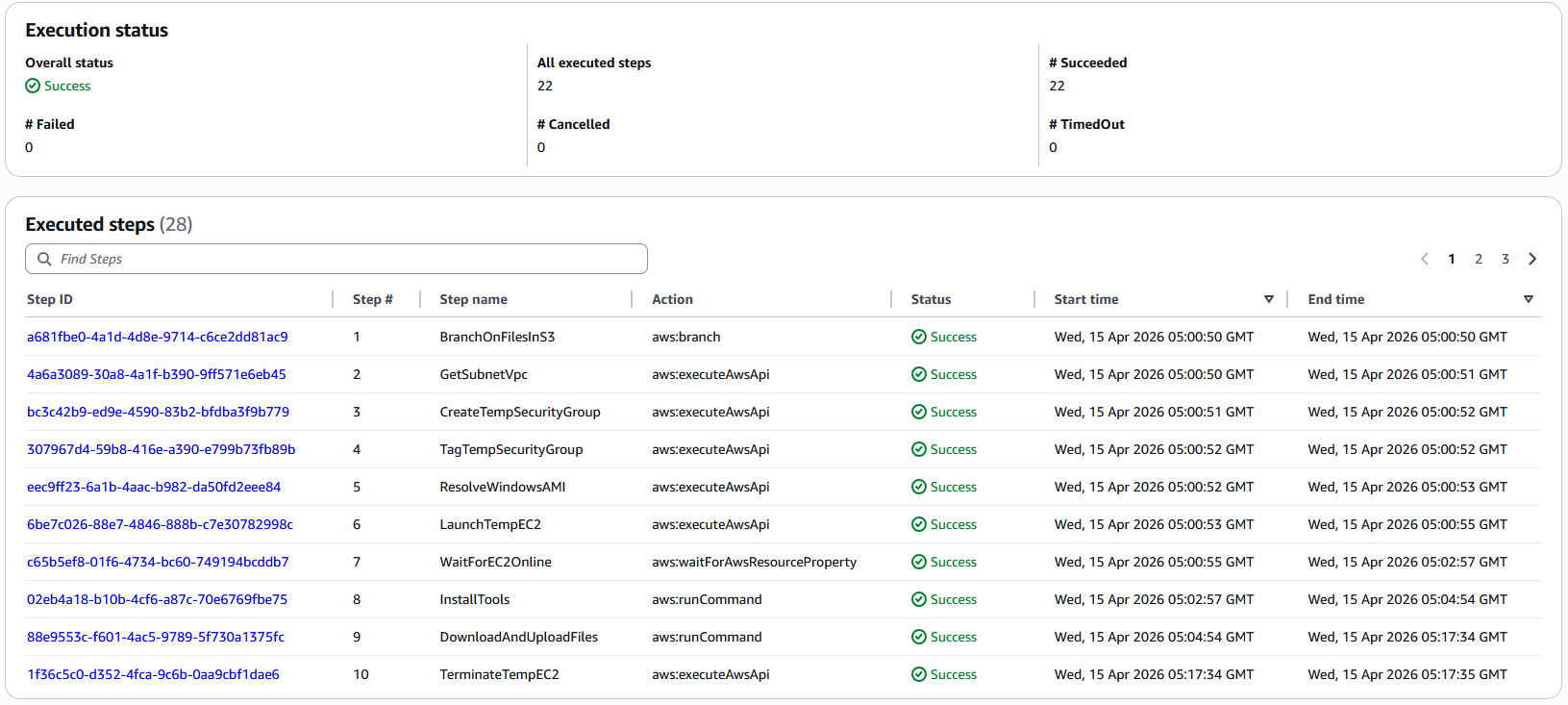
Figure 5: Executing the automation.
9. Once the execution completes, navigate to the Amazon RDS console to see the deployed SQL Server Developer Edition instance details.
For subsequent executions of the automation, set CEVAlreadyExists and FilesAlreadyInS3 to true, so the automation skips the download and upload of the installation files to Amazon S3. When Amazon RDS supports a newer version of the SQL Server Developer Edition or a new Cumulative Update, set the CEVAlreadyExists and FilesAlreadyInS3 to false to create a new CEV. You must also specify a new value for the “S3 Prefix” parameter (e.g. sqlserver-dev-media2), so only the new installation files will be in that location.
Cleanup
To delete the resources created by the CloudFormation template, go to the CloudFormation console. Select the stack you created and then choose Delete.
If you deployed SQL Server Developer Edition on RDS using the SSM automation, you will need to delete this separately:
- Navigate to the Amazon RDS console, select Databases, select the database, select Actions, select Delete, and follow the prompt to delete the database.
- Next, navigate to the AWS Secrets Manager console, select the secret created by the SSM automation, select Actions, select Delete secret, and select Schedule for deletion. To delete the secret immediately, use the delete-secret AWS CLI command with the –force-delete-without-recovery option.
Conclusion
SQL Server Developer Edition on RDS enables teams to test applications without having to worry about managing infrastructure. In this blog post, we showed you how to use an AWS Systems Manager Automation to deploy at scale and across accounts so your teams can build and test applications quickly and at scale. To learn more about SQL Server Developer Edition on Amazon RDS, check out the AWS documentation.