AWS Spatial Computing Blog
GPU-Accelerated Robotic Simulation Training with NVIDIA Isaac Lab in VAMS
The open-source Visual Asset Management System (VAMS) now supports GPU-accelerated reinforcement learning (RL) for robotic assets through integration with NVIDIA Isaac Lab. This pipeline enables teams to train and evaluate RL policies directly from their asset management workflow, leveraging AWS Batch for scalable GPU compute.
Isaac Lab for Physical AI and Robotics Development
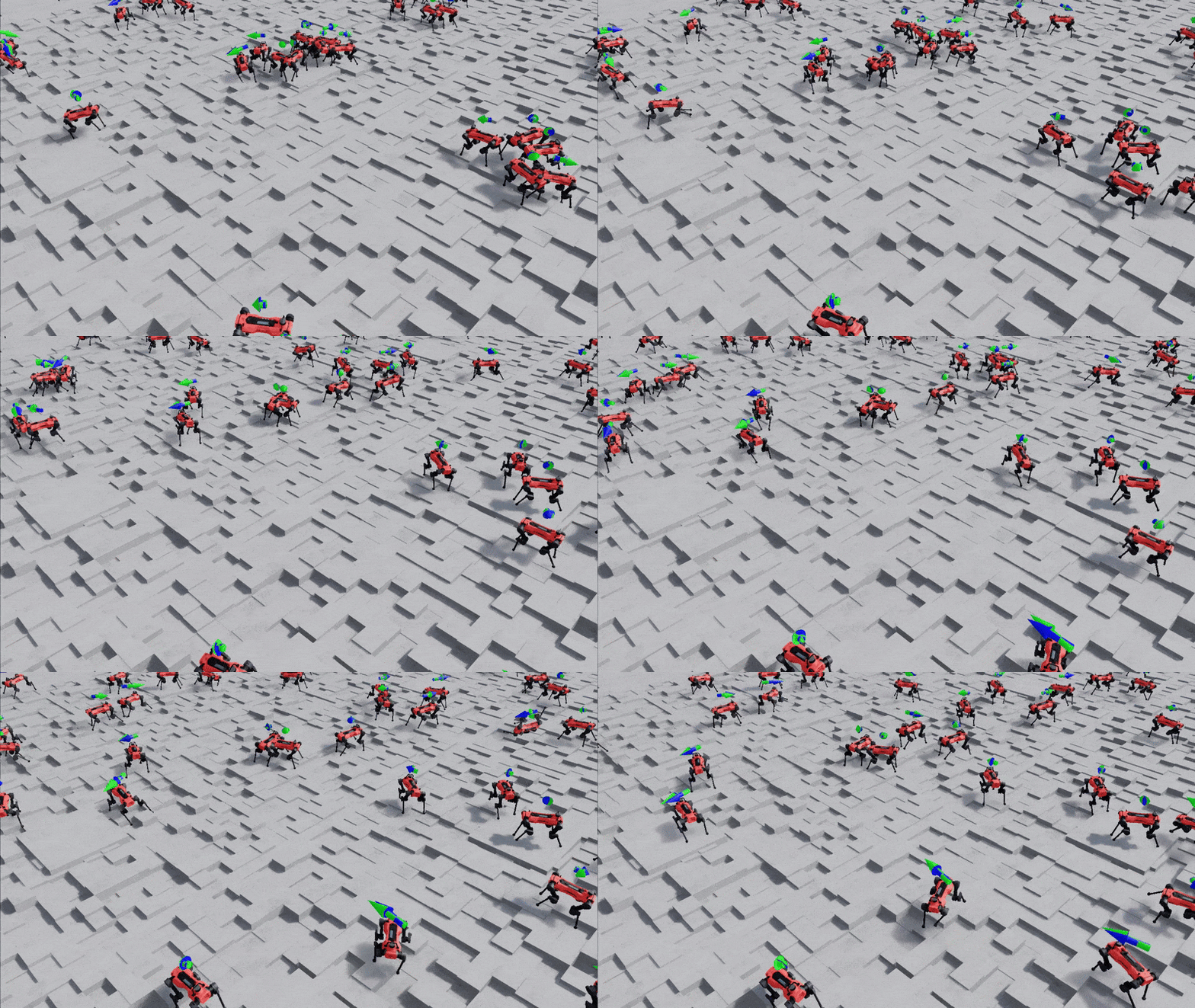
Figure 1: Trained ANYmal simulation in NVIDIA Isaac Lab
The world is moving toward an Autonomous Economy. This transformative model brings together AI, robotics, simulation, and edge computing to enable systems that operate with minimal human intervention. At the heart of this transformation is Physical AI, which encompasses systems that can perceive, understand, reason, and act in the physical world.
Training robots in the real world is slow, expensive, and potentially dangerous. A quadruped robot learning to walk might fall thousands of times before mastering locomotion. Each fall risks damage to hardware costing tens of thousands of dollars. Simulation changes this equation entirely.
NVIDIA Isaac Lab represents the current state-of-the-art in GPU-accelerated robotics simulation. Built on Isaac Sim’s high-fidelity physics engine, it can run thousands of robot instances in parallel on a single GPU, depending on policy complexity and GPU specifications. What would take months of real-world training compresses into hours of simulation time. A policy that requires 10 million environment steps to converge can be trained overnight rather than over months.
The implications are significant:
- Faster iteration cycles: Test new reward functions, robot designs, or control strategies in hours instead of weeks
- Safe exploration: Robots can learn aggressive maneuvers and recover from failures without hardware damage
- Reproducibility: Simulation provides deterministic environments for comparing algorithms and tracking improvements
- Scale: Run hundreds of experiments in parallel, enabling systematic hyperparameter searches
However, accessing this capability has traditionally required significant infrastructure expertise. Teams need to provision GPU instances, configure NVIDIA drivers, manage container images, build pipelines to move data between training infrastructure and their asset repositories, and create custom solutions to manage versioning of assets, trained policies, and data configurations. This operational overhead often delays projects or limits who can leverage simulation training.
Bringing Isaac Lab to VAMS
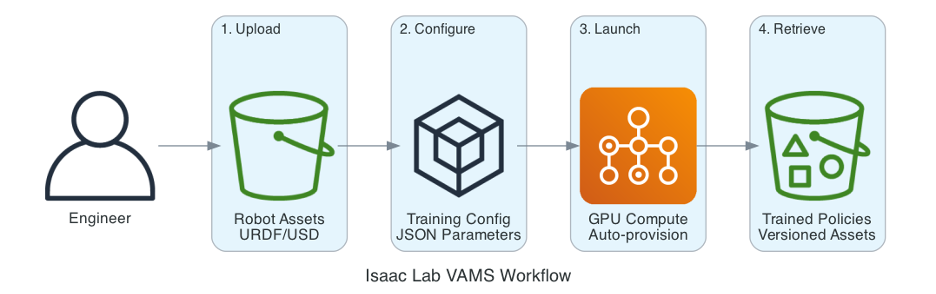
Figure 2: Isaac Lab VAMS Workflow
The Isaac Lab pipeline add-on in VAMS eliminates this infrastructure burden. By integrating directly with the asset management system, it creates a seamless path from robot model to trained policy:
- Upload your robot URDF/USD files and custom environments to VAMS
- Configure training parameters through a simple JSON file uploaded as an asset to VAMS
- Launch jobs that automatically provision GPU compute
- Retrieve trained policies as versioned assets with full lineage tracking
No GPU instance management. No container orchestration. No manual data transfers. The pipeline handles provisioning, execution, and cleanup automatically.
This integration is particularly valuable for teams who need simulation training but lack dedicated MLOps resources. Robotics engineers can focus on designing better robots and reward functions rather than wrestling with infrastructure. Meanwhile, organizations gain centralized visibility into training experiments through VAMS’ asset tracking capabilities.
The Challenge: Bridging Asset Management and Simulation
Organizations managing robotic assets face a common challenge: their 3D models, USD files, and simulation environments live in one system, while training infrastructure exists in another. Data scientists spend significant time moving assets between systems, configuring compute resources, and tracking which policies were trained on which assets.
The Isaac Lab pipeline in VAMS solves this by bringing GPU-accelerated simulation training directly into the asset management workflow. Users can select a robot asset, configure training parameters, and launch jobs without leaving VAMS.
Architecture Overview
The pipeline orchestrates several AWS services to deliver a seamless training experience:
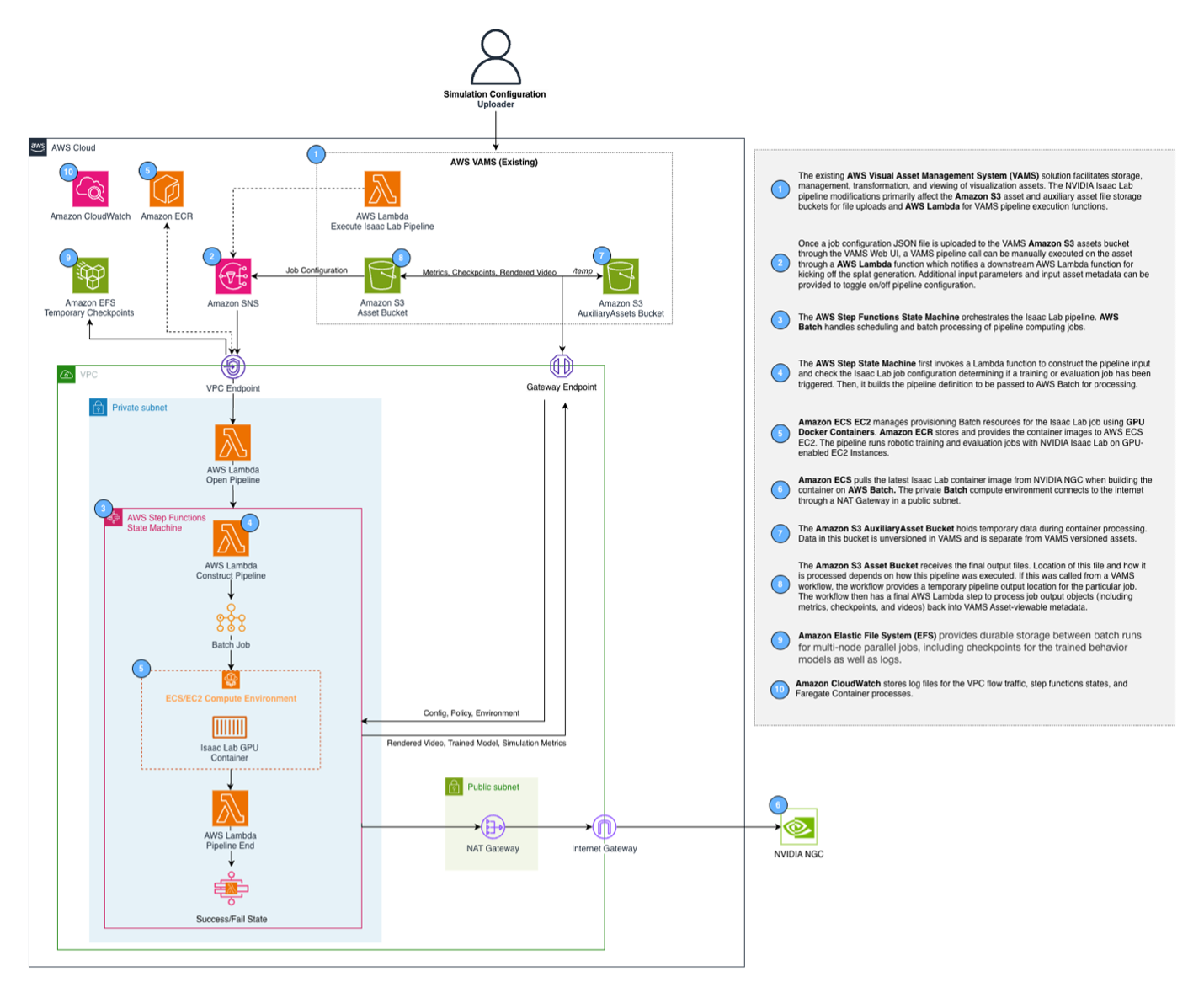 Figure 3: Isaac Lab Pipeline Reference Architecture
When a user submits a training job, the request flows through Amazon API Gateway to an AWS Lambda function that initiates an AWS Step Functions workflow. This workflow constructs the job configuration, submits it to AWS Batch, and waits for completion via an async callback pattern. The training container runs on GPU instances equipped with NVIDIA GPUs, providing the compute power needed for parallel simulation.
Key infrastructure components include:
- AWS Batch Compute Environment: Auto-scaling containerized environment across GPU instances (g6.2xlarge to g6e.12xlarge)
- Amazon EFS: Shared storage for training checkpoints across multi-node jobs
- Amazon ECR: Hosts the Isaac Lab container image, automatically built during AWS Cloud Development Kit (CDK) deployment
- AWS Step Functions: Orchestrates the workflow with proper error handling and timeouts
- Container Insights: Enabled on the Amazon Elastic Container Service (Amazon ECS) cluster for monitoring and observability
The container itself is built on NVIDIA’s official Isaac Lab image (nvcr.io/nvidia/isaac-lab:2.3.0), ensuring compatibility with the latest simulation features.
Dual-Mode Operation: Training and Evaluation
The pipeline supports two distinct modes, addressing different stages of the RL development lifecycle.
Training Mode
Training mode creates new policies from scratch. Users specify the simulation task, number of parallel environments, and training iterations. The pipeline handles everything else: downloading custom environments from VAMS, executing the training loop, saving checkpoints, and uploading the trained policy back to VAMS.
A typical training configuration looks like this:
{
  "name": "Ant Training Job",
  "description": "Train a PPO policy for the Isaac-Ant-Direct-v0 environment",
  "trainingConfig": {
    "mode": "train",
    "task": "Isaac-Ant-Direct-v0",
    "numEnvs": 4096,
    "maxIterations": 1000,
    "rlLibrary": "rsl_rl"
  },
  "computeConfig": {
    "numNodes": 1
  }
}
The numEnvs parameter controls GPU utilization. Isaac Lab runs thousands of simulation instances in parallel on a single GPU. For quadruped locomotion tasks, 4096 environments typically achieve good GPU saturation.
Training outputs are organized under a job UUID for easy identification:
- {uuid}/checkpoints/model_*.pt – Model checkpoints at regular intervals
- {uuid}/metrics.csv – Training metrics exported from TensorBoard
- {uuid}/training-config.json – Copy of input configuration
- {uuid}/*.txt – Log files
Evaluation Mode
Once you have a trained policy, evaluation mode lets you assess its performance. This mode loads an existing policy and runs it through a specified number of episodes, collecting metrics and recording videos.
{
  "name": "Ant Evaluation Job",
  "description": "Evaluate a trained PPO policy for the Isaac-Ant-Direct-v0 environment",
  "trainingConfig": {
    "mode": "evaluate",
    "task": "Isaac-Ant-Direct-v0",
    "checkpointPath": "checkpoints/model_1000.pt",
    "numEnvs": 4,
    "numEpisodes": 5,
    "stepsPerEpisode": 900,
    "rlLibrary": "rsl_rl"
  },
  "computeConfig": {
    "numNodes": 1
  }
}
Evaluation uses fewer parallel environments (4 vs 4096) since the goal is assessment rather than training throughput.
Evaluation outputs include:
- {uuid}/videos/*.mp4 – Recorded evaluation videos
- {uuid}/metrics.csv – Evaluation metrics
- {uuid}/evaluation-config.json – Copy of input configuration
Videos are always generated during evaluation as the –video flag is required for Isaac Lab’s play script to terminate properly.
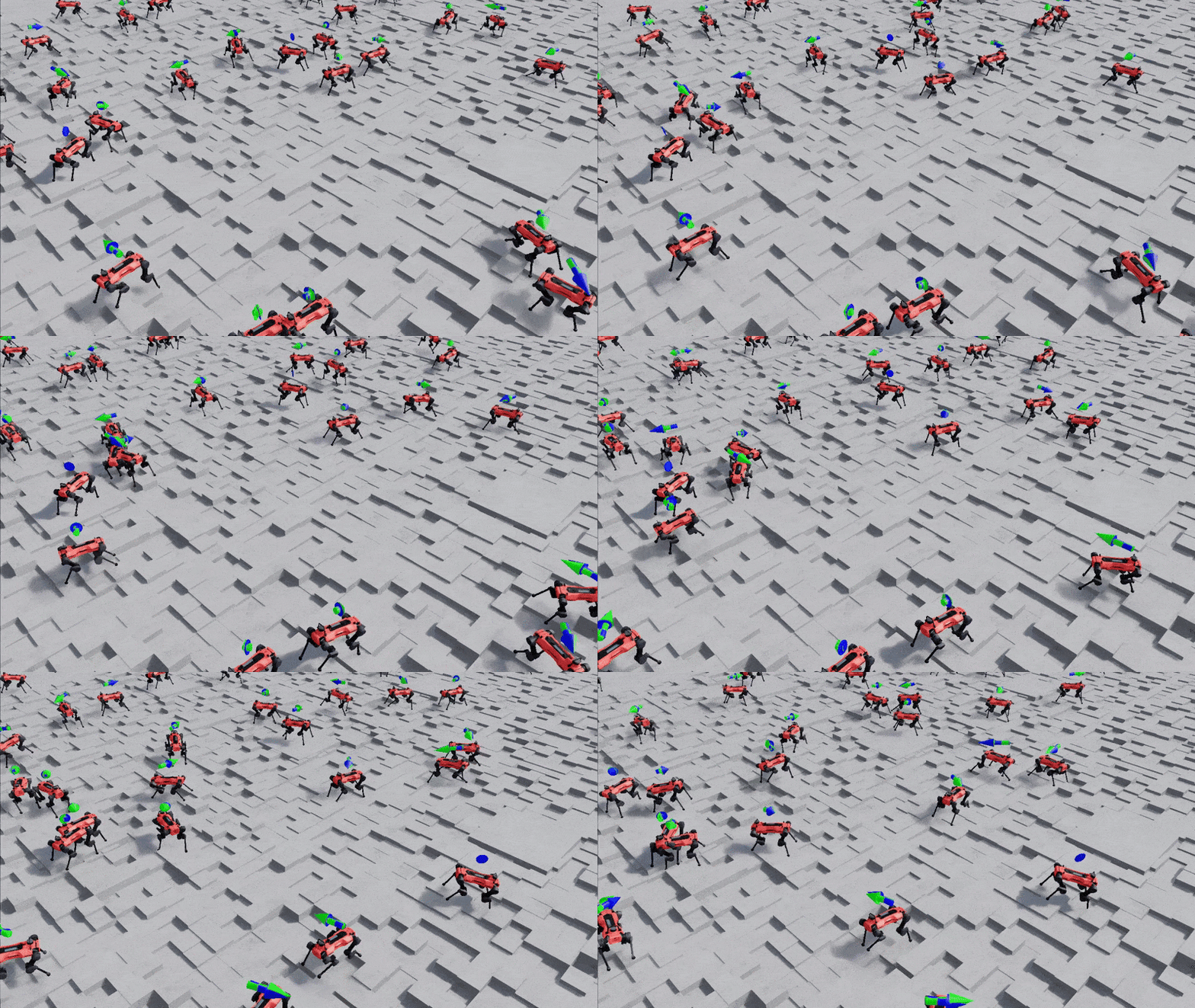
Figure 4: Video evaluation output from trained policy
Checkpoint Discovery
The pipeline supports three methods to specify the checkpoint file for evaluation:
- Relative path (recommended): Use checkpointPath to reference checkpoints within the same asset, e.g., “checkpointsmodel_300.pt”
- Full S3 URI: Use policyS3Uri for cross-asset or external checkpoints, e.g., “s3://bucket/path/model.pt”
- Auto-discovery: Place a .pt file in the same directory as the evaluation config (legacy, for backward compatibility)
Executing Jobs Through VAMS
Prior to executing Isaac Lab training jobs through VAMS, please follow the VAMS installation and getting started instructions to deploy and setup the VAMS solution and database.
Once VAMS is ready, the most straightforward approach to execute training jobs is through the VAMS web application:
1. Create the configuration JSON for the type of job your plan to execute (e.g. training or evaluation). Here is an example training configuration JSON:
1.	{
2.	  "name": "ANYmal Training Job",
3.	  "description": "Train a PPO policy for the Isaac-Velocity-Rough-Anymal-D-v0 environment",
4.	  "trainingConfig": {
5.	    "mode": "train",
6.	    "task": " Isaac-Velocity-Rough-Anymal-D-v0",
7.	    "numEnvs": 2048,
8.	    "maxIterations": 3000,
9.	    "rlLibrary": "rsl_rl"
10.	  },
11.	  "computeConfig": {
12.	    "numNodes": 1
13.	  }
14.	}
2. Upload the training configuration JSON file to VAMS using the Web UI:
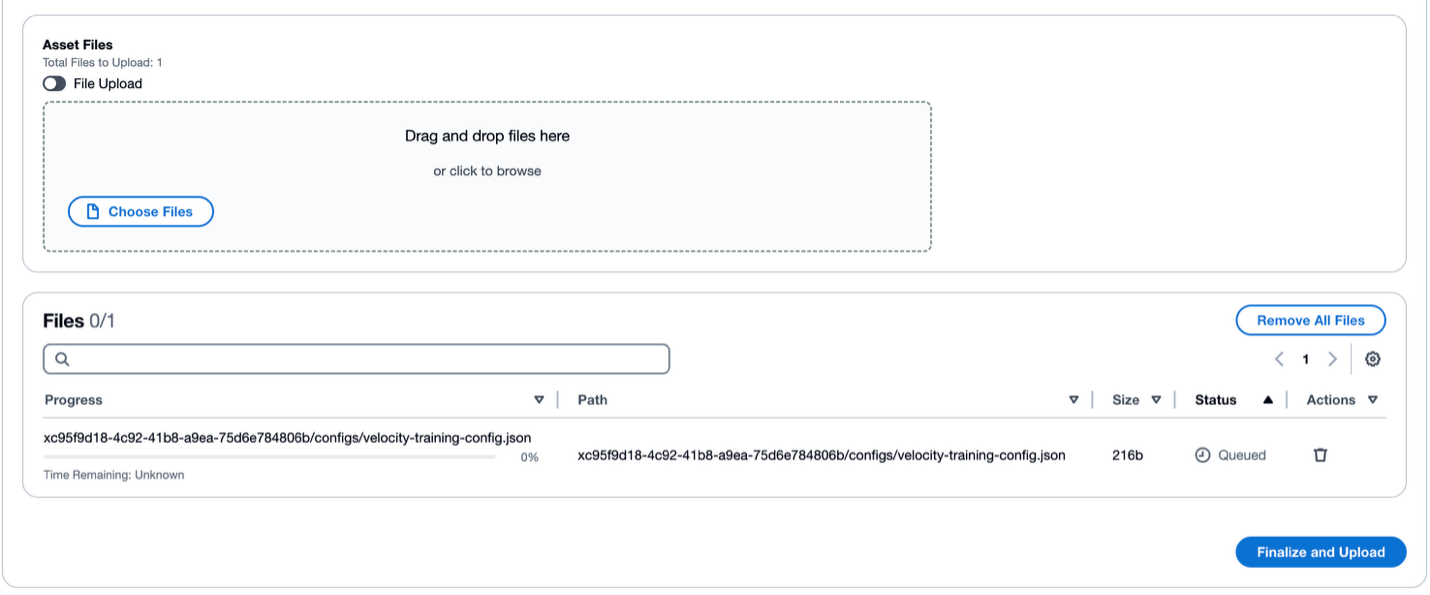
Figure 5: Dragging and dropping files through the Web UI
3. Navigate to Workflows and select the Isaac Lab Training or Evaluation pipeline
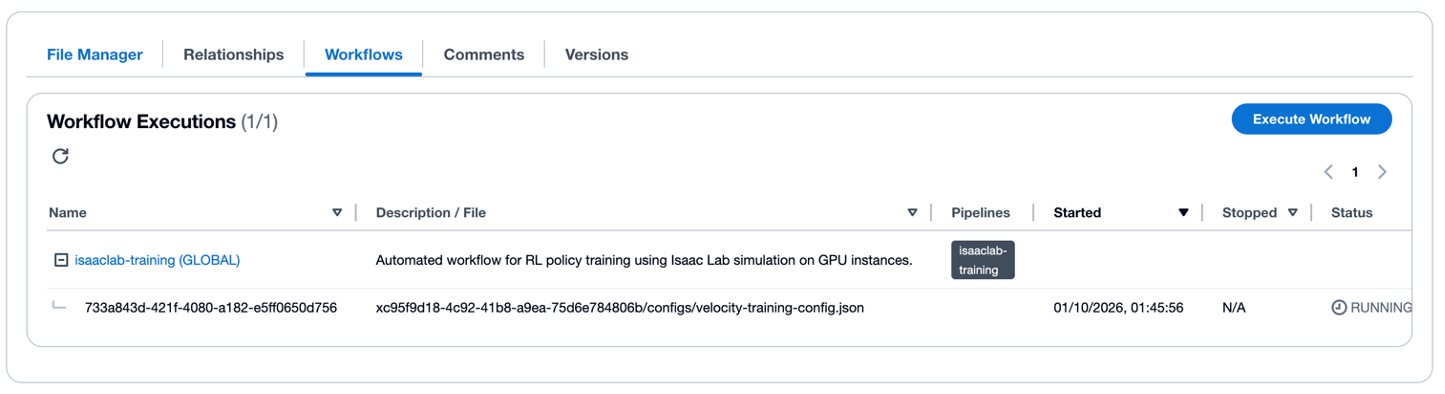
Figure 6: VAMS Workflow Tab
4. Select Execute Workflow
5. Select the isaaclab-training workflow from the Select Workflow dropdown
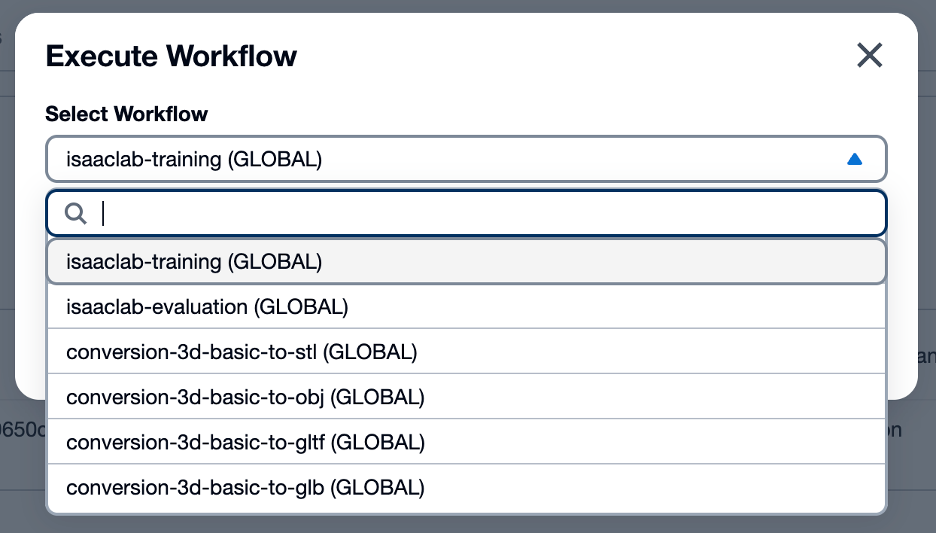
Figure 7: VAMS Workflow selection
6. Select your training configuration JSON asset from the Select File to Process dropdown
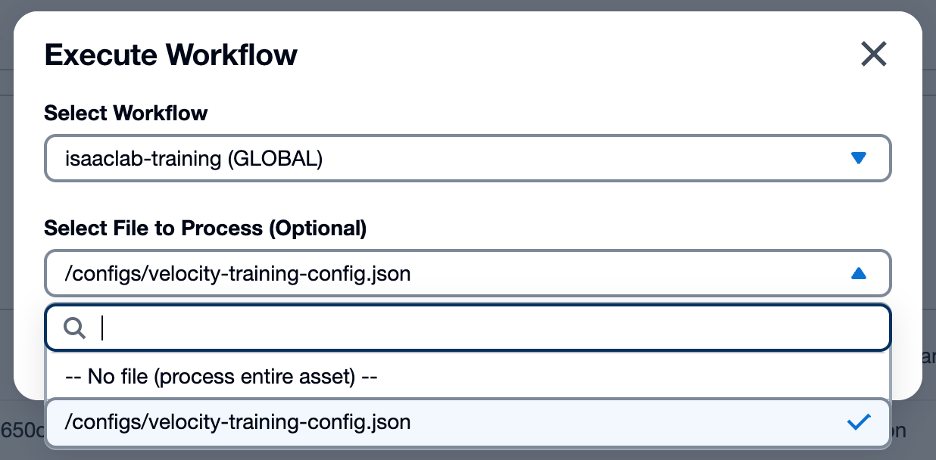
Figure 8: VAMS Workflow file selection
7. Submit the workflow by clicking the Execute Workflow button
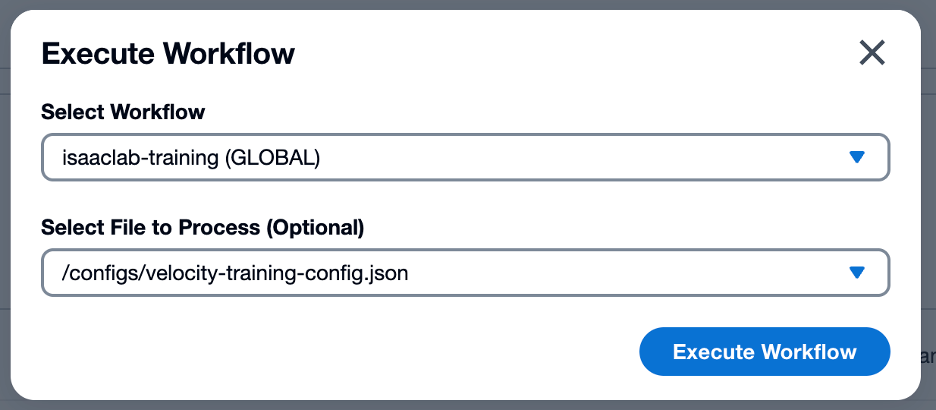
Figure 9: VAMS Workflow modal configured for Isaac Lab training job
VAMS tracks execution status in real-time. Once complete, trained policies appear as new asset versions linked to the original robotic asset, maintaining full lineage. For full details about the training job, administrators can review the training output logs in Amazon CloudWatch.
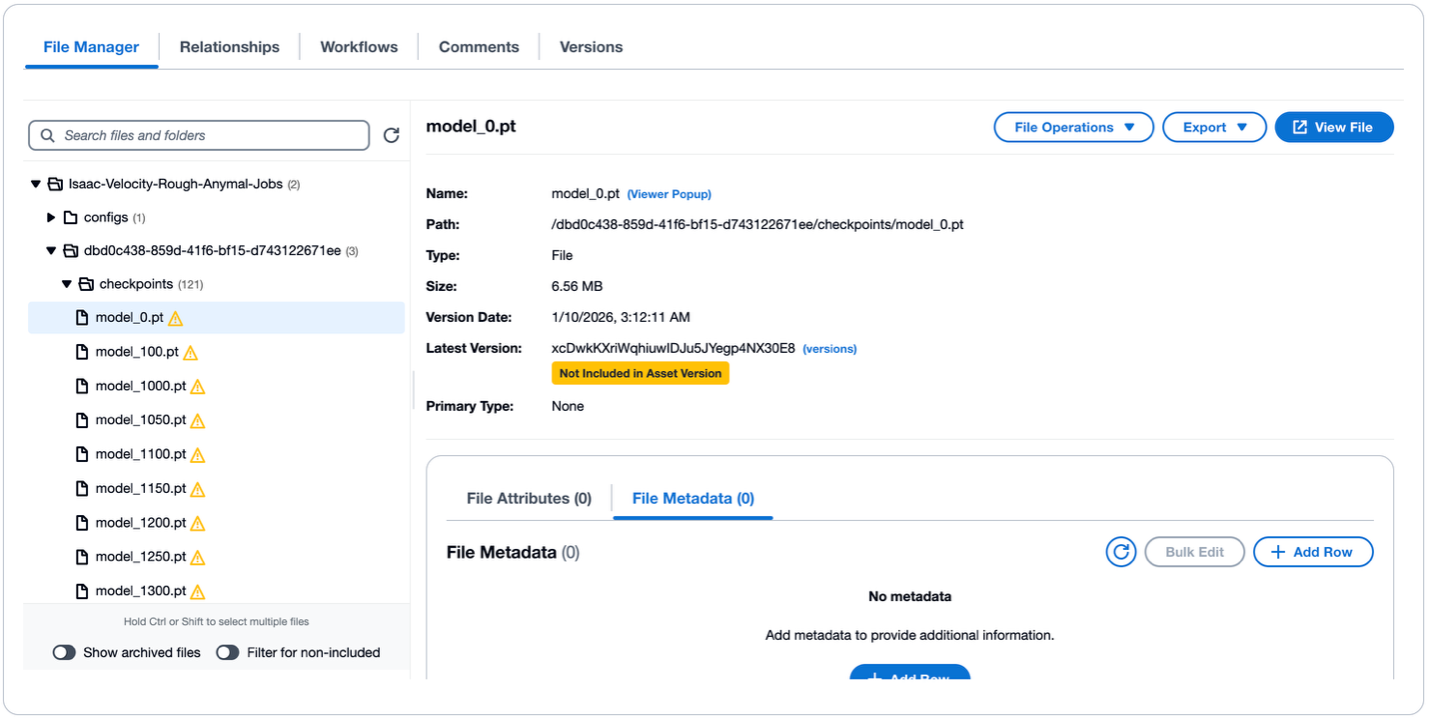
Figure 10: Trained policy asset in VAMS file manager
Working with Custom Environments
Isaac Lab includes 40+ pre-built environments, but many projects require custom tasks. VAMS supports this through a straightforward packaging workflow.
First, create your custom environment following Isaac Lab’s template structure:
my_custom_env/
├── setup.py
├── my_custom_env/
│   ├── __init__.py      # Contains gym.register() call
│   ├── my_env.py        # Environment implementation
│   └── my_env_cfg.py    # Configuration classes
└── agents/
    └── rsl_rl_ppo_cfg.py
Package it as a tarball and upload to VAMS as an asset:
tar -czf my_custom_env.tar.gz my_custom_env/
# Upload via VAMS web UI or API
When submitting a training job, reference the custom environment asset. The pipeline automatically downloads and installs it before training begins:
{
  "trainingConfig": {
    "task": "MyCustom-Robot-v0",
    "numEnvs": 4096,
    "maxIterations": 5000
  },
  "customEnvironmentPath": "environments/my_custom_env.tar.gz"
}
Performance Considerations
Instance Selection
The pipeline supports multiple GPU instance types with automatic selection:

The pipeline uses BEST_FIT_PROGRESSIVE allocation strategy, prioritizing G6 instances (L4 GPU) for best price/performance, then G6E (L40S), with G5 (A10G) as fallback.
Multi-Node Training
For the largest experiments, the pipeline supports multi-node parallel training via PyTorch’s distributed training (torchrun). Set numNodes > 1 in the compute configuration:
{
  "computeConfig": {
    "numNodes": 4
  }
}
The pipeline automatically configures node communication through AWS Batch’s multi-node parallel job feature. Checkpoints are shared via Amazon Elastic File System (Amazon EFS), ensuring all nodes stay synchronized.
For an in-depth guide on getting started with AWS Batch multi-node training with Isaac Lab, please reference this blog from AWS.
Enabling the Pipeline
The Isaac Lab pipeline requires VPC mode enabled in VAMS. For full details on VAMS configuration options, please review the Configuration Guide. Update your VAMS configuration file found at: /infra/config/config.json:
{
  "app": {
    "useGlobalVpc": {
      "enabled": true,
      "addVpcEndpoints": true
    },
    "pipelines": {
      "useIsaacLabTraining": {
        "enabled": true,
        "acceptNvidiaEula": true,
        "autoRegisterWithVAMS": true,
        "keepWarmInstance": false
      }
    }
  }
}Important: You must set acceptNvidiaEula: true to acknowledge the NVIDIA Software License Agreement. The deployment will fail if this is not set.

With the configuration file updated to include the Isaac Lab parameters, the VAMS solution with the Isaac Lab add-on can be deployed following the standard VAMS instructions.
The deployment automatically builds the Isaac Lab container and pushes it to Amazon Elastic Container Registry (Amazon ECR). Note that the first Batch job may take 5-10 minutes to pull the ~10GB container image; subsequent jobs start faster due to instance caching.
Optimizing Container Pull Times
For faster job startup:
- Keep warm instances: Set keepWarmInstance: true to keep instances running (8 vCPUs minimum). Keeping instances warm will increase the cost to run the pipeline. This setting keeps the specified number of EC2 vCPUs running.
- Pre-bake AMI: Create a custom AMI with the container image pre-cached
- Larger EBS volumes: The pipeline uses 100GB GP3 EBS volumes with Docker layer caching
What’s Next
The Isaac Lab integration opens new possibilities for robotic asset workflows. By bringing GPU-accelerated simulation training into VAMS, teams can iterate faster on robotic behaviors while maintaining full traceability between assets, training runs, and deployed policies. The combination of Isaac Lab’s high-fidelity physics simulation with VAMS’ asset management capabilities creates a powerful platform for robotic AI development.
Get Started
The Isaac Lab pipeline is available in VAMS 2.4.0. The complete source code, detailed documentation, cost estimates, and troubleshooting guides are available in the VAMS GitHub repository.