AWS Storage Blog
Updating encryption on existing Amazon S3 objects with S3 Batch Operations
Large organizations often accumulate billions of objects in Amazon S3 over time, frequently under different encryption configurations as security standards evolve. Compliance requirements can tighten in several ways. A mandate from FedRAMP or PCI-DSS, or an internal security audit, might require all data at rest to be encrypted with a customer managed key. When that happens, security and platform teams face a significant challenge: how do you re-encrypt existing objects at scale without disrupting workloads, breaking S3 Lifecycle policies, or moving data?
Until recently, the most common approach was to use S3 Batch Operations with the Copy operation to rewrite objects into the same bucket with a new encryption configuration. Though functional, this approach moves data, is not atomic, and resets object metadata timestamps. Those timestamp changes restart S3 Lifecycle eligibility and return objects in S3 Intelligent-Tiering to the Frequent Access tier, losing accumulated tiering history and the associated cost savings. Objects in the Archive Access or Deep Archive Access tiers must be restored before a copy can be performed, adding further delay. In versioned buckets, each copy creates a new version, so you pay to store both the old and new copies until the old versions expire. The Copy operation also supports objects only up to 5 GB, so larger objects need separate handling. For buckets with hundreds of millions of objects, this is a time-consuming and operationally complex process, and it requires careful thought about versioning and replication configurations.
In January 2026, S3 introduced the UpdateObjectEncryption API, along with a corresponding S3 Batch Operations job type. The operation atomically changes the server-side encryption of existing encrypted objects, regardless of object size or storage class in general purpose buckets, and without any data movement. You can use it to move objects from SSE-S3 to SSE-KMS, rotate the customer managed AWS Key Management Service (AWS KMS) key protecting them, or apply S3 Bucket Keys. In this post, we walk through how to use S3 Batch Operations with UpdateObjectEncryption to standardize encryption across an entire S3 bucket at scale. This approach preserves object properties and S3 Lifecycle eligibility.
Solution overview
The solution addresses the following key requirements:
- Change the encryption type of existing S3 objects from SSE-S3 to SSE-KMS without data movement.
- Operate at scale across the entire S3 bucket using S3 Batch Operations.
- Preserve object properties, tags, access control lists (ACLs), and S3 Lifecycle eligibility.
- Reduce AWS KMS API costs by enabling S3 Bucket Keys.
This walkthrough uses a source bucket with SSE-S3 encrypted objects as the starting point and demonstrates how to update the encryption configuration to SSE-KMS with a customer managed key and S3 Bucket Keys enabled. The process consists of two complementary steps: the first covers new objects, the second covers existing objects in the bucket:
- Step 1: Update the bucket’s default encryption to SSE-KMS with Bucket Keys enabled – The first step is updating the bucket’s default encryption configuration from SSE-S3 to SSE-KMS. This takes effect immediately for new objects written to the bucket going forward but has no effect on existing objects already stored in the bucket.
- Step 2: Re-encrypt existing objects using S3 Batch Operations – The second step is re-encrypting existing objects using an S3 Batch Operations job with the Update encryption operation. The job generates an object manifest automatically, filtered to target only SSE-S3 encrypted objects, and applies the new AWS KMS encryption configuration to each object in place. No new object copy is created, and no data traverses the network. A completion report is written to a designated S3 bucket for audit and compliance purposes.
Prerequisites
To complete this walkthrough, you need the following:
- An active AWS account with an S3 bucket containing SSE-S3 encrypted objects.
- A KMS customer managed key in the same AWS Region as your S3 bucket.
- Permissions to create AWS Identity and Access Management (IAM) roles and S3 Batch Operations jobs.
- A separate S3 bucket for the completion report.
If the bucket is a replication source, confirm that the IAM role in your replication configuration has the necessary AWS KMS permissions for the new key before you begin. Changing default encryption while that role lacks access to the new key can cause in-progress replication and S3 Batch Replication jobs to fail.
Update bucket encryption to SSE-KMS with Bucket Keys enabled
To update the bucket encryption to SSE-KMS with Bucket Keys enabled, complete the following steps:
- On the S3 console, open your bucket.
- On the Properties tab, in the Default encryption section, choose Edit.
- For Encryption type, select Server-side with AWS Key Management Service keys (SSE-KMS).
- For AWS KMS key, select Choose from your AWS KMS keys and enter your customer managed KMS key.
- For Bucket Key, select Enable to reduce AWS KMS API costs.
- Choose Save changes.
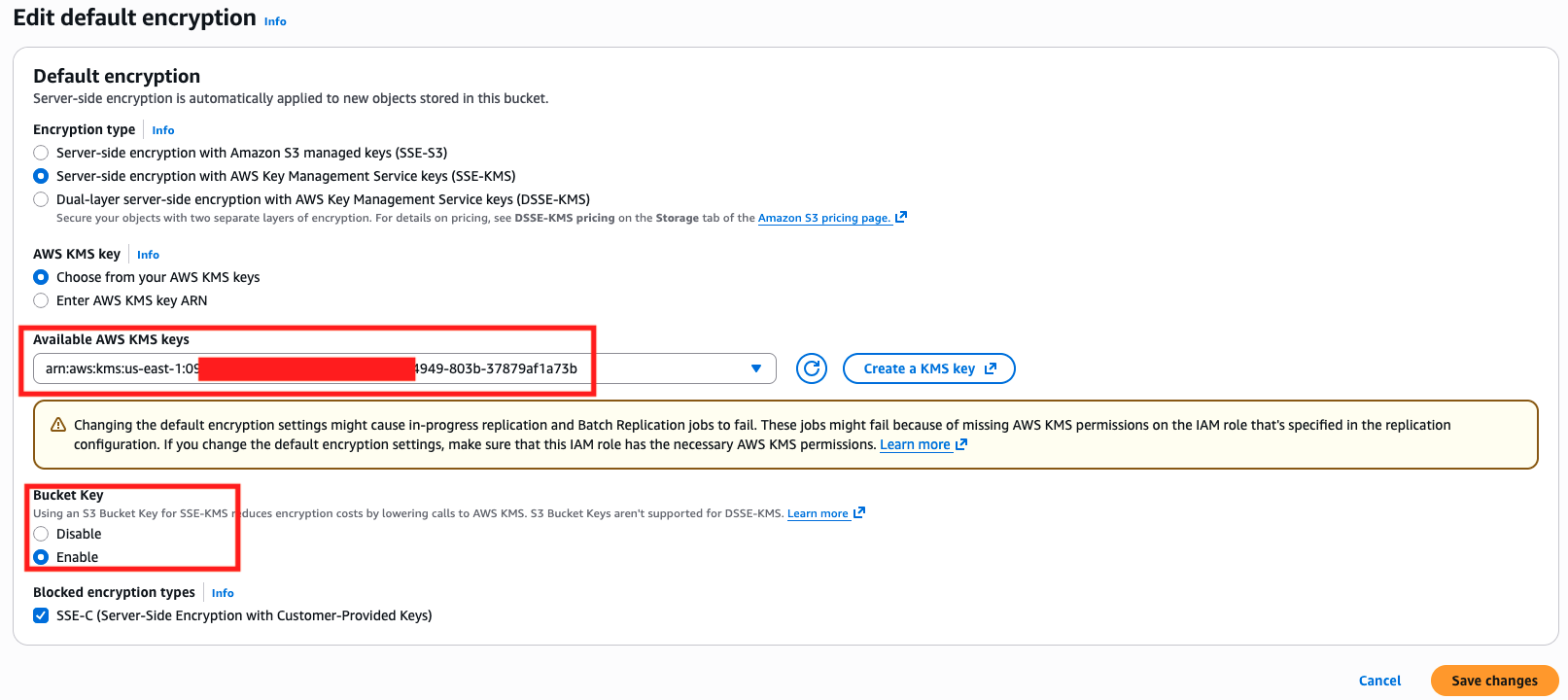
Figure 1: Edit default encryption settings to SSE-KMS with Bucket Key enabled
Enforce SSE-KMS encryption using bucket policy
To require that all future objects written to the bucket are encrypted with SSE-KMS, attach the following bucket policy. This policy denies PutObject requests that don’t include the specified KMS key ID, providing an additional enforcement layer on top of the default encryption configuration.
Create IAM role for S3 Batch Operations
S3 Batch Operations requires an IAM role to act on your behalf. The role needs permissions to read the manifest, write the completion report, perform AWS KMS operations, and read and write objects in your bucket. To create the role, complete the following steps:
- On the IAM console, choose Roles in the navigation pane.
- Choose Create role.
- For Trusted entity type, select AWS service.
- For Use case, choose S3 and select S3 Batch Operations.
- Choose Next and skip the Add permissions step.
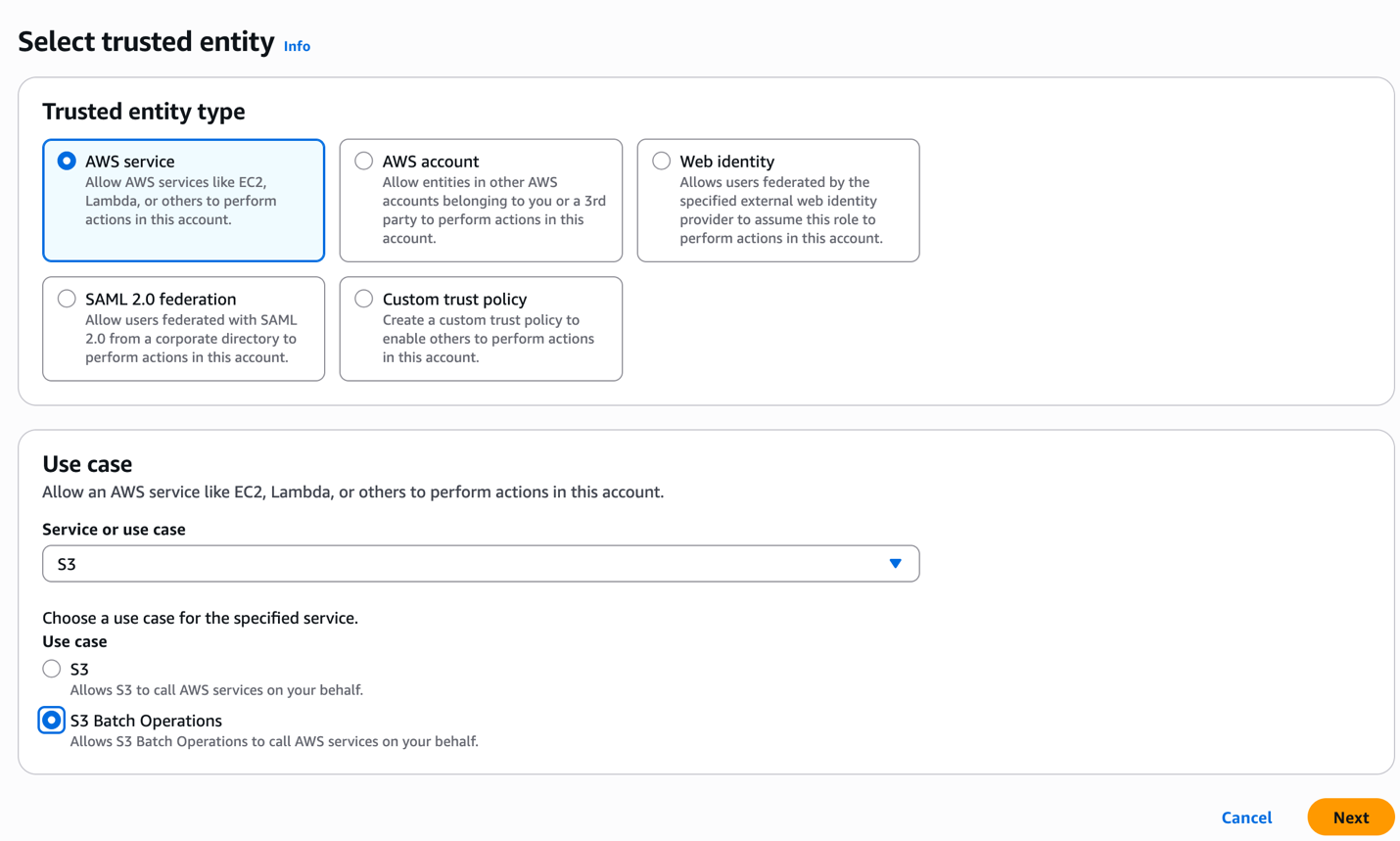
Figure 2: Create a role for S3 Batch Operations in the IAM console
- The role also requires a trust policy allowing the S3 Batch Operations service principal to assume it:
- Give the role a name (for example,
S3BatchOpsUpdateEncryptionRole) and choose Create role. - On the Permissions tab for the role, choose Add permissions and Create inline policy.
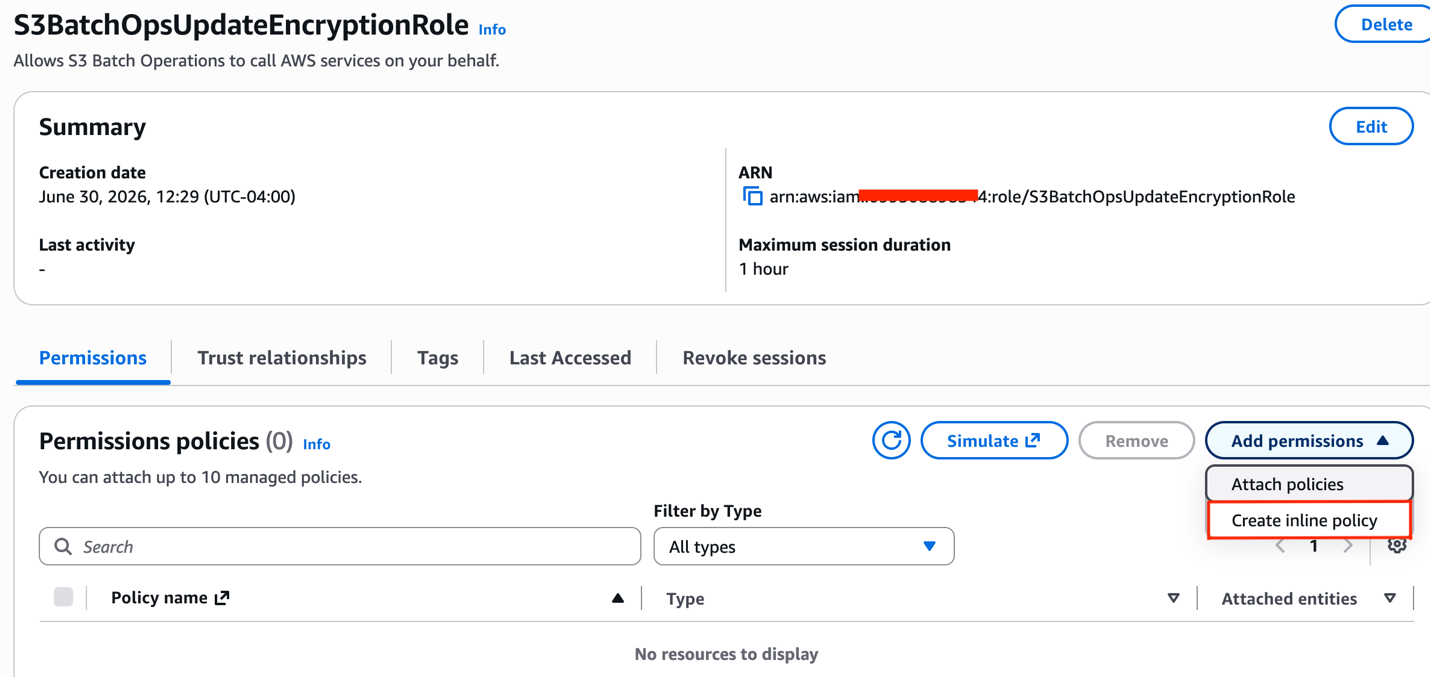
Figure 3: Create an inline policy for the S3 Batch Operations role
- Attach the following inline policy to the role, providing your actual resource Amazon Resource Names (ARNs):
Create S3 Batch Operations job
To create your S3 Batch Operations job, complete the following steps:
- On the Amazon S3 console, choose Batch Operations in the navigation pane.
- Choose Create job.
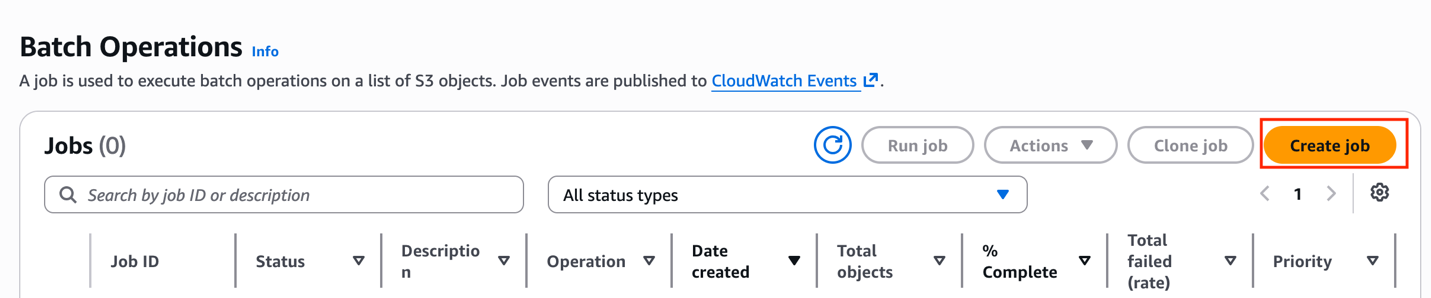
Figure 4: Create an S3 Batch Operations job
- For Scope, select Generate an object list by specifying filters.
- For Source account, select This AWS account and enter your source bucket.
- For Object metadata filters, choose Encryption type and choose Server-side encryption with Amazon S3 managed keys (SSE-S3).
This encryption type targets only SSE-S3 encrypted objects in your bucket. No pre-generated CSV manifest is required.
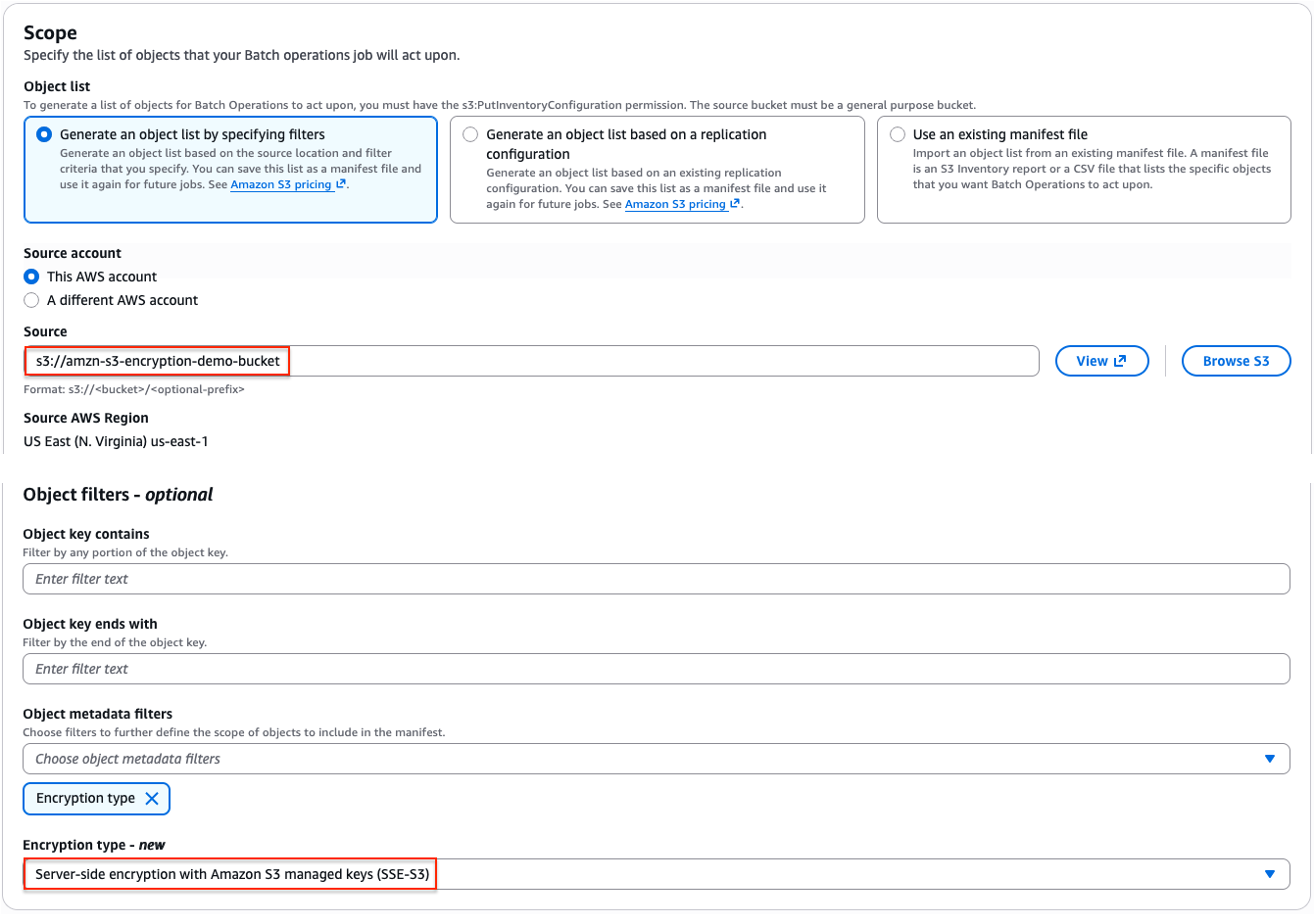
Figure 5: Generate the manifest automatically with an SSE-S3 filter
- For Operation, choose Update encryption.
- For Update encryption, select Choose from your AWS KMS keys or Enter AWS KMS key ARN and enter the ARN of your customer managed KMS key.
- For Bucket Key, select Enable to reduce AWS KMS API costs. This can reduce AWS KMS charges by up to 99 percent.
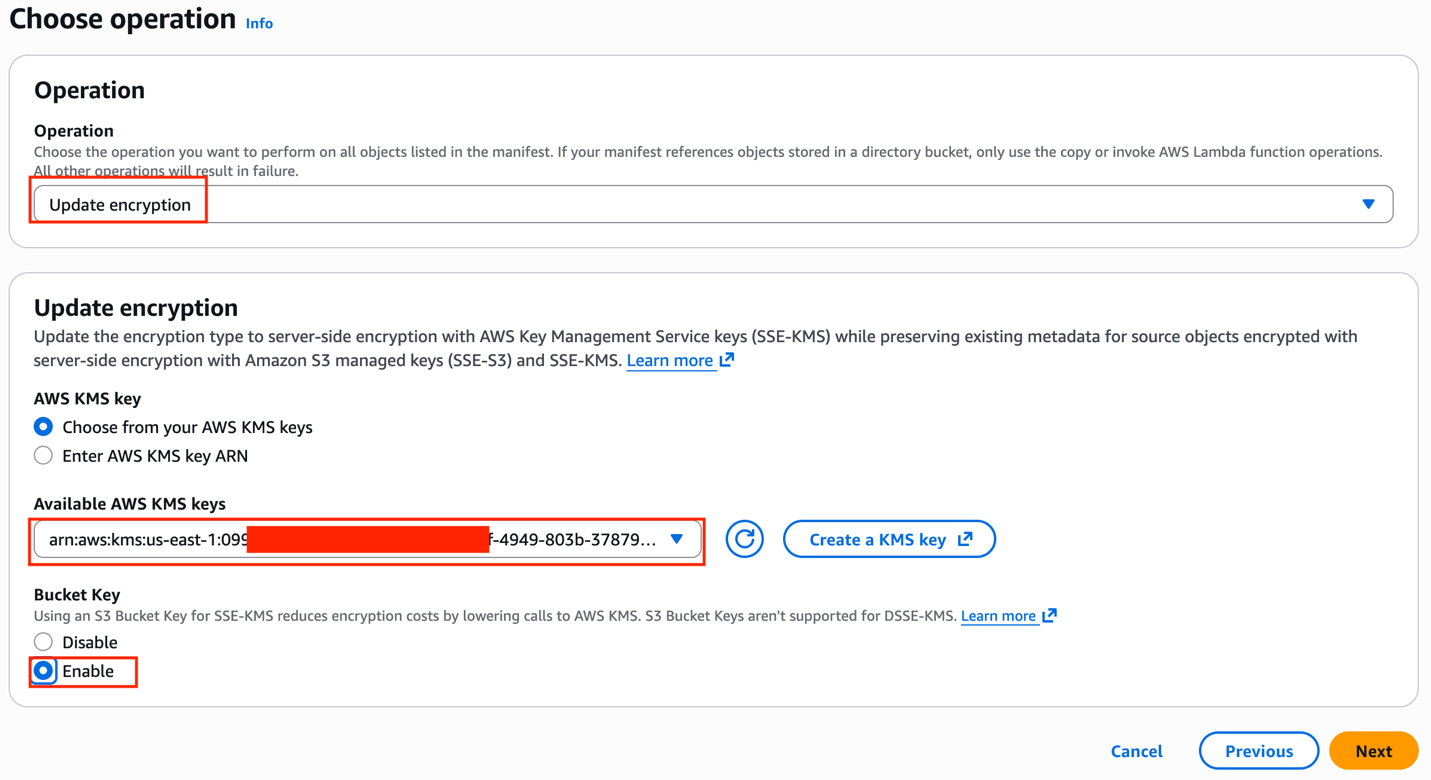
Figure 6: Configure the update encryption operation with SSE-KMS and Bucket Keys enabled
- For Completion report, select Generate completion report.
- For Completion report scope, select All tasks so that both successful and failed operations are captured for audit purposes.
- For Source account, select This AWS account and enter your designated S3 bucket.
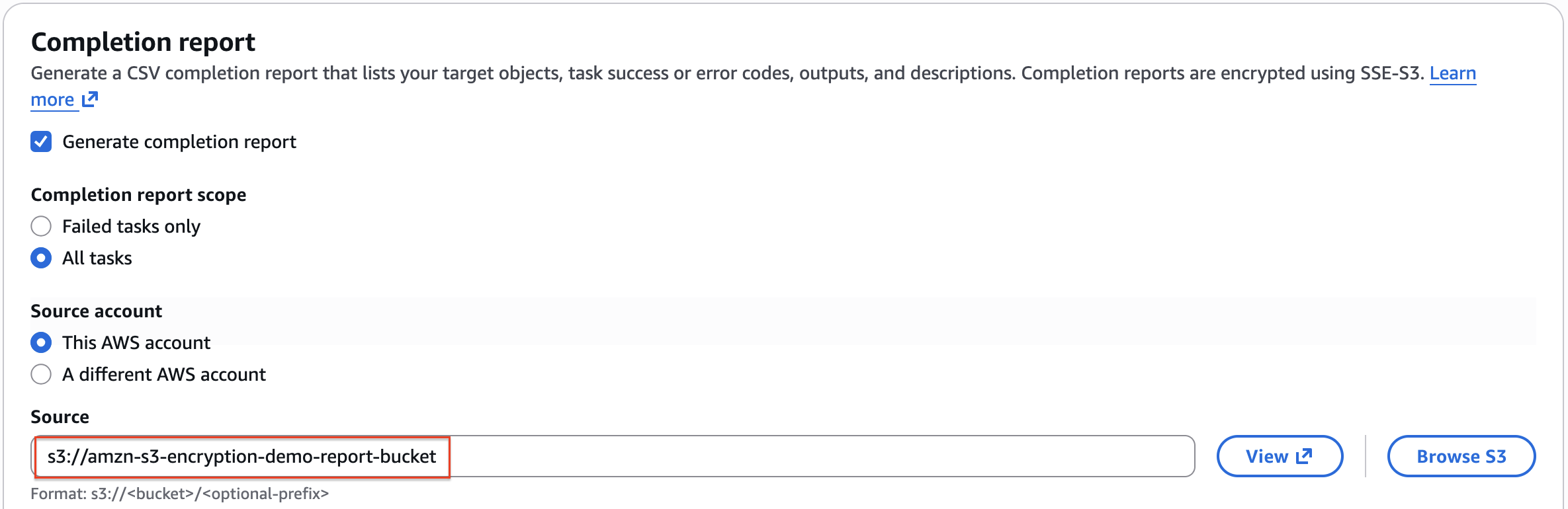
Figure 7: Enter the bucket name to deliver the completion report
A separate S3 bucket for the completion report is recommended because the completion reports are written using SSE-S3, so a bucket policy that requires SSE-KMS would reject them.
- For Permissions, select Choose from existing IAM roles and enter the role you created earlier.
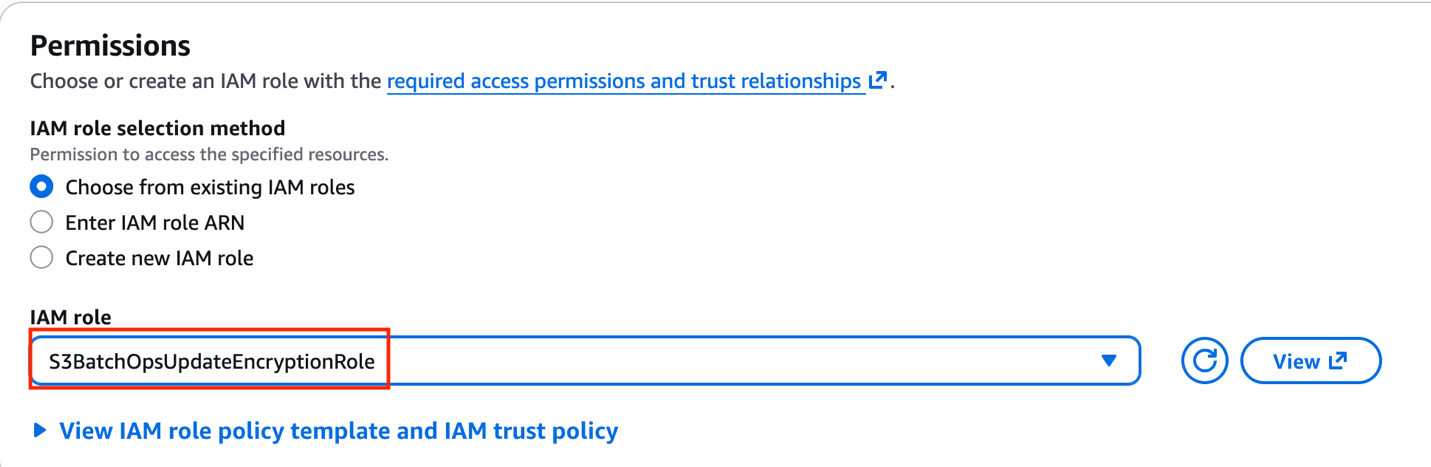
Figure 8: Select the S3 Batch Operations IAM role
Alternatively, you can skip this step and create the IAM role inline by selecting Create new IAM role. The console generates a role with the required permissions automatically.
- Choose Next, then choose Create job.
Alternatively, you can create the update encryption job using the latest version of the AWS Command Line Interface (AWS CLI):
Review and run job
After creation, the job enters a Suspended state awaiting your confirmation. To run the job, complete the following steps:
- On the Amazon S3 console, choose Batch Operations in the navigation pane.
- Choose your job and review the estimated object count and configuration summary.
- Choose Run job to begin processing.
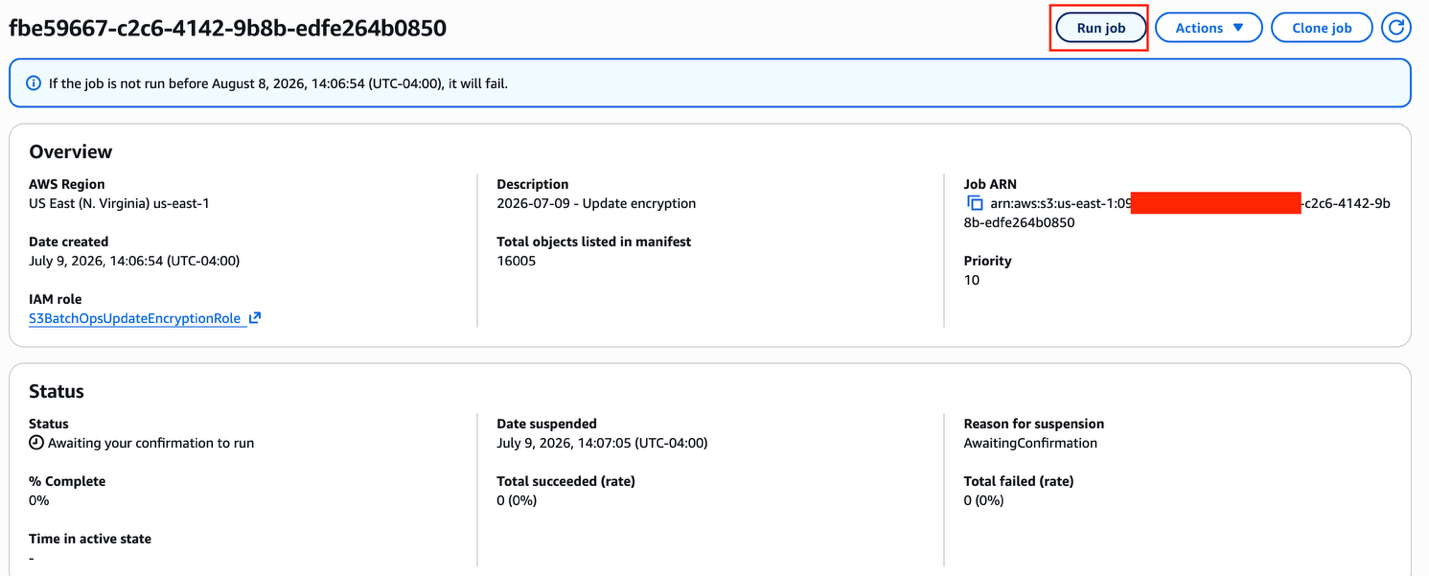
Figure 9: Job review page showing the estimated object count and status
S3 Batch Operations handles retries automatically for transient failures. You can monitor progress in real time on the Amazon S3 console or by polling the job status using the AWS CLI:
Verify results using the completion report
When the job is complete, navigate to your completion report bucket and download the CSV report. The report lists each object processed along with a result code (Succeeded, Failed, or Skipped) and error details for any failed tasks.
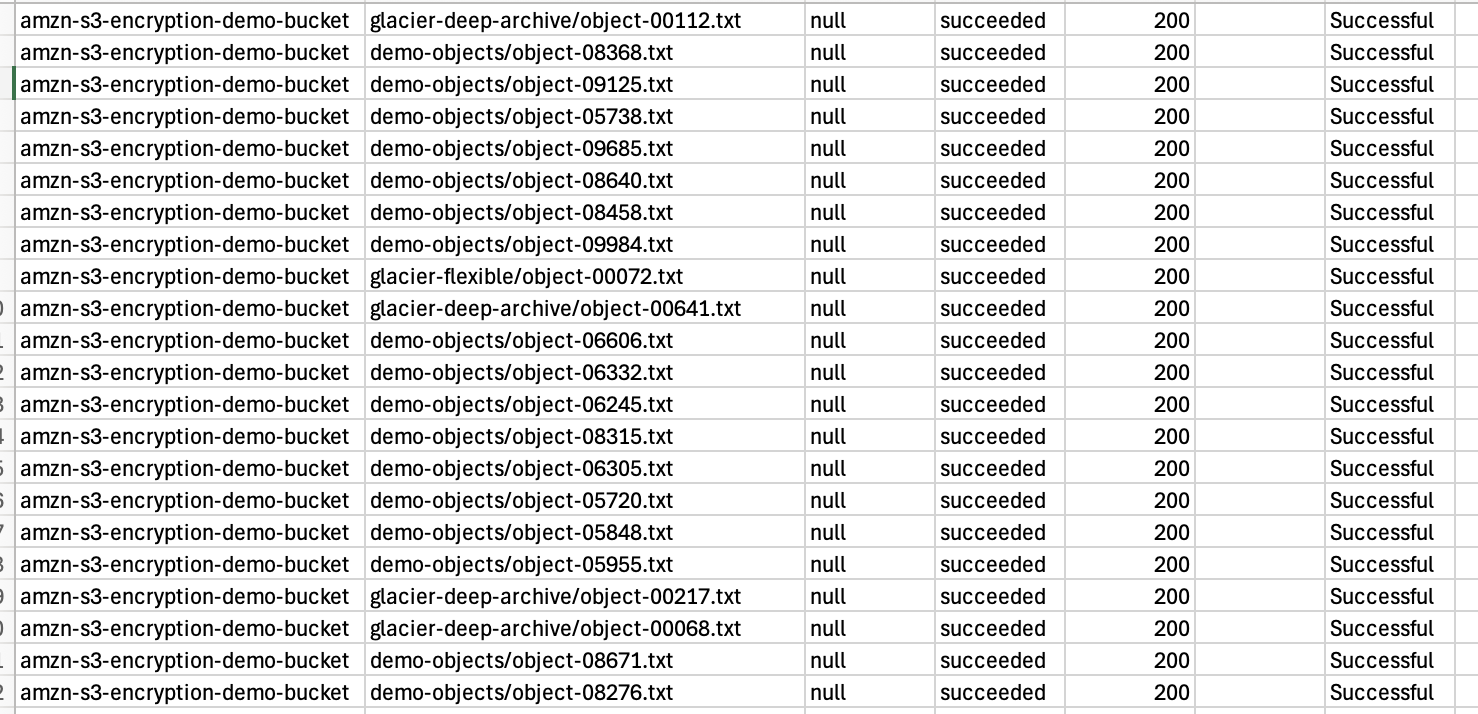
Figure 10: Completion report CSV showing Succeeded, Failed, and Skipped result codes
A few things to keep in mind when reviewing results:
- S3 Object Lock – Objects with an S3 Object Lock retention period or a legal hold can’t be updated and appear as failed tasks. You can remove a governance mode retention period or a legal hold and rerun the job. A compliance mode retention period can’t be removed by anyone until it expires, so those objects can’t be updated.
- Unsupported encryption types –
UpdateObjectEncryptiondoesn’t support unencrypted objects, or objects encrypted with DSSE-KMS or SSE-C. Because this walkthrough generates the manifest with an SSE-S3 filter, those objects are excluded automatically. If you supply your own manifest instead, filter them out so they don’t surface as task errors.
Key considerations
The following are some key considerations when implementing this solution:
- Versioned buckets – If S3 Versioning is enabled,
UpdateObjectEncryptionacts on the current version of each object by default. To update a specific version, include the version ID in your manifest. - Replication – Encryption changes made using
UpdateObjectEncryptiondon’t trigger replication events. Run separate jobs on source and destination buckets to keep encryption consistent across replicated data. - Cross-account KMS keys – By default, requests that specify a customer managed KMS key are restricted to keys owned by the bucket owner’s account. If you need to use a key owned by another member account in your organization, contact AWS Support to request that capability.
- IAM permissions – After updating encryption to SSE-KMS, IAM identities that read from the bucket must have the
kms:Decryptpermission on the KMS key. Without it, read operations fail with an access denied error. Use IAM Access Analyzer to identify the IAM identities with access to the bucket and assess which ones require thekms:Decryptpermission before applying the encryption change at scale. - S3 Batch Replication after an encryption change – To use S3 Batch Replication to replicate objects whose encryption you previously changed from SSE-S3 to SSE-KMS, you need the right AWS KMS permissions. Grant
kms:Decrypton the source Region bucket, and bothkms:Decryptandkms:Encrypton the destination Region bucket. - Cost modeling – SSE-KMS incurs AWS KMS API charges per object operation. Enabling S3 Bucket Keys reduces these charges by up to 99 percent by generating short-lived bucket-level keys that decrease the calls to AWS KMS to encrypt and decrypt your objects.
Conclusion
In this post, we explored the challenge of standardizing encryption across large S3 data estates to meet evolving compliance requirements. We reviewed how the new UpdateObjectEncryption API and its S3 Batch Operations integration make it possible to change the server-side encryption type of existing objects at scale. This happens without data movement, without disrupting object metadata, and without breaking S3 Lifecycle policies.
For organizations with compliance requirements mandating customer managed KMS keys, this removes one of the last significant barriers to full encryption standardization at scale. By enabling S3 Bucket Keys alongside the encryption standardization process, teams can also significantly reduce the ongoing AWS KMS cost of operating at scale.
Try out this solution for yourself, and leave your feedback and questions in the comments.