IBM & Red Hat on AWS
Optimize GPU-powered AI workloads on Amazon EC2 with IBM Turbonomic
Organizations run AI workloads from real-time inference to large-scale model training on GPU-backed Amazon Elastic Compute Cloud (Amazon EC2) instances. As these workloads grow, demand on GPU, memory, and CPU resources shifts throughout the day. Keeping instance capacity aligned with this changing demand is key to maintaining application performance and optimizing costs.
IBM Turbonomic on Amazon Web Services (AWS) addresses this by collecting telemetry from Amazon CloudWatch, analyzing real-time GPU, memory, and CPU demand, and recommending or automating right-sizing actions for Amazon EC2 GPU instances. In this post, you will connect Turbonomic to your AWS environment, analyze GPU utilization, and act on optimization recommendations.
Challenges of Managing GPU Workloads on AWS
The accelerated computing Amazon EC2 instance category includes a broad choice of accelerators, from GPUs to purpose-built AI chips such as AWS Trainium and AWS Inferentia. These instance families differ in GPU architecture, memory configuration, vCPU ratio, and price point. Some are optimized for training large foundation models, others for inference and graphics workloads, and others for high-performance deep learning at lower cost. The right choice depends on how your workload consumes compute, memory, and network resources. For the latest supported accelerated computing Amazon EC2 instances, see the IBM Turbonomic documentation.
This selection isn’t a one-time decision. Workload demand changes throughout the day, and an instance at near-full capacity during peak hours may sit partially idle minutes later. Continuous analysis of actual workload behavior helps you identify when a different instance type can improve performance or reduce costs. Performing that analysis manually across a growing fleet of GPU instances is where automation adds the most value.
How IBM Turbonomic Optimizes GPU Workloads
IBM Turbonomic takes a demand-driven approach to GPU optimization. Rather than relying on static thresholds or manual review, Turbonomic continuously evaluates how GPU, memory, and CPU demand compares to available capacity and recommends actions to close the gap
Specifically, Turbonomic:
- Discovers GPU-backed Amazon EC2 instances and collects utilization telemetry from Amazon CloudWatch
- Analyzes real-time demand across GPU, memory, and CPU resources and recommends right-sizing actions
- Automates approved actions through Amazon EC2 APIs to help maintain performance and reduce unnecessary spend
Architecture Overview
The following diagram (Figure 1) shows how IBM Turbonomic connects to an AWS environment to optimize GPU-backed Amazon EC2 instances. Turbonomic collects utilization telemetry through Amazon CloudWatch, analyzes GPU, memory, and CPU demand against available capacity, and generates right-sizing actions that can be run through Amazon EC2 APIs. IBM Turbonomic uses encrypted HTTPS communication to securely connect with a customer AWS account.
Key components in this architecture:
- An AI inference or training application running on Amazon EC2 GPU instances
- Amazon CloudWatch collecting infrastructure and utilization telemetry
- Turbonomic analyzing demand and recommending optimization actions
- Turbonomic runs approved resize actions through Amazon EC2 APIs
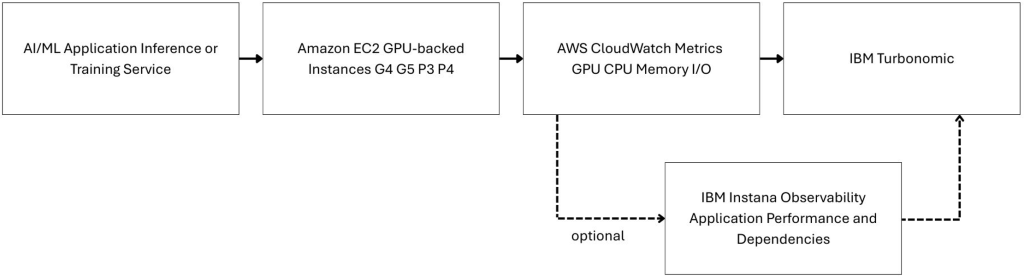
Figure 1. IBM Turbonomic collects Amazon CloudWatch telemetry to generate optimization actions for GPU-backed Amazon EC2 instances.
Implementation
Prerequisites
Before you begin, confirm that you have:
- An AWS account with access to Amazon EC2 and Amazon CloudWatch
- GPU-backed Amazon EC2 instances running AI or machine learning workloads
- An IBM Turbonomic license or an active Turbonomic trial from AWS Marketplace
- Amazon CloudWatch detailed monitoring for your Amazon EC2 GPU-backed instances
Cost considerations
If you follow this walkthrough in your own AWS account, you incur charges for any GPU-backed Amazon EC2 instances you run. GPU instance types are among the higher-cost Amazon EC2 options, so review the Amazon EC2 pricing page before you begin. The cleanup section at the end of this post explains how to remove resources and stop ongoing charges.
Step 1: Connect your AWS cloud account
In this step, you connect Turbonomic to your AWS account so it can discover Amazon EC2 resources and collect utilization telemetry from Amazon CloudWatch.
- In the Turbonomic dashboard, choose Settings from the navigation menu, as shown in the following figure (Figure 2).
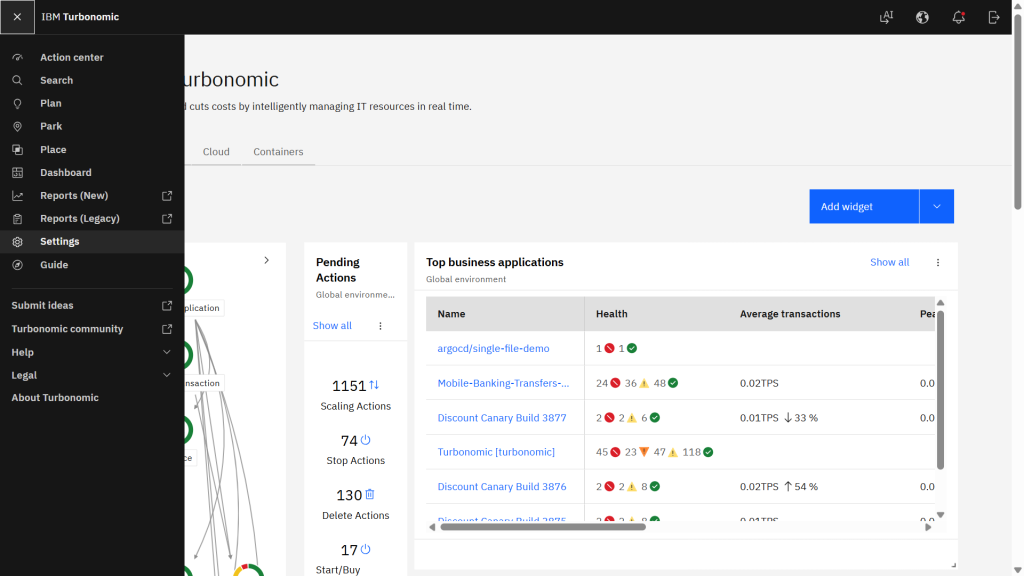
Figure 2. IBM Turbonomic Settings navigation.
- On the Settings page, choose Target configuration, then choose Add Target.
- From the Public Cloud target options, choose AWS. The following figure (Figure 3) shows the AWS target selection with a summary of connection details and IAM requirements.
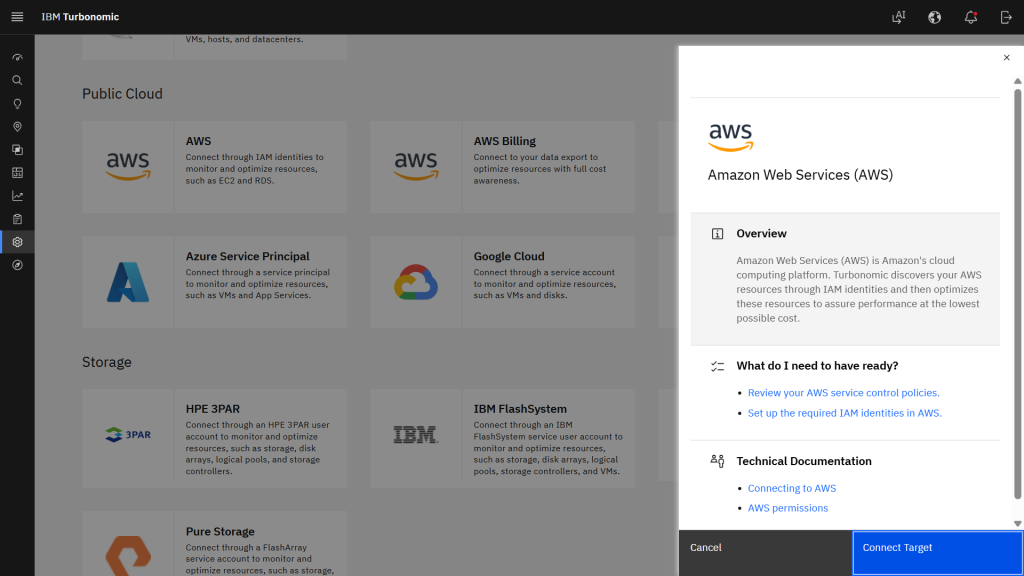
Figure 3. AWS target selection in IBM Turbonomic.
- Enter a display name and choose the account type that matches your environment, as shown in the following figure (Figure 4).
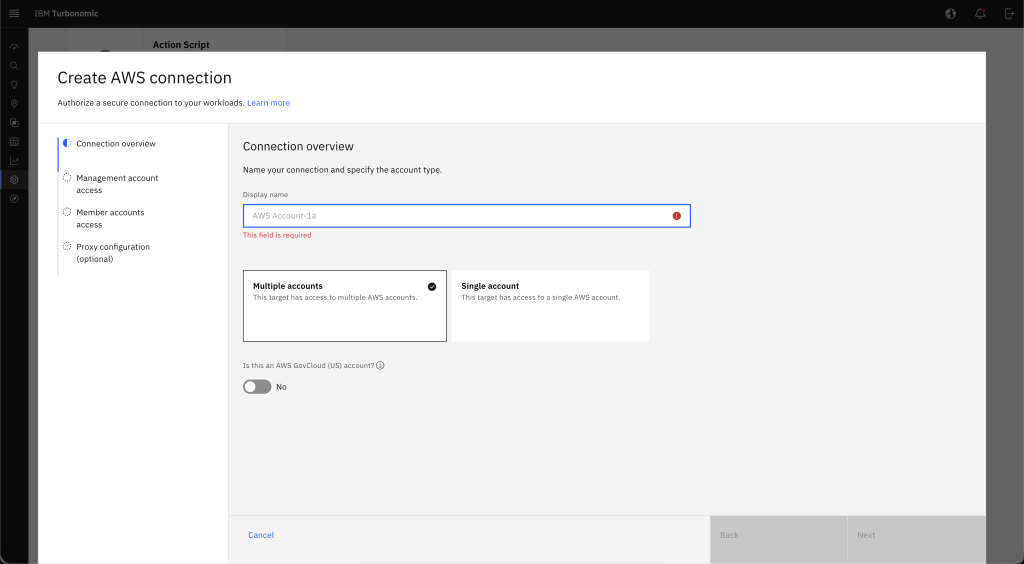
Figure 4. AWS target connection configuration.
- Configure access using an AWS Identity and Access Management (AWS IAM) role or user. The IBM AWS target documentation explains the required fields and IAM configuration for each method. We encourage you to follow AWS security best practices and AWS least privilege guidance when creating IAM roles or users.
- Save the target. Turbonomic validates the connection and begins discovering AWS resources.
Step 2: Discover GPU-backed Amazon EC2 instances
Turbonomic discovers your AWS environment and populates its supply chain model. To verify discovery, choose Search from the navigation menu and locate your GPU-backed Amazon EC2 instance.
The following figure (Figure 5) shows the supply chain view for a discovered instance, including its relationship to storage, Availability Zone, and AWS Region.
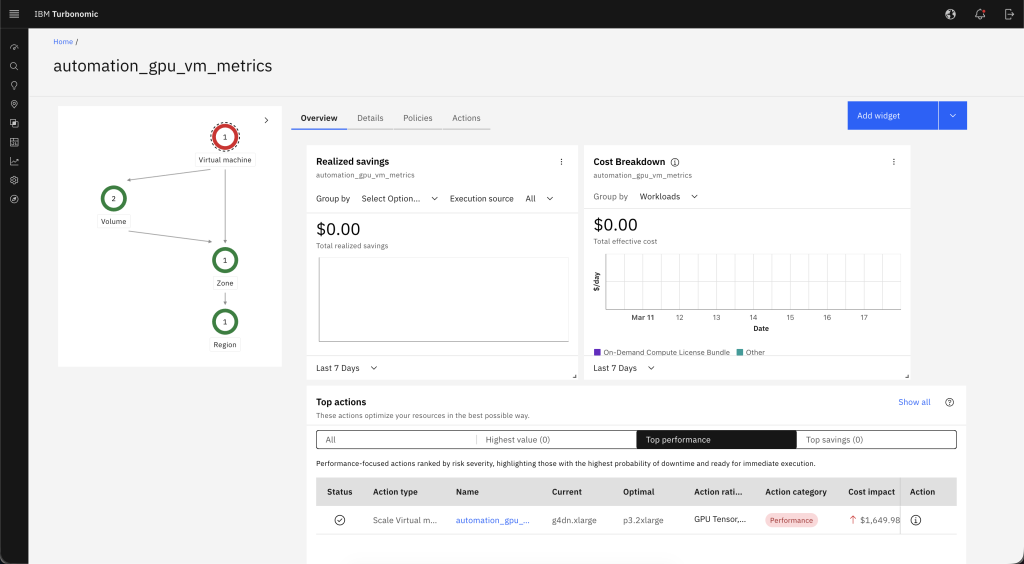
Figure 5. Turbonomic supply chain view for an Amazon EC2 instance.
In the supply chain view, choose the Amazon EC2 instance to open its entity details. Confirm that the instance metadata – including accelerator type, instance size, and billing model – matches the workload you want to analyze, as shown in the following figure (Figure 6).
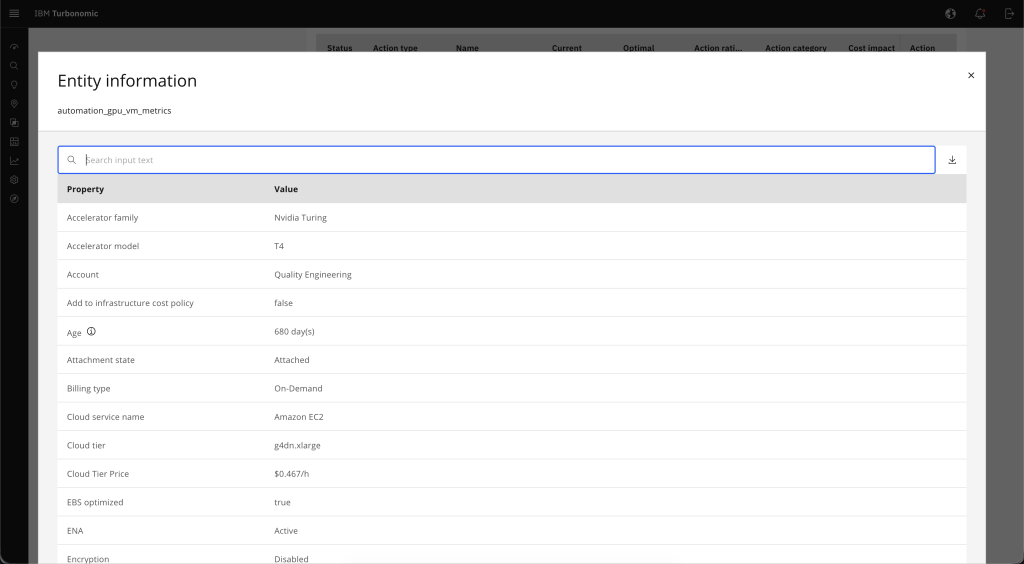
Figure 6. Amazon EC2 GPU instance entity details.
Step 3: Analyze GPU utilization and application demand
From the entity details view, choose the Capacity and Usage tab to display resource utilization trends. This view shows GPU utilization, memory usage, CPU demand, and storage throughput over time. Use it to identify whether your workload has sufficient GPU headroom or whether demand is approaching capacity limits. The following figure (Figure 7) shows a multi-resource utilization view over a 24-hour period.
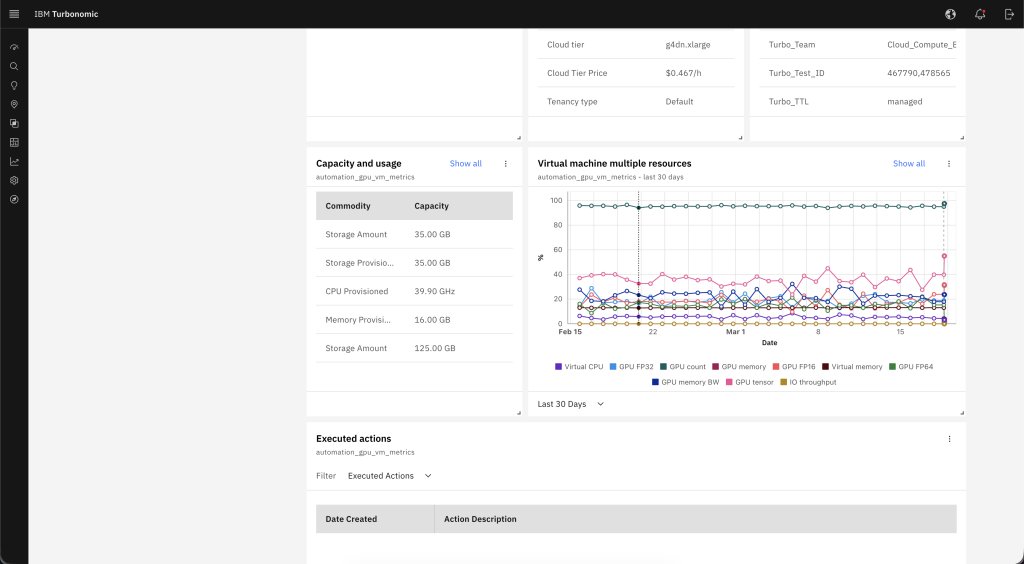
Figure 7. Amazon EC2 instance 24-hour resource utilization trends.
Step 4: Review optimization actions
From the entity details view, choose the Actions tab to see the optimization actions Turbonomic generated for your Amazon EC2 instance. Actions represent recommended changes based on observed demand, not static rules. Common actions include:
- Scale up to a larger GPU instance to add capacity for high-demand periods
- Scale down to a smaller instance to better match lower observed utilization
Choose an action to open its details. The following figure (Figure 8) shows GPU utilization percentile trends that contributed to a resize recommendation.
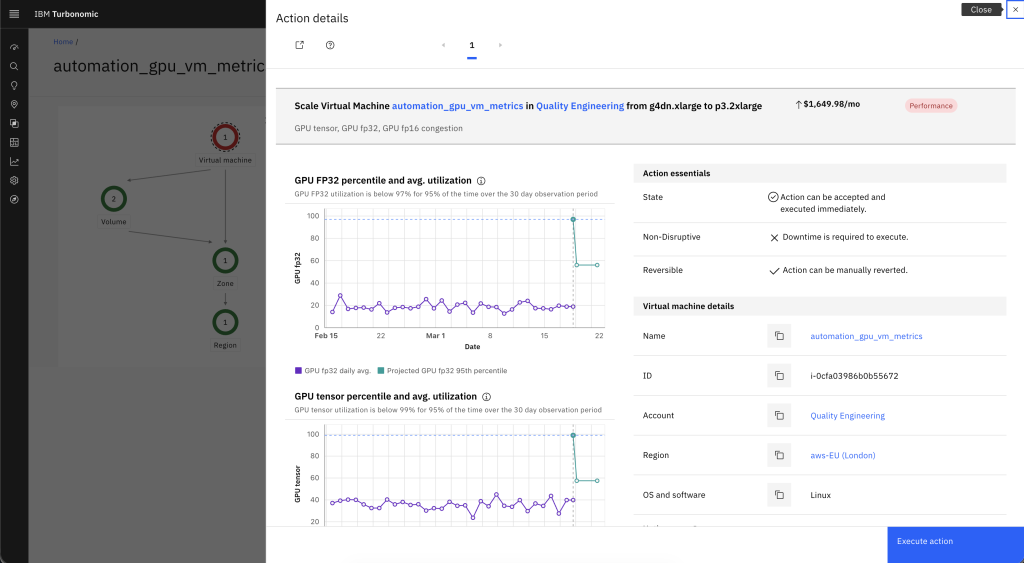
Figure 8. GPU utilization driving resize recommendation.
In the action details, review the projected resource changes, including GPU capacity, vCPU, and memory adjustments. The following figure (Figure 9) shows an example where Turbonomic recommends scaling from a smaller to a larger GPU instance to increase available headroom.
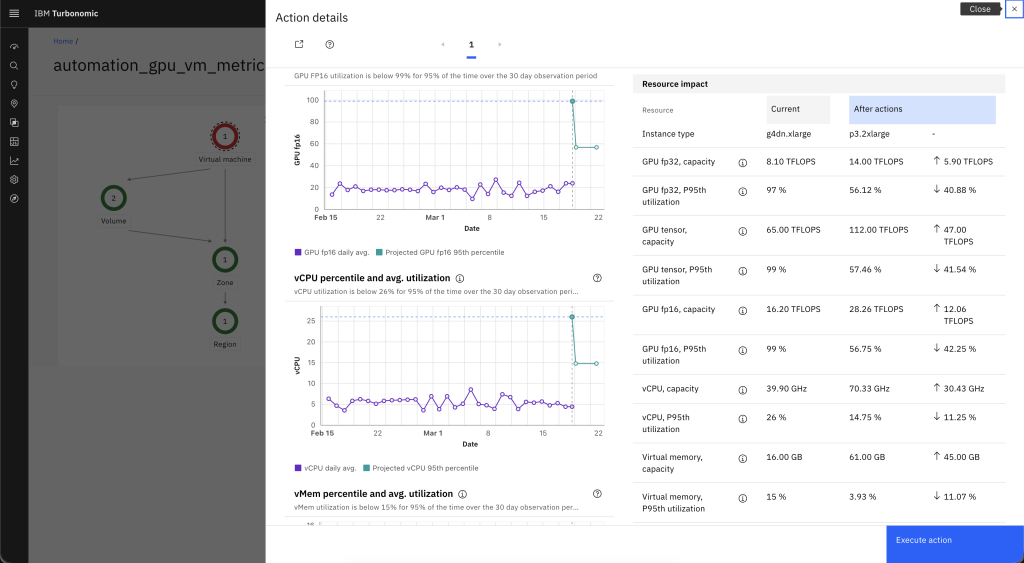
Figure 9. Resize action resource and cost impact.
The action details also include the estimated cost impact of the recommendation, such as changes to the hourly on-demand rate and projected monthly cost. For example, a resize from a g4dn.xlarge to a p3.2xlarge shows both the capacity increase and the associated cost difference, so you can weigh performance gains against spend before you proceed.
Step 5: Run and validate GPU optimization
If you turn on automation, Turbonomic runs the resize action through Amazon EC2 APIs, including ec2:ModifyInstanceAttribute, ec2:StopInstances, and ec2:StartInstances. Review recommendations manually first and progressively enable automation as you build confidence in the recommendations and align with your internal change control policies.
After an action runs, confirm both the infrastructure result and the application outcome:
- Review GPU utilization and headroom over the next observation window
- Confirm that application latency and throughput return to expected levels
- Adjust policy settings or approval workflows if additional control is needed
Organizations can apply operational guardrails such as performance-first policies for critical workloads, approval requirements before action runs, maintenance windows, or restrictions on allowable instance families.
Results and benefits
After completing these steps, Turbonomic continuously monitors your GPU-backed Amazon EC2 instances and generates new recommendations as workload demand patterns change. Over time, this helps you:
- Maintain application performance during peak demand by identifying when instances need additional GPU capacity
- Reduce costs during lower-utilization periods by identifying opportunities to right-size to smaller instances
- Make informed decisions about GPU instance selection based on observed workload behavior rather than estimates
Best practices for GPU optimization on AWS
- Enable detailed Amazon CloudWatch metrics for GPU instances to give Turbonomic higher-fidelity data for analysis
- Start with manual review of recommended actions, then progressively enable automation as you build confidence
- Apply Turbonomic policies to prioritize performance for critical workloads while optimizing cost for less sensitive ones
- Regularly review GPU instance family selections in context of workload demand to ensure you’re using the most appropriate GPU architecture and configuration for your workload
Cleanup
To stop monitoring and optimization for the environment used in this walkthrough:
- In the Turbonomic dashboard, choose Settings from the navigation menu, then choose Target configuration.
- Locate the AWS target you created for this walkthrough.
- Turn off automation if you turned it on for this target.
- Choose Delete to remove the target connection. Deleting a target removes the associated entities from the supply chain.
- If you deployed Turbonomic specifically for testing, stop or decommission the environment according to your organization’s standard operational procedures.
- Delete the IAM roles and IAM user credentials created for this walkthrough:
- Sign in to the AWS Management Console and open the IAM console.
- In the navigation pane, choose Roles.
- Select the checkbox next to the role name that you want to delete.
- At the top of the page, choose Delete.
- Enter the role name to confirm deletion, then choose Delete.
- In the navigation pane, choose Users.
- Select the checkbox next to the IAM user name that you want to delete.
- At the top of the page, choose Delete.
- Enter the user name to confirm deletion, then choose Delete.
- Open the Amazon EC2 console to stop or terminate any GPU-backed Amazon EC2 instances that are no longer needed to avoid ongoing charges:
- In the navigation pane, choose Instances.
- Select the instances you want to stop or terminate.
- Choose Instance state, then choose Stop instance to stop or Terminate instance to terminate.
Integration with IBM Instana Observability
For AI workloads running in production, optimizing GPU-backed infrastructure and understanding application behavior go hand in hand. IBM Turbonomic optimizes GPU capacity and spend, while IBM Instana adds real-time visibility into application performance, service dependencies, and infrastructure health across AWS environments.
Together, Turbonomic and Instana let you:
- Correlate application latency with GPU utilization and infrastructure conditions
- Assess optimization decisions in the context of application health and service dependencies
For details on connecting Turbonomic and Instana, see Adding an Instana target in the IBM Turbonomic documentation.
Conclusion
In this post, you connected IBM Turbonomic to your AWS environment, discovered GPU-backed Amazon EC2 instances, analyzed GPU utilization trends, and reviewed right-sizing recommendations. By automating these optimization actions, you can keep GPU capacity aligned with workload demand across your AWS environment.
Get started
Ready to get started? Visit the IBM Turbonomic SaaS and IBM Instana Observability on AWS Marketplace.
Learn More
- Optimizing Workload Performance and Cost with IBM Turbonomic on AWS
- Observe AI Agents on Amazon Bedrock AgentCore with IBM Instana
- Stream Amazon CloudWatch metrics to IBM Instana with Amazon Data Firehose
- Implement observability for Amazon EKS workloads using the Instana Amazon EKS Add-on
- Additional IBM on AWS blogs
- Learn more about the AWS and IBM Partnership here