AWS Cloud Financial Management
Estimate and Compare AWS Costs with the AWS Pricing Calculator – Part 1: Creating and Comparing Workload Estimates
With the AWS Pricing Calculator, you can estimate the cost savings of migrating to AWS Graviton processors before you move a single workload. You can model the numbers directly in the AWS Billing and Cost Management console, no spreadsheets are required.
AWS Pricing Calculator offers two estimate types, Workload Estimates and Bill Estimates.
- Workload Estimates: Help you estimate costs for specific workloads, applications, or architectural changes. You can access Workload Estimates immediately from any AWS account type.
- Bill Estimates: If you use a management or standalone account, you can access Bill Estimates to estimate cost impacts across your entire AWS organization’s consolidated bill. Bill Estimates automatically incorporate the previous month’s billing data and existing commitments such as Savings Plans or Reserved Instances.
In this first part of our two-part series, you’ll create a Workload Estimate to compare the compute costs of Amazon Elastic Compute Cloud (Amazon EC2) instances on x86 processors against the same instances on AWS Graviton processors. This post covers cost modeling for migration planning, not migration execution steps. Part two of this series will cover Bill Estimates in depth.
Why Migrate to AWS Graviton3?
AWS designed the Arm-based processors, built on 64-bit Arm Neoverse cores, in Graviton instances to improve price performance for cloud workloads running on Amazon EC2, including containerized applications. Graviton3-based instances, such as the C7g family, offer three advantages:
- Compute performance: AWS Graviton3-based instances provide up to 25% better compute performance than Graviton2-based instances, based on AWS published benchmarks. For more information, see Amazon EC2 C7g Instances.
- Energy efficiency: AWS Graviton-based instances use up to 60% less energy than comparable Amazon EC2 instances for the same performance, based on AWS published data. For more information, see AWS Graviton Processors.
- Cost: AWS Graviton-based instances cost up to 20% less than comparable x86-based Amazon EC2 instances. Your actual savings depend on instance family, Region, and usage, which is what this walkthrough helps you quantify.
This post uses Graviton3 (C7g) because it maps directly to the C7i comparison, though AWS continues to release newer generations such as Graviton4 (C8g). Check the latest instance options in your Region before you commit. AWS updates published performance and pricing claims periodically, so verify current figures on the linked AWS pages. All applications should be tested on Graviton in non-production workloads to ensure it works on this instance type.
Prerequisites
Before you begin, make sure you have the following:
- An AWS account.
- Access to the AWS Billing and Cost Management console.
- AWS Identity and Access Management (AWS IAM) permissions for AWS Pricing Calculator.
Getting Started with Your First Pricing Calculator Estimate
Workload estimates are free to create, so you can model as many scenarios as you need without incurring charges. Let’s walk through a scenario where we use the AWS Pricing Calculator to model the cost difference between 20 c7i.large instances (x86) and 20 c7g.large instances (Graviton3) with identical storage, data transfer, and commitment discounts.
1. Navigate to the Billing and Cost Management console. Choose Pricing Calculator under Budgets and Planning and choose Create workload estimates to begin. Figure 1 shows the Pricing Calculator as it opens from the Billing and Cost Management console.
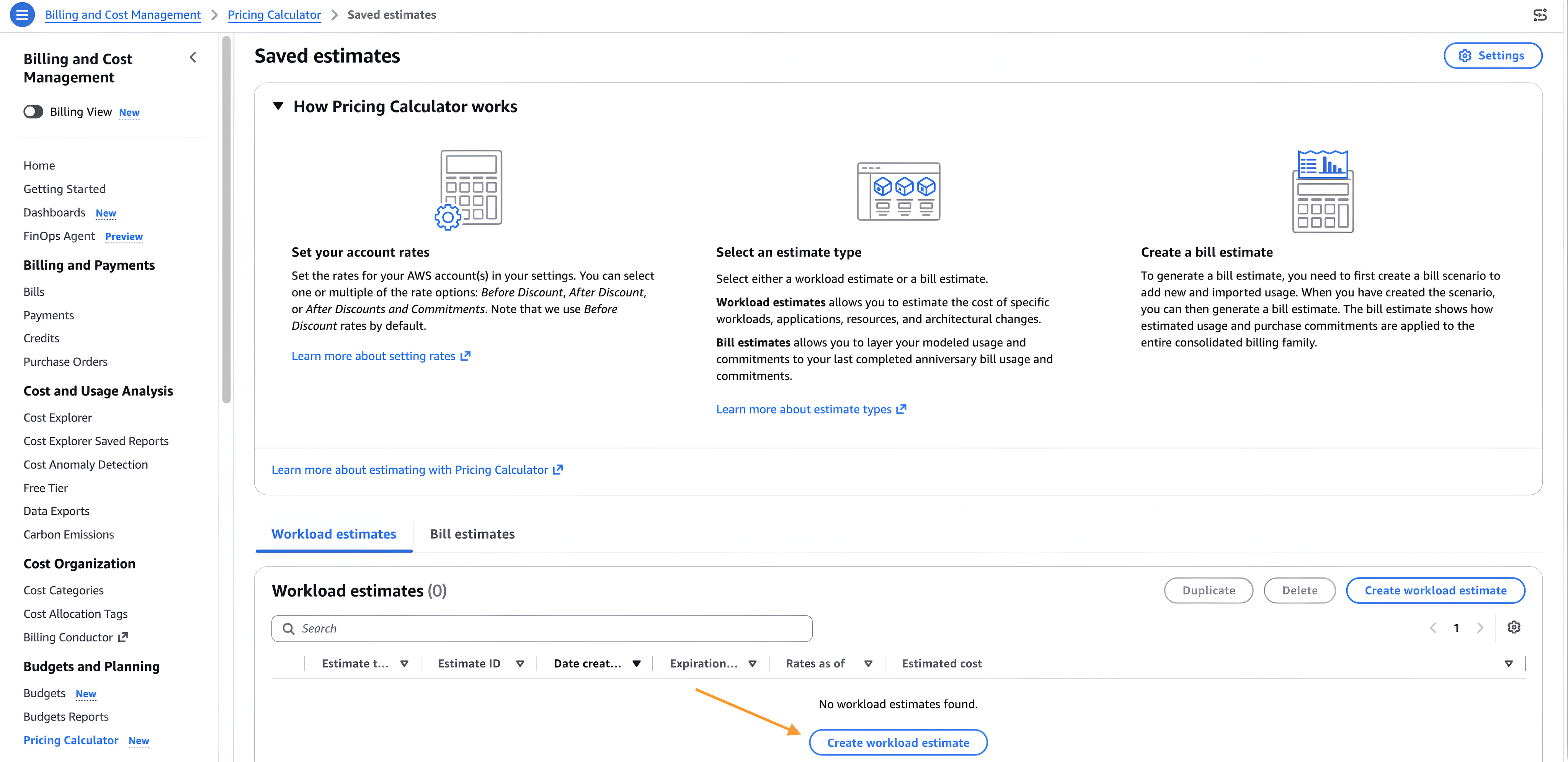
Figure 1. The Pricing Calculator opens from the Billing and Cost Management console.
Name your estimate descriptively (for example, graviton3-comparison-baseline) and consider adding tags for tracking. Choose Before Discounts as your rate type to establish a clear baseline, with no Savings Plans or Reserved Instance discounts influencing the comparison. This way you can compare x86 vs. Graviton3 at identical on-demand rates.
Figure 2 shows the workload estimate name and rate type configuration in the Create workload estimate dialog.
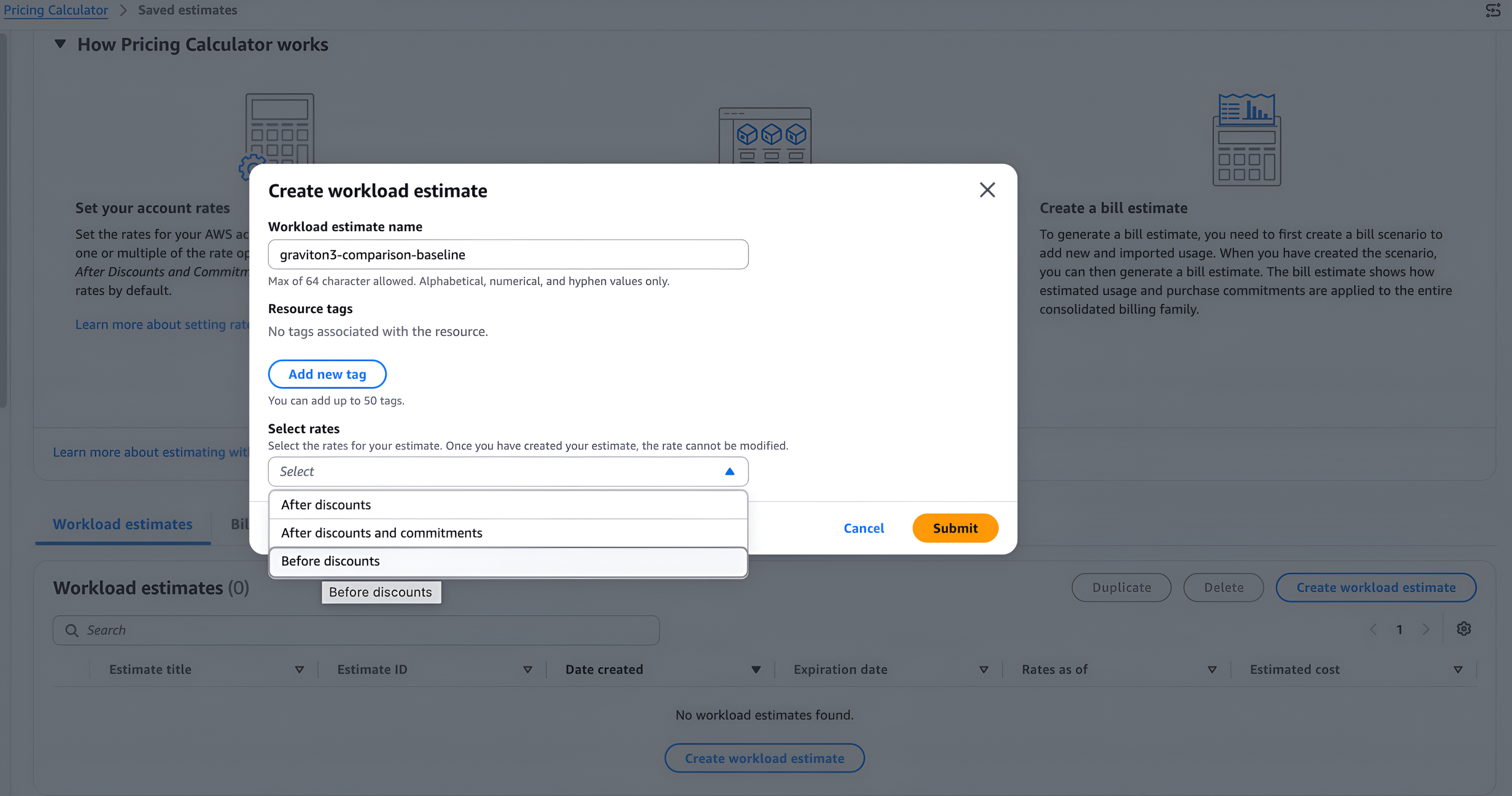
Figure 2. The Create workload estimate dialog with the estimate name, tags, and rate type selection.
2. Set the parameters for the estimate. Choose Add. Choose New service. Specify the following:
- AWS account: Choose the account from the dropdown list. This matters for organizations managing multiple accounts.
- Location type: Choose Region.
- AWS Region: Choose the Region where you plan to deploy. Pricing varies between regions.
Figure 3 shows the account, location type, and Region parameter configuration.
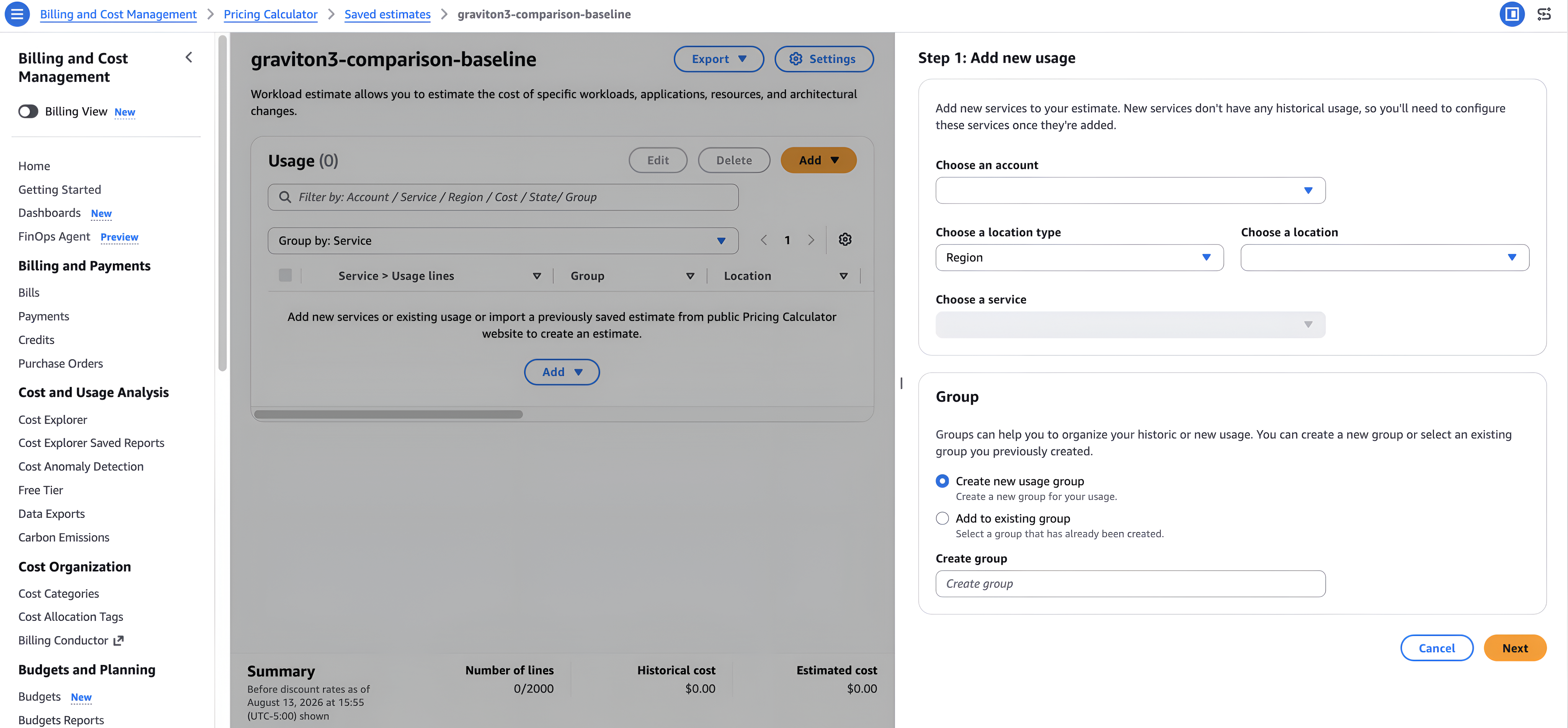
Figure 3. The Add service panel with the account, location type, and Region dropdown selections for the workload estimate.
Best practice is to create separate estimates for each deployment environment (development, staging, production) to account for varying usage patterns. As your requirements evolve, duplicate and modify estimates to model scenarios such as seasonal traffic spikes or planned capacity increases. You now have a named workload estimate with an account, region, and rate type.
Next, add the specific service configurations, starting with Amazon EC2.
3. Add the first service configuration by selecting Amazon Elastic Compute Cloud (Amazon EC2) as a service. You’ll compare this Graviton3 estimate against the x86 estimate.
Configuring the AWS Graviton3 Estimate
4. Start with the Graviton3 estimate, which serves as the baseline for the comparison. Configure the service as follows:
- Choose the
Guided configurationpath. - Select the
Amazon EC2template. Guided mode bundles related services, such as Amazon Elastic Block Store (Amazon EBS), data transfer, and Amazon CloudWatch, into one configuration screen. - Set
Operating systemto Linux andTenancyto Shared. - Specify c7g as
Instance Familyand c7g.large in theinstance typeon search field. - Set Number of instances to 20.
- Configure storage. Select gp3 and specify 100 GB per volume.
- Specify 10 GB of inbound and 10 GB of outbound data transfer per month.
- Clear the check boxes for Amazon EBS snapshots, CloudWatch metrics, and intra-Region data transfer to keep the comparison focused on compute and storage.
- Choose
Saveto add the service to your estimate.
Figure 4 shows the completed c7g.large configuration.
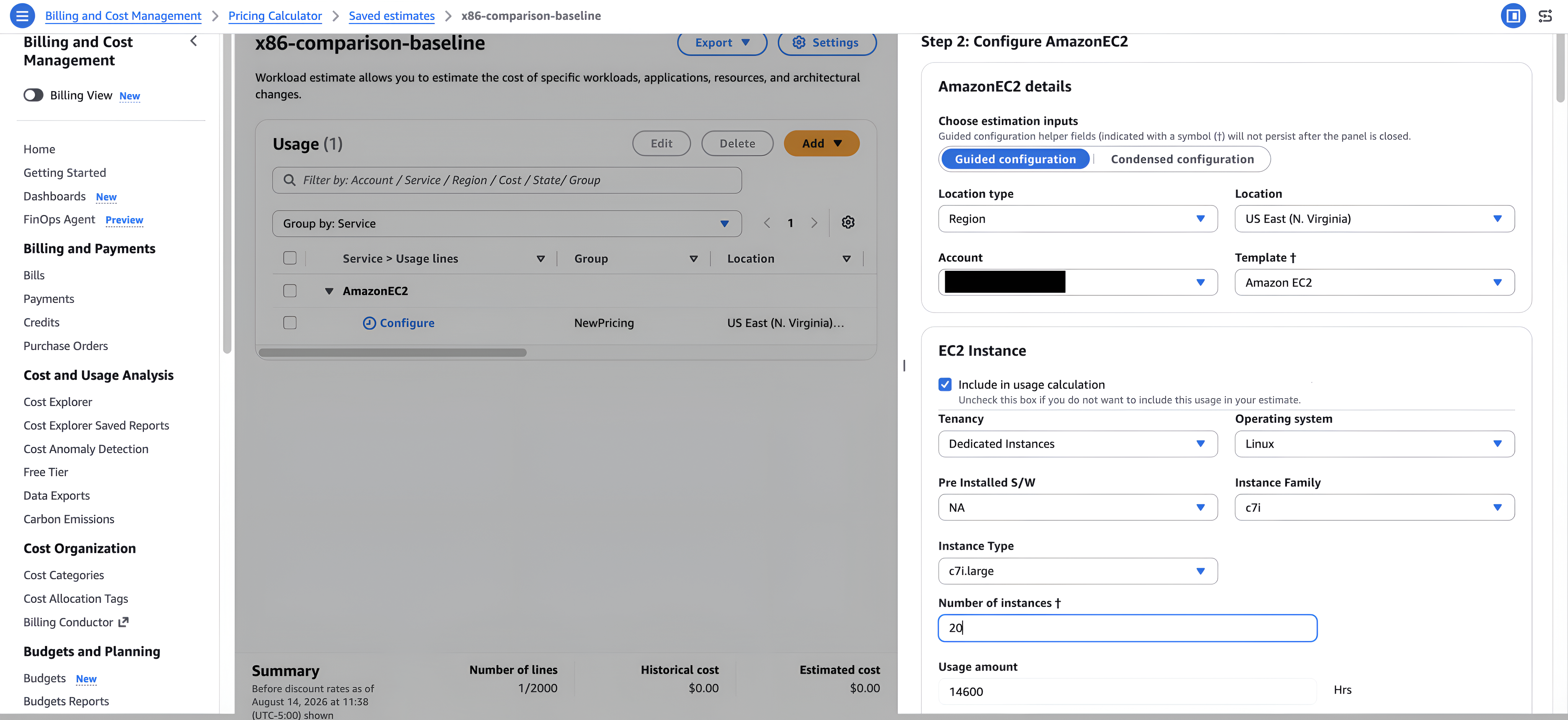
Figure 4. Your completed c7g.large configuration.
Creating the x86 Comparison Estimate
With the Graviton3 baseline saved, create a second workload estimate that changes a single variable: the processor.
5. Choose Create workload estimate again and name it descriptively (for example, x86-comparison-baseline).
- Keep the rate type set to Before Discounts, so both estimates share the same list-price baseline.
- Use the same AWS account, location type, and AWS Region you used for the Graviton3 estimate. A Region mismatch skews the comparison, because pricing varies between regions.
- Repeat the same nine configuration steps you used for the Graviton3 estimate, with one change: in step 4, specify
c7i.largein the instance type search field.
The only difference between the two estimates is the instance type, so the comparison isolates the cost impact of the processor architecture.
Figure 5 shows the completed c7i.large configuration with its monthly compute cost.
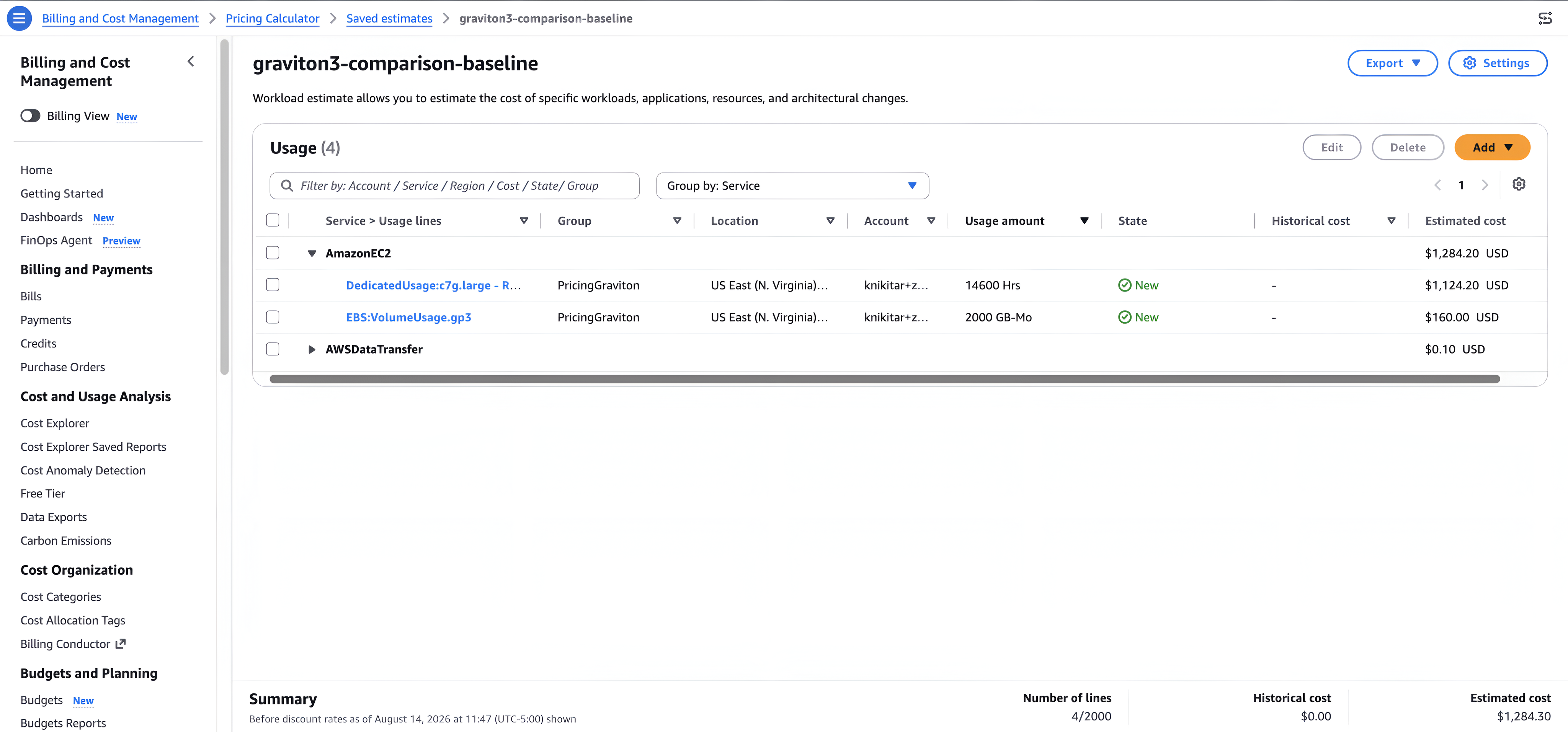
Figure 5. The completed c7i.large configuration showing monthly compute cost.
After you save the second estimate, both estimates are visible in the saved estimates view, where you can compare the costs side by side. The calculator gives you two ways to read the results:
- Side-by-side comparison: Compare total costs between x86 and AWS Graviton3 at scale (20 instances).
- Instance family comparison: Match AWS Graviton instances against equivalent x86 options (C7g compared with C7i). Consider performance metrics alongside cost.
In the US East (N. Virginia) Region at on-demand list prices, 20 c7i.large instances cost $1,593.53 per month for compute ($64.26 per instance), and 20 c7g.large instances cost $1,284.30 per month for compute ($52.78 per instance). Based on the on-demand list prices in these two estimates, choosing Graviton3 reduces compute costs by $309.23 per month, a 19% savings. This is a worked example from this walkthrough, not a published benchmark, and your results depend on your instance types and Region. Storage (100 GB gp3 per instance, $160 per month on each side) and data transfer are identical in both estimates, so this savings applies to compute only.
Figure 6 shows your completed estimates side by side.
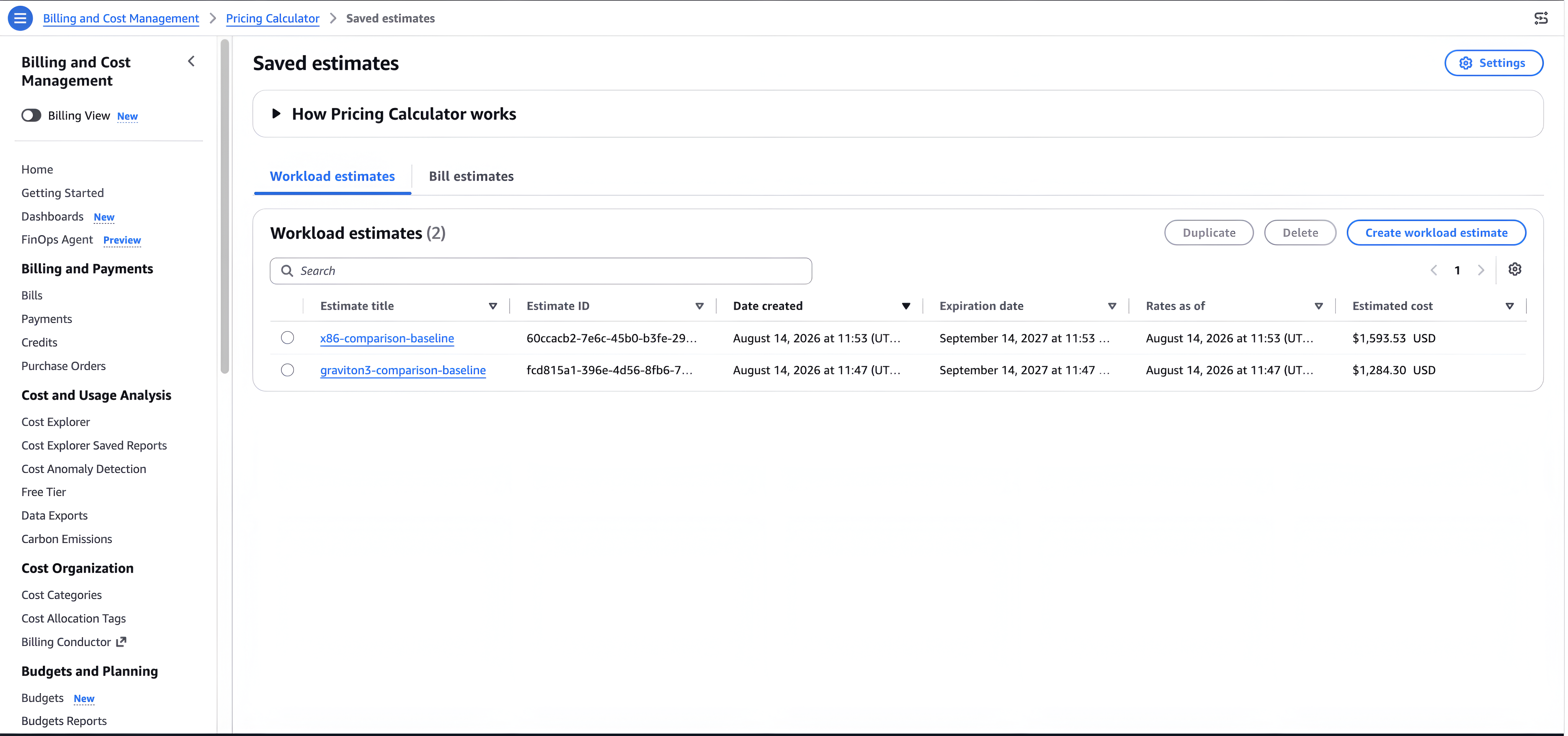
Figure 6. The completed estimates side by side.
How to Add Discounts to Your Estimate
You can apply Savings Plans and Reserved Instance discounts to your estimate to reflect your negotiated rates. When you have reviewed the architecture decision at list price, duplicate your estimate. Then switch the rate type to After Discounts and Purchase Commitments. This incorporates your actual Savings Plans and Reserved Instance coverage from the previous month’s billing data. The discounted total appears in your own estimate, because the result depends on the commitments attached to your account.
Figure 7 shows the estimate with After Discounts and Purchase Commitments applied.

Figure 7. Your completed estimate After Discounts and Purchase Commitments applied.
Beyond Graviton: Other Modernization Scenarios
The AWS Graviton3 comparison is just one scenario. The same workflow applies to other modernization decisions. You create parallel estimates, change one architectural variable, and compare the results.
Try these other scenarios:
- Compare always-on EC2 batch processors vs. event-driven AWS Lambda architectures by modeling invocation count, execution duration, and memory allocation. Serverless typically wins when traffic varies more than 3× between peak and off-peak
- Model EC2 with Application Load Balancer vs. Amazon API Gateway with Lambda to estimate savings from replacing EC2-backed web servers for APIs with high traffic variability
- Estimate the cost of decomposing a monolithic application into Amazon Elastic Container Service (ECS) with Fargate or Amazon Elastic Kubernetes Service (Amazon EKS) tasks that scale independently vs. over-provisioned EC2 instances sized for peak load
- Find the right container-to-serverless split for your workload — use Lambda for event-driven, short-duration, infrequent tasks and containers for long-running, steady-state processes
Clean up
As noted earlier, workload estimates do not incur charges, but removing unused estimates keeps your calculator workspace tidy. To remove the estimates created during this walkthrough:
- Navigate to the Billing and Cost Management console.
- Choose Pricing Calculator under Budgets and Planning.
- Select the estimates you created (for example, graviton3-comparison-baseline and x86-comparison-baseline).
- Choose Delete to remove them.
Deleting estimates does not affect your AWS resources or billing.
Conclusion
You now know how to use the AWS Pricing Calculator Workload Estimates feature to create side-by-side comparisons. These comparisons isolate the cost impact of a single architectural change: migrating from x86 to AWS Graviton3 processors. In this example, that single change reduced list-price compute costs by 19%, or $309.23 per month across 20 instances in US East (N. Virginia).
The methodology is repeatable. Build two matching estimates, change one variable (processor, compute model, or architecture pattern), and compare the results. When you have validated the architecture decision at list price, apply your existing Savings Plans and Reserved Instance commitments to see your own discounted totals. Your results depend on the specific commitments attached to your account.
Try this comparison with your own workload. Open the Pricing Calculator in the Billing and Cost Management console to create your first Graviton estimate, using your own instance counts, sizes, and Region to see your numbers. For more information, see the AWS Pricing Calculator User Guide and getting started with AWS Graviton.
Part two of this series will show you how to use Bill Estimates to model changes against your existing AWS bill.