AWS Big Data Blog
Build a data pipeline from Google Search Console to Amazon Redshift using AWS Glue
Google Search Console (GSC) is a service offered by Google that helps you monitor, maintain, and troubleshoot your site’s presence in Google Search results. It provides you unique insights directly from Google about how the search engine sees your site, helping you improve your performance in Search Engine Results Pages (SERPs).
When there is a need to merge Google Search Console data with multiple data sources or conduct complex performance analysis, traditional methods can become time-consuming and error-prone. This is where Amazon Redshift and AWS Glue offer a comprehensive data integration solution.
In this post, we explore how AWS Glue extract, transform, and load (ETL) capabilities connect Google applications and Amazon Redshift, helping you unlock deeper insights and drive data-informed decisions through automated data pipeline management. We walk you through the process of using AWS Glue to integrate data from Google Search Console and write it to Amazon Redshift.
Solution overview
AWS Glue is a serverless data integration service that helps discover, prepare, and combine data for analytics, machine learning (ML), and application development. You can use AWS Glue to create, run, and monitor data integration and ETL pipelines and catalog your assets across multiple data stores.
Amazon Redshift is a fast, scalable, and fully managed cloud data warehouse that lets you to process and run complex SQL analytics workloads on structured and semi-structured data. It also helps you securely access your data in operational databases, data lakes, or third-party datasets with minimal movement or copying of data. Tens of thousands of customers use Amazon Redshift to process large amounts of data, modernize their data analytics workloads, and provide insights for their business users.
The following diagram illustrates the architecture that we implement in this post.
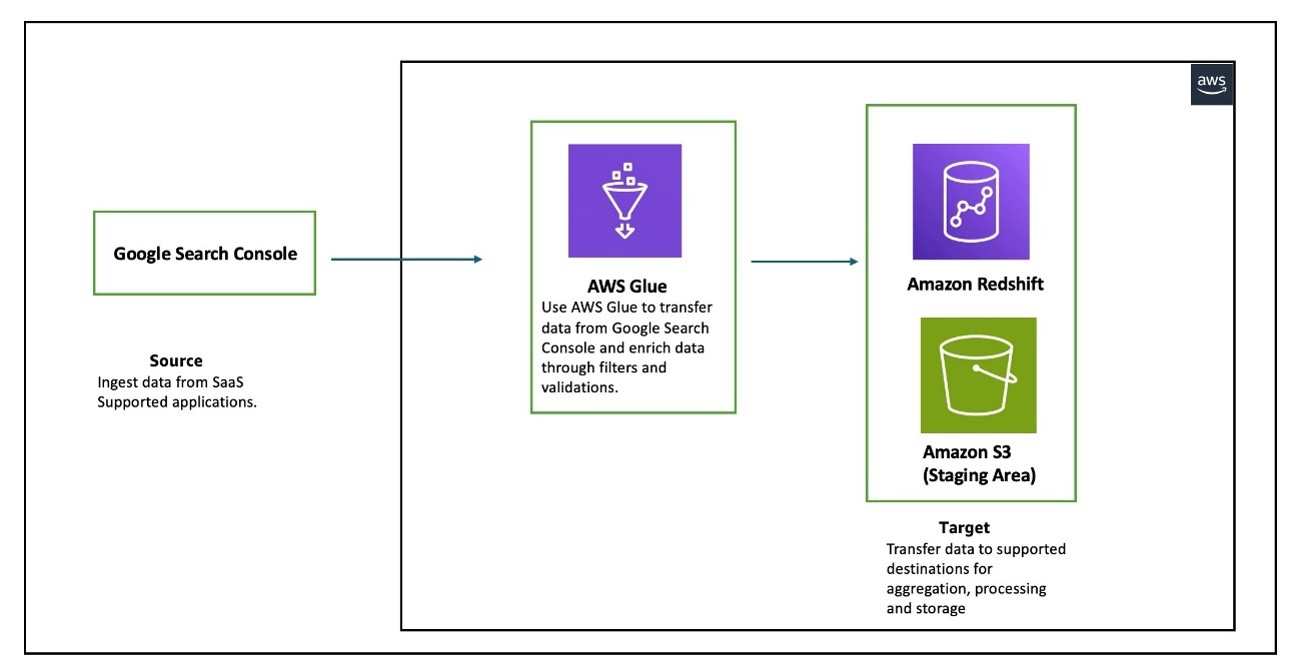
The workflow consists of an AWS Glue job reading data from Google Search Console for the three entities that Google Search Console supports (Search Analytics, Sites, and Sitemaps), and writing the data in a Redshift provisioned cluster. AWS Glue supports Google Search Console API v3.
In the following sections, we walk through the following steps to configure AWS Glue to set up a connection between Google Search Console and Amazon Redshift for data migration:
- Create an OAuth client.
- Create an IAM role for AWS Glue integration with Google Search Console, AWS Secrets Manager, and Amazon Redshift.
- Create a secret in Secrets Manager to store the client secret created in the previous step.
- Create a connection to Google Search Console in AWS Glue.
- Create a connection to Amazon Redshift in AWS Glue.
- Set up a table and permissions in Amazon Redshift.
- Create an ETL job in AWS Glue.
Prerequisites
Before starting this walkthrough, you must have the following prerequisites in place:
- An AWS account.
- A Google Cloud account and a Google Cloud project.
- In your Google Cloud project, you must enable the Google Search Console API.
For instructions, see Enable and disable APIs on the API Console Help for Google Cloud Platform. - A provisioned cluster or Amazon Redshift Serverless .
In this post, we use a single-node ra3.large Redshift provisioned cluster deployed in a single Availability Zone. This configuration is used for demonstration purposes only. For production environments, we recommend using multi-node clusters with a minimum of two nodes deployed across multiple Availability Zones for high availability and better performance. - An Amazon Simple Service Storage (Amazon S3) bucket.
- An AWS Identity and Access Management (IAM) role that grants AWS Glue and Amazon Redshift read-only access to Amazon S3. This role will be attached to the Redshift cluster or Redshift Serverless namespace during creation, and will also be used when running the AWS Glue job along with permissions to read and write secrets to Secrets Manager. Refer to the Amazon Redshift Database Developer Guide for more details.
Create OAuth client
To connect to Google Search Console, AWS Glue requires OAuth 2.0 for authentication. You must create an OAuth 2.0 client ID, which AWS Glue uses when requesting an OAuth 2.0 access token. To create an OAuth 2.0 client ID in the Google Cloud Platform console, follow these steps:
- On the Google Cloud Platform console, from the projects list, choose a project or create a new one.
- If the APIs & Services page isn’t already open, choose the menu icon on the upper left and choose APIs & Services.
- In the navigation pane, choose Credentials.
- Choose Create Credentials, then choose OAuth client ID.
- Select Web application as the application type, enter NewClient as the name, and provide https://console.aws.amazon.com for Authorized JavaScript origins.
- For Authorized redirect URIs, add https://us-east-1.console.aws.amazon.com/gluestudio/oauth. This example uses us-east-1 for setting up AWS Glue jobs; change the redirect URIs according to your AWS Region. Multiple redirect URIs can also be specified.
- Choose Create.
- Open the details page for your new client.
- Under Additional information, note down the client ID and client secret. You will need these details when configuring the secret in Secrets Manager.
Create IAM role for AWS Glue integration with Google Search Console, Secrets Manager, and Amazon Redshift
You can use AWS Glue to transfer data from supported sources into your Redshift databases. You need an IAM role because AWS Glue needs authorization to write into Redshift databases. To create a role, complete the following steps:
- Sign in to the IAM console with sufficient access to create policies.
- Choose Policies in the navigation pane.
- Choose Create policy.
- On the JSON tab, enter the following policy. AWS Glue needs the following permissions to access and run SQL statements in the Redshift database and create and retrieve secrets with Secrets Manager:
Modify the S3 bucket name that you are using as the staging bucket. Additionally, AWS Glue must have access to specific AWS owned S3 buckets for hosting AWS Glue transforms. In this example, the IAM policy uses aws-glue-studio-transforms-510798373988-prod-us-east-1, which is the AWS owned bucket in the us-east-1 Region. Refer to Review IAM permissions needed for ETL jobs for the appropriate bucket name for your Region.
- Choose Next.
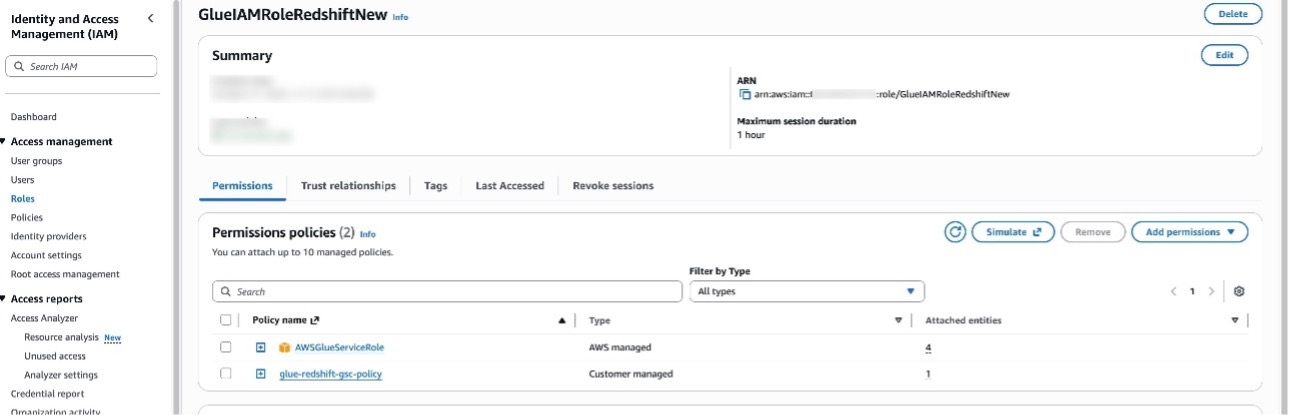
- For Policy name, enter a name (for this post, we use glue-redshift-gsc-policy).
- Enter a description, then choose Create policy.
- In the navigation pane, choose Roles and Create role.
- Choose Custom trust policy and enter the following, then choose Next.
- Search for and select the policy glue-redshift-gsc-policy, then choose Next.
- Provide the role name GlueIAMRoleRedshiftNew or another name and relevant Description, then choose Create role.
- After the role is created, choose Add permissions and Attach policies.
- Search for AWSGlueServiceRole and choose Add Permissions. This policy is typically attached to roles specified when defining crawlers, jobs, and development endpoints.
Create secret in Secrets Manager
Complete the following steps to create a Secrets Manager secret:
- On the Secrets Manager console, choose Store a new secret.
- Select Other type of secret.
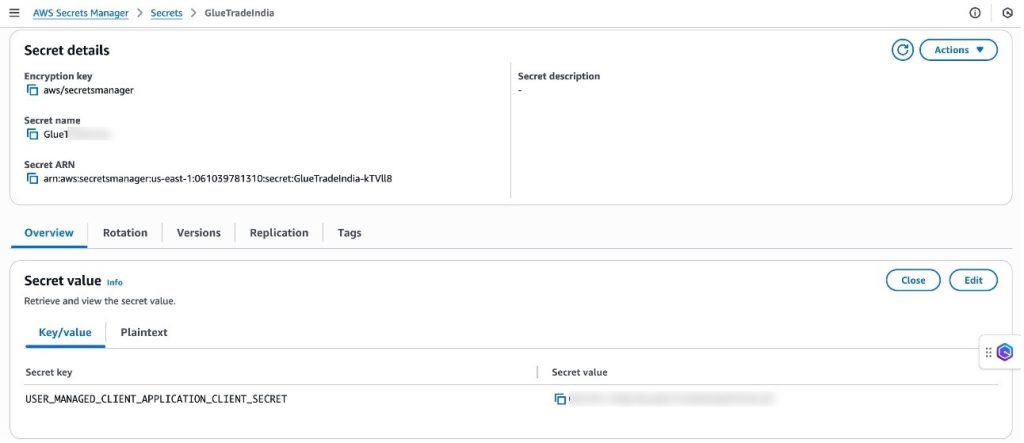
- For the customer-managed connected application, the secret should contain the connected application’s consumer secret with USER_MANAGED_CLIENT_APPLICATION_CLIENT_SECRET as the key and the client secret value as created in the previous step.
- Choose Next.
- Enter a secret name and choose Next.
- Choose Store.
Create connection to Google Search Console in AWS Glue
To create a connection to Google Search Console in AWS Glue, follow these steps:
- Sign in to the AWS Glue console with an authorized email ID with permissions already provided in Google Search Console.
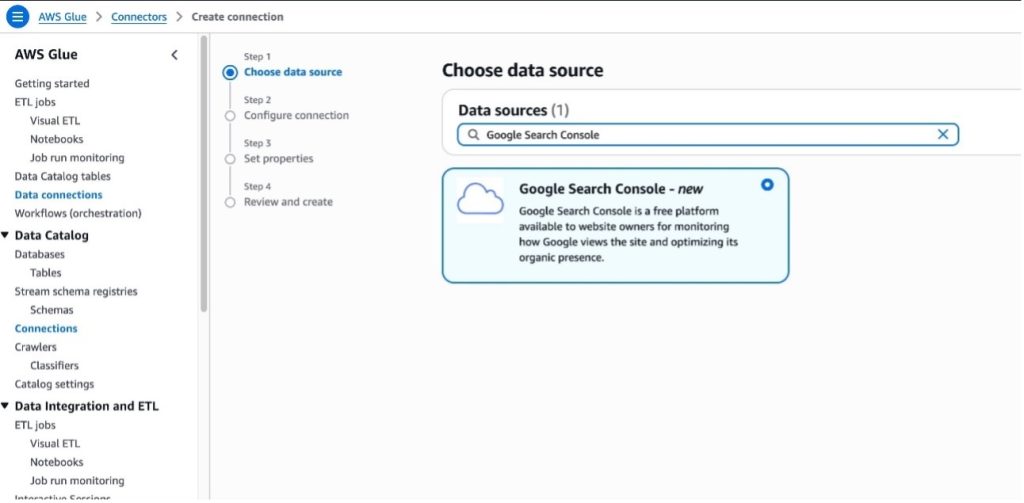
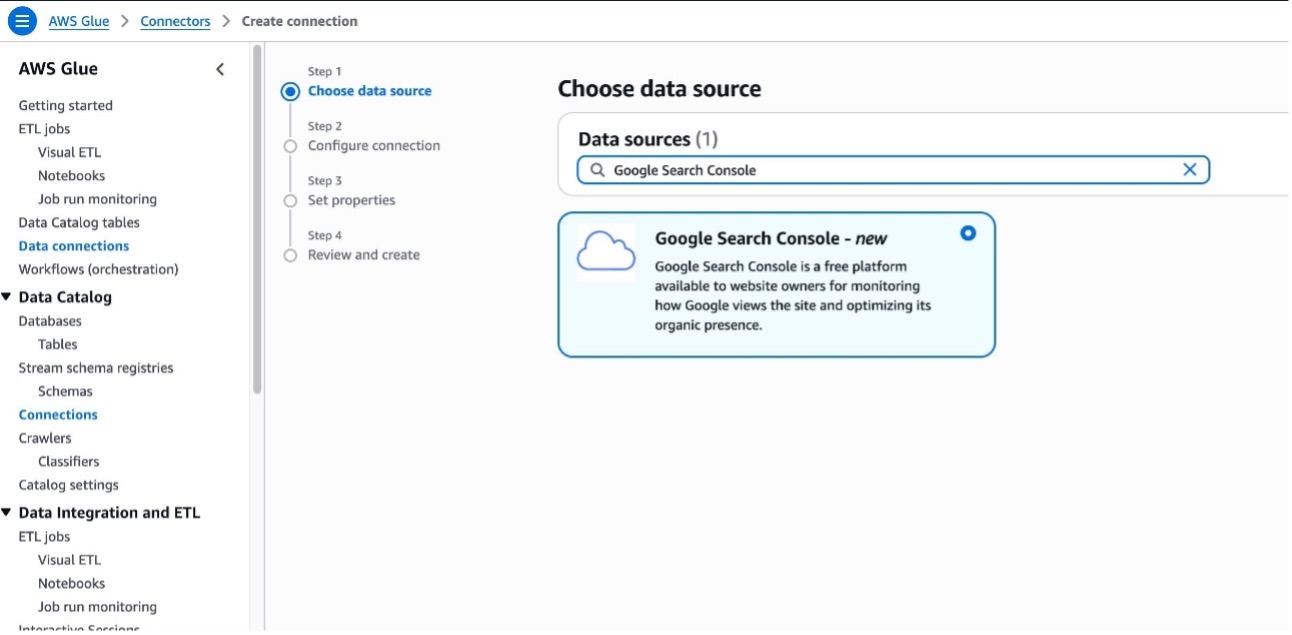
- In the navigation pane, choose Data connections.
- Under Connections, choose Create connection.
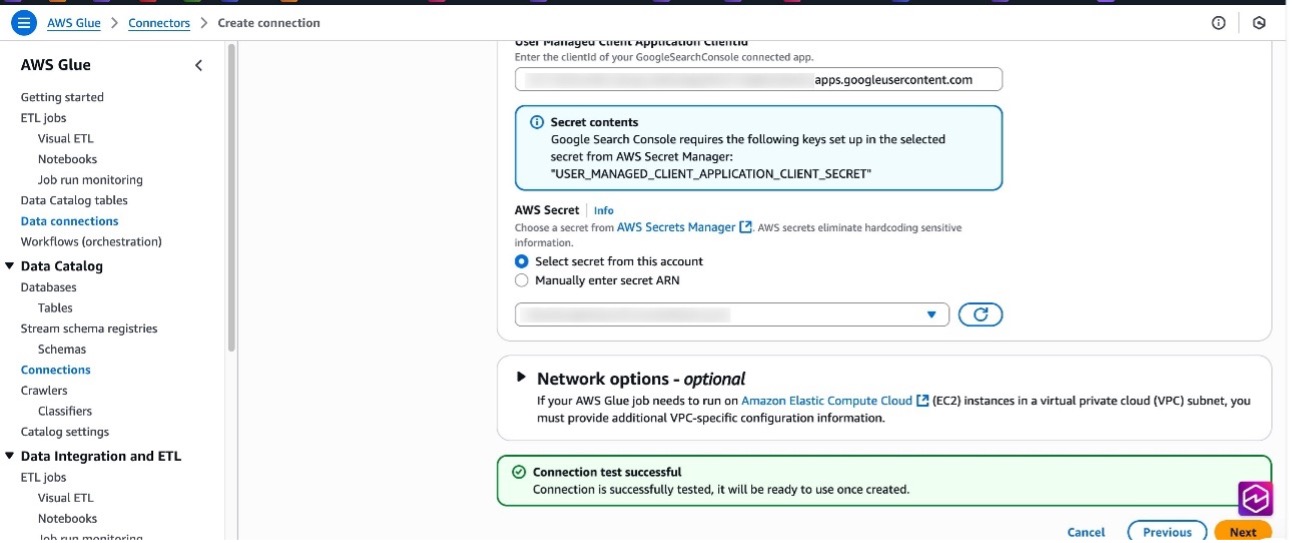
- In Data sources, search for Google Search Console and choose Next.
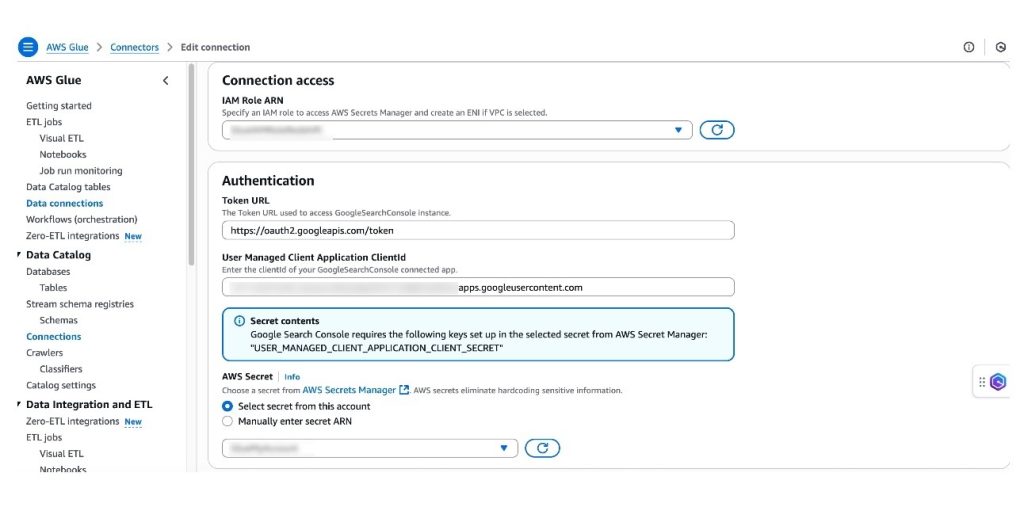
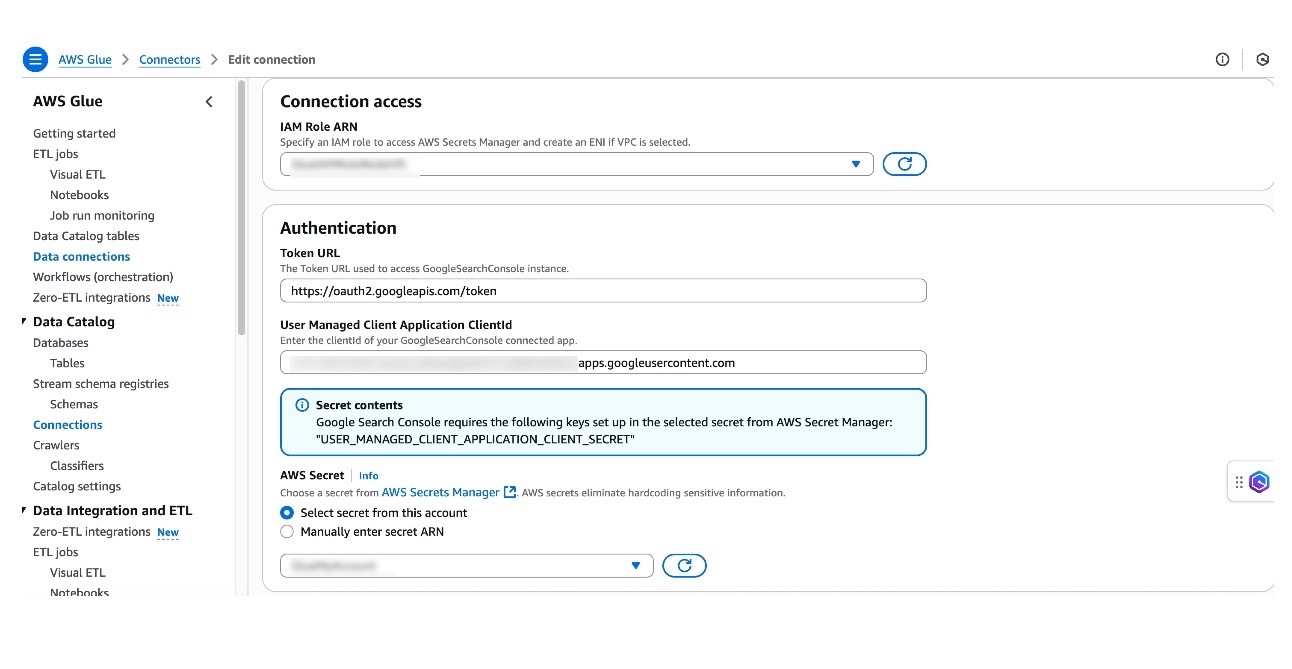
- For IAM Role ARN, choose the role created earlier.
- For Token URL, use https://oauth2.googleapis.com/token, which is the default value.
- For User Managed Client Application ClientId, enter the client ID created earlier while creating the OAuth client.
- For AWS Secret, choose the secret created earlier.
- If your AWS Glue jobs needs to run in an Amazon virtual private cloud (VPC), provide appropriate details. For more information, refer to Configure a VPC for your ETL job.
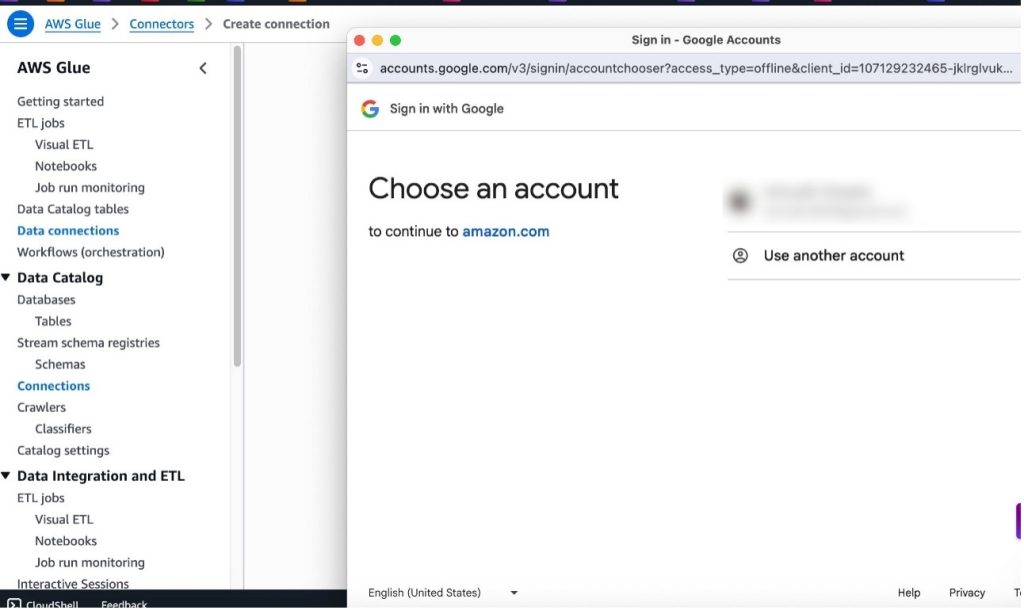
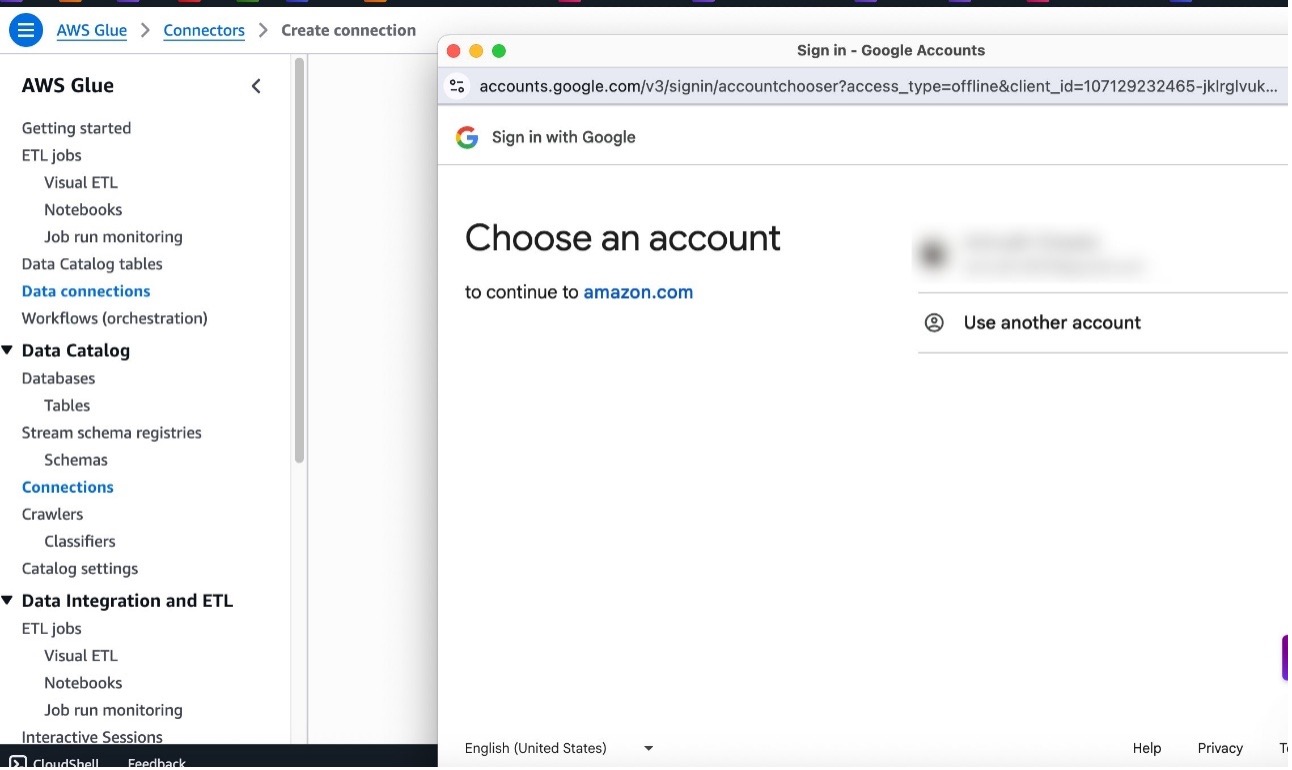
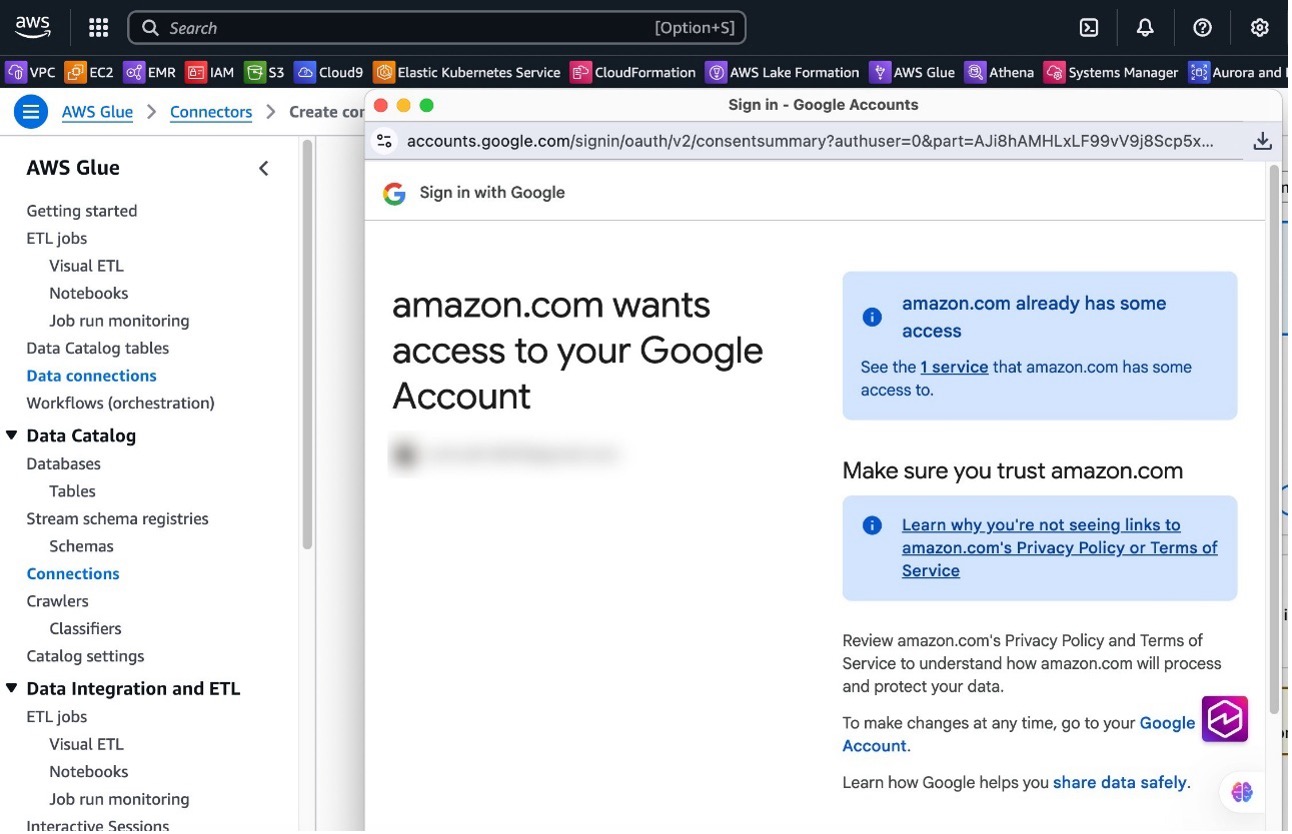
- Choose Test connection, choose your Google ID, and choose Continue.
- Choose Continue to trust the connection.
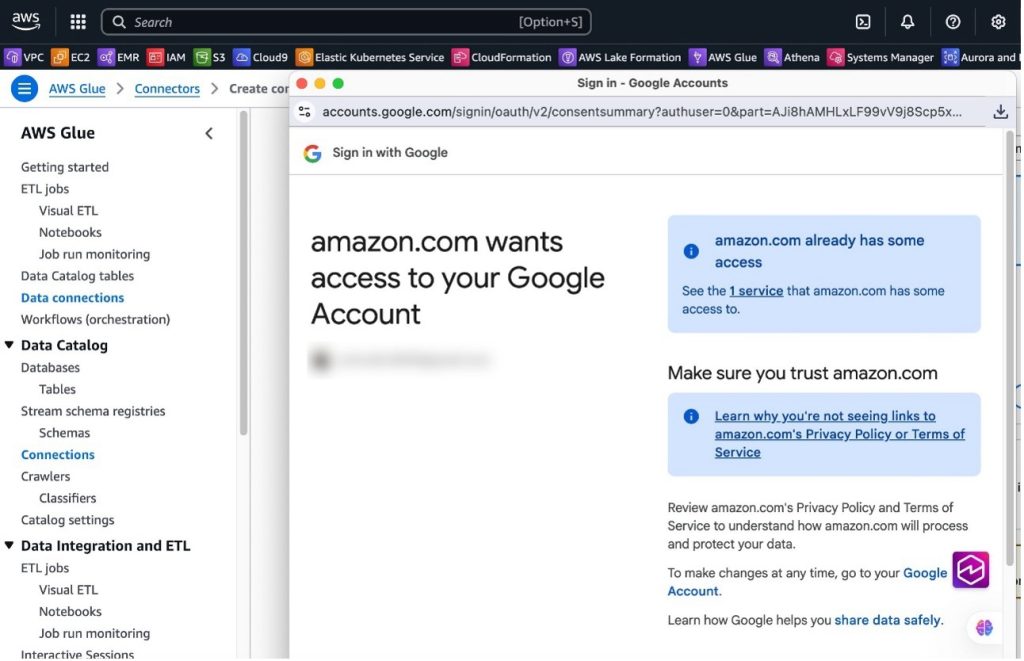 If the user has authorized access, the connection test will be successful.
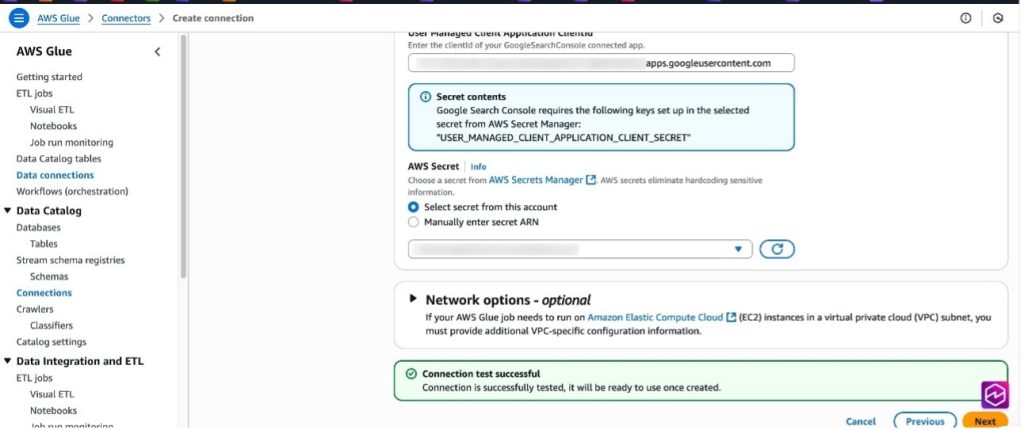
- Choose Next.
- Provide a connection name and choose Create connection.
Create connection to Amazon Redshift in AWS Glue
Complete the following steps to set up an AWS Glue connection for Amazon Redshift. Refer to Redshift connections for more information.
- On the AWS Glue console, in the navigation pane, choose Data connections.
- Under Connections, choose Create connection.
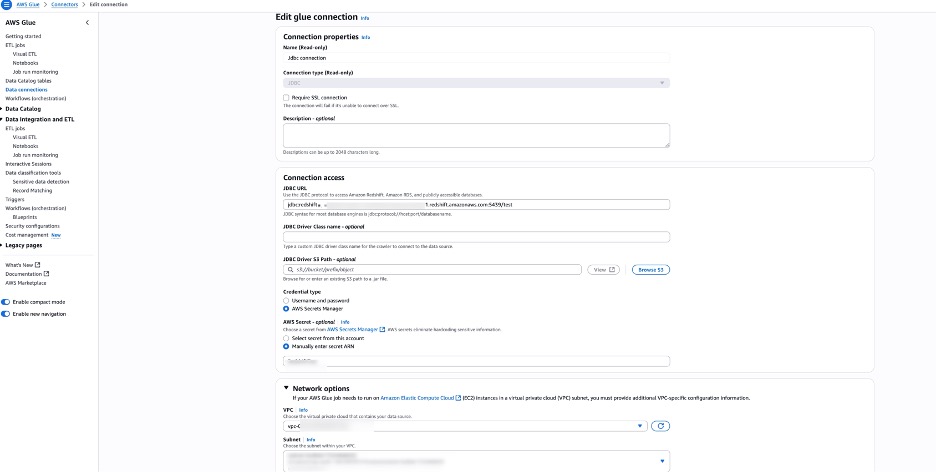
- In Data sources, search for JDBC and choose Next. For Amazon Redshift, you can also use Redshift connections. In this post, we use JDBC. In this example, we are using a Redshift provisioned cluster.
- Provide the Amazon Redshift JDBC URL and either use a Secrets Manager secret for storing credentials or provide the user name and password directly. As a best practice, it is recommended to use Secrets Manager.
- Configure network options with Amazon VPC settings for running the AWS Glue job in a VPC. In this example, we use the same VPC, subnet, and security group where the Redshift cluster is provisioned. All JDBC data stores must be accessible from the VPC subnet. A VPC endpoint is required to access Amazon S3 from within your VPC. If your job needs to access both VPC resources and the public internet, configure a NAT gateway in the VPC.
Set up table and permissions in Amazon Redshift
To set up table and permissions in Amazon Redshift, follow these steps:
- On the Amazon Redshift console, choose Query editor v2.
- Connect to your existing Redshift cluster.
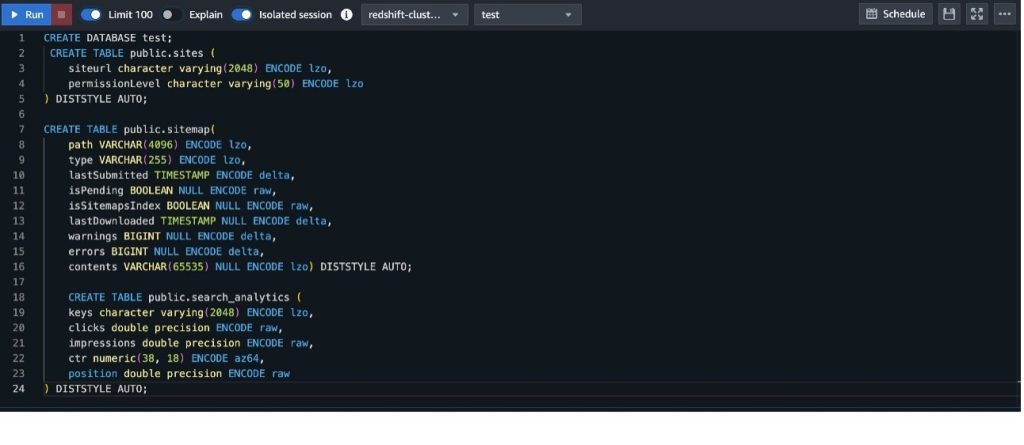
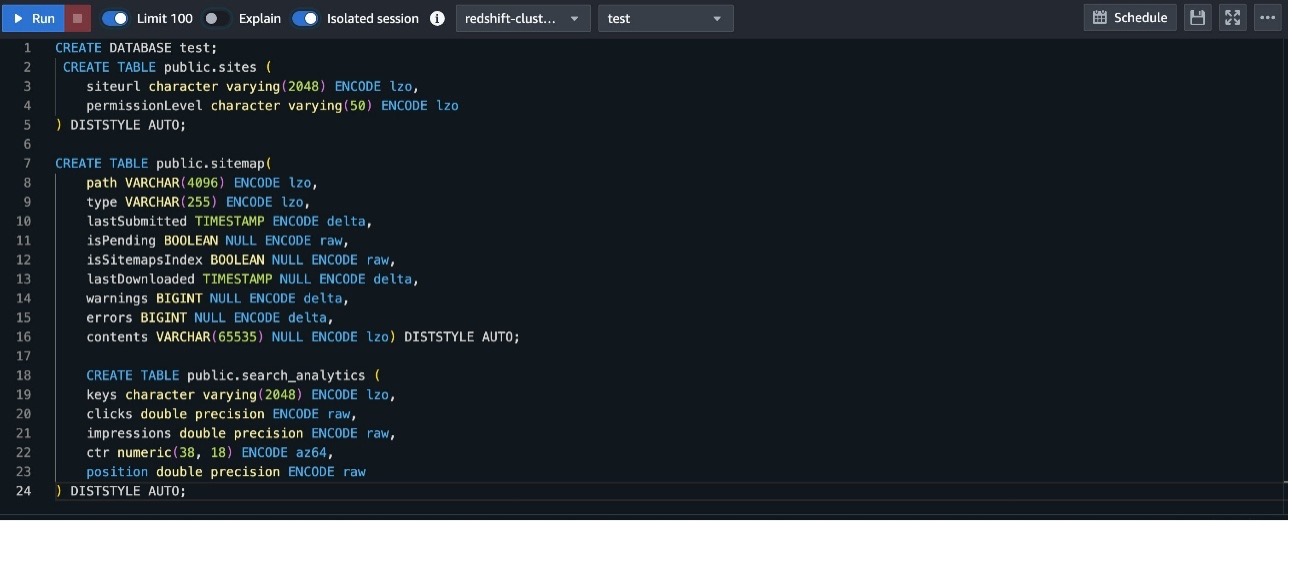
- Create a table with the following DDL. For this post, we create a new database named test and create the following tables in the public schema of test database:
Create ETL job in AWS Glue
To create a data flow in AWS Glue, follow these steps:
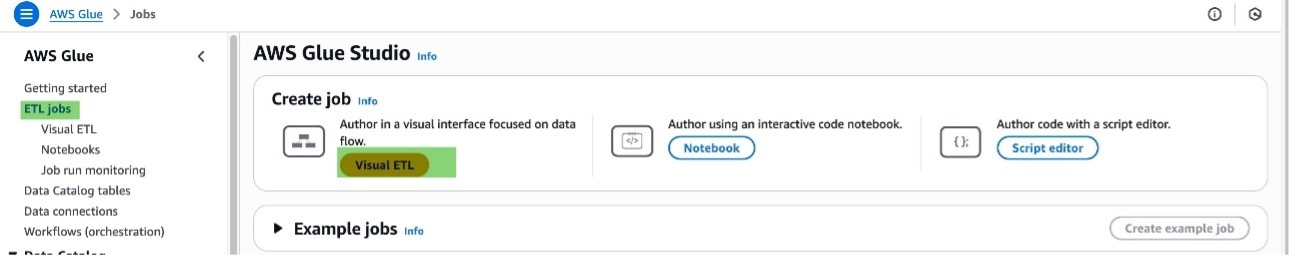
- On the AWS Glue console, choose ETL jobs in the navigation pane.
- Choose Visual ETL under Create job.
Each ETL job in AWS Glue is priced based on its duration.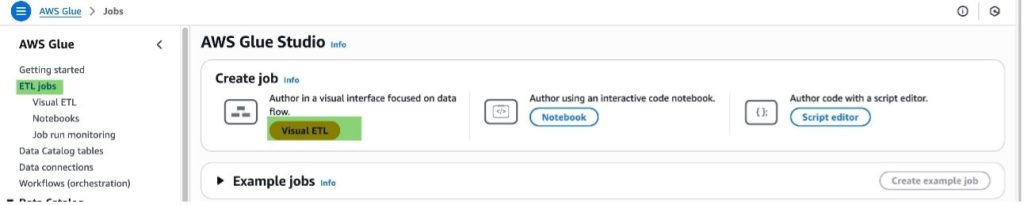
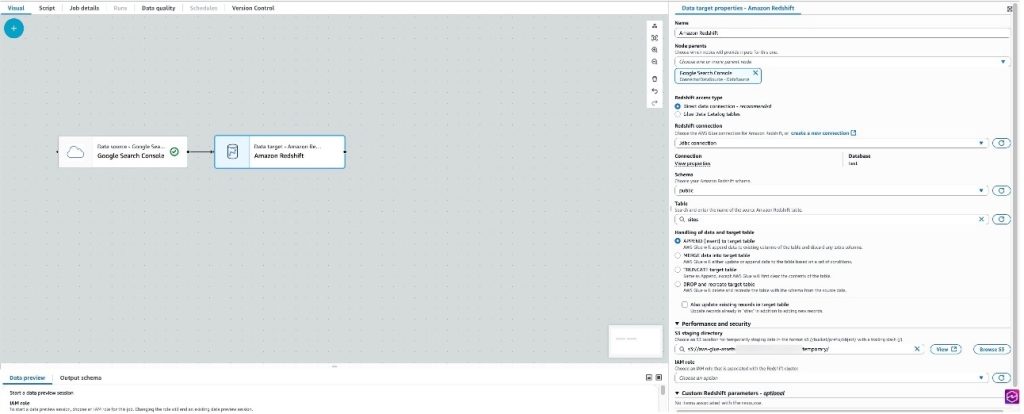
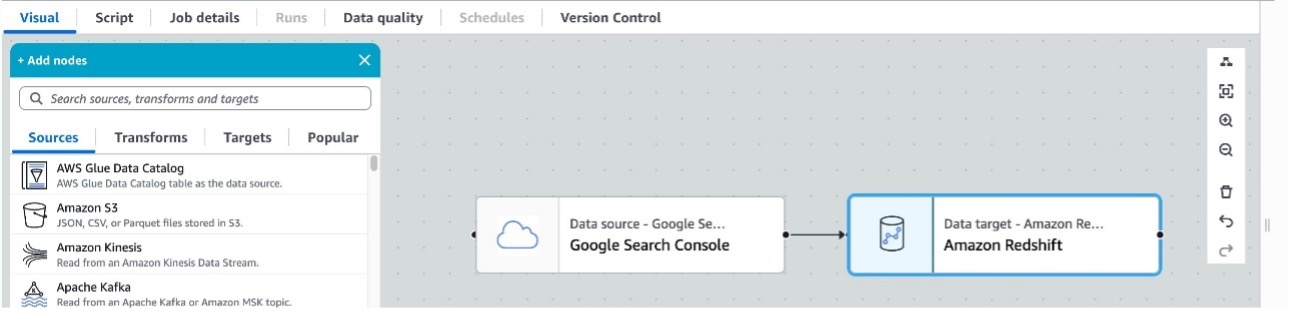
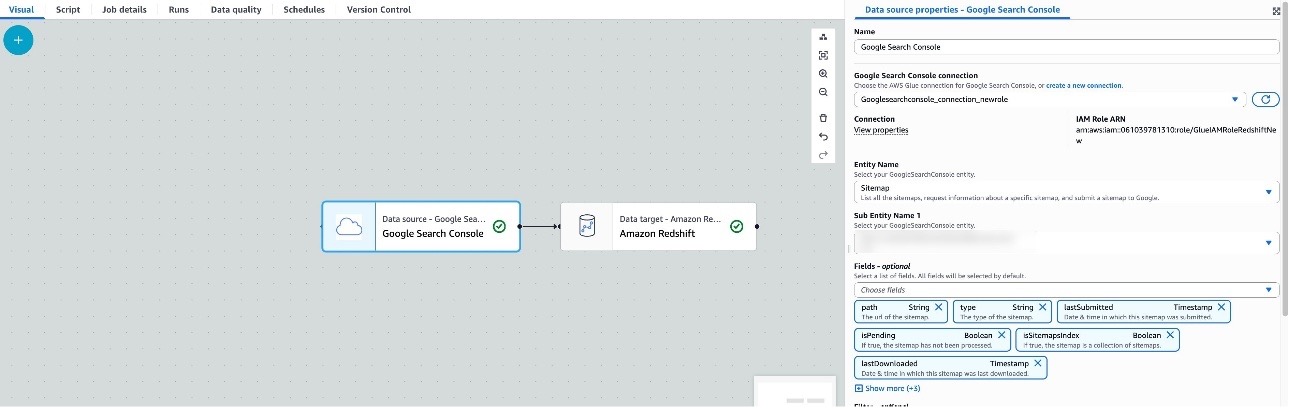
- For the source, choose Google Search Console, and for the target, choose Amazon Redshift.
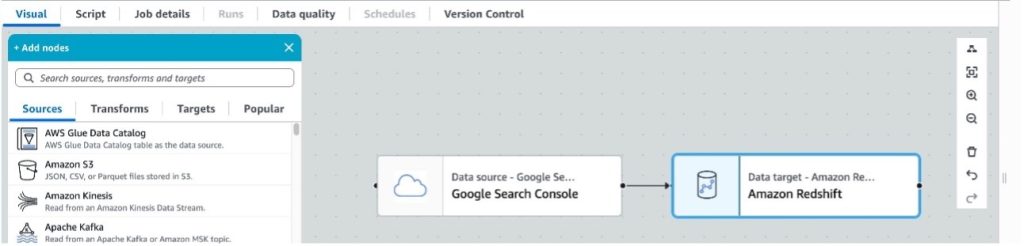
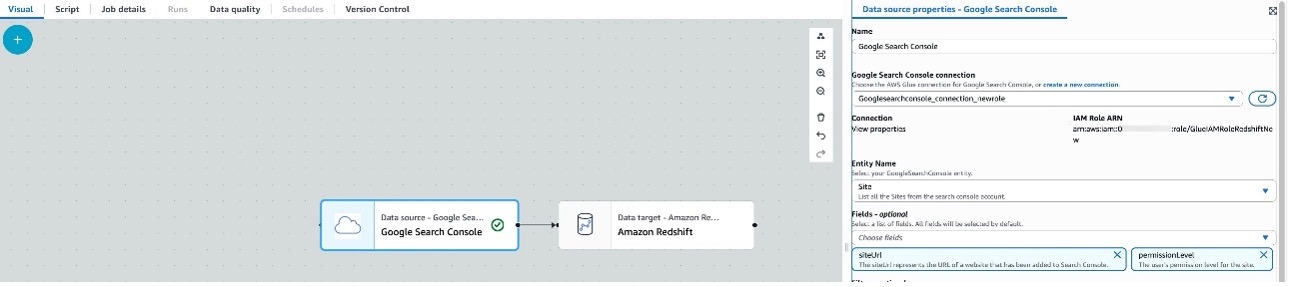
- Choose Source (Google Search Console) to configure the properties, which opens in the right window pane.
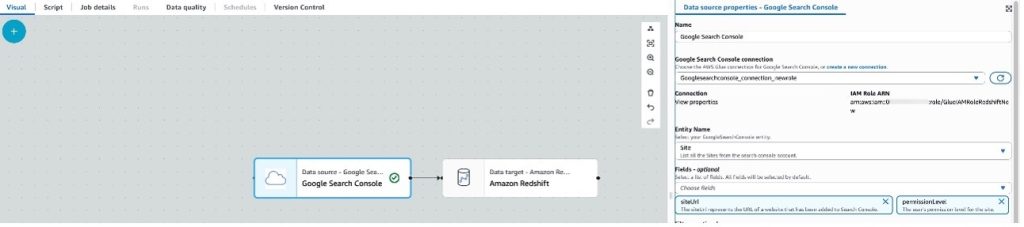
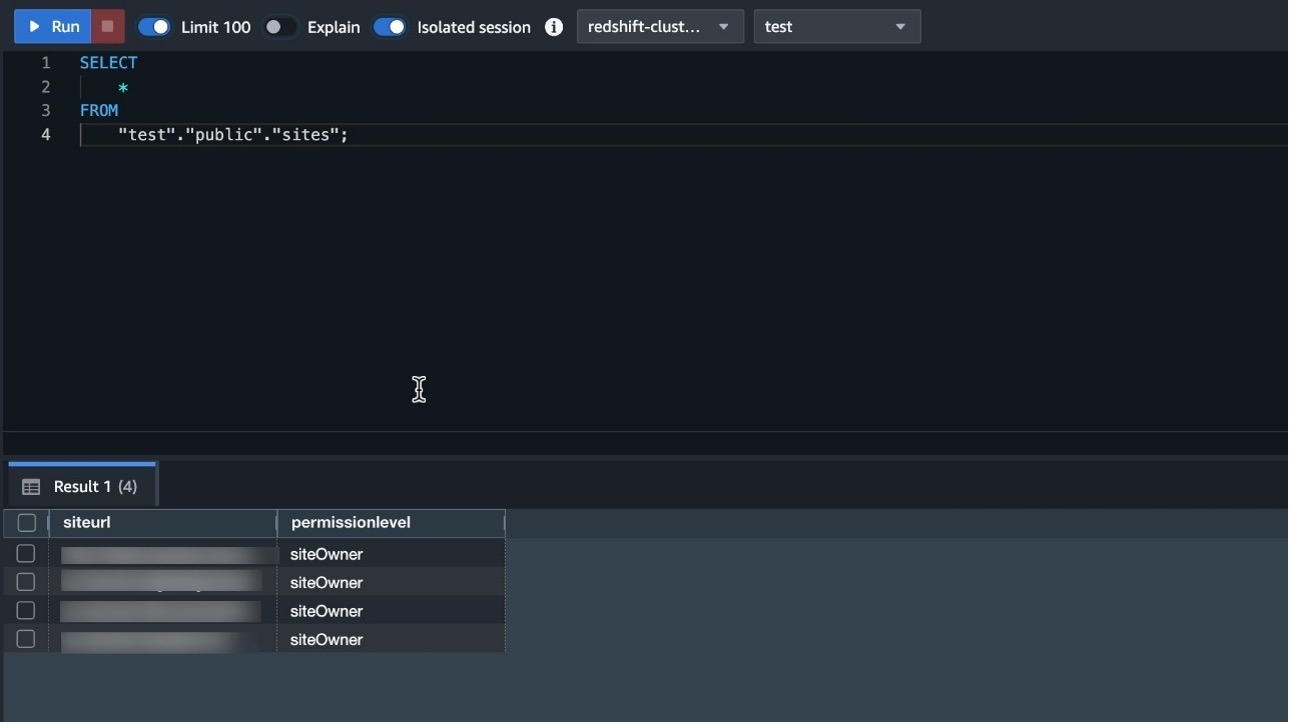
- Choose the Google Search Console connection created in the previous sections, and provide the entity name. At the time of writing, there are three supported entities: Search Analytics, Sites, and Sitemaps, with multiple supported fields and operators for each entity. Choose the entity name and the corresponding fields; by default, the connector selects all fields. The example shows selecting the entity Site and corresponding fields siteUrl and permissionLevel.
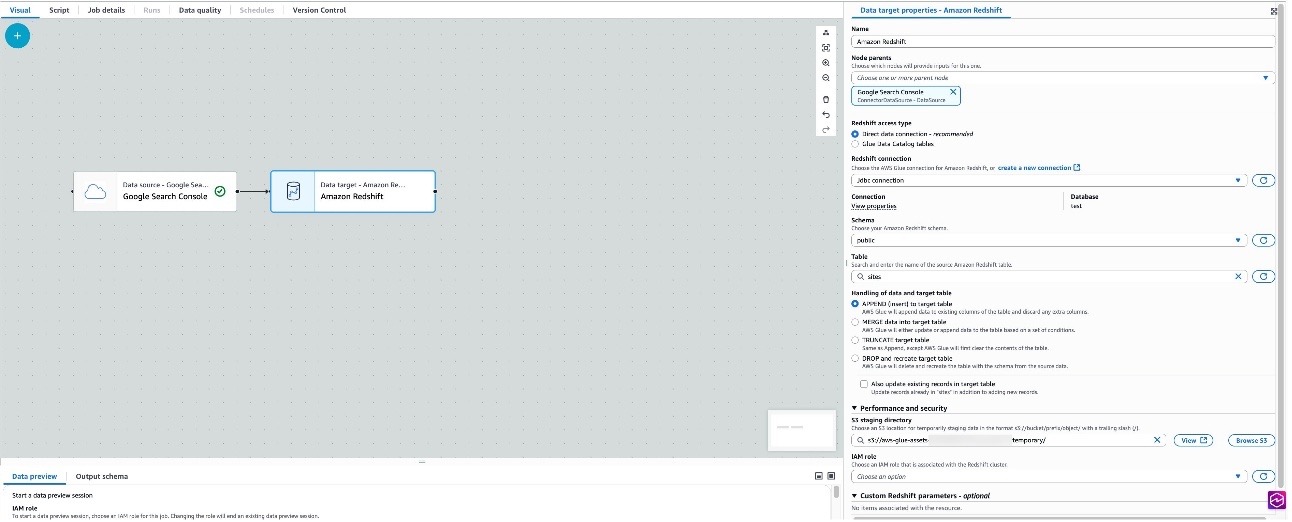
- Choose Target (Amazon Redshift) to configure the properties, which opens in the right pane.
- Choose the Amazon Redshift connection, schema, and table name that were created in the previous steps. In this example, we use Append to target table as the method for handling the data. An S3 directory is provided for staging temporary data.
- Navigate to Job details and provide a job name and IAM role (which the job will assume while running). This is the same role created earlier.
- Choose Save and Run. For this example, we use AWS Glue version 5.0, keeping all other configuration values under Job details at their defaults. For this example, we have not implemented any schema mapping, so the columns in Amazon Redshift were created to match the output response for the Search entity.
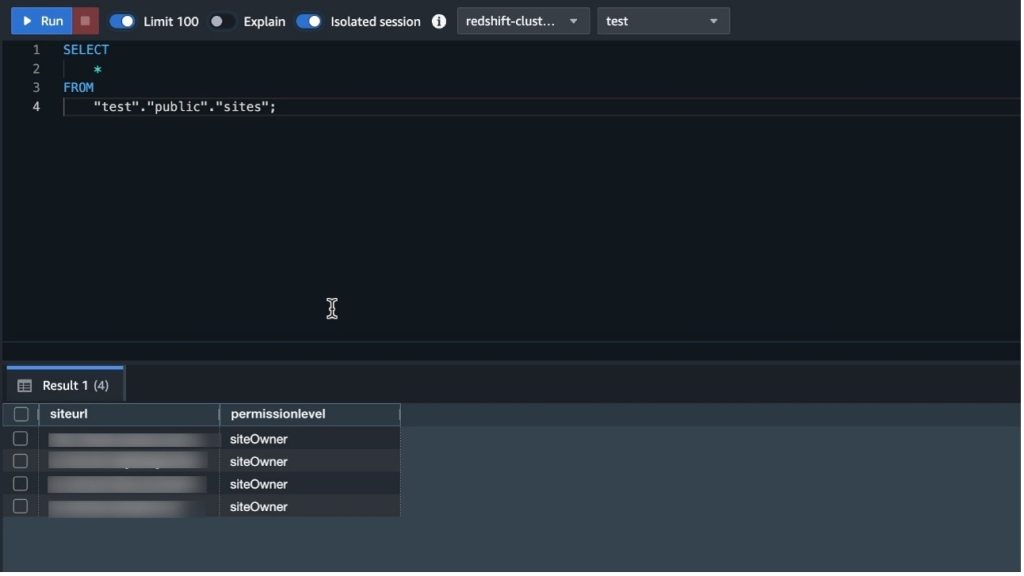
- After the job has completed successfully, navigate to Query Editor v2 in Amazon Redshift and query the Sites table to preview the data.

- In the case of job failures, validate the connections by doing a data preview, and refer to Troubleshooting AWS Glue.
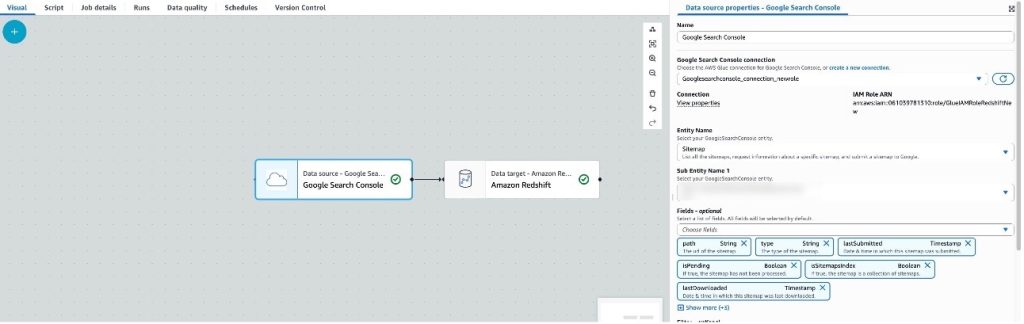
- Similar to the Site entity, you can load Sitemap entity data by changing the source properties and destination table in the target Redshift cluster, then choosing Run.
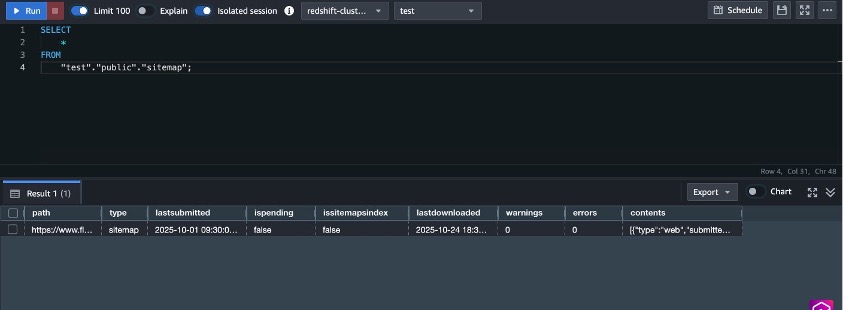
- Navigate to Query Editor v2 in Amazon Redshift and query the sitemap table to preview the data.
- Similar to Sitemap, you can load Search Analytics entity data by changing the source properties and destination table in the target Redshift cluster, then choosing Run.
- Navigate to Query Editor v2 in Amazon Redshift and query the search_analytics table and preview the data.

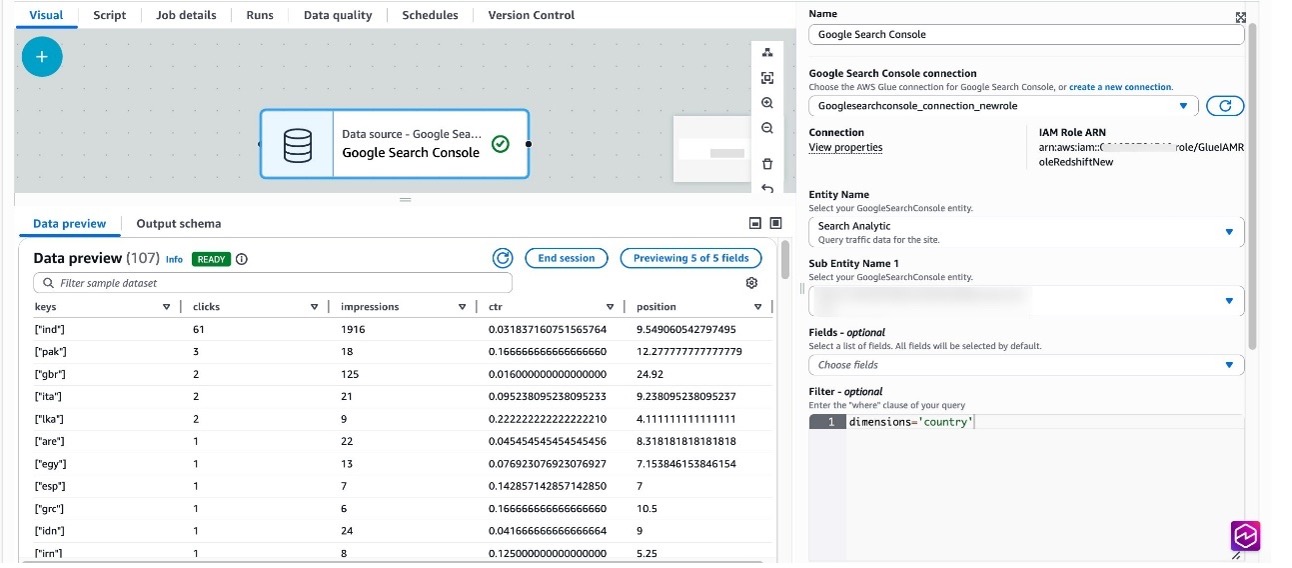
Filter predicates with Search Analytics
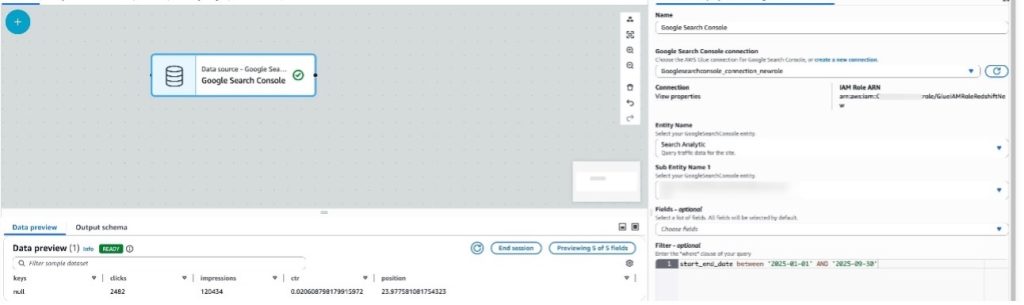
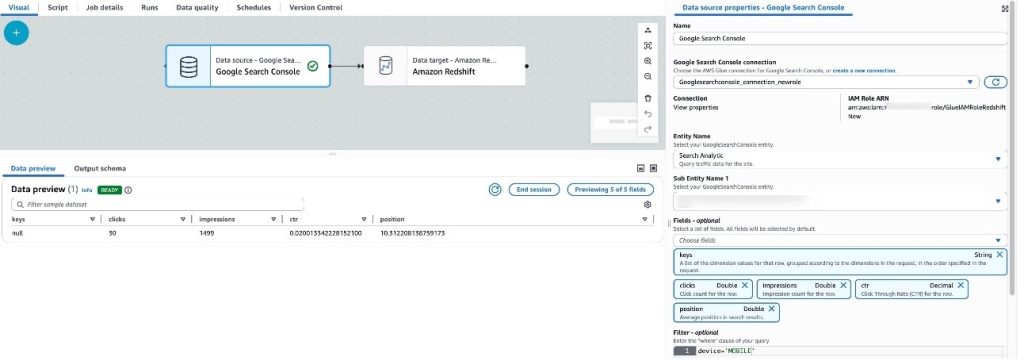
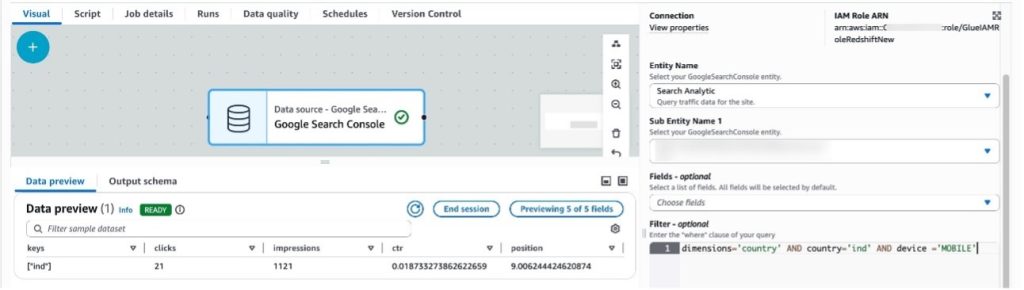
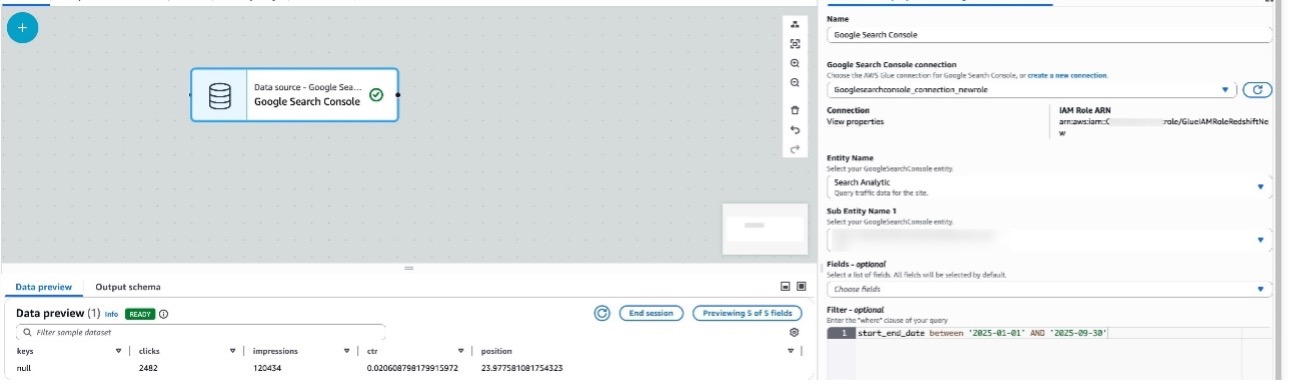
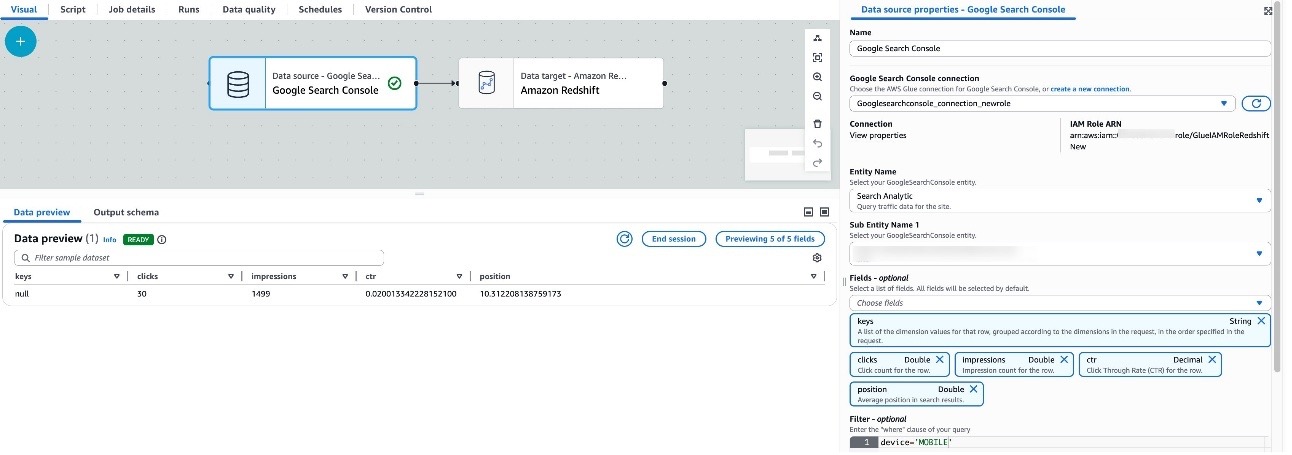
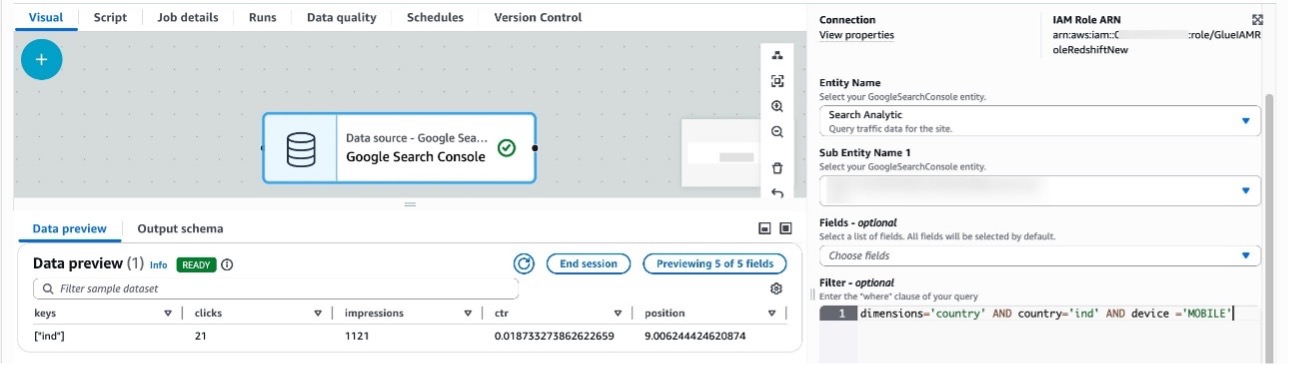
The Search Analytics entity provides support for multiple filters that can be used to view the traffic data for the sites. The following examples show use of some filter predicates you can use that Google Search Console connections support.
- start_end_date – The default value for start_end_date is between <30 days ago from the current date> AND <yesterday>. To use a different date range, use the between The following example displays search data from January through September 2025:
- device – The device filters result against specified device type like DESKTOP, MOBILE, and TABLET:
- country – You can filter against the specified country, as specified by three-letter country code (ISO 3166-1 alpha-3):
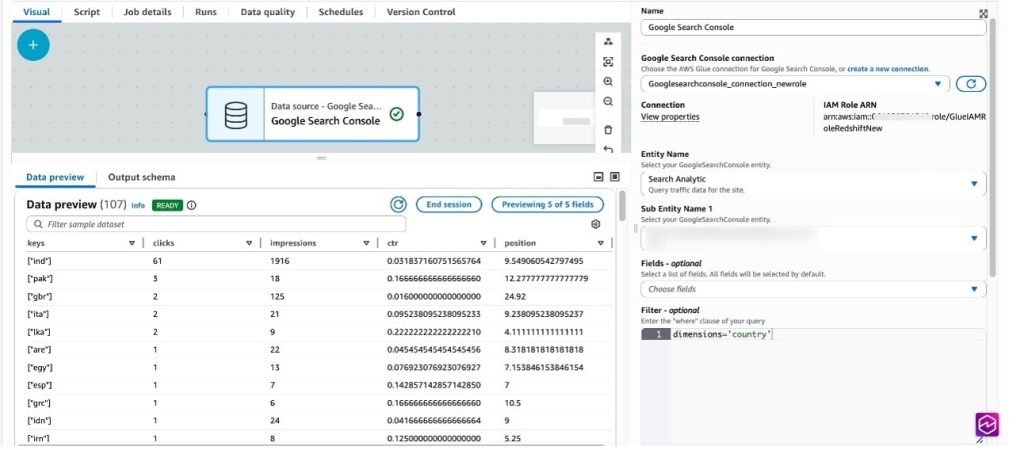
- dimensions: Dimensions help group zero or more results for filtering search data by country or device. The following example displays search data grouped by country, and also grouping by country and filtering for mobile devices:
Run analytical queries on Amazon Redshift
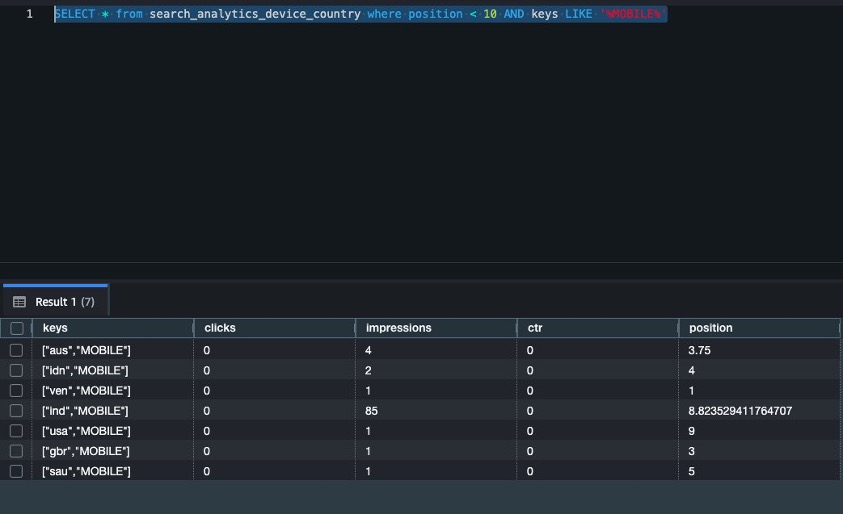
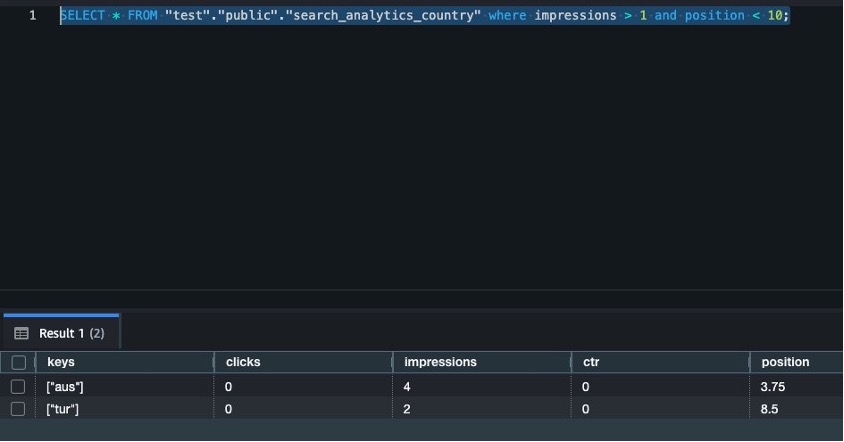
In this section, we run analytical queries using aggregated data across different search entities.
List all countries where site position is less than 10 and device type is MOBILE:
List all countries where impressions are greater than 1 and position is less than 10:
Clean up
To avoid incurring charges, clean up the resources in your AWS account by completing the following steps:
- On the AWS Glue console, in the navigation pane, choose Job monitoring.
- Stop any running jobs created for Google Search Console connections.
- From the list of connections, select the connection name created and delete it.
- Delete the Redshift provisioned cluster or the Redshift Serverless workspace and namespace. Amazon Redshift pricing is applied during the cluster’s runtime based on cluster configuration.
- Clean up resources in your Google account by deleting the project that contains the Google Project resources. For instructions, refer to Delete your project.
Conclusion
In this post, we walked you through the process of using AWS Glue to integrate data from Google Search Console and write it to Amazon Redshift, a petabyte-scale data warehouse. Whether you’re archiving historical data, performing complex analytics, or preparing data for machine learning, this connector streamlines the process and helps create an integrated data pipeline.
For more information, refer to AWS Glue support for Google Search Console.