AWS Compute Blog
Unlocking full-stack observability for AWS Outposts
Your team just deployed AWS Outposts to run latency-sensitive workloads on-premises, and now you need to monitor infrastructure that spans both your data center and an AWS Region. Some services run locally on the Outposts, and others depend on Regional endpoints. A network blip between the two can cause silent failures that traditional monitoring tools miss entirely.
AWS Outposts extends native AWS services to on-premises environments, but this hybrid topology introduces monitoring challenges that don’t exist in pure-cloud or pure-on-premises setups. Control planes are distributed, critical operations depend on AWS Region connectivity, and fixed, finite capacity requires proactive capacity planning.
In this post, you will learn how to build end-to-end observability for Outposts using AWS Systems Manager, Amazon CloudWatch, and Amazon EventBridge, covering four monitoring dimensions:
- Network – Connectivity status, BGP sessions, and Regional service dependency tracking.
For dependency tracking, watch each Regional service’s own CloudWatch metrics together with the service-link ConnectedStatus: that pairing tells a dependency failure apart from a connectivity drop. For example, AWS Directory Service (DirectoryReachability, AuthenticationFailures), Amazon Relational Database Service (Amazon RDS) (ReplicaLag, DatabaseConnections), and so on.
- Storage – Amazon Simple Storage Service (Amazon S3) on Outposts capacity, Amazon Elastic Block Store (Amazon EBS) volume utilization, and replication health.
- Compute – Instance-level metrics, micro-architectural performance, and enhanced networking.
- Containers – Amazon Elastic Kubernetes Service (Amazon EKS) on Outposts with Prometheus-based Kubernetes monitoring.
By the end, you will have a monitoring architecture that gives you unified visibility across your hybrid environment and catches issues before your users do.
Building a monitoring foundation with AWS Systems Manager
The following sections detail how to configure each component of the Systems Manager foundation for your Outposts environment.
Centralized management architecture
Systems Manager provides the foundation for Outposts monitoring with centralized management across hybrid environments. Configure it to span your cloud and on-premises infrastructure so you get unified visibility, automated operations, and consistent policy enforcement across your distributed AWS resources.
SSM Agent deployment
The Systems Manager agent (SSM Agent) is the basis for monitoring. Use the following commands to install the SSM Agent on your Outpost servers.
OpsCenter integration
Systems Manager OpsCenter provides incident management capabilities that extend beyond basic alerting:
- Automated OpsItem creation: Configure Amazon EventBridge to automatically create operational work items when specific conditions are met.
- Runbook integration: Link automated remediation runbooks directly to OpsItems for immediate response.
- Cross-service correlation: Aggregate related issues across multiple AWS services into single operational views.
- Historical analysis: Use OpsCenter’s data retention for trend analysis and continuous improvement.
Patch management strategy
Implement a patch management approach that addresses the unique requirements of Outposts:
Systems Manager Patch Manager requires the SSM Agent to communicate with Regional endpoints through the service link. If the service link is degraded, patching operations will fail.
Personal Health Dashboard integration
The integration between AWS Personal Health Dashboard (PHD) and OpsCenter creates a proactive monitoring workflow. When an Outposts health event occurs, this rule automatically creates an OpsItem in Systems Manager, giving your operations team a single view for triage.
Automated event processing
Configure Amazon EventBridge rules to automatically process PHD events:
Monitoring dimensions
This section covers the four key monitoring dimensions for Outposts, with specific metrics, configurations, and alerting strategies for each.
1. Network monitoring and notification
Network monitoring for Outposts requires approaches that account for the hybrid nature of the deployment:
Multi-layer connectivity monitoring
Implement monitoring across multiple network layers:
- Physical layer: Monitor fiber-optic connections, network equipment health, and environmental factors.
- ConnectedStatus.
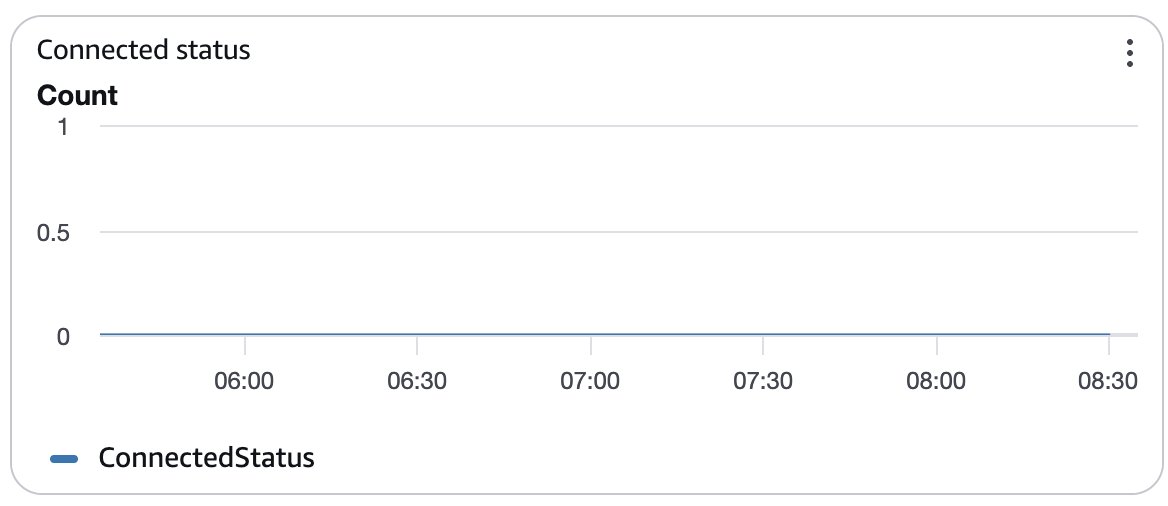
Figure 1: ConnectedStatus metric for the Outposts service link
- Network layer: Track routing, Border Gateway Protocol (BGP) sessions, and inter-rack connectivity.
- VIF metrics.
- VifBgpSessionState.
- VIF metrics.
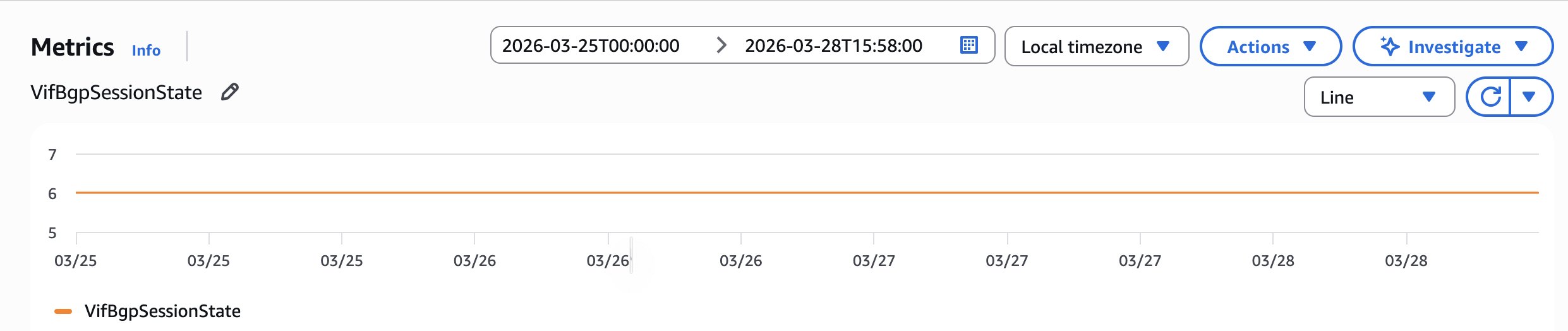
Figure 2: VifBgpSessionState metric for the Outposts virtual interface
- VifConnectionStatus.
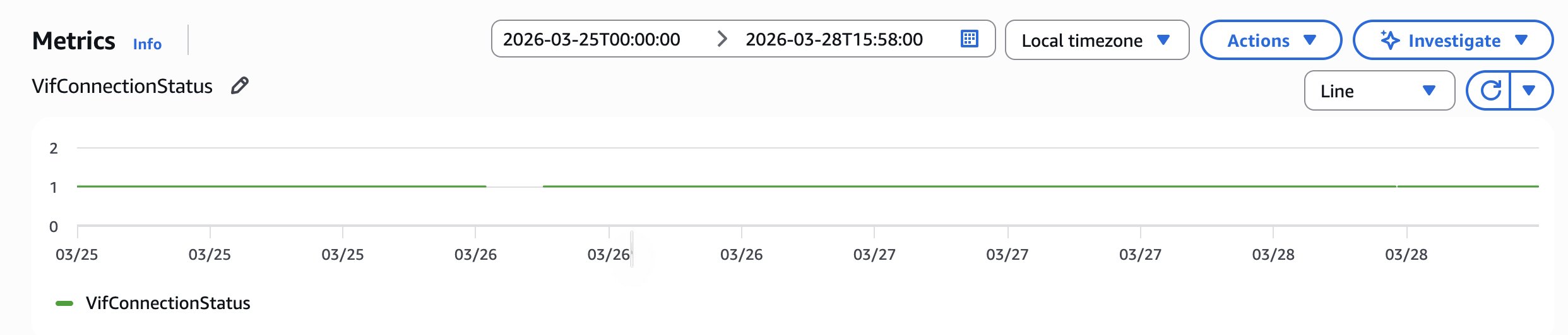
Figure 3: VifConnectionStatus metric for the Outposts virtual interface
- IfTrafficIn.
- IfTrafficOut.
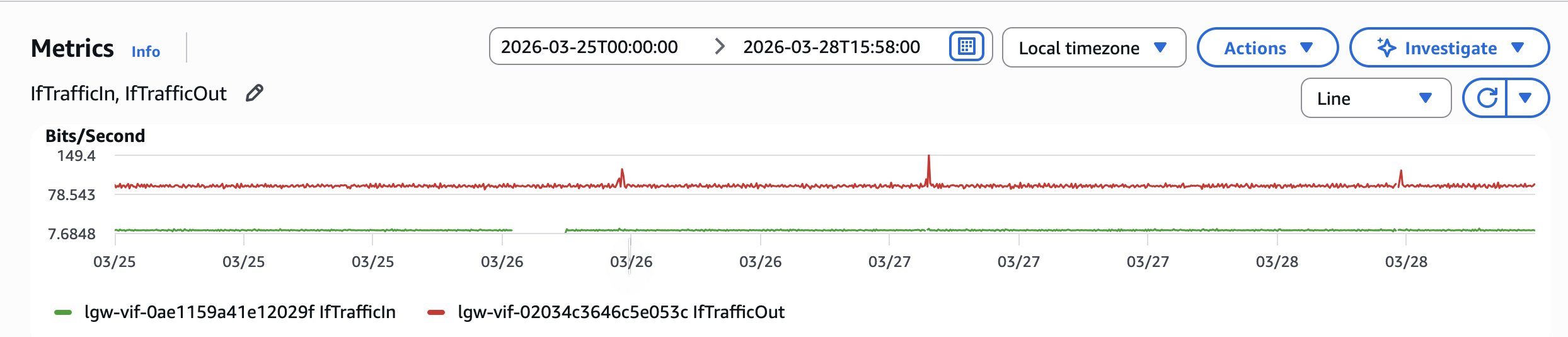
Figure 4: IfTrafficIn and IfTrafficOut metrics for Outposts network traffic
- CapacityExceptions.
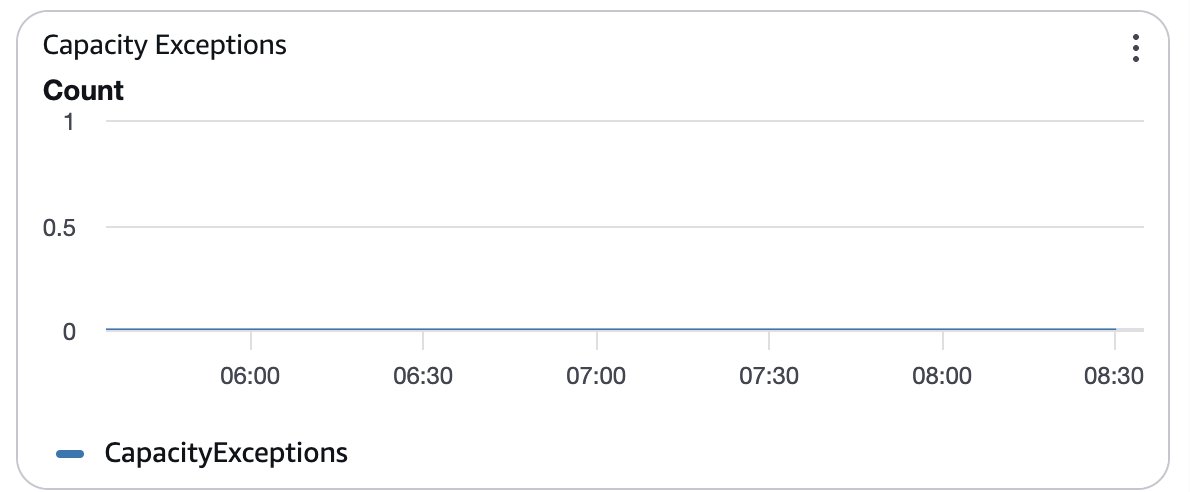
Figure 5: CapacityExceptions metric for the Outposts link
- LagStatus:.
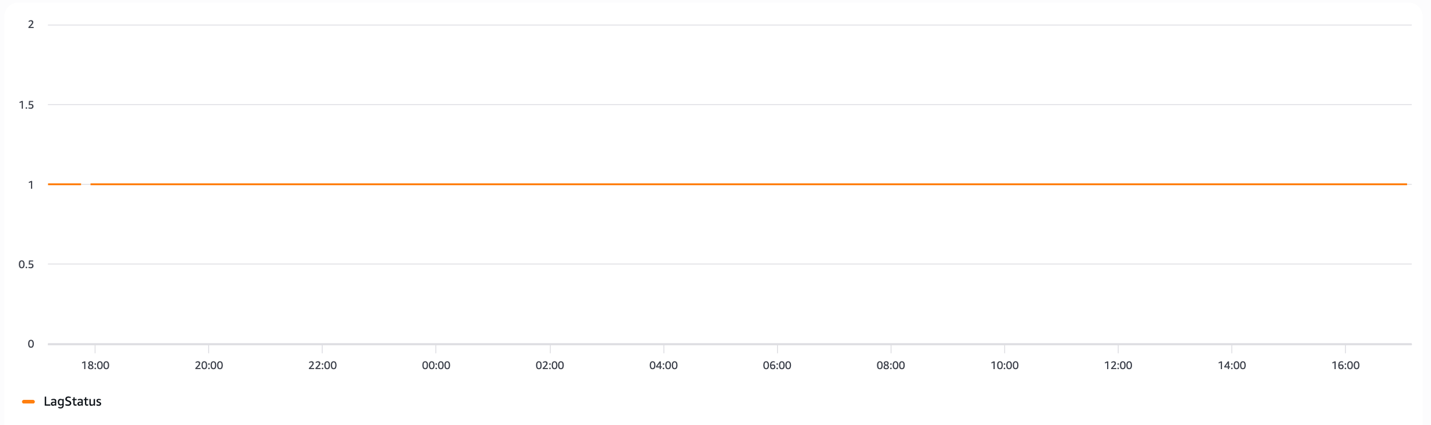
Figure 6: LagStatus metric for the Outposts link aggregation group
Regional service dependency mapping
Create detailed dependency maps for critical Regional services:
- Amazon Elastic File System (Amazon EFS): Monitor mount target availability and performance across Availability Zones.
- AWS Directory Service: Track authentication latency and success rates.
- Amazon RDS: Monitor cross-Region replication lag and connection pooling.
- AWS Lambda: Track cold start times and execution duration for Region-dependent functions.
2. Storage monitoring and optimization
Outposts provides CloudWatch metrics for both Amazon S3 and Amazon EBS storage resources. Monitor these metrics to track capacity utilization and plan for scaling.
S3 metrics:
The S3Outposts namespace includes the following metrics for Amazon S3 on Outposts buckets. You can monitor the total number of S3 on Outposts bytes provisioned, the total available bytes for objects, and the total size of all objects for a given bucket. Bucket or account-related metrics exist for all direct S3 usage.
- OutpostTotalBytes: The total provisioned capacity in bytes for an Outpost.
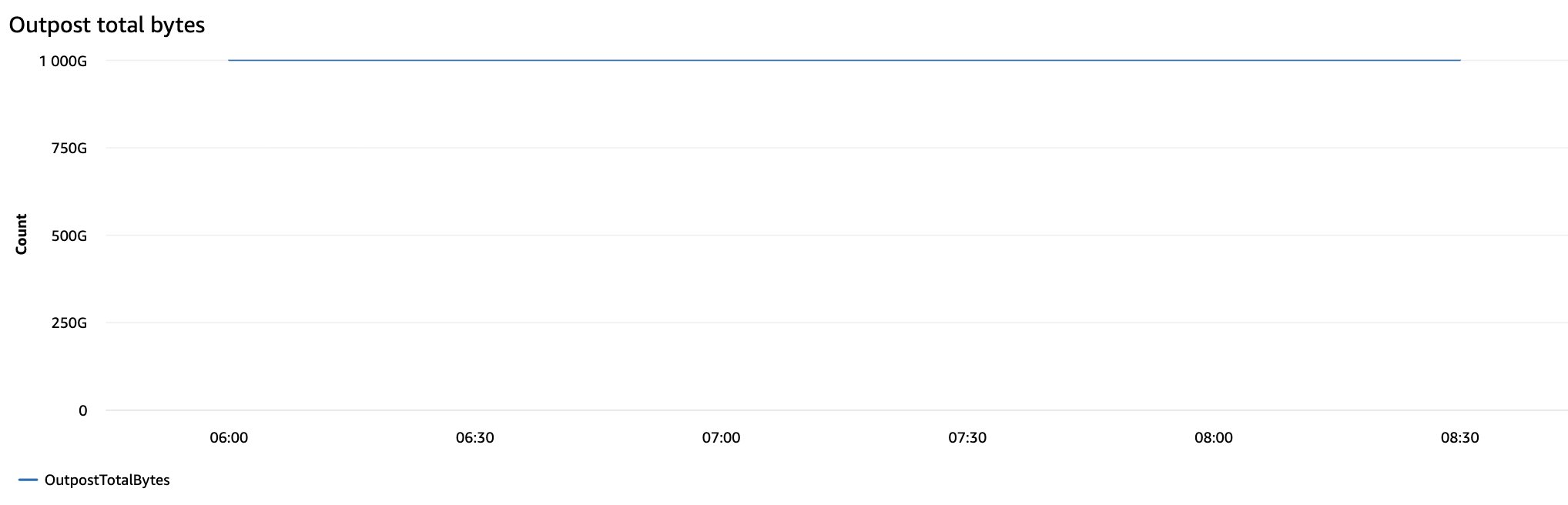
Figure 7: OutpostTotalBytes metric for S3 on Outposts provisioned capacity
- OutpostFreeBytes: The count of available bytes on an Outpost to store customer data. BucketUsedBytes: The total size of all objects for the given bucket.
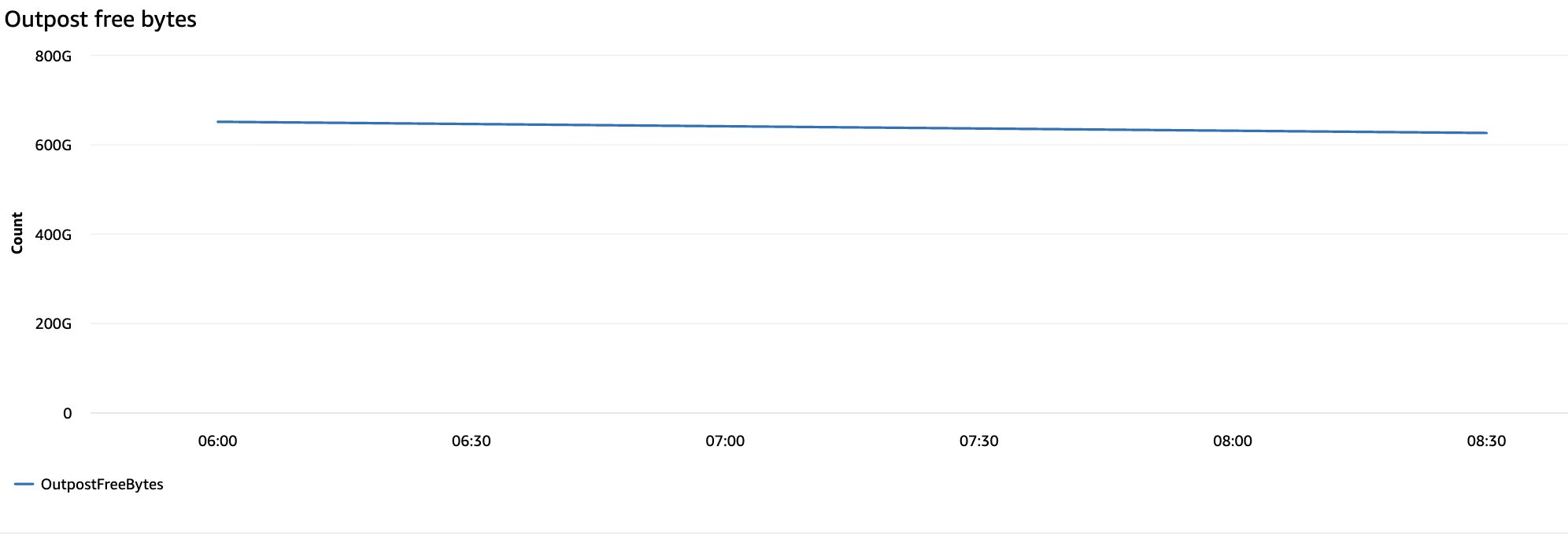
Figure 8: OutpostFreeBytes metric for available S3 on Outposts capacity
Other key metrics to monitor include the following:
- AccountUsedBytes: The total size of all objects for the specified Outposts account.
- BytesPendingReplication: The total number of bytes of objects that are pending replication for a given replication rule. For more information about how to enable replication metrics, see Creating replication rules between Outposts.
- OperationsPendingReplication: The total number of operations that are pending replication for a given replication rule.
Amazon EBS performance deep dive
The following Amazon EBS metrics are available for Outposts volumes:
- EBSVolumeTypeCapacityUtilization: The percentage of Amazon EBS volume type capacity in use.
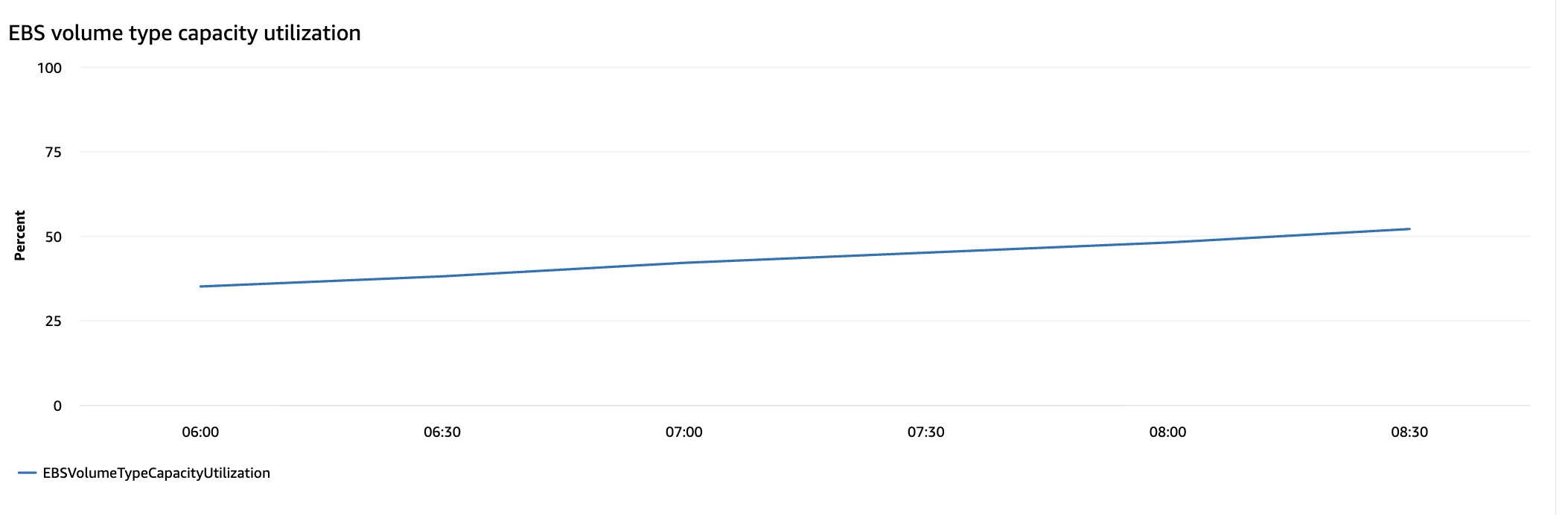
Figure 9: EBSVolumeTypeCapacityUtilization metric for Outposts Amazon EBS volumes
- EBSVolumeTypeCapacityAvailability: The percentage of Amazon EBS volume type capacity available.
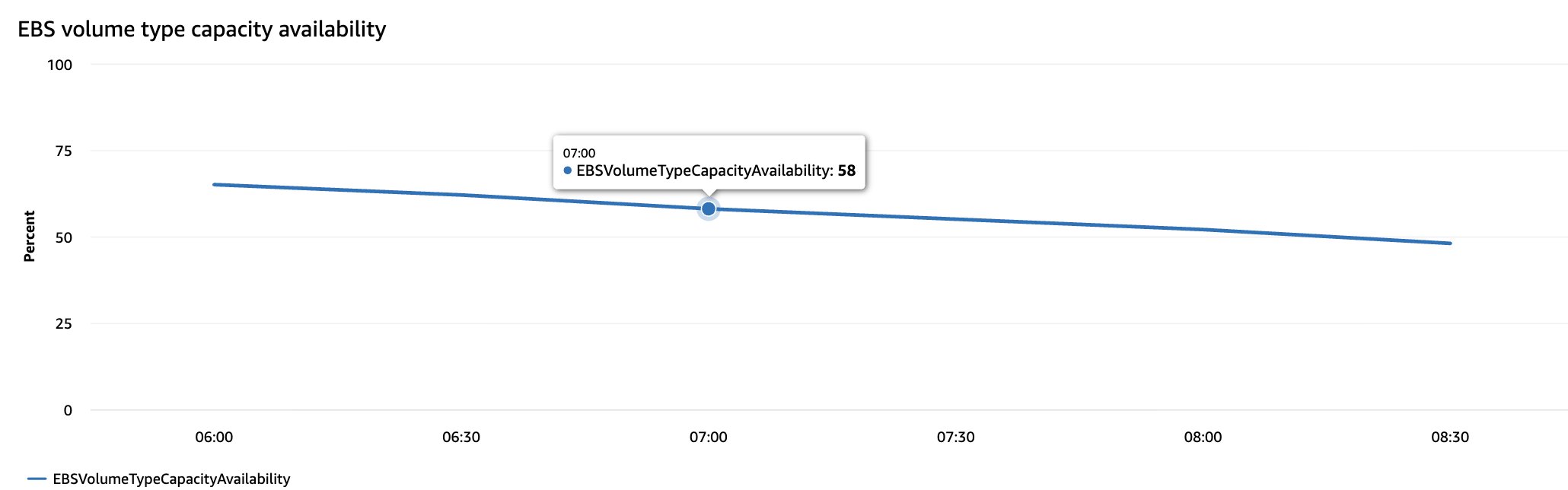
Figure 10: EBSVolumeTypeCapacityAvailability metric for Outposts Amazon EBS volumes
- EBSVolumeTypeCapacityUtilizationGB: The number of gigabytes in use for the Amazon EBS volume type.
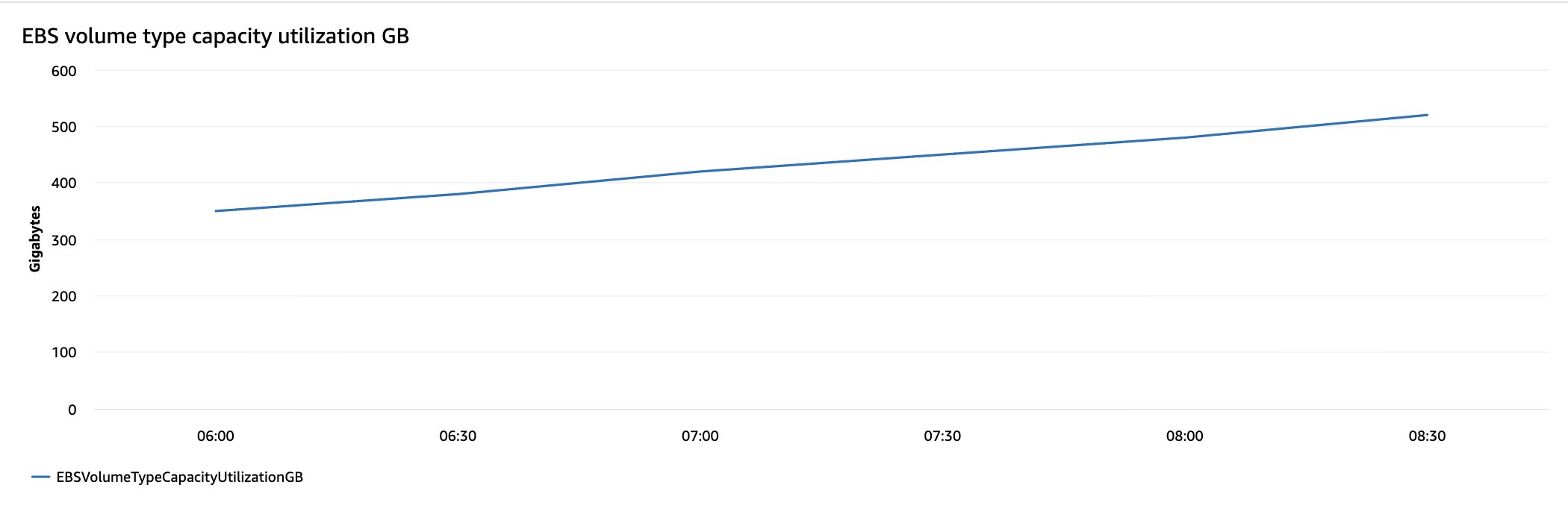
Figure 11: EBSVolumeTypeCapacityUtilizationGB metric for Outposts Amazon EBS volumes
- EBSVolumeTypeCapacityAvailabilityGB: The number of gigabytes of available capacity for the Amazon EBS volume type.
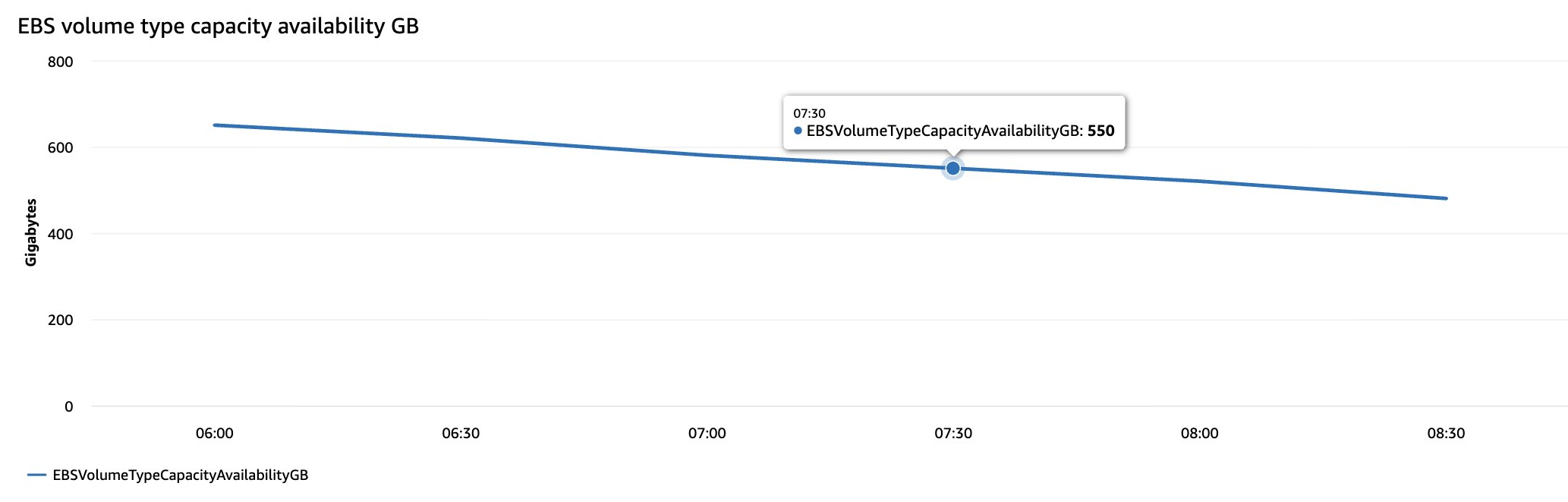
Figure 12: EBSVolumeTypeCapacityAvailabilityGB metric for Outposts Amazon EBS volumes
Note: Second-generation AWS Outposts racks support both gp2 and gp3 Amazon EBS volume types, whereas first-generation racks support gp2 only.
3. Compute and capacity monitoring
Outposts have a fixed capacity that doesn’t auto scale, so compute and capacity metrics are essential for planning. The following instance and capacity metrics are published to the AWS/Outposts namespace.
- Instance metrics.
UsedInstanceType_Count: The number of instance types that are currently in use, including any instance types used by managed services such as Amazon RDS or Application Load Balancer. This metric doesn’t include capacity for any Dedicated Hosts configured on the Outpost.
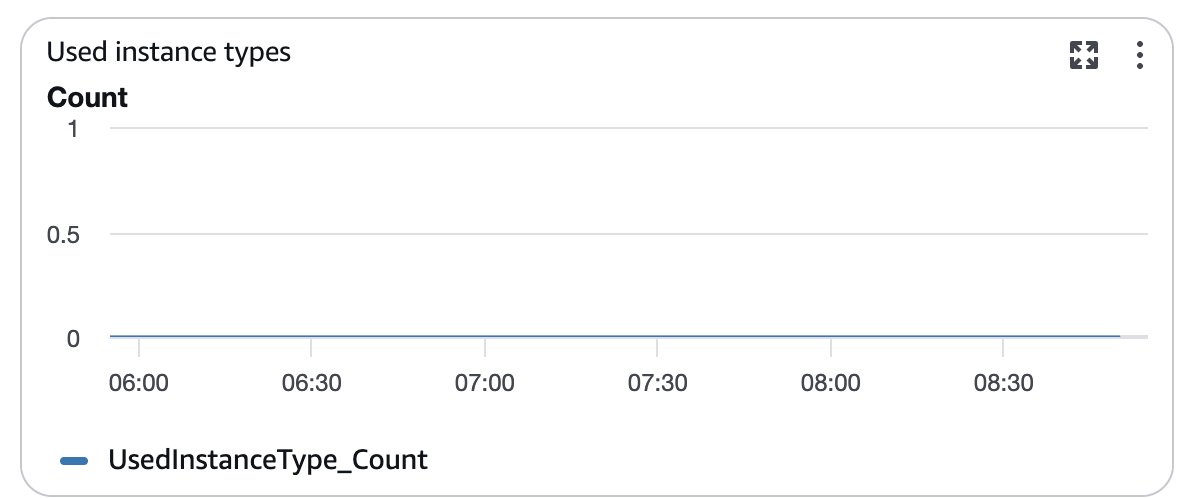
Figure 13: UsedInstanceType_Count metric for Outposts instance usage
InstanceTypeCapacityUtilization: The percentage of instance capacity in use. This metric does not include capacity for any Dedicated Hosts configured on the Outpost.
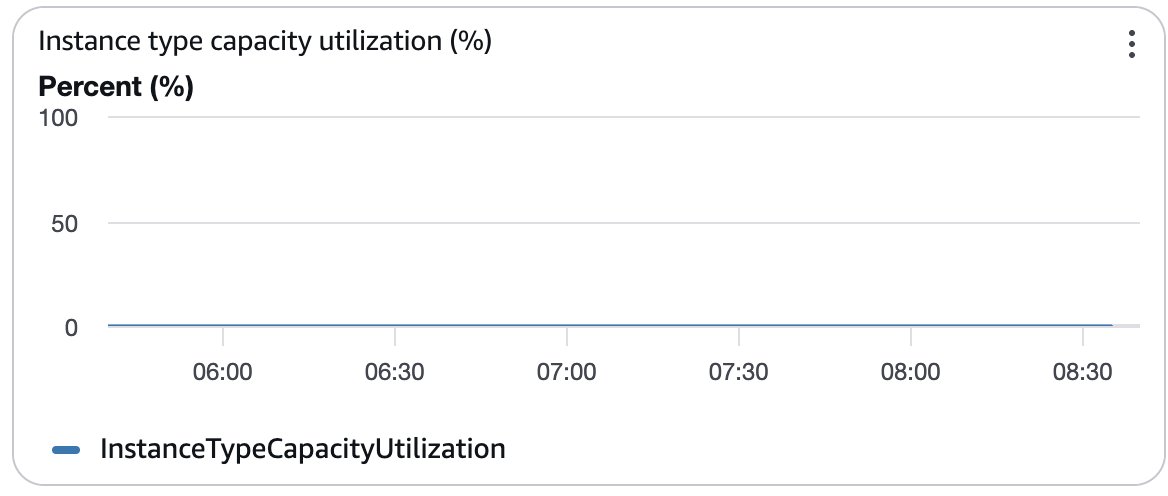
Figure 14: InstanceTypeCapacityUtilization metric for Outposts instances
InstanceTypeCapacityAvailability: The percentage of instance capacity available. This metric doesn’t include capacity for any Dedicated Hosts configured on the Outpost.
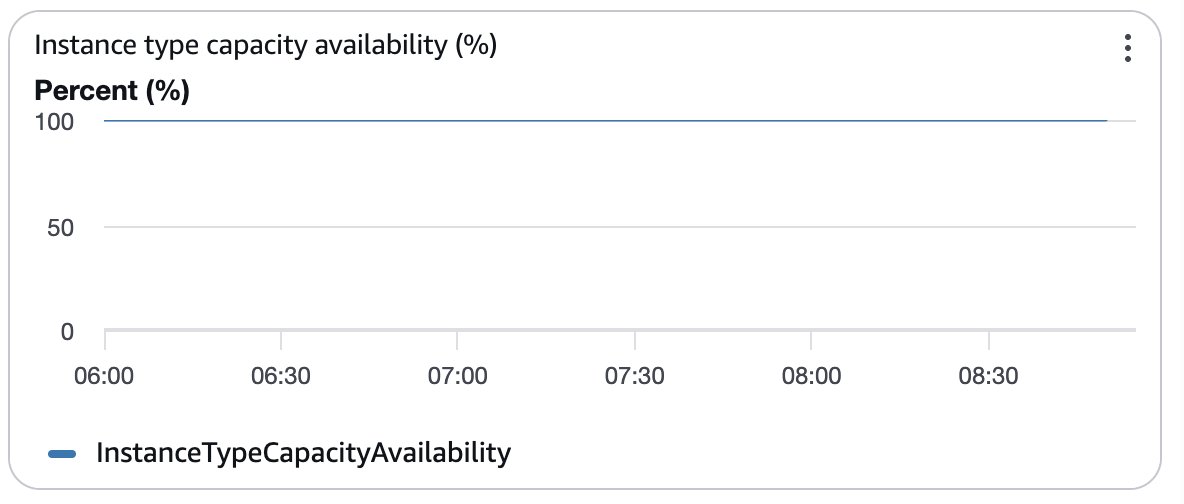
Figure 15: InstanceTypeCapacityAvailability metric for Outposts instances
InstanceFamilyCapacityAvailability: The percentage of instance capacity available. This metric does not include capacity for any Dedicated Hosts configured on the Outpost.
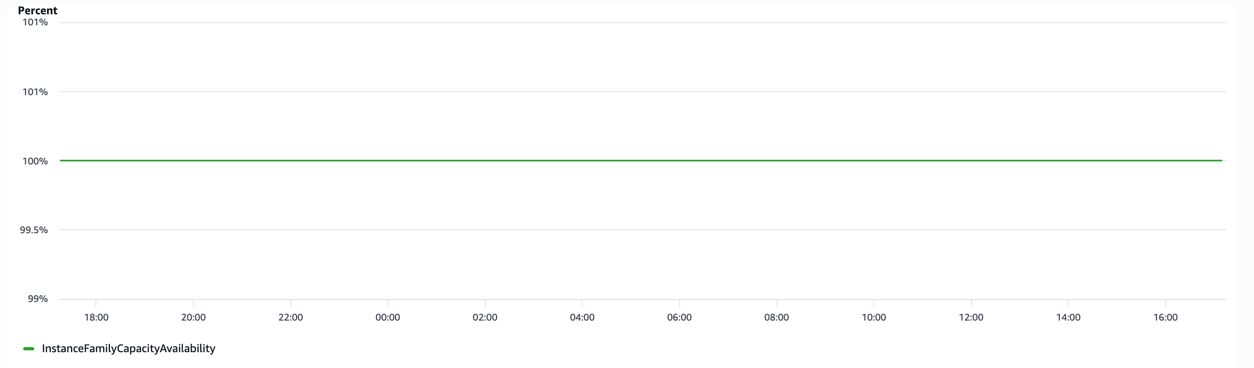
Figure 16: InstanceFamilyCapacityAvailability metric for Outposts instances
InstanceFamilyCapacityUtilization: The percentage of instance capacity in use. This metric doesn’t include capacity for any Dedicated Hosts configured on the Outpost.
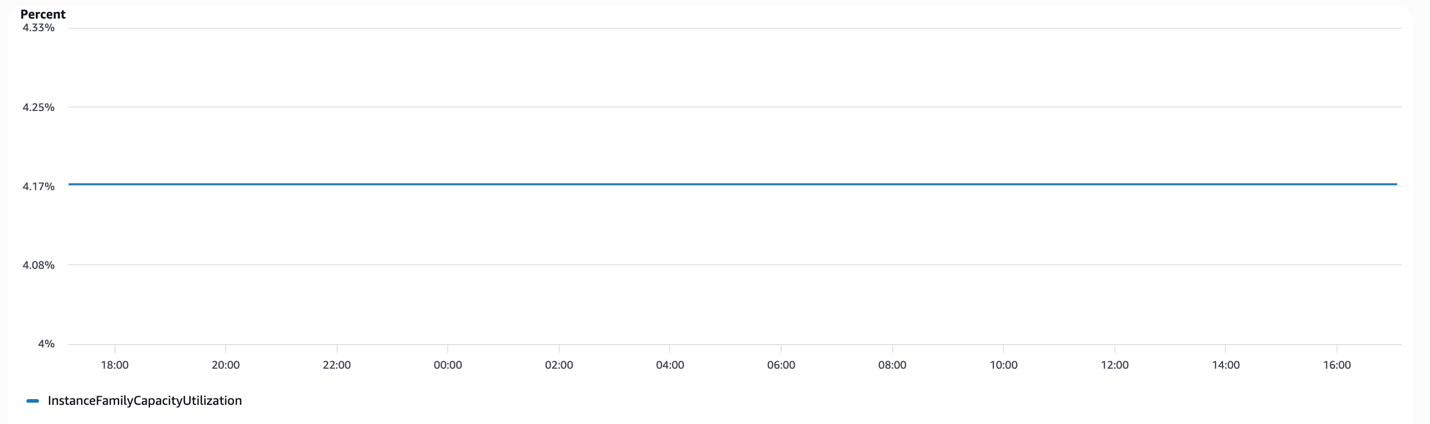
Figure 17: InstanceFamilyCapacityUtilization metric for Outposts instances
Monitoring EKS containers on AWS Outposts with Amazon CloudWatch
AWS Outposts extends AWS infrastructure to your on-premises environment. When running containerized workloads using Amazon EKS (extended clusters) on Outposts, monitoring is critical because unlike the Region, Outposts has fixed capacity that doesn’t auto-scale. Without proper monitoring, pods can fail to schedule, workloads can get OOMKilled, and disk pressure can cause evictions. All of this happens without warning.
This section walks through setting up CloudWatch Container Insights for EKS on Outposts, the key metrics to track, and how to build a unified monitoring dashboard.
Prerequisites
- An AWS Outposts rack deployed and connected to your parent Region.
- An EKS cluster with worker nodes running on the Outpost.
kubectlconfigured to access your cluster.- AWS Command Line Interface (AWS CLI) installed and configured.
Step 1: Launch self-managed worker nodes with Amazon Linux 2023 (AL2023) and nodeadm
Outpost subnets don’t support EKS managed node groups, so worker nodes come up as a self-managed node group launched from an EC2 launch template.
The AMI must be AL2023. Amazon EKS stopped publishing AL2 AMIs on November 26, 2025, and those images no longer receive security patches or bug fixes, as noted in the Amazon EKS AMI deprecation FAQs.
AL2023 also changes how a node initializes. It uses nodeadm rather than the AL2 bootstrap.sh script, so the user data becomes a YAML NodeConfig document instead of a shell script. AL2023 expects the cluster endpoint, certificate authority, and service CIDR to be passed in explicitly where AL2 discovered them at boot. Missing them is a common reason nodes launch but don’t join the cluster.
aws eks describe-cluster returns all three:
Step 2: Install the CloudWatch Observability add-on
On an extended cluster, use the CloudWatch Observability EKS add-on to enable Container Insights. The add-on deploys the CloudWatch agent and Fluent Bit as DaemonSets on your Outpost worker nodes, and it collects container, pod, node, and cluster-level metrics automatically.
You can also do this from the EKS Console under your cluster’s Add-ons tab.
Step 3: Verify the agent is running
Confirm that the CloudWatch agent pods are running on each node:
Expected output:
You should see one cloudwatch-agent pod per worker node.
Step 4: Verify metrics in CloudWatch
After 5–10 minutes, metrics start flowing into CloudWatch.
- Open the CloudWatch Console.
- Navigate to Metrics → All metrics.
- Look for the
ContainerInsightsnamespace. - You will see metrics grouped by Cluster, Node, Pod, Service, and Namespace.
Key metrics for EKS containers on Outposts
Here are the metrics that matter most, organized by level.
Cluster level
| Metric | Description | Unit | |
| 1 | cluster_node_count |
Total worker nodes in the cluster | Count |
| 2 | cluster_failed_node_count |
Nodes in a failed state | Count |
Example: cluster_node_count
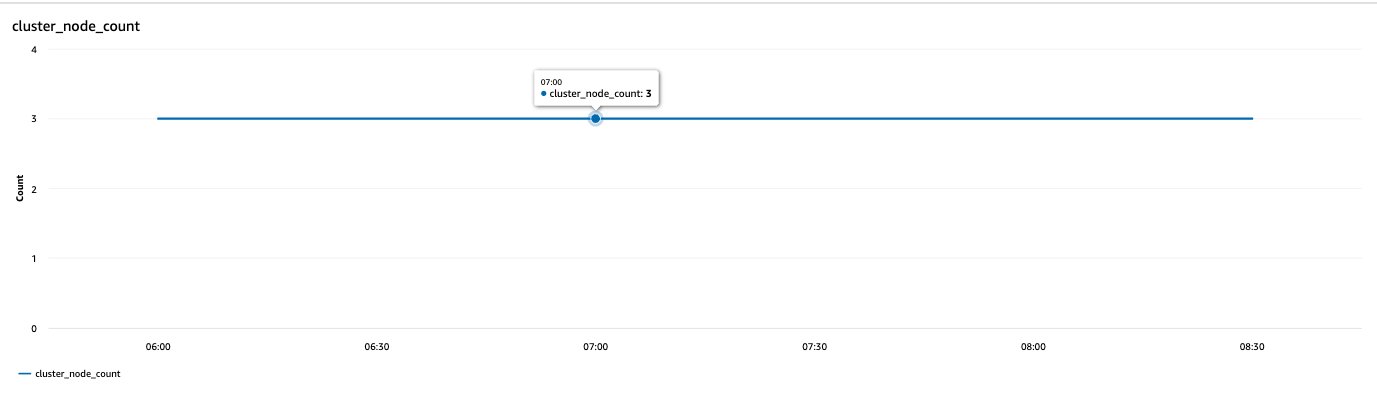
Figure 18: cluster_node_count metric in CloudWatch Container Insights
Node level
| Metric | Description | Unit | |
| 1 | node_cpu_utilization |
% CPU used on each node | Percent |
| 2 | node_cpu_reserved_capacity |
% CPU reserved for system components (kubelet, kube-proxy) | Percent |
| 3 | node_memory_utilization |
% memory used on each node | Percent |
| 5 | node_filesystem_utilization |
% disk used on each node | Percent |
| 6 | node_network_total_bytes |
Network throughput (rx + tx) | Bytes/sec |
| 7 | node_number_of_running_pods |
Pod count per node | Count |
| 8 | node_number_of_running_containers |
Container count per node | Count |
Example:
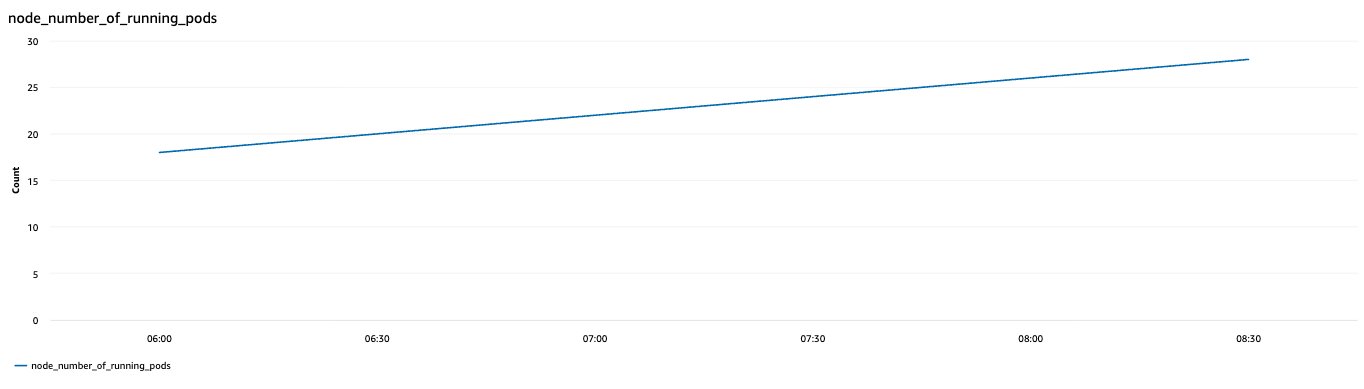
Figure 19: Node-level Container Insights metrics for EKS worker nodes
Pod level
| Metric | Description | Unit | |
| 1 | pod_cpu_utilization |
% CPU used by pods | Percent |
| 2 | pod_cpu_utilization_over_pod_limit |
CPU usage relative to pod limit | Percent |
| 3 | pod_memory_utilization |
% memory used by pods | Percent |
| 4 | pod_memory_utilization_over_pod_limit |
Memory usage relative to pod limit | Percent |
| 5 | pod_network_rx_bytes |
Bytes received per second | Bytes/sec |
| 6 | pod_network_tx_bytes |
Bytes transmitted per second | Bytes/sec |
| 7 | pod_number_of_container_restarts |
Container restart count (stability indicator) | Count |
Example:
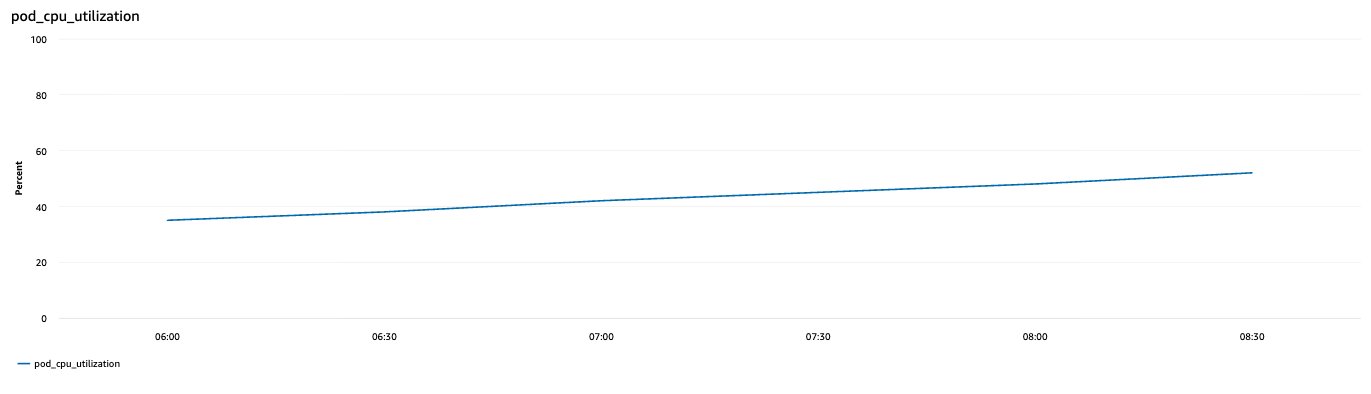
Figure 20: Pod-level Container Insights metrics for EKS workloads
Service level
| Metric | Description | Unit | |
| 1 | service_number_of_running_pods |
Running pods per service | Count |
| 2 | namespace_number_of_running_pods |
Running pods per namespace | Count |
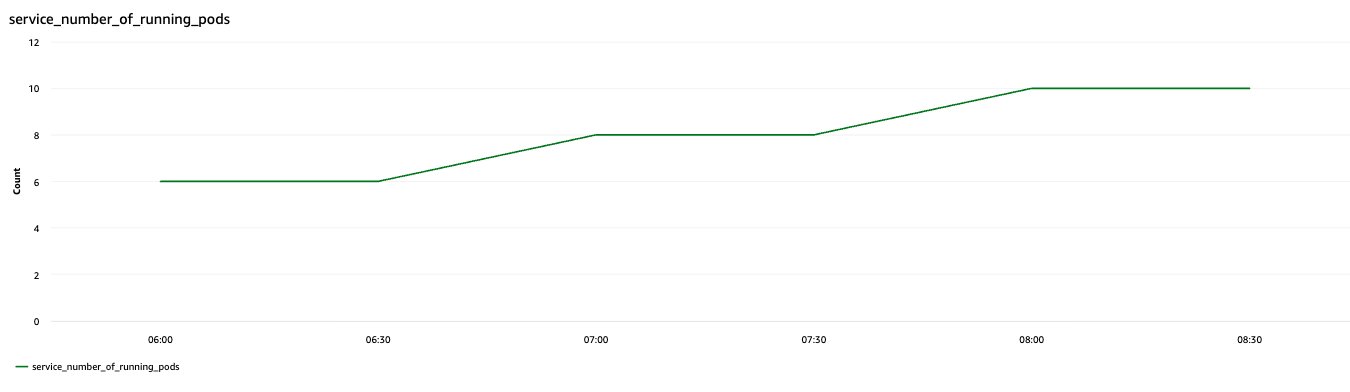
Figure 21: Service-level Container Insights metrics for EKS on Outposts
Step 5: Build a unified dashboard
Bring everything together in a single CloudWatch dashboard.
- Go to CloudWatch Console → Dashboards → Create dashboard.
- Name it
Outposts-EKS-Monitoring - Add widgets in this order:
Row 1 — Outposts infrastructure
InstanceFamilyCapacityUtilization(line chart)EBSVolumeTypeCapacityUtilization(line chart)UsedInstanceType_Count(number widget)
Row 2 — Node health
node_cpu_utilization(line chart)node_memory_utilization(line chart)node_filesystem_utilization(line chart)
Row 3 — Pod/container workloads
pod_cpu_utilization(line chart)pod_memory_utilization(line chart)pod_number_of_container_restarts(number widget)
Why this matters on Outposts
In the Region, if your containers need more resources, the infrastructure scales automatically. On Outposts, you have a fixed pool of compute, memory, and storage.
Without monitoring:
- Pods fail to schedule when node capacity is exhausted.
- Workloads get OOMKilled without warning.
- Disk pressure causes pod evictions.
- You have no visibility into how close you are to capacity limits.
By combining Container Insights metrics with Outposts infrastructure metrics in a single dashboard, you get a complete picture, from application-level container health down to physical infrastructure utilization. With it, you can plan capacity proactively before issues affect your workloads.
Useful references
- Amazon EKS on AWS Outposts documentation
- CloudWatch Container Insights metrics for EKS
- Monitoring best practices for AWS Outposts
- Deploying containerized apps on Outposts with EKS
- Managing S3 on Outposts capacity with CloudWatch
Conclusion
Monitoring AWS Outposts requires visibility across four dimensions that don’t exist in pure-cloud deployments: Region connectivity health, local storage capacity, compute performance on fixed hardware, and container orchestration across hybrid boundaries. The gap between standard cloud monitoring and what Outposts demands is where incidents hide.
In this post, we walked through building that visibility layer using Systems Manager as the management foundation, Amazon CloudWatch for metrics and alarms, and Amazon EventBridge for automated incident response through OpsCenter. Together, these services give you a unified monitoring architecture that spans your data center and the parent Region.
Next steps
To get started with the monitoring approach described in this post:
- Deploy the Systems Manager agent to all Outpost instances and verify Region connectivity through the Fleet Manager console.
- Set up CloudWatch alarms for the critical Outpost metrics. Start with ConnectedStatus, OutpostFreeBytes, and CapacityExceptions before expanding to application-level metrics.
- Configure the Amazon EventBridge-to-OpsCenter integration shown in this post to automate incident creation for Outposts health events.
- Build a CloudWatch dashboard that combines network, storage, and compute metrics into a single operational view for your Outpost.
For more information, see the following resources:
- AWS Outposts monitoring best practices
- AWS Systems Manager hybrid activations
- Amazon CloudWatch metrics for Outposts
- Container Insights for Amazon EKS