Artificial Intelligence
How Tines enhances security analysis with Amazon Quick Suite
Organizations face challenges in quickly detecting and responding to user account security events, such as repeated login attempts from unusual locations. Although security data exists across multiple applications, manually correlating information and making corrective actions often delays effective response. With Amazon Quick Suite and Tines, you can automate the investigation and remediation process by integrating data from multiple security tools, and providing visual insights for faster decision-making.
Quick Suite is a digital workspace that provides business users agentic AI capabilities to quickly answer questions and turn insights into actions. Quick Suite brings AI-powered research, business intelligence (BI), and automation into a single application. You can build automated workflows where multiple AI assistants work together, using your company data and the internet to answer business questions faster and more accurately. Users connect additional applications to Quick Suite using built-in integrations and the Model Context Protocol (MCP), a protocol that standardizes how AI assistants communicate with external tools. Tines is an intelligent workflow platform with a built-in MCP Server Builder. An MCP server is a program that exposes an application’s capabilities through a standard protocol so AI assistants can call them as tools. In Tines, you define MCP tools that read from or write to your internal or third-party applications, and Quick Suite can query those tools directly. With full audit trails in Tines, customers maintain visibility and governance across every workflow. This pattern enables Quick Suite users to bring proprietary or siloed data into their AI-driven analysis workflows without deploying new infrastructure or writing custom integration code.
In this post, we show you how to connect Quick Suite with Tines to securely retrieve, analyze, and visualize enterprise data from any security or IT system. We walk through an example that uses a MCP server in Tines to retrieve data from various tools, such as AWS CloudTrail, Okta, and VirusTotal, to remediate security events using Quick Suite.
Use case: Orchestrated security investigation and remediation
As a member of a security team, you stay ahead of security events with regular account security data review. This involves triaging information from multiple sources to determine if there are indicators that signal the need to dive more deeply into the data. With Quick Suite and Tines, you can investigate and remediate security events using natural language. This integrated approach leads to faster decision-making, without requiring custom scripts or manual correlation across multiple security applications.
Once connected to Quick Suite as well as your security and IT tools, Tines can:
- Analyze internet protocol (IP) addresses in VirusTotal to assess event risk
- Retrieve account details from Okta and BambooHR
- Review authentication logs and user activity in CloudTrail
- Flag suspicious IP addresses and, after analyst approval, block them in CrowdStrike
In Quick Suite, you can then visualize this data to gain immediate insights such as:
- Geographic mapping of login attempts with risk scoring
- Timeline of user activity before and after suspicious logins
- Correlation between accounts and affected systems
- Remediation status tracking for security events
This enables you to ask natural language questions, for example:
- Show all login attempts from high-risk countries in the last 24 hours
- Display user activity timeline
- List all systems the user accessed
- Generate a report of remediation actions taken for the security event
Explore additional use cases in the Tines story library.
Solution overview
Tines can help you integrate with services that expose an API, automate retrieval or transformation of that data, and provide the resulting workflow as an MCP server. The MCP client in Quick Suite can connect directly to the Tines MCP server and access the tools defined within the server.
This pattern provides the following benefits:
- A simple, governed integration layer between Quick Suite and internal or external tools
- The ability to connect systems that don’t currently have an MCP server
- A straightforward and powerful way to create new MCP tools for custom data sources without custom engineering or development work
- Consistent, secure connectivity without maintaining custom scripts or servers
For Quick Suite customers, the result is faster insight and less manual effort, with built-in control over how Quick Suite connects to enterprise data sources.
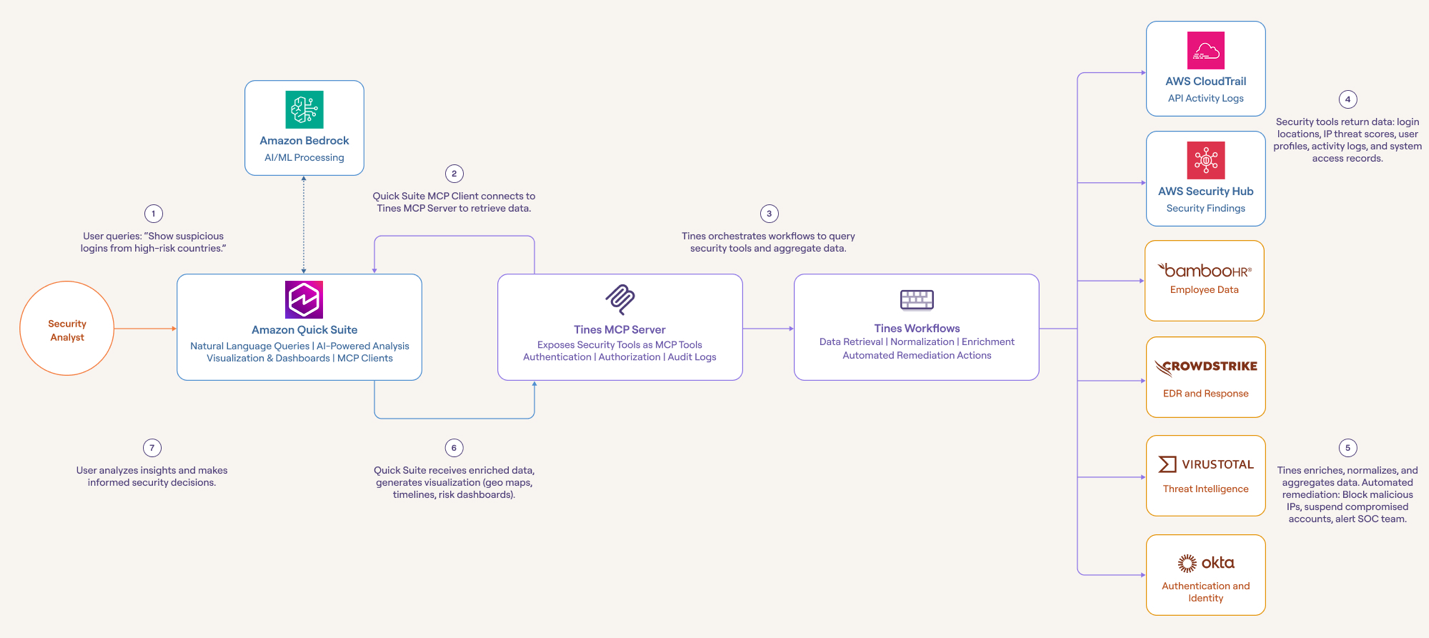
The workflow consists of four components:
- Quick Suite – Connects to the Tines MCP server using the Quick Suite MCP client, retrieves the data, and enables analysis through chat and dashboards
- Tines MCP Server – A published endpoint that exposes the workflow as an MCP tool
- Security or IT API – Any REST API that returns network, endpoint, asset, or configuration data
- Tines workflow – A sequence of actions that retrieves, normalizes, or enriches this data
The following diagram illustrates this architecture.
Prerequisites
To deploy this solution, you must have the following:
- A Quick Suite account within your AWS account with a Professional subscription and an Author, or higher, user role. Refer to Model Context Protocol (MCP) integration for more information.
- A Tines tenant. All plans, including the free Community Edition, support creating MCP servers
- API credentials for the chosen security or IT system.
Create MCP server in Tines
You can import an MCP server from the Tines story library into your Tines tenant. Alternatively, complete the following steps to create a custom MCP server in Tines:
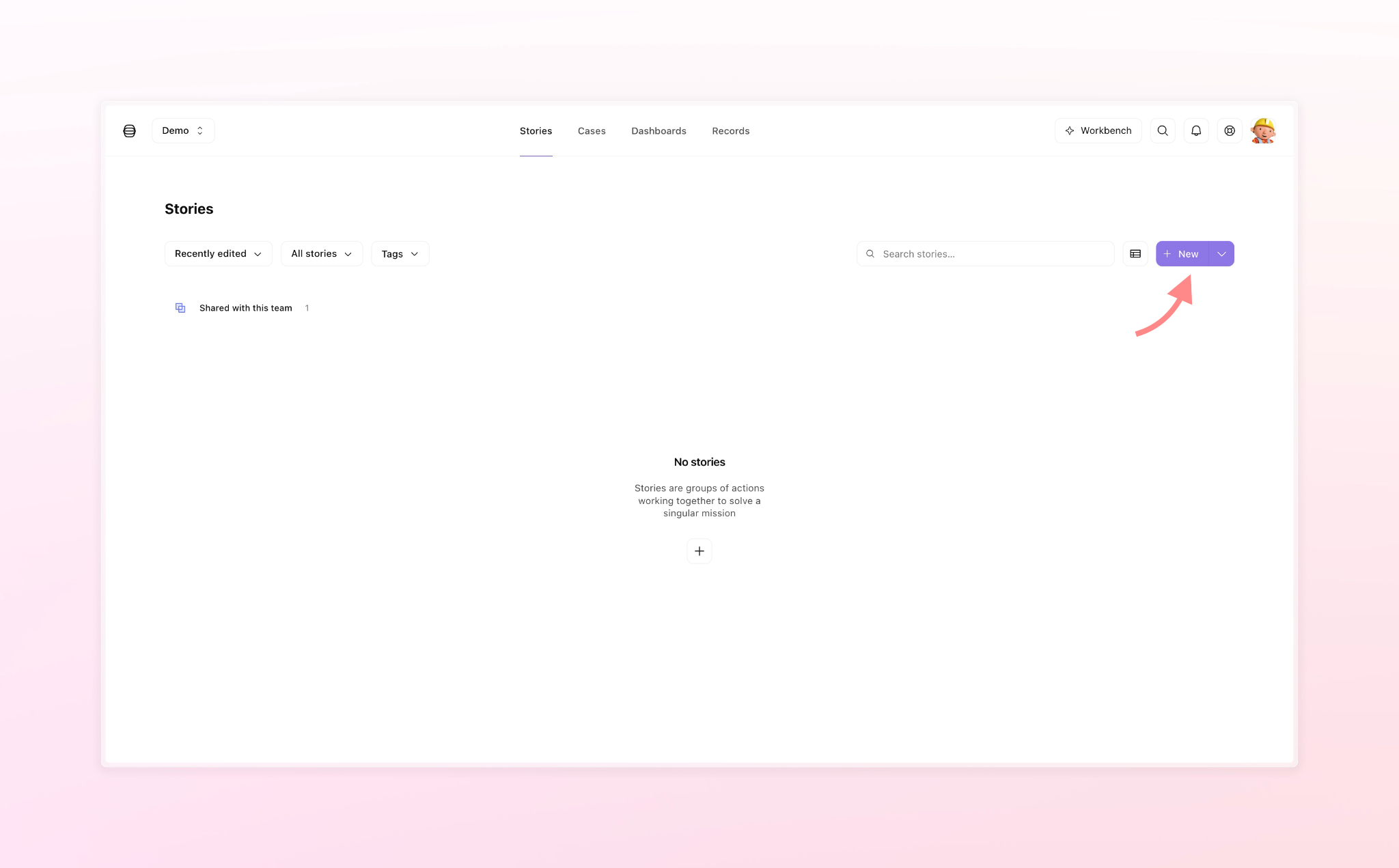
- Create a new Story.
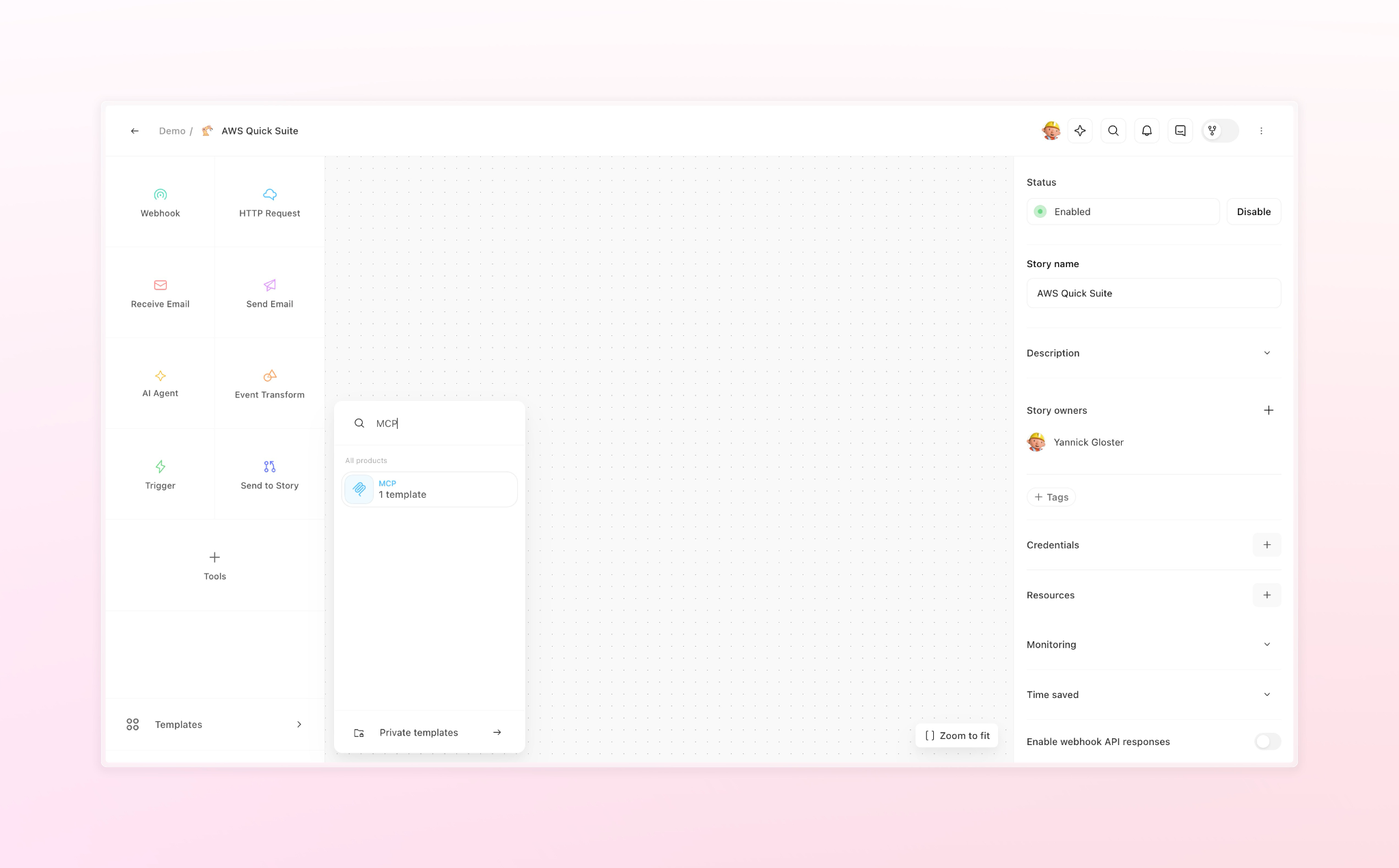
- Open the Templates browser and search for MCP.
- Drag the MCP action to the storyboard.
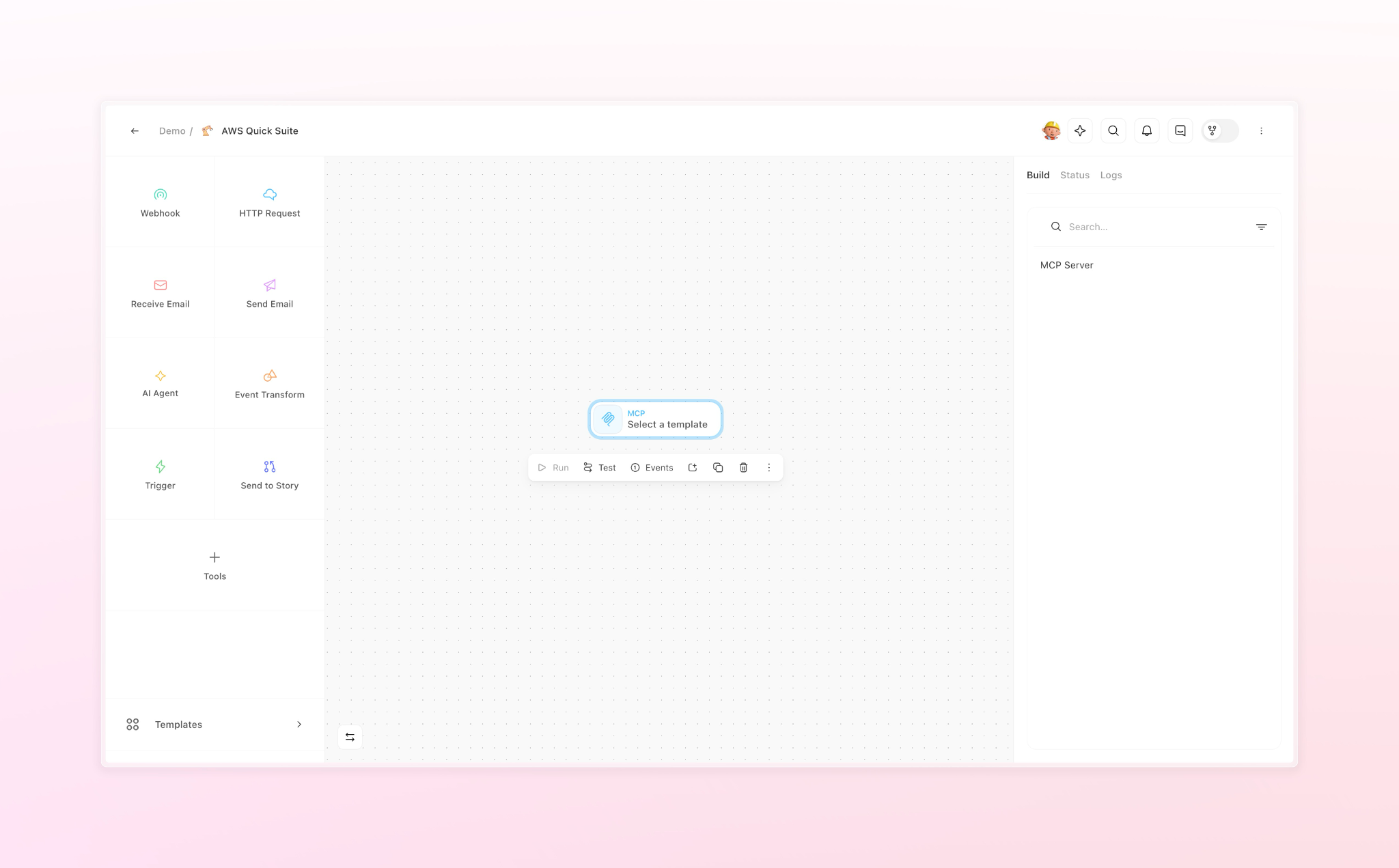
- Choose MCP Server in the right pane and note the MCP server URL to connect Quick Suite.
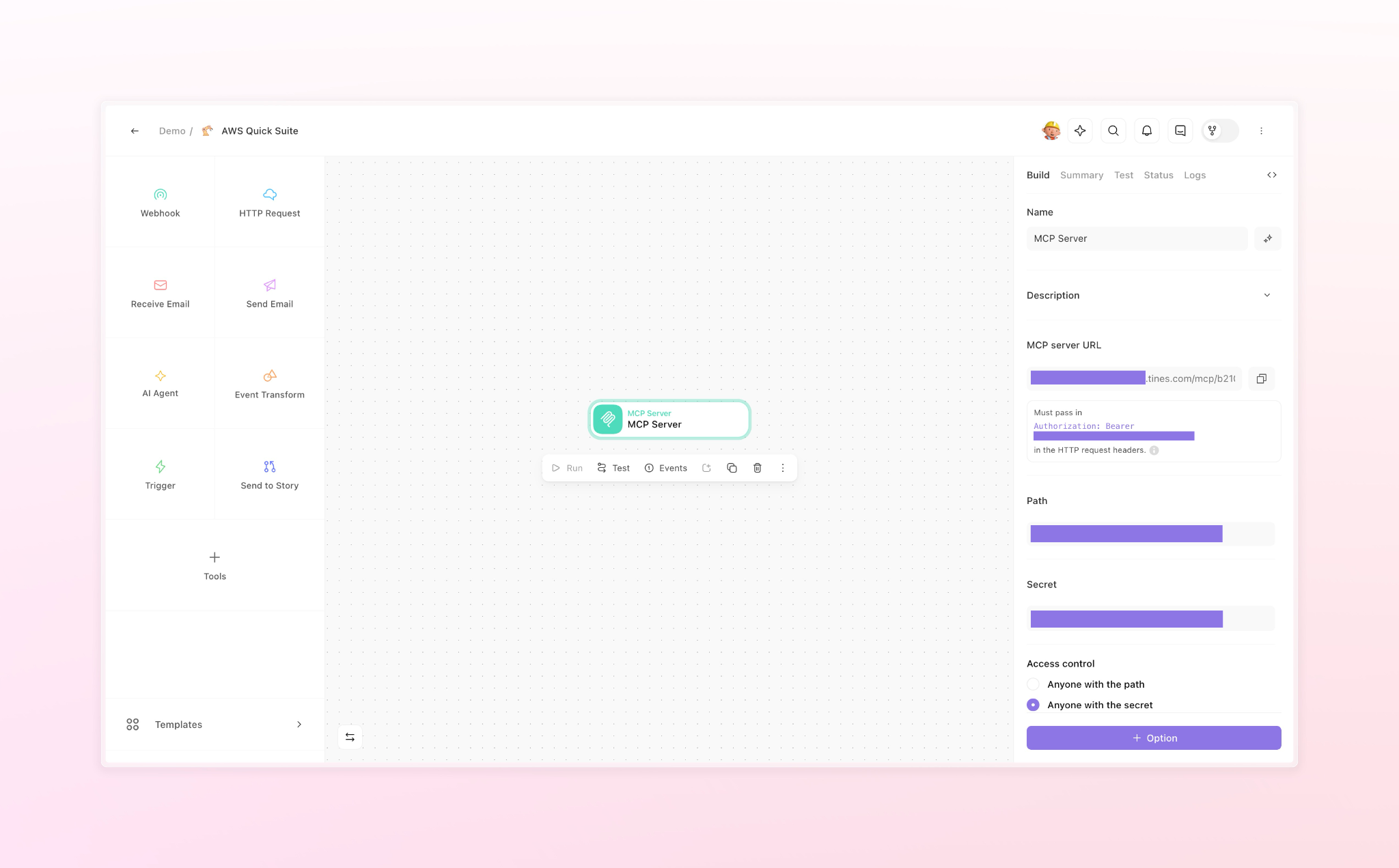
- Add as many tools as required for your workflow from the list of templates, or configure your own custom tools.
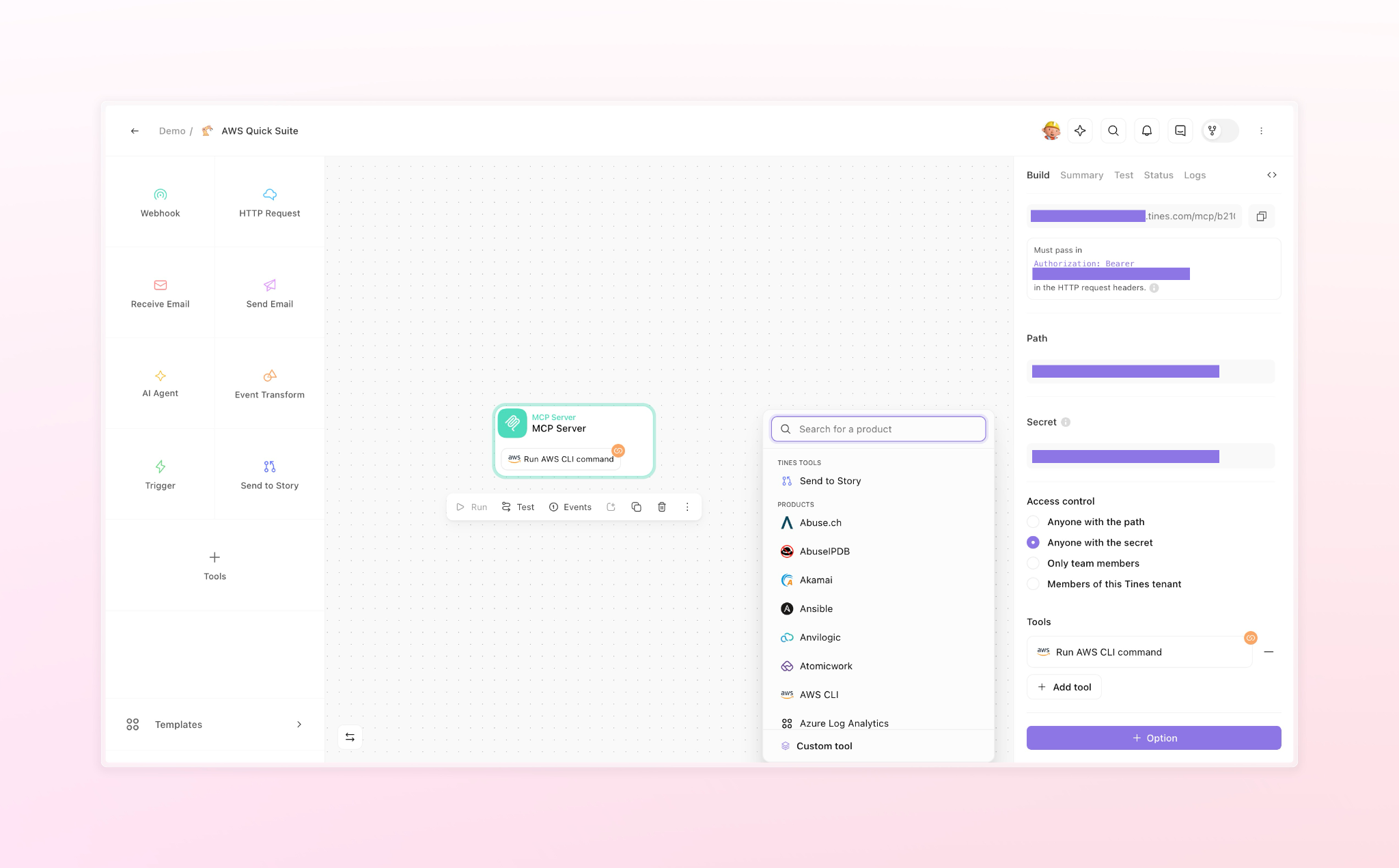
- Connect the tools with your account in the associated applications using standard authentication methods (such as API key or OAuth).
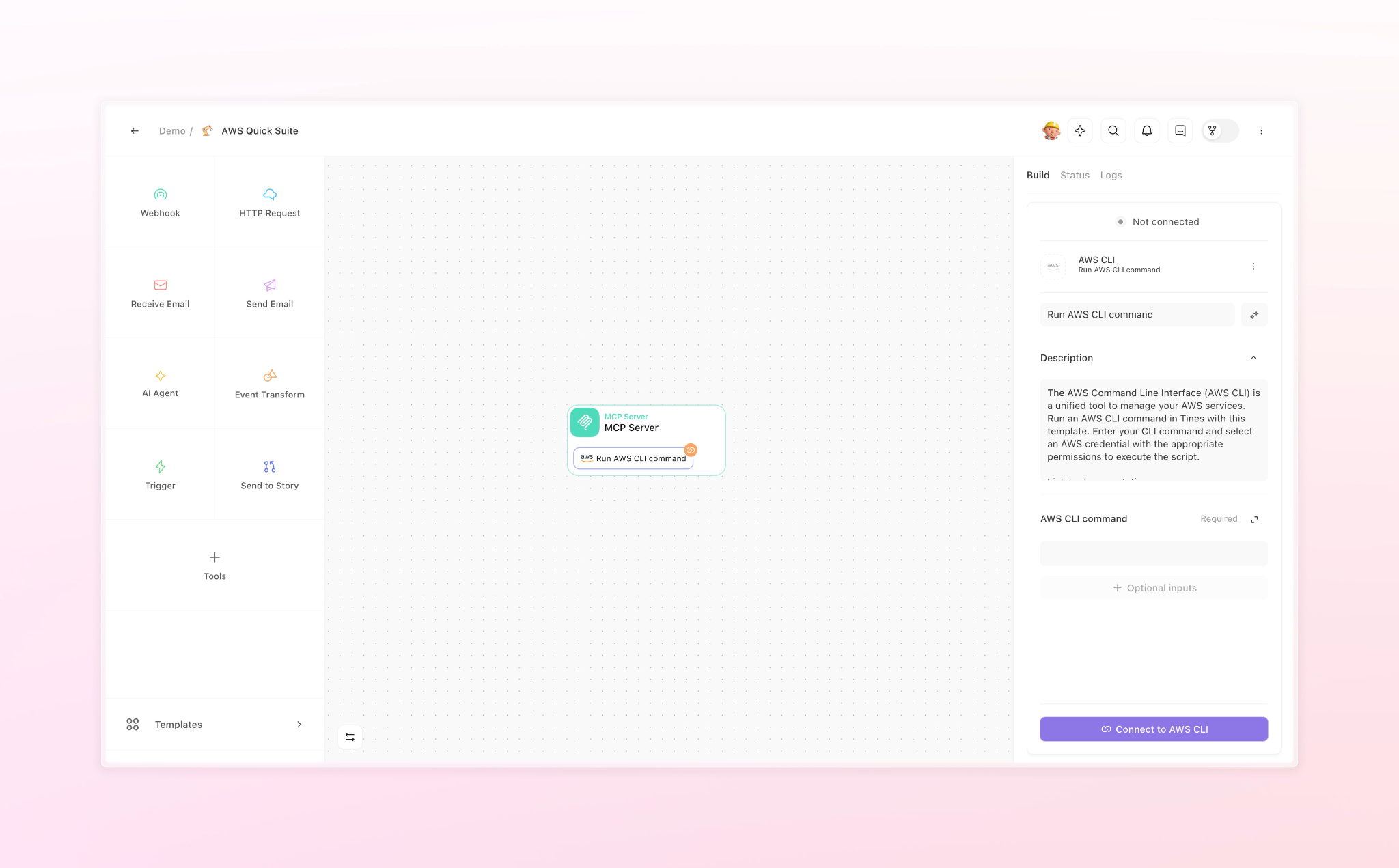
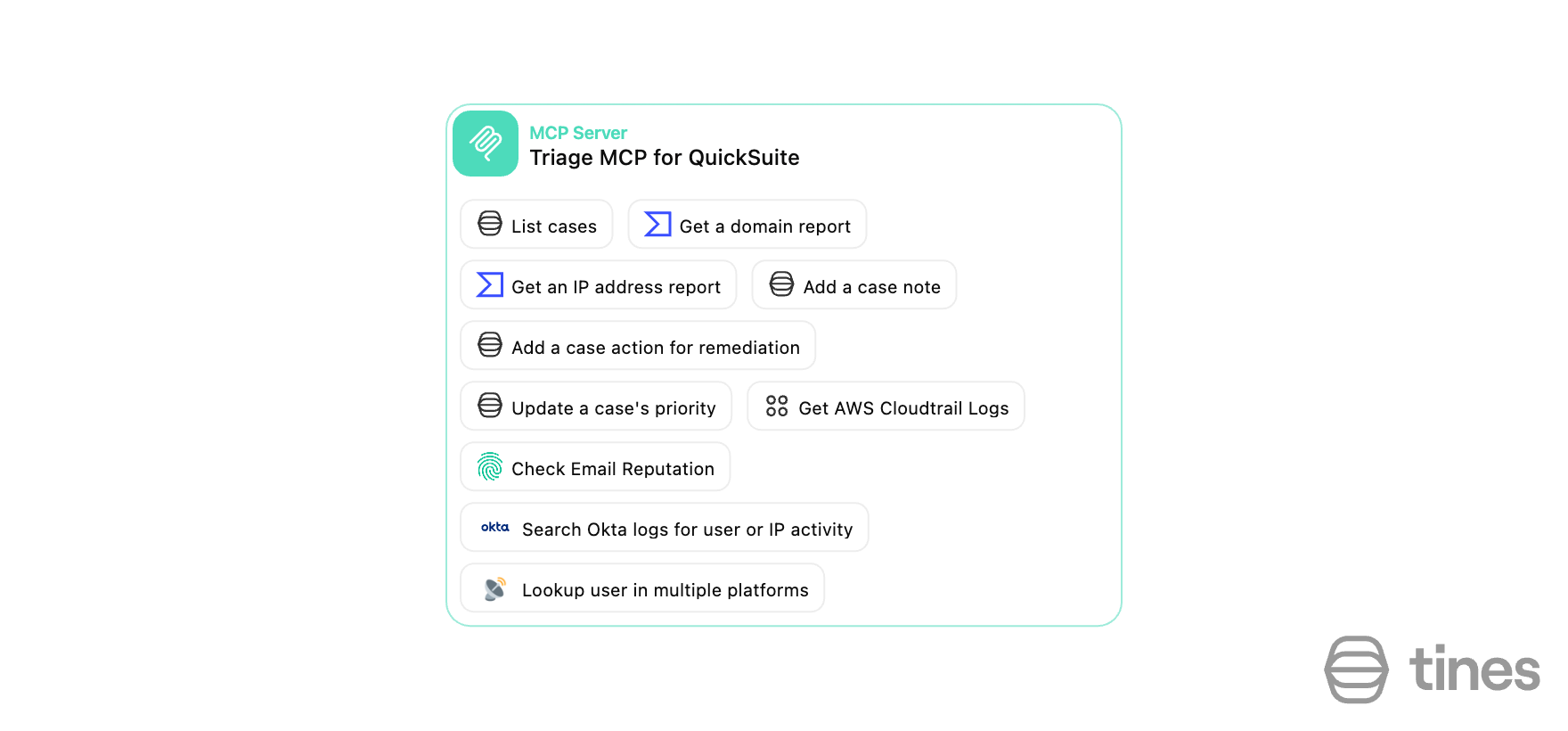
The following screenshot shows a custom MCP server example for user account security analysis and remediation.
Connect Quick Suite to Tines MCP server
Complete the following steps to connect Quick Suite to the Tines MCP server:
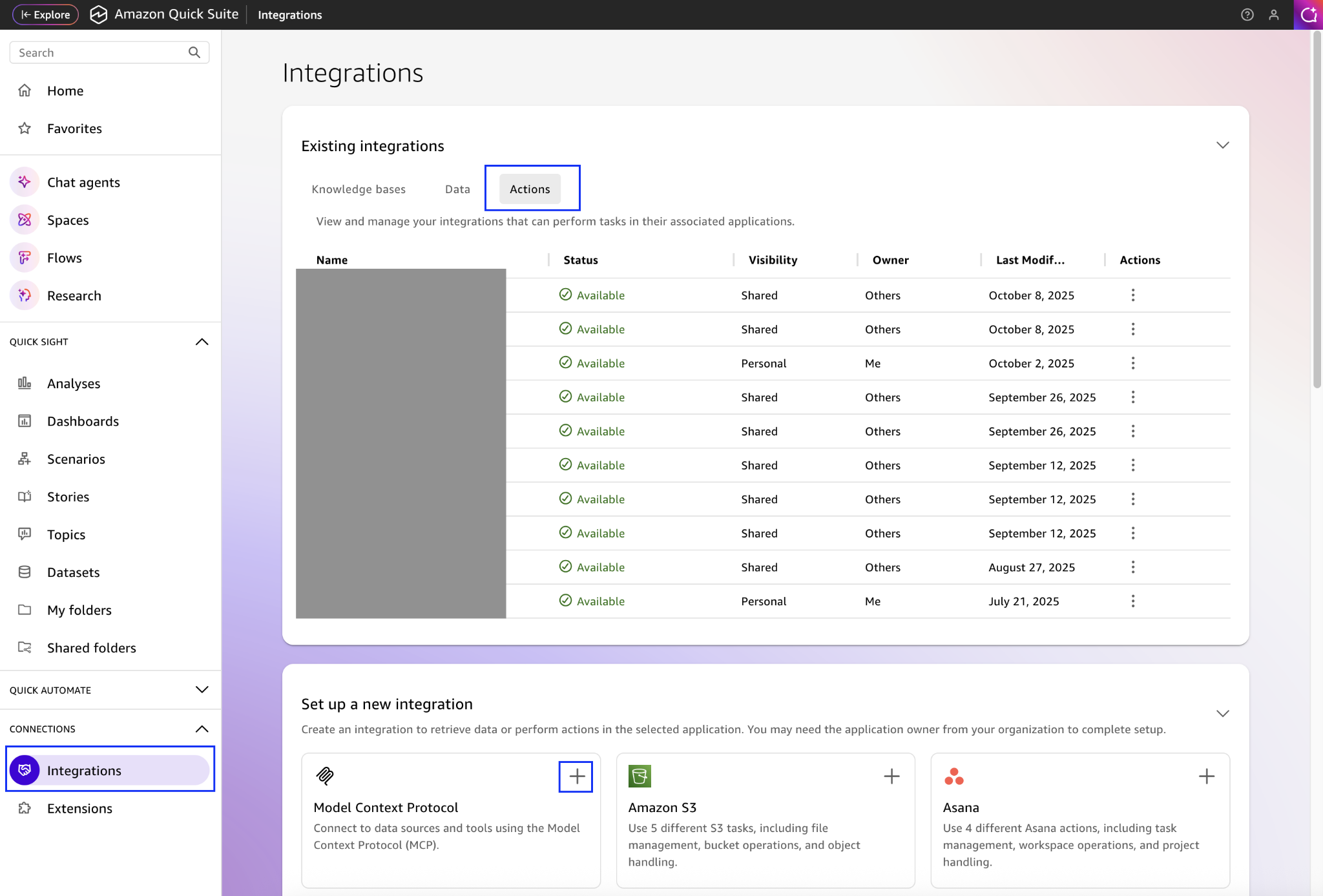
- On the Quick Suite console, choose Integrations under Connections in the navigation pane.
- Choose the Actions tab under Existing integrations.
- Choose the plus sign next to Model Context Protocol.
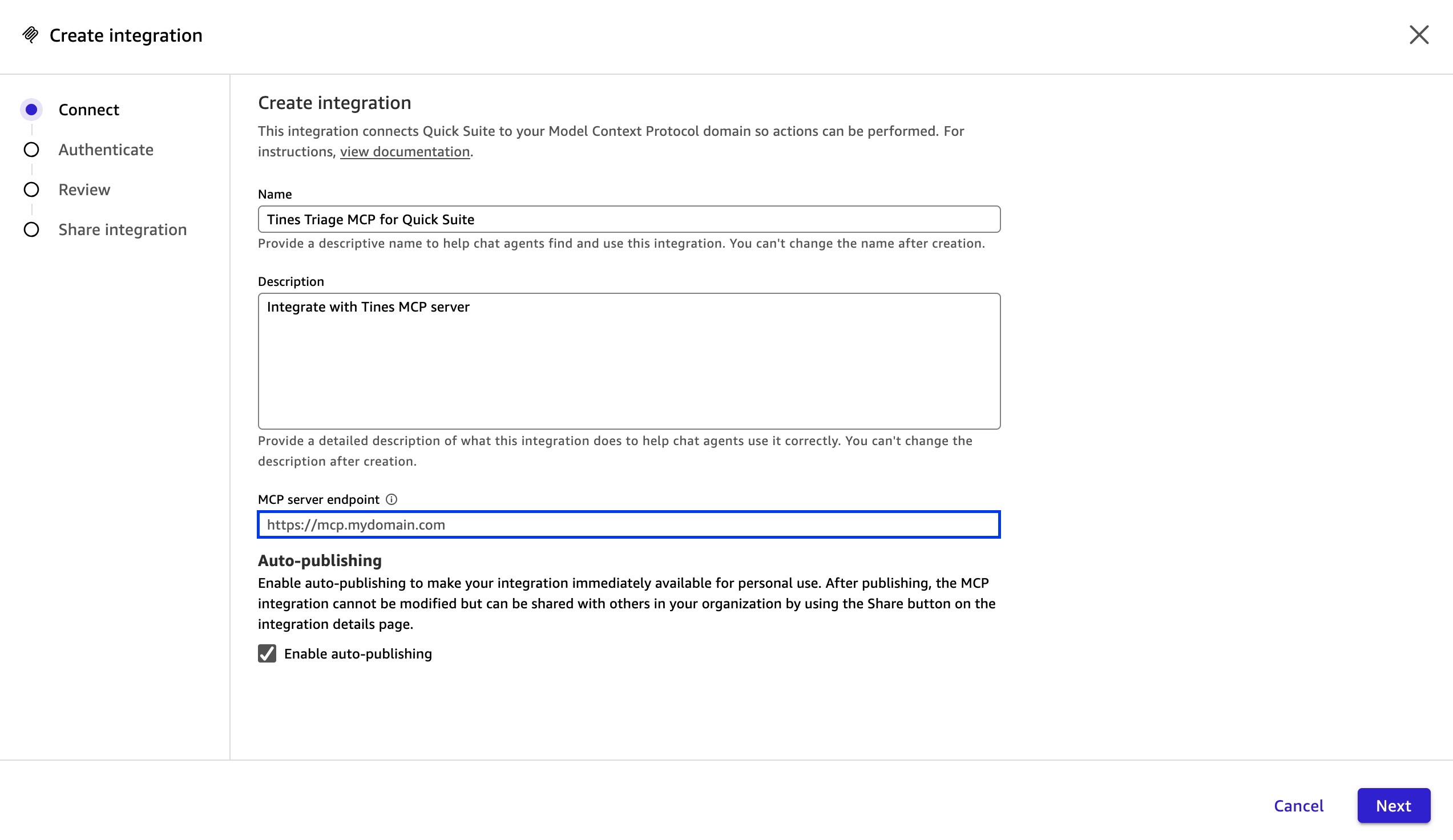
- On the Create integration page, enter a name and description for your Tines integration.
- For MCP server endpoint, enter the MCP server URL from your MCP server in your Tines story, then choose Next.
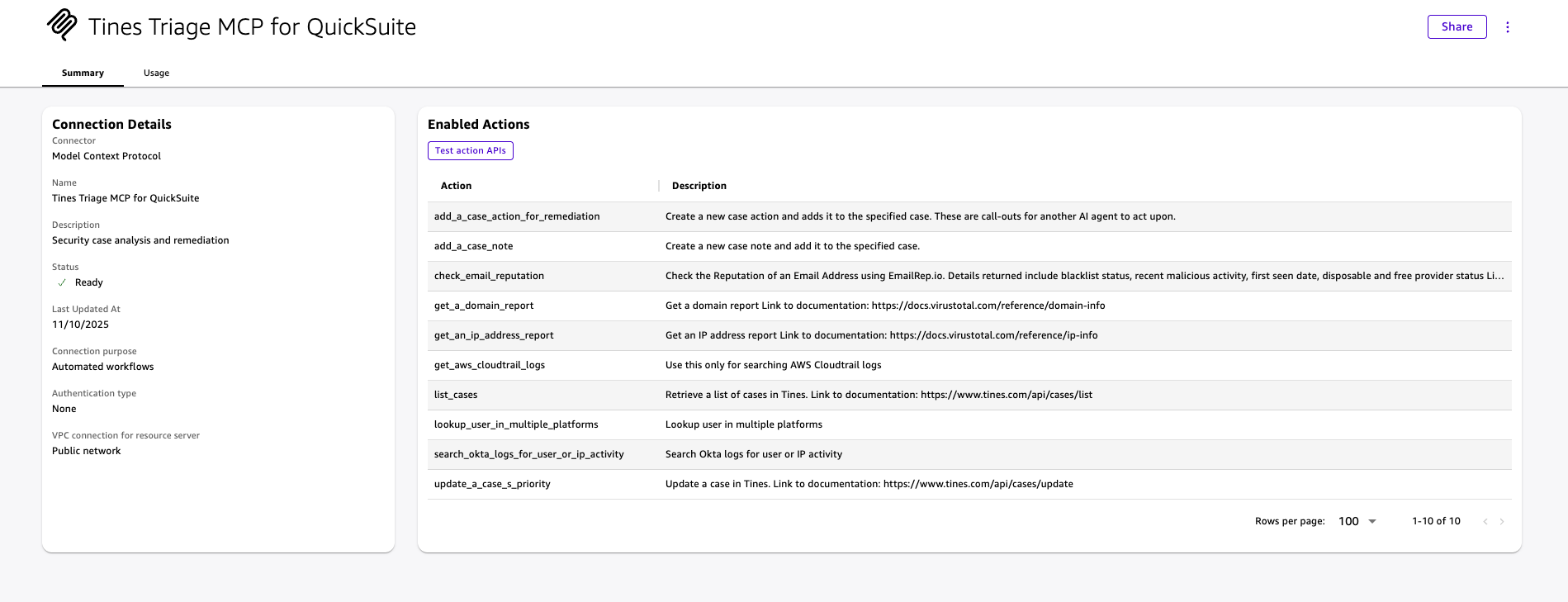
- On the next page, configure the authentication settings and choose Create and continue to see the tools from your Tines MCP server.
- Choose Next to complete the connection.
Query and visualize data in Quick Suite
After you’re connected, you can use the Quick Suite chat assistant to retrieve and explore data in real time, generate visual dashboards and charts from the returned results, and combine this data with existing AWS datasets for broader analysis. Quick Suite automatically selects and retrieves data from your Tines integration based on the content of the chat messages. This gives you a simple and scalable way to operationalize security and IT data using the BI and AI capabilities in Quick Suite. The following screenshot shows a sample security query.

The following screenshot shows the query result, including a security event timeline graph.
![Interactive security incident timeline visualization displaying attack progression from IP [IP_ADDRESS], showing data breach activities including S3 bucket enumeration, sensitive file downloads, and ACL modifications with detailed activity timestamps and impact assessment](https://d2908q01vomqb2.cloudfront.net/f1f836cb4ea6efb2a0b1b99f41ad8b103eff4b59/2026/02/17/Screenshot-2026-02-17-at-9.55.59 p.m..png)
Clean up
To avoid incurring ongoing charges, clean up the resources you created as part of this solution.
Conclusion
Connecting Quick Suite and Tines using MCP transforms how organizations analyze their security and IT data. This solution reduces the need for custom integration code and provides centralized governance of integrations, standardized data retrieval, and improved operational visibility. Security and IT teams can extend their analytics capabilities to any API-enabled system through a single, auditable layer that scales across their tooling landscape.
Get Started with Quick Suite to create a Quick Suite instance in your AWS account and visit the Tines home page to sign up for a Tines Community Edition account. Once you have access, you can create your first MCP server and connect your existing security and IT tools using the Tines prebuilt templates. Finally, configure Quick Suite to access your new data sources and start analyzing data through natural language queries.
For more details, refer to the Amazon Quick Suite User Guide and Tines MCP server documentation.