Microsoft Workloads on AWS
Automate Microsoft Office LTSC golden image creation with AWS Image Builder
Enterprises worldwide rely on Microsoft Office for critical business operations. AWS makes it straightforward to deploy Microsoft Office on individual Amazon Elastic Compute Cloud (Amazon EC2) instances using the Office LTSC Professional Plus 2021 image from AWS Marketplace, as in the blog post How to Set Up Microsoft Office on Amazon EC2. This approach works well for small-scale deployments, one-off instances, and development environments.
However, you may need to create golden images based on the Marketplace image—pre-configured with Office LTSC plus all required corporate software, security settings, and configurations ready for your teams to use immediately. As you scale your Windows infrastructure on AWS, deploying these customized Microsoft Office environments consistently across hundreds or thousands of instances becomes a significant operational challenge. Manual creation takes hours per image and introduces configuration drift at scale.
In this blog post, you will learn how to automate the creation of Microsoft Office LTSC golden images using EC2 Image Builder, complete with automated license validation and compliance checking. I will demonstrate a production-ready AWS CloudFormation solution that orchestrates the license activation process within Image Builder workflows, introducing a wait mechanism that monitors license activation completion and seamlessly resumes the image building process. The result: fully automated creation of compliant Office LTSC golden images that integrate with AWS License Manager, reduce instance launch times, and ensure you always deploy with the latest security patches.
Solution overview
The CloudFormation solution implements an Office LTSC golden image pipeline that addresses the reboot challenge. When you launch Office instances from the Marketplace, AWS License Manager executes AWS Systems Manager Run Command to join the computer to your AWS Directory Service for Microsoft Active Directory (AWS Managed Microsoft AD) and activate Office licenses. These commands require system reboots that occur outside the expected Image Builder workflow, causing pipeline failures.
The solution introduces a wait mechanism that monitors license activation completion, then resumes the image building process. Figure 1 shows the architecture.
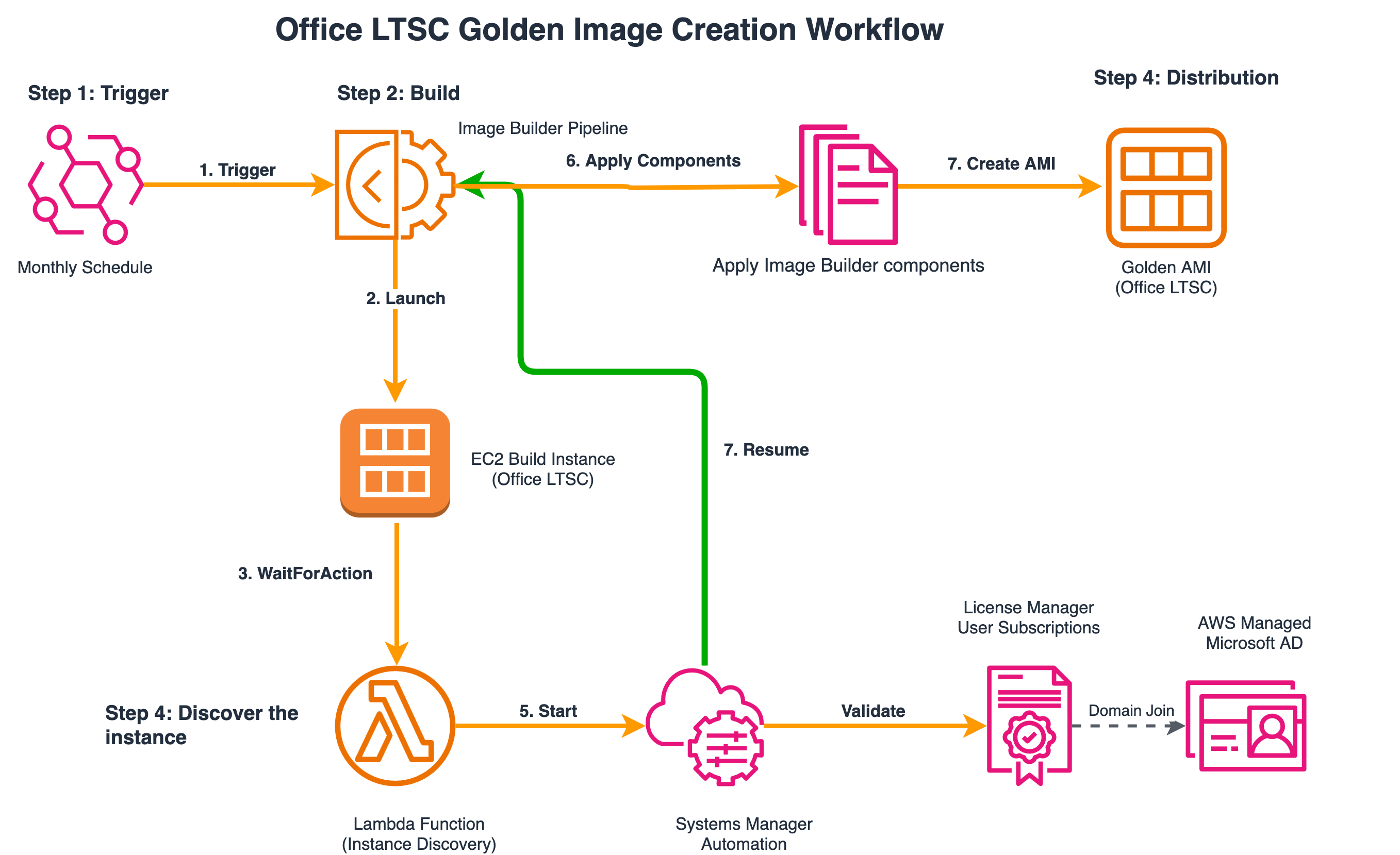
Figure 1 – Office LTSC golden image pipeline architecture
The workflow includes the following steps:
- Launch the latest Amazon Machine Image (AMI) – The pipeline launches an EC2 instance with the latest Office LTSC AMI for the selected version. The solution stores the latest AMI in Parameter Store, a capability of AWS Systems Manager, and updates it weekly. A weekly schedule triggers the pipeline with the option to skip pipeline execution unless there are dependency updates, such as a change to the base image or to a component used in the recipe.
- Initiate wait mechanism – Image Builder sends a WaitForAction signal to an AWS Lambda function that discovers the build instance.
- Discover build instance – The Lambda function discovers the instance that launches as part of the Build phase in EC2 Image Builder using EC2 tags.
- Start automation workflow – Systems Manager starts an automation that performs the following actions:
- Waits for the instance to complete the domain join process by polling the License Manager User Subscriptions API
- Resumes the workflow when the status of the instance is Active under License Manager User Subscriptions
- Apply components – The pipeline applies managed components. In this post, I select managed components like AWS-CLI, CloudWatchAgent, and Windows-Update. You can use the set of components that you need. There are managed components by Amazon, third-party components, and components from AWS Marketplace. You can also develop custom components for your Image Builder image to fit your needs.
- Create golden AMI – Image Builder creates the final golden AMI with Office LTSC and all applied components.
This solution uses Parameter Store to securely store the Office LTSC AMI IDs. When AWS releases new Office LTSC AMIs with security patches, the AMI Discovery Lambda automatically updates the parameters. The EC2 Image Builder pipeline references these parameters dynamically, so the next pipeline execution automatically uses the latest AMI without requiring any manual updates or stack redeployment.
This solution assigns the minimal permissions required for each resource using AWS Identity and Access Management (IAM) roles.
Prerequisites
To implement this solution, you need:
- An AWS account that you have permissions to deploy this into.
- AWS License Manager User Subscriptions configured for Office LTSC. This would allow you to use Office LTSC Professional Plus 2021 image from AWS Marketplace
- AWS Managed Microsoft AD. License Manager joins build instances to this directory to activate Office licenses
- An Amazon Virtual Private Cloud (Amazon VPC) with subnets for Image Builder instances. The VPC and subnet should be accessible to the AWS Managed Microsoft AD to join the instance to the domain.
- Download the CloudFormation template.
Solution walkthrough
Navigate to the AWS CloudFormation console and ensure you have the correct AWS Region selected. First, you will need to upload the template.
- Choose Create stack.
- In the Prerequisite – Prepare template section, select “Choose an existing template”
- In the Specify template section, select “Upload a template file.”
- Press Choose file and select the file “OfficeLTSC-AMI-Automation.yml” from the repository from the “CloudFormation” directory in the repository.
- Choose Next, then supply the parameters needed to deploy the solution (Figure 2):
- Stack name – This will be name of the AWS CloudFormation stack used in the solution. If you want to deploy this more than once in an AWS account, you will need to choose a different stack name for each.
- InstanceType – This parameter specifies the EC2 instance type used for the temporary build instances that EC2 Image Builder launches during the image creation process. These build instances exist only for the duration of the pipeline execution and are automatically terminated after the AMI is created. This instance type is independent of the instance type you choose when deploying the golden AMI for actual use—you can select any compatible instance type at deployment time. The instance type selected here affects only build performance and cost.
- OfficeLTSCVersion – This parameter determines which Office LTSC version and Windows Server combination will be used as the base AMI for your golden image. The solution automatically discovers and uses the latest AMI matching your selection from the AWS Marketplace.
- VpcId – This is the VPC where EC2 Image Builder will launch temporary build instances. The VPC must have connectivity to the License Manager User Subscriptions Managed Active Directory for license validation to succeed.
- SubnetIds – These are the subnets where EC2 Image Builder will launch temporary build instances during the image creation process. The subnets must have connectivity to the License Manager User Subscriptions Managed Active Directory for the license validation workflow to complete successfully.
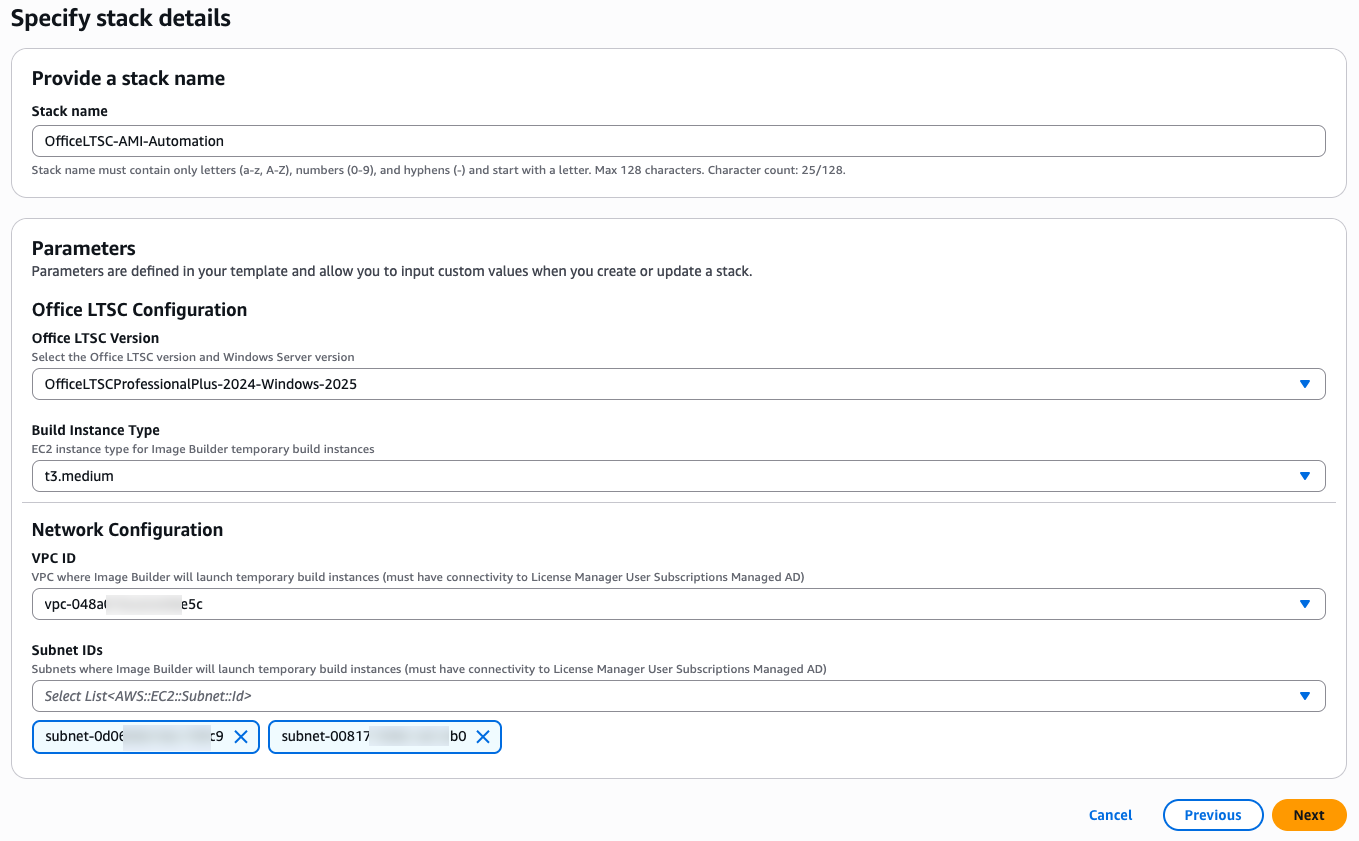
Figure 2 – CloudFormation stack parameter configuration
When you have finished entering the parameters, choose Next. The Configure stack options will be displayed. Here, you can add tags and configure other settings for the stack. Then select the checkbox next to I acknowledge that AWS CloudFormation might create IAM resources. For this example, choose Next.
On the Review page, confirm that the parameters reflect what you are expecting to deploy. Then choose Submit.
The stack will take several minutes to deploy. Once complete, go to the stack Outputs tab as shown in Figure 3 and note the ImagePipelineArn Export name. This name will be referenced in the EC2 Image Builder console.
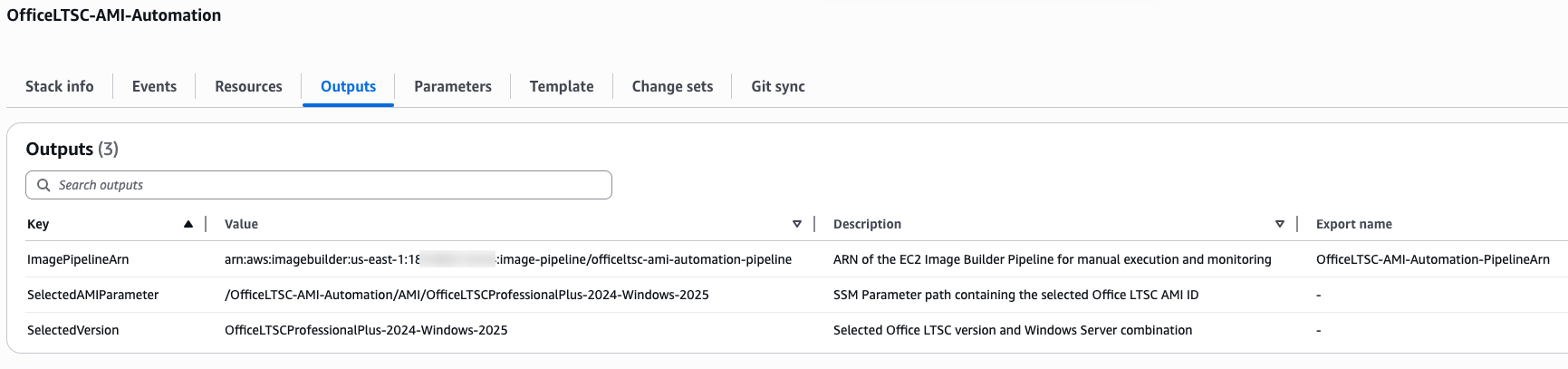
Figure 3 – CloudFormation stack outputs
Testing
In the EC2 Image Builder console select the Pipeline name noted from the CloudFormation Outputs to see its configuration details, scheduled run time, and Image recipe. You can wait for the scheduled time or you can invoke the pipeline by choosing the Actions drop down and selecting Run pipeline, as shown in Figure 4
If you require additional customizations, you can add your own custom components to the Image Builder pipeline before invoking it. For example:
- Use AWS Marketplace components for pre-built solutions.
- Develop custom components (scripts, tools, or configurations) tailored to your environment.
- Modify the Image recipe to include these components during the build process.
This ensures your golden AMI includes all necessary software, security settings, and configurations for your specific use case.
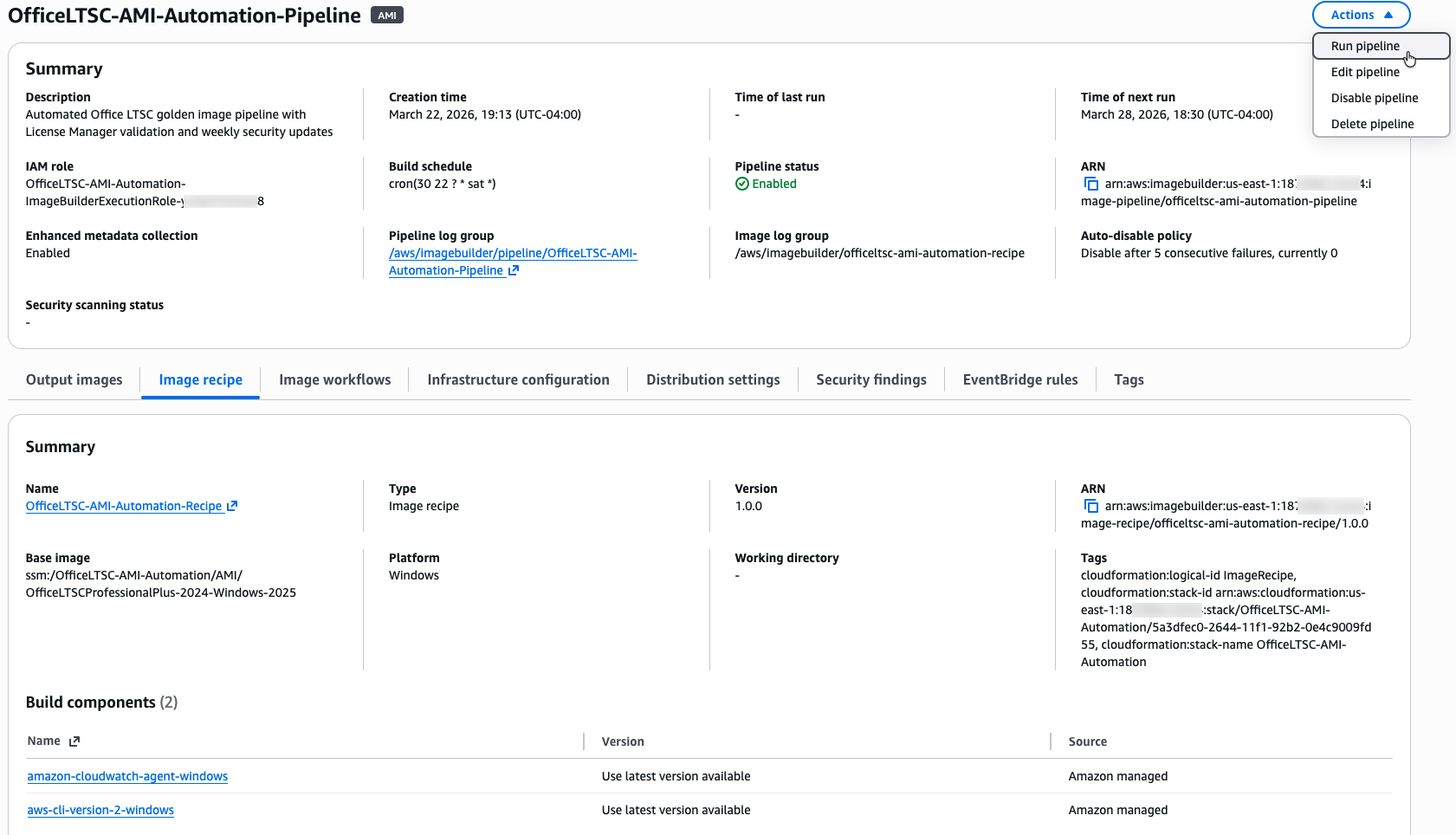
Figure 4 – Manual pipeline invocation
When invoked, the output image progresses through multiple phases to generate the new AMI. Figure 5 shows the pipeline execution status.
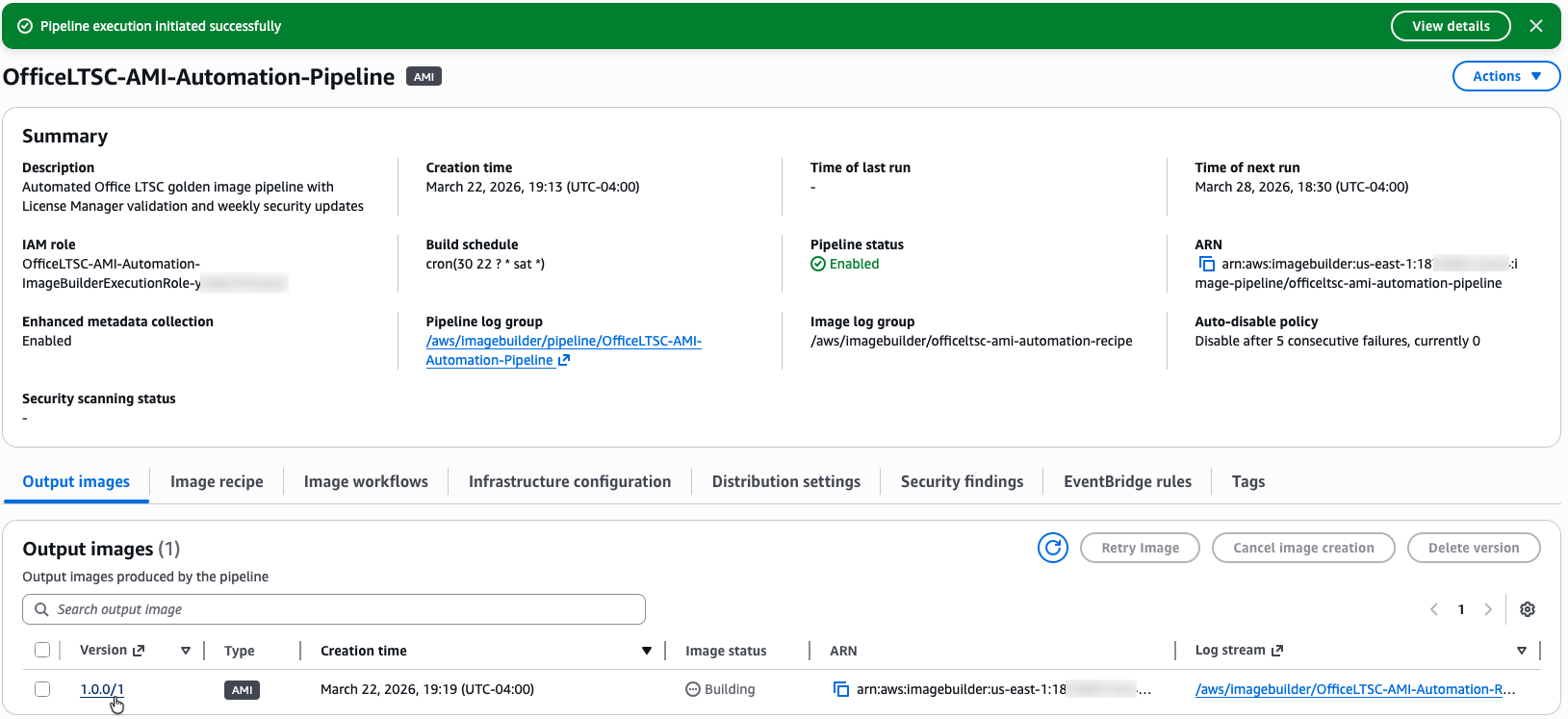
Figure 5 – Pipeline execution progress
Selecting the output image version will open a new tab with additional details. As shown in Figure 6, the Workflow tab shows each step of the image building process. Selecting a Step ID will provide additional information about each step and its application log.
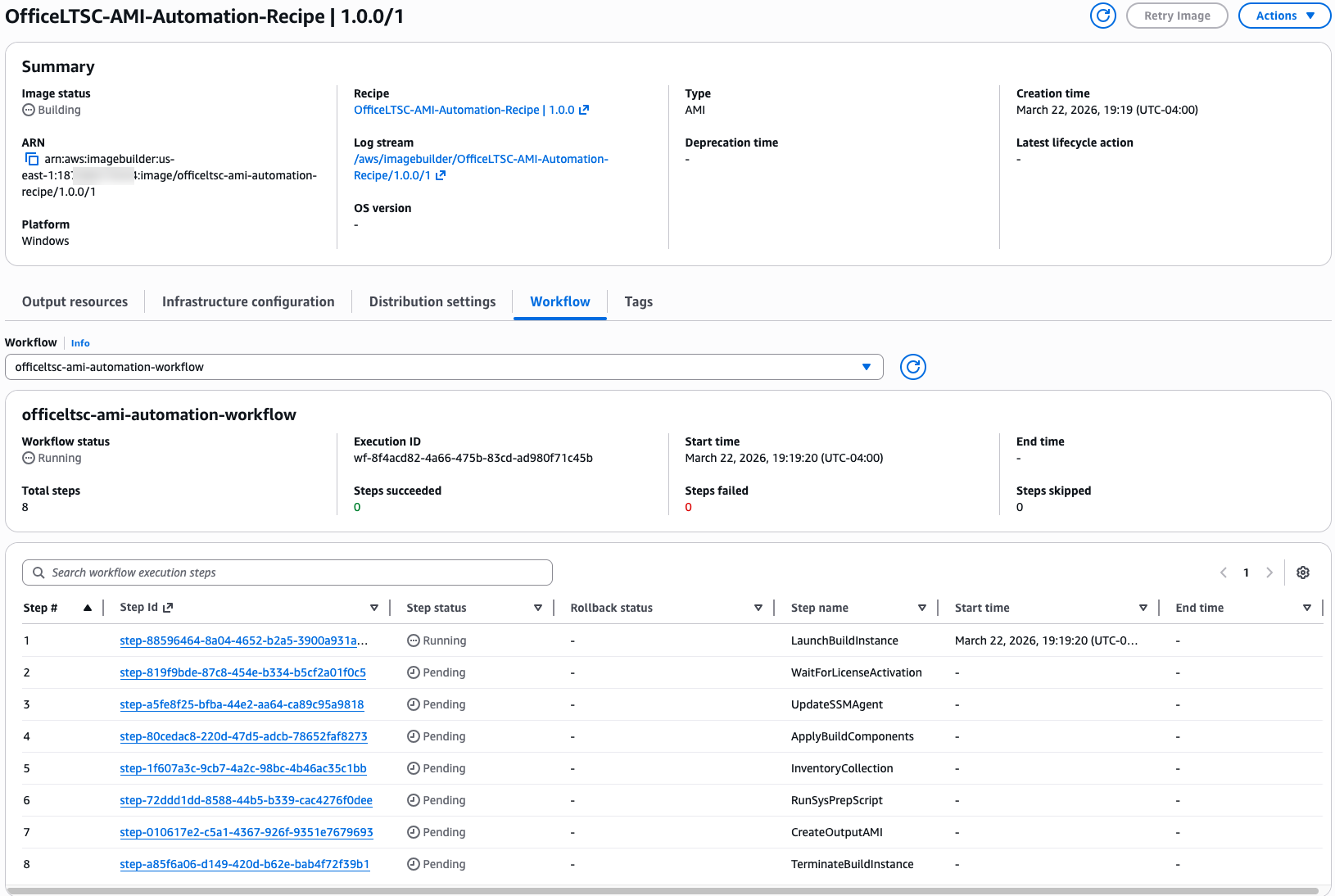
Figure 6 – Workflow execution details
Once the EC2 Image Builder pipeline successfully completes all workflow steps and the Image status changes to Available, the golden AMI is ready for deployment as shown in Figure 7. This AMI contains the configurations from your image recipe. It includes Office LTSC, AWS CLI, CloudWatch Agent, and Windows Updates. When you launch an instance from this AMI, License Manager activates it with no manual license configuration required. To connect to the instance you can go through the steps described here.
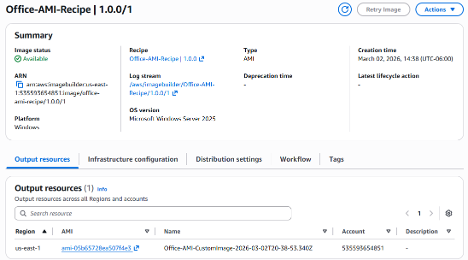
Figure7 – Office LTSC golden AMI available for EC2 instance deployment
Cleanup
To clean up resources
- Open the AWS CloudFormation console.
- Select the stack you created.
- Choose Delete stack.
- Confirm the deletion.
Alternatively, you can use the AWS Command Line Interface (AWS CLI):
aws cloudformation delete-stack --stack-name office-ltsc-image-builderThis removes the IAM roles, Lambda functions, Amazon Simple Notification Service (Amazon SNS) topics, Systems Manager Automation Documents, and Image Builder resources. You need to manually delete any created AMIs and snapshots if you no longer need them.
Conclusion
EC2 Image Builder automates how you deploy and manage Microsoft Office LTSC across AWS. This method ensures all installations are identical and includes built-in tools to track your licenses, replacing manual or inconsistent deployment steps.
While installing Microsoft Office on individual instances works for small teams, using CloudFormation to create golden images scales to support large organizations. The system automatically validates licenses for compliance and applies security patches on a set schedule. Use the CloudFormation template to start building automated, compliant Office images for your infrastructure.