AWS Storage Blog
Architecting high performance AI-driven data applications with Spice AI and AWS
As enterprises scale their adoption of generative AI, one of the biggest technical challenges is connecting AI applications to the right data and making that data fast, accessible, and secure. AI agents are transforming industries through applications like customer support automation, personalized e-commerce recommendations, and research assistance in financial services and healthcare. These applications require the ability to search and analyze data across disparate sources—transactional databases, data warehouses, and data lakes—while maintaining strong governance and low latency. Building this foundation often results in complex ETL pipelines, inconsistent performance, and security risks when connecting autonomous agents directly to production systems.
In this post, we introduce a reference architecture for building and deploying an application using Spice AI that connects to a variety of AWS data sources, such as data lakes on Amazon S3 Tables and vector stores on Amazon S3 Vectors. This architecture enables organizations to query, analyze, and ground reasoning across these data sources in real time, eliminating the need for complex ETL flows to unlock intelligent, context-aware decisions instantly. We also examine how the solution gives you the flexibility to use full-text, semantic, and hybrid search to find and retrieve the right data for your use cases.
About Spice AI
Spice AI is an open source data and AI platform designed for building intelligent applications and AI agents that work directly with data lakes, databases, and vector stores. It provides query federation across multiple data sources using standard SQL, accelerates queries through materialization and caching, and supports hybrid search by combining SQL, vector, and text-based retrieval in a unified interface. The platform also includes built-in large language model (LLM) inference, allowing applications and agents to invoke LLMs for generative tasks, RAG pipelines, and analytics directly within the query engine using both local and hosted models.
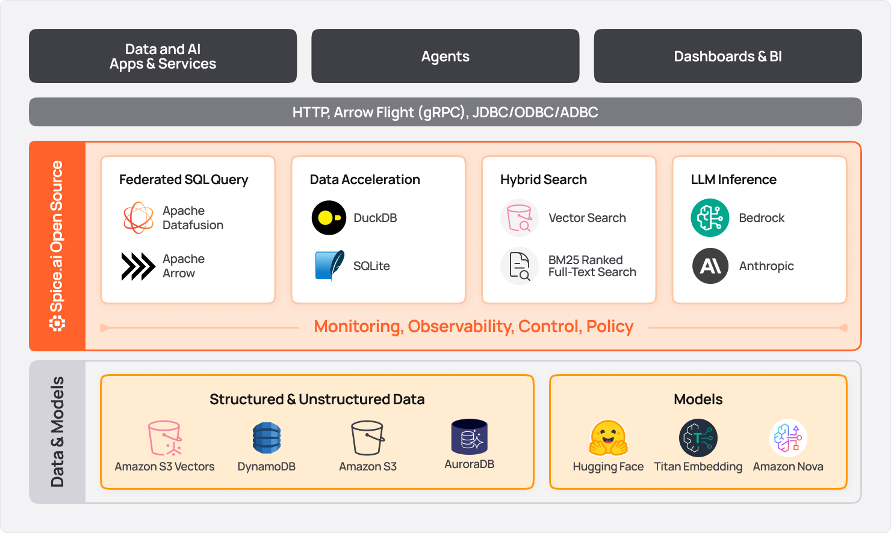
With the general availability of Amazon S3 Vectors, the first cloud object storage with native support to store and query vector data, AWS and Spice AI now offer an integrated platform for federating, accelerating, and searching across enterprise data sources. These include data lakes on Amazon S3 Tables or general-purpose Amazon S3 buckets, data warehouses on Amazon Redshift, and transactional databases such as Amazon Aurora. Together, they enable development teams to build AI-driven applications and agents with secure, real-time access to contextual data across their organizations.
Architecture overview
The following architecture demonstrates how to deploy Spice AI on AWS to enable federated queries, semantic search, and hybrid search across multiple data sources.

- Spice AI runtime can be deployed on AWS compute resources such as Amazon Elastic Compute Cloud (Amazon EC2) instances, Amazon Elastic Kubernetes Service (Amazon EKS) clusters, or Amazon Elastic Container Service (Amazon ECS) tasks. In this reference architecture, the Spice AI runtime is deployed on an EC2 instance.
- The spicepod.yaml configuration defines access to data sources. A spicepod is a package that encapsulates application-centric datasets and AI models. In the reference architecture, the spicepod.yaml configuration defines access to:
-
- Amazon S3 Tables for tabular data.
- Amazon S3 vectors to store embeddings.
- Amazon Bedrock Nova multimodal embeddings to generate embeddings.
Other data sources such as Amazon Aurora, Amazon DynamoDB and Amazon Redshift can also be used to extend the reference architecture. A full list of supported data connectors can be found in the Spice AI OSS documentation.
Walkthrough
You can follow the following steps to deploy a Spice AI application on an EC2 instance with some common data sources integrated on AWS. To demonstrate the key features of the solution, you will deploy the data lake on S3 Tables and vector buckets and index on S3 Vectors.
- Configure tables in S3 Tables and load datasets
- Grant database and table permissions on AWS Lake Formation
- Deploy and initiate Spice AI runtime on Amazon EC2
- Perform SQL queries on S3 Tables
- Perform semantic search on S3 Vectors
- Perform hybrid search on the S3 Tables and S3 Vectors
- Cleanup resources (Optional)
Prerequisites
- An AWS Account
- Console access to Amazon EC2, Amazon S3, AWS Lake Formation, Amazon Athena and AWS CloudFormation
- Required permissions to execute CloudFormation templates
- Required permissions to create a data lake administrator in AWS Lake Formation
- Access to Amazon Bedrock Foundation Models
Environment setup
This blog post includes an accompanying CloudFormation template that provisions the following resources: A new Amazon VPC, an EC2 instance in the VPC, an S3 Tables bucket, an S3 Vectors bucket and index, and an IAM role.
After the CloudFormation stack deployment, you will install the Spice AI CLI and runtime on an EC2 instance in the preceding steps.
The Stack Overflow questions dataset will be stored in an Amazon S3 Table using the Apache Iceberg format. You will also generate vector embeddings for these questions and store them in an S3 Vectors index to enable semantic similarity search. An IAM role with the necessary permissions is also created and attached to the EC2 instance.
This template is built to support instances on us-east-1 only with a pre-configured EC2 AMI.
- Download the CloudFormation template on your local computer, navigate to the CloudFormation console and choose Create stack – with new resources (standard). Choose Upload a template file and select the downloaded CloudFormation template. Choose Next. Enter the stack name as spice-on-aws. All the other parameters are configured with default values in the stack. Keep them with the default values and choose Next.

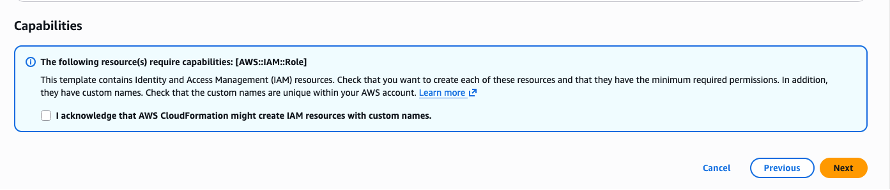
- On the next page, scroll down to the end and acknowledge the message and choose Next.
- On the next page, scroll to the end and choose Submit. This will create all the resources needed to get started. To see the successful creation status, navigate to the CloudFormation dashboard and look for the status CREATE_COMPLETE.
Step 1: Configure tables in S3 Tables and load datasets
To start querying the dataset, you need to first load it into S3 Tables and grant the related permissions for our IAM role. For the dataset, you will use a subset of the publicly available Stack Overflow Question classification dataset where questions are categorized into three categories:
-
- HQ: High-quality posts without a single edit.
- LQ_EDIT: Low-quality posts with a negative score, and multiple community edits.
- LQ_CLOSE: Low-quality posts that were closed by the community without a single edit.
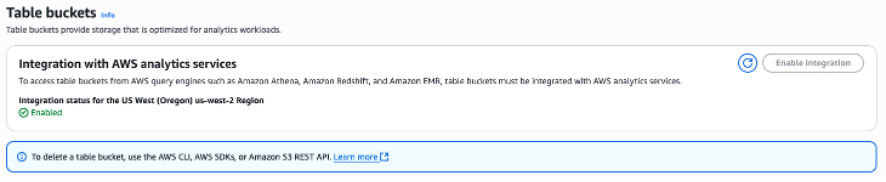
- From the AWS S3 Console, navigate to Table Buckets. Make sure that Integration with AWS analytics services is enabled. The steps for Amazon S3 table buckets with AWS analytics services integration are available in the Amazon S3 user guide.
- The CloudFormation template created a table bucket with the name spiceai-questions. Choose the bucket name under Table buckets. In the next page, choose Create table with Athena. You will be prompted to select a namespace. From Specify an existing namespace within this table bucket select Choose from existing namespaces like in the snippet below. Choose spiceai_aws_ns.

- If it’s your first query in Amazon Athena, you need to set up a query result location in Amazon S3. You can follow the steps in Athena documentation for the setup.
- You will create the table and load it with data on an Athena console. Execute the following statement in the Athena query editor to create the table under the spiceai_aws_ns namespace.
CREATE TABLE `spiceai_aws_ns`.questions (
question_id int,
title string,
body string,
tags string,
creation_date timestamp,
type string)
PARTITIONED BY (day (creation_date))
TBLPROPERTIES ('table_type' = 'iceberg')
When the query is run, you should observe that a new table is created under Tables and views.
The created table structure is as follows:
- question_id: Unique identifier for each question in the dataset.
- title: The headline or subject summarizing the question’s topic.
- body: The full content or description of the question being asked.
- tags: Keywords or labels that categorize the question for easier search and filtering.
- creation_date: The exact date and time when the question was created.
- Copy the contents of the spice-on-aws-dataset.sql file and paste into a new query editor in Athena and run the query. The SQL file contains 100 insert statements from the Stack Overflow dataset that should be loaded into the Apache Iceberg table. You will be using this dataset within the rest of the blog.After the records are inserted, you can verify the records by running the following query:
SELECT COUNT(*) as Count FROM questions;You should see 100 rows added into the questions table.
Step 2: Grant database and table permissions on AWS Lake Formation
Spice AI runtime needs access to the S3 Tables catalog and to the questions table to run SQL queries, and semantic and hybrid search queries. You will then grant necessary table permissions for the IAM role in the AWS Lake Formation console. AWS Lake Formation manages fine-grained data lake access permissions using familiar database-like features.
- Navigate to the Lake Formation console. If it’s your first time in Lake Formation, you need to define an administrator. You can choose to add the existing AWS account or other AWS users or roles. For information is available under Lake Formation developer guide.
- Choose Databases dropdown and select the S3 Tables Catalog with the format <<account_id>>:s3tablescatalog/spiceai-questions. Select the namespace spiceai_aws_ns. From the Actions dropdown menu, under Permissions, choose Grant.

- In the next page, choose IAM users and roles and type spice-ai-ec2-role. You will find the created IAM role. Select the role and scroll down to the end of the page.
 Choose Create Table and Describe checkboxes under Database permissions and choose Grant.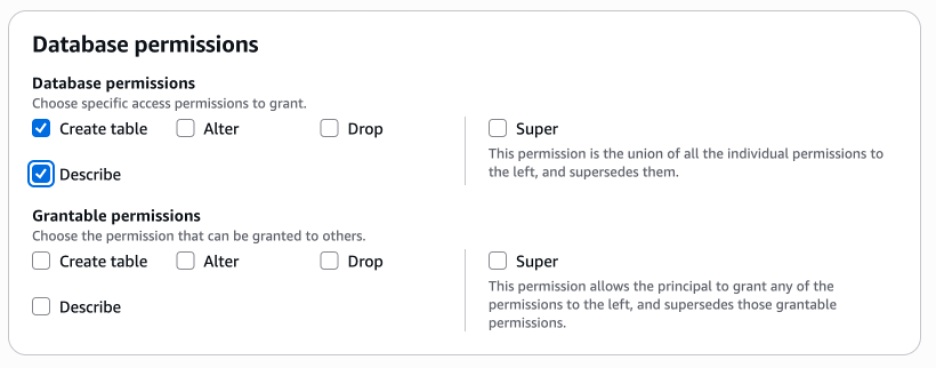
- Choose Tables and MVs under Data Catalog menu and select the s3table catalog with the format <<account_id>>:s3tablescatalog/spiceai-questions from the drop down. Choose the questions table.
 In the next page, from the Actions dropdown menu, under Permissions, choose Grant.
- In the next page, choose IAM users and roles and type spice-ai-ec2-role. You will find the created IAM role. Select the role and scroll down to the end of the page.
 Choose Select, Insert and Describe checkboxes under Table permissions and choose Grant.
 Now the data lake is ready on S3 Tables with the initial dataset and the related permissions.
Step 3: Deploy and initiate Spice AI runtime on Amazon EC2
You will use instructions from the Spice AI OSS documentation to install the Spice AI CLI and runtime on Amazon EC2 instance. The CloudFormation template created an EC2 instance with the name spiceai-blog-ec2.
- Navigate to the EC2 console, choose spiceai-blog-ec2 instance and choose Connect.
 You will use EC2 Instance Connect to login into the instance. Choose Connect.
 Once connected, run the following command to install:
curl https://install.spiceai.org | /bin/bashVerify that Spice AI is installed by reviewing the messages from the terminal output.
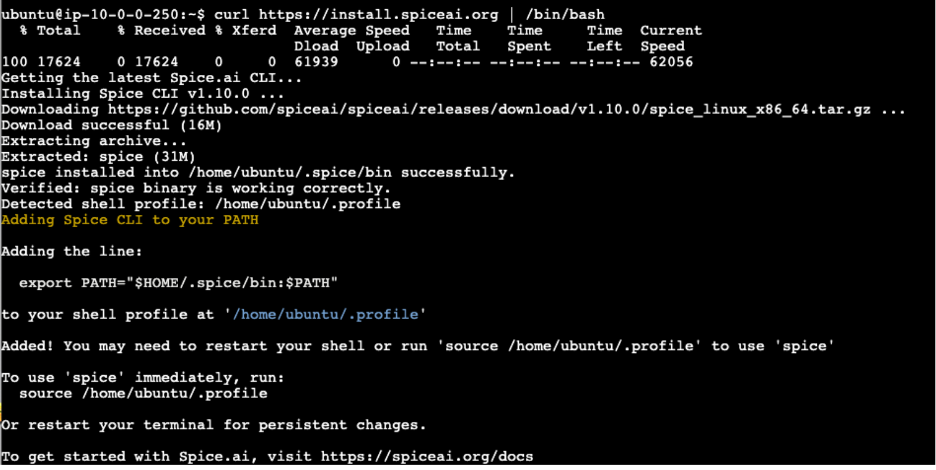
- Restart your shell. You can close the current session and open a new one by connecting to the EC2 instance.
- In the new shell, you will execute the spice init command. It will initialize a new Spice AI project for the working directory. It creates the necessary project structure and default configuration files needed to build and run Spice AI-powered data and AI apps.
spice init spice-on-aws - The output will generate a spicepod.yaml file which is a core configuration file for Spice AI projects. It defines your project’s metadata, datasets, queries, agents, and other runtime components needed by the Spice AI engine.

- Navigate to the spice-on-aws directory.
cd spice-on-aws - Open the spicepod.yaml file in edit mode.
vim spicepod.yaml - Copy the content to spicepod.yaml and replace the <<Account Id>> with your AWS account ID.
version: v1
kind: Spicepod
name: spice-on-aws

datasets:
  - from: glue:spiceai_aws_ns.questions
    name: questions
    params:
      glue_region: us-east-1
      glue_catalog_id: <<Account Id>>:s3tablescatalog/spiceai-questions
    acceleration:
      enabled: true
      engine: duckdb
      mode: file
    vectors:
      enabled: true
      engine: s3_vectors
      params:
        s3_vectors_aws_region: us-east-1
        s3_vectors_bucket: spiceai-questions-vector-bucket
        s3_vectors_index: spiceai-questions-vector-index
    columns:
     - name: body
       full_text_search:
         enabled: true
         row_id:
          - question_id
       embeddings:
           - from: bedrock_nova
             row_id:
               - question_id

embeddings:
  - from: bedrock:amazon.nova-2-multimodal-embeddings-v1:0
    name: bedrock_nova
    params:
      aws_region: us-east-1
      dimensions: '1024'
Save the file and exit.
This Spicepod defines a federated data and AI application that leverages Amazon S3 federated table catalog to access a questions dataset in S3 Tables and accelerates analytics by materializing data locally with DuckDB. It integrates semantic search functionality via S3 Vectors using the embeddings section in the configuration file for scalable similarity search using Amazon Bedrock Nova multimodal embeddings. Amazon Titan text embeddings are also supported with Spice AI and can be used alternatively.
Refer to Spice AI OSS documentation for detailed usage and configuration of each component.
- To start exploring different query types with Spice AI, save the file and run “spice run” from the terminal. This command will launch the core Spice AI engine, connect the data sources by reading the project’s spicepod.yaml configuration, load the cache data, and create the embeddings in S3 Vectors index.
spice runA sample output should look like below:

Note that when AWS credentials are not explicitly provided in the configuration, the connector will automatically load credentials from the following sources in the following order:
a. Environment variables
b. Shared AWS Config/credentials files
c. AWS Security Token Service (AWS STS) web identity token credentials
d. Amazon EC2 instance metadata serviceEC2 role is attached to the instance, so you don’t need to explicitly define the credentials in the spicepod.yaml config or any secrets management tool.
Keep the Spice AI runtime up and running.
Step 4: Perform SQL queries on S3 Tables
Spice AI supports a range of query types to help developers build powerful, data-driven and AI-enhanced applications. Standard SQL queries allow you to retrieve, aggregate, and manipulate structured data seamlessly across federated sources such as relational databases, data warehouses, and data lakes. You will examine SQL Queries on S3 Tables in this section.
- Open a new terminal session on the EC2 instance with EC2 Instance Connect.

- In the new terminal session, run the following command:
spice sqlA sample output should look like the following:

- Run the following command to see the list of available tables. You will observe that the questions table is available under the public schema.
show tables;A sample output should look like the following:
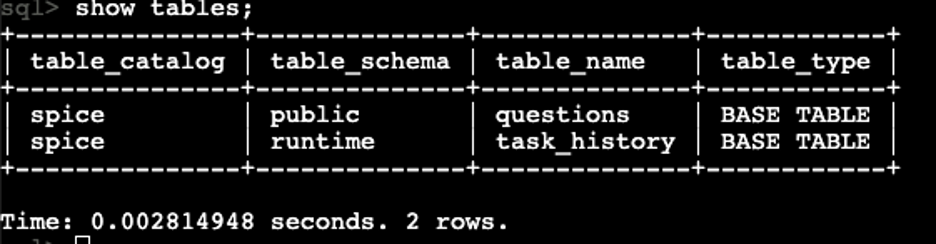
- Run a SQL query to test Spice AI application can query the tables in the S3 Table bucket.
SELECT title, tags, type FROM questions WHERE body ILIKE '%Java%' LIMIT 5;Sample output:

Note that Spice AI supports SQL queries using a PostgreSQL-style dialect. You can run queries interactively using the CLI or via APIs. With DuckDB cache, the subsequent queries are executed faster as the data materialized locally.
This query fetches the title, tags and type from the questions table where the body contains the text “Java” regardless of the case insensitivity. While traditional SQL search is fast and precise for structured data and exact keyword matches, it often falls short in understanding context, user intent, or synonyms – especially when users ask questions in natural language, or use terms not present in the database. For example, if you want to get information on other java related concepts such as “JVM” or “J2EE” and if the body doesn’t contain the keyword “Java”, you won’t retrieve any results.
Semantic search overcomes these limitations by leveraging AI models to grasp the underlying meaning of queries and documents, enabling more relevant and intuitive results for modern applications.
Next, you will examine how semantic search in Spice AI works on S3 Vectors.
Step 5: Perform semantic search on S3 Vectors
Semantic search understands the meaning and context of a natural language query, so it can find relevant rows even when the exact keywords, column names, or phrasing do not match the data. Traditional SQL search generally relies on exact matches or simple patterns on specific columns, which makes it harder to handle synonyms, vague queries, typos, and concept-level intent.
In this step, you will run semantic search on S3 Vectors with Spice AI to extract what type of titles are created for “Java issues”. You will use Spice AI’s vector_search() function for semantic search queries.
- Copy the following query to Spice AI CLI and run the query.
SELECT title, creation_date, score FROM vector_search (questions,'Java issues',5) ORDER BY score DESC;Sample output:

This query performs a semantic/vector search using ANN (Approximate KNN) by retrieving the most relevant questions related to “Java issues” and ordering them by relevance score. The vector_search() function performs a similarity search on the “questions” dataset, looking for entries that are semantically similar to the phrase “Java issues”. Topmost relevant matches are limited to 5 with the last parameter in the function.
You can try another example by performing a semantic search on other Java concepts such as JVM. Run the below query to retrieve semantically relevant questions related to “JVM Issues”.
SELECT title, creation_date, score FROM vector_search (questions,'JVM issues',5) ORDER BY score DESC;Sample output:

The query returns the questions that are contextually relevant to the input query. This is different than the SQL search where you will not get any results unless there is exact keyword match.
You can test this by running the following SQL query:
SELECT title, tags, type FROM questions WHERE body ILIKE '%JVM Issues%' LIMIT 5;This query doesn’t return any results because there are no titles that match “JVM Issues” in the dataset, such as the following:

Next, you will examine hybrid search to combine the SQL search and vector search in a single query.
Step 6: Perform hybrid search on S3 Tables and S3 Vectors
Spice AI hybrid search capabilities combine keyword and semantic search in a single query, all in SQL. By combining these methods, hybrid search in Spice AI ensures that users get highly accurate results that retain the speed and precision of SQL for exact matches, while also surfacing in-context, semantically similar information that classic approaches would miss. This is essential for delivering rich, satisfying search experiences in environments where both data accuracy and AI-driven insight matter.
The Reciprocal Rank Fusion (RRF) algorithm can be used in Spice AI for hybrid search queries. RRF lets you combine the precision of keyword search with the flexibility of semantic search, providing users with results that are both exact and contextually relevant, all with a simple query, without custom post-processing or complex pipelines.
- Copy the following query to Spice AI CLI and run the query:
select question_id, fused_score, title, tags
from rrf(
    text_search(questions, 'Java'),
    vector_search(questions, 'Java issues')) order by fused_score desc
limit 5;
A sample result looks like below. The fused score is the final combined score assigned to each document when merging multiple ranked results.

The query breakdown:
• text_search(questions, ‘Java’): Performs a keyword (full-text) search for questions relevant to “Java”
• vector_search(questions, ‘Java issues’): Performs a semantic (vector) search for questions related in meaning to “Java issues.”
• rrf(…): This function combines the ranked results from both search methods using RRF, aligning them by the question_id field.In this step, you have gone through the different search types.
Step 7: Cleanup resources (optional)
When you’re done experimenting, you can clean up all resources to avoid incurring charges.
- Navigate to the Athena console, open a new query editor and run the following query:
DROP TABLE questions;Questions table should be dropped once the query is successfully executed.
- After dropping the table, navigate to the CloudFormation Stacks page in the AWS Console and delete the spice-on-aws stack by choosing Delete. Once deleted successfully, all the resources will be cleaned up.
Conclusion
In this blog post, we demonstrated how to deploy a reference architecture using Spice AI to connect to multiple AWS data sources, including S3 Tables and S3 Vectors, and deliver reliable, fresh, and context-rich data with different query types such as SQL, semantic and hybrid queries. With this solution, you don’t have to choose a single query type. Classic SQL, semantic search, and hybrid search can all be combined or used independently. This unified approach ensures that your applications keep pace with evolving data and AI requirements, making it easy to deliver precise, context-aware results for every type of query.
For more information, explore Spice AI cookbook for details on using various data connectors. Check the S3 Vectors cookbook for configuration, optimization, and advanced vector search functionality.