AWS Storage Blog
Connect workloads to Amazon S3 Files across VPCs and accounts
Organizations store vast amounts of data in Amazon S3 for machine learning, data analytics, media processing, and generative AI workloads. Many of the applications, agents, and teams that work with that data are file-based: they read and write on a mounted path using the file and directory operations and POSIX tools they already depend on. Amazon S3 Files meets that need.
S3 Files is a shared file system that connects any AWS compute resource directly with your data in Amazon S3, giving fast, direct access to your S3 data as files with full file system semantics and low-latency performance, without your data ever leaving S3. File-based applications run unchanged, with no data duplication. Those applications often run on compute in a different VPC or account than the file system, so organizations can scale on AWS with isolation, security, and multi-team ownership. The file system and its S3 general purpose bucket always live in one account; the flexibility is where you mount from and the network path you take to get there.
In this post, we show you which network path to choose (VPC peering, AWS Transit Gateway, or Amazon VPC Lattice), how to set each one up from an Amazon EC2 instance, how to mount from Amazon ECS on AWS Fargate and Amazon EKS, and the best practices we have learned from real deployments.
Which path should you use?
What you need is driven by where the mount target sits relative to your compute, along two independent axes. The location of your compute (same VPC as the mount target, or a different VPC) drives whether you need a network path. The identity of your compute (same account, or a different account) drives what permissions you attach. Read your case off the matrix below, then use the table to pick a path.
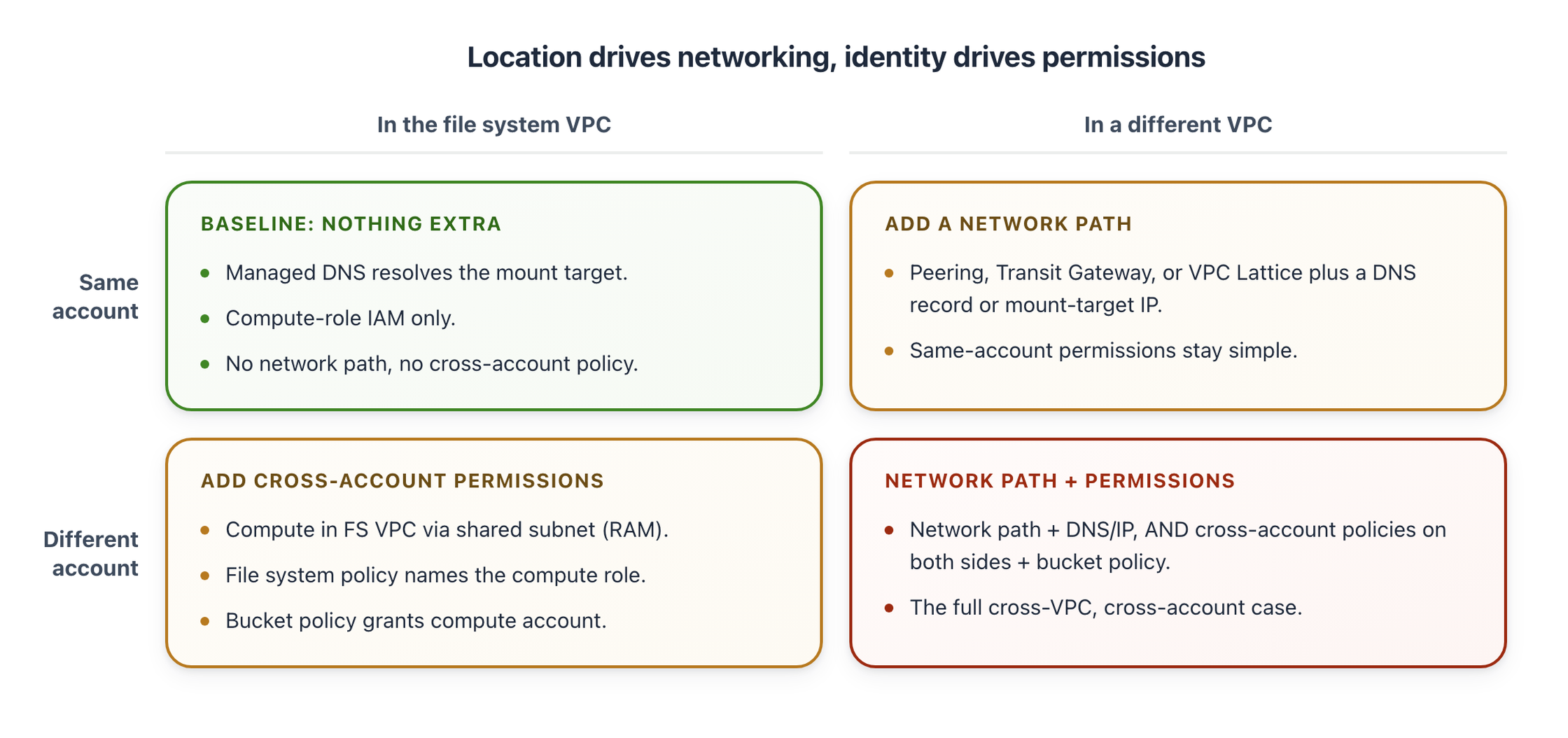
Figure 1: What drives what you need: compute LOCATION drives the network path, compute IDENTITY drives permissions.
Start with the simplest option that fits your topology. You only need a network path when the compute cannot run in the file system’s VPC.
For cross-account access on any path, grant permissions on both sides (next section) and, for the direct-read path, add an S3 gateway endpoint in each compute VPC.
How the networking works
An S3 file system and its S3 bucket are owned by a single account in one AWS Region. Mount targets are elastic network interfaces with private IPs that serve NFS on TCP port 2049, one per Availability Zone in a single VPC. All mount targets for a file system must be in the same VPC. TLS and AWS Identity and Access Management (IAM) authentication are always on and cannot be disabled.
AWS creates a managed Amazon Route 53 private hosted zone named s3files.<region>.on.aws and associates it only with the file system VPC. Its records follow this format:
<availability-zone-id>.<file-system-id>.s3files.<region>.on.awsAmazon S3 Files owns the zone, so it does not appear in your Route 53 console and list-hosted-zones does not return it. Run this in the file system account to confirm the association:
aws route53 list-hosted-zones-by-vpc --vpc-id <file-system-vpc-id> --vpc-region <region>The owning service reads efs.amazonaws.com rather than an S3 name. This is expected because Amazon S3 Files uses the Amazon Elastic File System (Amazon EFS) mount client.
Resources in the file system VPC resolve mount-target names automatically. Resources in another VPC cannot, even when routing works, because the private hosted zone is associated only with the file system VPC. Cross-VPC access therefore needs both a network path and either a DNS record or an explicit IP address.
File reads of 1 MiB or larger, and reads of data not stored on high performance storage, stream directly from the S3 bucket to the NFS client. This requires an S3 gateway VPC endpoint. A gateway endpoint is scoped to a single VPC and cannot be reached through peering, Transit Gateway, or VPC Lattice, so each compute VPC needs its own. Across accounts, the S3 bucket policy must also grant access to the compute account.
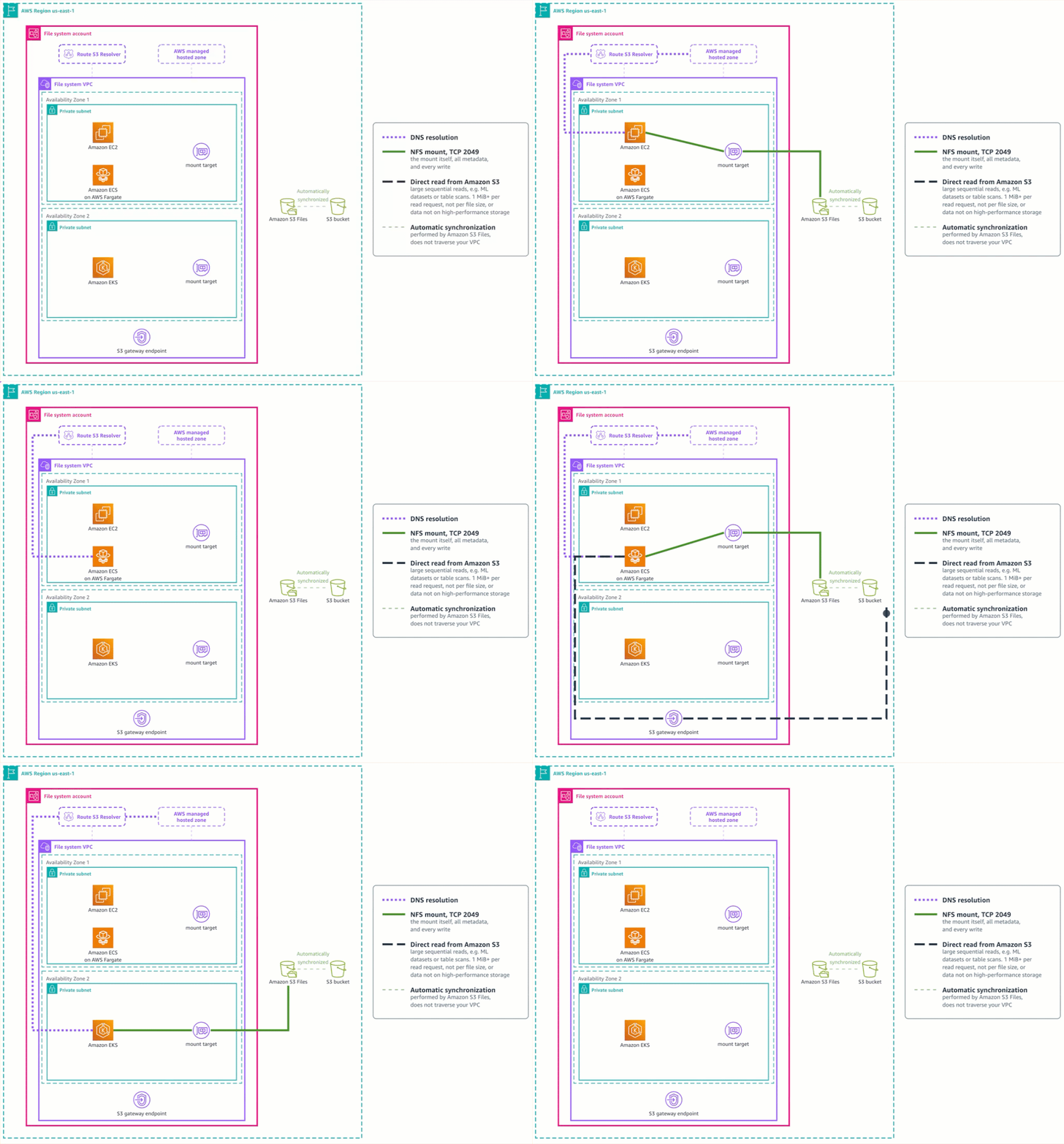
Figure 2: Baseline — DNS and NFS traffic flow when compute sits in the file system VPC.
Prerequisites
- An S3 file system with a mount target per Availability Zone.
- An Amazon EC2 instance with amazon-efs-utils (version 3.0.0 or above) installed, for the walkthrough commands.
- Permission to configure both VPCs and their security groups.
- Permission to create or accept AWS Resource Access Manager (AWS RAM) resource shares, for cross-account access.
- An S3 gateway endpoint in the compute VPC (same Region as the bucket).
Permissions and mount behavior
The compute role (the IAM role attached to the compute resource) needs s3files:ClientMount to mount and s3files:ClientWrite to write. Add s3files:ClientRootAccess when a client mounts the file system root and writes as root. Without it, operations are performed as the NFS anonymous user, so the mount and reads succeed while writes to / fail with Permission denied. An access point enforces user identities and permissions for all file system requests made through it and can restrict clients to a specified root directory. Configuring an access point with a non-root POSIX identity that owns its root directory avoids this.
For a cross-account mount, attach a file system policy that names the compute role. Across accounts an allow is required in both; within one account either one is enough.
When a required allow is missing, the mount fails with:
mount.nfs4: access denied by server while mounting 127.0.0.1:/The local address appears because the mount helper connects through a TLS tunnel. The message is identical whether the compute role or the file system policy is missing the grant, so check both.
Two behaviors worth knowing. A read served from the file system is performed by the IAM role that Amazon S3 Files assumes, not by your compute role, so a file you can read is not evidence that the compute role’s own permissions are correct. And the direct S3 read path is silent when misconfigured: if the mounting role lacks s3:GetObject and s3:GetObjectVersion (plus the same actions in the S3 bucket policy across accounts), reads still return correct data through the file system, at higher cost and lower performance.
AWS Transit Gateway
Use this when workload VPCs already reach shared services through a transit gateway. Attach the compute and file system VPCs to the Transit Gateway. Add route table entries in both directions, and allow inbound TCP 2049 from the compute VPC CIDR on the mount target security group. If the Transit Gateway belongs to another account, share it through AWS RAM first.
Reach the mount target
A client in another VPC reaches a mount target by passing mounttargetip to the mount helper or by resolving the hostname through DNS. Use mounttargetip for instances you place deliberately; use DNS for anything that scales across zones (Amazon ECS on AWS Fargate always resolves by DNS).
sudo mount -t s3files -o mounttargetip=<mount-target-ip> <file-system-id>:/ /mnt/s3filesDNS resolution across VPCs
Without mounttargetip, the mount helper builds the hostname from the Availability Zone ID of the instance, not from the zones that have mount targets. An instance in use1-az2 queries use1-az2.fs-<id>.s3files.us-east-1.on.aws even when no mount target exists in that zone, and fails rather than falling back:
Failed to resolve "use1-az2.fs-<id>.s3files.us-east-1.on.aws"Create a private hosted zone named s3files.<region>.on.aws in the compute VPC, with one A record per Availability Zone your instances can launch in. List mount targets with their Availability Zone IDs:
aws s3files list-mount-targets --file-system-id <file-system-id> \
  --query 'mountTargets[*].[availabilityZoneId,ipv4Address]' --output table
List compute-VPC subnets with their Availability Zone IDs:
aws ec2 describe-subnets --filters Name=vpc-id,Values=<compute-vpc-id> \
  --query 'Subnets[*].[SubnetId,AvailabilityZone,AvailabilityZoneId]' --output table
Point each Availability Zone ID at the mount target in that same zone. Compare IDs, not names. One physical zone carries a different name in each account.
The following example shows two accounts whose Availability Zone IDs align, so each A record points to a same-zone mount target.
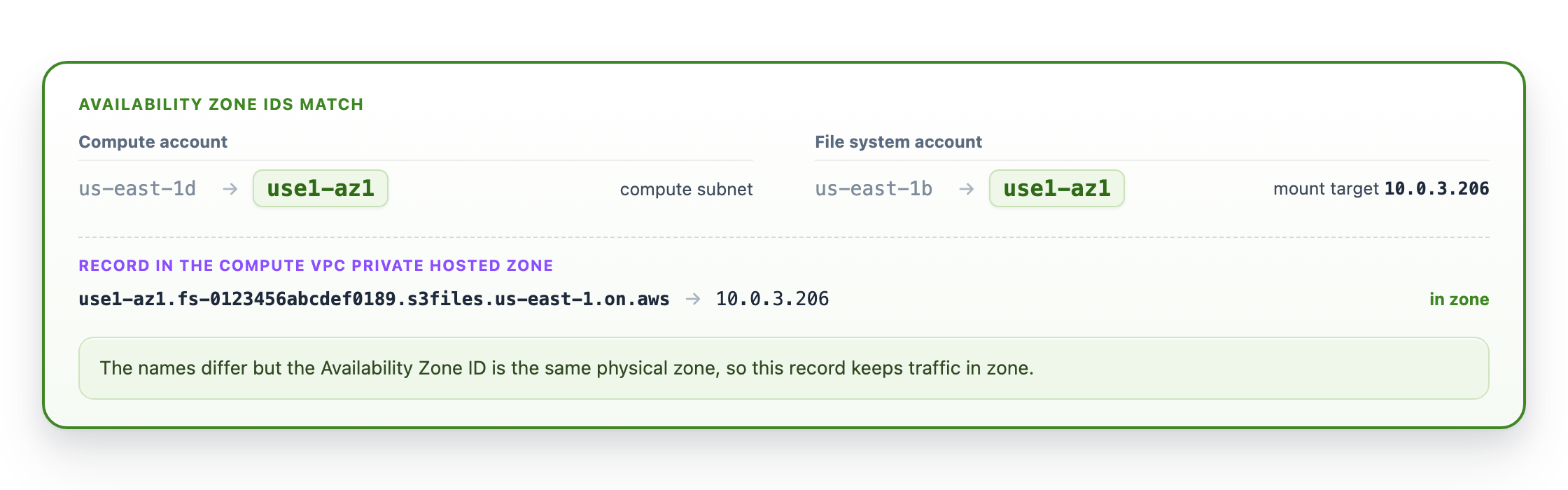
Figure 3: Availability Zone names differ, but Availability Zone ID matches.
When no Availability Zone ID matches between the two accounts, every A record must cross zones.
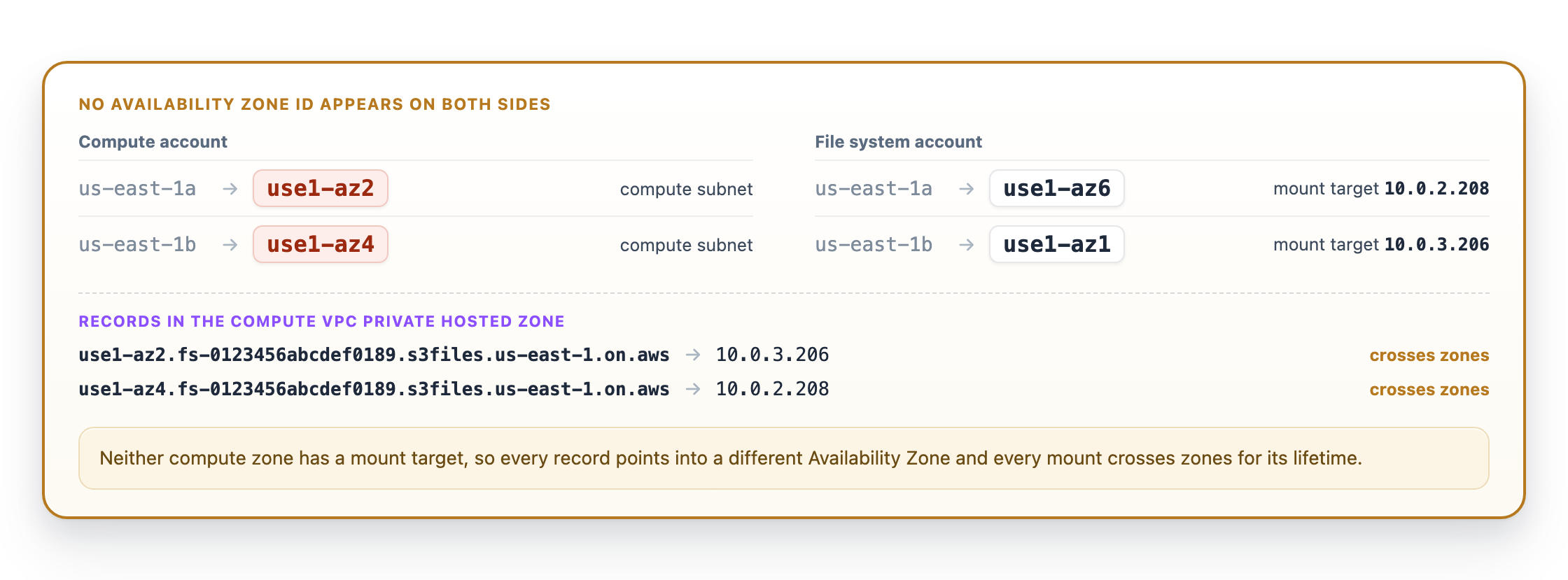
Figure 4: No Availability Zone ID appears on both sides — both records cross zones.
To avoid cross-zone traffic in that scenario, add mount targets in the compute account’s Availability Zones so each zone has a local target.
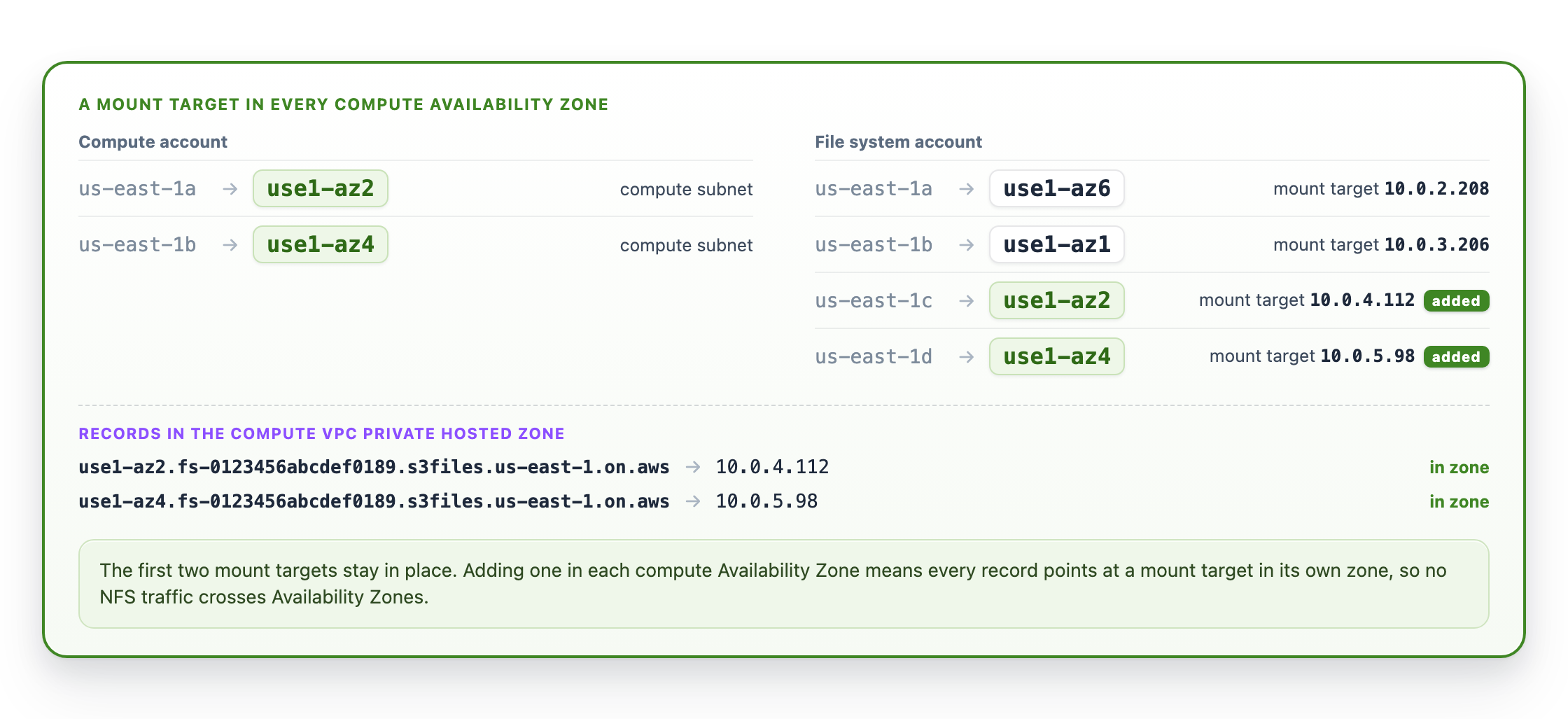
Figure 5: Mount targets added in the compute Availability Zones. S3 Files allows one mount target per Availability Zone and recommends one in every zone you operate in.
Both enableDnsSupport and enableDnsHostnames must be true on the compute VPC, or the private hosted zone returns NXDOMAIN. A VPC created through the AWS CLI defaults enableDnsHostnames to false. Allow several minutes after changing the attribute for the resolver to apply it.
When several workload VPCs need the same records, share one zone through a Route 53 Profile rather than duplicating it.
Mount and verify
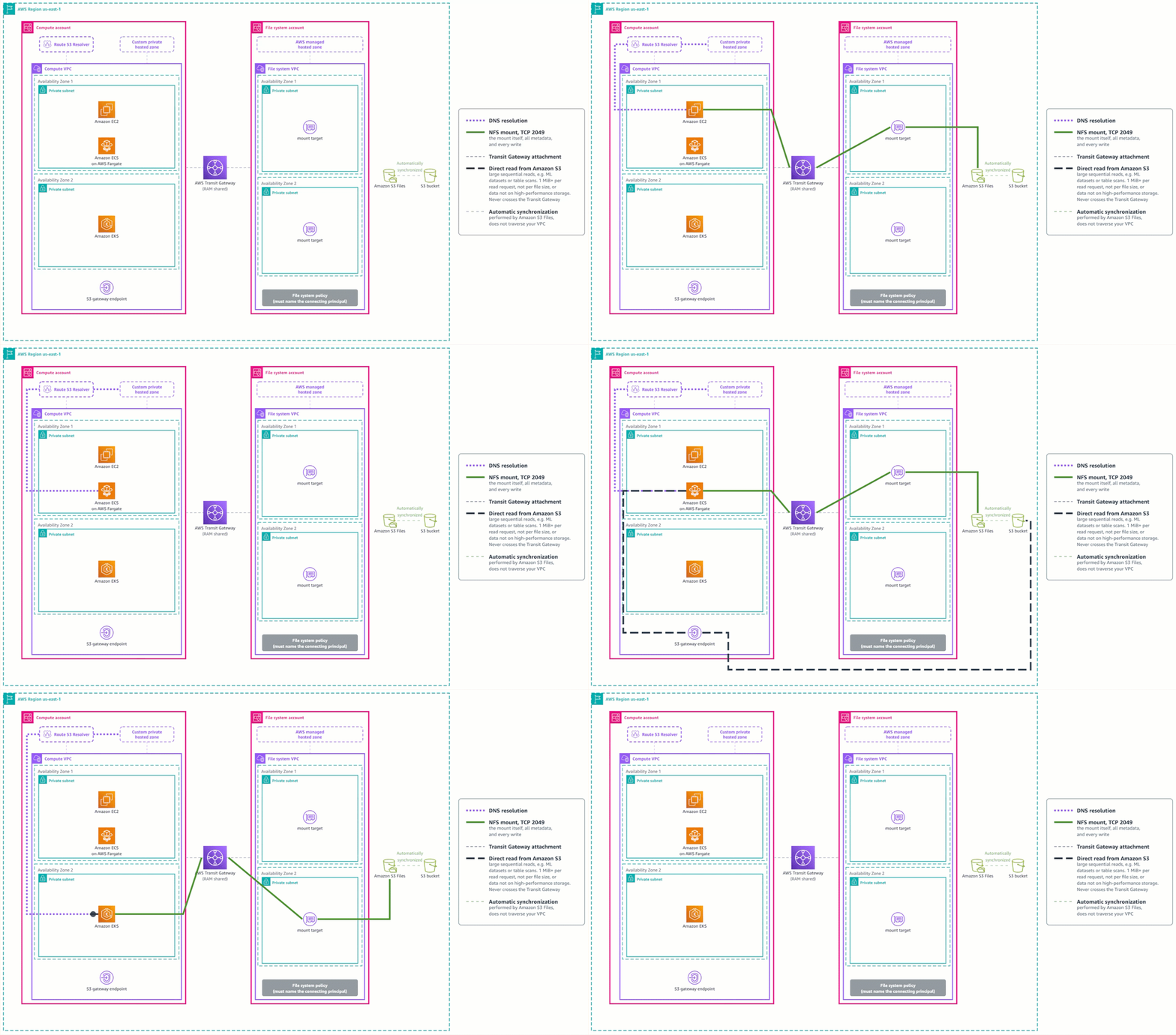
Figure 6: Cross-account access through a shared Transit Gateway. The compute VPC has its own S3 gateway endpoint for direct reads.
Confirm DNS returns the expected mount target, then mount and verify (ECS task definition and EKS PersistentVolume use the same network path but declare the mount differently):
getent hosts <availability-zone-id>.<file-system-id>.s3files.<region>.on.awsMount with the same command used inside the file system VPC:
sudo mount -t s3files <file-system-id>:/ /mnt/s3files
mountpoint /mnt/s3files
If resolution fails, check the private hosted zone association and the Availability Zone ID before changing routes. If the name resolves but the mount times out, check the Transit Gateway routes, network access control lists, and mount target security group.
Amazon VPC Lattice
Use this when CIDRs overlap or you want to expose only the mount target without joining networks. Create a resource gateway in the file system VPC (same Availability Zones as the mount targets), then create a resource configuration of type SINGLE for a mount-target IP on TCP 2049. Allow that traffic on both the resource-gateway and mount-target security groups. In the compute VPC, create a resource endpoint for that configuration. For cross-account access, share the resource configuration through AWS RAM first.
The gotcha that fails silently: the resource endpoint’s subnet and the resource gateway must share an Availability Zone ID. When they don’t, everything reports ACTIVE but no network interface is provisioned and no traffic flows. Check for the interface, not the state field:
aws ec2 describe-vpc-endpoints --vpc-endpoint-ids <endpoint-id> \
  --query 'VpcEndpoints[0].[State,NetworkInterfaceIds]'
An empty list means no data path. A resource configuration and endpoint map to one mount target, so create one pair per mount target when the workload must survive an Availability Zone failure.
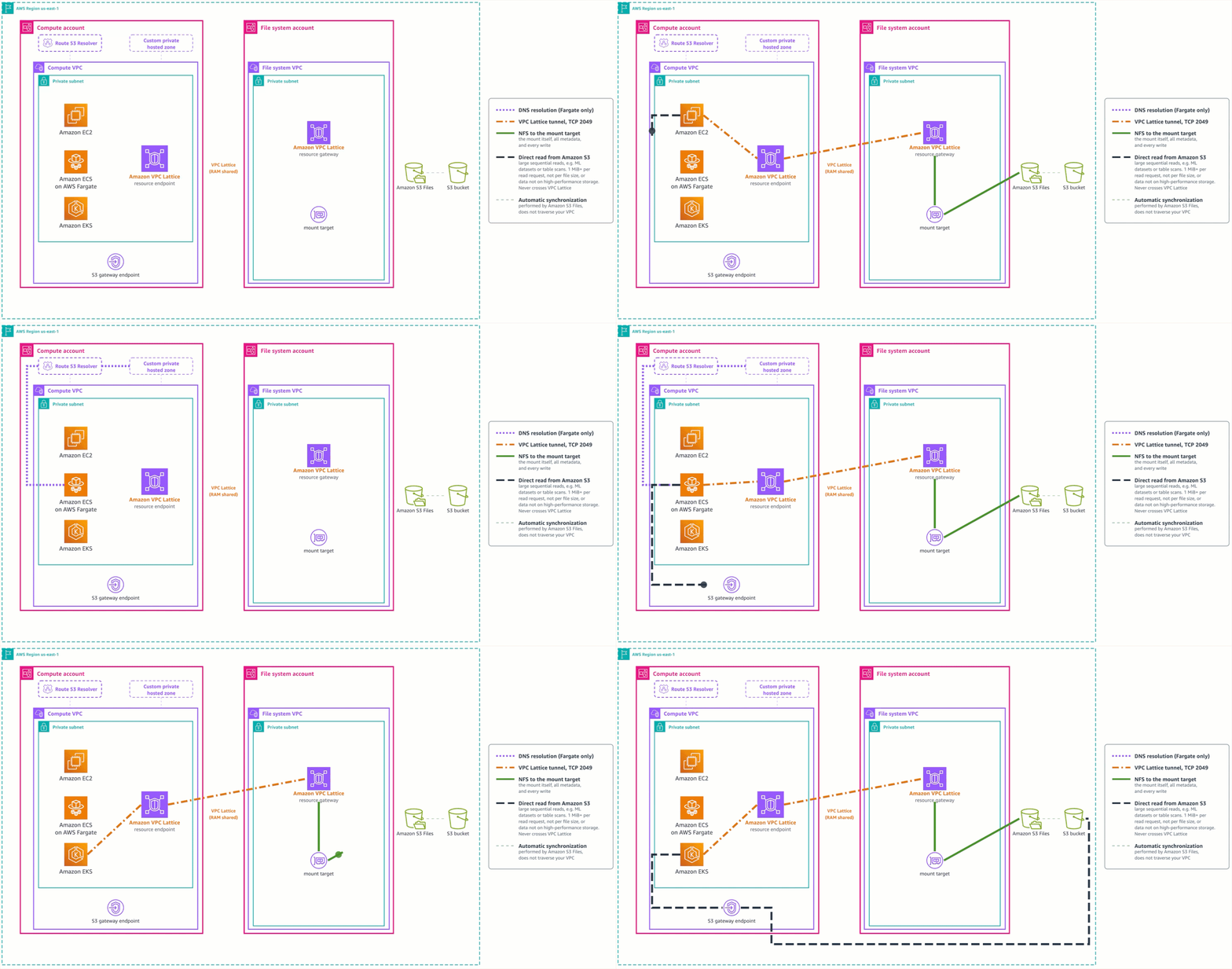
Figure 7: AWS compute across accounts through an Amazon VPC Lattice resource endpoint.
Pass the endpoint IP address to the mount helper in place of a mount target address:
sudo mount -t s3files -o mounttargetip=<lattice-endpoint-ip> <file-system-id>:/ /mnt/s3files
mountpoint /mnt/s3files
Amazon EC2 and Amazon EKS do not need the custom private hosted zone for this path, because you hand the mount helper the endpoint address directly. Amazon ECS on AWS Fargate has no field for an address, so it needs the zone. Its records resolve to resource endpoint addresses rather than mount targets, because no route to the mount target exists on this path. Point each Availability Zone ID a task can start in at the endpoint in that same zone, and at any endpoint for a zone that has none. A zone that borrows another zone’s endpoint crosses zones to reach it.
Container considerations
The network path is the same for containers; only the mount declaration differs. Amazon ECS on AWS Fargate uses the task definition and always resolves by DNS, so it needs the private hosted zone on every path. Amazon EKS uses the EFS CSI driver (S3 Files support starts at version 3.0.0; not compatible with Hybrid Nodes, EKS on Fargate, or Windows images). Three EKS constraints:
- Use static provisioning across accounts. Set
mounttargetipin the PersistentVolume’svolumeAttributesands3files:<file-system-id>as thevolumeHandle. Dynamic provisioning calls the S3 Files API with the controller’s account and fails cross-account. - Do not apply Amazon EFS cross-account settings. The driver’s
crossaccountattribute andawsRoleArnprovisioner secret apply to Amazon EFS. Amazon S3 Files rejectscrossaccount: "true". - Plan for cross-zone traffic. A single
mounttargetipis used by every pod, including pods in other Availability Zones. Nothing fails, but cross-zone data transfer charges appear on your bill.
Best practices
- Mount targets and Availability Zones: run one mount target in every Availability Zone you operate in, and match on Availability Zone ID, not name, across accounts (a physical zone has a different name in each account). Before setting a
mounttargetip, confirm it is in the instance’s own zone. Off-zone mounts still work but incur cross-zone charges for the life of the mount. - One S3 gateway endpoint per compute VPC: A gateway endpoint is scoped to one VPC and cannot be reached through peering, Transit Gateway, or VPC Lattice.
- Start with the simplest topology: if your compute can run in the file system’s VPC, including a subnet shared to your account through AWS RAM, you need no network path at all. Reach for peering, Transit Gateway, or VPC Lattice only when the compute cannot.
- Use AWS RAM to share across accounts: for the paths that need it, share the Transit Gateway or the VPC Lattice resource configuration through AWS RAM before the consumer account can use it.
- For cross-account access, grant permissions on both sides: the NFS mount (
s3files:actions plus a file system policy) and the direct S3 read path (s3:GetObject/s3:GetObjectVersionplus the bucket policy).
Clean up
Unmount the file system before removing the network path. Delete the Transit Gateway routes and attachments, and the VPC Lattice endpoints, configurations, and gateway you created. Remove test-only private hosted zones and AWS RAM shares.
Conclusion
With S3 Files, your data stays in one S3 bucket and one account while compute in any VPC or account works with it as a file system, unchanged and without copies. Connecting that compute comes down to the topology you already run: peering for a simple point-to-point link, Transit Gateway when you operate a hub, and VPC Lattice when networks stay separate. To get started, see the cross-account tutorial for peering, or Mounting S3 file systems on Amazon EC2 for the mount steps.