AWS Storage Blog
Secure SFTP file sharing with AWS Transfer Family, Amazon FSx for NetApp ONTAP, and S3 Access Points
Financial institutions need to share files securely with partner banks while maintaining their existing file-based workflows. Many run applications using standard file systems such as Windows SMB or Linux NFS, but when sharing these files with external partners through SSH File Transfer Protocol (SFTP), they traditionally had to copy data between file systems and SFTP servers. This approach introduces significant challenges: maintaining separate storage infrastructure, implementing complex synchronization scripts, dealing with data consistency issues when files are modified during transfers, and managing the operational overhead of monitoring multiple copies of the same data.
This post demonstrates how AWS Transfer Family and Amazon S3 Access Points for Amazon FSx for NetApp ONTAP (FSx for ONTAP) eliminate data movement by enabling Transfer Family to read and write files directly from your FSx for ONTAP file system. Your internal users access files through SMB or NFS, while external partners access the same files through SFTP.
The challenge: bridging file systems and SFTP access
This post uses AnyBank, a fictional financial institution, to demonstrate how organizations can implement this solution, which operates file-based applications where:
- Internal users access files through SMB (Windows) and NFS (Linux) protocols.
- Payment files and transaction records are created by internal systems.
- These same files need to be shared with external partners through SFTP.
- Traditional approaches require copying data between file systems and SFTP servers.
- Data movement created operational overhead, latency, and consistency issues.
The core challenge was eliminating data movement while maintaining secure access controls for both internal and external users.
Solution overview
AnyBank implemented a solution combining Transfer Family and FSx for ONTAP with S3 Access Points (figure 1). Both internal users (through SMB/NFS) and external partners (through SFTP) can use this architecture to access the same files directly on FSx for ONTAP.
Key components
FSx for ONTAP provides the following:
- Support for both NFS and SMB protocols for internal access.
- S3 Access Points that provide Amazon S3 access to files hosted on FSx for ONTAP volume.
- High-performance shared storage for concurrent access.
- Advanced data management with snapshots and replication.
- Storage efficiency features such as compression and deduplication.
Transfer Family provides the following:
- Managed SFTP endpoints for external partner connections.
- Integration with FSx for ONTAP S3 Access Points.
- Custom authentication with existing identity providers.
- Automatic scaling for varying file transfer volumes.
S3 Access Points for FSx for ONTAP enable the following:
- Amazon S3 access to FSx volumes without data duplication.
- Direct mapping of Transfer Family directories to FSx volumes.
- Simultaneous access through file system protocols and SFTP.
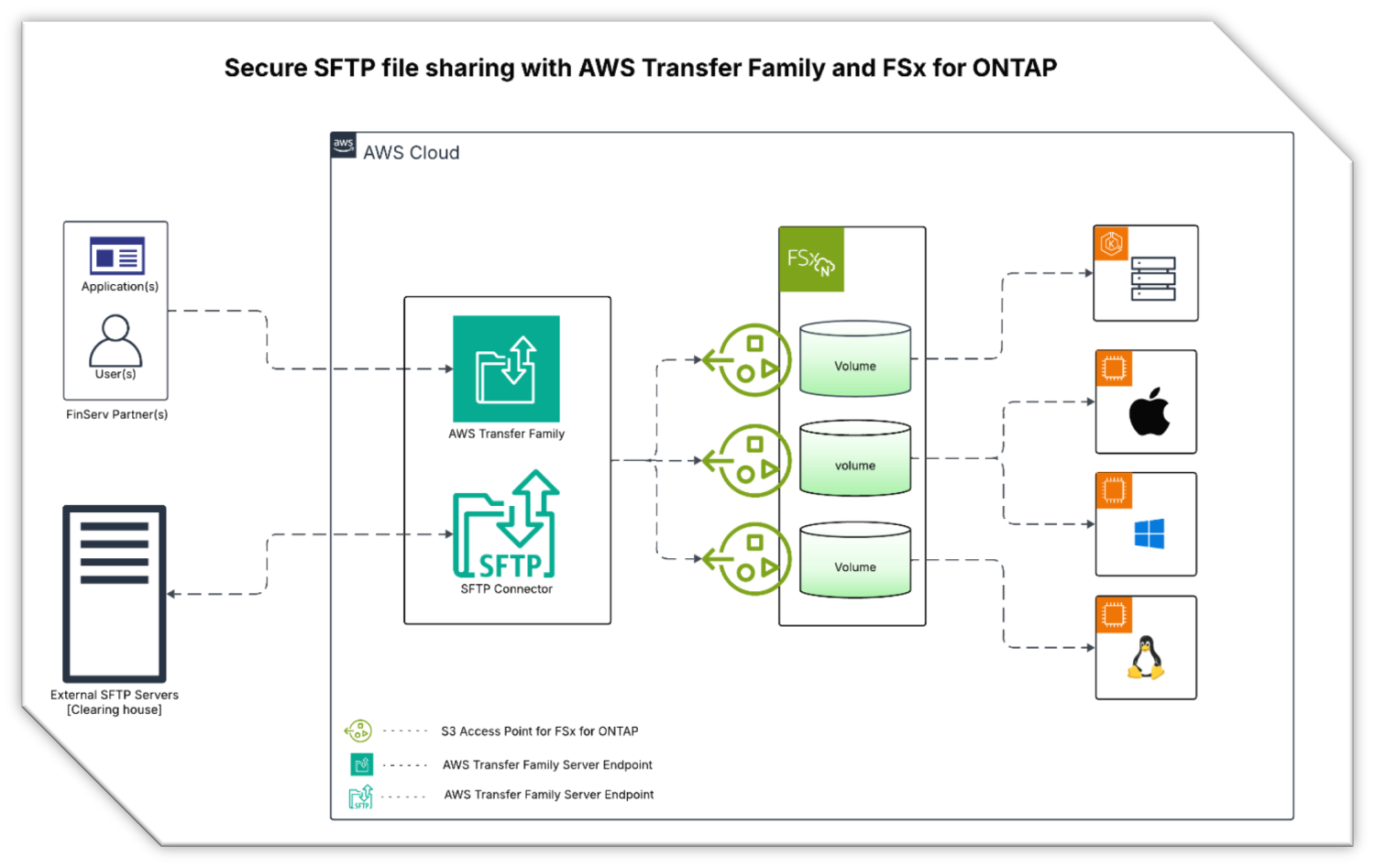
Figure:1 Solution architecture
Understanding the security architecture:
This solution implements two independent security layers. Transfer Family handles SFTP authentication and authorization through SFTP Home directory Mapping and IAM roles, while the S3 Access Point for FSx ONTAP uses a fixed file system identity for all file operations. These layers are independent of each other. We explore how they interact in detail in Step 1.
This architecture is particularly valuable for organizations with existing file-based workflows. If your applications already work with files through SMB or NFS, then you can use FSx for ONTAP with S3 Access Points to add SFTP access without changing internal workflows or moving data, as shown in the following figure. For new solutions without file-based requirements, using Amazon S3 directly with Transfer Family may be more appropriate.
Prerequisites
Before you begin, make sure that you have the following:
- An existing Transfer Family SFTP server (or create a new one) and an FSx for ONTAP file system in the same AWS Region.
- Appropriate AWS Identity and Access Management (IAM) permissions to create S3 Access Points and manage Transfer Family users.
Walkthrough
The following steps walk you through this solution.
Step 1: Create an S3 Access Point for your FSx volume
S3 Access Points provide Amazon S3-compatible access to your FSx for ONTAP volumes.
Create the access point
- Open the Amazon FSx console.
- In the navigation pane, choose File systems.
- Select your FSx for ONTAP file system.
- Choose the Volumes tab.
- Select the volume containing the files that you want to share through SFTP.
- From the Actions menu, choose Create S3 access point.
- Enter an Access point name (for example, payments).
Access point names must be unique within your AWS account and AWS Region. Avoid including sensitive information in names because they’re published in DNS.
Configure file system user identity
Choose the appropriate identity type based on your volume’s security style. The volume security style is determined by your existing file-based workflows. If your applications use NFS, then you likely have a UNIX security style volume. Furthermore, if they use SMB, then you likely have an NTFS security style volume.
For UNIX security style volumes:
- Select UNIX identity (if your volume security style is UNIX, then this is the recommended option).
- Specify the user name for file operations (for example, appuser1).
For NTFS security style volumes:
- Select Windows identity (if your volume security style is NTFS, then this is the recommended option).
- Specify the Windows domain user (for example, reportsuser1 from ad2.corp.com).
The identity you specify here is used for all file operations performed through this access point, regardless of how SFTP users authenticate to Transfer Family. Transfer Family authentication through SSH keys, passwords, or a custom identity provider which is handled separately through the IAM role assigned to each SFTP user account. The two are completely independent.
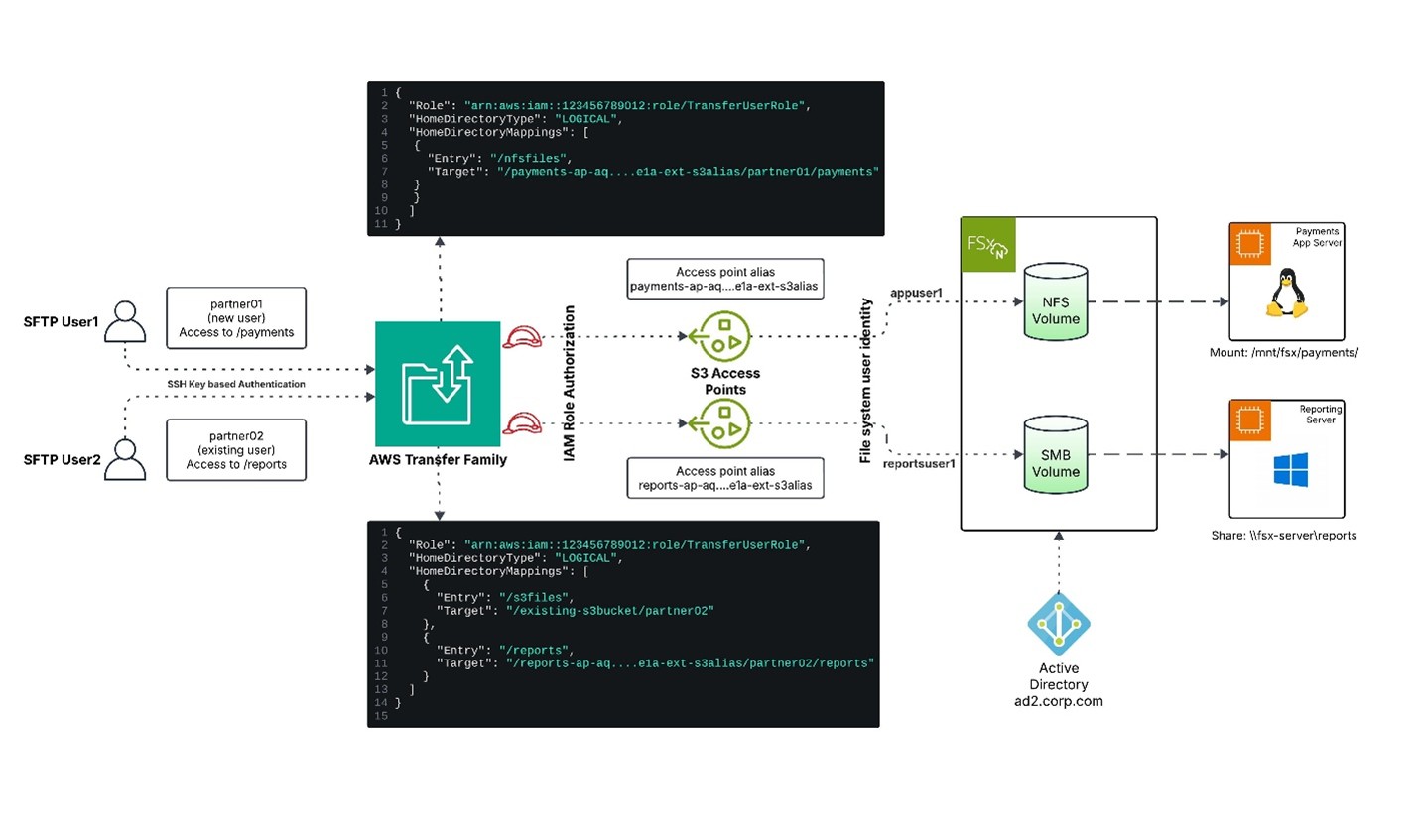
Figure 2: Scenarios – SSH key authentication with an NFS volume and Active Directory authentication with an SMB volume
The following scenarios illustrate how this works in practice as shown in the preceding figure 2.
Scenario 1 — SSH key authentication with an NFS volume:
An SFTP user named partner01 authenticates using an SSH key pair. Their home directory is mapped to an S3 Access Point for FSx ONTAP configured with UNIX File System identity called appuser1.
- Transfer Family authenticates partner01 using their SSH key.
- Transfer Family uses the IAM role attached to partner01 to authorize access to the S3 Access Point for FSx ONTAP.
- All files written through this access point are owned by file system identity appuser1 on the FSx NFS volume.
- POSIX permissions on the volume must grant appuser1 nfs user with appropriate read/write access.
- The SFTP username partner01is never used for file system permissions only the appuser1 configured in the access point governs file ownership.
Scenario 2 — Active Directory authentication with an SMB volume:
An SFTP user named partner02 authenticates through using SSH Key pair. Their home directory is mapped to an S3 Access Point for FSx ONTAP configured with Windows identity reportsuser1 backed by Active Directory ad2.corp.com , where the FSx volume’s storage virtual machine (SVM) is also joined to ad2.corp.com.
- Transfer Family authenticates partner02 using their SSH key.
- Transfer Family uses the IAM role attached to partner02 to authorize access to the S3 Access Point for FSx ONTAP.
- All file operations are performed as AD2\reportsuser1 on the FSx SMB volume.
- NTFS permissions must grant AD2\ reportsuser1 appropriate access.
-
- The SFTP username partner02 is never used for file system permissions. Only the reportinguser1 configured in the access point governs file ownership.
Key takeaway: File system permissions are governed entirely by the identity configured in the S3 Access Point for UNIX volumes, or a Windows domain user for SMB/NTFS volumes. This separation allows you to use any authentication method supported by Transfer Family while maintaining consistent, predictable file system permissions.
Configure network origin
Choose the network configuration for the access point:
- For Network origin, select Internet.
- This is required for Transfer Family integration. VPC is only used when compute (such as Amazon Elastic Compute Cloud (Amazon EC2)) needs access to the S3 Access Point for FSx for ONTAP.
All traffic between Transfer Family and the access point remains private on the AWS backbone network, even with Internet network origin selected.
Note the access point alias
After creation, copy the Alias value from the access point details. It looks like the following:
payments-ap-aqfqprnstn7aefdfbarligizwgyfouse1a-ext-s3alias
You can also use the AWS Command Line Interface (AWS CLI):
aws fsx describe-s3-access-point-attachments \
 --filters Name=file-system-id,Values=fs-0123456789abcdef0
Transfer Family only supports S3 Access Point aliases. You can’t use access point Amazon Resource Names (ARNs).
Configure file system permissions
Make sure that the file system user has appropriate permissions on the FSx volume.
When working with FSx for ONTAP S3 Access Points, always create directories for SFTP users home directories using the S3 API rather than through NFS or SMB protocols. This is essential for maintaining reliable SFTP home directory mappings.
In Amazon S3, directories are represented as zero-byte objects with a trailing slash in the key name. When you create a directory using the S3 API (aws s3api put-object), this zero-byte object persists even when the directory is empty, ensuring the directory structure remains intact.
However, when directories are created through NFS or SMB protocols, they exist as native file system directories without the corresponding zero-byte S3 object. If an SFTP client deletes all files within such a directory, the S3 Access Point for FSx ONTAP removes the empty directory from the S3 namespace since there’s no zero-byte placeholder object to maintain it. This causes subsequent SFTP login attempts to fail because the home directory mapping references a path that no longer exists in the S3 Access point for FSx ONTAP view of the file system.
By creating directories through the S3 API first, you establish the zero-byte object that keeps the directory visible in the S3 namespace regardless of its contents, ensuring consistent and reliable SFTP access.
For UNIX volumes:
# Create a directory for Transfer Family users using AWS CLI
aws s3api put-object \
 --bucket payments-ap-aqfqprnstn7aefdfbarligizwgyfouse1a-ext-s3alias \
 --key partner01/

# Verify the directory was created
aws s3 ls s3://payments-ap-aqfqprnstn7aefdfbarligizwgyfouse1a-ext-s3alias/

# Set permissions via NFS mount (after directory is created via S3 API)
chmod 755 /vol1/partner01
For Windows volumes:
# Create a directory for Transfer Family users using AWS CLI
aws s3api put-object \
 --bucket reports-ap-aqfqprnstn7aefdfbarligizwgyfouse1a-ext-s3alias \
 --key partner02/

# Set permissions via SMB share (after directory is created via S3 API)
icacls "D:\vol1\partner02" /grant "AD2\reportsuser1:(OI)(CI)M" /T
Step 2: Create an IAM role for Transfer Family
Transfer Family needs an IAM role with permissions to access the FSx for ONTAP S3 Access Point.
Create the IAM policy
1. Open the IAM console.
2. In the navigation pane, choose Policies, and choose Create policy.
3. Choose the JSON tab and enter the following policy (replace with your access point ARN and alias):
{
 "Version": "2012-10-17",
 "Statement": [
  {
   "Sid": "AllowFileOperations",
   "Effect": "Allow",
   "Action": [
    "s3:GetObject",
    "s3:PutObject",
    "s3:DeleteObject",
    "s3:GetObjectTagging",
    "s3:PutObjectTagging"
   ],
   "Resource": [
	"arn:aws:s3:us-east-1:111122223333:accesspoint/payments-ap/object/*",
	"arn:aws:s3:us-east-1:111122223333:accesspoint/reports-ap/object/*"
    ]
  },
  {
   "Sid": "AllowDirectoryOperations",
   "Effect": "Allow",
   "Action": [
    "s3:ListBucket",
    "s3:GetBucketLocation"
   ],
   "Resource": [
	"arn:aws:s3:us-east-1:111122223333:accesspoint/payments-ap",
	"arn:aws:s3:us-east-1:111122223333:accesspoint/reports-ap"
    ]
  }
 ]
}
4. Name the policy (for example, TransferFamilyFSxAccessPolicy) and create it.
Create the IAM role
- In the IAM console, choose Roles, then Create role.
- For Trusted entity type, choose AWS service.
- For Use case, choose Transfer, and choose Next.
- Attach the policy that you just created.
- Name the role (for example, TransferFamilyFSxRole) and create it.
Step 3: Configure Transfer Family users with FSx access
You can either create new users or add FSx access to existing users. You must use the AWS CLI to create or update users with FSx access because the Transfer Family console only lists S3 buckets (not S3 Access Points for FSx for ONTAP).
Option A: Create a new SFTP user
Using the AWS CLI:
First, create a JSON file with the home directory mappings (save as home-directory-mappings.json):
[
 {
  "Entry": "/payments",
  "Target": "/payments-ap-aqfqprnstn7aefdfbarligizwgyfouse1a-ext-s3alias/partner01/payments"
 }
]
Then, create the user with SSH public key authentication:
aws transfer create-user \
 --server-id s-0123456789abcdef0 \
 --user-name partner-bank-user \
 --role arn:aws:iam::111122223333:role/TransferFamilyFSxRole \
 --home-directory-type LOGICAL \
 --home-directory-mappings file://home-directory-mappings.json \
 --ssh-public-key-body "ssh-rsa AAAAB3NzaC1yc2EAAAADAQABAAABAQC..."
Service-managed users in Transfer Family only support SSH public key authentication, not password authentication.
Option B: Add FSx access to existing users
If you have existing SFTP users accessing S3 buckets, then you can add S3 Access point for FSx ONTAP access alongside their existing Amazon S3 access by granting appropriate permissions at the IAM role attached to an SFTP user.
Create a JSON file with both Amazon S3 and FSx mappings (save as home-directory-mappings.json):
[
 {
  "Entry": "/s3-files",
  "Target": "/my-existing-s3-bucket/user-folder"
 },
 {
  "Entry": "/reports",
  "Target": "/reports-ap-aqfqprnstn7aefdfbarligizwgyfouse1a-ext-s3alias/partner02/reports"
 }
]
Update the existing user:
aws transfer update-user \
 --server-id s-0123456789abcdef0 \
 --user-name existing-user \
 --home-directory-type LOGICAL \
 --home-directory-mappings file://home-directory-mappings.json
Users can use this to access both S3 buckets and FSx volumes through different virtual directories.
Step 4: Configure SFTP client settings
When using FSx file systems with Transfer Family, you must disable features that aren’t supported with S3 Access Points.
WinSCP configuration
WinSCP uses a temporary rename feature by default that isn’t supported. You must disable it:
- Open WinSCP and edit your session settings.
- Choose Advanced.
- Navigate to Transfer > Endurance.
- For Enable transfer resume/transfer to temporary filename, choose Disable.
- Save the settings.
If you don’t disable this feature, then file uploads fail.
Other SFTP clients
For other SFTP clients, disable these features if available:
- Temporary file uploads (upload to temp file, then rename).
- Resume transfers using temporary files.
- Atomic uploads using rename operations.
- Append mode for uploads.
Step 5: Test your configuration
After configuration, test the setup to make sure everything works correctly.
Test SFTP connection
Connect to your Transfer Family endpoint using an SFTP client:
sftp -i ssh-key.pem partner01@s-0123456789abcdef0.server.transfer.us-east-1.amazonaws.comVerify file access
- List files in the SFTP session.
- Upload a test file through SFTP.
- Verify that the file appears in the FSx for ONTAP volume through SMB/NFS.
- Download the file through SFTP.
- Delete the test file.
Monitor operations
Use Amazon CloudWatch to monitor Transfer Family operations:
- Navigate to CloudWatch Logs.
- Find the log group for your Transfer Family server.
- Review logs for successful file operations and any errors.
How it works in practice
When this is configured, the solution enables seamless file access across protocols.
Typical workflow
- Partner01 bank uploads payment file: Partner01 bank uploads payment file using the SFTP user ID partner01, which appears in NFS mount (/mnt/fsx/payments/payment_batch_001.xml).
- Application processing: The internal application servers process the file using native file system operations with no changes to existing application code.
- External partner access: The external partner02 bank connects to the Transfer Family SFTP endpoint, navigates to their home directory, and observes the core banking app published a report file. The partner downloads the file, and the data is read directly from FSx for ONTAP through the S3 Access Point.
- Partner uploads response: The partner uploads a response file through SFTP. The file is written directly to FSx for ONTAP through the S3 Access Point with no intermediate storage.
- Internal processing: The internal application server immediately observes the response file in the NFS mount or SMB share and processes it using standard file operations.
- Internal process: Internal applications can also send the file to an external SFTP server, such as Clearing house for payment settlement using Transfer Family SFTP Connectors. An AWS Transfer Family SFTP connector establishes a connection with a remote SFTP server to transfer files between Amazon storage and a remote server, using the SFTP protocol. You can send or retrieve files from S3 buckets, S3 Access point for FSx ONTAP to and from a remote SFTP server managed by external partners.
Key benefits:
- No data copying or synchronization required.
- Single source of truth for all file data.
- Real-time visibility across protocols.
- Existing applications continue to work unchanged.
- External partners use familiar SFTP protocol.
Best practices
When implementing this solution, consider the following best practices:
Directory structure planning
- Design your directory structure to support both internal file system access and external SFTP user home directories.
- Use logical directories to present a streamlined structure to external partners.
- Separate directories by partner, workflow stage (inbox/outbox), or data type.
- Always create directories using the Amazon S3 CLI (aws s3api put-object) rather than NFS/SMB. Empty directories created through file protocols are deleted when all files are removed, which causes SFTP login failures.
Access control
- Implement appropriate IAM policies to make sure that partners can only access their designated files.
- Use file system-level permissions (UNIX or NTFS) as an added security layer.
- Create separate access points for different security requirements or partner groups.
- Regularly review and audit access permissions.
Monitoring and logging
- Enable CloudWatch logging for Transfer Family to monitor file transfer activities.
- Set up CloudWatch alarms for failed transfers or permission errors.
- Use FSx for ONTAP audit logging to track file system operations.
- Implement automated alerting for unusual access patterns.
Troubleshooting common issues
The following section outlines the common issues and how to troubleshoot them.
Permission denied errors:
- Verify that the IAM role has correct permissions for the access point.
- Check that the access point policy allows the IAM role.
- Verify that the file system user has permissions on the target path.
- Confirm that home directory mapping uses the correct access point alias.
Upload failures:
- Make sure that the file size is under 5 GB (S3 Access Point for FSxN limitation).
- Check that the FSx volume has sufficient available storage.
- Verify that the SFTP client has disabled temporary rename features.
- Monitor CloudWatch metrics for throttling.
File not visible:
- Check that the file system path in the home directory mapping is correct.
- Verify that the file system user identity has read permissions.
- Make sure that the access point is attached to the correct volume.
Important considerations and limitations
When planning your implementation, be aware of the following considerations:
Supported operations
- File uploads are limited to 5 GB per file (S3 Access Point for FSxN limitation).
- Rename operations aren’t supported.
- Append operations aren’t supported.
Network configuration
- When Transfer Family accesses Amazon S3 resources, requests originate from the Transfer Family service infrastructure, not from your VPC.
- S3 Access Points configured with a VPC network origin deny these requests.
- Use Access Points with Internet network origin—all traffic between Transfer Family and the Access Point remains private on the AWS backbone network.
- The access point must be in the same AWS Region as the FSx volume.
Cost considerations
When evaluating this solution, consider the following cost components:
Transfer Family costs:
- SFTP endpoint hours: Charged per hour the endpoint is provisioned.
- Data transferred: Charged per GB uploaded or downloaded by SFTP users.
FSx for ONTAP costs:
- Storage capacity: Charged per GB-month of SSD storage provisioned.
- Throughput capacity: Charged per MBps-month of throughput provisioned.
- Backup storage: Charged per GB-month for automatic backups.
S3 Access Point costs:
- Request costs: Charged for Amazon S3 API requests made through the access point.
Cost optimization strategies:
- Right-size FSx throughput capacity based on actual file transfer patterns.
- Use FSx storage efficiency features (for example, compression and deduplication) to reduce storage costs.
- Manage old files manually through FSx for ONTAP administration—configure volume tiering policies (auto or snapshots-only) to move infrequently accessed data to the capacity tier, or delete old files as needed.
The elimination of separate SFTP infrastructure and reduced operational overhead can provide significant cost savings when compared to traditional approaches.
Cleaning up
To avoid incurring future charges, delete the resources that you created:
- Delete Transfer Family users: In the Transfer Family console, select your server, choose the users that you created, and delete them.
- Delete the S3 Access Point: In the Amazon FSx console, select your volume, choose the S3 Access Point, and delete it.
- Delete the IAM role and policy: In the IAM console, delete the TransferFamilyFSxRole role and TransferFamilyFSxAccessPolicy policy.
- (Optional) Delete the Transfer Family server: If you created a new server for testing, then delete it in the Transfer Family console.
- (Optional) Delete the Amazon FSx file system: If you created a new file system for testing, then delete it in the Amazon FSx console.
The preceding steps permanently deletes all data on the file system.
Conclusion
In this post, we demonstrated how to use AWS Transfer Family with Amazon FSx for NetApp ONTAP S3 Access Points to enable secure SFTP access for external partners while maintaining file based workflows for internal users. This architecture removes the need to move data between file systems and SFTP servers, reducing operational complexity and providing data consistency. The solution is built on two independent security layers, Transfer Family handles SFTP authentication and uses IAM roles for authorization, while the S3 Access Point uses a fixed file system identity for all file operations. This separation allows you to use any authentication method supported by Transfer Family such as SSH keys, passwords, or an existing directory service while maintaining consistent, predictable file system permissions on the FSx volume.
Financial institutions with existing file-based applications can use this architecture to add secure SFTP access for external partners without disrupting internal operations or requiring application changes.
Next steps
To implement a similar solution:
- Review the Transfer Family documentation and FSx for ONTAP documentation.
- Assess your current file-based workflows and identify which files need to be shared with external partners.
- Plan your directory structure to support both internal and external access patterns.
- Design your IAM policies and access controls for secure partner access.
- Implement a pilot with a single partner before broader rollout.
Have questions or want to share your experience? Leave a comment in the comment section. I’d love to hear how you’re using Transfer Family and FSx for ONTAP in your organization.
For more information about AWS storage and file transfer solutions, explore these resources: