AWS Compute Blog
.NET 10 runtime now available in AWS Lambda
AWS Lambda now supports .NET 10 as both a managed runtime and base container image. .NET is a popular language for building serverless applications. Developers can now use the new features and enhancements in .NET when creating serverless applications on Lambda. This includes support for file-based apps to streamline your projects by implementing functions using just a single file.
.NET 10 delivers runtime and compiler optimizations including enhancements to the JIT compiler and improvements to Native AOT that reduce executable size and startup time. For details of the .NET 10 features, you can go to the .NET 10 overview.
You can develop Lambda functions in .NET 10 using the AWS Management Console, AWS Command Line Interface (AWS CLI), AWS Toolkit for Visual Studio, AWS Extensions for .NET CLI (Amazon.Lambda.Tools), AWS Serverless Application Model (AWS SAM), AWS Cloud Development Kit (AWS CDK), and other infrastructure as code (IaC) tools.
You can also use .NET 10 with Powertools for AWS Lambda (.NET), a developer toolkit that helps you implement serverless best practices. Use cases include observability, batch processing, AWS Systems Manager Parameter Store integration, idempotency, and more.
This post demonstrates what’s new in the .NET 10 Lambda runtime and how you can use the new .NET 10 runtime in your serverless applications.
File-based C# applications
.NET 10 introduces file-based apps, which are programs contained in a single .cs file, without a .csproj file or a complex folder structure. File-based apps are an ideal way to streamline the development and management of .NET Lambda functions. They are fully supported by the Lambda .NET 10 runtime and associated developer tooling.
Creating C# file-based apps
The fastest way to get started creating a C# file-based Lambda function is to use the Amazon.Lambda.Templates package. Version 8.0.1 of the package adds the lambda.FileBased template as well as updating the rest of the templates in the package to .NET 10.
Install the package by running the following command:
dotnet new install Amazon.Lambda.Templates
Create a new C# file-based Lambda function by running the following command:
dotnet new lambda.FileBased -n MyLambdaFunction
This creates a file in the current directory called MyLambdaFunction.cs with all of the required startup code necessary for a Lambda function. The following is the starting content of the file:
File-based functions use executable assembly handlers, in which the compiler generates the Main() method containing your function code. Therefore, your code must include the Amazon.Lambda.RuntimeSupport NuGet package and implement the LambdaBootstrapBuilder.Create method to bootstrap the runtime client.
File-based applications also use .NET Native AOT by default. You can disable Native AOT by adding #:property PublishAot=false to the top of the file. For more information on using Native AOT in Lambda, go to Compile .NET Lambda function code to a native runtime format in the Lambda documentation.
Deploying C# file-based apps
To deploy your function using the dotnet CLI with the Amazon.Lambda.Tools extension, pass the .cs filename as an added argument. Native AOT is enabled by default, thus the build must match the target architecture. If you’re building on the same architecture as the target Lambda function and on Amazon Linux 2023, then the build runs natively. Otherwise, Amazon.Lambda.Tools uses a Docker container to build the function.
For example, to deploy for x86_64 (default architecture):
Alternatively, to deploy for arm64:
Debugging C# file-based apps
Visual Studio Code with the C# Dev Kit support debugging C# file-based applications.
1. Install the test tool.
dotnet tool install -g Amazon.Lambda.TestTool
2. Start the emulator.
dotnet lambda-test-tool start --lambda-emulator-port 5050
3. Configure .vscode/launch.json to attach to the process.
4. Configure .vscode/tasks.json to build the active file.
The configuration uses ${file}, which allows the build task to target whichever C# file is currently active in your editor. This enables seamless debugging across multiple single-file functions.
Lambda Managed Instances
The Lambda runtime for .NET 10 includes support for Lambda Managed Instances, so that you can run .NET 10 Lambda functions on Amazon Elastic Compute Cloud (Amazon EC2) instances while maintaining serverless operational clarity. Therefore, you can use current-generation EC2 instances, including Graviton4, network-optimized instances, and other specialized compute options, without managing instance lifecycles, operating system patching, or scaling policies. Lambda Managed Instances provides access to Amazon EC2 commitment-based pricing models, such as Compute Savings Plans and Reserved Instances, which can provide up to a 72% discount over Amazon EC2 On-Demand pricing. This offers significant cost savings for steady-state workloads while maintaining the familiar Lambda programming model. For more information, go to Lambda Managed Instances.
With Lambda Managed Instances, each function execution environment can process multiple function invokes at the same time. In .NET, Lambda uses .NET Tasks for asynchronous processing of multiple concurrent requests. You should apply the same concurrency safety practices when using Lambda Managed Instances that you would in any other multi-concurrent environment. For example, any mutable state—including shared collections, database connections, and static objects—must be thread safe. For more information, go to .NET runtime for Lambda Managed Instances.
Performance considerations
At launch, new Lambda runtimes receive less usage than existing established runtimes. This can result in longer cold start times due to reduced cache residency within internal Lambda sub-systems. Cold start times typically improve in the weeks following launch as usage increases. Therefore, AWS recommends not drawing conclusions from side-by-side performance comparisons with other Lambda runtimes until the performance has stabilized.
Performance is highly dependent on workload, thus you should conduct your own testing instead of relying on generic test benchmarks. There are a range of features available to reduce the impact of cold starts for Lambda functions that use .NET 10, including SnapStart, provisioned concurrency, Native AOT, and Lambda Managed Instances.
In addition, .NET 10 Lambda workloads might experience slightly lower performance until some added runtime enhancements are released. Go to dotnet/runtime#120288 for details.
Migrating from .NET 8 to .NET 10
To use .NET 10 and the new file-based features, you must update your tools.
1. Install or update the .NET 10 SDK.
2. If you are using AWS SAM, then install or update to the latest version.
3. If you are using Visual Studio, then install or update the AWS Toolkit for Visual Studio to version 1.83.0.0 or later.
4. If you use the .NET Lambda Global Tools extension (Amazon.Lambda.Tools) for the .NET CLI, then update to version 6.0.0 or later to support file-based C#.
To upgrade a function to .NET 10, check your code and dependencies for compatibility with .NET 10, run tests, and update as necessary. Generative AI can help: consider using AWS Transform custom or coding assistants such as Kiro to help with upgrades.
Upgrading using the dotnet CLI
For projects using the dotnet CLI with the Amazon.Lambda.tools extension:
1. Open the .csproj project file.
2. Update the TargetFramework to net10.0.
3. Update NuGet packages Amazon.Lambda.* to the latest versions.
4. If using aws-lambda-tools-defaults.json, then set function-runtime to dotnet10.
5. Run dotnet lambda deploy-function to deploy.
Upgrading using the AWS Toolkit for Visual Studio
To upgrade a function to .NET 10:
1. Open the .csproj project file and update the TargetFramework to net10.0.
2. Update NuGet packages to the latest versions.
3. Right-click the project in Solution Explorer and choose Publish to AWS Lambda.
Upgrading container image functions
Along with the preceding changes, the .NET 8 and .NET 10 runtimes are built on the provided.al2023 runtime, which is based on the Amazon Linux 2023 minimal container image. The Amazon Linux 2023 minimal image uses microdnf as a package manager, symlinked as dnf. This replaces the yum package manager used in .NET 6 and earlier Amazon Linux 2-based images. If you deploy your Lambda functions as container images, then you must update your Dockerfiles to use dnf instead of yum when upgrading to the .NET 10 base image from .NET 6 or earlier base images.
Learn more about the provided.al2023 runtime in the post Introducing the Amazon Linux 2023 runtime for AWS Lambda.
Using the .NET 10 runtime in Lambda
The following sections demonstrate how to use the .NET 10 runtime in Lambda.
The console
On the Create Function page of the Lambda console, choose .NET 10 in the Runtime dropdown menu, as shown in the following figure.
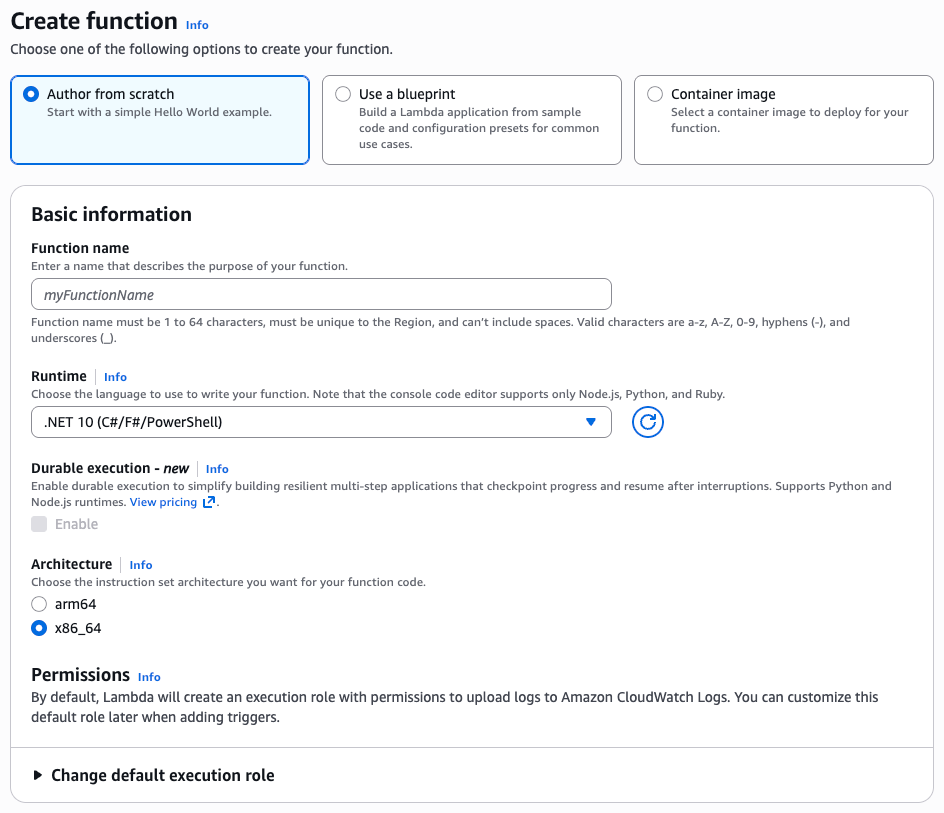
Figure 1: Creating a .NET 10 function in the Lambda console
To update an existing Lambda function to .NET 10, navigate to the function in the Lambda console. Choose Edit in the Runtime settings panel, then choose .NET 10 from the Runtime dropdown menu, as shown in the following figure.
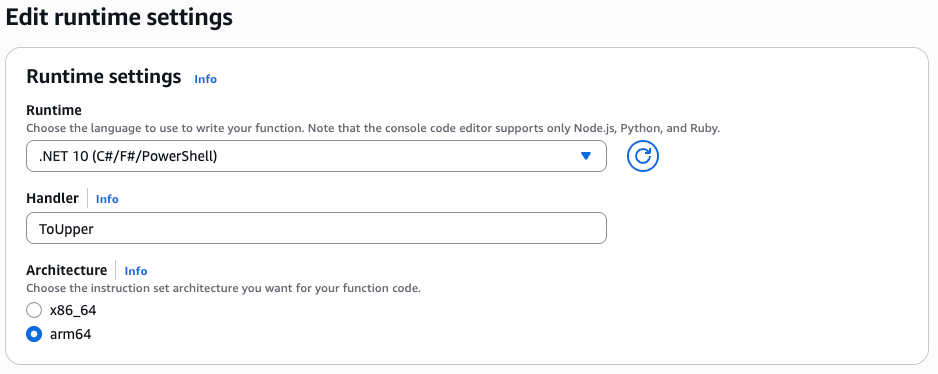
Figure 2: Editing runtime settings to choose .NET 10
Lambda container image
Change the .NET base image version by modifying the FROM statement in your Dockerfile:
AWS SAM
In AWS SAM, set the Runtime attribute to dotnet10:
For file-based functions, set CodeUri to the C# file path relative to the AWS SAM template. AWS CloudFormation commands such as deploy-serverless and package-ci package the file-based Lambda function as a .NET executable. The Handler field must be set to the .NET assembly name, which for file-based C# applications is the filename minus the .cs extension:
AWS SAM supports generating new serverless .NET 10 applications using the sam init command. Refer to the AWS SAM documentation for details.
Conclusion
AWS Lambda now supports .NET 10 as a managed language runtime to help developers build more efficient, powerful, and scalable serverless applications. .NET 10 language additions include C# 14 features, runtime optimizations, and improved Native AOT support. This release also introduces file-based C# applications for streamlined single-file Lambda functions, and it includes support for Lambda Managed Instances for specialized compute requirements and at-scale cost efficiency.
You can build and deploy functions using .NET 10 using the AWS Management Console, AWS CLI, AWS SDK, AWS SAM, AWS CDK, or your choice of IaC tool. You can also use the .NET 10 container base image if you prefer to build and deploy your functions using container images.
Try the .NET 10 runtime in Lambda today and experience the benefits of this updated language version.
To find more .NET examples, use the Serverless Patterns Collection. For more serverless learning resources, visit Serverless Land.