AWS Auto Scaling
Application scaling to optimize performance and costs
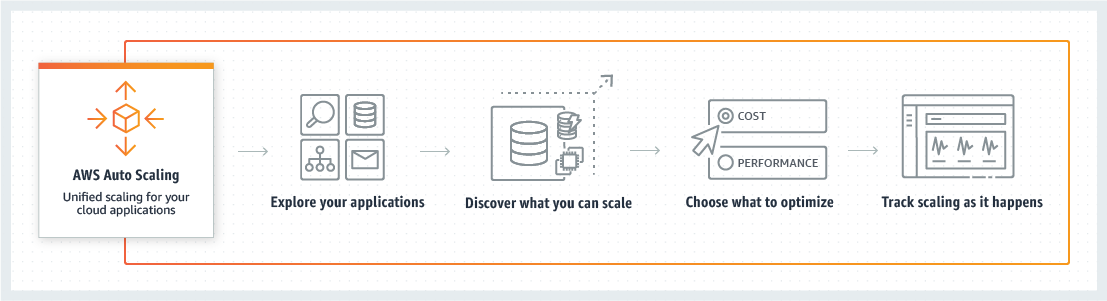
AWS Auto Scaling monitors your applications and automatically adjusts capacity to maintain steady, predictable performance at the lowest possible cost. Using AWS Auto Scaling, it’s easy to setup application scaling for multiple resources across multiple services in minutes. The service provides a simple, powerful user interface that lets you build scaling plans for resources including Amazon EC2 instances and Spot Fleets, Amazon ECS tasks, Amazon DynamoDB tables and indexes, and Amazon Aurora Replicas. AWS Auto Scaling makes scaling simple with recommendations that allow you to optimize performance, costs, or balance between them. If you’re already using Amazon EC2 Auto Scaling to dynamically scale your Amazon EC2 instances, you can now combine it with AWS Auto Scaling to scale additional resources for other AWS services. With AWS Auto Scaling, your applications always have the right resources at the right time.
It’s easy to get started with AWS Auto Scaling using the AWS Management Console, Command Line Interface (CLI), or SDK. AWS Auto Scaling is available at no additional charge. You pay only for the AWS resources needed to run your applications and Amazon CloudWatch monitoring fees.
Introducing Predictive Scaling
Automatically scale your compute capacity in advance of traffic changes using ML technology.
Amazon EC2 Auto Scaling has moved
You have several options for scaling with AWS.
Do you only need to manage Amazon EC2 instances?
Benefits
Setup scaling quickly
AWS Auto Scaling lets you set target utilization levels for multiple resources in a single, intuitive interface. You can quickly see the average utilization of all of your scalable resources without having to navigate to other consoles. For example, if your application uses Amazon EC2 and Amazon DynamoDB, you can use AWS Auto Scaling to manage resource provisioning for all of the EC2 Auto Scaling groups and database tables in your application.
Make Smart Scaling Decisions
AWS Auto Scaling lets you build scaling plans that automate how groups of different resources respond to changes in demand. You can optimize availability, costs, or a balance of both. AWS Auto Scaling automatically creates all of the scaling policies and sets targets for you based on your preference. AWS Auto Scaling monitors your application and automatically adds or removes capacity from your resource groups in real-time as demands change.
Automatically Maintain Performance
Using AWS Auto Scaling, you maintain optimal application performance and availability, even when workloads are periodic, unpredictable, or continuously changing. AWS Auto Scaling continually monitors your applications to make sure that they are operating at your desired performance levels. When demand spikes, AWS Auto Scaling automatically increases the capacity of constrained resources so you maintain a high quality of service.
Pay Only for What You Need
AWS Auto Scaling can help you optimize your utilization and cost efficiencies when consuming AWS services so you only pay for the resources you actually need. When demand drops, AWS Auto Scaling will automatically remove any excess resource capacity so you avoid overspending. AWS Auto Scaling is free to use, and allows you to optimize the costs of your AWS environment.
How it works
Blog posts and articles

Visit us on the Management Tools Blog to read more on AWS Auto Scaling and other AWS Management Tools.
Get started with AWS



Learn more about AWS Auto Scaling