AWS Database Blog
Automatically scale storage for Amazon RDS Multi-AZ DB clusters using AWS Lambda
When Amazon RDS storage reaches capacity, your database becomes unavailable. This is a critical failure that can disrupt client operations, corrupt in-flight transactions, and trigger unplanned downtime that is difficult to recover from quickly. Preventing this requires proactive storage monitoring and timely scaling. Amazon RDS Multi-AZ deployments handle this automatically through native storage auto-scaling, but Amazon RDS Multi-AZ clusters with two readable standbys do not support this feature. As a result, teams must scale storage manually. Manual scaling is operationally demanding. It requires initiating a modify-instance request, waiting for the change to be applied (which can take minutes to hours depending on cluster size), monitoring the operation to completion, and verifying that the new capacity is reflected correctly. These steps must happen before storage is exhausted, often under time pressure and outside business hours.
In this post, we walk you through building an automated storage scaling solution for Amazon RDS Multi-AZ clusters with two readable standbys. We use AWS Lambda to execute scaling logic, Amazon CloudWatch to detect and alarm on storage thresholds, and Amazon Simple Notification Service (Amazon SNS) to deliver timely notifications. This combination provides event-driven automation, native AWS integration, and operational visibility without requiring third-party tooling.
Solution overview
This solution uses Amazon CloudWatch to monitor the FreeStorageSpace metric of your Amazon RDS Multi-AZ DB cluster. When your free storage drops below a threshold you define, Amazon CloudWatch triggers an alarm that sends a notification through Amazon SNS and invokes a Lambda function to automatically scale up storage. The Lambda function retrieves the current storage allocation, calculates the new capacity based on a configurable percentage increase (default 15%), and applies the modification to your RDS Multi-AZ DB cluster.
The following diagram illustrates the solution architecture.
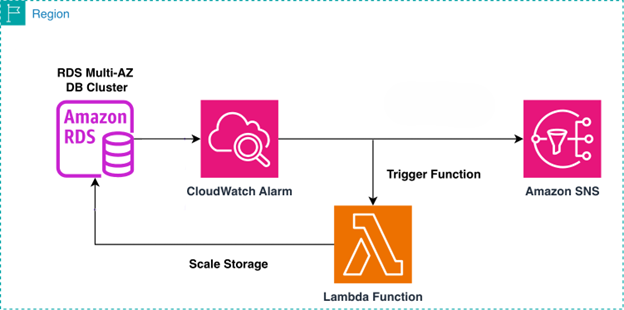
Amazon RDS enforces a 6-hour waiting period between storage modification. Choose your scaling percentage based on your data growth rate and operational preferences. Use 15-20% for cost optimization with more frequent scaling, or 30-40% for fewer scaling events during high-growth periods.In the following sections, we walk through the setup process for this automated storage scaling solution.
Prerequisites
For this walkthrough, you must have the following prerequisites:
- An AWS account with permissions to manage CloudWatch, Amazon RDS, Amazon SNS, and Lambda services
- An existing Amazon RDS Multi-AZ DB cluster to monitor and scale as needed
Create solution resources with AWS CloudFormation
You can deploy the core infrastructure using AWS CloudFormation, which creates the Lambda function, AWS Identity and Access Management (IAM) execution role, SNS topic, and CloudWatch alarm. To create the CloudFormation stack, complete the following steps:
- Download this CloudFormation template.
- Open the AWS CloudFormation console and choose your target AWS Region.
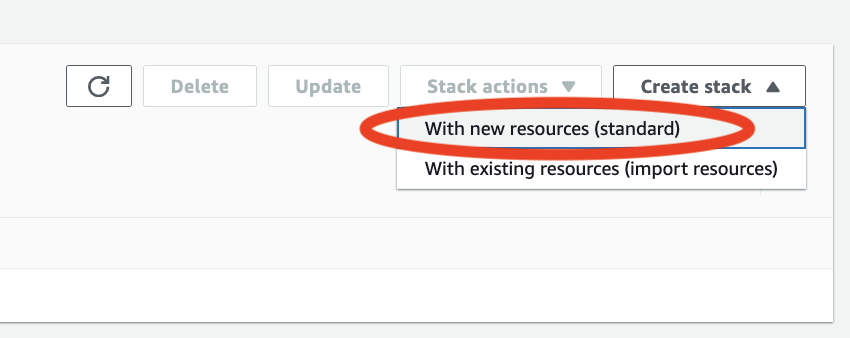
- Choose Create stack and select With new resources (standard).
- To upload the YAML file under Upload a template file, select Choose file
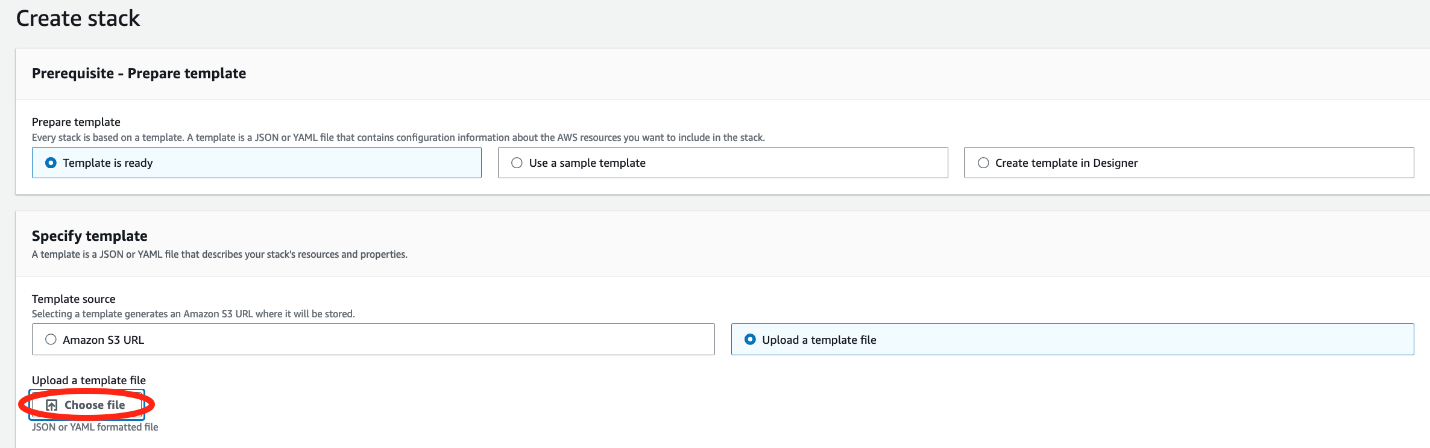
- Upload the template file you downloaded and choose Next.
- Enter a stack name.
- Provide values for the requested parameters
- For DbInstanceIdentifiers, enter a comma-separated list of RDS DB instance identifiers (not cluster IDs) to monitor (for example,
database-1-instance-1,database-2-instance-1, ...to a limit of 4096 bytes). - For AlarmThresholdGB, enter a comma-separated list of free storage space thresholds in GB that trigger alarms, corresponding to each instance (for example,
20,30,15). This list must be the same length as the comma-separated list entered in DBInstanceIdentifiers. - For EmailAddress enter an email address to receive storage scaling notifications. This is the default configuration, but if you would like the notification sent to a target other than email, modify the SNS topic after deployment.
- For ScalingPercentage enter the percentage to increase storage by when alarm triggers.
- For DbInstanceIdentifiers, enter a comma-separated list of RDS DB instance identifiers (not cluster IDs) to monitor (for example,
- Optionally, choose an IAM role.
If no IAM role is selected, CloudFormation uses the credentials from the current user.
Create solution resources with AWS Console
You can alternatively deploy the core infrastructure using the AWS console. If you have already deployed the solution via CloudFormation you can skip to the Considerations and limitations section of the post. To create the necessary resources via the AWS console, complete the subsequent sections:
Create Lambda function
Use the following Python script to configure the Lambda function.
Refer to this GitHub link for the entire Lambda code.
In the Lambda function create an environmental variable named SCALING_PERCENTAGE. This variable controls the percentage your databases storage is increased. For example, if you want to increase it by 15%, set this variable equal to 15. Amazon RDS requires a minimum increase of 10% when additional storage is added and prevents additional changes from being made for a minimum of 6 hours If the Lambda function detects either of these minimums have been exceeded, it will return an error via the SNS topic. Make sure the Lambda function is scaling by the proper percentage to avoid a storage full scenario shortly after the scaling event. Review the full code and make changes as you see fit.
Create SNS topic (optional)
If you want an email notification to be sent when the Lambda function is invoked, you must create an SNS topic and create a subscription using your email.
Create CloudWatch alarm
Complete the following steps to configure an Amazon CloudWatch alarm to monitor the FreeStorageSpace CloudWatch metric for the RDS Multi-AZ DB cluster:
- On the Amazon CloudWatch console, in the navigation pane, choose Alarms.
- Choose Create alarm.

- On the Specify metric and conditions page, choose Select metric.
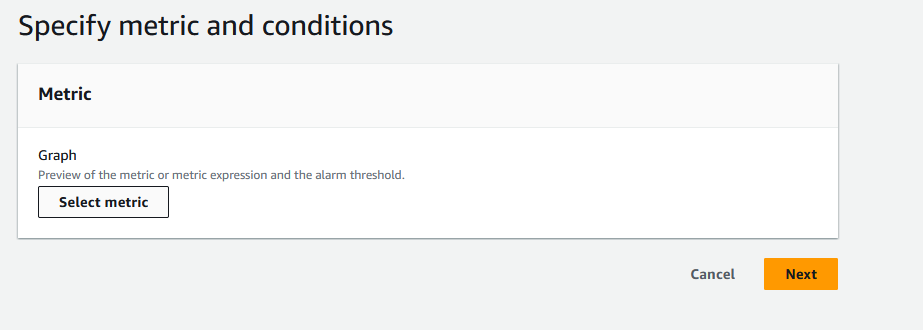
- Search for your database identifier and select the
FreeStorageSpaceCloudWatch metric, then choose Select metric
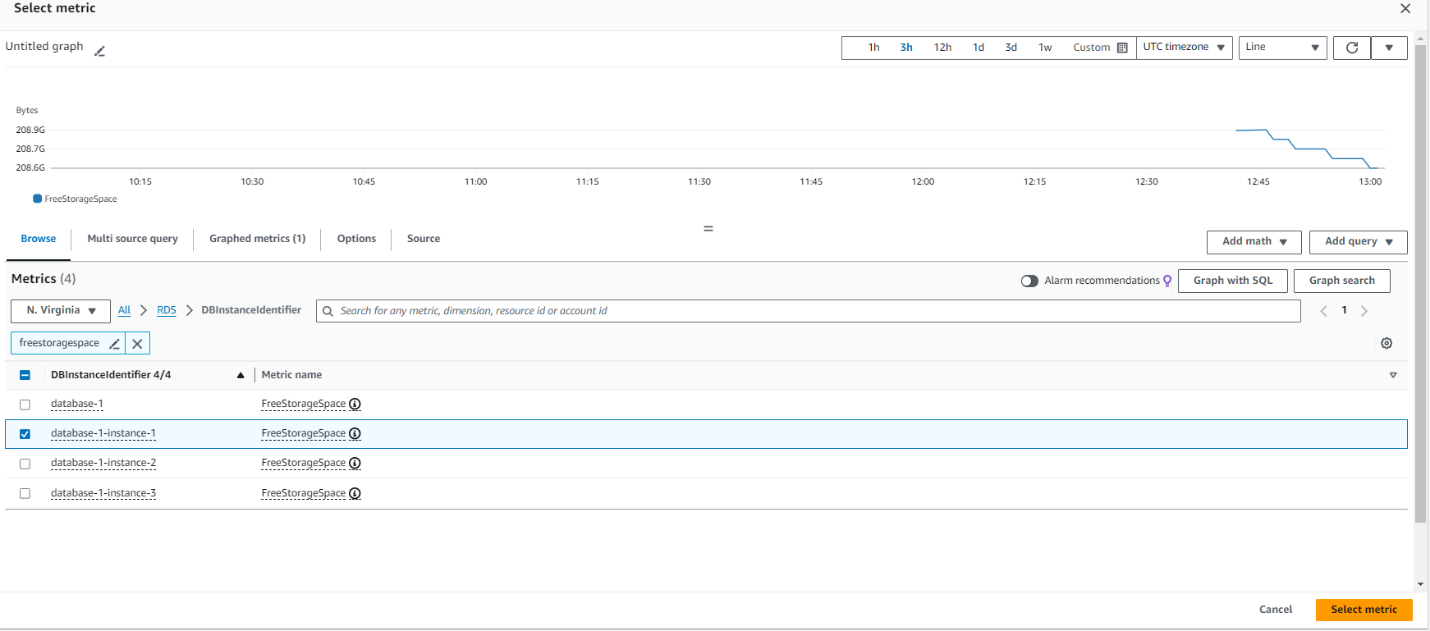
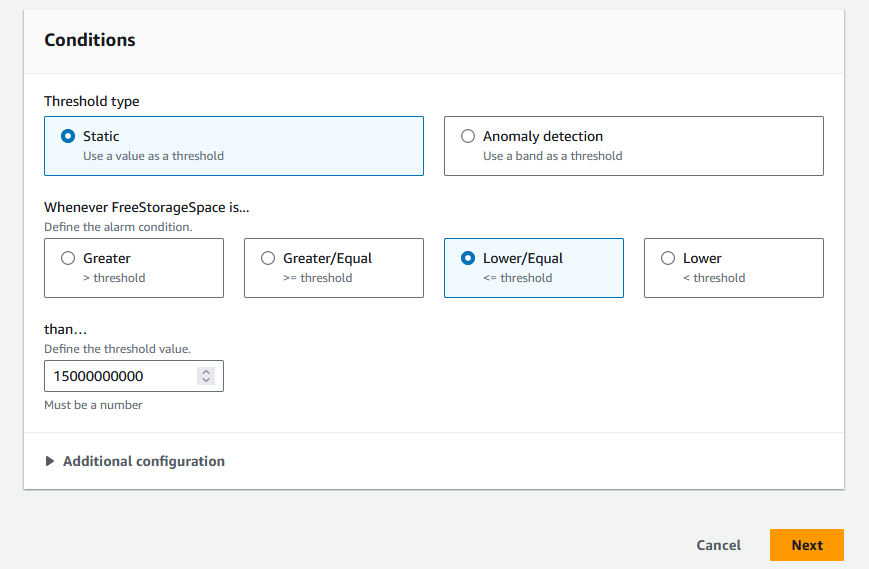
- Select the conditions for the CloudWatch alarm to respond, specifically the amount of free storage space remaining in the database to initiate an order for scaling. We suggest setting the alarm to respond at 15% of the initial total storage space. If you have a 100 GB database, 15% of that (15 GB, or 15,000,000,000 bytes) is when the alarm should invoke the scaling action. Then choose Next, as shown in the following screenshot.
- Choose Next.
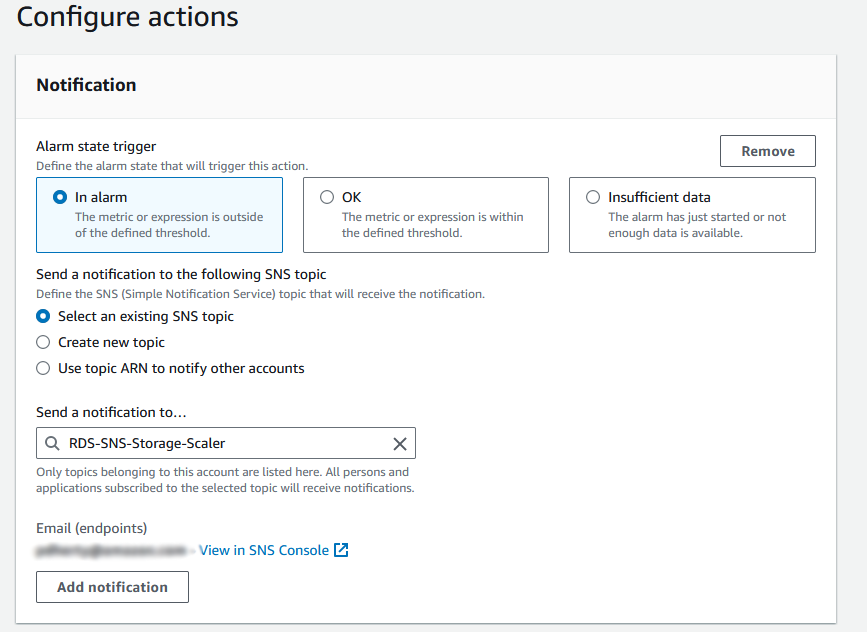
- Optionally, select Select an existing SNS topic and enter the topic name created in the previous section to notify when the CloudWatch alarm is in an alarm state
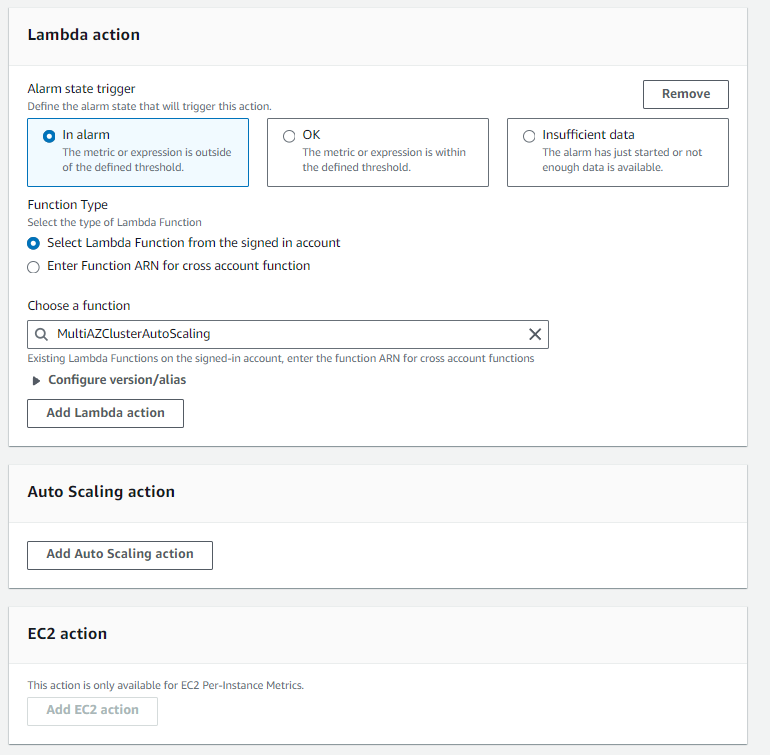
- Under Lambda action choose the name of the Lambda function previously created
- Enter a CloudWatch alarm name, then choose Create alarm.
Allow CloudWatch alarm to invoke Lambda function
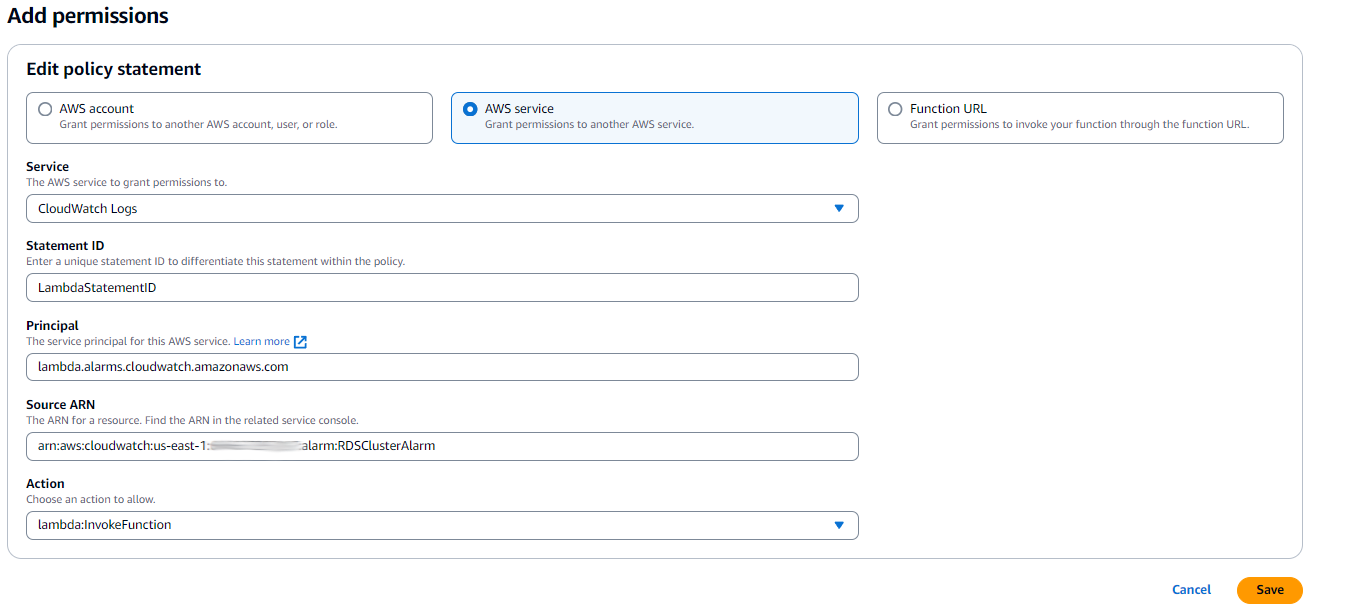
Complete the following steps to add a resource-based policy statement to allow the CloudWatch alarm to invoke your Lambda function.
- On the Lambda console choose Functions in the navigation pane.
- Select your function.
- Choose Configuration and then Permissions.
- Under Resource-based policy statements, choose Add permissions.
- Select AWS service to grant permissions to CloudWatch Logs.
- For Service, choose CloudWatch Logs.
- For Statement ID, enter a unique Lambda statement ID
- For Service Principal, enter
lambda.alarms.cloudwatch.amazonaws.com. - For Source ARN, enter the Amazon Resource Name (ARN) of the previously created CloudWatch alarm.
- For Action, choose
lambda:InvokeFunction. - Choose Save.
Considerations and limitations
Although this solution provides automated storage scaling for RDS Multi-AZ DB clusters, there are several important considerations to keep in mind when implementing it at scale.
Scaling to multiple databases
The CloudFormation template supports monitoring multiple DB instances through comma-delimited parameters. Instead of manually configuring alarms through the CloudWatch console for each database, you can specify all your DB instance identifiers and their corresponding thresholds when deploying the stack. For example:
- DBInstanceIdentifiers:
prod-db-1,prod-db-2,dev-db-1,dev-db-2 - AlarmThresholdGB:
50,50,20,20
This approach makes it possible to deploy monitoring for hundreds of databases in a single CloudFormation stack deployment, making it practical for large-scale environments. However, keep in mind that CloudFormation has a template size limit of 1 MB, which may constrain the number of resources you can define in a single stack. For very large deployments (hundreds of databases), consider creating multiple stacks organized by environment, application, or Region. Alternatively, you could move the database instance and alarm threshold configuration outside of the stack itself and store it in an Amazon DynamoDB table or Parameter Store, a capability of AWS Systems Manager.
Customizing scaling behavior
The solution uses a single SCALING_PERCENTAGEenvironment variable that applies to all databases monitored by the Lambda function. If you need different scaling factors for different databases (for example, scaling production databases by 40% for safety while scaling development databases by only 10%), you have several options:
- Deploy multiple stacks – Create separate CloudFormation stacks for different database tiers (production, development, staging), each with its own scaling percentage configured. This provides clear separation and makes it straightforward to manage different scaling policies.
- Modify the Lambda function – Enhance the Lambda code to include a mapping of database identifiers to scaling percentages, either through additional environment variables or by reading from an Amazon DynamoDB table or Parameter Store.This provides fine-grained control within a single deployment.
- Use tags – Implement logic in the Lambda function to read RDS instance tags and determine the appropriate scaling percentage based on environment or criticality tags.
Additional Considerations
- Cost implications – Storage scaling is permanent and can’t be reversed (you can only scale up, not down). Monitor your costs carefully, especially with aggressive scaling percentages.
- Storage limits – Amazon RDS has maximum storage limits depending on the database engine and instance type. At the time of writing, the solution doesn’t validate against these limits before scaling, it will however notify you if a scaling request was rejected by the RDS API.
- Scaling frequency – If your database consistently triggers the alarm, you might want to investigate the root cause rather than continuously scaling storage.
- Multi-Region deployments – This solution is Region-specific. For multi-Region Amazon RDS deployments, deploy the CloudFormation stack in each Region where you have databases to monitor.
- Lower environment testing – As with any change to your environment, we recommend testing this solution in a non-production environment before deploying it in production.
Clean up
If you need to decommission this solution to no longer scale up storage for Amazon RDS instances, complete the following steps:
- Delete the Lambda function.
- Delete the SNS topic.
- Delete the Lambda execution role.
- Delete the IAM policy.
- Delete the CloudWatch alarm.
- Delete the CloudFormation stack (if utilized).
Conclusion
In this post, we showed you how to automate storage scaling for Amazon RDS Multi-AZ DB clusters with two readable standbys using Amazon CloudWatch, AWS Lambda, and Amazon SNS. This solution helps you maintain database availability by preventing storage-full conditions while reducing the operational overhead of manual monitoring. You can customize the scaling percentage to match your specific data growth patterns and cost optimization goals.
If you have questions about the solution in this post, contact your AWS representative or leave a comment.
A special thanks to Vlad Podomatskiy for assisting in the creation of this blog post!