AWS DevOps & Developer Productivity Blog
Automate Active Directory joins for Elastic Beanstalk Windows applications
Many Windows applications expect to run on a machine that belongs to an Active Directory domain. Think of an intranet site that signs users in with Windows Integrated Authentication, a service that connects to SQL Server with Windows authentication instead of a connection-string password, an application that reads from a file share, or a fleet that receives its settings through Group Policy. All of these depend on the instance itself being a domain member.
Until now, running these applications on AWS Elastic Beanstalk meant joining the instance to the domain yourself, usually with custom scripts in .ebextensions. Those scripts had to retrieve domain credentials from somewhere safe, rename the instance to avoid computer name collisions, join the domain, and handle the reboot that a join requires. Then they had to do it all again correctly every time Auto Scaling added an instance. The join logic wasn’t part of your application, but you had to maintain it like it was.
Elastic Beanstalk now does this for you. You configure a directory ID and a directory name, and every Windows Server instance in your environment joins your Active Directory domain when it launches, before Elastic Beanstalk deploys your application to it. The directory can be an AWS Directory Service for Microsoft Active Directory (AWS Managed Microsoft AD) or Simple AD directory, or your self-managed Active Directory connected through AD Connector. There are no join scripts to write and no domain credentials to store: the instance authenticates the join with its instance profile.
In this post, you will create a managed directory and an Elastic Beanstalk environment that joins it, then deploy a small ASP.NET Core application that reports its own domain membership. You confirm the join from your browser and from the environment’s deployment log. You then break the join on purpose to see how Elastic Beanstalk surfaces the failure without failing your deployment, fix it, and clean everything up.
Solution overview
You turn on the feature with configuration options in the aws:elasticbeanstalk:windows:activedirectory namespace:
- DirectoryId – The ID of the AWS Directory Service directory to join (for example,
d-1234567890). Setting this option turns the feature on. Without it, nothing about your environment changes. - DirectoryName – The fully qualified DNS name of the directory (for example,
corp.example.com). Required whenDirectoryIdis set. - DirectoryOU (optional) – The distinguished name of an organizational unit (OU) to create computer objects in. The OU must already exist. If you don’t set it, computer objects go to the directory’s default container.
You set them like any other configuration options: in a configuration file in your source bundle, on the console, or with the AWS Command Line Interface (AWS CLI), which is what this walkthrough uses.
When an instance launches in an environment with these options, it does the following before your application deploys:
- Creates a computer object for itself in the directory by calling the AWS Directory Service
CreateComputerAPI operation, using the credentials of the environment’s instance profile. This is why the join needs no domain credentials. - Renames itself to
EC2-XXXXXXXX, whereXXXXXXXXis the last eight characters of its instance ID, uppercased. - Joins the domain and reboots. This is the same one-time reboot that every Windows Server instance in an Elastic Beanstalk environment already performs during provisioning, so the join doesn’t add an extra one.
This applies to every instance in the environment, including instances that Auto Scaling launches later. A scale-out event at 3 AM joins the domain the same way your first instance did.
The hostname change is deliberate. Without Active Directory options, Elastic Beanstalk derives Windows hostnames from the instance’s private IPv4 address (for example, IP-0A010203). IP addresses get reused, so those names can collide with stale computer objects in a directory. Because each instance ID is globally unique, the chance of a name collision with a stale computer object is negligible. The instance-ID-derived hostname applies only when Active Directory options are set.
Finally, a failed join doesn’t take your application down with it. If an instance can’t join the domain (for example, a wrong DNS setup, a missing IAM permission, or an OU that doesn’t exist), the deployment continues and the instance falls back to the standard IP-derived hostname. The environment can still reach the Ready state. Elastic Beanstalk then compares the instance’s actual domain membership against the configured directory. On a mismatch, it records the failure and the full join output in the instance’s deployment log. An instance launched as part of creating an environment also emits a customer-visible ERROR event. You will see this behavior firsthand later in the walkthrough.
Prerequisites
Before getting started, verify that you have the following:
- An AWS account with permissions to create Elastic Beanstalk environments, AWS Directory Service directories, Amazon Virtual Private Cloud (Amazon VPC) resources, and AWS Identity and Access Management (IAM) roles.
- AWS Command Line Interface (AWS CLI) installed and configured. See Installing the AWS CLI.
- The .NET 10 SDK, to build the sample application. The Windows Server platform also runs .NET 8 and .NET 9 applications if you need to target an earlier version.
- A Bash-compatible shell with the zip command-line utility. If you work in PowerShell, the AWS CLI commands are the same. Adjust the variable assignments.
- A Windows Server platform version released on or after August 18, 2026. Earlier platform versions don’t recognize the
aws:elasticbeanstalk:windows:activedirectorynamespace and reject its options during validation.
The directory and the Amazon Elastic Compute Cloud (Amazon EC2) instance you create in this walkthrough have hourly charges. The walkthrough keeps the setup small: one AWS Managed Microsoft AD (Standard Edition) directory and one t3.large instance. The cleanup section removes everything.
Walkthrough
If you already have an AWS Directory Service directory with the standard setup (a VPC from which the directory is reachable and a DHCP options set pointing at its DNS servers), you don’t need the infrastructure steps. Confirm that your instance profile can call ds:CreateComputer (Step 3), then pick up at Step 4 and create the environment in your existing VPC.
Open your terminal and set the following variables. This walkthrough uses the US East (N. Virginia) AWS Region (us-east-1). You can substitute your preferred Region, but use it consistently across all commands. The subnet commands in Step 1 derive Availability Zone names from the Region (a and b). Adjust them if those zones aren’t available to your account.
Step 1: Create a VPC for the directory and the environment
AWS Managed Microsoft AD places domain controllers into two subnets in different Availability Zones, and joining the instance to the domain relies on a VPC-wide DNS setting (a DHCP options set) that you will change in a later step. Creating a dedicated VPC keeps that DNS change contained.
Step 2: Create the directory
Create an AWS Managed Microsoft AD directory named corp.example.com. When prompted, enter a password that meets the directory password policy (8–64 characters, with characters from three of the four classes: lowercase, uppercase, digits, and symbols). The hidden prompt keeps the password out of your shell history. This is the password for the directory’s Admin account. Store it somewhere safe, such as AWS Secrets Manager. The walkthrough doesn’t need it, because joining the instance to the domain doesn’t use directory credentials. You will need it whenever you administer the directory, for example to create OUs or remove computer objects.
This walkthrough uses AWS Managed Microsoft AD. A Simple AD directory supports joining the instance to the domain the same way and takes the same options, though Simple AD isn’t available in every Region.
The directory takes 20–45 minutes to create. You don’t need to wait idly: the next two steps don’t depend on it, so continue while it builds.
Step 3: Grant the instances permission to create computer objects
During the join, each instance pre-creates its computer object by calling the Directory Service CreateComputer API operation with its instance profile credentials. That’s the only permission the feature needs beyond what an Elastic Beanstalk instance already has, and you grant it once, not per environment. If the instance profile you already use grants it, for example through the AmazonSSMDirectoryServiceAccess managed policy, skip this step and use that profile in Step 6. Here, you create a dedicated instance profile with the permission scoped to this one directory:
Step 4: Build the sample application
The sample application is a minimal ASP.NET Core app with one purpose: it reports the hostname and domain membership of the instance it’s running on, so you can see the result of the join in your browser.
Create a project directory:
Create the application file:
Create the project file:
Create the Windows deployment manifest, which tells the platform to host the app in IIS at the site root:
Publish the application and create the source bundle:
Step 5: Point the VPC’s DNS at the directory
This prerequisite deserves its own step: missing DNS resolution is a common reason an instance fails to join the domain. The join process discovers domain controllers through DNS SRV records, which means the instances in your environment must resolve corp.example.com through the directory’s own DNS servers. The standard way to arrange this is a DHCP options set that points every instance in the VPC at the directory’s DNS servers.
First, confirm the directory has finished creating. Re-run the following command until the stage is Active:
You can also watch the status on the AWS Directory Service console:

Figure 1: The directory in the AWS Directory Service console after it reaches the Active state
Then read the directory’s DNS server addresses, create a DHCP options set that uses them, and associate it with the VPC:
The directory’s DNS servers forward queries they can’t answer to the VPC’s own resolver, so instances in the VPC can still reach AWS endpoints and the public internet.
Step 6: Create the environment
Upload the source bundle to Amazon Simple Storage Service (Amazon S3), create the Elastic Beanstalk application, and register the application version:
Now write the environment’s option settings to a file. Two of them are the Active Directory options this post is about. The rest place the environment in your VPC, give it the instance profile from Step 3, and pick an instance size with enough memory for Windows Server. A file avoids shell quoting concerns and reliably passes values that contain commas.
Create the environment. The platform ARN names the Windows Server 2025 platform branch without pinning a version, so Elastic Beanstalk launches the branch’s latest platform version available in your Region:
Windows Server environments take around 10–15 minutes to launch. During that time the instance provisions, creates its computer object, renames itself, joins the domain, reboots, and then receives your application, in that order. You can watch the events in the Elastic Beanstalk console while it runs, or check the status from the CLI:
Step 7: Confirm the join
After the environment reaches Ready, get its URL and open it in your browser:
The page reports the hostname and domain membership that the instance sees:

Figure 2: The sample application reporting the instance-ID-derived hostname and the joined domain
The hostname is EC2- followed by the last eight characters of the instance ID, and the domain membership is your directory. The instance joined before your application ever started.
The join also leaves a record in the deployment log. On the Elastic Beanstalk console, navigate to your environment, choose the Deployments tab, open the Environment Creation deployment, and select Deployment Logs. Near the end of the log, one line records the join: Active Directory: joined to corp.example.com.
The Deployment Logs view shows the full log, with the join recorded near the end:
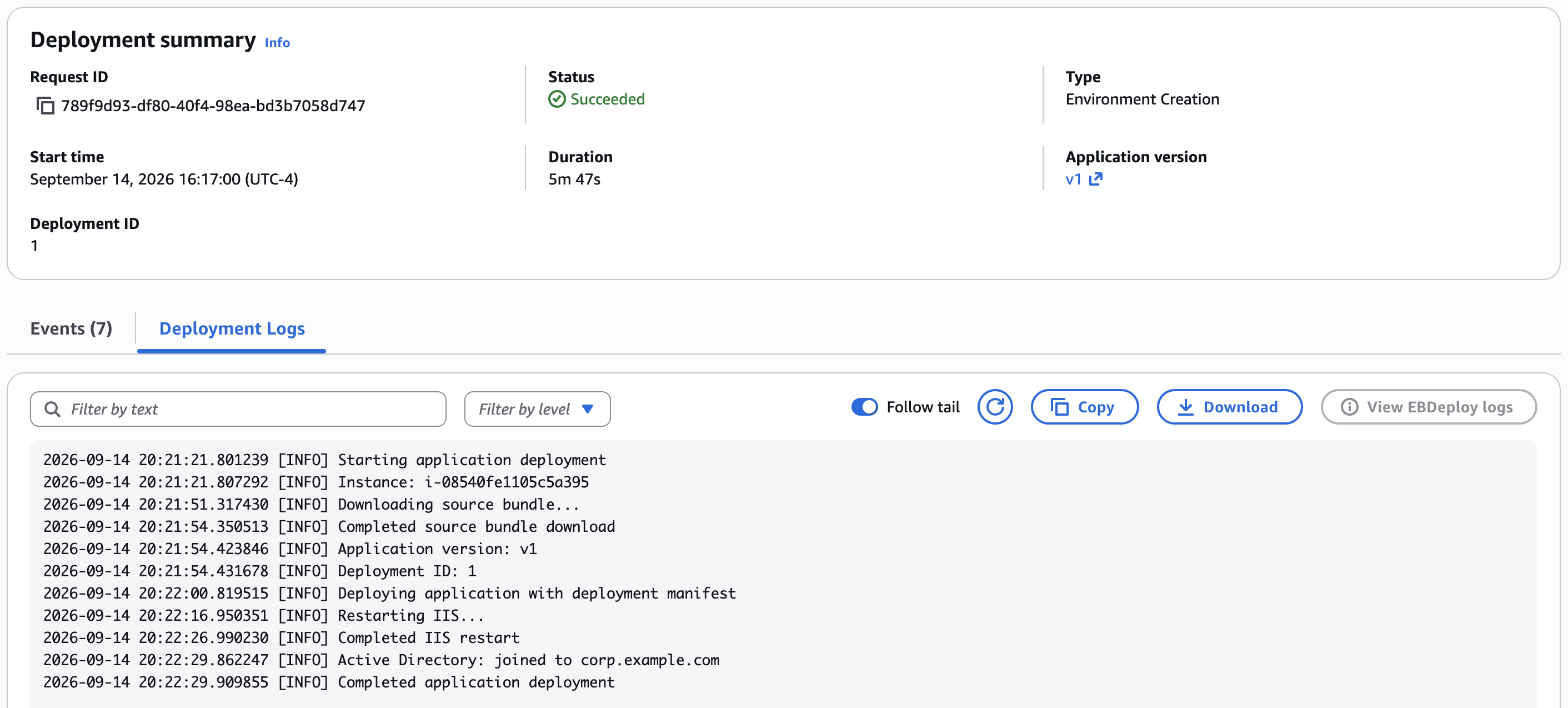
Figure 3: The Environment Creation deployment log in the Elastic Beanstalk console, recording that the instance joined the domain
At this point the directory also contains a computer object named after the instance’s hostname, in the default container (or the OU you specify with DirectoryOU). If you brought an existing directory connected to your directory management tools, you can verify the computer object there.
Step 8: See what a failed join looks like
A failed join doesn’t block your deployment: the instance keeps its standard IP-derived hostname, your application still deploys, and the environment can still reach Ready. Instead of failing the deployment, Elastic Beanstalk reports the problem.
You can see this firsthand by causing the most instructive kind of failure. Elastic Beanstalk doesn’t create organizational units. If you set DirectoryOU, the OU must already exist in the directory. Point the environment at an OU that doesn’t exist:
Changing any option in the aws:elasticbeanstalk:windows:activedirectory namespace reprovisions the environment’s instances, so this update replaces the instance. The environment returns to Ready as soon as the replacement instance registers, but the instance itself needs a few more minutes to provision, attempt the join, and receive the application. When the application responds again, refresh it in your browser. The page now shows the fallback state:

Figure 4: The same application after the failed join, now with an IP-derived hostname and no domain membership
The replacement instance tried to create its computer object in an OU that doesn’t exist, the join failed, and the instance fell back to the IP-derived hostname. Notice what didn’t happen: the deployment didn’t fail, and the application is still serving traffic.
The failure isn’t silent, though. When a join fails, Elastic Beanstalk records it in the instance’s deployment log and copies the full join output (the contents of C:\cfn\log\eb-ad-join.log on the instance) into the same log. You can read the cause without connecting to the instance. The Deployments tab shows a row for this configuration update, but because Auto Scaling launched the replacement instance rather than a deployment you initiated, the tab doesn’t show its log. Retrieve it from your environment’s Amazon S3 bucket instead, as described in Deployment log files on instances. It’s the newest object under resources/environments/logs/deployments/your-environment-id/selfstartup/, with the instance ID in its name. Download the log, and the failure is right there:
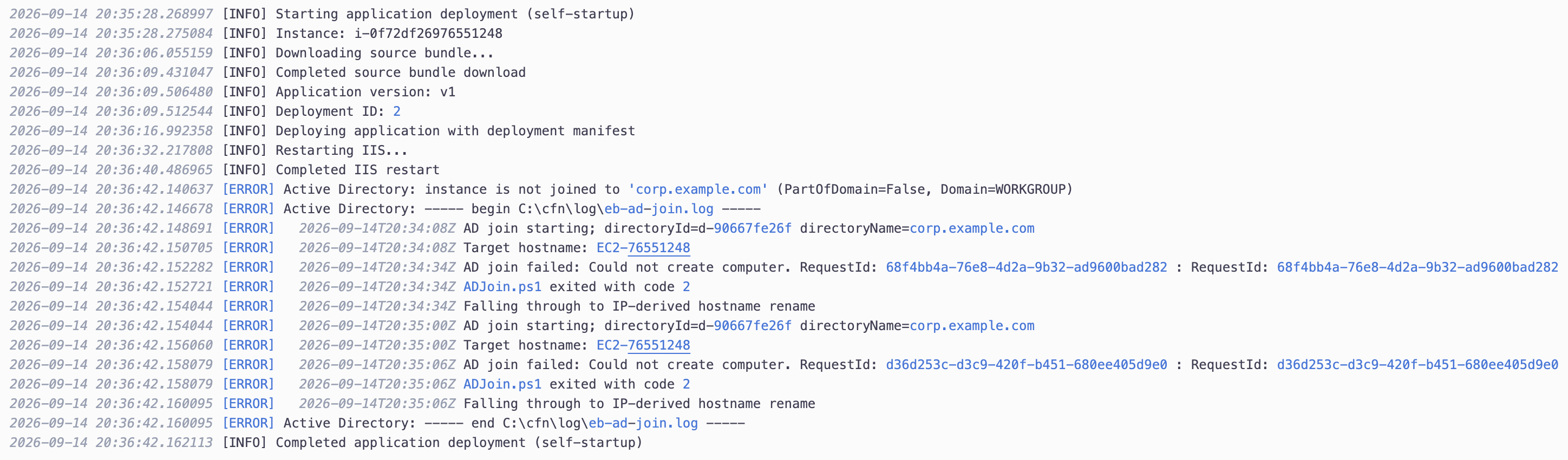
Figure 5: The replacement instance’s deployment log, downloaded from the environment’s Amazon S3 bucket
The lines that matter:
The Could not create computer line tells you which step failed: the Directory Service rejected the CreateComputer call. The log doesn’t spell out the reason, so pair it with what changed. Here, the DirectoryOU you set points at an OU that doesn’t exist. The same log reveals the failure causes you’re more likely to meet in practice: a VPC that doesn’t resolve the directory’s DNS name, or an instance profile without ds:CreateComputer.
Elastic Beanstalk checks the join state once for each instance it launches. When the launch is part of creating an environment, a failed join also emits a customer-visible ERROR event:
For an instance that Auto Scaling launches or replaces, like the one you just watched, the deployment log carries the failure.
Step 9: Fix the join
The fix is as small as the break. Remove the DirectoryOU option so computer objects go back to the directory’s default container:
The environment replaces the instance once more. After the new instance is serving traffic again, refresh your browser: the hostname is back to the EC2-XXXXXXXX form and the domain membership reads corp.example.com. To use an OU for real, such as targeting your web servers with a specific Group Policy, create the OU with your usual directory tools first, then set DirectoryOU to its distinguished name.
One more thing before you clean up: the directory now holds a computer object for each instance that joined, including the ones since replaced. Elastic Beanstalk doesn’t delete computer objects when instances or environments are terminated, so in a long-lived directory you would remove stale objects periodically with your usual directory tools. The chance that they collide with a new instance’s name is negligible, because each name comes from an instance ID. In this walkthrough, deleting the directory takes care of it.
Cleaning up
To avoid ongoing charges, delete everything you created. Terminate the environment, and re-run the status check until it reports Terminated:
Delete the application and the S3 bucket:
Delete the directory, and re-run the describe command until the stage reads Deleted or the command reports that the directory no longer exists. Deleting the directory removes its domain controllers and every computer object in it:
Delete the IAM resources:
Delete the network resources in order. The subnets become deletable once the directory’s network interfaces are gone:
Finally, remove the local project directory and the policy files from Step 3. Before running the following command, make sure your current working directory is not inside ad-join-demo:
Conclusion
With AWS Elastic Beanstalk, your Windows Server instances now join an Active Directory domain that you manage with AWS Directory Service. You set a directory ID, a directory name, and optionally an OU, and every instance joins at launch, before your application deploys. There are no join scripts to maintain and no domain credentials to store. Instances that Auto Scaling adds later join the same way, each with a predictable computer name derived from its instance ID. And when a join fails, your deployment doesn’t: Elastic Beanstalk reports the failure and puts the full join output in the deployment log, where the cause is usually a one-line read.
The ability to join instances to an Active Directory domain is available on Windows Server platform versions released on or after August 18, 2026, in all AWS Commercial Regions and the AWS GovCloud (US) Regions where Elastic Beanstalk is available. To get started, update your environment to a supported platform version and set the options in the aws:elasticbeanstalk:windows:activedirectory namespace.
To learn more, see Joining instances to an Active Directory domain in the AWS Elastic Beanstalk Developer Guide. For the option reference, see the aws:elasticbeanstalk:windows:activedirectory namespace in the configuration options documentation. For more information about AWS Elastic Beanstalk, visit the product page.