Networking & Content Delivery
Extending AWS DevOps Agent network investigations with S3 logs and custom MCP on Amazon Bedrock AgentCore
Your on-call engineer sees a 502 error on the AWS Application Load Balancer (ALB). The Amazon Elastic Compute Cloud (Amazon EC2) instance is running, status checks pass, and AWS CloudTrail shows no infrastructure changes. In this post, you learn how to extend AWS DevOps Agent investigations beyond API-level failures. You connect it to Amazon Simple Storage Service (Amazon S3) stored logs such as ALB access logs and Amazon VPC Flow Logs, a custom packet capture (PCAP) Model Context Protocol (MCP) server running on Amazon Bedrock AgentCore, and techniques like descriptive Amazon CloudWatch Alarm metadata and DevOps Agent Skills. If you are new to DevOps Agent, the post Automated network incident response with AWS DevOps Agent covers the fundamentals of setting up the webhook pipeline and investigating CloudTrail-visible failures.
The failure is inside the application, but AWS DevOps Agent doesn’t have access to that data by default. Each data source tells a different part of the story. CloudTrail captures API-level changes. Amazon VPC Flow Logs record packet-level accept/reject decisions. ALB access logs show the full HTTP request lifecycle. Packet captures reveal TLS handshake details and protocol-level failures. Experienced operators know which source to check first, but correlating timestamps across different logging systems, each with its own format and granularity, is where investigations stall.
AWS DevOps Agent handles this investigation process automatically. When a CloudWatch alarm triggers or a third-party monitoring tool sends an alert, DevOps Agent receives it through a webhook, then correlates metrics, logs, and API change history to produce a root cause analysis. By default, it works with CloudTrail for API change history and CloudWatch for metrics and alarms. But some production failures happen at the network layer, invisible to API logs and standard metrics. By connecting ALB access logs, VPC Flow Logs, and packet captures, DevOps Agent can identify root causes that would otherwise require manual correlation across multiple systems. DevOps Agent Skills provide reusable investigation playbooks that guide it toward the right data for domain-specific troubleshooting patterns.
Prerequisites
To follow along with this post, you need:
- An AWS account with proper permissions
- Node.js 20 or later and npm installed
- AWS Command Line Interface (AWS CLI) 2.x configured with credentials
- AWS Cloud Development Kit (AWS CDK) installed globally (
npm install -g aws-cdk) or available through npx - Access to the us-east-1 or us-west-2 Region
The workload
We use a Node.js health check application running on EC2 behind an Application Load Balancer (ALB). The application monitors connectivity to several AWS services and publishes custom CloudWatch metrics when checks fail. CloudWatch alarms evaluate those metrics and notify DevOps Agent through an Amazon Simple Notification Service (Amazon SNS) to AWS Lambda webhook pipeline. DevOps Agent can also receive alerts from third-party monitoring providers through the same webhook integration or built-in capabilities.
We walk through two failure scenarios with this workload. The first is an ALB returning 502 errors because of a misconfigured backend target, and the second is a TLS handshake failure caused by DNS redirection and Server Name Indication (SNI) mismatch. Both failures happen at the network layer inside the EC2 instance, with no CloudTrail footprint. DevOps Agent uses its available tools and resources to guide its investigation, which means it needs to look beyond API history and into the actual network traffic.
Scenario 1: Detecting root cause of ALB 502 errors with DevOps Agent and ALB access logs
The following diagram shows the investigation flow. Users reach the ALB, the ALB can’t reach the backend (502), the alarm fires, DevOps Agent investigates by reading ALB access logs from S3.
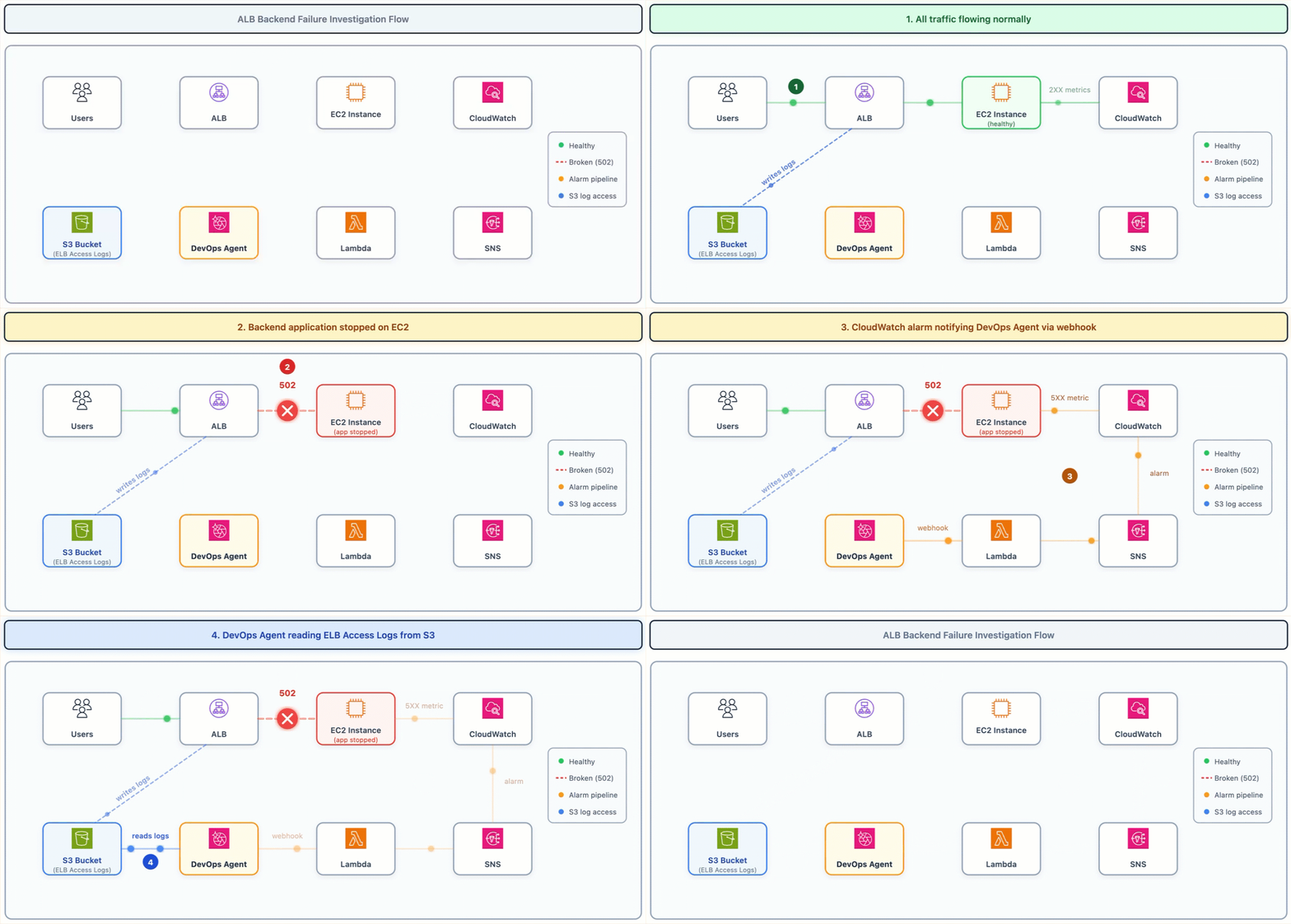
Figure 1: ALB Backend Failure Investigation Flow
The problem
Something stops the health check application and NGINX on the EC2 instance. The ALB health checks fail, the target is marked unhealthy, and the ALB starts returning 502 Bad Gateway to all requests. A CloudWatch alarm fires on HTTPCode_ELB_5XX_Count > 0.
Why CloudTrail isn’t enough
- The simulation runs an AWS Systems Manager SSM
RunShellScriptcommand that stops the health check application and NGINX on the EC2 instance. - The ALB health checks fail, the ALB marks the target unhealthy, and the ALB starts returning 502 Bad Gateway to all requests.
- During investigation, DevOps Agent checks CloudTrail by default and finds the
SendCommandAPI call around the time the failures started. - But CloudTrail only logs that a command ran, not what the script did.
- DevOps Agent can see the timing matches, but it can’t confirm the root cause from CloudTrail alone.
This is the fundamental gap. CloudTrail captures the control-plane action (who ran a command, when, and on which instance) but not the data-plane effect (which processes were stopped, what changed on disk, or why the health check broke).
How ALB access logs help
Amazon S3 receives ALB access logs every five minutes. Each log entry contains the full HTTP request/response lifecycle.
Healthy request:
http 2026-05-09T17:54:12Z app/ALB/fdc1e6f282ba46cd 34.235.170.96:38750 10.0.2.127:80 0.001 0.002 0.000 200 200 114 631 "GET http://..."
After failure:
http 2026-05-09T17:57:12Z app/ALB/fdc1e6f282ba46cd 34.235.170.96:46724 10.0.2.127:80 -1 -1 -1 502 - 114 277 "GET http://..."
The following table highlights the critical fields that change between a healthy and failed request:
| Field | Healthy | Failed | Meaning |
| Backend timing | 0.001 0.002 0.000 | -1 -1 -1 | -1 means ALB couldn’t connect to the target |
| ELB status code | 200 | 502 | 502 means no healthy backend available |
| Target status code | 200 | – | – means target never responded |
The -1 values in the request_processing_time, target_processing_time, and response_processing_time fields mean the ALB can’t dispatch the request to the target because no TCP connection was established. The target port isn’t listening. By comparing the timestamp of the SSM SendCommand in CloudTrail (17:55:00Z) with the first 502 response in the ALB access logs (17:57:12Z), DevOps Agent confirms that the HTTP failures started immediately after the script ran, linking the two events as cause and effect.
Guiding DevOps Agent to the logs
Every CloudWatch Alarm has a description field a free-text string you can set when creating or updating the alarm. By default, this field is empty. DevOps Agent reads the full alarm message when it starts an investigation, including this description. By writing a useful description, you can point the agent directly to the right data source:
When DevOps Agent reads the alarm metadata, it knows where to find the ALB access logs without searching across all S3 buckets in the account. You can set this description through the Amazon CloudWatch console, the AWS CLI, or infrastructure-as-code. Without this pointer, the agent would need to discover the S3 bucket on its own by searching across buckets or guessing naming conventions. It is a one-time setup step that benefits every future investigation.
S3 bucket permissions
DevOps Agent Space doesn’t have S3 access by default. The Agent Space AWS Identity and Access Management (IAM) role needs explicit permissions:
Read-only, scoped to the specific bucket. DevOps Agent can’t modify or delete the logs.
Investigation flow
When the CloudWatch alarm fires (HTTPCode_ELB_5XX_Count > 0), the SNS topic invokes the webhook Lambda and DevOps Agent starts its investigation. The agent’s approach is adaptive. It correlates telemetry, deployment data, and API change history to evaluate candidate causes through systematic investigation. The specific checks and their order depend on what the agent discovers at each step. In this scenario, the investigation proceeded as follows:
- Health check app stops responding on port 80; ALB returns 502 to all requests.
- DevOps Agent checks CloudTrail and finds an SSM SendCommand API call, but CloudTrail does not log the script content (it captures the control-plane action, not the data-plane effect).
- DevOps Agent reads ALB access logs from S3 and identifies the transition from 200 responses to 502 with -1 -1 -1 timing, confirming the target stopped accepting connections entirely.
- DevOps Agent correlates signals across data sources, examining factors such as component relationships, timing patterns, and the nature of recent changes to determine which event most likely caused the observed failure.
- Root cause identified: Running the SSM command stopped the backend application.
DevOps Agent’s investigation behavior isn’t fixed. It systematically explores hypotheses and correlates telemetry, code, and deployment data to understand relationships between application resources. A different failure scenario, or the same failure in a more complex environment, can involve different data sources, additional correlation steps, or alternative reasoning paths.
Scenario 2: Identifying TLS/SNI mismatch with PCAP analysis with DevOps Agent custom MCP integration
The following diagram shows the investigation flow. The EC2 instance connects to itself because of DNS redirection, the TLS handshake fails, the alarm fires, and DevOps Agent uses the PCAP MCP Server on AgentCore Runtime to analyze the captured packets from S3.
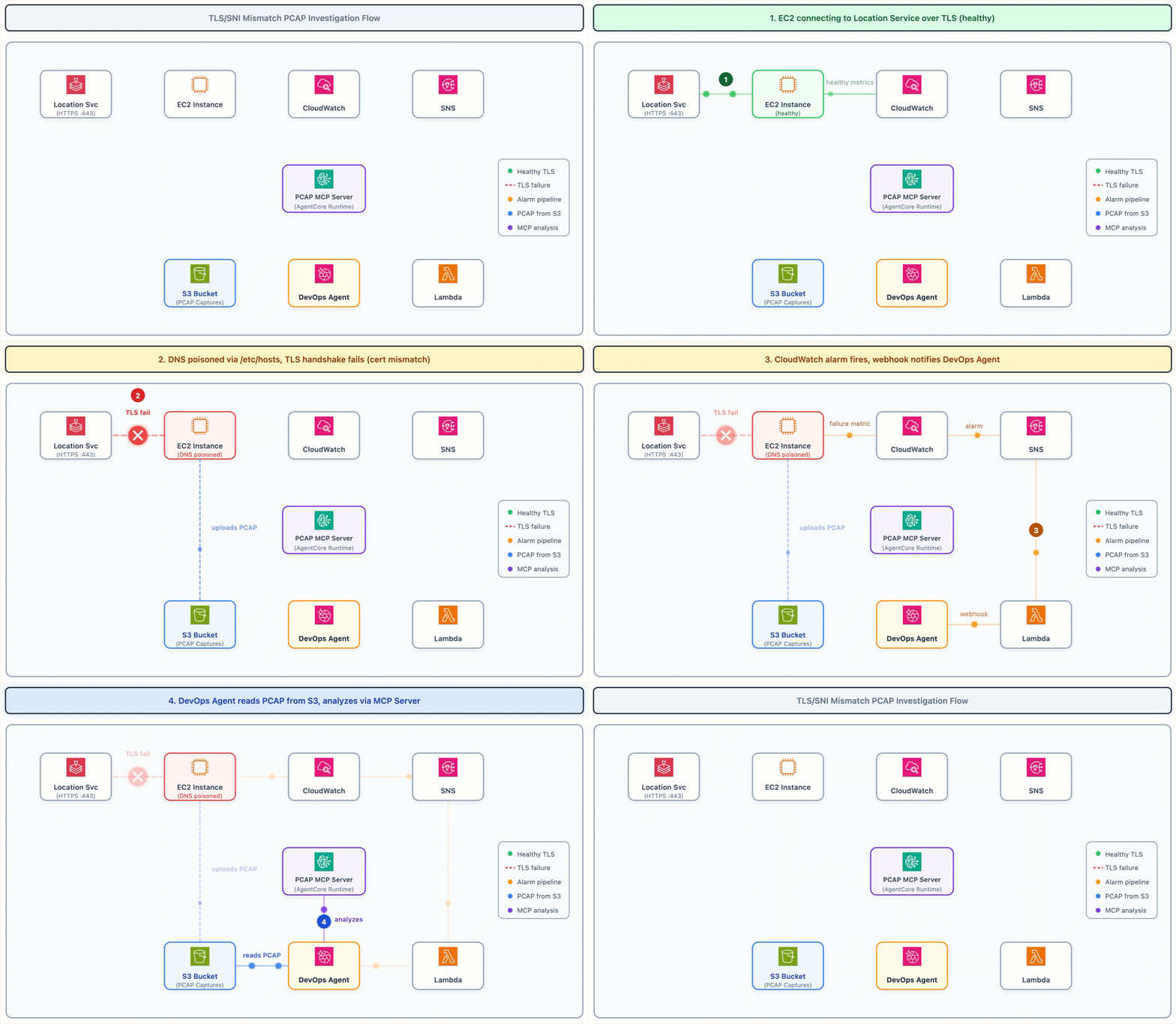
Figure 2: TLS Mismatch PCAP Investigation Flow
The problem
The simulation modifies the EC2 instance’s /etc/hosts file to redirect an AWS service endpoint to the instance’s own IP address. The instance runs NGINX with a self-signed certificate for CN=server.internal.lab. When the health check application tries to connect to the AWS endpoint over HTTPS, it resolves to local host, connects to NGINX, receives a certificate for the wrong host name, and the TLS handshake fails with ERR_TLS_CERT_ALTNAME_INVALID. A CloudWatch alarm fires on the custom ConnectivityFailure metric.
Why standard logs aren’t enough
This failure has no CloudTrail footprint (DNS redirection through /etc/hosts is a local file change). Amazon VPC flow logs show traffic is ACCEPTED at the network layer. CloudWatch metrics show the connectivity failure, but not why. Typically, the only way to see the actual TLS handshake failure is at the packet level.
How PCAP analysis helps
A script on the instance records two packet captures and uploads them to an S3 bucket:
- Baseline capture (20 seconds of healthy traffic before the failure)
- Incident capture (30 seconds of broken traffic after DNS redirection)
DevOps Agent uses the PCAP MCP Server to analyze both. The server compares baseline and incident captures and surfaces the key evidence. In the incident capture, the instance connects to its own private IP on the HTTPS port instead of the real AWS endpoint IP. The TLS handshake completes and NGINX responds with its self-signed certificate for CN=server.internal.lab, but the client immediately resets the connection because the certificate host name does not match the requested SNI.
In the baseline capture, the same connection goes to the real AWS endpoint IP, the TLS handshake succeeds with a valid certificate, and traffic flows normally. The difference between the two captures proves that DNS resolution changed between the baseline and incident windows, pointing directly to /etc/hosts modification as the root cause.
The PCAP MCP Server on Amazon Bedrock AgentCore Runtime
The PCAP MCP Server runs on AgentCore Runtime. Deploying MCP servers to AgentCore Runtime is outside the scope of this post; for details, refer to the Amazon Bedrock AgentCore documentation. It wraps the open source wireshark-mcp with three enhancements:
| Enhancement | Details |
| Transport | FastMCP with streamable-http (AgentCore compatible) |
| S3 support | Transparently downloads s3:// URIs before analysis |
| tshark integration | Packet dissection and protocol analysis |
Registration in the Agent Space:
| Field | Value |
| MCP Name | PCAPmcp |
| Endpoint URL | AgentCore Runtime endpoint |
| Authorization | OAuth Client Credentials |
The alarm description points DevOps Agent directly to the evidence this time to packet captures rather than ALB logs:
Investigation flow
/etc/hostsredirection, TLS handshake fails- Health check publishes
ConnectivityFailuremetric - CloudWatch alarm fires with description pointing to PCAP bucket
- DevOps Agent receives the alarm and starts investigation
- DevOps Agent calls PCAP MCP Server to analyze baseline and incident captures
- Comparison shows traffic redirected to loopback interface in incident capture
- Root cause identified: DNS resolution changed, causing TLS connection to wrong endpoint
Using CloudWatch Alarm descriptions as investigation guides
The alarm description is the first thing DevOps Agent reads when it receives a webhook notification. By putting actionable information in the description, you guide the investigation toward the right data source without requiring the agent to search blindly.
| Alarm type | Description pattern |
| Infrastructure change (CloudTrail sufficient) | Connectivity failure detected |
| Application-layer failure (needs S3 logs) | Application error detected. ALB access logs available in s3://{BUCKET}/ for request-level analysis. |
| Network-layer failure (needs PCAP) | Connectivity failure detected. PCAP captures available in s3://{BUCKET}/captures/ for packet-level analysis. |
This follows the same principle as writing good runbook entries. Give the investigator, whether human or AI, the context they need to start in the right place.
DevOps Agent Skills for specialized domain knowledge
Both scenarios we discussed earlier relied on domain-specific knowledge. When to check ALB access logs, how to interpret -1 -1 -1 timing values, and when PCAP analysis is needed. DevOps Agent reached the right conclusions in our walkthrough because we guided it with alarm descriptions. But what if you want the agent to know these patterns without requiring a detailed alarm description every time?
DevOps Agent Skills are reusable investigation playbooks, defined as markdown documents and registered in your Agent Space. They provide DevOps Agent with persistent, domain-specific knowledge that it can reference during investigation, like how an experienced engineer carries institutional knowledge about their environment. For this post’s scenarios, a networking skill might include:
- When to check ALB access logs: If the alarm is on
HTTPCode_ELB_5XX_CountorHTTPCode_Target_5XX_Count, always check the ALB access logs bucket for the transition from 200 to 502/503/504. - How to interpret
-1 -1 -1timing: This means the ALB couldn’t dispatch the request to the target. Common causes include the target not listening on the configured port, the target closing the connection before the idle timeout, or a TCP connection timeout. - When to use PCAP analysis: If the failure is a TLS error and standard logs don’t explain it, check for PCAP captures in the configured storage bucket.
- How to compare baseline vs incident captures: Look for changes in destination IP addresses, certificate subjects, and connection timing between the two captures.
Granting S3 access to DevOps Agent
The Agent Space IAM role needs read access to each S3 bucket that contains investigation data:
Three buckets, read-only access, scoped to specific bucket names. DevOps Agent can’t access any other S3 buckets in the account.
Try it yourself
The full implementation is available on GitHub and deploys a fully functional environment where you trigger real infrastructure failures across six networking scenarios using break/fix buttons on a web dashboard, then watch DevOps Agent automatically investigate using CloudTrail, Amazon VPC Flow Logs, ELB access logs, and PCAP analysis. The dashboard shows real-time investigation events, and you can restore infrastructure with one selection.
For configuration and running the scenarios, follow the repository README.
Cleaning up
The destroy script empties all S3 buckets and removes all resources. To remove all resources and avoid ongoing charges, run the following command from the cdk/ directory:
bash scripts/destroy.sh
The destroy script empties all Amazon S3 buckets (Amazon VPC Flow Logs, ELB access logs, and packet capture storage), deletes the AWS Systems Manager parameter used by the MCP server, and removes all nine AWS CloudFormation stacks. The script retries up to five times to handle dependency ordering between stacks.
Conclusion
In this post, we showed how to extend AWS DevOps Agent investigations beyond CloudTrail and AWS API call history by connecting it to S3 stored logs and custom MCP servers. When failures happen at the application or network layer with no API-level footprint, DevOps Agent can still investigate if you give it access to the right data sources.
Three patterns to take away:
- Use alarm descriptions as pointers. Tell DevOps Agent where to look by including bucket names or MCP server references in the CloudWatch Alarm description.
- Grant scoped S3 read access. DevOps Agent needs explicit
s3:GetObjectands3:ListBucketon each bucket. Keep it read-only and scoped to specific bucket ARNs. - Extend with MCP servers for specialized analysis. When standard AWS APIs and logs aren’t enough, build a custom MCP server that exposes domain-specific tools. The PCAP MCP Server is one example; you can build similar servers for database query analysis, application profiling, or any other data source your team uses during incident response.
Start by adding ALB Access Log analysis to your existing DevOps Agent setup. Update your alarm descriptions to include the bucket location, grant the Agent Space role read access, and test it against a known failure. From there, consider which other S3 stored data sources (Amazon VPC Flow Logs, CloudFront access logs, WAF logs) would help DevOps Agent investigate your most common incident types.
To get started and learn more, see the AWS DevOps Agent documentation and Getting started with AWS DevOps Agent.
An update was made on June 22, 2026: An earlier version of this post referenced an open source GitHub repository. The post has been updated to reference https://pypi.org/project/wireshark-mcp/ instead.