AWS Security Blog
File integrity monitoring with AWS Systems Manager and Amazon Security Lake
Customers need solutions to track inventory data such as files and software across Amazon Elastic Compute Cloud (Amazon EC2) instances, detect unauthorized changes, and integrate alerts into their existing security workflows.
In this blog post, I walk you through a highly scalable serverless file integrity monitoring solution. It uses AWS Systems Manager Inventory to collect file metadata from Amazon EC2 instances. The metadata is sent through the Systems Manager Resource Data Sync feature to a versioned Amazon Simple Storage Service (Amazon S3) bucket, storing one inventory object for each EC2 instance. Each time a new object is created in Amazon S3, an Amazon S3 Event Notification triggers a custom AWS Lambda function. This Lambda function compares the latest inventory version with the previous one to detect file changes. If a file that isn’t expected to change has been created, modified, or deleted, the function creates an actionable finding in AWS Security Hub. Findings are then ingested by Amazon Security Lake in a standard OCSF format, which centralizes and normalizes the data. Finally, the data can be analyzed using Amazon Athena for one-time queries, or by building visual dashboards with Amazon QuickSight and Amazon OpenSearch Service. Figure 1 summarizes this flow:
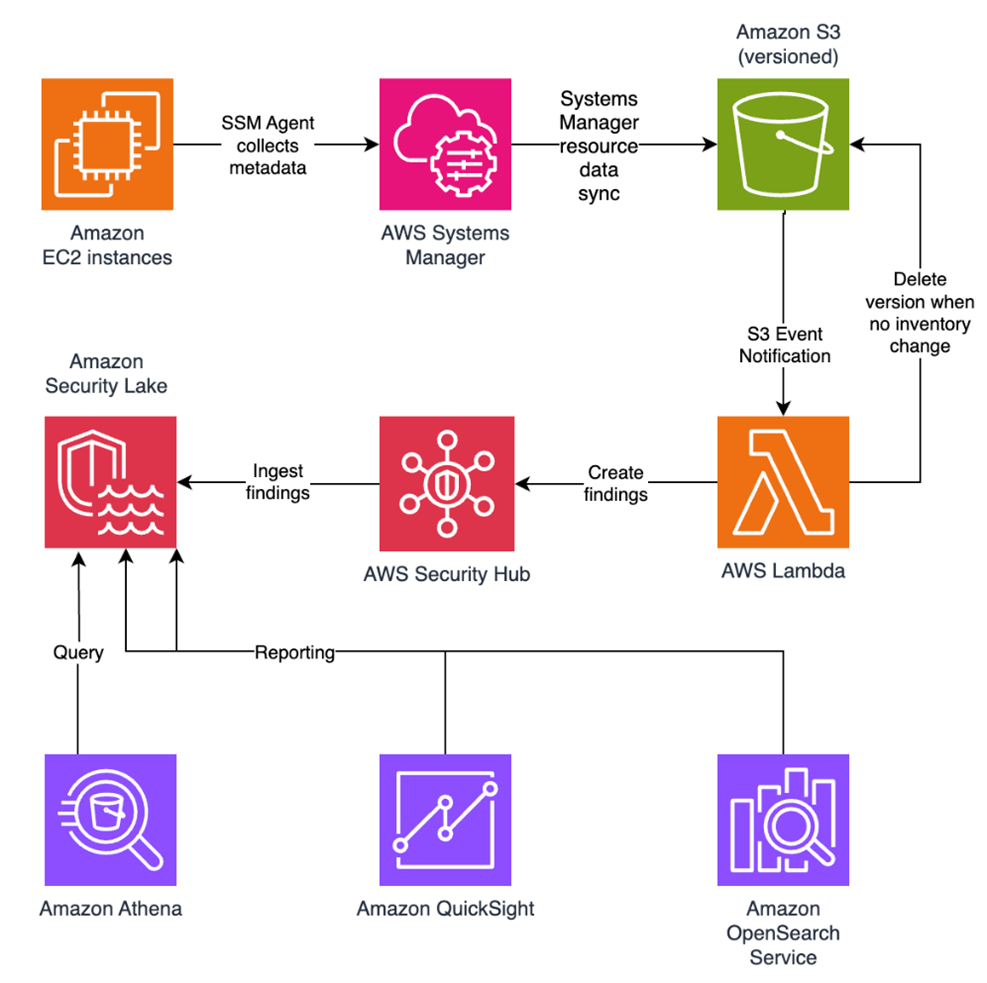
Figure 1: File integrity monitoring workflow
This integration offers an alternative to the default AWS Config and Security Hub integration, which relies on limited data (for example, no file modification timestamps). The solution presented in this post provides control and flexibility to implement custom logic tailored to your operational needs and support security-related efforts.
This flexible solution can also be used with other Systems Manager Inventory metadata, such as installed applications, network configurations, or Windows registry entries, enabling custom detection logic across a wide range of operational and security use cases.
Now let’s build the file integrity monitoring solution.
Prerequisites
Before you get started, you need an AWS account with permissions to create and manage AWS resources such as Amazon EC2, AWS Systems Manager, Amazon S3, and Lambda.
Step 1: Start an EC2 instance
Start by launching an EC2 instance and creating a file that you will later modify to simulate an unauthorized change.
Create an AWS Identity and Access Management (IAM) role to allow the EC2 instance to communicate with Systems Manager:
- Open the AWS Management Console and go to IAM, choose Roles from the navigation pane, and then choose Create role.
- Under Trusted entity type, select AWS service, select EC2 as the use case, and choose Next.
- On the Add permissions page, search for and select the AmazonSSMManagedInstanceCore IAM policy, then choose Next.
- Enter SSMAccessRole as the role name and choose Create role.
- The new SSMAccessRole should now appear in your list of IAM roles:
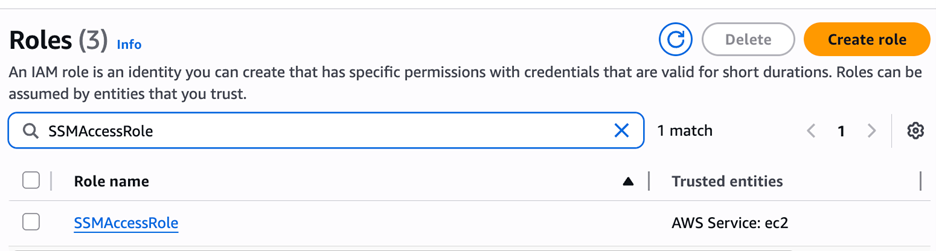
Figure 2: Create an IAM role for communication with Systems Manager
Start an EC2 instance:
- Open the Amazon EC2 console and choose Launch Instance.
- Enter a Name, keep the default Linux Amazon Machine Image (AMI), and select an Instance type (for example, t3.micro).
- Under Advanced details:
- IAM instance profile, select the previously created SSMAccessRole
- Create a fictitious payment application configuration file in the
/etc/paymentapp/folder on the EC2 instance. Later, you will modify it to demonstrate a file-change event for integrity monitoring. To create this file during EC2 startup, copy and paste the following script into User data.
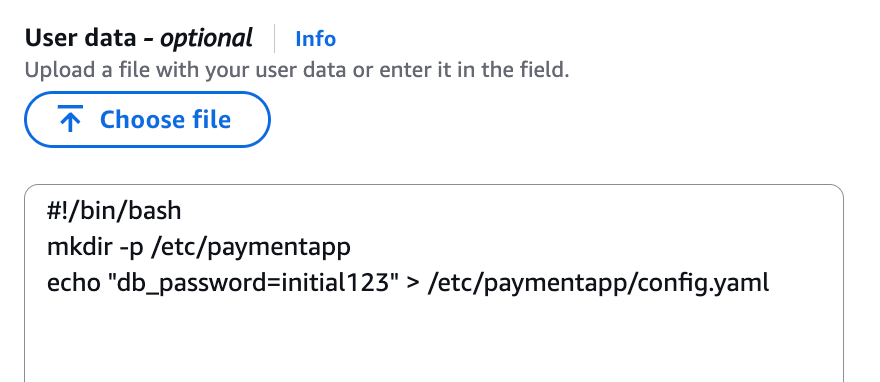
Figure 3: Adding the application configuration file
- Leave the remaining settings as default, choose Proceed without key pair, and then select Launch Instance. A key pair isn’t required for this demo because you use Session Manager for access.
Step 2: Enable Security Hub and Security Lake
If Security Hub and Security Lake are already enabled, you can skip to Step 3.
To start, enable Security Hub, which collects and aggregates security findings. AWS Security Hub CSPM adds continuous monitoring and automated checks against best practices.
- Open the Security Hub console.
- Choose Security Hub CSPM from the navigation pane and then select Enable AWS Security Hub CSPM and choose Enable Security Hub CSPM at the bottom of the page.
Note: For this demo, you don’t need the Security standards options and can clear them.
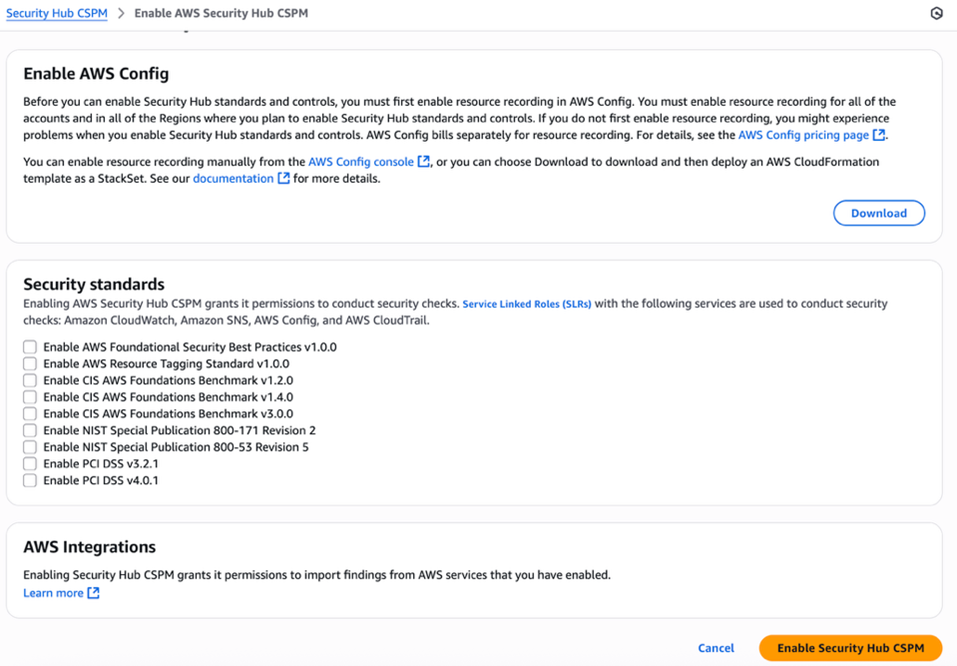
Figure 4: Enable Security Hub CSP
Next, activate Security Lake to start collecting actionable findings from Security Hub:
- Open the Amazon Security Lake console and choose Get Started.
- Under Data sources, select Ingest specific AWS sources.
- Under Log and event sources, select Security Hub (you will use this only for this demo):
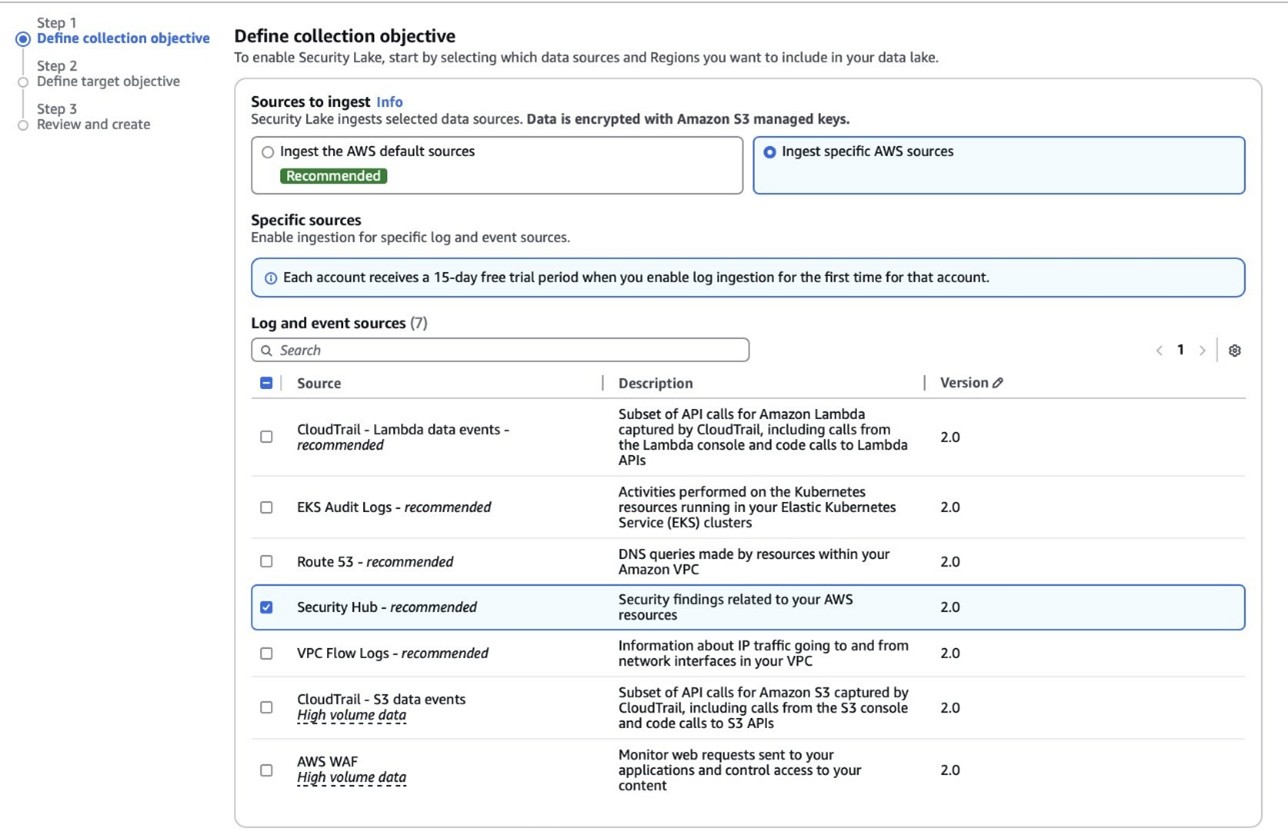
Figure 5: Select log and event sources
- Under Select Regions, choose Specific Regions and make sure you select the AWS Region that you’re using.
- Use the default option to Create and use a new service role.
- Choose Next and Next again, then choose Create.
Step 3: Configure Systems Manager Inventory and sync to Amazon S3
With Security Hub and Security Lake enabled, the next step is to enable Systems Manager Inventory to collect file metadata and configure a Resource Data Sync to export this data to S3 for analysis.
- Create an S3 bucket by carefully following the instructions in the section To create and configure an Amazon S3 bucket for resource data sync.
- After you created the bucket, enable versioning in the Amazon S3 console by opening the bucket’s Properties tab, choosing Edit under Bucket Versioning, selecting Enable, and saving your changes. Versioning causes each new inventory snapshot to be saved as a separate version, so that you can track file changes over time.
Note: In production, enable S3 server access logging on the inventory bucket to keep an audit trail of access requests, enforce HTTPS-only access, and enable CloudTrail data events for S3 to record who accessed or modified inventory files.
The next step is to enable Systems Manager Inventory and set up the resource data sync:
- In the Systems Manager console, go to Fleet Manager, choose Account management, and select Set up inventory.
- Keep the default values but deselect every inventory type except File. Set a Path to limit collection to the files relevant for this demo and your security requirements. Under File, set the Path to:
/etc/paymentapp/.
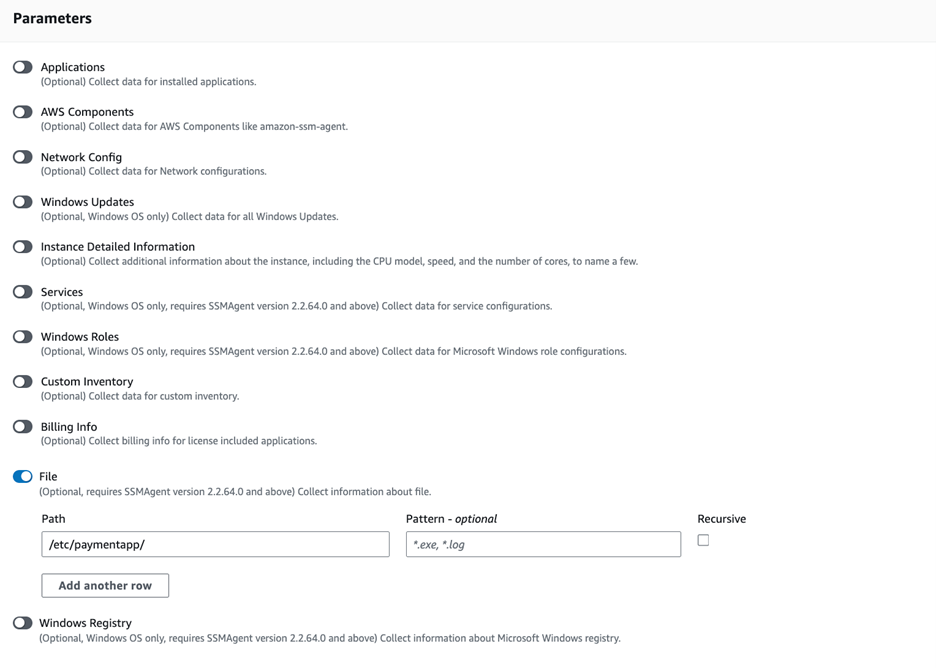
Figure 6: Set the parameters and path
- Choose Setup Inventory.
- In Fleet Manager, choose Account management and select Resource Data Syncs.
- Choose Create resource data sync, enter a Sync name, and enter the name of the versioned S3 bucket you created earlier.
- Select This Region and then choose Create.
Step 4: Implement the Lambda function
Next, complete the setup to detect changes and create findings. Each time Systems Manager Inventory writes a new object to Amazon S3, an S3 Event Notification triggers a Lambda function that compares the latest and previous object versions. If it finds created, modified, or deleted files, it creates a security finding. To accomplish this, you will create the Lambda function, set its environment variables, add the helper layer, and attach the required permissions.
The following is an example finding generated in AWS Security Finding Format (ASFF) and sent to Security Hub. In this example, you see a notification about a file change on the EC2 instance listed under the Resources section.
Create the Lambda function
This function detects file changes, reports findings, and removes unused Amazon S3 object versions to reduce costs.
- Open the Lambda console and choose Create function in the navigation pane.
- For Function Name enter
fim-change-detector. - Select Author from scratch, enter a function name, select the latest Python runtime, and choose Create function.
- On the Code tab, paste the following main function and choose Deploy.
Note: In production, set Lambda reserved concurrency to prevent unbounded scaling, configure a dead letter queue (DLQ) to capture failed invocations, and optionally attach the function to an Amazon VPC for network isolation.
Configure environment variables
Configure the two required environment variables in the Lambda console. These two variables (one for critical paths to monitor and one for security finding severity) must be set or the function will fail.
- Open the Lambda console and choose Configuration and then select Environment variables.
- Choose Edit and then choose Add environment variable.
- Under Key, choose CRITICAL_FILE_PATTERNS
- Enter
^/etc/paymentapp/config.*$as the value. - Set the SEVERITY_LABEL to MEDIUM.
- Enter
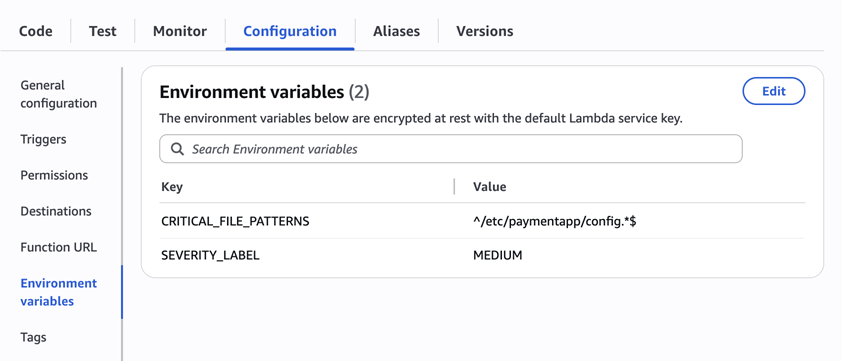
Figure 7: CRITICAL_FILE_PATTERNS and SEVERITY_LABEL configuration
Set up permissions
The next step is to attach permissions to the Lambda function
- In your Lambda function, choose Configuration and then select Permissions.
- Under Execution role, select the role name that will lead to the role in IAM.
- Choose Add permissions and select Create inline policy. Select JSON view.
- Paste the following policy, and make sure to replace
<bucket-name>with the name of your S3 bucket, and you also update<region>and<account-id>with your AWS Region and Account ID:
- To finalize, enter a Policy name and choose Create policy.
Add functions to the Lambda layer
For better modularity, add some helper functions to a Lambda layer. These functions are already referenced in the import section of the preceding Lambda function’s Python code. The helper functions check critical paths, load file metadata, compare modification times, and extract the EC2 instance ID.
Open AWS CloudShell from the top-right corner of the AWS console header, then copy and paste the following script and press Enter. It creates the helper layer and attaches it to your Lambda function.
Step 5: Set up S3 Event Notifications
Finally, set up S3 Event Notifications to trigger the Lambda function when new inventory data arrives.
- Open the S3 console and select the Systems Manager Inventory bucket that you created.
- Choose Properties and select Event notifications.
- Choose Create event notification.
- Enter an Event name.
- In the Prefix field, enter
AWS%3AFile/to limit Lambda triggers to file inventory objects only.
Note: The prefix contains a : character, which must be URL-encoded as%3A. - Under Event types, select Put.
- At the bottom, select your newly created Lambda function, and choose Save changes.
In this example, inventory collection runs every 30 minutes (48 times each day) but can be adjusted based on security requirements to optimize costs. The Lambda function is triggered once for each instance whenever a new inventory object is created. You can further reduce event volume by filtering EC2 instances through S3 Event Notification prefixes, enabling focused monitoring of high-value instances.
Step 6: Test the file change detection flow
Now that the EC2 instance is running and the sample configuration file /etc/paymentapp/config.yaml has been initialized, you’re ready to simulate an unauthorized change to test the file integrity monitoring setup.
- Open the Systems Manager console.
- Go to Session Manager and choose Start session.
- Select your EC2 instance and choose Start Session.
- Run the following command to modify the file:
echo “db_password=hacked456" | sudo tee /etc/paymentapp/config.yaml
This simulates a configuration tampering event. During the next Systems Manager Inventory run, the updated metadata will be saved to Amazon S3.
To manually trigger this:
- Open the Systems Manager console and choose State Manager.
- Select your association and choose Apply association now to start the inventory update.
- After the association status changes to Success, check your SSM Inventory S3 bucket in the
AWS:Filefolder and review the inventory object and its versions. - Open the Security Hub console and choose Findings. After a short delay, you should see a new finding like the one shown in Figure 8:
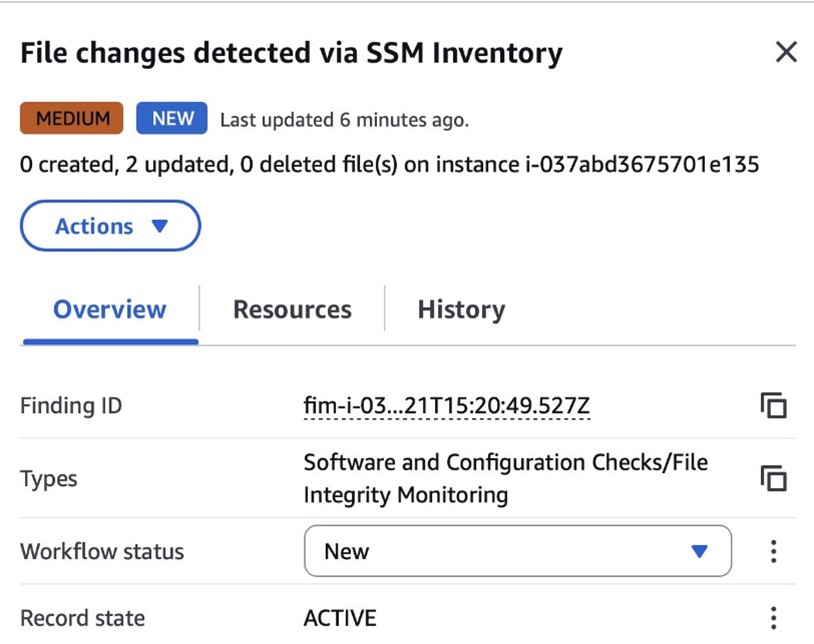
Figure 8: View file change findings
Step 7: Query and visualize findings
While Security Hub provides a centralized view of findings, you can deepen your analysis using Amazon Athena to run SQL queries directly on the normalized Security Lake data in Amazon S3. This data follows the Open Cybersecurity Schema Framework (OCSF), which is a vendor-neutral standard that simplifies integration and analysis of security data across different tools and services.
The following is an example Athena query:
Note: Be sure to adjust the FROM clause for other Regions. Security Lake processes findings before they appear in Athena, so expect a short delay between ingestion and data availability.
You will see a similar result for the preceding query, shown in Figure 9:

Figure 9: Athena query result in the Amazon Athena query editor
Security Lake classifies this finding as an OCSF 2004 Class, Detection Finding. You can explore the full schema definitions at OCSF Categories. For more query examples, see the Security Lake query examples.
For visual exploration and real-time insights, you can integrate Security Lake with OpenSearch Service and QuickSight, both of which now offer extensive generative AI support. For a guided walkthrough using QuickSight, see How to visualize Amazon Security Lake findings with Amazon QuickSight.
Clean up
After testing the step-by-step guide, make sure to clean up the resources you created for this post to avoid ongoing costs.
- Terminate the EC2 instance
- Delete the Resource Data Sync and Inventory Association
- Remove the Lambda function.
- Disable Security Lake and Security Hub CSPM
- Delete IAM roles created for this post
- Delete the associated SSM Resource Data Sync and Security Lake S3 buckets.
Conclusion
In this post, you learned how to use Systems Manager Inventory to track file integrity, report findings to Security Hub, and analyze them using Security Lake.
You can access the full sample code to set up this solution in the AWS Samples repository.
While this post uses a single-account, single-Region setup for simplicity, Security Lake supports collecting data across multiple accounts and Regions using AWS Organizations. You can also use a Systems Manager resource data sync to send inventory data to a central S3 bucket.
Getting Started with Amazon Security Lake and Systems Manager Inventory provides guidance for enabling scalable, cloud-centric monitoring with full operational context.