AWS Big Data Blog
Migrate Apache Solr to Amazon OpenSearch Service with the AI-driven Migration Assistant
If you have run Apache Solr for years, you can offload its undifferentiated operational overhead: managing ZooKeeper quorums, patching JVMs, tuning garbage collection, and building custom plugins for features a managed service provides out of the box. Moving to a managed service with native AWS integrations and capabilities like vector search is attractive, but the migration itself is what keeps you on aging infrastructure. Schemas differ between Solr and OpenSearch. Application code is written against the Solr HTTP API, custom analyzers are baked in, and the project balloons into months of engineering work.
A 2024 AWS Big Data Blog post on migrating from Apache Solr to OpenSearch laid out the conceptual differences between the two engines and what to think about at a planning level. However, it left the execution to the reader. In this post, you execute a Solr-to-OpenSearch Serverless migration end to end using the Migration Assistant for Amazon OpenSearch Service from the AWS Solutions Library that runs on Amazon Elastic Kubernetes Service (Amazon EKS). It orchestrates the migration. The Migration Assistant Command Line Interface (CLI) includes a built-in interactive mode that guides you through the assessment and execution in plain language. If you’re only assessing a migration, you can run the AI advisor standalone from your development environment without provisioning infrastructure.
This walkthrough uses Apache Solr 9.6 as the source with a demo catalog of 600,000 synthetic product documents. The same flow applies if you are running Elasticsearch 5.x or later, or a self-managed OpenSearch cluster as your source.
Note: The prompts and responses shown in this post are directional. Because interactive mode uses natural language, your exact prompts and responses might vary by Migration Assistant version and your environment.
By the end of this post, you will have migrated a 600,000-document Apache Solr catalog to Amazon OpenSearch Serverless using the AI-driven agent mode in the Migration Assistant for Amazon OpenSearch Service, from assessment through validated backfill. On the target, you no longer maintain ZooKeeper quorums, JVMs, or custom plugins.
Solution overview
The Migration Assistant for Amazon OpenSearch Service guides you through the various phases of the migration, including deploying the necessary infrastructure components, such as an Amazon EKS cluster. The Migration Assistant guides you through three phases:
- Assess – Inventory the source schema and query patterns. Check permissions and accessibility. Surface incompatibilities before any data moves.
- Backfill – Snapshot the source into Amazon Simple Storage Service (Amazon S3), then stream the snapshot into the target using Reindex-from-Snapshot (RFS).
- Validate – Compare document counts, mappings, sample query results, and replay consistency between source and target.
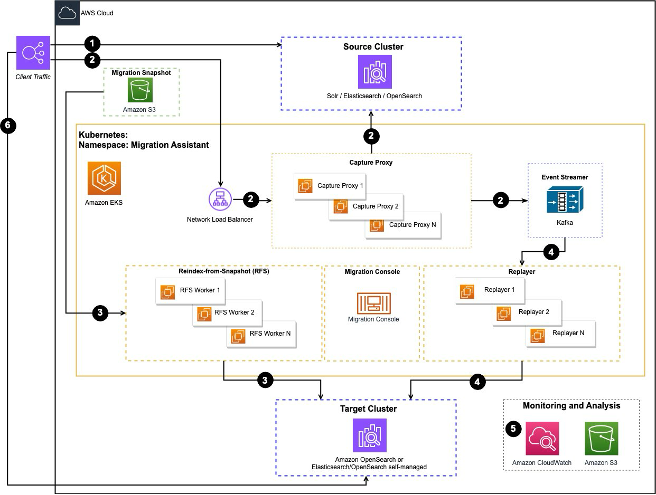
Figure 1: Migration Assistant architecture on Amazon EKS, showing the RFS workers for backfill and the capture proxies for live traffic
Prerequisites
Before starting, verify that you have the following:
- A compatible coding assistant installed and configured. Agent Mode runs inside supported development environments.
- AWS credentials configured for the target account (AWS IAM Identity Center, temporary credentials, or an AWS Identity and Access Management (IAM) role with sufficient permissions).
- Account isolation – Use a dedicated non-production account for this walkthrough, or assume a scoped deployment role with short-lived credentials from AWS IAM Identity Center. Point the Migration Assistant at a non-production Solr, Elasticsearch, or OpenSearch source.
- Deployment permissions – The deployment creates a VPC, a NAT gateway, an Amazon EKS cluster, IAM roles, an Amazon Elastic Container Registry (Amazon ECR) repository, and an Amazon S3 bucket through AWS CloudFormation, so the deploying principal needs permissions to create those resources and to pass roles (
iam:PassRole). See the Migration Assistant required-permissions guidance for the exact policy. - Workflow pod scope – The migration workflow pods use Amazon EKS Pod Identity to assume a role limited to the snapshot and capture Amazon S3 bucket and the target OpenSearch Serverless collection, rather than broad account access.
- AWS Command Line Interface (AWS CLI) v2 (latest 2.x release recommended) installed and configured.
- Verify installation:
aws --version.
- Verify installation:
- kubectl and Helm installed (the agent uses
kubectlto interact with the Amazon EKS-based Migration Assistant infrastructure, and the deployment installs the Migration Assistant as a Helm chart).- Confirm both are on your PATH:
kubectl version --client && helm version.
- Confirm both are on your PATH:
- Network access from your workstation to AWS APIs and, optionally, to the source cluster for assessment.
- Source cluster details – Endpoint, version, and authentication method for your Solr, Elasticsearch, or OpenSearch cluster.
The tool will prompt you if any of the above aren’t configured.
Install the Migration Assistant CLI
Run the following command in your terminal:
The install script comes from the official AWS Solutions release channel, the solutions-reference Amazon S3 bucket, and is published by the AWS Solutions release pipeline. For transparency, you can review the source for Migration Assistant for Amazon OpenSearch Service in the aws-solutions/migration-assistant-for-amazon-opensearch repository on GitHub. This post pins version 3.98.7 for repeatable results. Check the Migration Assistant documentation for the current release and substitute the latest version in the install URL.
The one-line command pipes a script straight into bash. The 3.98.7 script runs without sudo. It downloads a single platform binary into ~/.local/bin and runs chmod +x on it, but it doesn’t verify a checksum or signature, and checksums are not currently published for the binaries. The only protection is HTTPS from the AWS-owned Amazon S3 bucket. For a safer install, download the script first, review it, then run it:
The installer places the migration-assistant binary on your PATH and prompts you to launch the Migration Assistant by running the following:
You’re given two options: Manual or Agent Mode. Choose Agent Mode for an AI-guided migration experience.
If you have more than one supported development assistant on your PATH, the CLI detects them and asks which one to use.
Select your preferred option to proceed with the migration.
The interactive mode then prompts you for what you want to accomplish. You can request:
- An assessment – The agent connects to your source cluster (read-only), analyzes the schema, identifies compatibility gaps, and produces a migration assessment report.
- A deployment – The agent deploys the Migration Assistant infrastructure (an AWS CloudFormation stack, Amazon EKS cluster, and Helm chart) into your AWS account.
- A migration – The agent configures and runs the end-to-end migration workflow, including historical data backfill and optional live traffic capture and replay.
Describe your goal in plain language. For example, “Assess my Solr 9.6 cluster. I am evaluating a migration” or “Migrate my Solr 8.11 cluster to OpenSearch Serverless.”
Data handling in agent mode – Agent mode runs inside a third-party coding assistant. To reason about your migration, the agent sends context to that model, including your Solr schema and solrconfig.xml, sample queries, and your source and target endpoints. If you have data-handling rules, review what your coding assistant transmits before you use agent mode.
The agent doesn’t store your credentials and shows each command before it runs. The local ./migration-assistant-workspace/ folder holds migration state, logs, and the assessment report, so treat that folder as sensitive and protect it like other credential-adjacent artifacts.
Assessing a migration
The first step is to run a full assessment of the source cluster. In this phase, nothing changes on the source. The agent takes inventory and reports back on what is missing or incompatible. Tell Migration Assistant to perform the assessment:
“Run a migration assessment of my Solr collection. The source is Solr 9.6.1 in SolrCloud mode at https://solr.example.internal:8983/solr, collection name products, 600,000 docs.”
You provide the source location directly in the prompt. Give the agent the Solr endpoint (for SolrCloud, any node’s base URL, or your ZooKeeper connection string) along with the collection name and authentication method. If you leave out the endpoint, the agent asks for it before it connects, because the assessment phase needs to reach the source to read the schema and solrconfig.xml.
The agent connects to Solr in read-only mode, takes inventory of the collection, and prints a structured report covering:
- Source – Endpoint, version, mode, collection size, authentication.
- Schema/field types – Dield-type classes in use, language analyzers declared.
solrconfig.xml– Request handlers, search components, update processors.- Custom plugins – Custom Java plugins detected, with recommended OpenSearch equivalents.
- Networking – Verifies Migration Assistant can reach the source and that the S3 snapshot repository is loaded in Solr.
The following screenshot shows the bottom of the assessment report, which details overall readiness based on what the agent found after examining source and target configurations.
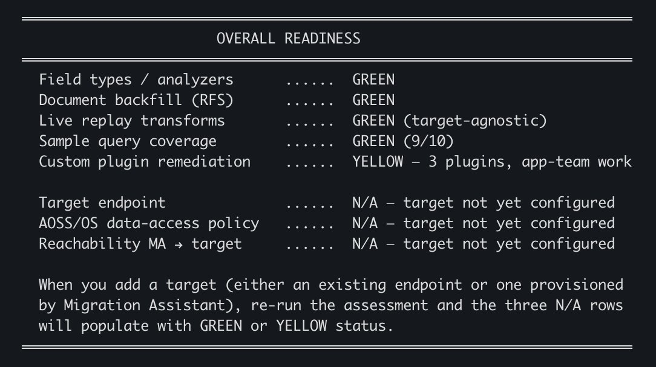
Figure 2: Overall readiness section of the assessment report, where source-side checks pass green and custom plugin remediation is yellow
Field types, document backfill (RFS), live replay transforms, and sample query coverage all pass green. Custom plugin remediation is listed as yellow because the assessment detected three custom Java plugins in the solrconfig.xml that don’t translate automatically and require refactoring by your team. The target-side checks show N/A because a target has not been configured yet. After you add a target endpoint, re-running the assessment populates those rows.
Deploying the Migration Assistant infrastructure
Before moving on, save the assessment report so the findings stay available as a reference during the migration. The agent stores the report in your workspace and can recall specific findings later when you configure the workflow.
A green assessment report indicates that migration is possible and does not move the data. Migration Assistant will be used to migrate the data and build necessary configurations. The Migration Assistant needs infrastructure deployed in your account before it can copy data from Solr to Amazon OpenSearch Serverless. Ask the agent to deploy that infrastructure:
“Deploy the Migration Assistant infrastructure in us-west-2”
When you start the deployment, the agent asks for a stage name. The stage is a label you choose, not a value from a fixed list. The agent uses it as the Kubernetes namespace for the pods, the Helm release name, and the suffix on the CloudFormation stack (MigrationAssistant-<stage>). Accept the default ma, or pick something more descriptive like dev, prod, or solr-migration.
Under the hood, the agent deploys a CloudFormation stack that provisions:
- An Amazon Virtual Private Cloud (VPC) with private subnets and a NAT gateway.
- An Amazon EKS cluster (Migration Assistant control plane).
- An Amazon ECR repository and AWS Identity and Access Management (IAM) roles for workflow pods.
- An Amazon S3 bucket for snapshot storage and captured traffic tuples.
Total time to install the Migration Assistant is approximately 10–15 minutes. The agent monitors pod state and reports when the infrastructure is ready.
Backfilling Solr data
After addressing data-access gaps and confirming the assessment is green, you instruct the agent to run the backfill and give it the target endpoint:
“Run the backfill into my OpenSearch Serverless collection at”
You specify the target OpenSearch Serverless endpoint here, in the backfill request. If you leave it out, the agent asks for the collection endpoint and confirms the Region and SigV4 authentication before it builds the workflow. You review that configuration next.
Before starting the backfill, the agent generates a workflow configuration that captures the migration configuration in a single JSON document: source and target endpoints, authentication, snapshot location, and RFS worker settings. The agent prints the configuration for you to review and approve, so nothing runs until you confirm.
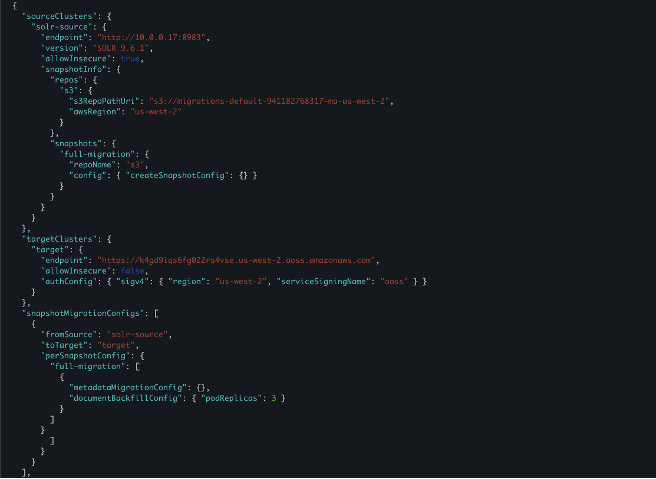
Figure 3: Workflow configuration JSON, part 1, showing the source cluster, S3 snapshot repository, target OpenSearch Serverless endpoint, and RFS worker settings
The JSON defines the source Solr cluster endpoint and version, the S3 bucket where the Solr snapshot is stored, and the target OpenSearch Serverless collection endpoint. Because the Migration Assistant uses Reindex-from-Snapshot, you point the s3RepoPathUri at the S3 bucket provided for storing the snapshot. The target can be either an Amazon OpenSearch Service domain or an OpenSearch Serverless collection.
This Solr cluster uses basic authentication. You can create a Kubernetes secret in the Migration Assistant namespace after deployment and reference that secret by name in the workflow configuration. You can ask the agent to create the secret, or run the command yourself:
The preceding command passes the password with --from-literal, which leaves it in your shell history and the process list. For anything beyond a quick test, read the password without echoing it and pass it through a restricted-permission file that you delete afterward:
As an alternative, store the Solr credential in AWS Secrets Manager and resolve it at deploy time instead of placing it in a shell command. Either approach keeps the password out of your shell history and the process list.
Use the stage name you chose during deployment as the namespace (ma is the default), and reference the secret name (solr-basic-auth) in the workflow configuration so the agent can authenticate the source.
Grant the target collection a data access policy
For an OpenSearch Serverless target, the Migration Assistant workflow pod role must be allowed to write to the target collection. Grant that access through a data access policy scoped to the target collection and index, and confirm the collection is reachable through its network policy. Scope the policy to the specific collection and index rather than *:
Secure the snapshot and capture bucket
Reindex-from-Snapshot reads a Solr snapshot from Amazon S3, so the Solr nodes need write access to the snapshot bucket to create that snapshot. Attach an IAM policy scoped to only the snapshot bucket and prefix rather than a broad Amazon S3 grant:
Turn on Amazon S3 Block Public Access for the bucket and turn on encryption at rest, either with Amazon S3 managed keys (SSE-S3) or AWS Key Management Service (AWS KMS) keys (SSE-KMS).
The same bucket also holds captured traffic tuples, which can contain real user queries and personally identifiable information (PII). Keep that data only as long as you need it for cutover validation, and delete it after cutover.
To capture live traffic updates as part of the migration, the configuration also provides a replayer. The replayer captures live traffic at the source through a proxy and mirrors it into the target. The Migration Assistant uses SolrToOpenSearchTransformProvider to read the Solr schema and config files to translate queries in real time.
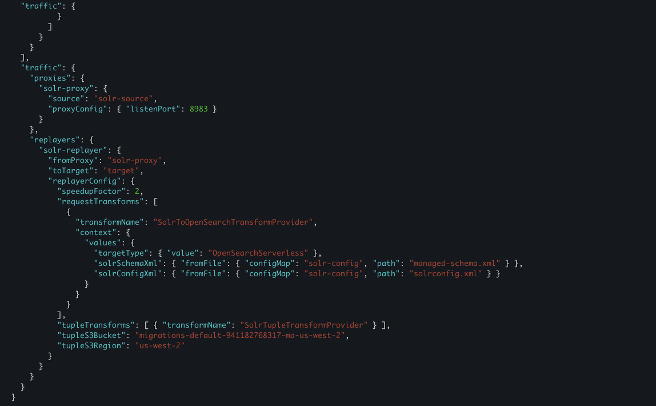
Figure 4: Workflow configuration JSON, part 2, showing the capture proxy and the replayer with the SolrToOpenSearchTransformProvider for live query translation
After you approve the workflow, the Migration Assistant control plane starts spinning up resources. Within about a minute, the migration-console pod reports that the metadata phase ran successfully and can create an index in the target collection.
If the tool can’t migrate a specific item, the tool logs the issue and continues where safe. Some issues are fatal, such as an index that already exists on the target or a field type the transformer can’t convert. These cause the phase to exit non-zero so you can fix the problem and rerun. The Migration Assistant skips already migrated items on retry.
Some categories are out of scope for the metadata phase and require separate planning: security configuration, ISM and ILM policies, ingest pipelines, Dashboards saved objects, data streams, and cluster level settings.
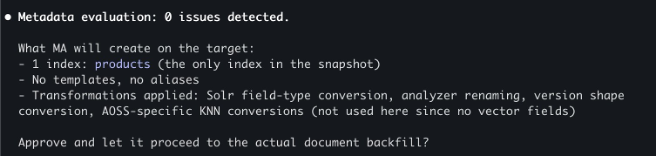
Figure 5: Metadata evaluation output showing zero issues detected and one index, products, to create on the target
Open a second terminal to monitor the migration. Launch migration-assistant and select [1] Manual when asked how you want to drive the migration, which opens the migration-console. With the migration-console open, run the following command to confirm the target index was created with zero documents:

Figure 6: cat-indices output showing the products index created with 0 documents, confirming the metadata migration succeeded
The agent confirms the mappings are correct, including the dynamic templates for Solr’s dynamic-field patterns, and asks for approval to start RFS. You approve, and RFS workers spin up on EKS. To watch documents flow into the target in real time, run a watch loop against the same cat-indices command in the migration-console:
The console command inside the migration console pod exposes utilities for driving and inspecting a migration outside the workflow CLI. In addition to clusters cat-indices, you have clusters connection-check, clusters curl, and snapshot, among others. Run console --help inside the pod to view the full list.
The document count climbs steadily as the three RFS worker pods stream the snapshot into the new index. The workflow configuration you approved earlier set three RFS worker replicas, so three pods run the backfill in parallel here. You can raise or lower that replica count to control how much the backfill parallelizes. The following screenshot shows the migration mid-flight at roughly the halfway point.

Figure 7: Mid-flight progress showing 304,441 documents migrated into the products index
After the backfill completes, you can confirm the final document count directly from OpenSearch Dashboards Dev Tools. The following query against the migrated collection returns the exact count:
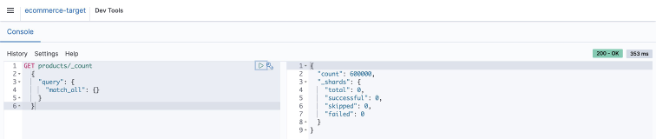
*Figure 8: OpenSearch Dashboards Dev Tools, where GET products/_count returns 600,000 documents, confirming the backfill is complete*
Validation and testing
With the backfill finished, ask the agent to run a validation check. The agent runs four checks and prints results:
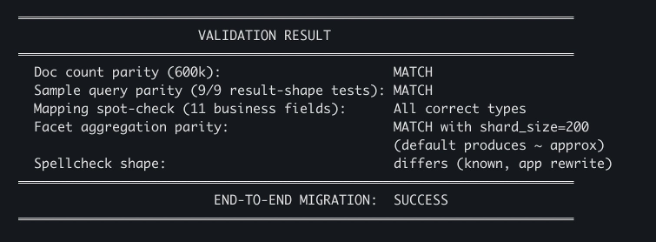
Figure 9: Validation results, where doc count, sample query, mapping, and facet parity all match, spellcheck shape differs, and the end-to-end migration succeeds
Four lines worth reading carefully:
- Doc count parity (600k): MATCH – Solr has 600,000 documents and the OpenSearch Serverless collection has 600,000.
- Sample query parity (9/9 result-shape tests): MATCH – The same queries that translated cleanly in the assessment returned matching results against the target.
- Mapping spot-check (11 business fields): All correct types – The most-used product fields (title, brand, category, price,
in_stock, rating, and others) ended up with the data types that their queries depend on. - Facet aggregation parity: MATCH with
shard_size=200– Facet results match when theshard_sizeparameter is set explicitly (the default produces approximate counts).
The one yellow line is Spellcheck shape: differs (known, app rewrite), which the assessment had already flagged. Application code that consumes spellcheck responses will need to be updated to handle the OpenSearch response format.
Running a query against your migrated data
Running a real query against the migrated collection confirms that translated query domain-specific language (DSL) works on the target. You don’t need to translate queries by hand.
In agent mode, give the agent your Solr query and ask for the OpenSearch equivalent, for example, “Translate my eDisMax lamp query to OpenSearch Query DSL.”
The agent returns the DSL for you to paste into OpenSearch Dashboards Dev Tools. This is interactive help for individual queries. The backfill workflow itself does not translate or replay Solr queries, so you still rewrite your application’s query layer.
To follow along, open Dev Tools and run one of the translated queries from the assessment: a multi-field text search with a field boost, a category filter, a price range, and a sort. The Solr version of that query, in its native URL form:
The equivalent OpenSearch Query DSL:
The translation is mechanical: Solr’s q=lamp becomes a multi_match clause, fq filters become bool.filter entries, and sort keeps the same shape. The following screenshot shows both queries side by side in Dev Tools, along with the OpenSearch response.
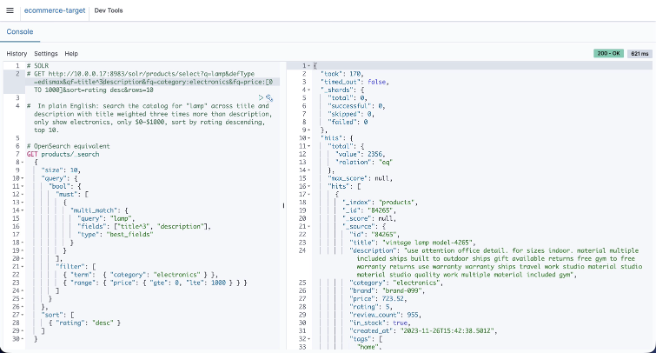
Figure 10: OpenSearch Dashboards Dev Tools showing the translated OpenSearch query and its response, returning 2,356 matching documents
The response shows 2,356 matching documents returned in 170 milliseconds, with the top hits sorted by rating, all queryable through the new OpenSearch Serverless endpoint.
Updating your application code
The Migration Assistant moves your data and schema, and it can also mirror live Solr traffic to the target during migration. The capture proxy records requests to your source, and the replayer sends them to OpenSearch using the SolrToOpenSearchTransformProvider you configured earlier. It reads your Solr schema and solrconfig.xml to translate queries in a field-type-aware way. That translation covers common Solr query and update patterns. It returns an error on features it doesn’t support rather than translating them incorrectly, so check the Migration Assistant documentation for the current list of supported behavior. This path is built for migration and cutover validation, not as a permanent production query layer. Because Solr and OpenSearch differ in query syntax, request handlers, and response shape, you still rewrite your application’s query layer for production. Two AI-driven paths are available:
AWS Transform is a collaborative IT transformation workbench that accelerates cloud migration, application modernization, and technical debt reduction. AWS Transform delivers high-quality, repeatable transformations without requiring specialized automation expertise. You can also handle the refactoring using available development tools your team uses for application development to help rewrite the relevant Solr client calls to use the OpenSearch client.
An AI coding assistant can also handle the refactoring. Any AI coding assistant that your team uses for application development can read your repository and rewrite the relevant Solr client calls to use the OpenSearch client. For better results, AWS provides integration tools that help. These tools reference AWS documentation and include Solr to Amazon OpenSearch Service capabilities that the Migration Assistant uses. This approach is less structured than AWS Transform but can be done with your existing development tools.
As you plan the query rewrite: devise a strategy for each of the following areas:
- Query parser differences – Solr’s eDisMax
qf/pf/bf/bq/mmdon’t map 1:1 to OpenSearch.multi_matchwithtype: best_fieldsormost_fieldsis the closest analogue, but boost math (bf) and phrase-field boosting (pf) require rewrites. - Request handler configs – Solr
solrconfig.xmlrequest handlers (with defaults, appends, invariants) become search templates or application logic on OpenSearch. - Response format – Solr’s
response.docscompared to OpenSearch’shits.hits. - Function queries and score modifications – Solr’s
_val_,bf, and function query syntax must be rewritten asfunction_scoreorscript_score. Semantics are close but rarely identical, and BM25 compared to Solr’s TF-IDF (or BM25 in newer Solr) produces different absolute scores. - Faceting – Solr
facet.field,facet.range, andfacet.pivotbecome OpenSearch aggregations. - Highlighting,
flfield selection, andcursorMarkpagination – All have OpenSearch equivalents with different names and semantics.
Bonus: Improve search relevance with Automatic Semantic Enrichment
After your data lands in an OpenSearch Serverless collection, you have access to capabilities that weren’t available on Solr such as vector based search and semantic enrichment. One option is Automatic Semantic Enrichment. Automatic Semantic Enrichment uses a pre-trained sparse encoder (opensearch-neural-sparse-v2) to expand each document with weighted co-occurring terms at indexing time. It then matches incoming queries against the expanded representation. You get relevance improvements without hosting a model or running inference at query time.
Consider a query like “durable rain jacket” against a product catalog. A keyword-only search returns documents that contain those literal words. With Automatic Semantic Enrichment activated, the same query also surfaces related items like waterproof shells, hardshells, and weatherproof coats, without anyone writing or maintaining synonym files. Automatic Semantic Enrichment is configured at index creation time and can’t be activated by changing the mapping afterward. After activation, sparse vectors are generated automatically for every ingested document. The AI assistant will help you set up a semantically enriched field as part of the migration.
Cost
The Migration Assistant infrastructure costs approximately $0.40–0.70 per hour while running. The target OpenSearch Serverless collection has a separate baseline cost. OpenSearch Serverless can scale compute to zero when idle, so you pay only for storage when the collection is not handling requests, and it provisions faster than previous generations.
Clean up
When you finish testing, remove the resources you created so you don’t keep paying for them:
- Delete the AWS CloudFormation stack
MigrationAssistant-<stage>, which removes the VPC, NAT gateway, Amazon EKS cluster, Amazon ECR repository, and IAM roles it created. - Empty and delete the Amazon S3 bucket that holds the snapshot and the captured traffic tuples.
- Delete the Kubernetes secret
solr-basic-authand remove the container images from the Amazon ECR repository. - Remove any temporary access you granted on the Solr source, and revoke the data access policy entry you added to the target OpenSearch Serverless collection.
Conclusion
The Migration Assistant reduces the manual engineering effort required to move from Apache Solr to Amazon OpenSearch Serverless. The Migration Assistant handles orchestration and guides you through assessment, backfill, and validation, while development tools can help reduce the effort needed to rewrite application code.
Try the Migration Assistant for Amazon OpenSearch Service in your own AWS account. Point it at a non-production Solr, Elasticsearch, or self-managed OpenSearch cluster and describe your goal in language, for example, “Deploy Migration Assistant in us-west-2 so I can start testing” or “Run the historical data migration for my Elasticsearch 7.10 cluster.” Run an assessment and take a workload through backfill and validation to see how the Assistant handles the process for you. As you use the Migration Assistant on your own projects, tell us what worked and where you encountered challenges, so we can keep improving the assessment, translation, and validation experience.
- Read the Migration Assistant documentation for the full list of supported source clusters.
- Explore Amazon OpenSearch Service for the broader managed-service feature set.
- Try Automatic Semantic Enrichment on your migrated collection.