AWS Database Blog
Automate Amazon Aurora PostgreSQL major or minor version upgrade using AWS Systems Manager and Amazon EC2
Managing Aurora PostgreSQL-Compatible Edition upgrades across multiple database clusters can be time-consuming and error-prone when done manually. In this post, we show you how to automate Amazon Aurora PostgreSQL upgrades across your entire database fleet, reducing manual effort by up to 80% and minimizing downtime risks through consistent, repeatable procedures.
This is the second post in our series on AWS database upgrade automation. Following our previous post “Automate Amazon RDS for PostgreSQL major or minor version upgrade using AWS Systems Manager and Amazon EC2”, we adapt the same automation framework for Aurora PostgreSQL upgrades. The fundamental need for version management remains similar, but Aurora PostgreSQL’s cluster architecture and Copy-on-Write cloning capability provide enhanced rollback options during the upgrade process. This solution still requires application downtime during cluster upgrades (unlike blue/green deployments), but the ability to quickly create cluster clones offers a robust safety net.
You will learn to build a comprehensive automation solution that:
- Automatically identifies upgrade candidates using database tags.
- Creates safety backups with Copy-on-Write clones before any changes.
- Manages the entire upgrade process with minimal human intervention.
- Provides real-time monitoring and email notifications throughout the process.
Solution overview
The solution uses AWS Systems Manager to orchestrate upgrades, Amazon Elastic Compute Cloud (Amazon EC2) to run the automation scripts, and AWS Secrets Manager to securely handle database credentials. In this solution, the program is built around two main modules: PREUPGRADE, which performs readiness checks and database preparation to identify potential issues, and UPGRADE, which handles the actual database upgrade process, starting with creating a Copy-on-Write clone for safety. We use tags to identify Aurora clusters that are candidates for upgrade. AWS Systems Manager runs automation documents containing Unix shell scripts that run psql and AWS Command Line Interface (AWS CLI) commands from an Amazon EC2 instance.
The solution supports both minor and major version upgrades. It doesn’t interfere with Aurora’s built-in Automatic minor version upgrades feature. The solution has been tested and validated in a single Amazon Virtual Private Cloud (Amazon VPC) and AWS Region environment for one AWS account. For organizations requiring multi-VPC or cross-account or cross-Region deployments, you can extend this architecture, though you must address additional considerations for networking, security (including AWS Identity and Access Management (IAM) roles and permissions), replication, and data consistency.
The following diagram illustrates the high-level architecture and workflow.
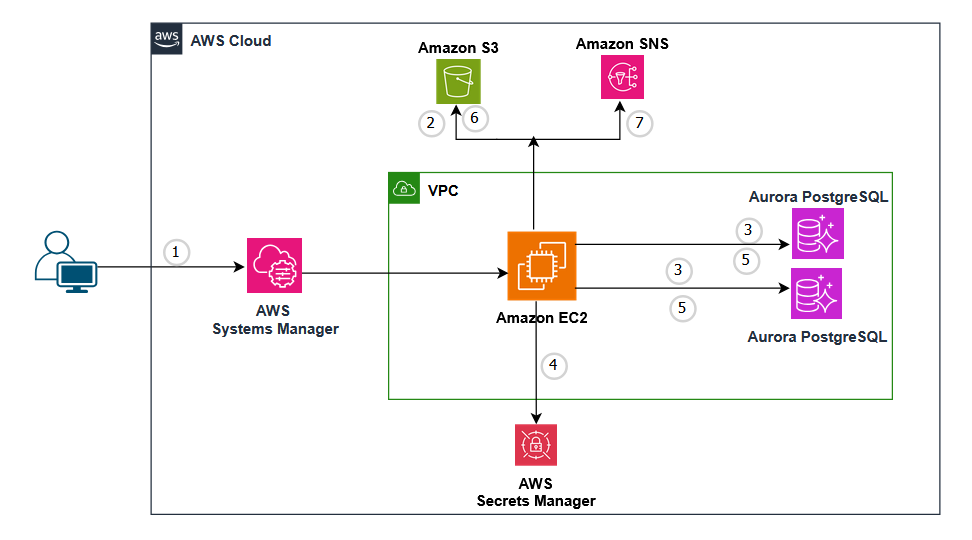
The workflow consists of the following steps:
- The user signs in to the Systems Manager console and runs the automation job.
- The job downloads the upgrade shell script from Amazon Simple Storage Service (Amazon S3) to the EC2 instance.
- The job connects to the EC2 instance and identifies Aurora PostgreSQL clusters based on the cluster tag. In our example, we use a tag name: UpgradeDB and tag value: Y.For each Aurora PostgreSQL cluster identified, the job also modifies the cluster to publish PostgreSQL logs to Amazon CloudWatch logs if not configured already.
- The job uses Aurora cluster tags to locate and retrieve credentials from AWS Secrets Manager. Each Aurora cluster must have a tag where:
- Tag name:
aurora-maintenance-user-secret. - Tag value:
<Aurora-Cluster-ID>-maintenance-user-secret.
- Tag name:
- The job runs either pre-upgrade checks or the actual upgrade based on user input.
- The job pushes log files to Amazon S3.
- The job sends an email notification through Amazon Simple Notification Service (Amazon SNS).
Prerequisites
To implement this solution, complete the following prerequisite steps:
- Familiarize yourself with the Amazon Aurora upgrade process by referring to Upgrading Amazon Aurora PostgreSQL DB clusters.
- Have an AWS Identity and Access Management (IAM) user and appropriate permissions to manage Amazon Relational Database Service (Amazon RDS), Amazon EC2, Amazon S3, Amazon SNS, AWS Secrets Manager, and AWS Systems Manager.
- Clone the GitHub repository to your local device:
- Prepare Aurora PostgreSQL cluster:
- Create a database user with proper privilege using psql or other Postgres client.
- Create a secret in AWS Secrets Manager for the database user. The secret name must follow this format:
<db-cluster-identifier>-maintenance-user-secret. - Add required tags to your Aurora cluster.
Replace
<cluster-ARN>and<db-cluster-identifier>with the actual values. If you have many clusters, you can use a Unix shell and AWS CLI based script, a Python script, or a CI/CD pipeline to automate the tagging.
- Create an S3 bucket to store the shell script and log files.
- Create an SNS topic and subscription for email notifications.
- Create the required IAM policy and IAM role. Attach policies to the role.
- Create a custom policy using AWS CLI.
Where
auroraupgradeinstancepolicy.jsonis a JSON file saved in the current directory with the following content: - Create an IAM role with trust policy using the AWS CLI:
Where
trust-policy.jsonis a JSON file saved in the current directory with the following content: - Attach
AmazonSSMManagedInstanceCore(AWS managed policy) to the role. - Attach the custom policy created in this section to the role.
- Create a custom policy using AWS CLI.
- Launch a new EC2 instance in the same VPC where your Aurora clusters are. If you have Aurora clusters that need to be upgraded across different VPCs, you can launch the EC2 instance in its own VPC, then set up VPC peering. For more details, refer to Connect VPCs using VPC peering. This EC2 instance hosts and runs the upgrade script, requiring AWS CLI, PostgreSQL client,
bc, andjqlibrary (AWS CLI andjqare pre-installed on the Amazon Linux 2023 AMI). To install the required software on Amazon Linux, use the following commands: - Create an instance profile.
- Add the role created in step 7 to the instance profile.
- Associate the EC2 instance with the instance profile.
- Configure the connection between the database and the EC2 instance. Add an inbound rule to the security group of your Aurora writer instance (Type: PostgreSQL, Port: 5432, Source: the EC2 IP address). For guidance, refer to Automatically connecting an EC2 instance and an Aurora DB cluster.
Quick set up
To test this solution with a new environment, you can use our provided AWS CloudFormation template (create_aurora_psql_cluster_cfn.yaml). After deploying the template:
- Retrieve the required passwords from AWS Secrets Manager:
- Master user password
- aurora_maintenance_user password
- Connect to your Amazon EC2 instance using Session Manager.
- Create the maintenance user by executing these commands:
Implementation steps
- Review the README file in the
aurora-postgres-upgradedirectory after you clone the Git repository. It provides complete setup instructions for both existing environments and new deployments. For complete instructions on setting up a new environment, refer to the Testing section in README. - Upload
aurora_psql_patch.shto your S3 bucket. - Create an AWS Systems Manager automation document using the provided
create_ssm_aurora_patch_automation_document.yamlas template. You can create a stack from the CloudFormation console or by executing the following AWS CLI command:To create and manage the SSM automation document, you need to have the following permissions:
ssm:CreateDocumentssm:UpdateDocumentssm:DeleteDocumentssm:GetDocumentssm:ListDocuments
The CloudFormation stack creates two key components: the required IAM role and the AWS Systems Manager automation document. You can find the role ARN and name of the automation document by navigating to the Outputs tab of your CloudFormation stack, as shown in the following screenshot:
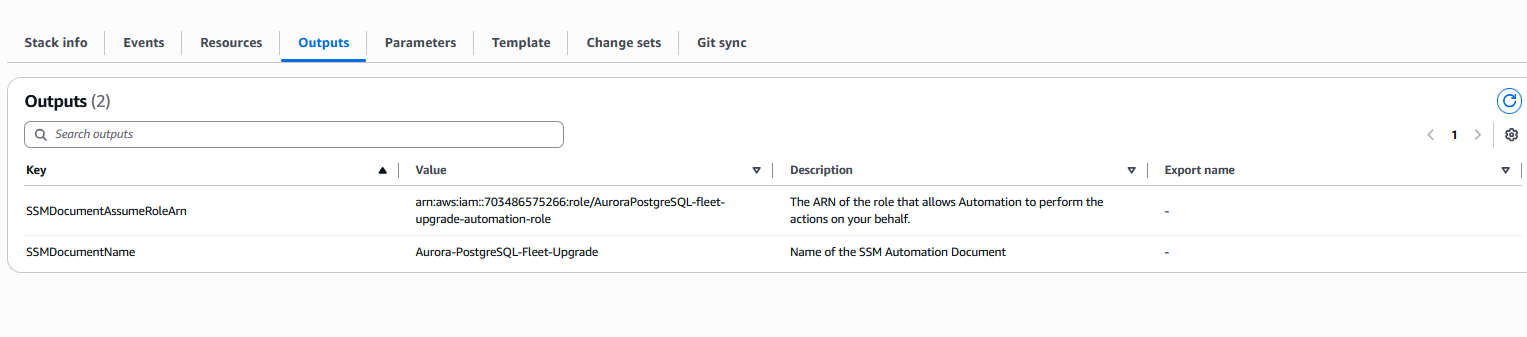
Now you’re ready to run the automation document from AWS Systems Manager.
- On the AWS Systems Manager console, choose Documents under Change management tools in the left navigation pane.
- Choose Owned by me.
- Choose the document you created in step 3 to open it.
- Choose Execute automation.
- Keep the Execution mode at its default value of Simple execution.
- Enter the required input parameters:
- For EC2InstanceId, select the EC2 instance that you configured in the prerequisite section.
- For RunPreUpgradeTasks, choose
PREUPGRADEto run pre-upgrade checks or chooseUPGRADEto perform the actual upgrade. We recommend running pre-upgrade checks first, reviewing the logs, and resolving any issues before selectingUPGRADEfor the actual upgrade. - For ScriptsDIROnEC2, enter the directory on the EC2 instance where the shell script will be saved.
- For S3BucketName, enter the name and directory of the S3 bucket containing the
aurora_psql_patch.shscript. - For TargetEngineVersion, enter a valid target Aurora PostgreSQL version that you want to upgrade to. For example, 17.4.
- For SnsTopicArnEmail, enter the SNS topic ARN for notifications.
- Leave others as default.
- Choose Execute.
After submitting your execution job, you will see the job status initially set to In progress. If all steps complete successfully for all Aurora clusters, the automation job status is marked as Success. If any cluster incurs an error, the automation job status is marked as Failed. The logs clearly indicate which specific clusters have failed to upgrade, allowing you to investigate and potentially retry just those clusters.
To view the upgrade details, choose the link under Step ID. An example of the output is shown in the following screenshot.
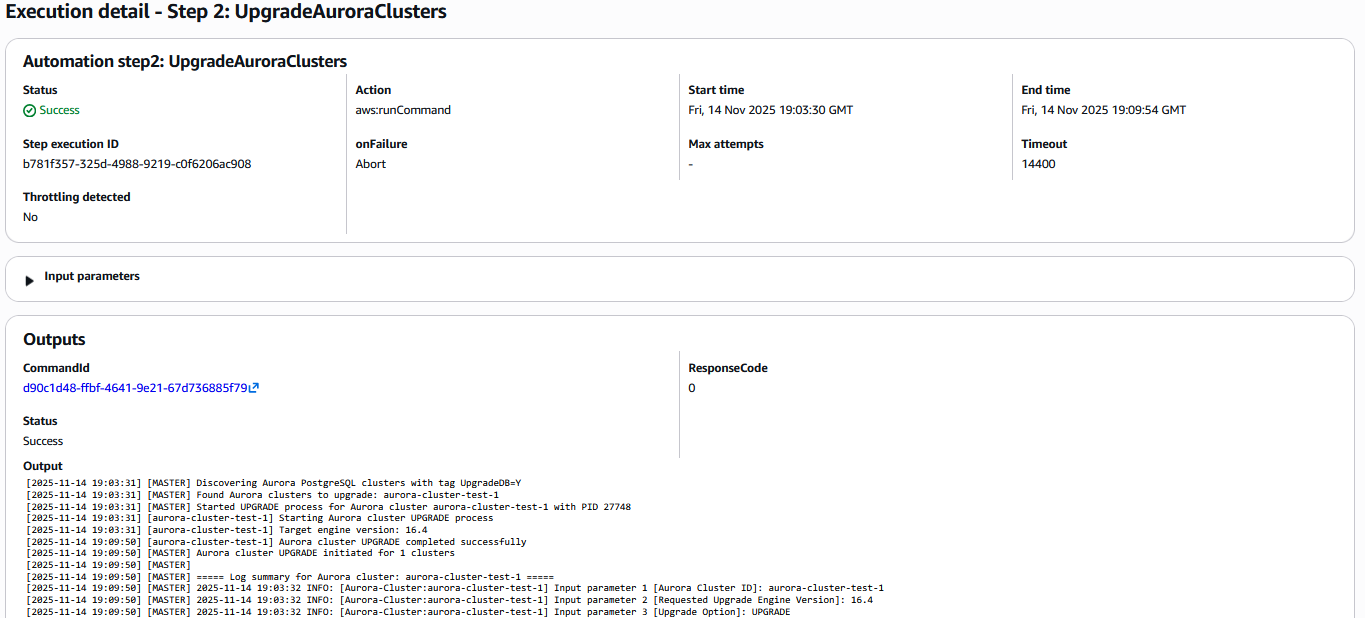
Monitoring and notifications
The shell script provides comprehensive logging throughout the upgrade process. During the pre-upgrade phase, logs are generated for general pre-upgrade checks, including replication slot status report and VACUUM operations. You must first drop the replication slots before a major version upgrade. During the upgrade phase, the script creates a cluster clone and logs configuration backups, replication slot status, ANALYZE operations, PostgreSQL extensions, and general upgrade progress. All logs are stored in LOGS_DIR on the EC2 instance and uploaded to Amazon S3 upon completion.
Summary of logs for Pre-Upgrade:
| Log File Type | Sample File Name |
Directory Path <script-dir> is the directory where “rds-psql-patch.sh” is saved |
Frequency | Purpose |
| Cluster List | PREUPGRADE-cluster_list.txt | <script-dir>/logs | Each run | List of all the clusters in scope |
| Master Log | PREUPGRADE-master-20251114-21-55-51.log | <script-dir>/logs | Each run | General information on pre-upgrade job tasks |
| Pre-upgrade Status log | PREUPGRADE-status | <script-dir>/logs/<cluster-name> | Each run | Pre-upgrade Job status |
| Pre-upgrade Execution Log | PREUPGRADE-20251114-21-51-48.log | <script-dir>/logs/<cluster-name> | Each run | Detail view of all pre-upgrade tasks |
| Freeze Task Log | PREUPGRADE-run_db_task_freeze-20251114-21-55-52.log | <script-dir>/logs/<cluster-name> | Each run | Log on Vacuum Freeze |
| Replication Slot Log | PREUPGRADE-replication_slot_20251114-21-55-52.log | <script-dir>/logs/<cluster-name> | For Major Version Upgrade only | Current replication slot status and recommendations on actions to take before major version upgrade |
Summary of logs for Upgrade:
| Log File Type | Sample File Name |
Directory Path <script-dir> is the directory where “rds-psql-patch.sh” is saved |
Frequency | Purpose/Error information |
| Cluster list | UPGRADE-cluster_list.txt | <script-dir>/logs | Each run | List of all the clusters in scope |
| Master Log | UPGRADE-master-20251114-22-16-11.log | <script-dir>/logs | Each run | General information on upgrade tasks |
| Upgrade Status log | UPGRADE-status | <script-dir>/logs/<cluster-name> | Each run | Upgrade Job Status |
| Upgrade Execution Log | UPGRADE-20251114-22-16-11.log | <script-dir>/logs/<cluster-name> | Each run | Detail view of all Upgrade tasks |
| Current cluster Configuration Backup | cluster_current_config_backup_aurora-postgresql16-20251114-19-03-32.txt | <script-dir>/logs/<cluster-name> | Each run | Backup of current cluster configuration |
| Clone on Write information | clone-info.txt | <script-dir>/logs/<cluster-name> | Each run | High level Clone cluster log |
| Operation logging | aurora-operations-summary.log | <script-dir>/logs/<cluster-name> | Each run | Database operation during the job run |
| Job Summary | aurora-session-summary.log | <script-dir>/logs/<cluster-name> | Each run | High level summary on upgrade processes |
| Replication Slot Log | UPGRADE-aurora_replication_slot_20251114-22-16-12.log | <script-dir>/logs/<cluster-name> | For Major Version Upgrade Only | Current replication slot status and recommendations on actions to take before major version upgrade |
| Extension Update Log | UPGRADE-update_aurora_db_extensions_20251114-22-16-12.log | <script-dir>/logs/<cluster-name> | Each run | Log on PostgreSQL extension updates |
| Analyze Task Log | UPGRADE-run_aurora_db_task_analyze-20251114-22-16-12.log | <script-dir>/logs/<cluster-name> | Each run | Log on ANALYZE command execution |
You can download the logs from the S3 bucket using the aws s3 cp command or from the Amazon S3 console.
The script also sends email notifications through Amazon SNS to subscribed users.
Clean up
To avoid incurring future charges, remove the resources you created during this walkthrough.
If you used the provided scripts to create the resource, empty the S3 bucket through the Amazon S3 console, then delete the CloudFormation stack through the AWS CloudFormation console. If you created any resources manually (such as the IAM policy, IAM role, EC2 instance, SNS topic, or Secrets Manager secrets), identify and delete them individually through their respective consoles.
Conclusion
In this post, we presented a solution to automate Amazon Aurora PostgreSQL major and minor version upgrades across a fleet of database clusters using AWS Systems Manager and Amazon EC2. We walked through the prerequisites and demonstrated how you can run the automation modules: PREUPGRADE and UPGRADE. We also showed how the solution uses Amazon S3 for centralized logging and Amazon SNS for real-time email notifications. By adopting this automation, you can reduce manual effort by up to 80 percent, minimize human error, and achieve consistent, repeatable upgrade procedures across your Aurora PostgreSQL database fleet. To get started, clone the sample repository and review the README, or explore the Aurora PostgreSQL documentation to learn more.