AWS Database Blog
Automated parameter and option group change monitoring in Amazon RDS and Amazon Aurora
Amazon Relational Database Service (Amazon RDS) and Amazon Aurora use parameter groups and option groups to control database engine behavior and features. Parameter groups define engine configuration settings in two categories: dynamic parameters that take effect immediately and static parameters that require a database reboot. Option groups contain database engine features and configurations that can be applied either immediately or during maintenance windows, depending on the specific option. Managing database parameter and option group changes in production environments requires careful coordination, especially for modifications that might require database restarts. Without automated monitoring, this can lead to:
- Unplanned service interruptions due to database restarts
- Difficulty tracking what changed when
- Databases stuck in “pending reboot” status creating operational confusion when the trigger is unknown
In this post, you will learn how to build a serverless monitoring solution sending detailed alerts whenever Amazon RDS parameter groups are modified, including which databases are affected and whether a restart is required.
Solution overview
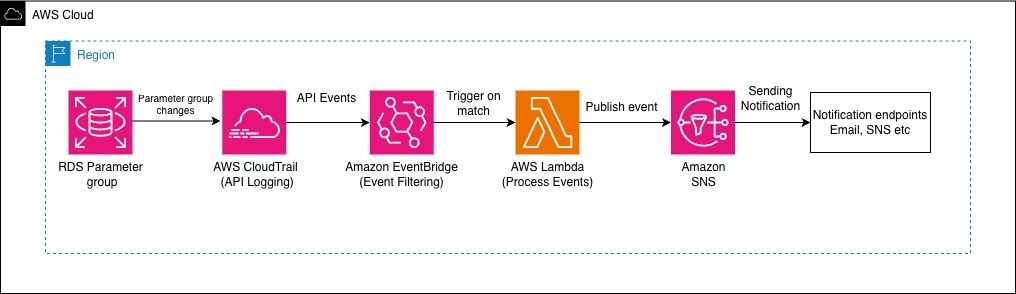
The solution uses AWS CloudTrail, Amazon EventBridge, AWS Lambda, and Amazon Simple Notification Service (Amazon SNS) to create a real-time alerting system for parameter group modifications. The architecture captures API calls, processes events, and delivers detailed notifications to relevant stakeholders.
The following diagram illustrates the solution architecture:
The workflow consists of the following steps:
- AWS CloudTrail records the API calls made to Amazon RDS, including
ModifyDBParameterGroup,ModifyDBClusterParameterGroup, andModifyOptionGroupoperations. CloudTrail captures details including the AWS Identity and Access Management (IAM) principal making the change, timestamp, source IP address, and the specific parameters being modified. - Amazon EventBridge receives CloudTrail events and uses pattern matching to filter specifically for parameter group modification events. This filtering happens in near real time.
- A Lambda function receives filtered events and performs several operations:
- Event processing – The function extracts relevant information from the CloudTrail event, including user identity, timestamp, parameter group name, and the specific parameters that were modified. The Lambda function gets the engine type of the extracted parameter group and filters RDS instances and clusters using that engine and parameter group.
- Message formatting – The function creates a structured, human-readable notification that includes the relevant details in a tabular format for easy consumption by operations teams. Lambda sends an SNS notification detailing the changes and affected resources. The Lambda function is configured with a 60-second timeout, which is sufficient for processing events and publishing to Amazon SNS. Typical execution time is under 1 second, with most of the time spent on the SNS publish operation. The function uses minimal memory (typically under 128 MB), keeping costs low.
- Error handling – Detailed error handling captures and logs processing failures while keeping the monitoring system operational.
- Amazon SNS delivers formatted notifications to subscribed endpoints including email, SMS, HTTPS endpoints, or AWS Lambda functions for further processing.
Through this event-driven architecture, stakeholders receive immediate notification of parameter changes with the visibility needed to plan maintenance windows. Now that you understand how the solution works, let’s walk through the implementation steps.
Prerequisites
To implement this solution, you need the following:
- An AWS account with permissions to create AWS CloudTrail, EventBridge, Lambda, and SNS resources
- An email address to receive notifications
- Verify at least one CloudTrail trail is enabled in your Region to capture Amazon RDS API calls
- Basic familiarity with the AWS Management Console
- (Optional) At least one Amazon RDS or Aurora database instance running in your account
Note – You can create and modify parameter groups without any instances. If no instances exist, your email notifications will show the parameter changes but won’t list any associated instances.
Implementation
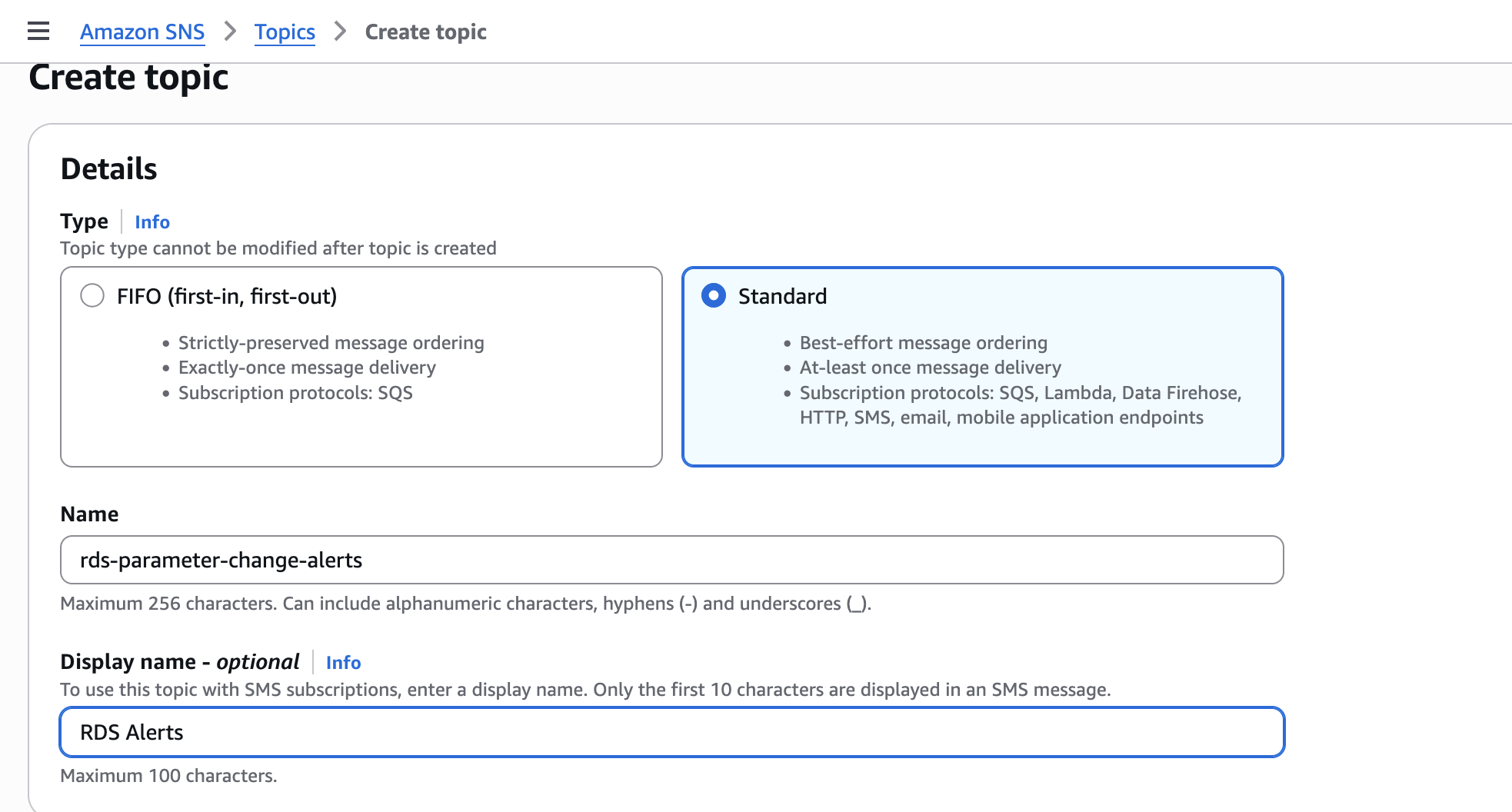
Amazon SNS distributes notifications to multiple endpoints, and you can create the SNS topic using the AWS Management Console or AWS Command Line Interface (AWS CLI). To create an SNS topic for notifications, follow these steps:
- Navigate to the Amazon SNS console
- In the left navigation pane, choose Topics and then choose Create topic
- For Type, choose Standard
- For Name, enter
‘rds-parameter-change-alerts’ - For Display Name, enter
‘RDS Alerts’ - Choose Create topic
These parameters are shown in the following screenshot.
To create an SNS topic for notifications, using AWS CLI, follow these steps:
After creating the topic, subscribe your email address to receive notifications:
- On the topic details page, choose Create subscription
- For Protocol, select Email
- For Endpoint, enter your email address
- Choose Create subscription
- Check your email inbox and choose Confirm subscription in the confirmation email from AWS SNS Notifications
To subscribe your email address to receive notifications using AWS CLI:
The subscription status changes to Confirmed after you complete this step.
The Lambda function requires permissions to describe RDS resources and publish messages to SNS. Next, we create an IAM role with the necessary permissions.
Create an IAM Role named ‘RDSParameterMonitoringLambdaRole’with the following trust policy:
Attach the AWS managed policy AWSLambdaBasicExecutionRole and add the following inline policy:
Your IAM role is ready to be attached to the Lambda function.
To create the Lambda function, follow these steps:
- On the Lambda console choose Create Function
- Select Author from scratch
- Configure the function:
- Function name –
‘RDSParameterChangeMonitor’ - Runtime – Python 3.14
- Architecture – x86_64
- Function name –
- For Execution role, select ‘RDSParameterMonitoringLambdaRole’ that was created in the previous step
- Choose Create Function
- After the function is created, replace the default code with the function code available in sample-rds-parameter-monitoring Github repository.
- Choose Deploy to save the code
- In the Configuration tab, choose Environment variables
- Choose Edit
- Choose Add environment variable
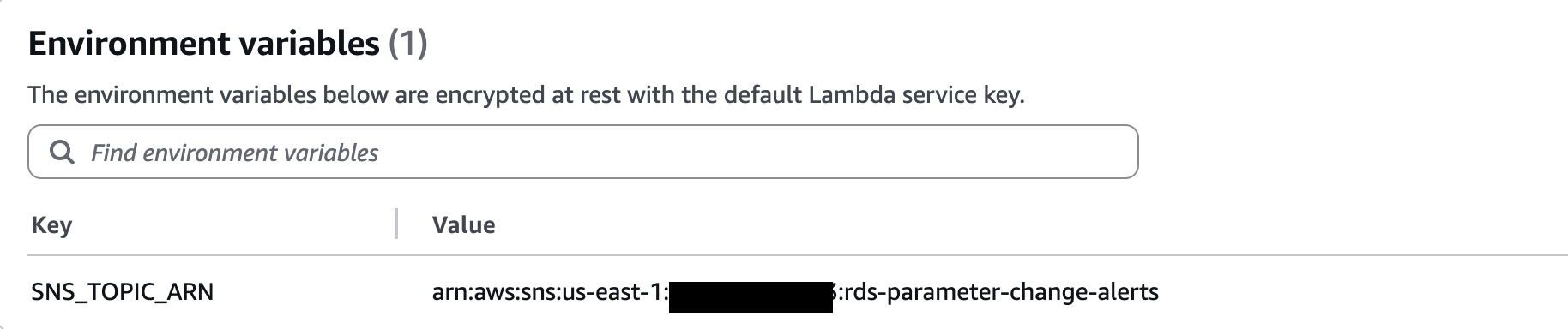
- For Key, enter
`SNS_TOPIC_ARN` - For Value, enter the Amazon Resource Name (ARN) of your SNS topic in the following format, replacing
REGIONwith your AWS Region (for example,us-east-1) andACCOUNT_IDwith your AWS account ID:
arn:aws:sns:REGION:ACCOUNT_ID:rds-parameter-change-alerts - Choose Save
The Environment variables field is shown in the following screenshot.
- Under Configuration tab, choose General configuration
- Increase the timeout to 60 seconds
To create a Lambda function using AWS CLI, follow these steps:
Amazon EventBridge filters AWS CloudTrail events and triggers the Lambda function when parameter groups are modified. To create an EventBridge rule, follow these steps:
- Navigate to the EventBridge console and choose Rules and then choose Create rule
- Configure the rule:
- Name –
‘RDSParameterChangeRule’ - Description –
‘Trigger Lambda on RDS parameter changes’ - Event bus – Default
- Rule type – Rule with an event pattern
- Name –
- Choose Next
To define the event pattern, follow these steps:
- For Event source, select AWS events or EventBridge partner events
- Select CloudTrail from the list of services.
- For Event type, select AWS API Call via CloudTrail
- Choose Edit pattern and replace the JSON with:
- For Targets, select Lambda function
- For Target configuration, select
‘RDSParameterChangeMonitor’ - Review the configuration and choose Create
Testing the solution
Now that the components are deployed, you can test the solution by modifying a parameter group with a static parameter.
Note: The following example uses a MySQL parameter group. This solution works identically with Aurora parameter groups and cluster parameter groups. To test with Aurora, substitute aurora-mysql8.0 for the parameter group family and use create-db-cluster-parameter-group instead of create-db-parameter-group.
If you don’t have an existing parameter group to test with, create a new one:
- Navigate to the Amazon RDS console and choose Parameter groups
- Choose Create parameter group
- Configure the parameter group:
- Parameter group family – Select your database engine family (for example, `mysql8.0`)
- Type – DB parameter group
- Group name –
‘test-param-group’ - Description –
‘Test parameter group for monitoring’
- Choose Create
To create a parameter group using AWS CLI follow the step:
To see affected instances in the alert, attach the parameter group to an existing database:
- On the Amazon RDS console, choose Databases
- Select your database instance
- Choose Modify
- Scroll to Additional configuration
- For DB parameter group, select
`test-param-group` - Scroll to the bottom and choose Continue
- Select Apply immediately
- Choose Modify DB instance
You can attach the parameter group to an existing database using AWS CLI:
Wait 1–2 minutes for the modification to complete. Now modify a static parameter that requires a database reboot:
- On the Amazon RDS console, choose Parameter groups
- Select
‘test-param-group’ - Choose Edit parameters
- In the search box, enter
‘innodb_log_file_size’(for MySQL) - Change the value to 268435456
- Choose Save changes
To modify the parameter group using AWS CLI follow the below step:
Within 1–2 minutes, you should receive an email notification.
The notification will look similar to this:
⚠️ RDS STATIC PARAMETER CHANGE DETECTED ⚠️
A static parameter change requires a database reboot to take effect.
EVENT DETAILS:
————–
Event: ModifyDBParameterGroupParameter
Group: test-param-group
Time: 2025-12-06T18:26:49Z
User: arn:aws:iam::123456789012:user/admin
ARN: arn:aws:iam::123456789012:user/admin
STATIC PARAMETERS CHANGED (Require Reboot):
——————————————-
• innodb_log_file_size: 268435456’
AFFECTED INSTANCES (1):
—————————————-
• my-database-1 (mysql) – available
ACTION REQUIRED:
—————-
1. Review the parameter changes
2. Plan a maintenance window
3. Reboot affected instances to apply changes
AWS Console: RDS → Databases → Select instance → Actions → Reboot
Cleanup
This solution uses serverless components with minimal cost. For most environments, the total cost is negligible. However, review CloudTrail pricing, Lambda pricing, and SNS pricing to estimate costs for your environment. CloudTrail charges apply if you create an additional trail or if you already exceed the one free copy of management events per region.
To avoid incurring future charges, use the following steps to delete the resources you created if you no longer need them.
- Delete a schedule in EventBridge Scheduler.
- Delete Lambda Function.
- Deleting IAM role.
- Delete an Amazon SNS topic and subscription.
- (Optional) Delete the test parameter group:
- Open the Amazon RDS console and choose Parameter groups
- Select
‘test-param-group’ - Choose Delete
Note that you can only delete a parameter group if no database instances are currently using it. If you attached the parameter group to a database instance during testing, you must first modify the instance to use a different parameter group before you can delete it.
- If you created an AWS CloudTrail trail specifically for this solution and don’t need it for other purpose, you can delete it.
Conclusion
In this post, we demonstrated how to build an automated monitoring solution for Amazon RDS and Aurora parameter group changes. This serverless architecture provides visibility into static parameter modifications that require database reboots, so you can proactively plan maintenance windows and minimize service disruptions.You can extend this solution in several ways:
- Integrate with Slack or PagerDuty for richer notifications and incident management
- Store parameter change history in Amazon DynamoDB for long-term analysis and compliance reporting
- Create Amazon CloudWatch dashboards to visualize parameter change trends across your database fleet
By implementing proactive monitoring for Amazon RDS parameter changes, you reduce the risk of unexpected database downtime and improve operational excellence in your AWS environment.