AWS for Games Blog
Creating interactive gaming experiences with Amazon GameLift Streams and Amazon Interactive Video Service
Modern game development demands operational sophistication that extends well beyond the creative process. As studios navigate the journey from concept to launch, a few challenges consistently emerge when getting outside perspectives on the game. Quality assurance at scale remains a persistent bottleneck, with traditional playtesting workflows involving downloading builds, coordinating sessions, and manually reviewing recorded footage—a time-consuming process that limits the feedback loop between testers and developers.
Community engagement presents another obstacle because building an audience requires more than a great game. When players share their experiences through live streaming and social media, viral moments on platforms such as Twitch can dramatically increase a game’s visibility. Finally, distribution complexity poses a significant hurdle because supporting multiple platforms requires substantial development resources—physical media involves manufacturing and logistics costs, whereas digital storefronts take considerable revenue shares.
This post demonstrates how to address these challenges by combining three AWS services: Amazon GameLift Streams for cloud-based game streaming, Amazon Interactive Video Service (Amazon IVS) for live streaming, and AWS AppSync for real-time messaging.
A player connects to Amazon GameLift Streams for interactive gameplay, which feeds into Amazon IVS (with optional webcam and audio) to deliver a low-latency game stream to viewers. Viewers can send chat messages and interactions back through AWS AppSync to Amazon GameLift Streams, enabling real-time bidirectional engagement.
The following diagram illustrates the solution architecture.
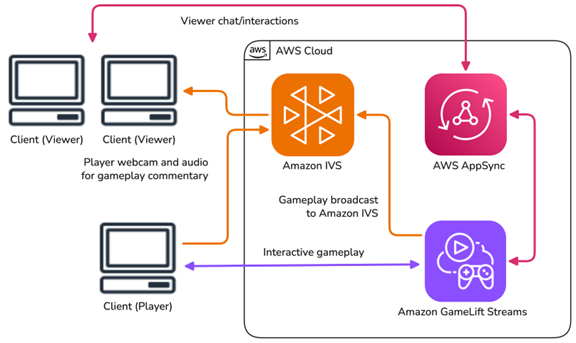
Figure 1: Solution architecture
What you will learn
In this post, you will learn how to:
- Stream gameplay from Amazon GameLift Streams directly to Amazon IVS using a broadcasting sidecar application
- Enable real-time viewer chat and interactions through AWS AppSync
- Implement a control handoff system for interactive playtesting sessions
By the end of this post, you will understand the architecture, implementation details, and trade-offs involved in building interactive streaming experiences for your games.
Solution overview
The example combines Amazon GameLift Streams, Amazon IVS, AWS AppSync, and supporting services to create an end-to-end interactive streaming platform.
Amazon GameLift Streams delivers games to players with minimal-latency WebRTC connections. Players access games directly from their browsers without downloading or installing software. The service handles GPU rendering, input processing, and video encoding on managed infrastructure, streaming gameplay at up to 1080p at 60 FPS.
Amazon IVS receives the gameplay broadcast and distributes it to viewers globally. Built on the same infrastructure that powers Twitch, Amazon IVS provides subsecond latency streaming and a video optimized infrastructure to support globally scalable, interactive live streaming applications. The service also supports automatic recording to Amazon Simple Storage Service (Amazon S3) for video-on-demand playback or AI-based analysis.
AWS AppSync provides the real-time messaging layer between players and viewers. Using AWS AppSync Events, secure and high-performing WebSocket APIs, viewers can send messages, reactions, and commands that the game receives instantly. This bidirectional communication means that viewers can be part of the interactive experience and even influence gameplay. The sequence is as follows:
- From a React frontend browser client, users input an Amazon GameLift Streams application ID and stream group ID to begin streaming their game executable.
- Amazon Cognito is used to authenticate the frontend client and REST API calls.
- Amazon API Gateway is used to create and manage the REST API resources and communicate with AWS Lambda.
- AWS Lambda StartStream function is used to create a stream session that is used with the frontend client.
- AWS Lambda GetStream function is used as a polling mechanism to check when the stream session is in the Active state to start the game play.
- Amazon GameLift Streams is used to host and stream your game executable to the frontend client with minimal latency.
- The player’s gameplay is broadcast to Amazon IVS from the Amazon GameLift Streams instance to an IVS real-time stage with less than 300 ms of latency.
- Chat and player reactions are published from the viewer’s browser with AWS AppSync. The game binary in Amazon GameLift Streams receives and reacts to these messages.
- Amazon CloudFront is used as the content delivery network (CDN) to distribute the frontend client.
- Amazon S3 is used to store the static assets of the frontend client to be delivered with Amazon CloudFront.
- Amazon CloudWatch provides access to runtime logs of each of these services.
- Amazon CloudFormation is used to version control and deploy the stack as infrastructure as code (IaC).
The following diagram illustrates an architecture for Amazon GameLift Streams for multiple viewers to participate in a game session through Amazon IVS.
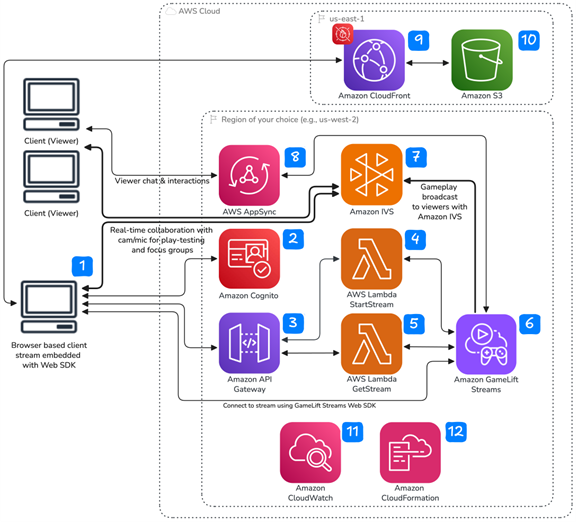
Figure 2: Architecture diagram for Amazon GameLift Streams integration
Technical deep dive into the broadcast sidecar application
To enable direct broadcasting of an Amazon GameLift Streams session to Amazon IVS, a broadcast sidecar application is used. It runs as a dedicated background process alongside your game application in Amazon GameLift Streams and captures video output and streams it to Amazon IVS. This approach offers several advantages:
- No additional bandwidth consumption on the player’s device compared to rebroadcasting from their device
- Consistent stream quality regardless of player’s network conditions
- Lower latency between gameplay and broadcast compared to rebroadcasting from the player’s device
- Reduced complexity in the viewer application
How Amazon GameLift Streams launches multiple processes
Amazon GameLift Streams supports launching multiple processes through a shell script entry point. Instead of launching your game executable directly, you configure Amazon GameLift Streams to run a startup script that launches both your game and the sidecar broadcast application.
Example startup script (`run_broadcaster_background.sh` for Linux):
What the broadcast sidecar application does
The broadcast sidecar application uses the open source multimedia framework GStreamer to implement a media pipeline that performs three functions:
- Video capture – Captures the rendered video output from the game using platform-specific APIs (Direct3D 12 on Windows or X11 on Linux) along with system audio capture
- Video encoding – Encodes the captured frames using H.264 encoding with either CPU (x264) or NVIDIA GPU hardware encoder (NVENC), with automatic fallback if GPU is unavailable
- Stream transmission – Transmits the encoded video to Amazon IVS using the WebRTC-HTTP Ingestion Protocol (WHIP) for real-time streaming
The following diagram illustrates the flow from the game application through GPU framebuffer and system audio capture, frame capture, and loopback audio capture. Encoding is through x264 or NVENC, H.264 stream, WHIP sink, and Amazon IVS Stage API to viewers, with Amazon GameLift Streams managing player interactions.
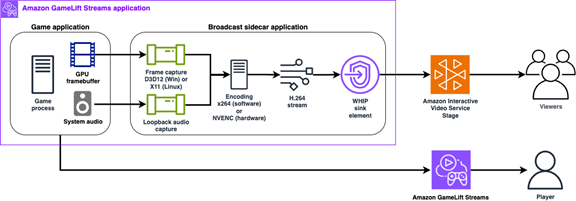
Figure 3: Broadcast sidecar application flow
Using the sample broadcast sidecar application
The sample broadcast sidecar application uses GStreamer to capture screen and audio, encode with hardware acceleration when available, and stream using WHIP. The application supports both Windows and Linux stream class types.
By using Amazon GameLift Streams, you can pass environment variables when launching a stream session through the API using the Amazon GameLift Streams Web SDK or through the program configurations fields in the Amazon GameLift Streams console. Use this mechanism to provide the broadcast sidecar application with the following runtime configuration options:
- IVS WHIP endpoint – The WHIP URL for your Amazon IVS stage
- Stage participant token – Authentication token for the IVS real-time stage
- Video configuration – Resolution, frame rate, bitrate, and encoder settings
For maximum supported video resolution, framerate, and bitrate limits, refer to the IVS Real-Time Streaming ingest specifications.
The following is an example AWS Command Line Interface (AWS CLI) command to start a session with broadcast sidecar application configuration:
Alternatively, you can pass configuration using command line arguments by updating your launch script:
Prerequisites
Before you deploy this solution, ensure you have:
- An AWS account with appropriate permissions
- AWS CLI configured with credentials
- Node.js 18+ and npm installed
- Git installed
- Basic familiarity with AWS CloudFormation or AWS Cloud Development Kit (AWS CDK)
Implementation walkthrough
This section provides a step-by-step guide to deploying the solution in your AWS account. It follows four high-level steps:
- Build the sample broadcast sidecar application
- Create the Amazon GameLift Streams application and stream group
- Deploy the web app infrastructure
- Test the integration
Build the sample broadcast sidecar application
Clone the Amazon GameLift Streams IVS Broadcast Sidecar Application repository and build either the Windows or Linux version of the package depending on your game’s target stream group type with the instructions in the “Building” section of the README.
Create the Amazon GameLift Streams application and stream group
Combine your game with the broadcast sidecar application and create an Amazon GameLift Streams Application:
1. Add your game files to the packaged broadcast sidecar directory and update the launch script to start your game.
For Windows:
For Linux:
2. Upload the package to Amazon S3 and create an Amazon GameLift Streams application.
3. Create an Amazon GameLift Streams stream group that will serve your game sessions:
Deploy the web app infrastructure
Clone the Amazon GameLift Streams Multiview with Amazon IVS React Starter Sample repository. Then deploy the infrastructure stack as outlined in the “Deploying” section of the README using the Amazon GameLift app and StreamGroup ID that was created with the packaged game with the broadcast sidecar application.
The deployment creates the infrastructure for the web app in three primary functional groups:
- Serverless API:
- StartStream, GetStream, and CreateStreamSessionConnection Lambda functions for managing Amazon GameLift Streams sessions
- Amazon API Gateway with Amazon Cognito authorization for secure API access
- Amazon Cognito user pool for user authentication
- Real-time streaming and collaboration components:
- Amazon IVS Real-Time Stage for low-latency video streaming to viewers
- AWS AppSync Event API for real-time chat and player reactions
- AWS AppSync API key and channel namespace configuration
- Integration with API Gateway for secure token generation
- Frontend distribution:
- S3 bucket containing the demo single-page application (SPA) static assets
- Amazon CloudFront content delivery network (CDN) distribution for global content delivery
- AWS WAF to secure the CloudFront distribution
Test the integration
After deployment is completed, locate the CloudFront distribution URL in the AWS CDK stack outputs. The application provides role-based views depending on which user you authenticate as.
To test as a player, follow these steps:
1. Open the CloudFront URL in a browser window
2. Sign in with player@ivs.rocks
3. From the player interface, you can:
- Start an Amazon GameLift Streams session and play the game
- Broadcast gameplay to the Amazon IVS Real-Time Stage
- Enable your webcam to broadcast alongside gameplay
- Interact with viewers through real-time chat
- Send and receive reactions
- Enable demo mode to automatically generate chat messages and reactions for testing
To test as a viewer, follow these steps:
1. Open the CloudFront URL in a second browser window (or incognito)
2. Sign in with viewer@ivs.rocks, and the application automatically routes you to the viewer interface
3. From the viewer interface, you can:
- Watch the player’s live gameplay stream
- Watch the player’s webcam feed
- Participate in real-time chat
- Send reactions that appear as floating animations on the player’s screen
The following screenshot shows the player and viewer browser windows.
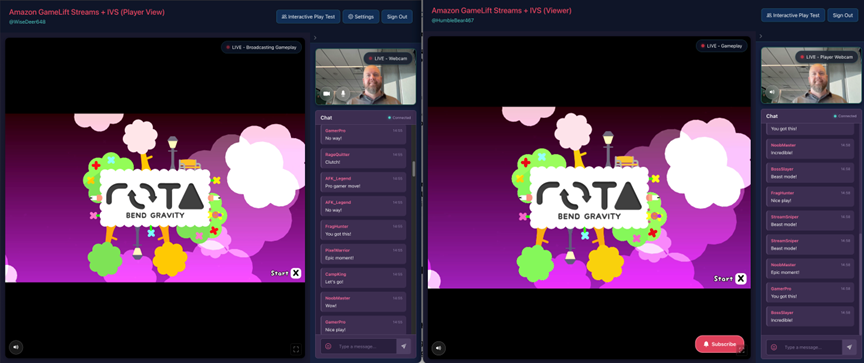
Figure 4: Amazon GameLift Streams broadcast to Amazon IVS
Advanced use case – Interactive playtesting with control handoff
Amazon GameLift Streams supports reconnecting to active sessions using the CreateStreamSessionConnection API, enabling a collaborative playtesting workflow where participants can take turns controlling the game while others observe through the live stream. This functionality can be viewed using the /interactive-playtest path of the CloudFront distribution.
The sample application includes an Interactive Play Test view. Participants can use this view to join a session with webcam and microphone using Amazon IVS Real-Time Stages for real-time communication between all participants. The view offers dynamic control transfer between participants, and continuous gameplay is broadcast to all observers.
The Interactive Play Test view combines the following key components:
- IVS Real-Time Stage – All participants join the same stage with webcam or microphone
- Amazon GameLift streams direct broadcast – Gameplay streams directly to Amazon IVS through the broadcast sidecar application
- AWS AppSync Event API – Coordinates control requests and chat messages
- Session reconnection – Transfers gameplay control between participants
The control handoff uses AWS AppSync Event API control messages to coordinate transfers. It supports the control message types shown in the following table.
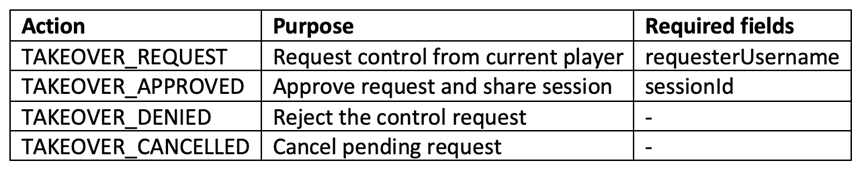
The following is an example of how the web app handles passing control between participants:
When a control request is approved, the session transfers using the Amazon GameLift Streams CreateStreamSessionConnection API:
In interactive playtesting, players and viewers can take on the following roles.
These are the player roles (player@ivs.rocks):
- Start Amazon GameLift gameplay sessions
- Stream gameplay and webcam to all participants
- Approve or deny takeover requests
- Transfer control to other participants
These are the viewer roles (viewer@ivs.rocks):
- Request takeover of active gameplay sessions
- Assume gameplay control when approved
- Join with webcam and microphone for feedback
- Watch gameplay streams from the current controller
During the control handoff sequence, the gameplay broadcast continues uninterrupted for all observers. The sequence of control handoff is as follows:
- Viewer chooses Request Control.
- AWS AppSync broadcasts TAKEOVER_REQUEST to the channel.
- Current controller sees the request notification.
- Controller chooses Approve. This sends TAKEOVER_APPROVED with the session ID.
- Viewer calls CreateStreamSessionConnection API with the session ID.
- Controller disconnects, and the viewer takes control.
The following diagram illustrates the control handoff sequence.
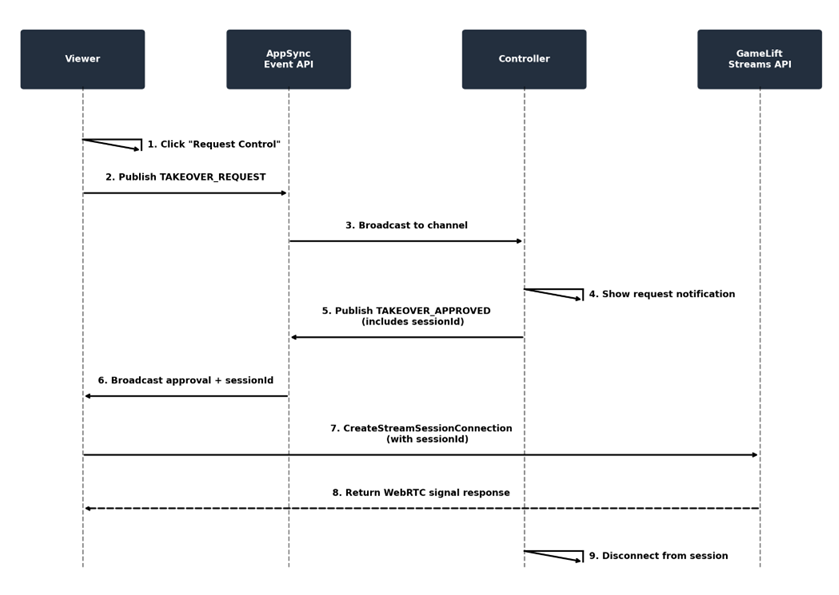
Figure 5: Control handoff sequence diagram
Amazon GameLift Streams sessions remain available for reconnection for a limited time after disconnection. Design your control handoff flow to complete the transfer quickly to avoid session expiration.
Delete your resources
When you’re done testing, remember to clean up your Amazon GameLift Streams application and stream group to avoid incurring unexpected costs.
Getting started
To deploy this solution in your AWS account, use the following sample repositories:
Amazon GameLift Streams Multiview with Amazon IVS React Starter Sample.
This repository contains the complete web application with player and viewer interfaces, AWS AppSync integration, and deployment scripts.
For the sample broadcast sidecar application implementation for streaming from Amazon GameLift Streams instances to Amazon IVS using the WHIP protocol, visit the Amazon GameLift Streams Amazon IVS broadcast sidecar (sample) repository.
Estimated costs
The solution uses AWS services with costs that vary based on usage. Refer to the pricing pages for each service for current rates:
- Amazon GameLift Streams pricing
- Amazon IVS pricing
- AWS AppSync pricing
- Amazon CloudFront pricing
- Amazon S3 pricing
- Amazon API Gateway pricing
- AWS Lambda pricing
- Amazon Cognito pricing
- Amazon CloudWatch pricing
To estimate costs based on your specific usage, visit the AWS Pricing Calculator.
Conclusion
This post demonstrated how to build interactive gaming experiences by combining Amazon GameLift Streams, Amazon IVS, and AWS AppSync. The broadcast sidecar application approach provides a reliable method for streaming gameplay to viewers while maintaining low latency and consistent quality.
Key capabilities covered:
- Streaming games to players without downloads using Amazon GameLift Streams
- Broadcasting gameplay to viewers globally using Amazon IVS
- Enabling real-time viewer interactions through AWS AppSync
- Implementing control handoff for collaborative playtesting
These services help game developers address distribution challenges, build engaged communities, and streamline quality assurance workflows. The sample repositories provide a starting point for implementing these patterns in your own games.
To get started, clone the sample repositories and deploy the solution in your AWS account. For questions or feedback, open an issue in the GitHub repositories or contact an AWS Representative.