Artificial Intelligence
Govern models with MLflow and Amazon SageMaker AI Model Registry sync: Part 1
Automating model registration between MLflow and a model registry solves a gap that opens the moment a candidate model leaves experimentation. Data scientists track dozens of candidate runs in MLflow, while governance officers need one authoritative registry to validate, approve, and audit the models that reach production.
Managed MLflow on Amazon SageMaker AI already synchronizes models registered in MLflow into the SageMaker AI Model Registry automatically. That sync is now substantially richer. It carries training metrics, evaluation results, and lineage. It also adds lifecycle stage promotion driven from MLflow, so you can govern candidate models from a single system of record without needing data scientists to leave their experimentation workflow.
Previously, a model would still sync to the registry, but without its metrics, evaluation results, or lineage. A governance officer couldn’t validate a candidate from the registry alone and had to jump back into MLflow, or collect the context by hand, to review it. And because the sync didn’t carry lifecycle stage promotion, data scientists couldn’t move a model from staging to production from the MLflow workflow. Organizations struggled to maintain one authoritative, review-ready view of which models were production candidates. With the richer sync, the model now arrives in the registry ready to review and to move through its lifecycle.
Once you activate Model Registry sync on an MLflow app, every model a data scientist registers in MLflow creates a corresponding Model Package Group and Package version in the SageMaker AI Model Registry. The sync also carries over training metrics, evaluation metrics, a deployable inference specification, and the lineage associated with the MLflow run. Data science teams can keep using MLflow as the system of record for experiments and logged models, while the automation gives organizations a system of record in the Model Registry for the registered models that move through the production lifecycle.
Because registration is automatic, data scientists can focus on model training and experimentation without maintaining model lineage by hand. Governance officers, in turn, get consistent and complete lineage information for managing the model lifecycle through the SageMaker AI Model Registry. As a result, governance officers can approve, audit, and control which models reach production.
This is the first post of a two-part series. In this post, we introduce how automatic model registration works and walk through getting started in a single account, where the data scientist and the governance officer personas are separated by IAM guardrails rather than account boundaries. In Part 2, we extend the same building blocks to cross-account governance topologies for larger and regulated organizations. Working notebooks for both posts are available in the accompanying GitHub repository.
How automatic model registration works
Model Registry sync is an opt-in capability. You can activate it when you create or update an MLflow app by setting the model registration mode to AutoModelRegistrationEnabled (the default is disabled). When setting up this sync, you must set up the MLflow app’s AWS Identity and Access Management (IAM) service role with permissions to create the Model Package Groups and versions, add tags, and record lineage associations.
Once sync is activated, a data scientist can log a model during a training run and register it with a single MLflow call. You can attach two optional artifacts, inference specification and evaluation metrics, before registration that are then carried into the Model Package.
After registration, the sync carries four categories of metadata into the Model Registry in Amazon SageMaker Studio, making them available to a governance officer.
- Run metadata — model parameters, training metrics, the training dataset location, and the model artifact path.
- Evaluation metrics — attached as a model card on the Model Package version, where they render on the Evaluate tab in Studio, making performance measures reviewable alongside the model.
- Inference specification — defines the container image, model data location, and supported instance types, so you can deploy directly from the registry. For the package to be genuinely deployable, the model artifacts must also include the inference handler (for example, an
inference.pypackaged with the model during training or registration). The inference specification’s container definition references it through theSAGEMAKER_PROGRAMenvironment variable, and the accompanying notebooks package the handler during training. - Lineage — records the relationship between the MLflow experiment, the model version, the container image, and the Model Package Group.
Governance officers can manage the lifecycle of models using the Model Registry staging construct. Organizations can either use the predefined staging construct template or define their own based on their use case, in tandem with IAM condition keys so that only users with the right permission can promote models across the lifecycle.
You can set a lifecycle stage and status by adding an MLflow alias with the naming convention sagemakerlifecycle-{stage}-{status}, where stage is staging or production and status is pending or active if using the predefined template. This updates the corresponding SageMaker AI Model Package lifecycle automatically.
Two governance controls can be applied so that only the appropriate role can update the model lifecycle. The first is IAM condition keys, which let you gate lifecycle transitions. Define sagemaker:ModelLifeCycle/stage and sagemaker:ModelLifeCycle/stageStatus with the relevant values to control who can update a model’s stage and what target stage and status they can move it to. The second control is resource-tag conditions, which let you lock a Model Package Group after approval so that no further updates can flow through MLflow. Lifecycle changes also emit events to Amazon EventBridge and are recorded as an audit trail. You can consume these events to connect the approval process to downstream third-party governance tools.
Notes on sagemaker_mlflow
The workflows in this post build on the sagemaker-mlflow plugin, and version 0.5.0 adds two capabilities worth calling out. First, inference image logging lets you record the inference container image alongside the model at log time. That image metadata then travels with the model into the Model Registry, reinforcing the deploy-directly-from-the-registry path described here. Second, session injection (through use_session() and set_session()) lets you supply a custom boto3 session so the plugin signs requests with per-context credentials. The single-account setup in this post doesn’t require it, but it’s the building block for the cross-account governance topologies we cover in Part 2.
The two personas
Getting started involves two personas with different tools. The data scientist works in a Jupyter notebook and interacts with MLflow: training, logging, registering, and staging models. The governance officer works in the SageMaker Studio UI, in the Models view: reviewing synced metrics and lineage, promoting to production, and approving for deployment. A platform administrator performs the one-time setup that separates the two. The rest of this post walks through each in turn.
Prerequisites
Before starting, make sure you have the following in place:
- An AWS account with permissions to create and manage SageMaker AI resources.
- An Amazon SageMaker AI domain with Studio access configured.
- A Managed MLflow app created within the domain. For setup instructions, see Create an MLflow app.
- Model Registry sync activated on the MLflow app.
- The
sagemaker-mlflowplugin version 0.5.0 or later installed in your experiment environment (pip install sagemaker-mlflow>=0.5.0). - An IAM role with permissions to register models, update lifecycle stages, and write to the Model Registry. For the governance controls described in this post, you also need permission to attach IAM condition keys and resource-tag policies.
Getting started in a single account
In a single-account setup, both the data scientists and the governance officer operate in the same account. This fits smaller teams or early-stage projects where account separation is not yet required. The governance officer validates and approves models in the same account where development happens.
The following diagram shows the end-to-end workflow within a single AWS account, from model registration through governance-controlled promotion to deployment.
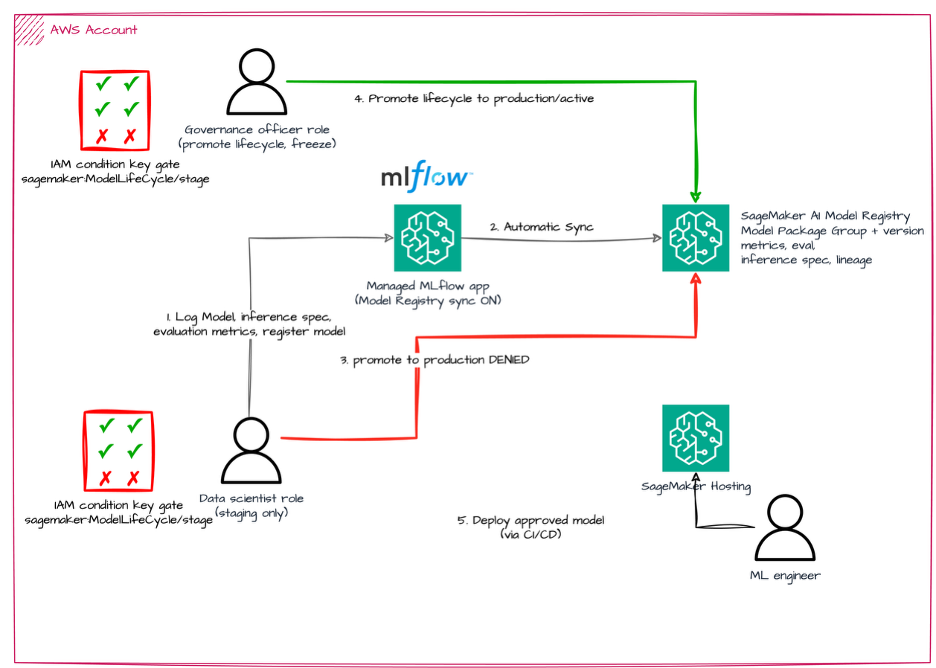
Figure 1 – Single-account setup
The preceding figure illustrates the workflow:
- Upon completion of model training, a data scientist logs and registers a model against the MLflow app, which has Model Registry sync activated.
- With automatic registration, the Model Package Group and version are added to the SageMaker AI Model Registry including the metrics, evaluation results, inference specification, and lineage.
- With IAM condition key gates in place, the data scientist can set the model to
staging. However, a promotion to production will be denied for their role. - Instead, the governance officer role permitted to promote will be allowed to approve the model and promote the model to production.
- A machine learning (ML) engineer can deploy the approved model to a SageMaker AI endpoint, normally through a continuous integration and continuous delivery (CI/CD) pipeline.
Platform administrator: Set up the guardrails
The administrator activates Model Registry sync on the MLflow app (see the previous section), grants the MLflow app’s service role the registration and lineage permissions, and attaches the lifecycle guardrail (IAM policy) to the data-scientist role. The guardrail uses the sagemaker:ModelLifeCycle/stage condition key to deny production promotions:
The governance officer’s role omits this deny, so only that persona can promote to production. This is one-time setup. After it, the two personas work independently.
Data scientist: Experiment and register from a notebook
The data scientist works in a Jupyter notebook (in SageMaker Studio or locally) and interacts only with MLflow. After training, they log evaluation metrics and an inference specification, register the model, and move it to staging with a lifecycle alias:
Automatic registration creates the Model Package Group and Model Package version in the Model Registry. The alias moves it to staging/pending. If the data scientist attempts the production alias, the transition is denied by the guardrail.
The following screenshot shows the MLflow UI Artifacts tab for the registered model run.
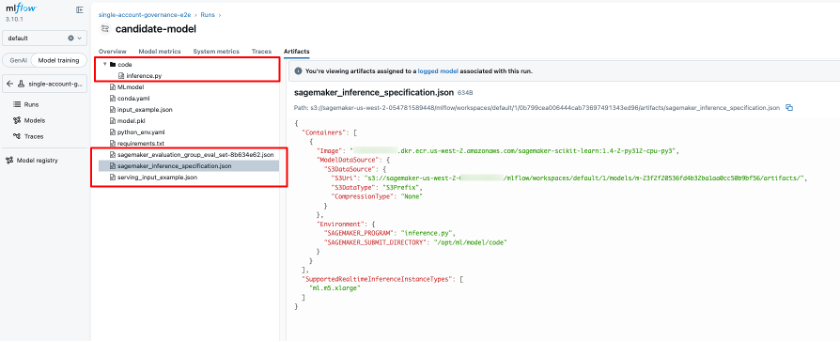
Figure 2 – MLflow artifacts with inference specification
The Artifacts panel displays the logged model directory containing the model artifacts, inference.py (the inference handler), and input_example.json. Below the model directory, two additional artifacts are highlighted: sagemaker_inference_specification.json and serving_input_example.json. The right pane shows the contents of the inference specification. It defines the container image URI, the ModelDataUrl pointing to the model artifacts in Amazon S3, and the supported real-time inference instance types. It also sets the environment variables, with SAGEMAKER_PROGRAM set to inference.py and SAGEMAKER_SUBMIT_DIRECTORY pointing to the model code location. This specification is what makes the Model Package directly deployable from the registry.
Governance officer: Review and approve in the Studio UI
The governance officer works in the SageMaker Studio Models view. The synced Model Package version already carries the training metrics, the evaluation model card, and the lineage graph, so the review happens in one place.
The following screenshots display the model metrics computed during training and evaluation, and the lineage.
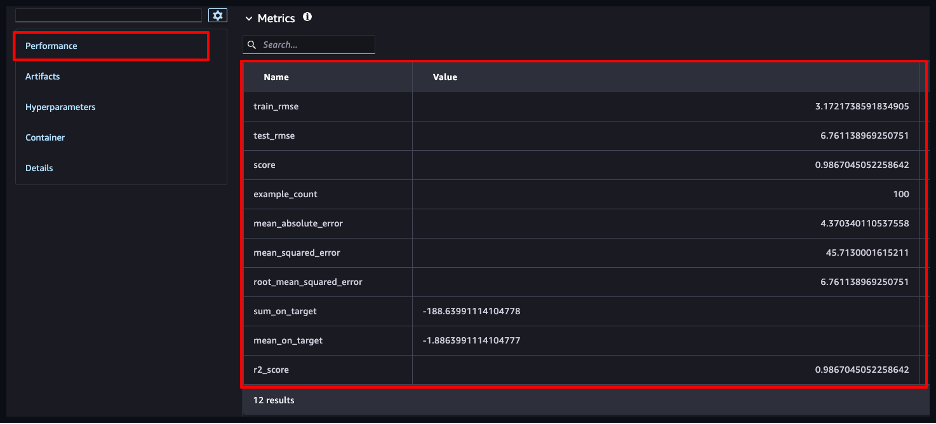
Figure 3 – SageMaker Studio showing training metrics synced to the Model Package version
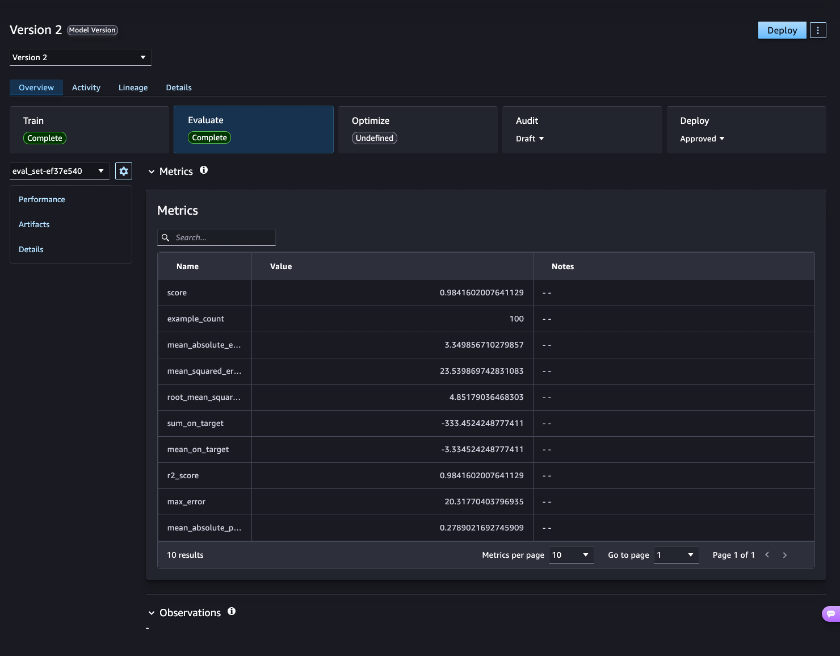
Figure 4 – SageMaker Studio showing evaluation metrics on the Evaluate tab of the Model Package version
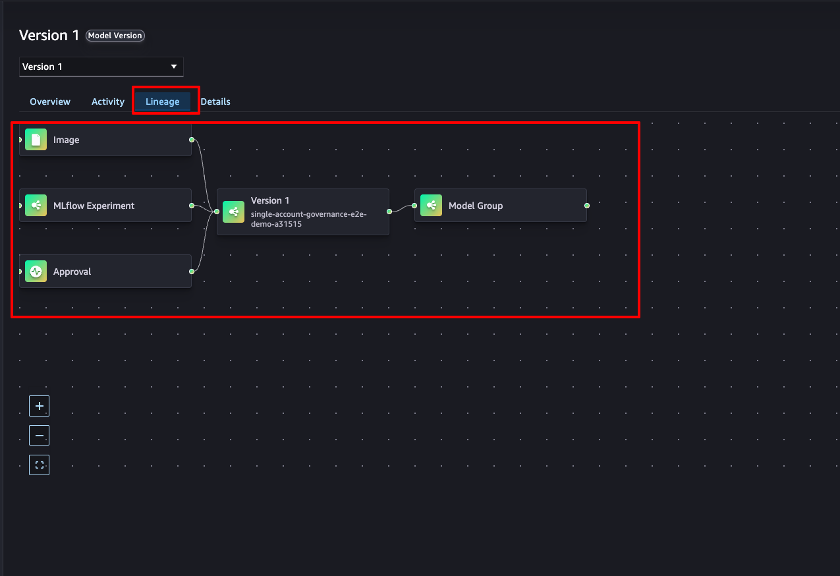
Figure 5 – Model version lineage
After validating the metrics and lineage, the officer promotes the model to production/active and sets the approval status to Approved. Approval status is a separate attribute from lifecycle stage, so promotion and deployment readiness remain distinct decisions. The following two screenshots show the model version before and after the officer’s action:
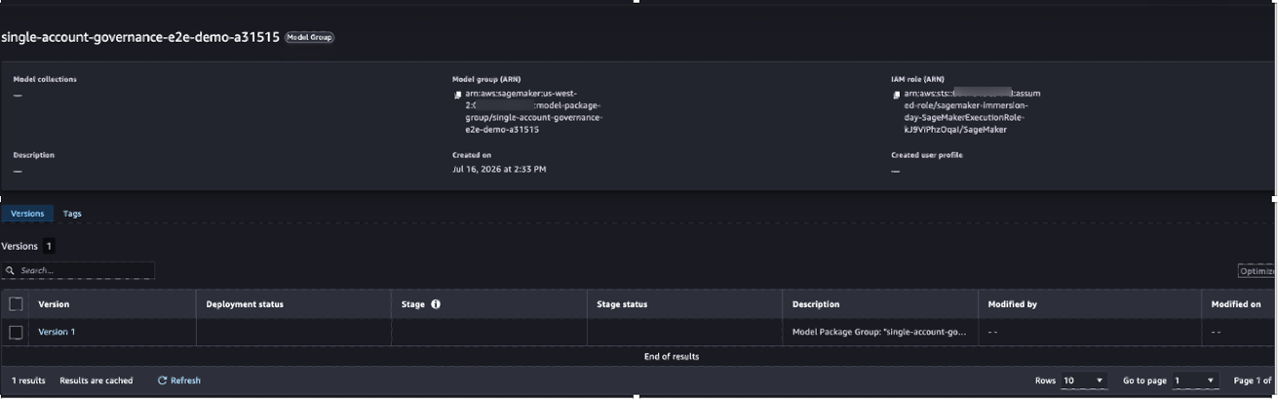
Figure 6 – Model Package version in staging before the governance officer promotes it to production
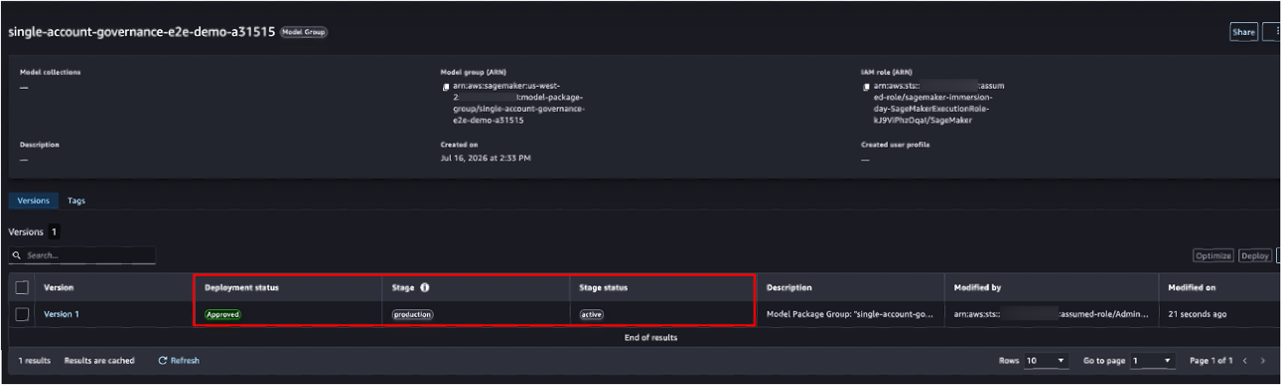
Figure 7 – Model Package version promoted to production and approved after the governance officer’s action
To lock the approved model against further change, the officer (or an automated post-approval step) applies a resource tag to the Model Package Group with a matching IAM deny condition (aws:ResourceTag/frozen = true).
Clean up
To avoid ongoing charges, remove the resources created during this walkthrough. You can either follow the sample and the clean up steps, or delete them manually in the following order to respect dependencies:
- Delete the SageMaker AI endpoint (if deployed). In the SageMaker AI console, navigate to Inference > Endpoints, select the endpoint created during the walkthrough, and delete it.
- Delete Model Package versions and the Model Package Group. Remove all model versions first, then delete the group.
- Delete the MLflow app. In the SageMaker AI console, navigate to your domain’s MLflow apps and delete the app created for this walkthrough.
- Remove IAM policies. Detach and delete the custom IAM policies you created for the data scientist and governance officer roles (the lifecycle condition key policies and any resource-tag policies).
- Delete the S3 model artifacts. Remove the S3 bucket or prefix where model artifacts were stored during training and registration.
- Delete the SageMaker AI domain (optional). If you created the domain solely for this walkthrough, delete it from the SageMaker AI console. This removes Studio access and associated resources.
Conclusion
Automatic model registration between managed MLflow and the SageMaker AI Model Registry gives governance officers a complete, synchronized view of every candidate model. That view spans training metrics, evaluation metrics, inference specification, and lineage, without asking data scientists to leave MLflow or re-register models by hand. Activating sync is a deliberate choice: you set AutoModelRegistrationEnabled on the MLflow app and grant the service role the registration and lineage permissions. From then on, every registered model flows into the registry with its metadata intact. In a single account, IAM condition keys on the lifecycle stage are what separate the data scientist and governance officer personas, and a resource-tag freeze locks approved models against further change.
Larger organizations rarely stop at one account. In Part 2, we extend these building blocks to cross-account governance topologies: a hub-and-spoke pattern that centralizes governance by sharing one MLflow app across development accounts with AWS Resource Access Manager (AWS RAM), a hybrid pattern for regulated environments that keeps development accounts fully isolated from the governance hub, and the path from approval to deployment through CI/CD.
To get started, review the documentation for automatic model registration, then work through the single-account runnable step scripts—or the equivalent notebook—in the GitHub repository.
For more information, refer to the following resources:
- Amazon SageMaker AI.
- Automatically register SageMaker AI models with SageMaker Model Registry.
- Staging Construct for your Model Lifecycle.
- AWS re:Post for Amazon SageMaker.
Acknowledgement
Special thanks to Rahul Kharse and Siamak Nariman for their contribution.