AWS for M&E Blog
Automate live video failover with MediaConnect content quality events
For broadcast and media companies, an outage doesn’t always look like a dropped connection. A stream can stay up while delivering degraded content. Broadcasters need to catch and fix quality issues such as frozen frames, black frames, or silent audio before viewers notice them. Traditionally, this relies on operators who maintain eyes-on-glass monitoring across many feeds at once, watching for problems and switching to a backup source when one appears. Increasingly, companies pair those operators with automation that detects and responds to issues faster than a person can. This post shows how to automate that detection and response with AWS Elemental MediaConnect content quality events.
Live video travels a signal chain from camera to viewer. Along the way, an encoder at the venue acquires the signal, a transport service carries it to a processing location, a service such as AWS Elemental MediaLive encodes it into viewer-ready formats, and a distribution network delivers it to audiences. MediaConnect provides reliable, secure transport in that chain, so it’s well placed to monitor signal health and fail over when a source degrades. MediaConnect offers two distribution methods: flows, which provide self-contained point-to-point transport, and router, a more flexible signal-routing matrix that connects inputs to outputs across AWS Regions. This post uses the router, whose inputs support source failover and content quality analysis for frozen frames, black frames, and silent audio.
Solution overview
In this post, we review an automated monitoring and failover workflow on a MediaConnect Router input, integrated with Amazon EventBridge, AWS Lambda, Amazon Simple Notification Service (Amazon SNS), Amazon CloudWatch, and Amazon Simple Storage Service (Amazon S3). You learn how to:
- Configure a router input with two sources for source failover and enable content quality analysis on that input.
- Automatically fail over to the secondary source when frozen frames are detected.
- Capture context so you can see how the feed looked in the moments before the switch.
- Notify the broadcaster by email that a failover occurred, using an SNS topic, so an operator can investigate the incident.
We build the solution using the AWS Management Console and provide an AWS CloudFormation template for automated deployment, available in the MediaConnect Router Content Quality Analysis Automation repository on GitHub. You can either follow along step by step or deploy the entire system quickly in your own environment.
Architecture
The following diagram shows the end-to-end failover workflow, from the upstream encoder through the router input to the automated detection and response path.
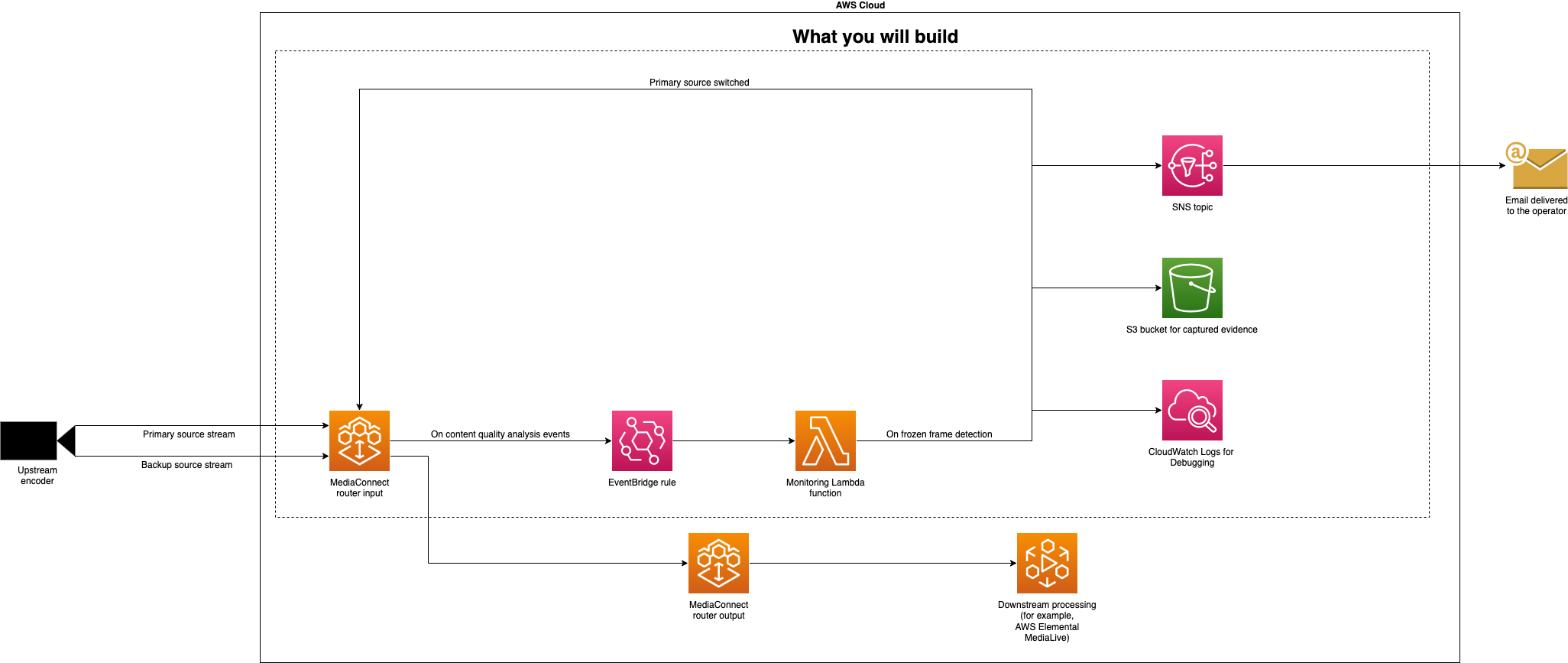
Figure 1: End-to-end failover workflow from the upstream encoder through the router input to the automated detection and response path
At a high level, when content quality analysis detects frozen frames on the active source of the router input:
- MediaConnect emits a MediaConnect Router Input Content Quality event for the frozen-frame breach.
- The Amazon EventBridge rule invokes the Lambda function, which reassigns the input’s preferred source from the primary to the backup. This triggers the switch and prevents the input from automatically reverting to the frozen source.
- The Lambda function then notifies the broadcaster through SNS, stores a thumbnail and the source metadata in Amazon S3, and logs its actions to Amazon CloudWatch Logs.
Prerequisites
Before you begin, you need:
- An AWS account with permissions to create and manage resources in MediaConnect, Lambda, Amazon S3, Amazon EventBridge, SNS, Amazon CloudWatch Logs, and AWS Identity and Access Management (IAM).
- Two video sources compatible with MediaConnect Router.
- An email address where the notification will be sent.
- (Optional) The AWS Command Line Interface (AWS CLI) v2 if you plan to deploy using the provided CloudFormation template.
Walkthrough
The following steps create the router input, the notification topic, the evidence bucket, the Lambda function, and the Amazon EventBridge rule that ties them together.
Create the router input
In the MediaConnect console, open the Global routing tab, choose Router inputs, and choose Create router input. Give the input a Name and set the Tier, Maximum bitrate, AWS Region, and Routing scope to match your workflow. For Connection management, select Manual configuration. For Input type, choose Failover.
Select a Network interface ARN appropriate for your networking setup and choose the transport Protocol your encoder sends. This post uses RTP. Add your two sources, configuring each according to the protocol you selected.
Under Source priority configuration, set the Source priority mode to Primary/Secondary and make the First source the primary.

Figure 2: Source priority configuration set to Primary/Secondary with the first source as the primary
Finally, under Content quality analysis configuration, enable Frozen frames and set a threshold that suits your content. This post uses 30 seconds. Choose Create router input to finish.
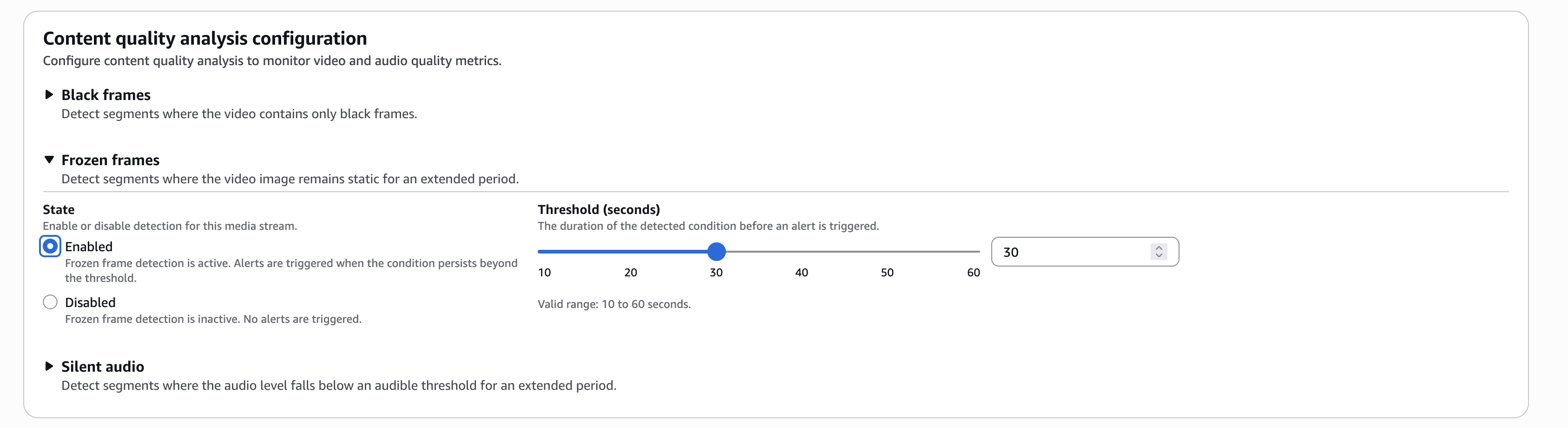
Figure 3: Content quality analysis with frozen frames enabled and a 30-second threshold
Create the SNS topic and email subscription
To inform the broadcaster when a failover happens, create an Amazon SNS topic and subscribe an email address to it.
Navigate to the Amazon SNS console, choose Topics, then Create topic, select Standard, give it a meaningful Name, and then choose Create topic. Next, choose Create subscription, set Protocol to Email, and enter the broadcaster’s email address as the Endpoint. To start receiving notifications, the broadcaster must confirm the subscription through the link that Amazon SNS sends to the broadcaster’s email address.
Create an Amazon S3 bucket
Create an Amazon S3 bucket to store the thumbnails and metadata captured when frozen frames are detected. For instructions, see Creating a general purpose bucket.
Create the Lambda function
Next, create the function. In the Lambda console, choose Create Event Function, then Author from scratch, give it a Function name, and select Python 3.14 as the runtime. Under the Configuration section, choose Permissions, and under Execution role, choose Edit. Choose Edit role and grant the role permissions equivalent to those defined in the MonitorFunctionRole resource in the project’s CloudFormation template. Scope the permissions to your router input, router network interface, S3 bucket, and SNS topic, as shown in the template.
Next, copy the contents of lambda/index.py from the project repository into the editor and choose Deploy. The function reads four environment variables: the router input ARN, the evidence bucket name, the SNS topic ARN, and the primary source index (0 or 1). Set them under Configuration, then Environment variables.
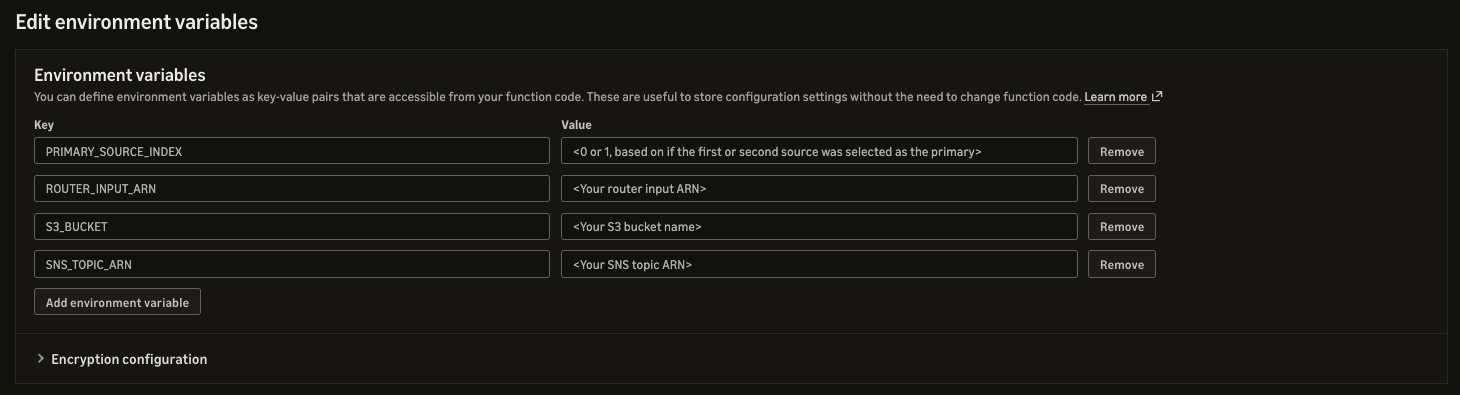
Figure 4: The four environment variables set on the Lambda function
When triggered, the Lambda function performs the following:
- Confirms the event is a frozen-frame breach, ignoring other content quality conditions and clearing events.
- Fails over to the backup source only if the primary is currently preferred.
- Captures evidence to S3: a thumbnail of the source and its transport-stream metadata under a shared timestamped key.
- Publishes a failover notification to the SNS topic.
- Logs its actions to CloudWatch Logs.
Create the Amazon EventBridge rule
Finally, create the Amazon EventBridge rule that will invoke the Lambda function. Navigate to the Amazon EventBridge console and choose Default event bus, then Create rule, and Advanced builder. Give the rule a name and description and then choose Next.
On the Build event pattern step, under the Event pattern section, choose Custom pattern (JSON editor) and paste the following pattern, replacing the placeholder ARN with the ARN of the router input you created:
This pattern narrows the rule on four properties:
sourceanddetail-typerestrict it to the MediaConnect content quality event.resourcesscopes it to a single router input, so the rule only fires for the input you’re monitoring.detail.current.frozenFramesmatches only when frozen frames are detected, so the Lambda function isn’t invoked for other content quality conditions or when the condition clears.
After you replace the placeholder and paste the pattern, choose Next. On the Select target(s) page, choose Lambda function as the target and then choose the Lambda function you created in the previous step. Then choose Skip to Review and create.
Test the solution
With everything in place, verify the system by sending a video stream with frozen frames to your primary source. After frozen frames are detected, you should:
- See the router input automatically switch to the secondary source.
- Receive an email telling you a failover occurred.
- Find a matched pair of objects in your S3 bucket: a thumbnail (
.jpg) and the source metadata (.json) that share the same key capturing how the feed looked just before the switch. - See the source metadata and a record of the actions taken in the Lambda function’s CloudWatch Logs.
Clean up
To avoid ongoing charges, delete the resources you created. If you deployed with CloudFormation, empty the S3 bucket and then delete the stack. If you built the solution manually, delete the router input, Amazon EventBridge rule, Lambda function, IAM role, SNS topic, S3 bucket (empty it first), and the Lambda function’s CloudWatch log group.
Conclusion
In this post, we used MediaConnect Router content quality events to automatically fail over from a frozen source, capture evidence, and notify the broadcaster. You can apply the same pattern to other MediaConnect events to help maintain stream reliability and reduce manual intervention. For more information about other MediaConnect events you can use for automation, see AWS Elemental MediaConnect events.