AWS Public Sector Blog
AWS GovCloud (US) account management best practices
Introduction
AWS GovCloud (US) was purpose-built for US government agencies and contractors handling sensitive data under frameworks like FedRAMP High, DoD SRG, ITAR, and CJIS. This specialized environment comes with unique account management challenges. From US person staffing requirements to enhanced audit trails, organizations working in the AWS GovCloud (US) partition must rethink traditional AWS account approaches to successfully balance stringent security requirements with operational efficiency.
Without proper account management practices in place, organizations risk compliance violations, unauthorized access to sensitive data, audit failures, and operational disruptions that can jeopardize mission-critical workloads. These risks are amplified in AWS GovCloud (US), where the dual-partition account structure, separate authentication systems, and unique credential model introduce complexity that standard AWS guidance doesn’t fully address.
In this post, we explore the essential best practices for AWS GovCloud (US) account management and avoid common pitfalls. By following these practices, you can reduce compliance risk and streamline operations across your AWS GovCloud (US) environments.
Understanding AWS GovCloud (US) Account Structure
AWS GovCloud (US) operates as a separate partition from the AWS commercial partition. Accounts, resources, and services exist in isolated environments that can’t directly communicate across partition boundaries. One exception is that for every AWS GovCloud (US) account, there is a standard account associated with it. So, when you create an AWS GovCloud (US) account, you get two accounts:
- AWS GovCloud (US) account – An AWS account created within the isolated AWS GovCloud (US) partition, designed specifically for US government agencies and contractors to handle sensitive data under strict compliance frameworks. It operates in a physically and logically separated environment with enhanced security controls and US person staffing requirements to meet government regulatory requirements.
- Standard account – An AWS account created in the commercial partition, often referred to as the associated commercial account. The standard account has its own credentials and is linked to the AWS GovCloud (US) account for billing purposes and, most importantly, can be used to recover access to the AWS GovCloud (US) account.
You can run workloads in the standard account; however, we recommend that you limit the standard account’s use to billing, AWS GovCloud (US) account access recovery, and actions that require root user privileges. Don’t deploy workloads in it. This architectural separation keeps sensitive government data within the compliance boundaries of the AWS GovCloud (US) partition while enabling cost management and account governance through commercial AWS tools.
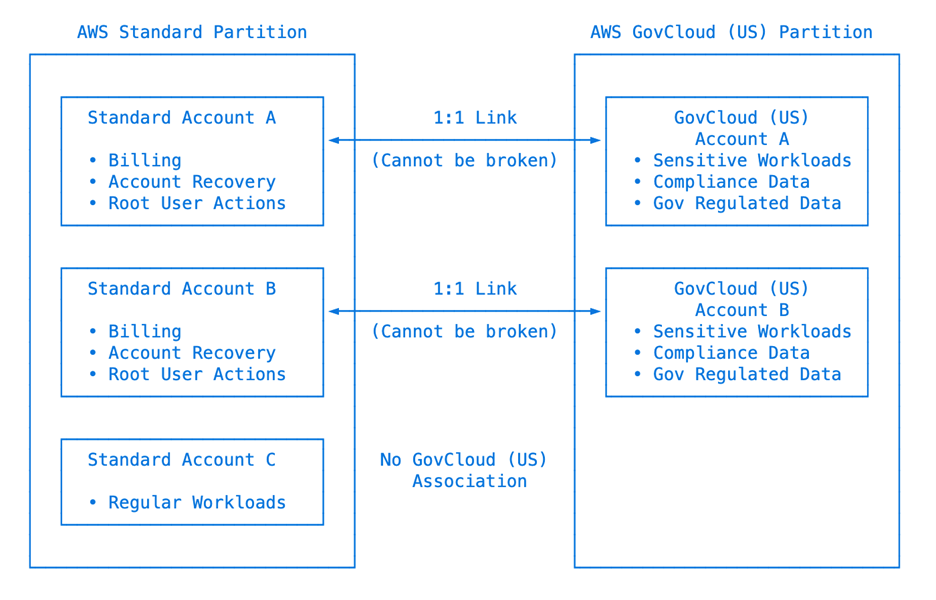
Figure 1: One-to-one mapping between a standard account and AWS GovCloud (US) account. Never run workloads in Standard Accounts A or B.
The one-to-one relationship between the AWS GovCloud (US) account and the standard account can’t be broken. You can’t unlink the two accounts after they are created. This means you can’t have an AWS GovCloud (US) account without its associated standard account in the commercial partition, and you can’t reassociate the AWS GovCloud (US) account to another standard account.
Authentication and access management systems are separate between commercial and AWS GovCloud (US) partitions, meaning access control mechanisms like AWS Identity and Access Management (IAM) users, roles, and policies created in one partition can’t be used to access resources in the other. Similarly, AWS Organizations structures — including organizational units (OUs) and service control policies (SCPs) — are partition-specific and must be configured independently in each partition. You must implement independent identity management, access control, and organizational governance for each partition to secure the accounts.
Account Creation
There are three ways to create an AWS GovCloud (US) account, and they all begin with a standard account. For detailed instructions, see Creating an AWS GovCloud (US) account. The following is a high-level summary of the three methods:
- Method 1: Sign in as root user – Sign in to the standard account using root user credentials (email and password). From there you can sign up for an AWS GovCloud (US) account. If this process fails (for example, due to eligibility or verification requirements), contact AWS Support for assistance, as described in Method 2.
- Method 2: Open a support case or ticket – If you are working with an AWS Partner or Reseller, open a ticket with them for assistance; otherwise, open a support case directly with the AWS Account & Billing Team and request an AWS GovCloud (US) account.
- Method 3: Use AWS Organizations APIs – Use the AWS Organizations APIs to programmatically create an AWS GovCloud (US) account. This requires an AWS organization to be created, and you have access to the management account in the commercial partition. Additionally, you need to have an AWS GovCloud (US) account created (using either of the previous methods) from the management account of the commercial organization. You will need to supply a unique email address, which will be used as the username for each new standard account. Refer to Automate AWS GovCloud (US) account creation using AWS Organizations APIs if you want to automate this process.
Credentials Management
As mentioned previously, a new AWS GovCloud (US) account also comes with a new standard account. That means you will need to manage two sets of credentials, one for each account. The following table summarizes the details.
| Credentials management | Standard Account | AWS GovCloud (US) Account |
| Root user (email/password) | Yes | No |
| Root credentials (access keys) | Yes | Yes |
| Console sign-in | Root or IAM | IAM only |
| Default IAM role (org-created) | OrganizationAccountAccessRole | OrganizationAccountAccessRole |
Figure 2: Differences between credentials for standard account and AWS GovCloud (US) account
Standard Account
A standard account uses the following credentials:
- Root user credentials – This is the email and password used to sign in to the AWS Management Console. If you create the AWS GovCloud (US) account using Method 2, you should have the credentials. If you use Method 3, the username is the email address you supplied, but the password isn’t created. If you need the password, you will need to perform a password recovery.
- IAM role – When you use Method 3 to create the AWS GovCloud (US) account, AWS creates an IAM role named
OrganizationAccountAccessRole(or a custom role name you provided) in the new standard account. You can use it to access the new account using assume role from the management account.
AWS GovCloud (US) Account
Depending on the method you use to create the AWS GovCloud (US) account and onboard it, you might have root credentials, an administrator user, or an IAM role that you can use for initial access to the account:
- Root credentials – An AWS GovCloud (US) account doesn’t support root user console access (email and password). Instead, it uses root credentials, which comprise an access key and a secret access key. Root credentials can’t be used to sign in to the AWS GovCloud (US) Management Console. Instead, you can use the root credentials to onboard the account and manually create an administrator user. You can also use the root credentials with the AWS Command Line Interface (AWS CLI) or AWS Software Development Kits (SDKs). After onboarding, either delete the root credentials or lock them in a secure, auditable location with strictly limited access.
- Administrator user – When you onboard the account using root credentials, AWS creates an IAM user with full administrator access named Administrator and a password. You can sign in to the AWS GovCloud (US) Management Console with it just like other IAM users.
- IAM role – When you create the AWS GovCloud (US) account using Method 3, AWS creates an IAM role named
OrganizationAccountAccessRole(or a custom role name you provided) in the new AWS GovCloud (US) account. You can use it to access the new account using assume role from the AWS GovCloud (US) account associated with the management account in the commercial partition.
The following diagram illustrates this setup.
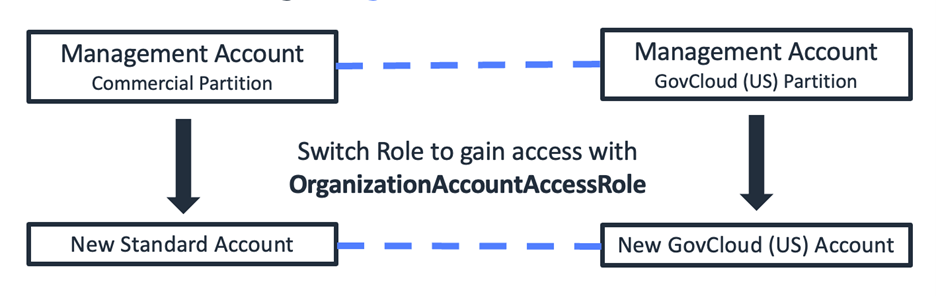
Figure 3: Use assume role to gain access to newly created accounts (dashed blue lines represent one-to-one links)
Initial Account Configurations
After you gain access to the accounts, you should immediately perform initial configuration to secure the accounts, such as creating IAM users or roles, enabling multi-factor authentication (MFA), and configuring single sign-on (SSO). If you are using AWS Organizations, you should invite the new accounts to their respective organizations.
When the initial configuration is complete, store the root credentials in a safe, auditable location with restricted access. Certain organizations might require the root credentials to be deleted after proper access control mechanisms have been implemented for the accounts. Root credentials can only be deleted programmatically and not using the AWS console.
AWS automatically enables AWS CloudTrail for new AWS GovCloud (US) accounts and records global service events in the us-gov-west-1 AWS Region. Review your CloudTrail configuration and adjust it to align with your security requirements; specifically, check for duplicate trails, because they can lead to unexpected costs.
Additional Account Configurations
After initial access and configurations are complete, the next step is establishing a security and governance baseline. The following AWS services should be enabled and configured as part of your account onboarding process—not as an afterthought. Together, they form the foundation for continuous compliance monitoring, threat detection, and audit readiness that government workloads demand. Although not every service may be required for your specific compliance framework, the following list represents the recommended baseline for most AWS GovCloud (US) organizations:
- AWS Backup – Implement centralized backup policies across accounts to automate data protection for critical resources such as Amazon Elastic Block Store (Amazon EBS) volumes, Amazon Relational Database Service (Amazon RDS) databases, Amazon DynamoDB tables, and Amazon Elastic File System (Amazon EFS) file systems.
- AWS CloudTrail – Enable CloudTrail in Regions immediately upon account creation so that API calls, console actions, and service events are logged to a centralized, tamper-evident location with appropriate retention periods.
- Amazon CloudWatch – Deploy comprehensive monitoring and alerting across accounts with centralized log aggregation, custom metrics for security events, and automated responses to threshold breaches with appropriate retention policies for audit requirements.
- AWS Config – Configure AWS Config to continuously monitor resource configurations against compliance baselines, setting up rules that align with your specific compliance frameworks like FedRAMP or DoD SRG requirements.
- Amazon EventBridge – Establish event-driven security automation by routing security-related events from AWS services to automated response workflows, enabling real-time incident response and compliance monitoring across the organization. Route events from linked accounts to a centralized account for processing.
- Amazon GuardDuty – Implement GuardDuty across accounts for continuous threat detection and malicious activity monitoring, with centralized findings management and automated response workflows for high-severity security events.
- AWS IAM Identity Center – Implement centralized identity management with SSO across AWS accounts, enforcing MFA and role-based access controls.
- AWS Key Management Service (AWS KMS) – Establish account-level encryption policies that mandate encryption at rest and in transit for data with customer managed keys when required by your compliance framework.
- Amazon Organizations – Implement AWS Organizations in both the commercial and AWS GovCloud (US) partitions to centrally manage and govern your accounts at scale. Structure organizational units (OUs) to reflect your agency’s hierarchy, workload classifications, or security boundaries and enabling consistent policy enforcement.
- AWS Organizations SCPs – Implement Service Control Policies (SCPs) to prevent the disabling of security services and enforce baseline security configurations across member accounts to include protecting critical resources from accidental deletions.
- AWS Security Hub – Implement Security Hub as a centralized dashboard to aggregate, prioritize, and manage security findings across accounts. Enable compliance standards aligned with your regulatory requirements, such as NIST 800-53 or CIS AWS Foundations Benchmark, and configure automated workflows to route critical findings to the appropriate teams for remediation.
- VPC Flow Logs – Enable across virtual private clouds (VPCs) and subnets to capture network traffic metadata and stream to a dedicated security account with centralized storage to capture and retain account-level activities for security analysis, compliance auditing, and network troubleshooting.
In addition to these configurations, consider the following additional best practices when setting up a new organization:
- Management account – Reserve for governance and billing only. Don’t deploy workloads in it and restrict access to a small group of trusted administrators.
- Member accounts – Create dedicated accounts per workload or environment and automate provisioning with AWS Organizations APIs to maintain consistent security baselines.
For detailed guidance, see Best practices for a multi-account environment.
Account Contact Information
AWS GovCloud (US) accounts don’t have their own contact information. Contact information, including email, phone, and alternate email contacts (for example, Security, Billing, and Operations), is configured in the associated standard account.
- Email addresses – Designate a Non-Person Entity (NPE) mailbox for each email address tied to the account so AWS updates are received in a timely manner. Multiple authorized personnel should monitor each NPE mailbox, with clear escalation procedures in place. This approach maintains continuity during personnel changes, leave periods, or emergencies common in government environments due to staff rotations or deployments.
- Phone number – Make sure each account has a direct phone number listed. Don’t use a switchboard number or line that is routed through a receptionist. Having a valid, direct phone number is critical for account verification and recovery processes but often overlooked. Password reset for standard account relies on both a valid email and phone number.
Establish a regular review process to verify that contact information remains current, mailboxes are actively monitored, and personnel accessing these accounts maintain appropriate authorization and security requirements to handle account information.
Conclusion
Managing AWS GovCloud (US) accounts requires a deliberate, disciplined approach that goes beyond standard AWS account management practices. The unique characteristics of the AWS GovCloud (US) partition—one-to-one account relationship with the commercial partition, separate authentication systems, and root credential handling—demand that organizations plan carefully and establish strong operational foundations from day one.
To recap the key takeaways from this post:
- Understand the account structure – Every AWS GovCloud (US) account comes with an associated standard account. Manage both but keep commercial workloads out of the associated standard account.
- Choose the right account creation method – Whether you’re creating a single account or provisioning at scale using AWS Organizations APIs, understand the trade-offs and credential implications of each approach.
- Secure credentials immediately – AWS GovCloud (US) root credentials are access keys, not console logins. Perform initial configuration promptly, store root credentials securely or delete them, and implement proper IAM and SSO controls before handing the account to users.
- Establish security baselines early – Enable CloudTrail, GuardDuty, Security Hub, AWS Config, and encryption policies as part of your account onboarding—not as an afterthought.
- Maintain accurate contact information – Use NPE mailboxes, keep phone numbers current, and review contact information regularly. Account access recovery depends on it.
- Organize accounts at scale with AWS Organizations – Implement AWS Organizations in both partitions with OUs and SCPs to enforce compliance guardrails and manage accounts consistently.
By following these best practices, your organization can build a secure, compliant, and scalable AWS GovCloud (US) foundation that meets the demands of government workloads while minimizing operational overhead. As AWS continues to expand AWS GovCloud (US) capabilities, staying current with service availability and evolving your account management practices will keep your cloud environment both mission-ready and audit-ready. To get started with AWS GovCloud (US) account management, visit the AWS GovCloud (US) User Guide or reach out to your AWS account team.