AWS Storage Blog
Applying Amazon S3 Object Lock at scale for petabytes of existing data
Organizations with petabytes of data in the cloud need a way to apply immutable storage protections to data that’s already been stored—whether for regulatory compliance or cyber resilience. Although you can enable write-once-read-many (WORM) controls for newly created storage, applying these protections to existing enterprise data at scale requires a systematic approach. Regulated industries have long relied on physical media such as optical discs for built-in immutability. However, cloud storage offers the same guarantees with added flexibility including configurable retention periods, protection modes, and legal holds for litigation scenarios.
Amazon S3 Object Lock provides WORM protection for cloud-stored data by making specific versions of objects immutable, preventing both accidental deletions and malicious actors from compromising your data. With S3 Object Lock, S3 Versioning is required and is automatically enabled, and these features work together to prevent locked object versions from being permanently deleted (accidental or intentional) or overwritten. S3 Object Lock provides a critical defense against cyber threats, particularly as ransomware attacks increasingly target backup and archive data. When integrated with complementary controls such as AWS Backup, access policies, and ransomware recovery strategy, it provides a critical layer in a defense-in-depth approach to data protection.
In this post, we demonstrate how to apply S3 Object Lock to existing data at the petabyte scale using S3 Batch Operations. We walk through key considerations for large-scale implementations, including versioning requirements, retention policy design, and operational best practices to provide a smooth transition without disrupting existing workloads.
Part A: Understanding S3 Object Lock
The S3 Object Lock feature involves two key steps.
Step 1. Enabling S3 Object Lock at the bucket level
The first step is enabling S3 Object Lock on the target Amazon S3 bucket. A bucket-level flag enables WORM functionality for the whole bucket, which makes it capable of supporting immutable object protection. However, this flag alone doesn’t lock any objects—it establishes the foundation for applying protection controls in the second step. This setting requires the bucket to be versioned because S3 Object Lock is architected to protect at the version level rather than the object key level. S3 Object Lock can use versioning to protect specific immutable versions while still allowing new data to be written to that same key/path. This provides both compliance requirements and operational flexibility. When you enable S3 Object Lock through API or AWS Command Line Interface (AWS CLI), Amazon S3 automatically enables versioning.
% aws s3api get-bucket-versioning --bucket xxxxxx-object-lock-testing
[If the output is blank, bucket is not versioned]

% aws s3api put-object-lock-configuration --bucket xxxxxx-object-lock-testing —object-lock-configuration='{ "ObjectLockEnabled": "Enabled"}'
% aws s3api get-bucket-versioning --bucket xxxxxx-object-lock-testing
{
"Status": "Enabled"
}
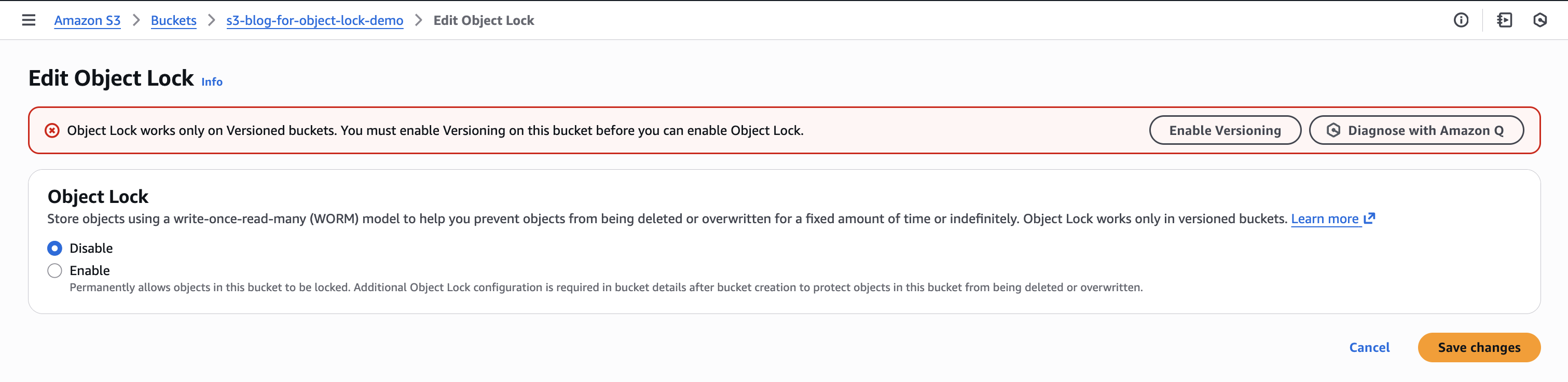
If you’re using the AWS Management Console, it prompts you to enable versioning, as shown in the following figure.
Step 2. Applying protection controls on specific object versions
S3 Object Lock offers two types of protection: retention configuration and legal hold. These controls are stored in the object version’s metadata and can be used independently or together. Objects without any protection settings in their metadata remain regular mutable objects, even in an S3 Object Lock-enabled bucket. In this section we look at each type of protection in detail.
2.1. Retention configuration: Retention configuration consists of two components: a retention period and a mode. The retention period is a fixed amount of time during which an object version is protected by S3 Object Lock and can’t be overwritten or deleted. The mode is one of two types: compliance or governance.
2.1.1. Compliance mode: For strict compliance requirements that demand full immutability, configure the retention period in compliance mode for the desired duration. During the retention period in this mode, no user or role with any level of AWS Identity and Access Management (IAM) permission can delete or overwrite that version of the object or even reduce the retention duration (yet it can be extended). This provides the strictest WORM protection required by various compliance standards. After the retention period expires, the object version becomes a regular mutable object.
Disclaimer: Compliance mode provides the strict immutability required by regulations such as SEC 17a-4(f). However, this comes with permanent protection that can’t be overridden—even by AWS account administrators—until the retention period expires. This regulatory requirement means that data deletion requests (such as GDPR compliance) can’t be fulfilled for objects under compliance mode retention. If you have Amazon S3 Cross-Region Replication enabled, then these protection settings also replicate to destination buckets. We strongly recommend thoroughly testing your retention strategy using governance mode or compliance mode with short retention periods before production deployment.
2.1.2. Governance mode: If you need immutability without strict compliance requirements, then set a retention period in governance mode on an object version. Think of this mode as a flexible WORM functionality. In this mode, users and roles with the required permission, s3:BypassGovernanceRetention, can modify the retention settings or delete the object version during the retention period. The object version remains immutable for entities without this specific permission, protecting against both accidental changes and malicious activity. For example, in a ransomware event where malware tries to encrypt your data, it can’t modify protected object versions because standard IAM permissions are insufficient without the specific bypass permission. This added layer of protection helps maintain data integrity even if regular access credentials are compromised.
2.2. Legal hold: The second type of protection is a legal hold: a simple on/off switch that provides WORM protection for an unspecified period. A legal hold is ideal when you need to preserve data for litigation, investigations, or audits where the duration is unknown. It remains active until manually removed by users/roles with the s3:PutObjectLegalHold permission. It can be applied independently or alongside retention settings, complementing each retention mode.
With compliance mode retention, while you can extend retention periods, doing so permanently locks objects for the longer duration. For legal matters with uncertain timeframes, it’s better to add a legal hold instead. This provides the needed protection but can be removed when the matter concludes, without committing to longer retention periods that can’t be shortened later.
With governance mode retention, a legal hold provides an added layer of protection and enables separation of duties. For example, during an investigation, the legal team can manage legal holds while the IT team maintains their regular storage management permissions.
The existing data challenge
Organizations often discover compliance gaps in their existing Amazon S3 data that require WORM protection. These gaps commonly arise from large-scale migrations from legacy systems, cross-account transfers, tape-to-cloud initiatives, or in existing buckets where protection requirements changed over time.
You can enable S3 Object Lock and set default retention settings on a bucket. Although setting S3 Object Lock at the bucket level makes all objects—both existing and new—eligible for retention protection, the default retention settings (mode and retention days) apply only to newly uploaded objects after S3 Object Lock is enabled. However, they don’t retroactively protect or update retention settings for existing objects. Whether you’re implementing SEC 17a-4 compliance for trade records, protecting legacy documents, or addressing compliance gaps in migrated data, you need an automated approach to retrofit S3 Object Lock protection at scale.
For more information on protecting new data, go to Protecting data with S3 Object Lock and Automatically extending S3 Object Lock retention at scale.
Part B: Implementing S3 Object Lock for existing data
S3 Batch Operations addresses this need by letting you efficiently apply S3 Object Lock protection to billions of objects.
In this section, we walk through the key steps involved in implementing S3 Object Lock for existing data. To help you get started, we’ve provided AWS CLI-based sample scripts in our GitHub repository. You can use these scripts as-is or modify them to suit your needs. The README.md file in the repository includes detailed instructions.
Step 1. Create an object inventory
Identify which objects need S3 Object Lock protection. You can protect all objects in a bucket, or select specific objects based on your business requirements. Common selection criteria include object prefixes (such as /financial-records/ or /audit-logs/), object age (protecting data older than a certain date), storage class, or encryption status.
S3 Batch Operations job requires a manifest file that contains the list of objects to process. The manifest must contain the bucket name and object key for each object. You can also include a version ID column to target specific object versions. However, the job processes the latest version of each object if no version is specified. There are two automated ways for generating this manifest (you can also create a CSV manifest file manually, although this becomes impractical at scale).
1.1. For immediate operations with filtering (by storage class, object size, creation date, or key patterns), use the S3 Batch Operations on-demand manifest generation feature. This creates batch jobs instantly without waiting for inventory reports. However, this approach only targets the latest object versions.
1.2. For complex scenarios requiring comprehensive analysis, use Amazon S3 Inventory reports combined with Amazon Athena. This approach is useful when you need to: (1) target specific noncurrent object versions by including version IDs in your manifest, or (2) run complex SQL queries, for example, to identify objects without retention settings or with specific retention periods. This helps you avoid failed operations due to existing configurations. For detailed guidance on creating manifest files from S3 Inventory, go to Manage and analyze your data at scale using Amazon S3 Inventory and Amazon Athena and Consolidate and query Amazon S3 Inventory reports for region-wide object-level visibility.
To help with testing, we’ve provided a script that creates 1,000 sample objects in your test bucket. You can use this to experiment with S3 Object Lock configurations, retention modes, and permissions before implementing in production.
Step 2. Set up required permissions
S3 Batch Operations requires an IAM role with appropriate permissions to execute S3 Object Lock Operations. The following policy includes the core permissions for applying S3 Object Lock retention and legal hold settings to objects. Adjust the policy based on the overall design. For more details refer to Granting permissions for S3 Batch Operations.
2.1. IAM permissions to manage object protection: The IAM role must include permissions allowing S3 Batch Operations to read objects, apply S3 Object Lock settings, and write reports. The following policy grants the necessary permissions:
{
  "Version": "2012-10-17",
  "Statement": [
    {
      "Sid": "S3BatchOperationsObjectLockPermissions",
      "Effect": "Allow",
      "Action": [
        "s3:GetObject",
        "s3:PutObject",
        "s3:GetObjectVersion",
        "s3:PutObjectRetention",
        "s3:PutObjectLegalHold",
        "s3:GetBucketLocation",
        "s3:GetBucketObjectLockConfiguration"
      ],
      "Resource": [
	"arn:aws:s3:::BUCKET_NAME_PLACEHOLDER",
        "arn:aws:s3:::BUCKET_NAME_PLACEHOLDER/*"
      ]
    },
    {
      "Sid": "KMSPermissionsForEncryptedObjects",
      "Effect": "Allow",
      "Action": [
        "kms:Decrypt",
        "kms:Encrypt",
        "kms:GenerateDataKey",
        "kms:DescribeKey"
      ],
      "Resource": "arn:aws:kms:::KMS_KEY_PLACEHOLDER"
    }
  ]
}
2.2. Trust relationship allowing S3 Batch Operations to assume the role: The IAM role must include a trust policy allowing S3 Batch Operations to assume it. Without this trust relationship, the service can’t use the role regardless of the permissions granted.
{
    "Effect": "Allow",
    "Principal": {
        "Service": "batchoperations.s3.amazonaws.com"
    },
    "Action": "sts:AssumeRole"
}
If you’re creating the IAM role manually using above JSON, then remember to replace BUCKET_NAME_PLACEHOLDER with your bucket name and arn:aws:kms:::KMS_KEY_PLACEHOLDER with actual AWS Key Management Service (AWS KMS) key Amazon Resource Name (ARN) value. Alternatively, you can use the script provided in our GitHub repository—it accepts bucket name as an argument and creates the role with the correct permissions.
Step 3. Apply S3 Object Lock protection
With the object inventory and permissions ready, you can now apply S3 Object Lock protection using S3 Batch Operations. The operation processes millions of objects listed in your manifest file asynchronously, applying the specified protection settings (retention period and mode, or legal hold) to each object version. When the operation completes, Amazon S3 creates a completion report in your bucket that shows the status of each object processed, including any failures and their causes. This helps you verify that the protection was applied correctly and troubleshoot any issues.
To apply different retention periods to different objects based on your business requirements, organize objects into separate manifest files and run multiple batch operations. You can use this approach to set tiered retention policies based on regulatory requirements, data classification, or business value.
We have provided two automation scripts in our GitHub repository:
- A script for applying retention settings (compliance or governance mode) with your specified retention period. The completion report is stored in the
batch_reportfolder of your bucket. - A script for applying Legal Hold to selected objects, with its completion report stored in the
legal_hold_batch/batch_reportfolder.
Step 4. Testing and cleaning up
Before applying S3 Object Lock to production data, test the implementation in a non-production environment using a small dataset. When testing, use short retention periods (such as one day) to streamline cleanup and avoid accidentally locking test resources long-term.
When S3 Object Lock is enabled on your bucket, you can’t delete objects using standard deletion commands. S3 Object Lock prevents object deletion or modification for the specified retention period or until legal holds are removed.
The cleanup approach depends on which protection mode you applied. If you used compliance mode, then you must wait for retention to expire (option 1). If you used governance mode, then you can either wait for retention to expire (option 1) or bypass the retention using appropriate permissions (option 2). If you applied legal holds, then first remove those holds (option 3), and then delete the objects.
Cleaning up option 1: Wait for retention to expire
For compliance mode objects, waiting for retention to expire is required—no other option exists. For governance mode objects, waiting is the most direct approach because it requires no special permissions.
After retention expires, note that aws s3 rm only creates delete markers on versioned buckets — it does not permanently remove object versions. To permanently delete all object versions in the test bucket, use the delete-objects API with version IDs:
aws s3api delete-objects \
  --bucket BUCKET_NAME_PLACEHOLDER \
  --delete "$(aws s3api list-object-versions \
    --bucket BUCKET_NAME_PLACEHOLDER \
    --output json \
    --query '{Objects: Versions[].{Key:Key,VersionId:VersionId}}')"
Alternatively, for hands-off cleanup, configure an S3 Lifecycle configuration to automatically expire objects and permanently delete noncurrent versions:
aws s3api put-bucket-lifecycle-configuration \
  --bucket BUCKET_NAME_PLACEHOLDER \
  --lifecycle-configuration '{
    "Rules": [
      {
        "ID": "CleanupAfterRetentionExpiry",
        "Status": "Enabled",
        "Filter": {},
        "Expiration": {
          "Days": 1
        },
        "NoncurrentVersionExpiration": {
          "NoncurrentDays": 1
        },
        "AbortIncompleteMultipartUpload": {
          "DaysAfterInitiation": 1
        }
      }
    ]
}'
S3 processes lifecycle rules asynchronously, so it might take a day or two for all objects to be deleted. After cleanup is complete, remove the lifecycle configuration:
aws s3api delete-bucket-lifecycle –bucket BUCKET_NAME_PLACEHOLDERReplace BUCKET_NAME_PLACEHOLDER with your actual bucket name.
For more information about deleting objects in versioning-enabled buckets, see Deleting object versions from a versioning-enabled bucket in the S3 User Guide.
Cleaning up option 2: Bypass governance mode retention
If you used governance mode and have the s3:BypassGovernanceRetention permission, then you can delete protected objects before their retention period expires. The following AWS CLI command lists object versions and deletes them with governance mode bypass:
aws s3api delete-objects \
  --bucket BUCKET_NAME_PLACEHOLDER \
  --delete "$(aws s3api list-object-versions \
    --bucket BUCKET_NAME_PLACEHOLDER \
    --output json \
    --query '{Objects: Versions[].{Key:Key,VersionId:VersionId}}')"
  --bypass-governance-retention
Replace BUCKET_NAME_PLACEHOLDER with your actual bucket name.
Because this command specifies version IDs, S3 permanently deletes each object version — no delete markers are created. Note that S3 Lifecycle configurations cannot bypass governance mode retention, so the lifecycle approach from Option 1 does not apply here.
Cleaning up option 3: Remove legal hold
If you applied legal holds to your test objects, then you must remove these holds before deletion. Use S3 Batch Operations to remove legal holds at scale. First, create a manifest file listing all objects with legal holds. Then, create a batch job to remove them:
aws s3control create-job \
  --account-id YOUR_ACCOUNT_ID \
  --operation '{"S3PutObjectLegalHold":{"LegalHold":{"Status":"OFF"}}}' \
  --manifest '{"Spec":{"Format":"S3BatchOperations_CSV_20180820","Fields":["Bucket","Key","VersionId"]},"Location":{"ObjectArn":"arn:aws:s3:::YOUR_MANIFEST_BUCKET/manifest.csv","ETag":"MANIFEST_ETAG"}}' \
  --report '{"Bucket":"arn:aws:s3:::YOUR_REPORT_BUCKET","Format":"Report_CSV_20180820","Enabled":true,"Prefix":"legal-hold-removal","ReportScope":"AllTasks"}' \
  --priority 10 \
  --role-arn arn:aws:iam::YOUR_ACCOUNT_ID:role/BatchOperationsRole \
  --region YOUR_REGION \
  --no-confirmation-required
Replace the placeholders (YOUR_MANIFEST_BUCKET, YOUR_REPORT_BUCKET, YOUR_ACCOUNT_ID, YOUR_REGION) with actual values.
After the legal hold is removed, follow the cleanup steps in Option 1 (if retention has expired) or Option 2 (if you need to bypass governance mode retention before expiry).
Conclusion
In this post, we explored Amazon S3 Object Lock functionality, including retention modes and legal hold options for WORM protection. Then, we demonstrated how to use S3 Batch Operations to apply these protections to your existing data, walking through the process of creating object inventories, setting up required permissions, and applying protection settings at scale. To help you implement this solution, we’ve provided sample scripts in a GitHub repository that automate the process. To learn more about S3 Object Lock and data protection, refer to the AWS documentation regarding protecting data using S3 Object Lock.