AWS Storage Blog
Enabling natural language access to structured data using Amazon S3 Tables and Amazon Bedrock Knowledge Bases
Organizations generate massive volumes of structured data from customer transactions, operational metrics, product catalogs, and compliance records. This data contains insights that can help businesses make better and timely decisions. Financial advisors need to review client transaction histories, retail analysts track inventory trends, and healthcare administrators monitor patient outcomes. Yet accessing these insights creates a bottleneck. Business users must either learn SQL, wait for technical teams to run queries, or rely on pre-built dashboards that may not answer their specific questions. These barriers slow decision-making as data scales.
Amazon S3 Tables provide managed storage for structured data using Apache Iceberg, delivering scalable analytics without operational overhead. When integrated with Amazon Bedrock Knowledge Bases, this architecture enables natural language querying. Business users can ask questions in plain English and receive accurate answers from governed data sources. No SQL expertise required, no waiting for technical teams, just conversational access to real-time insights.
In this post we walk through implementing this solution using a financial services example. You’ll set up S3 Tables, configure AWS Glue Data Catalog integration, connect Amazon Redshift Serverless, and create a Bedrock Knowledge Base that translates questions like “Show transactions for client 12345” into optimized queries against your structured data.
Solution benefits
This architecture enables secure, natural language querying of structured data. It integrates storage, analytics, and AI to deliver faster insights, lower costs, and clearer operations
- Faster decisions: Real-time analytics and natural language queries shorten the path from question to insight
- Lower costs: Pay-as-you-go pricing, efficient storage, and optimized queries reduce both storage and compute spend
- Broader access: Non-technical users can analyze data through conversational AI with no SQL required
- Stronger governance: Fine-grained permissions and auditing through AWS Lake Formation keep data secure and compliant
- Less operational effort: Automated compaction and metadata management reduce ongoing maintenance
- High reliability: Built on the durability and availability of Amazon S3 for enterprise-grade workloads
Solution overview
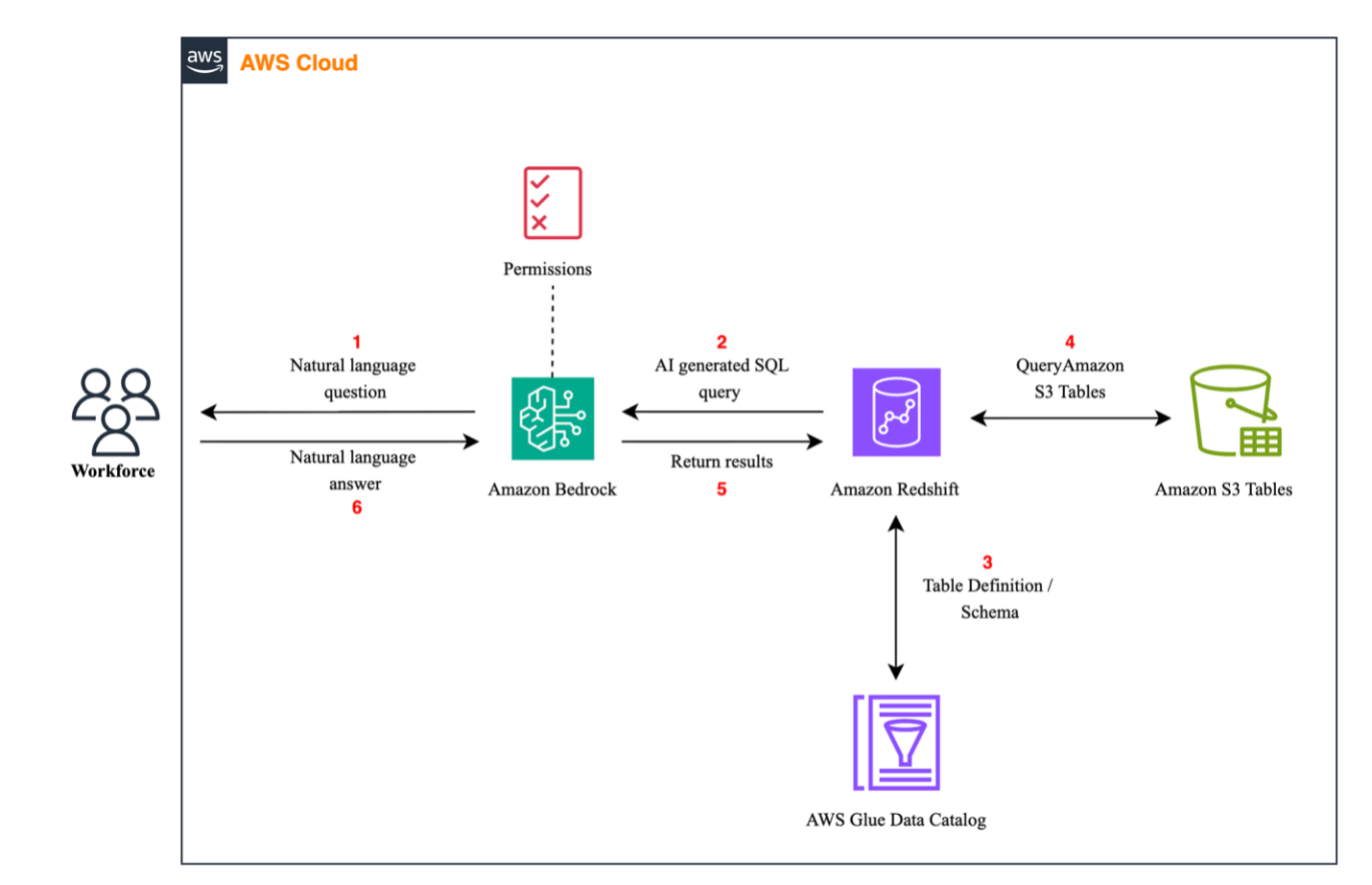
S3 Tables serve as the foundation for storage and analytics, integrating with Amazon Redshift and the Glue Data Catalog to enable natural language queries through Bedrock Knowledge Bases. User questions are translated into structured queries against S3 Tables, returning governed, real-time insights from financial data.
The following architecture diagram shows this solution.
How it works
The following steps describe how the solution processes a natural language query end to end:
- Natural language query: A financial user asks a question in natural language (for example, “Show last 5 transactions for client 12345”). The identity is validated through AWS IAM Identity Center for secure, role-based access.
- Bedrock Knowledge Bases: Amazon Bedrock uses Retrieval Augmented Generation (RAG) to access schema metadata and generates a SQL query specifically formatted for Redshift, referencing Glue Data Catalog.
- AWS Glue metadata lookup: Redshift queries the S3 Table Data Catalog for schema and table definitions, supporting table versioning and column-level visibility for Iceberg tables.
- Querying S3 Tables: Redshift runs the generated query against S3 Tables in the Iceberg format.
- Returning results: Query results are securely returned to Bedrock in a tabular format.
- Natural language answer: Bedrock synthesizes results into a clear, natural language response for the user (for example, “Client 12345 spent $620 at ABC Store on June 10”).
Solution walkthrough
The following steps guide you through setting up natural language access to your structured data. You create a table bucket, configure Glue Data Catalog integration, set up Redshift, create a Bedrock knowledge base, and configure the necessary permissions to enable secure querying.
Step 1. Set up your table bucket
This first step establishes your S3 Tables infrastructure foundation.
1.1. Create your S3 Tables resource.
1.2. Create a new table bucket, setting up a namespace within the bucket.
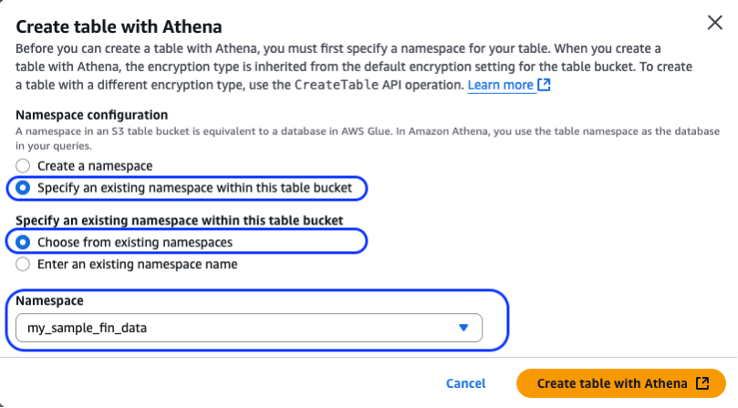
1.3. When you have your table bucket set up, create the table within your S3 table bucket using Amazon Athena, as shown in the preceding figure. You must set up the Athena Query Result Location before you can perform query functions.
1.4. Open Athena Query Editor, select AwsDataCatalog as data source.
-- create setup of table structure
CREATE TABLE my_sample_fin_data.fin_table (
	transaction_date		      date,
	account_id			      string,
	customer_name		      string,
	amount			            	double,
    	transaction_type		    	string,
    	balance_after_transaction	double,
    	credit_card_eligibility		Boolean
)
PARTITIONED BY (transaction_date)
TBLPROPERTIES ('table_type'='iceberg')
Before running, replace placeholder variables my_sample_fin_data and fin_table with your actual namespace and table names. Your setup should look like the following output.
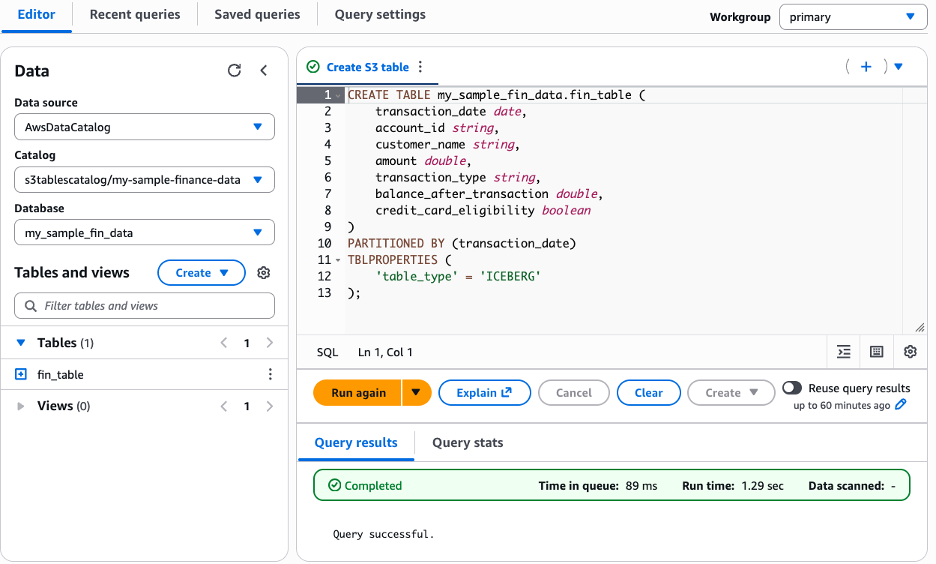
1.5. Next, insert the sample financial transaction data below (or create your own) using the example below. This includes account IDs, customer names, transaction amounts, types, and balances representing typical retail banking data.
-- populate table with sample financial data
INSERT INTO <s3_bucket_table_namespace>.<s3_bucket_table_name>
(transaction_date, account_id, customer_name, amount, transaction_type, balance_after_transaction, credit_card_eligibility)
VALUES
(DATE '2023-04-10', 'ACC018', 'John Smith', 100.00, 'debit', 900.00, false),
(DATE '2023-04-13', 'ACC018', 'John Smith', 250.00, 'credit', 1150.00, false),
(DATE '2023-04-20', 'ACC018', 'John Smith', 150.00, 'debit', 1000.00, false),
(DATE '2023-04-20', 'ACC024', 'Sarah Clarks', 200.00, 'credit', 700.00, false),
-- add more rows
1.6. Verify the data is populated correctly, run the SELECT query shown in the following figure.
SELECT * FROM <s3_bucket_table_namespace>.<s3_bucket_table_name>Step 2. Create an AWS Glue Data Catalog integration
In this section, you set up resource links to enable Bedrock Knowledge Bases to access S3 Tables through Redshift. S3 Tables maintains its own catalog (s3tablescatalog), separate from the standard Glue Data Catalog (AwsDataCatalog). Resource links federate these catalogs, presenting S3 Tables as traditional Glue databases and tables. This lets services like Bedrock Knowledge Bases and Athena query them using standard database.table syntax, with Lake Formation managing the federation.
2.1. Create your database setup with AWS Glue. The following figure shows how to create your database setup with Glue.
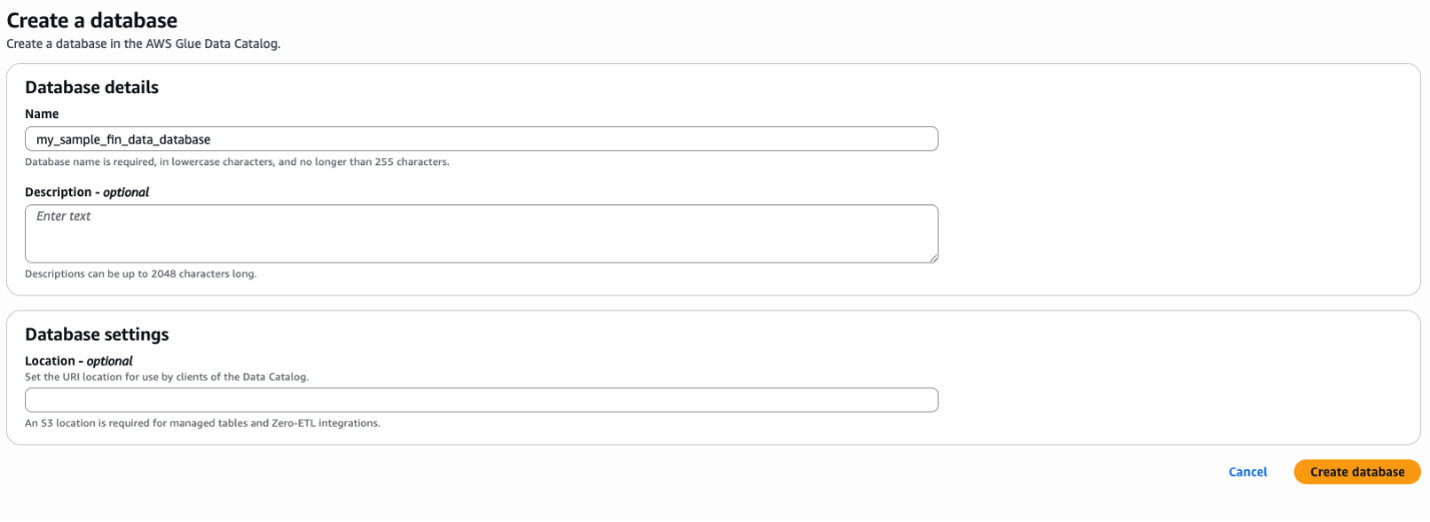
2.2. Set up the resource link in Lake Formation. You create the resource link to the database by navigating to Lake Formation (you don’t want to do within Glue), choosing Data Catalog and Tables from the menu. Then, select the catalog from the table that corresponds to the S3 table in the table bucket, as shown in the following figure.
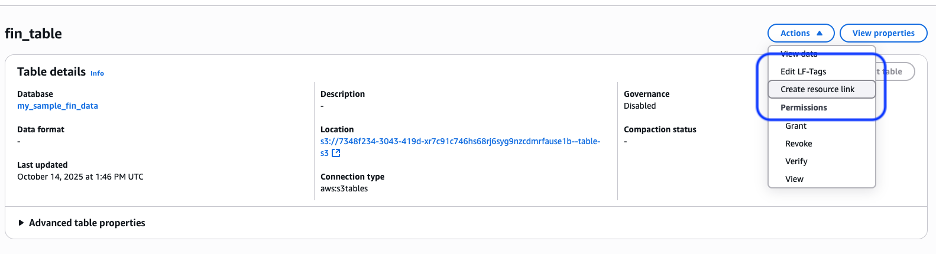
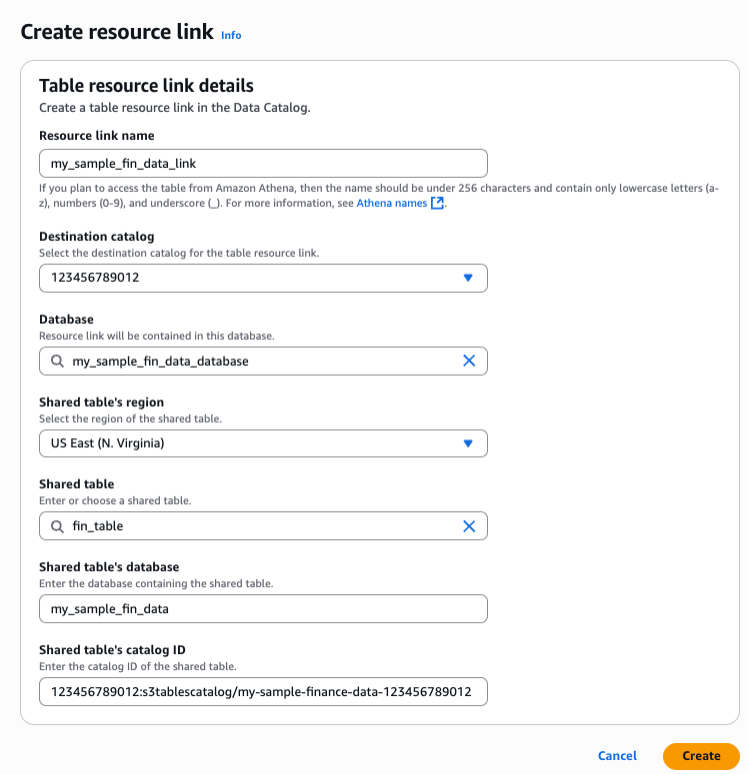
2.3. Choose Actions and create a resource link at the table level for fine-grained access (you can also create it at the database level). Give the resource link a name, set the destination catalog to your default account catalog, and choose the Glue database from the previous step. The shared table and database auto-populate from the selected table, as shown in the following figure.
Step 3. Set up Amazon Redshift Serverless
Bedrock Knowledge Bases supports both Redshift provisioned clusters and Redshift Serverless workgroups as query engines. This walkthrough uses Redshift Serverless; the same steps apply to a provisioned cluster when selected in step 4.2.
3.1. Create your Redshift Serverless infrastructure by setting up a namespace, workgroup, and IAM role. You can reference the following post for more information: Getting started with Amazon Redshift Serverless.
Step 4. Set up Amazon Bedrock Knowledge Bases
Bedrock Knowledge Bases acts as the intelligent layer that translates natural language questions into structured queries, connecting to Redshift Serverless to return accurate, contextual answers from S3 Tables.
4.1. Create Bedrock Knowledge Bases by navigating to Bedrock and selecting Knowledge Bases under Build. Configure a structured knowledge base, choose Redshift as the query engine, and create a new IAM service role.
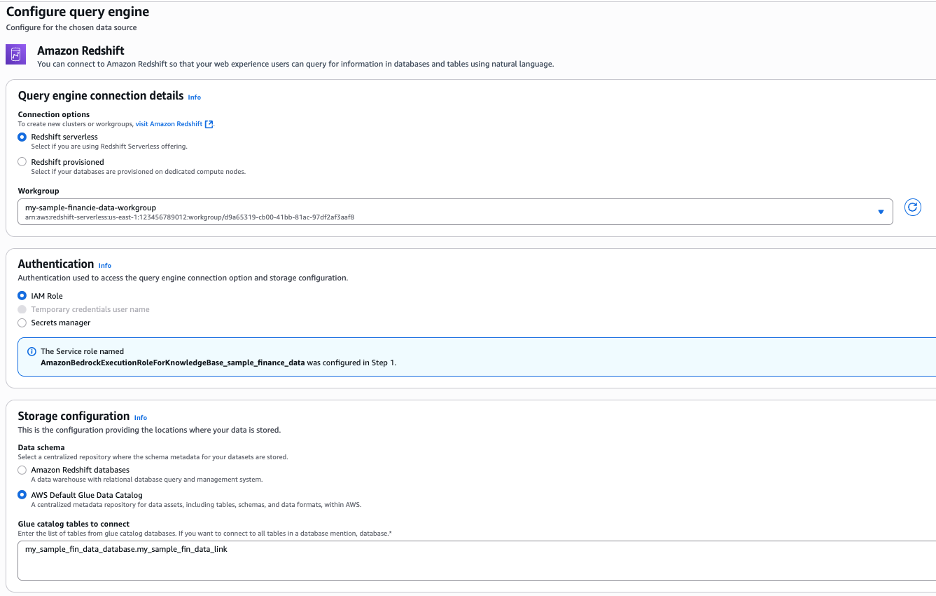
4.2. Connect your Redshift Serverless workgroup by selecting it as the query engine and using the Glue Data Catalog for storage. Specify database and table names in the format database.table, or use multiple entries or wildcards to include more tables, as shown in the following figure.
As a best practice, you should give the table and columns descriptions while defining the knowledge base to improve the accuracy.
4.3. Set up a customer managed IAM policy. To adhere to fine grained permissions, we create a policy that only gives access to our Glue resources (database and resource link) and the S3 table bucket resources (bucket, namespace, and table). Create a new customer managed IAM policy in your account and copy and paste the following JSON, replacing the placeholder variables with your actual environment values. Once created you’ll attach this policy to the Bedrock service role that is attached to your knowledge base.
{
    "Version": "2012-10-17",
    "Statement": [
        {
            "Sid": "BedrockGlueAccess",
            "Effect": "Allow",
            "Action": [
                "glue:GetDatabases",
                "glue:GetDatabase",
                "glue:GetTables",
                "glue:GetTable",
                "glue:GetPartitions",
                "glue:GetPartition",
                "glue:SearchTables"
            ],
            "Resource": [
               "arn:aws:glue:<your_region>:<your_accountID>:catalog",
               "arn:aws:glue:<aws_region>:<accountID>:database/<gluedatabase_name>",
"arn:aws:glue:<aws_region>:<accountID>:table/<gluedatabase_name>/<resource_link_name>",
 "arn:aws:glue:<aws_region>:<accountID>:catalog/s3tablescatalog",
             "arn:aws:glue:<aws_region>:<accountID>:catalog/s3tablescatalog/<s3_table_bucket_name>",
"arn:aws:glue:<aws_region>:<accountID>:database/s3tablescatalog/<s3_table_bucket_name>/<s3_table_namespace>",
"arn:aws:glue:<your_region>:<accountID>:table/s3tablescatalog/<s3_table_bucket_name>/<s3_table_namespace>/<s3_table_name>"
            ]
        },
        {
            "Sid": "S3TablesAccess",
            "Effect": "Allow",
            "Action": [
                "s3tables:GetTable",
                "s3tables:GetTableMetadataLocation",
                "s3tables:GetTablePolicy",
                "s3tables:ListTables",
                "s3tables:ListTableBuckets",
                "s3tables:ListNamespaces",
                "s3tables:GetNamespace",
                "s3tables:GetTableBucket"
            ],
            "Resource": [
                "arn:aws:s3tables:<your_region>:<accountID>:bucket/<s3_table_bucket_name>",
                "arn:aws:s3tables:<your_region>:<accountID>:bucket/<s3_table_bucket_name>/*"
            ]
        },
        {
            "Sid": "LakeFormationDataAccess",
            "Effect": "Allow",
            "Action": [
                "lakeformation:GetDataAccess"
            ],
            "Resource": "*"
        }
    ]
}
4.4. Set up the Lake Formation permission. Grant the Bedrock Knowledge Bases service role access to the S3 table bucket and Glue database to enable data querying, as shown in the following figure. IAM permissions were configured in the previous step.
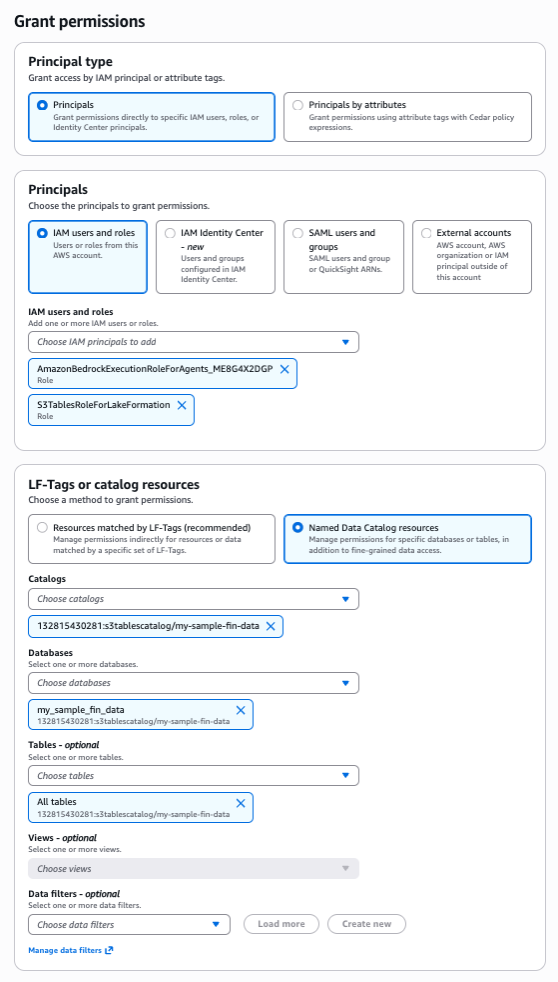
Both grants should provide select and describe permissions, as shown in the following figure.
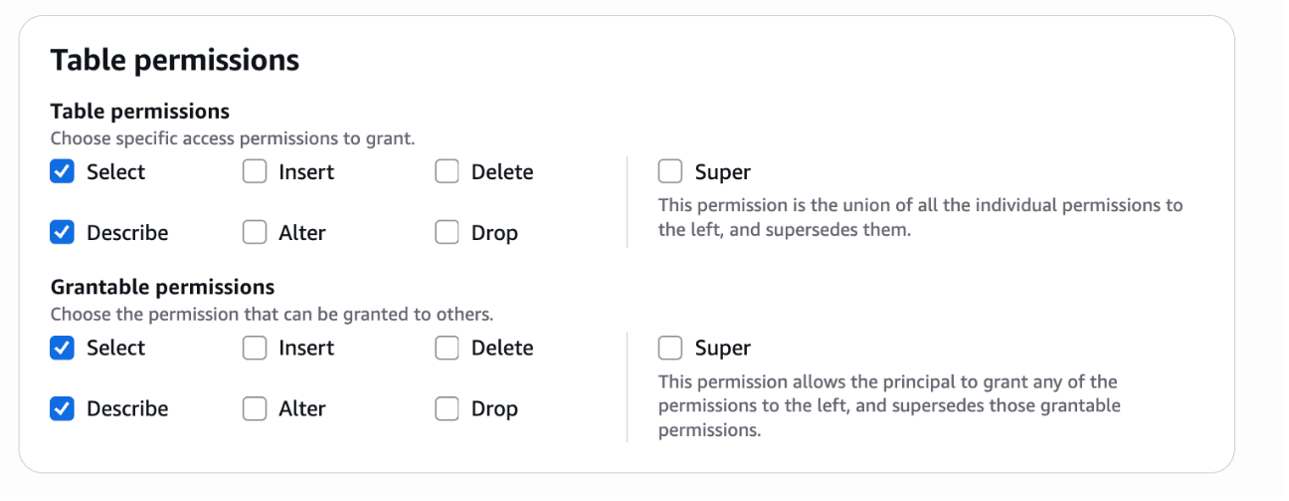
For more details on granting permission to Data Catalog resources, go to the Lake Formation Developer Guide.
Step 5. Set up Amazon Redshift Access
This section establishes secure authentication between Bedrock Knowledge Bases and Redshift. You configure IAM authentication to enable password-less access and grant the necessary catalog permissions for the knowledge base to execute queries.
5.1. Create the Bedrock service role as a database user. This enables the Bedrock Knowledge Bases role to connect to Redshift using IAM authentication without a password. In the Redshift query editor, run the following query, replacing <BedrockRoleName> with your Bedrock service role name:
CREATE USER "IAMR:<BedrockRoleName>" WITH PASSWORD DISABLE;5.2. Grant catalog access in Redshift. This grants the Bedrock execution role permission to use the catalog containing the S3 Tables schema metadata. Replace <BedrockRoleName> with your Bedrock service role name:
GRANT USAGE ON DATABASE awsdatacatalog TO "IAMR:<BedrockRoleName>";Go to the Bedrock User Guide for more details on knowledge base service role access.
Step 6. Validate/test knowledge base
With infrastructure and permissions in place, sync the knowledge base to ensure it has the latest schema information, then test with natural language queries to confirm SQL generation and data access.
Then, you sync the knowledge base. When the sync is successful, you can proceed.
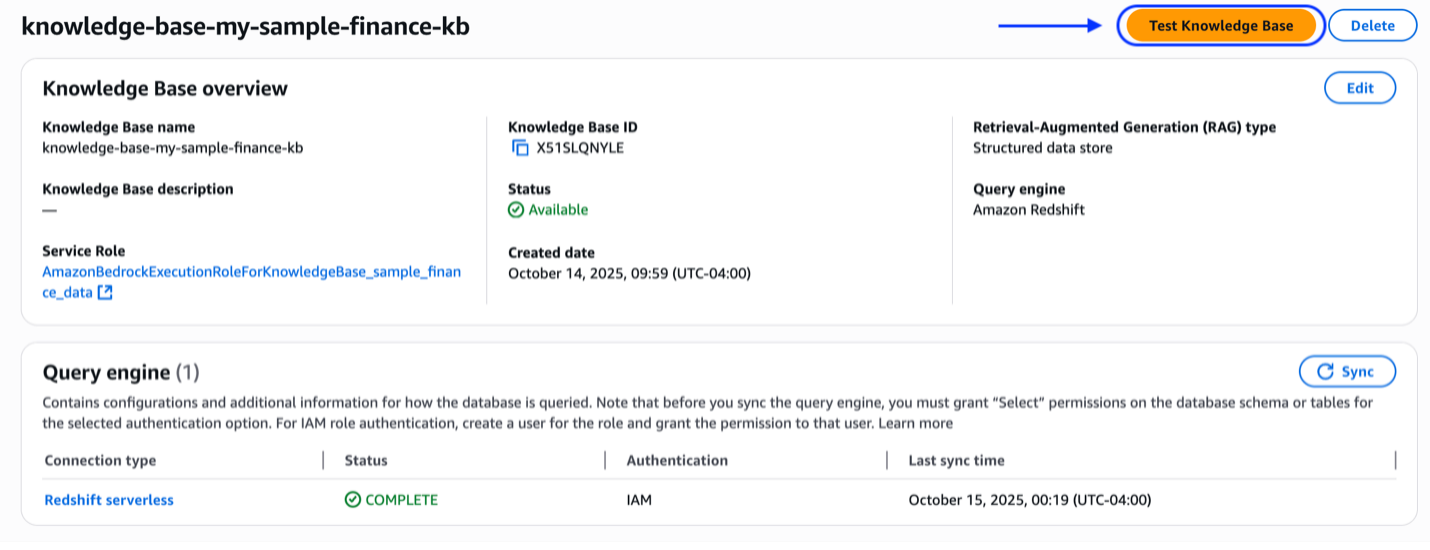
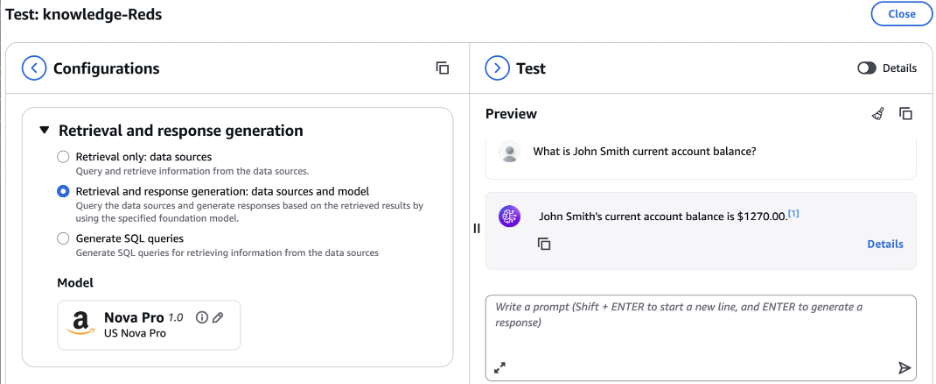
At this stage you can test the knowledge base. Select a model such as Amazon Nova Pro, and in the preview pane start asking question to gain insights into your data. Try these sample queries:
- “Show me the last 5 transactions for client 12345”
- “What is the total amount spent by client 12345?”
- “List all dining transactions for client 12345”
Extending this pattern to AWS managed S3 table buckets
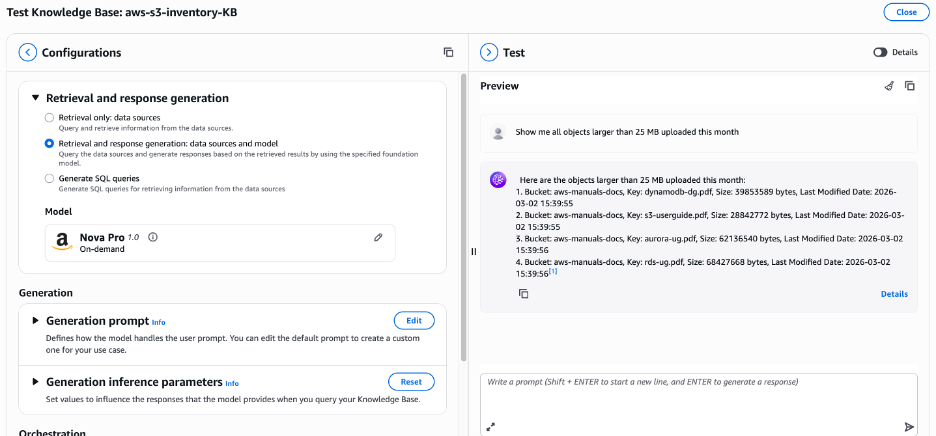
Although the architecture described in this post uses customer-created S3 table buckets, the same pattern extends naturally to AWS managed S3 table buckets, as shown in the following figure. Each AWS account has one AWS managed table bucket per AWS Region, named aws-s3, which serves as a centralized location for all managed tables automatically created by AWS services in that AWS Region. Amazon S3 Metadata is an example: when you enable it on a general purpose S3 bucket, AWS automatically provisions Apache Iceberg-compatible tables under a dedicated namespace within this aws-s3 bucket, including a journal table that captures near real-time object change events and an optional live inventory table that provides a queryable snapshot of all objects and their current state.
These are Apache Iceberg-compatible tables; thus you can follow the same steps outlined in this post: registering the table bucket with Glue Data Catalog, creating resource links in Lake Formation, configuring Redshift, and connecting a Bedrock Knowledge Base. When its configured, business users can ask questions such as “Which objects were deleted from the production bucket in the last 7 days?” or “Show me all objects larger than 1 GB uploaded this month” without writing SQL.
For AWS managed table buckets, use aws-s3 as the bucket name in your S3 Tables and Glue catalog Amazon Resource Names (ARNs) (for example, s3tablescatalog/aws-s3), with the namespace following the format b_<your-general-purpose-bucket-name> and table names fixed as inventory or journal. The Redshift GRANT USAGE ON DATABASE awsdatacatalog step remains unchanged, because catalog federation is handled at the Glue and Lake Formation layer.
The key distinction is that tables in the aws-S3 bucket are read-only and managed exclusively by AWS, which aligns perfectly with the RAG query pattern used throughout this architecture, ensuring accuracy and removing operational overhead.
Cleaning up
To avoid incurring future charges, delete the Redshift Serverless instance, Bedrock Knowledge Base, Glue Data Catalog, and S3 Tables.
Conclusion
You’ve built an architecture that transforms structured data access. By combining S3 Tables with Amazon Bedrock Knowledge Bases, you’ve enabled business users across your organization to query data conversationally without SQL expertise. While this walkthrough used financial services as an example, the same pattern applies to retail inventory analysis, healthcare patient monitoring, manufacturing quality metrics, or any domain managing structured data at scale. This pattern also extends to AWS managed S3 table buckets. To apply this pattern to AWS managed S3 table buckets, follow the steps in the S3 tables documentation.