AWS Database Blog
Automating cross-account refresh for Amazon RDS Multi-AZ DB clusters
Keeping non-production environments current with production data is a common operational need. In this post, you learn how to automate cross-account environment refresh for Amazon Relational Database Service (Amazon RDS) Multi-AZ DB clusters (available for PostgreSQL and MySQL) using a serverless pipeline that runs with a single trigger.
Amazon RDS supports snapshot sharing for DB instances but not for Multi-AZ DB clusters, therefore you can’t share Multi-AZ DB clusters between accounts by using cluster snapshots. This solution implements cross-account cluster sharing by using an intermediate instance snapshot, then uses AWS Lambda, AWS Step Functions, and Amazon EventBridge to orchestrate seven steps spanning two AWS accounts.
Solution overview
The pipeline automates environment refresh through seven steps spanning two AWS accounts. The architecture creates snapshots, restores intermediate instances, shares snapshots across accounts, and restores the final Multi-AZ DB cluster in the destination, all without manual intervention.
The following diagram illustrates the solution architecture:
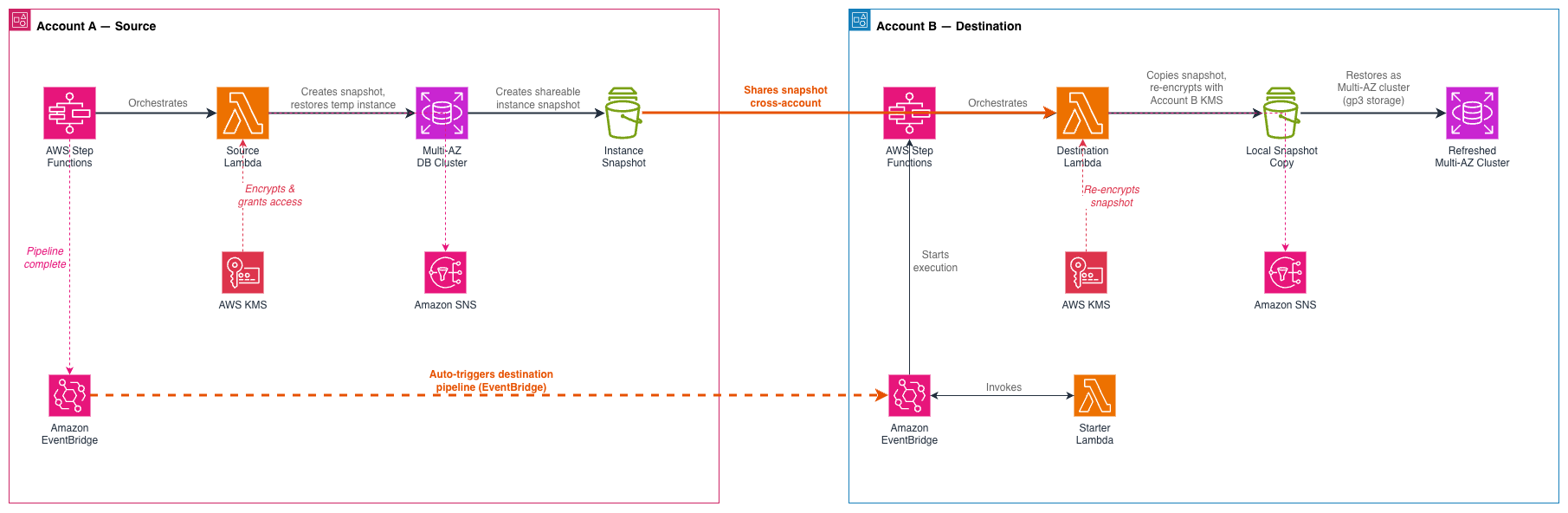
The workflow consists of the following steps.
Source account
1. Create a cluster snapshot. A Lambda function creates a manual snapshot of the Multi-AZ DB cluster using the create-db-cluster-snapshot API. Step Functions manages the wait loop, polling the snapshot status every 30 seconds until it becomes available.
2. Restore to a temporary single-AZ instance. The Lambda function restores the cluster snapshot to a temporary single-AZ DB instance using the restore-db-instance-from-db-snapshot API with the DBClusterSnapshotIdentifier parameter. The RDS API supports restoring a cluster snapshot to a standalone single-AZ instance, which produces an instance from which you can create a shareable snapshot.
3. Create an instance snapshot. After the temporary instance becomes available, the Lambda function creates a standard DB instance snapshot using the create-db-snapshot API. Unlike cluster snapshots, instance snapshots can be shared across accounts.
4. Share the instance snapshot. The Lambda function shares the instance snapshot with the destination account using the modify-db-snapshot-attribute API and grants the necessary AWS Key Management Service (AWS KMS) permissions.
5. Clean up the temporary instance. After snapshot sharing completes, the pipeline deletes the temporary single-AZ instance with SkipFinalSnapshot=True. This instance was only needed to produce a shareable snapshot and is no longer required.
Cross-account handoff
When the source Step Functions workflow succeeds, an EventBridge rule in the source account forwards a success event to the destination account’s default event bus. The default event bus is the primary EventBridge endpoint in each AWS account that receives events from AWS services. A rule in the destination account catches this event and invokes a Starter Lambda function. The Starter Lambda function extracts the snapshot ARN from the Step Functions output and starts the destination workflow.
Destination account
6. Copy the shared snapshot. A Lambda function in the destination account copies the shared snapshot locally using the copy-db-snapshot API, re-encrypting it with the destination account’s customer-managed AWS KMS key. The pipeline references the shared snapshot by its full ARN (passed from the Starter Lambda function), which allows the copy operation to proceed without needing to list or discover the snapshot. Step Functions manages the wait loop until the copy completes.
7. Restore as a Multi-AZ DB cluster. The Lambda function restores the copied snapshot as a Multi-AZ DB cluster using the restore-db-cluster-from-snapshot API. The pipeline uses gp3 storage by default for cost efficiency, but you can change this to match your requirements. Step Functions waits until the cluster reaches the available state.
Through this architecture, the pipeline runs without intervention after you start it. The following sections walk through the implementation steps.
Prerequisites
Before you begin, verify that you have the following:
- Two AWS accounts (source and destination) with permissions to create AWS Identity and Access Management (IAM) roles, AWS Lambda functions, Step Functions workflows, Amazon Simple Notification Service (Amazon SNS) topics, Amazon EventBridge rules, and AWS KMS keys
- An Amazon RDS Multi-AZ DB cluster encrypted with a customer-managed AWS KMS key in the source account
- Experience deploying AWS CloudFormation stacks and configuring IAM roles
- The AWS Command Line Interface (AWS CLI) configured with named profiles for both accounts
Important: Your source Multi-AZ DB cluster must be encrypted with a customer-managed AWS KMS key. You cannot share snapshots encrypted with the default AWS managed key across accounts, and you cannot encrypt an unencrypted Multi-AZ DB cluster after creation.
Note: The prerequisite AWS CloudFormation templates automatically configure the cross-account AWS KMS key policies. If your production cluster already uses a customer-managed AWS KMS key, this solution provides a helper script to patch the existing key policy instead of creating a new key.
Implementation
You deploy AWS CloudFormation stacks in order: prerequisites in each account first, then the pipeline stacks. The prerequisite templates source-prereqs.yaml and destination-prereqs.yaml create supporting resources with the correct cross-account AWS KMS policies. The unified pipeline template rds-refresh-stack.yaml uses a DeploymentMode parameter to control which resources you create in each account.
The complete source code, AWS CloudFormation templates, and helper scripts are available in the accompanying GitHub repository.
Deploy prerequisites in the source account
The source prerequisites template creates a customer-managed AWS KMS key with a cross-account policy, a DB subnet group for the temporary instance, and an Amazon Simple Storage Service (Amazon S3) bucket for the Lambda deployment package. The Amazon S3 bucket is created with server-side encryption, public access blocking, and versioning enabled.
If your production cluster already uses a customer-managed AWS KMS key, you can grant the destination account access using one of the following approaches:
A. Console (recommended for existing clusters): Open the AWS KMS console in the source account, navigate to Customer managed keys, find the key used by your cluster, choose the Key policy tab, and choose Edit. Add a policy statement granting the destination account kms:Decrypt, kms:DescribeKey, kms:CreateGrant, and kms:ReEncryptFrom permissions with a kms:GrantIsForAWSResource condition.
B. Helper script (idempotent, safe to run multiple times):
C. New key via CloudFormation (greenfield setup): Deploy the full prerequisites stack, which creates a new KMS key with the cross-account policy, a DB subnet group, and an S3 bucket:
Deploy prerequisites in the destination account
The destination prerequisites template creates a customer-managed AWS KMS key with the source account granted access, a DB subnet group spanning at least three Availability Zones, an Amazon Virtual Private Cloud (Amazon VPC) security group, a DB cluster parameter group with SSL enforcement turned on, and an Amazon S3 bucket with encryption and public access blocking.
Deploy the pipeline in the source account
In source mode, the unified template creates the following resources:
- A Lambda function that handles cluster snapshot creation, temporary instance restore, instance snapshot creation, and cross-account sharing
- A Step Functions workflow that orchestrates the Lambda function with wait loops, status checks, and error handling
- An Amazon SNS topic that publishes notifications at each step for success and failure
- An EventBridge rule that forwards the Step Functions workflow success event to the destination account’s default event bus
- IAM execution roles with scoped permissions for Lambda, Step Functions, and EventBridge
Package and deploy the source pipeline:
After the stack is created, note the NotificationTopicArn and SourceStateMachineArn from the stack outputs. You need both for the destination deployment and for triggering the pipeline:
Deploy the pipeline in the destination account
In destination mode, the same template creates the following resources:
- A Lambda function that handles shared snapshot copy with re-encryption and Multi-AZ DB cluster restore
- A Starter Lambda function that forwards EventBridge events to the destination Step Functions workflow by extracting the snapshot ARN from the source workflow output
- A Step Functions workflow that orchestrates the destination Lambda function with wait loops, status checks, and error handling
- An EventBridge rule and bus policy that accepts events from the source account and invokes the Starter Lambda function
- An Amazon SNS subscription that subscribes to the source account’s notification topic for cross-account alerts
- IAM execution roles with scoped permissions for Lambda, Step Functions, and EventBridge
Package and deploy the destination pipeline:
Test the solution
After you deploy both stacks, test the solution by triggering the pipeline with a single CLI command.
Start the source workflow:
Replace <SourceClusterName> with the identifier of the Multi-AZ DB cluster you want to use. You can find this value in the Amazon RDS console under Databases or by running aws rds describe-db-clusters --profile source-account. The source_cluster_id in the input payload overrides the default cluster configured in the stack, so you can target a different Multi-AZ DB cluster without redeploying.
The command returns an execution ARN:
From here, the pipeline runs end-to-end:
- The source workflow creates a cluster snapshot, restores a temporary single-AZ instance, creates an instance snapshot, shares it with the destination account, and cleans up the temporary instance.
- When the source workflow succeeds, EventBridge forwards the event to the destination account.
- The Starter Lambda function in the destination account extracts the snapshot ARN and starts the destination workflow.
- The destination workflow copies the shared snapshot (re-encrypting with the destination account’s AWS KMS key) and restores it as a new Multi-AZ DB cluster.
Monitor the execution in the Step Functions console, or use the CLI:
To verify the pipeline completed successfully, check the Amazon RDS events in the destination account:
The output shows events confirming the following sequence:
- Snapshot copy completed in the destination account
- Multi-AZ DB cluster restore initiated
- DB instances created within the restored cluster
- Cluster status changed to available
Amazon SNS notifications are published at each step for both success and failure.
Clean up
Delete the following resources if you no longer need them.
The pipeline handles most cleanup of runtime resources automatically. After the instance snapshot is created and shared, the source workflow deletes the temporary single-AZ instance with SkipFinalSnapshot=True. Intermediate snapshots (the cluster snapshot and instance snapshot in the source account) are conditionally deleted based on retention policy parameters in the stack configuration.
In the destination account, the copied snapshot persists after the cluster is restored. Delete it manually after the restored cluster is running, or retain it as a point-in-time reference.
To remove the solution, delete the stacks in reverse order. Start with the pipeline stacks, then delete the prerequisite stacks:
After you delete the stacks, check for remaining runtime resources. List snapshots in both accounts and delete snapshots that you no longer need:
Note: AWS CloudFormation does not manage resources created by the pipeline at runtime. Delete remaining Amazon RDS snapshots and the restored cluster in the destination account manually.
(Optional) If you created a test Multi-AZ DB cluster specifically for this solution, delete each member instance first, then delete the cluster. Multi-AZ DB clusters require each member instance to be deleted before you can remove the cluster itself:
Conclusion
In this post, you learned how to build an automated cross-account environment refresh pipeline for Amazon RDS Multi-AZ DB clusters. The serverless architecture works around the snapshot sharing constraint by creating an intermediate single-AZ instance, providing a pipeline that runs without intervention after a single trigger.
To extend this solution, consider the following options based on your use case:
- Scheduled refreshes. Add Amazon EventBridge Scheduler for automated weekly or monthly refreshes.
- Team notifications. Integrate with Amazon Q Developer for Slack notifications on pipeline success or failure.
- Data privacy. Add data masking or anonymization as a post-restore step for non-production environments.
The source code, AWS CloudFormation templates, and helper scripts are available in the accompanying GitHub repository. To report issues or suggest improvements, open an issue in the repository.