AWS for M&E Blog
How 5 runs live pop-up events from a browser with AWS Elemental MediaLive
5, part of Paramount, operates one of the UK’s largest free-to-air broadcasting networks, delivering simulcast and free, ad-supported streaming television (FAST) channels across the major streaming platforms. In a previous post, we described how 5 consolidated its live packaging onto AWS Elemental MediaPackage v2.
In this post, we describe how, on top of that pipeline, 5 built a browser-based console where a single remote operator can run a live pop-up event (with monitoring, input switching, ad signaling, and graphics) using the control capabilities of AWS Elemental MediaLive. Because these events arrive on an international feed shared with other broadcasters, the console also has to supply what a viewer would normally get from a produced channel: holding slates between segments, and on-screen messaging in 5’s own brand.
The problem with pop-up events
5’s simulcast channels run around the clock with automated playout—but pop-up events are different. They last hours or days, each with a unique venue, contribution path, and slate set. 5 needed a way to take these temporary channels to air without deploying dedicated personnel to a hardware panel for their duration.
The challenge was that cloud infrastructure can scale elastically, but a dedicated production panel has a fixed cost whether the event is 2 hours or 12. 5 wanted one operator, in a browser, anywhere, with everything needed to run a live event end to end.
The MediaLive schedule API makes this possible. Input switching, input preparation, SCTE-35 ad signaling, and motion graphics overlay are all schedule actions, meaning a lightweight web application wrapping a single API can replicate what traditionally required a hardware production panel. Combined with disposable AWS CloudFormation stacks for infrastructure and Amazon CloudWatch for monitoring, the entire event lifecycle—from deployment to teardown—can be driven from a browser tab.
AWS Elemental Media Services—MediaLive, AWS Elemental MediaConnect, and MediaPackage—share a common control plane, consistent API patterns, and built-in CloudFormation support, so a pop-up live stack can be defined, deployed, and torn down as a single unit. That integration is what makes a one-person, browser-only operating model practical.
Solution overview
Contribution arrives from the venue at MediaConnect over Secure Reliable Transport (SRT) to primary and backup flows, MediaLive encodes, MediaPackage v2 packages to HTTP Live Streaming (HLS) and Dynamic Adaptive Streaming over HTTP (DASH), and the output is delivered through the content delivery network (CDN), with server-side ad insertion (SSAI) applied downstream. Each event is deployed from a parameterized CloudFormation template that creates the MediaConnect flows, the MediaLive channel, MediaPackage endpoints, and alarms as a single disposable stack. The channel is treated as a disposable artifact: MediaLive channels are billed while running, so an event channel is created, started for the duration of the event, stopped, and torn down. That way, infrastructure cost matches the exact duration of the event. Crucially, the template attaches the event’s slates (Starting Soon, Play Will Resume Shortly, Match Finished, Technical Difficulties) as looping MP4 file inputs alongside the live inputs, so taking a slate to air is a scheduling action, not a reconfiguration. Because the input set is defined in the template, adding a new slate to an event is a template change, not a workflow change. The console reads the channel’s input attachments from configuration and presents them as labeled buttons—the operator never has to think in terms of an Amazon Resource Name (ARN) or separate services.
Alongside the pipeline sits 5’s in-house Live Event Management Console, a web application that talks directly to the MediaLive, MediaConnect, and CloudWatch APIs. It carries no media itself because every action is a MediaLive API call and every number on screen is an API response. Amazon Web Services (AWS) credentials never reach the browser because all AWS calls are made server-side by the console’s backend under a least-privilege AWS Identity and Access Management (IAM) identity with rights to only the event resources it manages, and the browser talks only to the console’s own authenticated API. Within the application, read-only monitoring and operator roles are separated, and control actions are gated behind an additional operator credential, so a session shared for visibility during an event can’t touch the underlying infrastructure.
The pipeline is as follows:
- The venue encoder pushes a contribution feed to AWS over SRT.
- MediaConnect receives it on redundant primary and backup flows.
- Looping slate MP4 files cover the channel before the event and between segments.
- MediaLive encodes the adaptive bitrate (ABR) ladder across two independent pipelines.
- MediaPackage v2 packages the output as HLS and DASH.
- Amazon CloudFront delivers the streams to viewers from the edge.
- SSAI fills breaks against the SCTE-35 markers MediaLive emitted.
- Viewers watch on web, mobile, and TV apps.
- The Live Event Management Console drives the channel using BatchUpdateSchedule—input switches, SCTE-35 splices, and motion graphics. No media ever passes through it.
- CloudWatch alarms surface pipeline health; the console polls GetMetricData.
- CloudFormation deploys and tears down the whole per-event stack.
- Monitoring taps give the operator a visual at every hop, from SRT source to ad-inserted output.
- The console hosts the HTML5 overlay page. MediaLive fetches it over HTTP and polls for state, so showing or hiding a lower third is a state change, not another API call.
The following diagram shows 5’s platform architecture.
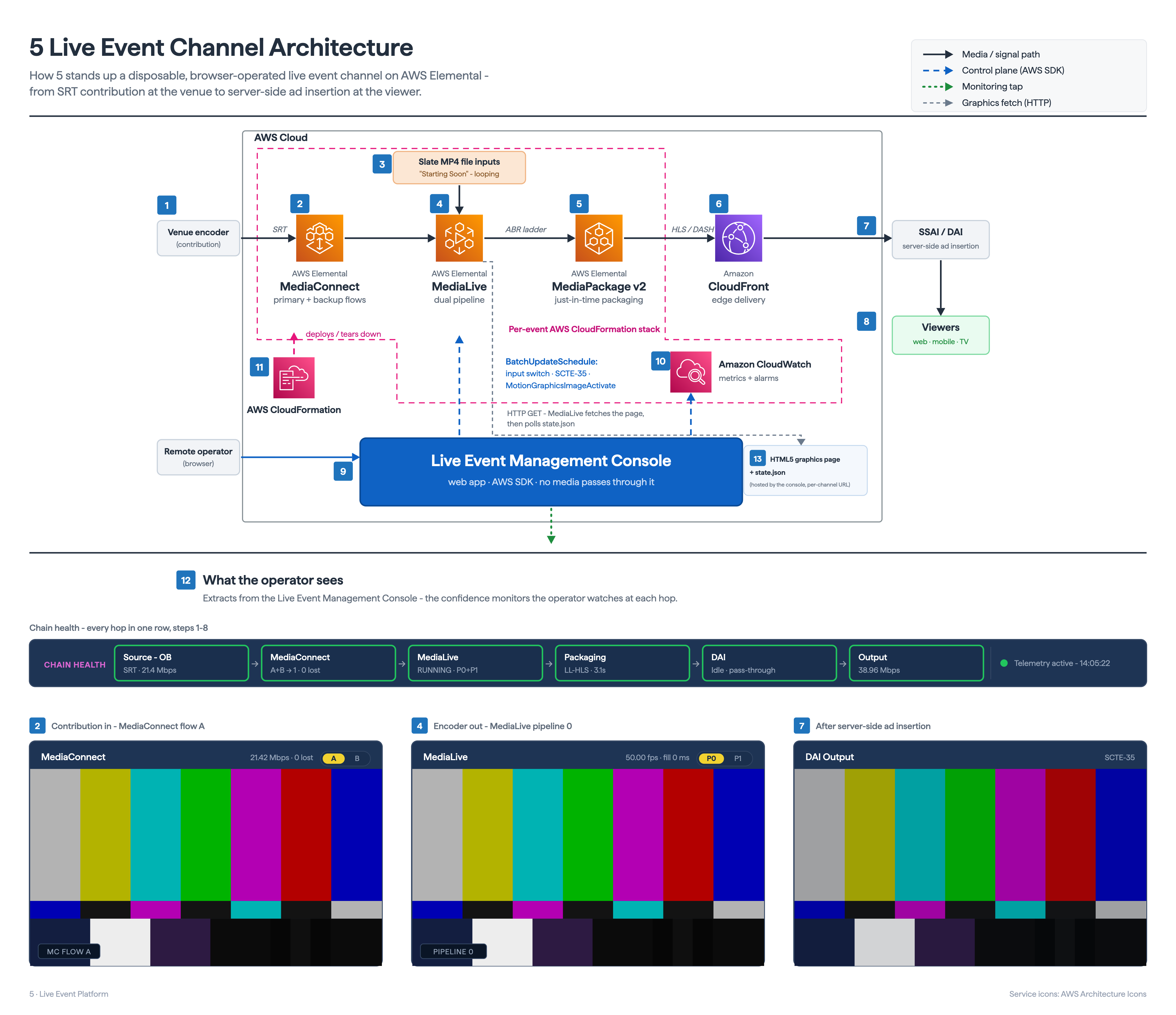
Figure 1: 5’s platform architecture
The core insight behind the console is that the MediaLive schedule is a control surface. Input switching, input prepare, SCTE-35 insertion, and motion graphics are all BatchUpdateSchedule actions, so a small application wrapping an API can reproduce most of what an event operator does at a panel.
Eyes on every hop
The hardest part of remote operation is fault localization: a black output indicates something is wrong, but doesn’t show where. The console gives the operator a visual at each hop, in signal order:
- Source – A low-latency browser preview of the SRT contribution feed, showing what is arriving from the venue before the encoder touches it.
- MediaConnect – A still-image thumbnail of the flow source, retrieved with DescribeFlowSourceThumbnail—a cheap, always-available check on the upstream feed that needs no video session.
- MediaLive – Per-pipeline encoder thumbnails using DescribeThumbnails, returned inline as base64 and rendered directly. Because the channel runs two pipelines, the operator sees both side by side, and a divergence between pipeline 0 and 1 is often the first sign of a single-pipeline problem that hasn’t yet surfaced as an alert.
- MediaPackage output – An HLS player on the packaged output, with audio level meters and a 15-minute digital video recorder (DVR) window so an incident can be reviewed without leaving the console or interrupting the live output.
- Dynamic Ad Insertion (DAI) output – A second player on the ad-inserted output. During programming, the two players look identical; during a break, the second one shows what an ad-supported viewer is receiving.
Together, these insights turn “the picture is wrong” into “the picture is wrong at this hop,” which streamlines troubleshooting and enables efficient diagnosis of emergent issues.
A small set of CloudWatch metrics sits in the operational dashboard: ActiveAlerts, InputVideoFrameRate, NetworkIn and NetworkOut, and FillMsec per MediaLive pipeline, plus SourceBitRate and SourceNotRecoveredPackets per MediaConnect flow. The MediaConnect metrics are particularly useful because they surface contribution network problems before they’re visible in the picture. Results are fetched with GetMetricData and cached server-side, so several open browsers don’t multiply CloudWatch calls.
One integration detail worth noting is that the CloudWatch pipeline dimension value isn’t always the literal string an integration might assume, so the console calls ListMetrics filtered on the channel to discover the values actually in use—eliminating a whole class of support calls indicating that the metrics panel is empty but the channel is fine.
Input switching for slates and sources
Reliable input management, cutting between live feeds and slates on demand, was a definite requirement for 5. MediaLive exposes this as a schedule action through input switching API in immediate-mode, keeping it consistent with every other control operation in the pipeline:
await client.send(new BatchUpdateScheduleCommand({
  ChannelId: channelId,
  Creates: { ScheduleActions: [{
    ActionName: `switch-input-${Date.now()}`,
    ScheduleActionStartSettings: { ImmediateModeScheduleActionStartSettings: {} },
    ScheduleActionSettings: {
      InputSwitchSettings: { InputAttachmentNameReference: inputAttachmentName },
    },
  }]},
}));
In the UI, each input is a numbered button with a live badge (ON AIR, SWITCHING, CUED, or PREPARING) derived from the channel’s ActiveInputAttachmentName and schedule. The following screenshot shows 5’s operator console.
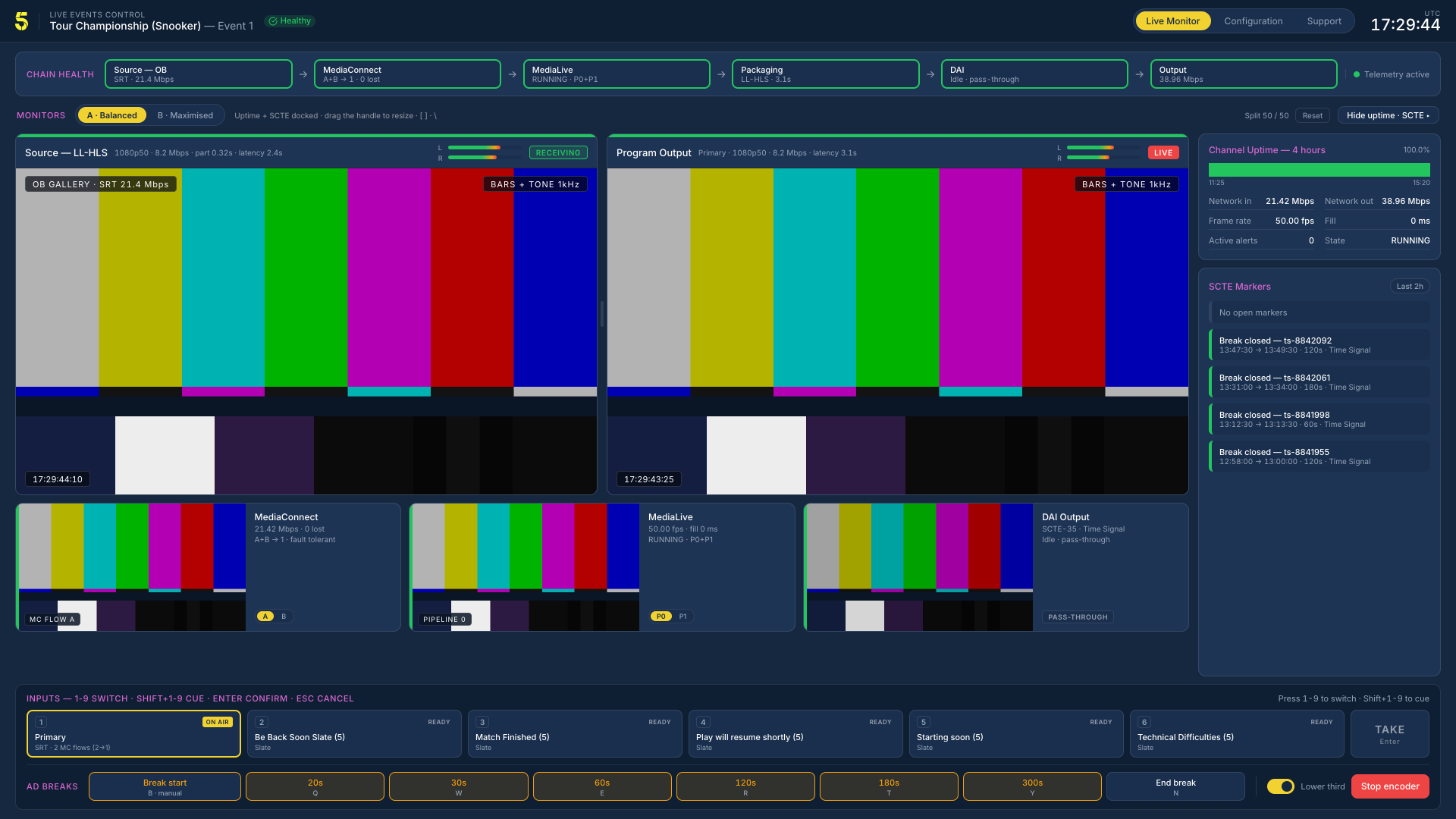
Figure 2: UI of 5’s operator console
The MediaLive InputPrepareSettings powers the cue. Shift+2 pre-warms the slate, and 2 takes it almost immediately (within a frame or two). This is a hardware-panel habit (cue, then take) expressed through an API, and operators use it around every planned transition.
SCTE-35 insertion for ad breaks
5 leveraged MediaLive SCTE35 APIs to do SCTE-35 insertion for ad breaks. Events are marked up for ad insertion manually by the operator watching play. A single button—Break 30s—schedules two ad markers as SCTE-35 time-signal actions in one batch: an immediate break start (SegmentationTypeId 0x22) carrying the duration in 90 kHz ticks and a fixed-mode break end (0x23) timed to land 30 seconds later with the same segmentation event ID. Manual start and end buttons cover breaks of unknown length.
Creates: { ScheduleActions: [
  { // break start - immediate
    ActionName: startName,
    ScheduleActionStartSettings: { ImmediateModeScheduleActionStartSettings: {} },
    ScheduleActionSettings: { Scte35TimeSignalSettings: { Scte35Descriptors: [{
      Scte35DescriptorSettings: { SegmentationDescriptorScte35DescriptorSettings: {
        SegmentationEventId: eventId,
        SegmentationTypeId: 0x22,               // Break Start
        SegmentationDuration: seconds * 90000,  // 90 kHz ticks
        SegmentationDurationFlag: 'SEGMENTATION_DURATION_FLAG_TRUE',
        SegmentationCancelIndicator: 'SEGMENTATION_EVENT_NOT_CANCELED',
      }},
    }]}},
  },
  { // break end - fixed time, same segmentation event ID
    ActionName: endName,
    ScheduleActionStartSettings: { FixedModeScheduleActionStartSettings: { Time: endTimeIso } },
    ScheduleActionSettings: { /* SegmentationTypeId: 0x23 (Break End) */ },
  },
]}
What makes this trustworthy is the feedback loop. The console parses EXT-X-DATERANGE tags from the MediaPackage output it’s already playing and renders a rolling SCTE marker log: event ID, time observed, start and end types, planned duration, and raw SCTE35-OUT and SCTE35-IN payloads. An operator can trigger a break, watch the marker appear on the packaged output, and watch the ad appear on the DAI preview: three independent confirmations of one event, all in the console.
HTML5 motion graphics overlays
As is normal for events of this kind, coverage arrives on an international feed—a single production shared across the broadcasters carrying the event, with the host’s own scoreboards and graphics. A shared feed can’t carry any one broadcaster’s presentation, so 5 adds its own brand and messaging on top telling viewers an interval is scheduled, and coverage is on its way back. For snooker, that takes the form of a lower third that fades in and out over the picture.
The MediaLive motion graphics overlay is how 5 does that: 5’s own graphics composite on top of whatever arrives, and where a clean feed is provided, the same mechanism decorates it from scratch. Through an event, the overlay is shown, hidden, and repositioned as the coverage demands, keeping 5’s branding consistent, staying clear of the host’s own on-screen elements, and putting messaging up at the right moments. Conventionally, this means a dedicated graphics system and someone to operate it. 5 wanted it in the hands of the same operator already running the event from the web console.
The Enable schedule action using MediaLive API triggers a MotionGraphicsImageActivateSettings pointing at a per-channel URL hosted by the console’s own backend:
// Enable: MediaLive fetches and composites the console-hosted page
ScheduleActionSettings: {
  MotionGraphicsImageActivateSettings: {
    Url: `${consoleOrigin}/graphics/lowerthird/${channelId}/index.html`,
  },
}

// Disable: stop compositing at the end of the graphics session
ScheduleActionSettings: { MotionGraphicsImageDeactivateSettings: {} }
MediaLive fetches the 1920×1080 transparent HTML page from that URL and begins compositing it over the video. The page then polls a sibling state.json endpoint, so fade in and fade out for the lower-third graphic are nothing more than state changes in the console’s database—picked up by the page and animated as a CSS transition, in subseconds, with no further MediaLive API calls. The expensive operation (loading the overlay) happens one time; the cheap one (showing, hiding, and repositioning the lower third many times per event) happens in subseconds. And because the graphic is a live page, its text and styling can change mid-event without re-enabling anything. The following diagram shows this flow.
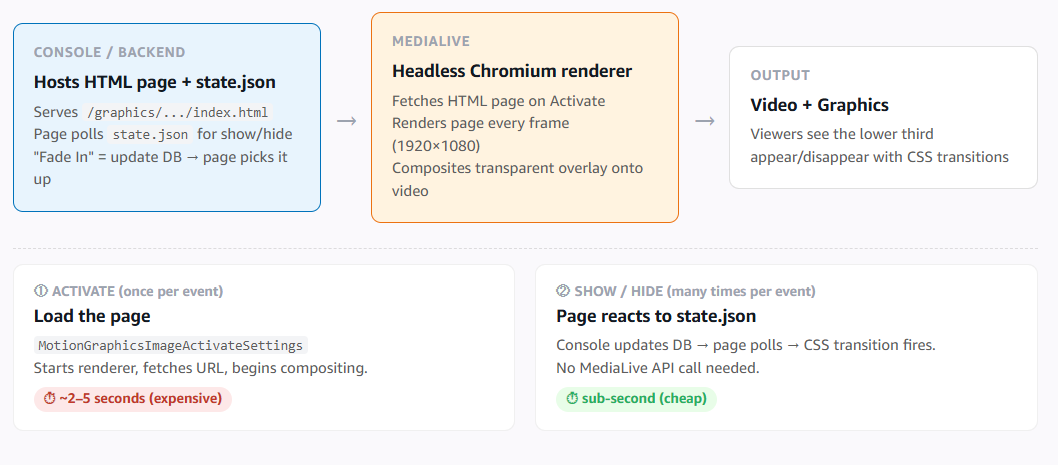
Figure 3: MediaLive HTML5 motion graphics overlay—How it works
The same mechanism gives 5 a route to richer in-picture information later—signposting or live score updates driven from a data feed—with no change to the pipeline and no investment in a dedicated graphics system.
Results
5 has delivered three pop-up events with this model, all streaming-exclusive “Table 2” feeds running alongside linear snooker coverage: the Players Championship in February 2026 (5’s first temporary event channel), the Tour Championship in March, and the World Seniors Championship from the Crucible in May. Each ran two sessions per day, with the operator working a full running order from the console consisting of slates around sessions, the “play will resume shortly” message shown in the lower third over mid-session intervals, and SCTE-35 breaks at planned points.
The same CloudFormation stack was redeployed for each event, and the progression tells the story. The first event proved the channel with no advertising. The second added DAI monetization, with the operator judging short break opportunities live, such as 30–60 seconds while balls are racked and 1–3 minutes for a player comfort break. By the third event, the process was routine. The operators sat in 5’s Master Control Room (MCR), but nothing required it—the console is a browser tab, and the events could have been run from anywhere.
“Everything an operator used to need a gallery for—cutting to a slate, marking an ad break, putting a graphic on screen—now happens through the MediaLive APIs. That’s what let us standardize our live event capabilities into a single virtualized pipeline in the cloud. There’s no hardware panel and no dedicated facility—just an operator, a browser, and an event.” – Matt Le Masurier, 5 Streaming Technology
Key takeaways
Building and running the console surfaced several lessons that apply to any team operating live events on MediaLive:
- The MediaLive schedule is a control surface – Input switch, input prepare, SCTE-35 time signals, and motion graphics are all BatchUpdateSchedule actions, so a small application wrapping one API can reproduce most of what an event operator does at a panel.
- Prepare inputs before you need them – InputPrepareSettings is the difference between a switch that looks like a broadcast cut and one that looks like a stream buffering. Expose it as a cue button and operators will use it without being asked.
- Give the operator a visual at every hop – Thumbnails from MediaConnect and MediaLive plus players on the packaged and ad-inserted outputs cost little to implement and turn fault-finding from guesswork into a bisection.
- Close the loop on ad signaling – Inserting a SCTE-35 marker is straightforward; proving that it reached the output and produced an ad is what the operator needs. Parsing EXT-X-DATERANGE from the output the console is already playing provides that for free.
- Serve motion graphics, don’t ship them – Pointing MediaLive HTML5 overlay at a live application endpoint separates the expensive load from the cheap transition and makes graphics dynamic without further API calls.
- Deploy the channel with the event – CloudFormation makes a pop-up channel disposable: the inputs, slates, packaging, and alarms arrive together and leave together.
Next steps
5’s pipeline is live and proven, but the same architecture opens the door to capabilities that weren’t available—or weren’t priorities—when the first event shipped.
AWS Elemental is continuing to develop new capabilities, and now that 5 is onboarded, they can start to use them easily.
For example, pop-up events typically don’t carry embedded subtitles from the venue. 5 is currently evaluating the automated captions functionality with MediaLive Smart Subtitles powered by AWS Elemental Inference as a proof of concept for an upcoming event. If it proves out, it will bring auto-generated captions to temporary channels with minimal operational overhead, enabled per-channel alongside the same template that defines the event.
Conclusion
In this post, we showed how a complete event control surface can be assembled from the public MediaLive, MediaConnect, and CloudWatch APIs and handed to an operator in a browser. Define the channel and its slates as infrastructure, expose the schedule API as the control surface, and give the operator a picture at every hop—and a pop-up event becomes something one person can run from anywhere.
The APIs are public. The pattern is proven. If you’re ready to turn surplus rights into surplus channels with the AWS Elemental advancing ecosystem—one operator, one browser, zero idle cost—talk to AWS Media & Entertainment.
- AWS Elemental MediaLive User Guide — Working with schedules – The full reference for BatchUpdateSchedule actions including input switching, SCTE-35 insertion, and motion graphics activation
- AWS Elemental MediaConnect User Guide – Contribution transport with SRT, including flow thumbnails
- AWS CloudFormation User Guide — AWS::MediaLive resources – For defining disposable event channels as infrastructure