AWS Big Data Blog
Top 10 best practices for Amazon EMR Serverless
Amazon EMR Serverless is a deployment option for Amazon EMR that you can use to run open source big data analytics frameworks such as Apache Spark and Apache Hive without having to configure, manage, or scale clusters and servers. EMR Serverless integrates with Amazon Web Services (AWS) services across data storage, streaming, orchestration, monitoring, and governance to provide a comprehensive serverless analytics solution.
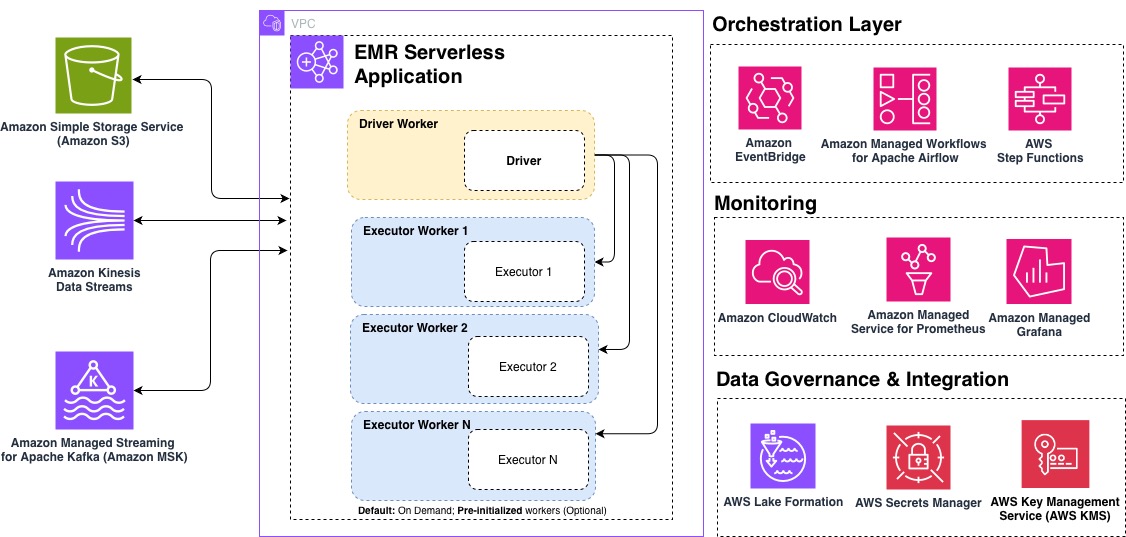
In this post, we share the top 10 best practices for optimizing your EMR Serverless workloads for performance, cost, and scalability. Whether you’re getting started with EMR Serverless or looking to fine-tune existing production workloads, these recommendations will help you build efficient, cost-effective data processing pipelines. The following diagram illustrates an end-to-end EMR Serverless architecture, showing how it integrates into your analytics pipelines.
1. Define applications one time, reuse multiple times
EMR Serverless applications function as cluster templates that instantiate when jobs are submitted and can process multiple jobs without being recreated. This design significantly reduces startup latency for recurring workloads and simplifies operational management.
Typical workflow for EMR on EC2 transient cluster:

Typical workflow for EMR Serverless:

Applications feature a self-managing lifecycle that provisions resources to be available when needed without manual intervention. They automatically provision capacity when a job is submitted. For applications without pre-initialized capacity, resources are released immediately after job completion. For applications with pre-initialized capacity configured, those pre-initialized workers will stop after exceeding the configured idle timeout (15 minutes by default). You can adjust this timeout at the application level using AutoStopConfig configuration in the CreateApplication or UpdateApplication API. For example, if your jobs run every 30 minutes, increasing the idle timeout can eliminate startup delays between executions.
Most workloads are suited for on-demand capacity provisioning, which automatically scales resources based on your job requirements without incurring charges when idle. This approach is cost-effective and suitable for typical use cases including extract, transform, and load (ETL) workloads, batch processing jobs, and scenarios requiring maximum job resiliency.
For specific workloads with strict instant-start requirements, you can optionally configure pre-initialized capacity. Pre-initialized capacity creates a warm pool of drivers and executors that are ready to run jobs within seconds. However, this performance advantage comes with a tradeoff of added cost because pre-initialized workers incur continuous charges even when idle until the application reaches the Stopped state. Additionally, pre-initialized capacity restricts jobs to a single Availability Zone, which reduces resiliency.
Pre-initialized capacity should only be considered for:
- Time-sensitive jobs with sub second service level agreement (SLA) requirements where startup latency is unacceptable
- Interactive analytics where user experience depends on instant response
- High-frequency production pipelines running every few minutes
In most other cases, on-demand capacity provides the best balance of cost, performance, and resiliency.
Beyond optimizing your applications’ use of resources, consider how you organize them across your workloads. For production workloads, use separate applications for different business domains or data sensitivity levels. This isolation improves governance and prevents resource contention between critical and noncritical jobs.
2. Choose AWS Graviton Processors for better price performance
Selecting the right underlying processor architecture can significantly impact both performance and cost. Graviton ARM-based processors offer significant performance improvement compared to x86_64.
EMR Serverless automatically updates to the latest instance generations as they become available, which means your applications benefit from the newest hardware improvements without requiring additional configuration.
To use Graviton with EMR Serverless, specify ARM64 with the architecture parameter during application creation using the CreateApplication or with the UpdateApplication API for existing applications:
Considerations when using Graviton:
- Resource availability – For large-scale workloads, consider engaging with your AWS account team to discuss capacity planning for Graviton workers.
- Compatibility – Although many commonly used and standard libraries are compatible with Graviton (arm64) architecture, you will need to validate that third-party packages and libraries used are compatible.
- Migration planning – Take a strategic approach to Graviton adoption. Build new applications on ARM64 architecture by default and migrate existing workloads through a phased transition plan that minimizes disruption. This structured approach will help optimize cost and performance without compromising reliability.
- Perform benchmarks – It’s important to note that exact price performance will vary by workload. We recommend performing your own benchmarks to gauge specific results for your workload. For more details, refer to Achieve up to 27% better price-performance for Spark workloads with AWS Graviton2 on Amazon EMR Serverless.
3. Use defaults, right-size workers if needed
Workers are used to execute the tasks for your workload. While EMR Serverless defaults are optimized out of the box for a majority of use cases, you may need to right-size your workers to improve processing time and optimize cost efficiency. When submitting EMR Serverless jobs, it’s recommended to define Spark properties to configure workers, including memory size (in GB) and number of cores.
EMR Serverless configures the default worker size of 4 vCPUs, 16 GB memory, and 20 GB disk. Although this generally provides a balanced configuration for most jobs, you might want to adjust the size based on your performance requirements. Even when configuring pre-initialized workers with specific sizing, always set your Spark properties at job submission. This allows your job to use the specified worker sizing rather than default properties when it scales beyond pre-initialized capacity. When right-sizing your Spark workload, it’s important to identify the vCPU:memory ratio for your job. This ratio determines how much memory you allocate per virtual CPU core in your executors. Spark executors need both CPU and memory to process data effectively, and the optimal ratio varies based on your workload characteristics.
To get started, use the following guidance, then refine your configuration based on your specific workload requirements.
Executor configuration
The following table provides recommended executor configurations based on common workload patterns:
| Workload type | Ratio | CPU | Memory | Configuration |
|---|---|---|---|---|
| Compute intensive | 1:2 | 16 vCPU | 32 GB | spark.emr-serverless.executor.cores=16spark.emr-serverless.executor.memory=32G |
| General purpose | 1:4 | 16 vCPU | 64 GB | spark.emr-serverless.executor.cores=16spark.emr-serverless.executor.memory=64G |
| Memory intensive | 1:8 | 16 vCPU | 108 GB | spark.emr-serverless.executor.cores=16spark.emr-serverless.executor.memory=108G |
Driver configuration
The following table provides recommended driver configurations based on common workload patterns:
| Workload type | Ratio | CPU | Memory | Configuration |
|---|---|---|---|---|
| General purpose | 1:4 | 4 vCPU | 16 GB | spark.emr-serverless.driver.cores=4spark.emr-serverless.driver.memory=16G |
| Apache Iceberg workloads | 1:8(Large driver for metadata lookups) | 8 vCPU | 60 GB | spark.emr-serverless.driver.cores=8spark.emr-serverless.driver.memory=60G |
To further monitor and tune your configuration, monitor your workload’s resource consumption using Amazon CloudWatch job worker-level metrics to identify constraints. Track CPU utilization, memory usage, and disk utilization metrics, then use the following table to fine-tune your configuration based on observed bottlenecks.
| Metrics observed | Workload type | Suggested action | |
| 1 | High memory (>90%), Low CPU (<50%) | Memory-bound workload | Increase vCPU:memory ratio |
| 2 | High CPU (>85%), low memory (<60%) | CPU-bound workload | Increase vCPU count, maintain 1:4 ratio (For example, if using 8 vCPU, use 32 GB memory) |
| 3 | High storage I/O, normal CPU or memory with long shuffle operations | Shuffle-intensive | Enable serverless storage or shuffle-optimized disks |
| 4 | Low utilization across metrics | Over-provisioned | Reduce worker size or count |
| 5 | Consistent high utilization (>90%) | Under-provisioned | Scale up worker specifications |
| 6 | Frequent GC pauses** | Memory pressure | Increase memory overhead (10 –15%) |
**You can identify frequent garbage collect (GC) pauses using the Spark UI under the Executors tab. There will be a GC time column that should generally be less than 10% of task time. Alternatively, the driver logs might frequently contain GC (Allocation Failure)] messages.
4. Control scaling boundary with T-shirt sizing
By default, EMR Serverless uses dynamic resource allocation (DRA), which automatically scales resources based on workload demand. EMR Serverless continuously evaluates metrics from the job to optimize for cost and speed, removing the need for you to estimate the exact number of workers required.
For cost optimization and predictable performance, you can configure an upper scaling boundary using one of the following approaches:
- Setting the spark.dynamicAllocation.maxExecutors parameter at the job level
- Setting the application-level maximum capacity
Rather than trying to fine-tune spark.dynamicAllocation.maxExecutors to an arbitrary value for each job, you can think about setting this configuration as t-shirt sizes that represent different workload profiles:
| Workload size | Use cases | spark.dynamicAllocation.maxExecutors |
|---|---|---|
| Small | Exploratory queries, development | 50 |
| Medium | Regular ETL jobs, reports | 200 |
| Large | Complex transformations, large-scale processing | 500 |
This t-shirt sizing approach simplifies capacity planning and helps you balance performance with cost efficiency based on your workload category, rather than attempting to optimize each individual job.
For EMR Serverless releases 6.10 and above, the default value for spark.dynamicAllocation.maxExecutors is infinity, but for earlier releases, it’s 100.
EMR Serverless automatically scales workers up or down based on the workload and parallelism required at every stage of the job. This automatic scaling is continuously evaluating metrics from the job to optimize for cost and speed, which removes the need for you to estimate the number of workers that the application needs to run your workloads.
However, in some cases, if you have a predictable workload, you might want to statically set the number of executors. To do so, you can disable DRA and specify the number of executors manually:
5. Provision appropriate storage for EMR Serverless jobs
Understanding your storage options and sizing them appropriately can prevent job failures and optimize execution times. EMR Serverless offers multiple storage options to handle intermediate data during job execution. The storage option selected will depend on the EMR release and use case. The storage options available in EMR Serverless are:
| Storage type | EMR release | Disk size range | Use case | Benefits |
|---|---|---|---|---|
| Serverless Storage (recommended) | 7.12+ | N/A (auto-scaling) | Most Spark workloads, especially data-intensive workloads |
|
| Standard Disks | 7.11 and lower | 20–200 GB per worker | Small to medium workloads processing datasets under 10 TB |
|
| Shuffle-Optimized Disks | 7.1.0+ | 20–2,000 GB per worker | Large-scale ETL workloads processing multi-TB |
|
By matching your storage configuration to your workload characteristics, you’ll enable EMR Serverless jobs to run efficiently and reliably at scale.
6. Multi-AZ out-of-the-box with built-in resiliency
EMR Serverless applications are multi-AZ from the start when pre-initialized capacity isn’t enabled. This built-in failover capability provides resilience against Availability Zone disruptions without manual intervention. A single job will operate within a single Availability Zone to prevent cross-AZ data transfer costs and subsequent jobs will be intelligently distributed across multiple AZs. If EMR Serverless determines that an AZ is impaired, it will submit new jobs to a healthy AZ, enabling your workloads to continue running despite AZ impairment.
To fully benefit from EMR Serverless multi-AZ functionality verify the following:
- Configure a network connection to your VPC with multiple subnets across Availability Zones selected
- Avoid pre-initialized capacity which restricts applications to a single AZ
- Make sure there are sufficient IP addresses available in each subnet to support the scaling of workers
In addition to multi-AZ, with Amazon EMR 7.1 and higher, you can enable job resiliency, which allows your jobs to be automatically retried in case errors are encountered. If there are multiple Availability Zones configured, it will also be retried in a different AZ. You can enable this feature for both batch and streaming jobs, though retry behavior differs between the two.
Configure job resiliency by specifying a retry policy that defines the maximum number of retry attempts. For batch jobs, the default is no automatic retries (maxAttempts=1). For streaming jobs, EMR Serverless retries indefinitely with built-in thrash prevention that stops retries after five failed attempts within 1 hour. You can configure this threshold between 1–10 attempts. For more information, refer to Job resiliency.
In the event that you need to cancel your job, you can specify a grace period to allow your jobs to shut down cleanly rather than the default behavior of immediate termination. This can also include custom shutdown hooks if you need to perform custom cleanup actions.
By combining multi-AZ support, automatic job retries, and graceful shutdown periods, you create a robust foundation for EMR Serverless workloads that can tolerate interruptions and maintain data integrity without manual intervention.
7. Secure and extend connectivity with VPC integration
By default, EMR Serverless can access AWS services such as Amazon Simple Storage Service (Amazon S3), AWS Glue, Amazon CloudWatch Logs, AWS Key Management Service (AWS KMS), AWS Security Token Service (AWS STS), Amazon DynamoDB, and AWS Secrets Manager. If you want to connect to data stores within your VPC, such as Amazon Redshift or Amazon Relational Database Service (Amazon RDS), you must configure VPC access for the EMR Serverless application.
When configuring VPC access for your EMR Serverless application, keep these key considerations in mind to gain optimal performance and cost efficiency:
- Plan for sufficient IP addresses – Each worker uses one IP address within a subnet. This includes the workers that will be launched when your job is scaling out. If there aren’t enough IP addresses, your job might not be able to scale, which could result in job failure. Verify you have adhered to best practices for subnet planning for optimal performance.
- Set up Gateway endpoints for Amazon S3 for applications in a private subnets – Running EMR Serverless in a private subnet without VPC endpoints for Amazon S3 will route your Amazon S3 traffic through NAT gateways, resulting in additional data transfer charges. VPC endpoints for S3 will keep this traffic within your VPC, reducing costs and improving performance for Amazon S3 operations.
- Manage AWS Config costs for network interfaces – EMR Serverless generates an elastic network interface record in AWS Config for each worker, which can accumulate costs as your workloads scale. If you don’t require AWS Config tracking for EMR Serverless network interfaces, consider using resource-based exclusions or tagging strategies to filter them out while maintaining AWS Config coverage for other resources.
For more details, refer Configuring VPC access for EMR Serverless applications.
8. Simplify job submission and dependency management
EMR Serverless supports flexible job submission through the StartJobRun API, which accepts the full spark-submit syntax. For runtime environment configuration, use the spark.emr-serverless.driverEnv and spark.executorEnv prefixes to set environment variables for driver and executor processes. This is particularly useful for passing sensitive configuration or runtime-specific settings.
For Python applications, package dependencies using virtual environments by creating a venv, packaging it as a tar.gz archive, or uploading to Amazon S3 using spark.archives with the appropriate PYSPARK_PYTHON environment variable. This allows Python dependencies to be available across driver and executor workers.
For improved control under high load, enable job concurrency and queuing (available in EMR 7.0.0+) to limit the number of jobs that can be executed concurrently. With this feature, jobs submitted that exceed the concurrency limit are queued until resources become available.
You can configure Job concurrency and queue settings using the SchedulerConfiguration property using the CreateApplication or UpdateApplication API.
--scheduler-configuration '{"maxConcurrentRuns": 5, "queueTimeoutMinutes": 30}'
9. Use EMR Serverless configurations to enforce limits
EMR Serverless automatically scales resources based on workload demand, providing optimized defaults that work well for most use cases without requiring Spark configuration tuning. To manage costs effectively, you can configure resource limits that align with your budget and performance requirements. For advanced use cases, EMR Serverless also provides configuration options so you can fine-tune resource consumption and achieve the same efficiency as cluster-based deployments. Understanding these limits helps you balance performance with cost efficiency for your jobs.
| Limit type | Purpose | How to configure |
|---|---|---|
| Job-level | Control resources for individual jobs | spark.dynamicAllocation.maxExecutors or spark.executor.instances |
| Application-level | Limit resources per application or business domain | Set maximum capacity when creating the application or while updating. |
| Account-level | Prevent abnormal resource spikes across all applications | Auto-adjustable service quota Max concurrent vCPUs per account; request increases via Service Quotas console |
These three layers of limits work together to provide flexible resource management at different scopes. For most use cases, configuring job-level limits using the t-shirt sizing approach is sufficient, while application and account-level limits provide additional guardrails for cost control.
10. Monitor with CloudWatch, Prometheus, and Grafana
Monitoring EMR Serverless workloads simplifies the process of debugging, performing cost optimization, and performance tracking. EMR Serverless offers three tiers of monitoring that work together: Amazon CloudWatch, Amazon Managed Service for Prometheus, and Amazon Managed Grafana.
- Amazon CloudWatch – CloudWatch integration is enabled by default and publishes metrics to the AWS/EMRServerless namespace. EMR Serverless sends metrics to CloudWatch every minute at the application level, as well as job, worker-type, and capacity-allocation-type levels. Using CloudWatch, you can configure dashboards for enhanced observability into workloads or configure alarms to alert for job failures, scaling anomalies, and SLA breaches. Using CloudWatch with EMR Serverless provides insights to your workloads so you can catch issues before they impact users.
- Amazon Managed Service for Prometheus – With EMR Serverless release 7.1+, you can enable Prometheus for detailed Spark engine metrics to push metrics to Amazon Managed Service for Prometheus. This unlocks executor-level visibility, including memory usage, shuffle volumes, and GC pressure. You can use this to identify memory-constrained executors, detect shuffle-heavy stages, and find data skew.
- Amazon Managed Grafana – Grafana connects to both CloudWatch and Prometheus data sources, providing a single pane of glass for unified observability and correlation analysis. This layered approach helps you correlate infrastructure issues with application-level performance problems.
Key metrics to track:
- Job completion times and success rates
- Worker utilization and scaling events
- Shuffle read/write volumes
- Memory usage patterns
For more details, refer to Monitor Amazon EMR Serverless workers in near real time using Amazon CloudWatch.
Conclusion
In this post, we shared 10 best practices to help you maximize the value of Amazon EMR Serverless by optimizing performance, controlling costs, and maintaining reliable operations at scale. By focusing on application design, right-sized workloads, and architectural choices, you can build data processing pipelines that are both efficient and resilient.
To learn more, refer to the Getting started with EMR Serverless guide.