Artificial Intelligence
Build specialized agent workflows for your business with Amazon Quick and NVIDIA NeMo Agent Toolkit
Fast-growing companies and enterprise supply-chain teams often have enough data to see that something is wrong, but not enough time to manually investigate every disruption. A supplier delay can require a planner to check purchase orders, inventory, customer commitments, contract rules, logistics options, and approval policies before deciding what to do next.
Dashboards help teams see what’s happening. The harder part is turning that signal into a reliable decision workflow that recommends what to do next and shows the evidence behind the recommendation.
In this post, we show how Amazon Quick can serve as the business-user front door for specialized agent workflows. We use the NVIDIA NeMo Agent Toolkit to build a supply-chain risk example that helps a planner move from an Amazon Quick dashboard and knowledge context to a guided mitigation recommendation.
Solution overview
To address this challenge, we combine Amazon Quick and NVIDIA NeMo Agent Toolkit. Amazon Quick gives business users a single conversational workspace for structured data and unstructured enterprise knowledge. Knowledge sources can include Amazon Simple Storage Service (Amazon S3), Google Drive, Microsoft SharePoint, Atlassian Confluence, and internal web content. In that workspace, users can connect to over 100 pre-built action connectors to perform actions in third-party systems such as Microsoft Outlook, Slack, Jira, and Asana. They can also invoke agentic workflows exposed through Model Context Protocol (MCP). NVIDIA NeMo Agent Toolkit is an open source, framework-agnostic library for connecting, evaluating, profiling, and optimizing agentic workflows. It works alongside popular frameworks such as LangChain, LlamaIndex, CrewAI, Microsoft Semantic Kernel, Google ADK, and custom Python agents.
In this solution, supply-chain analysts use an Amazon Quick chat agent to diagnose issues through an Amazon Quick Sight NeMo Agent Toolkit workflow. The workflow investigates the disruption, calls supply-chain tools, validates the recommendation, and returns a ranked mitigation plan to the planner.
If you’re a supply-chain operations leader, analyst, or builder, you can use this post to learn how to move from dashboard context to a mitigation plan in Amazon Quick. If you’re an engineering leader or developer, you can see how to build the backend agentic workflow with NVIDIA NeMo Agent Toolkit while Amazon Quick serves as the front door for business users. If you’re part of a startup, you can also use this approach to scale operations without adding large planning teams. As order volume, suppliers, and customer commitments grow, the same architecture can help your team make faster and more repeatable supply-chain decisions.
You can also use NVIDIA NeMo Agent Toolkit to inspect and evaluate agentic workflows with telemetry, per-step latency, and evaluation results. These signals help you tune the workflow, its tools, and its orchestration logic. This observability becomes more important as teams move from simple chat assistants to agentic workflows.
Architecture overview
In this architecture, Amazon Quick provides the business-user interface, dashboard context, knowledge access, and action trigger. Amazon Bedrock AgentCore provides the MCP gateway and runtime hosting path. NeMo Agent Toolkit owns the backend agentic workflow: registering tools, orchestrating the supply-chain investigation, capturing execution traces, and supporting evaluation and profiling so developers can improve the workflow before production.
Figure 1 illustrates how Amazon Quick, AgentCore Gateway, AgentCore Runtime, and NeMo Agent Toolkit work together.
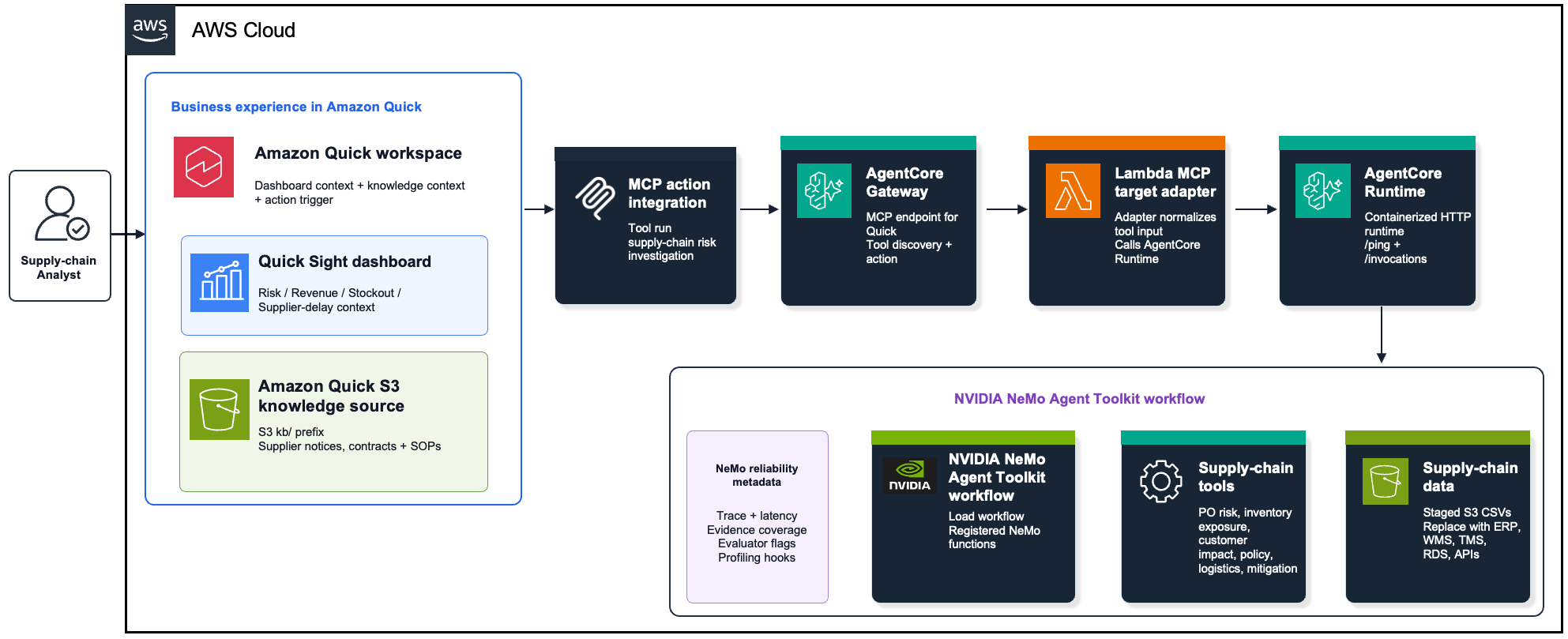
Figure 1 — Solution architecture. Amazon Quick provides the dashboard, knowledge context, and action trigger. AgentCore Gateway exposes the MCP action, and AgentCore Runtime hosts the NeMo Agent Toolkit workflow container
There are two user patterns in the solution. First, the analyst asks diagnostic questions that Amazon Quick can answer from the dashboard and Amazon S3 knowledge source.
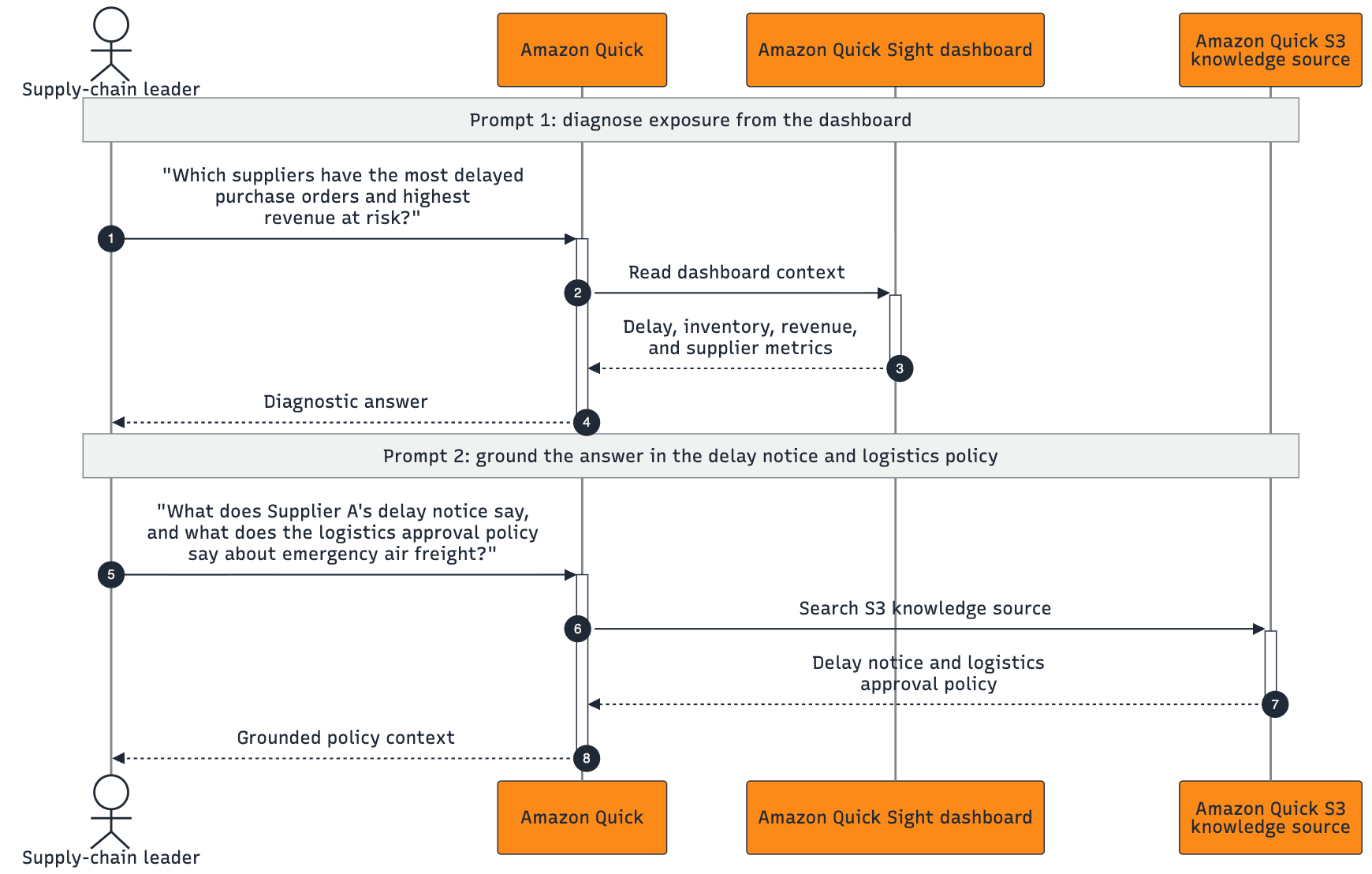
Figure 2 — Diagnostic flow. Amazon Quick uses dashboard and knowledge context to answer “what is happening?” questions before a backend action is triggered
Second, when the analyst asks what to do next, Amazon Quick invokes the NeMo-backed MCP action.
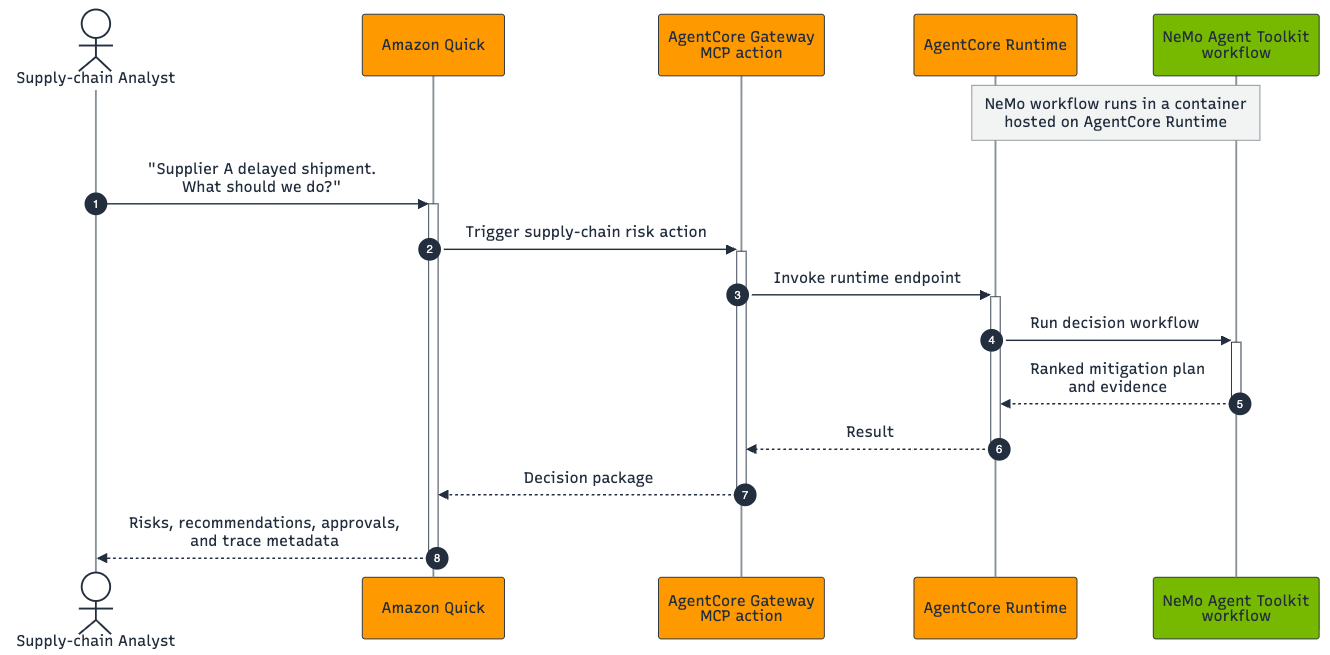
Figure 3 — Action flow. Amazon Quick calls the MCP action, AgentCore invokes the runtime, and NeMo runs the backend decision workflow to return a mitigation plan
For readers new to NeMo Agent Toolkit, the backend workflow has three code layers: registered functions, a workflow configuration file, and an orchestrator. Registered functions are reusable capabilities such as purchase order risk, inventory exposure, customer impact, policy lookup, logistics options, and mitigation recommendation. The workflow configuration names those functions and wires them into one decision workflow. The orchestrator receives the request, calls the functions in sequence, and returns the mitigation plan with evidence, trace, latency, and evaluator metadata.
Step 3 moves into those implementation details and explains what runs inside the NeMo Agent Toolkit workflow container.
Implementation steps
The accompanying repository includes the AWS CloudFormation template, deployment scripts, sample data, the NeMo Agent Toolkit workflow plugin, and Quick setup notes.
Prerequisites
To deploy and test the sample, you need:
- An AWS account with access to Amazon Quick, Amazon Bedrock AgentCore Runtime, and Amazon Bedrock AgentCore Gateway.
- AWS Command Line Interface (AWS CLI) v2.
- Python 3.11+ for optional local NeMo validation. Docker is not required locally because the quickstart uses AWS CodeBuild to build and push the AgentCore Runtime container image.
- AWS Identity and Access Management (IAM) permissions to deploy AWS CloudFormation stacks that create IAM roles, Amazon S3 buckets, Amazon Elastic Container Registry (Amazon ECR) repositories, AWS CodeBuild projects, AWS Lambda functions, and Amazon Bedrock AgentCore resources.
- An Amazon Quick or Amazon Quick Sight user with permissions to create analyses, datasets, knowledge integrations, chat agents, and MCP action integrations.
Step 1: Clone the repository
Clone the repository so the deployment scripts, AWS CloudFormation template, sample data, and NeMo Agent Toolkit workflow code are available locally.
Step 2: Authenticate to AWS
Authenticate with the AWS account where you plan to deploy the sample. These commands configure an IAM Identity Center / SSO profile, start a browser-based sign-in flow, set the active CLI profile, and verify the account identity before the infrastructure is created. For Mac or Linux:
For Windows PowerShell:
The aws sso login command starts authentication in your browser. If you already have an active AWS SSO session, use that browser session to complete authentication. Verify that the returned AWS account is the account where you want to deploy the sample.
Step 3: Deploy the sample solution
Set the AWS Region and stack name before running the deployment script. The Region determines where the sample infrastructure is created, and the stack name keeps the generated resources grouped for later cleanup.
Mac or Linux:
Windows PowerShell:
The deployment script performs the following tasks:
- Deploys the base AWS CloudFormation stack.
- Uploads the sample datasets and knowledge documents to Amazon S3.
- Uses AWS CodeBuild to build and push the NeMo backend container image to Amazon ECR, so Docker isn’t required locally.
- Updates the CloudFormation stack to deploy Amazon Bedrock AgentCore Runtime.
- Creates an Amazon Bedrock AgentCore Gateway MCP Lambda target.
- Writes the manual Amazon Quick setup values to outputs/quick-setup.txt.
The script uses AWS CloudFormation for the AWS infrastructure. See steps 5 through 7 for guidance to set up the Amazon Quick dashboard, knowledge source, chat agent, and MCP action connection.
What runs inside the NeMo Agent Toolkit workflow
The NeMo Agent Toolkit workflow runs inside an Amazon Bedrock AgentCore Runtime container. Amazon Quick invokes the MCP action through Amazon Bedrock AgentCore Gateway. Gateway calls a Lambda target adapter, and the adapter invokes the runtime endpoint. Inside the container, FastAPI receives the /invocations request and loads the NeMo Agent Toolkit workflow. The supply_chain_risk_orchestrator composes the following registered functions into one workflow and returns the ranked mitigation plan with evidence, trace, latency, and evaluator metadata.
po_risk_tool: Finds delayed purchase orders and affected SKUs.inventory_exposure_tool: Calculates days of supply and stockout risk.customer_impact_tool: Maps constrained SKUs to customer orders, revenue, priority, and SLA exposure.contract_policy_tool: Checks contract, sourcing, freight approval, and substitution rules.logistics_options_tool: Finds expedite, transfer, or alternate supplier options.mitigation_recommendation_tool: Ranks mitigation options and returns critic checks.
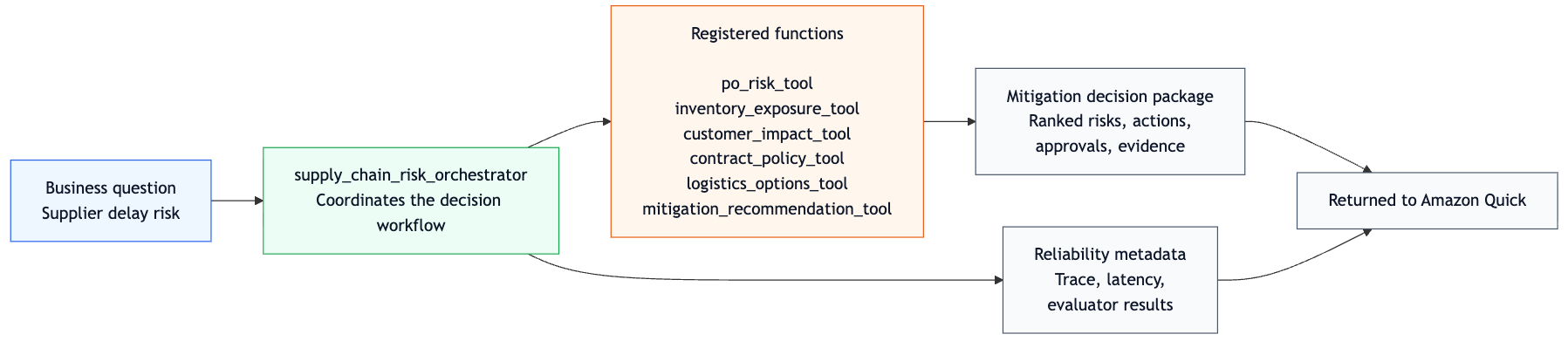
Figure 4 — NeMo Agent Toolkit workflow inside the runtime container. The supply_chain_risk_orchestrator coordinates the registered supply-chain functions and returns both the mitigation decision package and reliability metadata to Amazon Quick
NeMo Agent Toolkit workflow configuration
The backend decision logic is defined as a NeMo Agent Toolkit workflow configuration. The YAML gives each registered function a local name, then the orchestrator resolves the configured functions in its Python registration code. For more detail, see the NeMo Agent Toolkit docs on custom functions.
This makes the workflow explicit and testable: the functions can be instrumented, tested, reused, and included in NeMo Agent Toolkit evaluation and profiling workflows. In production, replace the sample CSV-backed functions with governed data tools such as Amazon Athena queries, RDS queries, ERP APIs, WMS/TMS APIs, or other MCP tools.
Step 4: Review the outputs
Review the generated setup file:
The file includes the Amazon S3 location of the dashboard CSV, the S3 prefix for knowledge documents, the S3 prefix for evaluation data, the AgentCore Gateway MCP endpoint URL, the demo authentication guidance, and the suggested Quick test prompts.
Step 5: Create the Amazon Quick Sight dashboard
Use the flattened CSV dataset that’s already included in the repo:
The deployment also stages the same file in the Amazon S3 bucket created by AWS CloudFormation. You can find that path in outputs/quick-setup.txt as Quick dashboard CSV. To use the deployed copy instead of the local repo file, download it first:
From Amazon Quick, choose Analyses, choose Generate analysis, add data, create a dataset, and upload supply_chain_risk_view.csv. Figure 5 shows the Generate analysis experience with the sample dashboard prompt.
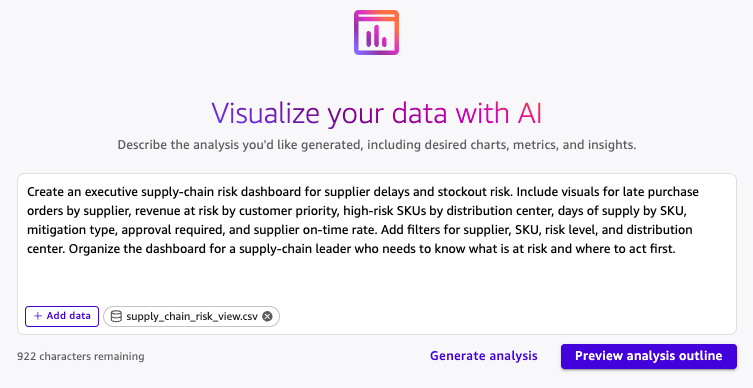
Figure 5 — Generate analysis prompt. The sample prompt asks Amazon Quick to create an executive supply-chain risk dashboard from the uploaded CSV dataset
Use this prompt:
Choose Preview analysis outline, review the outline, and then choose Generate. Figures 6 and 7 show examples of the generated dashboard pages.
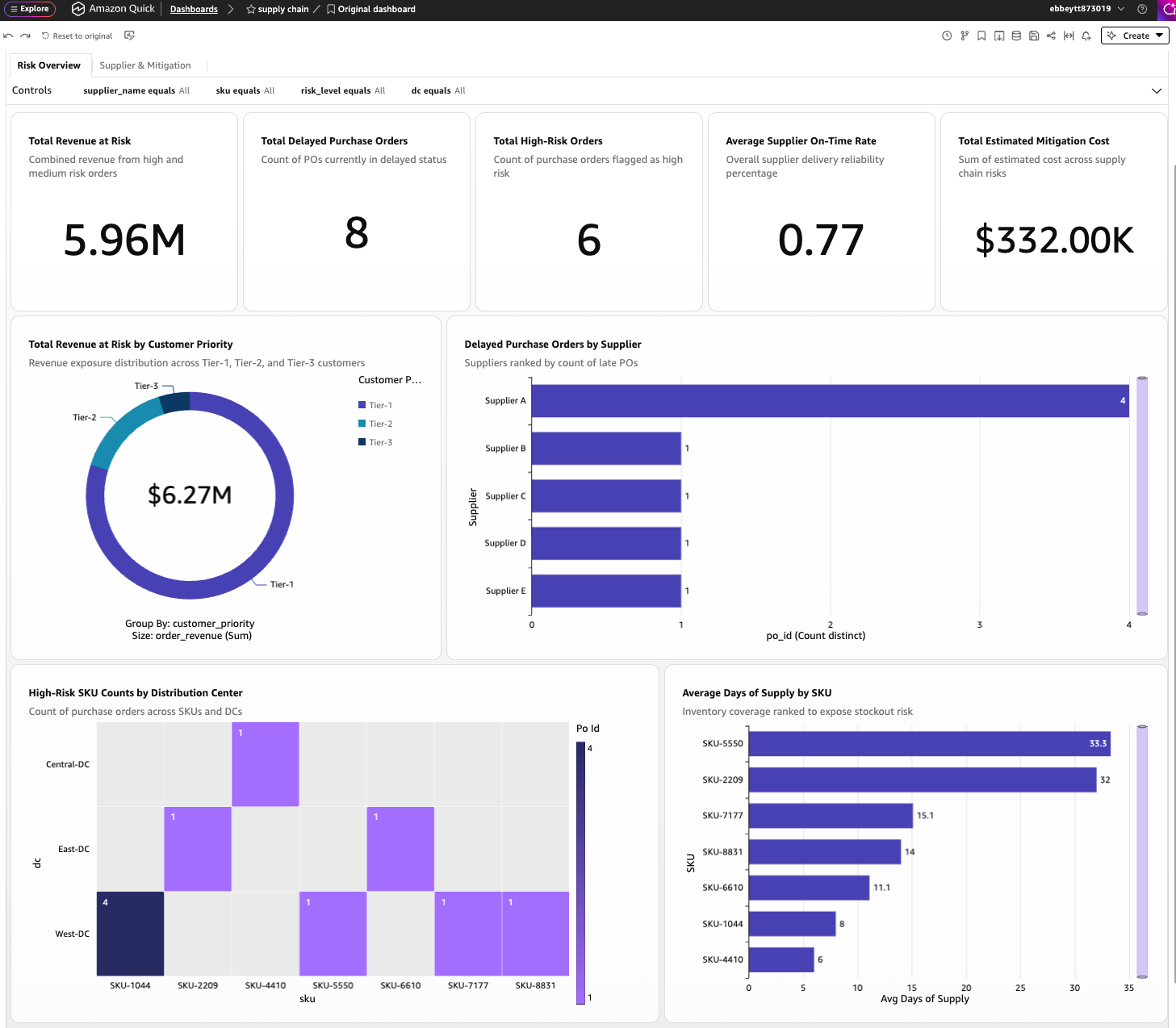
Figure 6 — Dashboard overview. The dashboard summarizes revenue at risk, delayed orders, critical SKUs, and supplier exposure
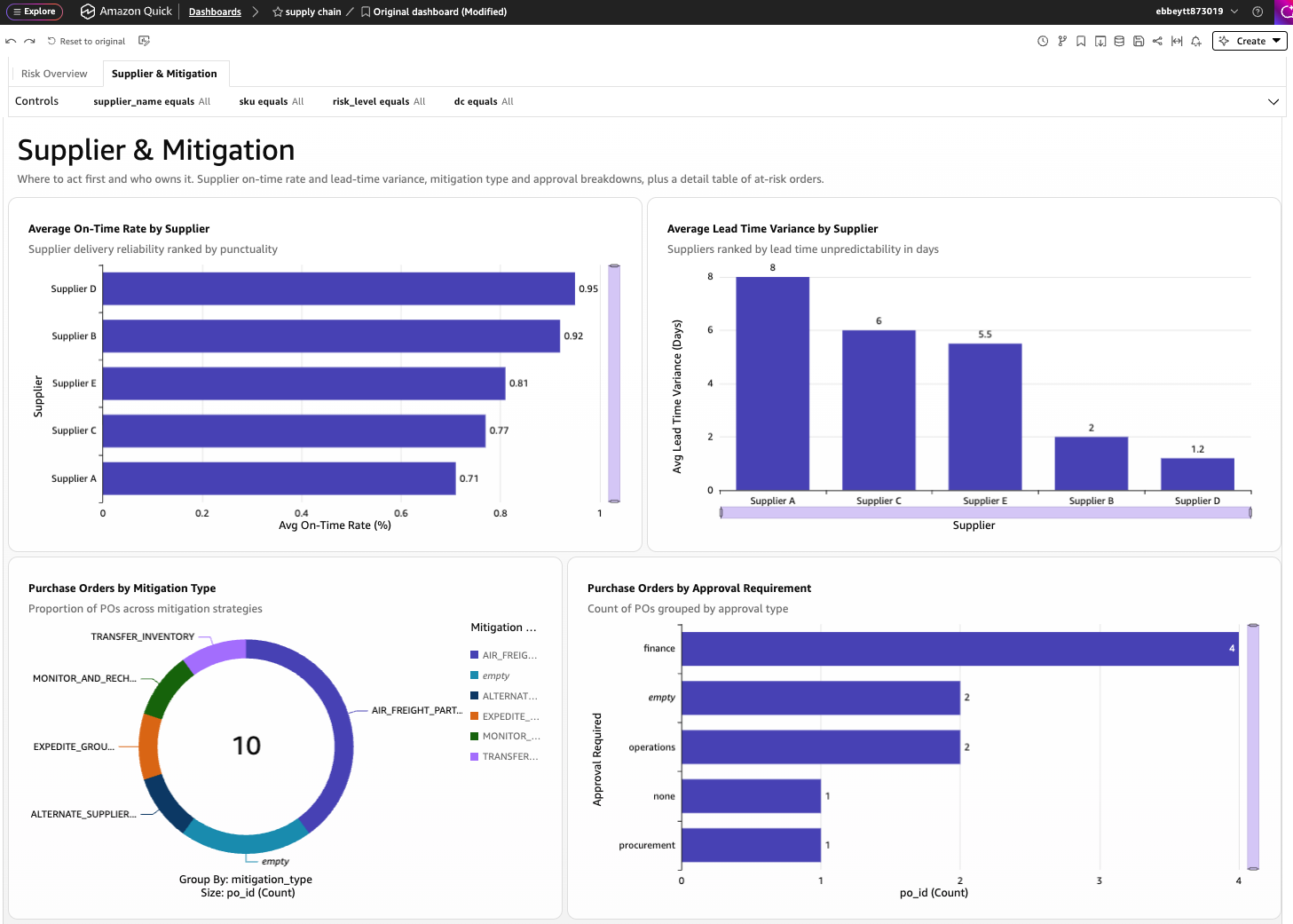
Figure 7 — Supplier and mitigation view. The dashboard helps planners compare supplier delay performance and mitigation options
Step 6: Create the knowledge source for Amazon Quick
The knowledge source gives the chat agent access to unstructured context such as supplier notices, contract excerpts, logistics approval policies, SKU substitution rules, and customer SLA summaries.
In Amazon Quick:
- Choose Knowledge.
- Under Amazon S3, choose Add.
- Choose the Quick account if the S3 bucket is in the same account as Amazon Quick.
- Enter the S3 bucket URL from the DataBucketName output in outputs/quick-setup.txt.
- On Create knowledge base, give it a name such as Supply Chain Risk KB.
- Choose Add specific content.
- Enter kb/ as the content filter. Filters are case-sensitive.
- Choose Create and wait for the sync to complete.
- Add the knowledge source to the chat agent that you create in step 8.
Step 7: Register the NeMo Agent Toolkit workflow as an MCP action in Amazon Quick
Important note: This sample deploys AgentCore Gateway with AuthorizerType=NONE, which performs no authentication or authorization. Use it only in a private, isolated demo environment with synthetic, non-sensitive data. Treat the endpoint as unauthenticated and accessible to anyone who obtains its URL. Never use this configuration in a shared, staging, or production environment. For non-demo deployment, configure a supported inbound authorizer, such as CUSTOM_JWT, and use Amazon Quick user or service OAuth authentication. For derived deployments, make authenticated access the default and require an explicit opt-in to enable AuthorizerType=NONE for private demo testing.
The MCP action is the bridge between Amazon Quick and the NeMo Agent Toolkit workflow running on AgentCore Runtime. The following screenshot shows the registered MCP integration with the supply-chain risk action enabled.
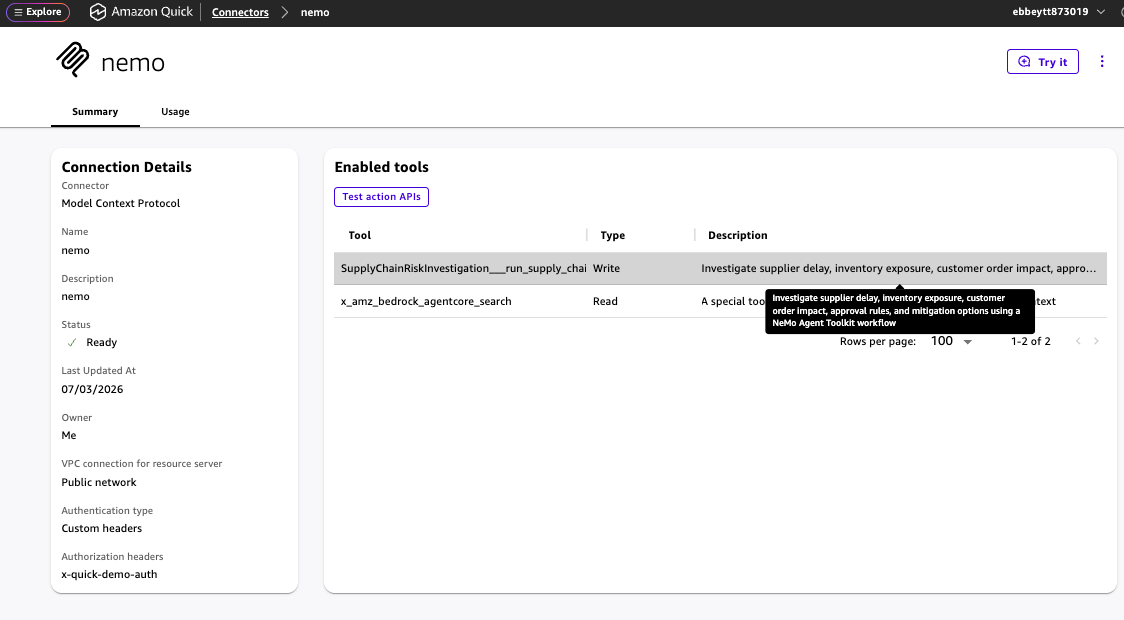
Figure 8 — MCP action integration. Amazon Quick discovers the supply-chain risk action exposed by AgentCore Gateway
In Amazon Quick:
- Choose Integrations.
- Add a Model Context Protocol action integration.
- Paste the AgentCore Gateway URL from outputs/quick-setup.txt as the MCP server endpoint.
- On the Authenticate step, use the authentication mode that matches the AgentCore Gateway.
- For this demo, the Gateway is deployed with AuthorizerType=NONE. If the console requires authentication settings, choose User authentication, set Auth configuration to Custom headers, and enter:
- Header name: x-quick-demo-auth
- Header value: quick-demo
These are demo placeholder values only. The demo Gateway doesn’t validate them. For production, configure AgentCore Gateway with a production-ready authorizer, such as CUSTOM_JWT and require OAuth/OIDC-based user or service authentication in Amazon Quick.
- Review the discovered actions, enable the supply-chain risk action, and share the integration with the correct Quick space or users.
Step 8: Create a supply-chain risk chat agent in Amazon Quick
Create a chat agent so analysts can use the dashboard, knowledge source, and NeMo-backed action from one place. Figure 9 shows the chat-agent creation experience with a short summary.
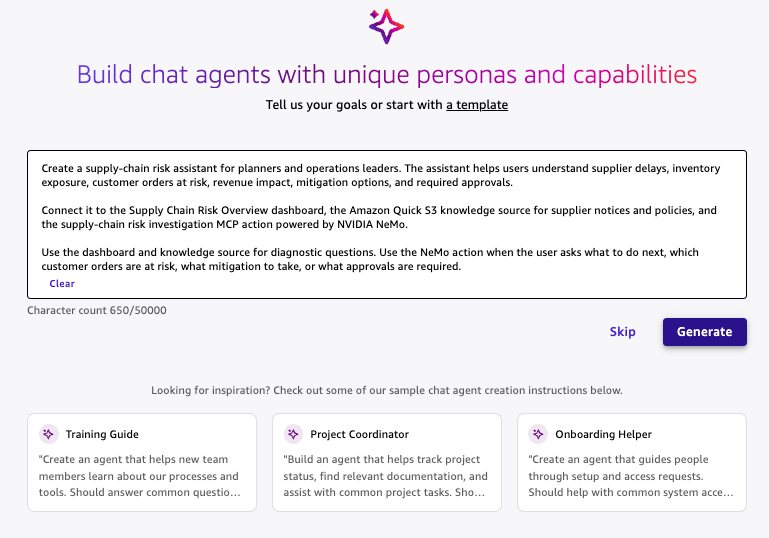
Figure 9 — Chat agent creation. A short summary tells Amazon Quick what the assistant does and which resources it should use
Use this short summary:
After the agent is created, confirm that it has access to the Supply Chain Risk Overview dashboard, the Amazon Quick S3 knowledge source, and the supply-chain risk MCP action. If the knowledge source isn’t attached to the agent, add it from the chat agent configuration pane:
- Open the chat agent configuration.
- Choose Knowledge sources.
- Choose Create to create a space.
- On the space creation page, in the left navigation menu, select Dashboards, and add the dashboard that you created in step 5.
- On the space creation page, in the left navigation menu, select Knowledge base, and add the knowledge base that you created in step 6.
- Go back to the chat agent and choose link space to link the dashboard and knowledge base to the chat agent.
Step 9: Test the end-user flow in Amazon Quick
Use three prompts to show the difference between diagnostic questions and the NeMo-backed action. The analyst first understands the current state, then reviews policy context, and then asks for an action recommendation.
Prompt 1: Query the dashboard
Expected result: Amazon Quick uses the Amazon Quick Sight dashboard to summarize supplier delay performance, inventory exposure, and revenue at risk. Figure 10 shows an example dashboard-based response.
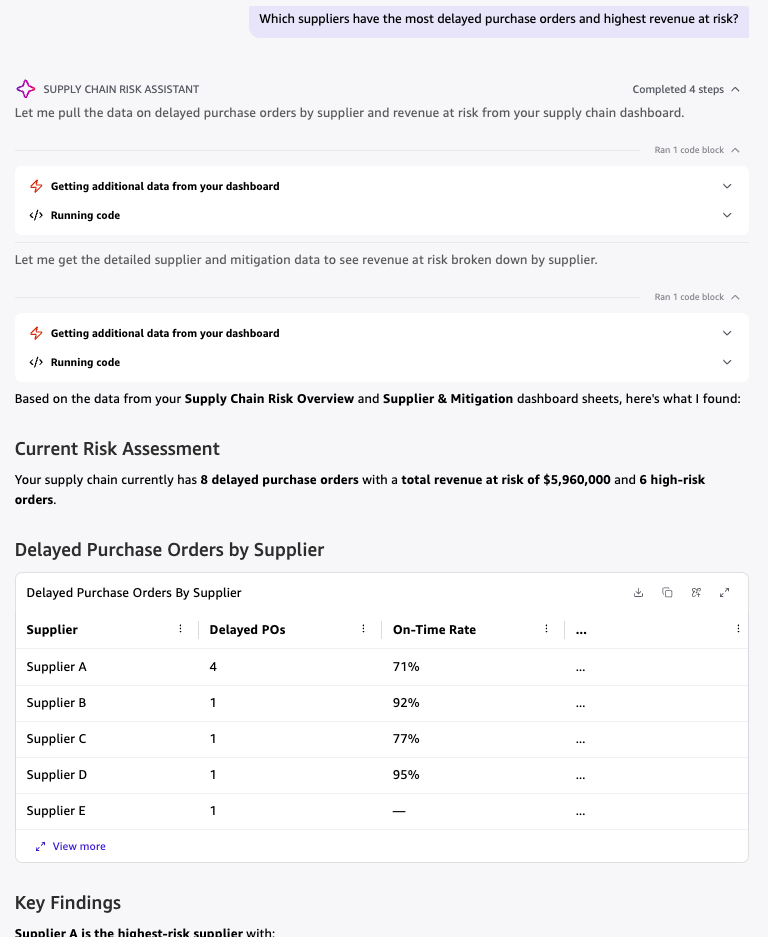
Figure 10 — Dashboard response. Amazon Quick answers from dashboard data without invoking the NeMo action
Prompt 2: Query the knowledge source
Expected result: Amazon Quick uses the Amazon S3 knowledge source to summarize the supplier notice and logistics approval standard operating procedure (SOP). Figure 11 shows a knowledge-grounded response.
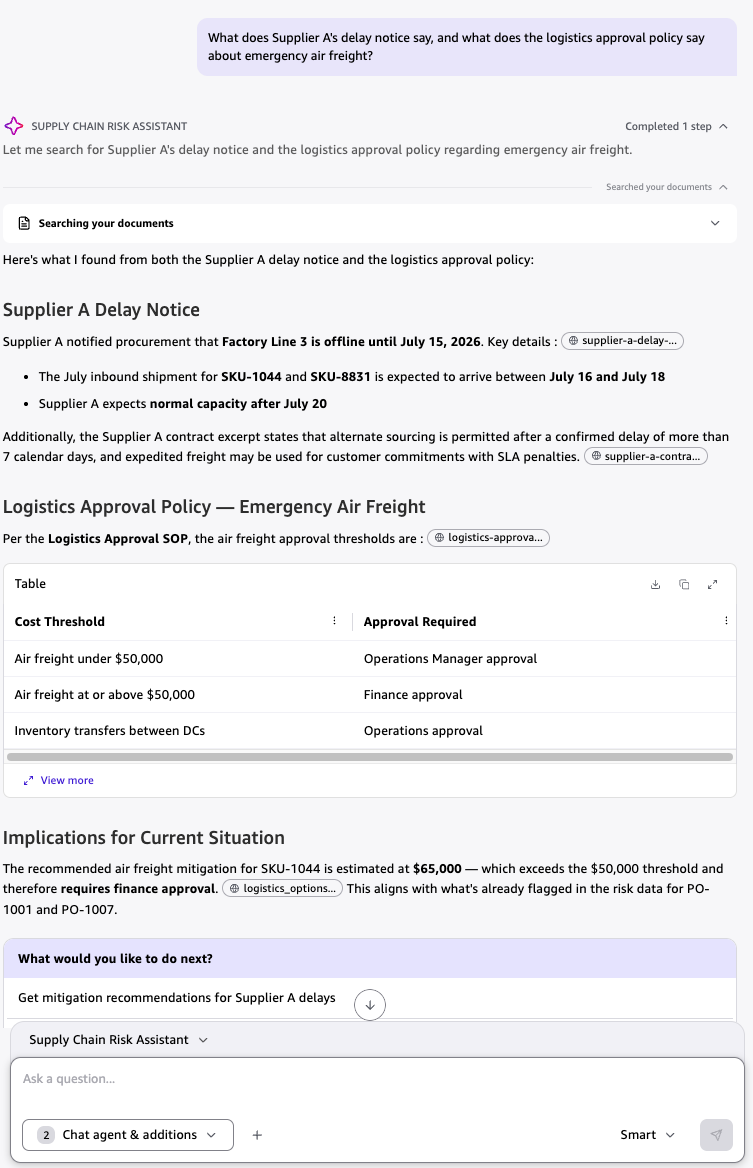
Figure 11 — Knowledge-source response. Amazon Quick summarizes the Supplier A delay notice and the emergency air freight approval policy
Prompt 3: Trigger the NeMo action
Expected result: Amazon Quick invokes the NeMo-backed MCP action. The response should include a risk summary, revenue impact, affected customers, recommended mitigations, required approvals, and evidence from purchase orders, inventory, customer orders, policy context, and logistics options. Figure 12 shows the action approval prompt before the MCP tool runs.
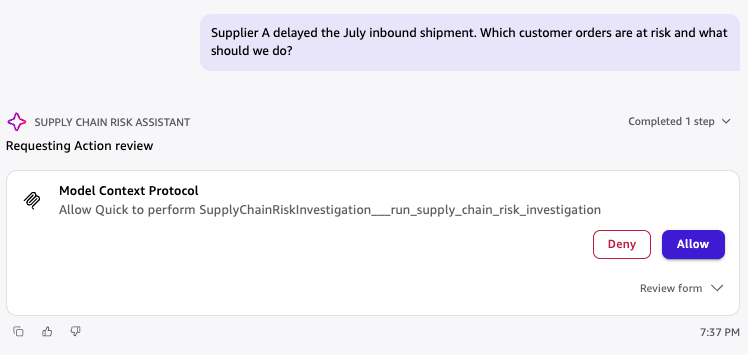
Figure 12 — MCP action approval. Amazon Quick asks the user to approve the NeMo-backed supply-chain risk action before invoking it
A successful NeMo-backed response should identify three aggregated risk items for the sample Supplier A scenario: SKU-1044 at high risk with partial air freight and finance approval, SKU-8831 at high risk with an inventory transfer and operations approval, and SKU-7177 at medium risk with monitor-and-recheck guidance. Figure 13 shows the response from the NeMo Agent Toolkit workflow.
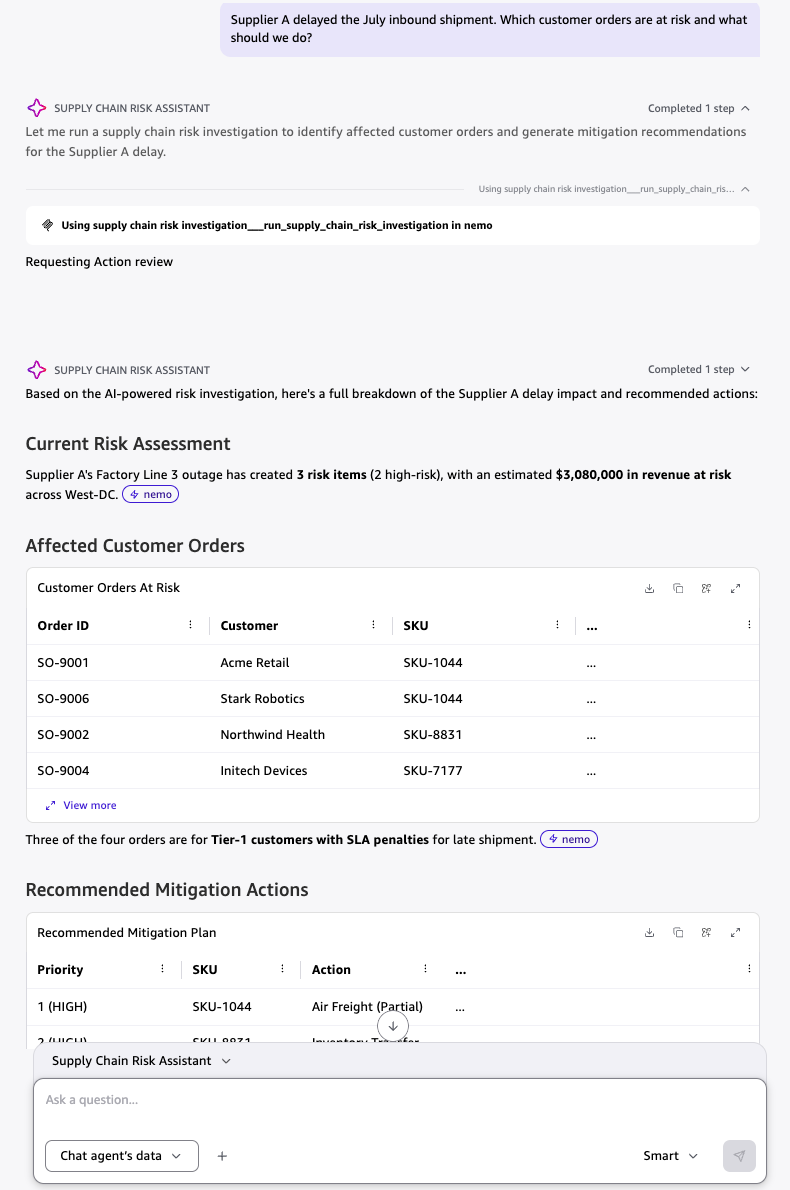
Figure 13 — NeMo Agent Toolkit workflow response. The workflow investigates the disruption, calls supply-chain tools, validates the recommendation, and returns a ranked mitigation plan to the planner
Step 10: Inspect NeMo trace, latency, and evaluation results
After the Amazon Quick action works, inspect what happened inside the backend NeMo Agent Toolkit workflow. This optional step helps developers and reviewers. The trace shows the workflow path. Latency data shows how long each tool took. The eval harness checks whether the workflow returns the expected risk level, mitigation action, and approval routing for known sample cases.
NeMo Agent Toolkit provides the workflow runtime used by this local evaluation harness, and also supports the official nat eval path, custom evaluators, dataset loaders, and profiling output for deeper workflow evaluation and optimization.
Important: This step inspects the backend workflow, not the full Amazon Quick chat-agent experience. The trace and latency outputs show what happened inside the AgentCore Runtime and NeMo Agent Toolkit workflow after the MCP action was invoked. The eval harness tests whether the specialized NeMo Agent Toolkit workflow returns the expected risk, mitigation, approval, and evidence decisions. For broader Amazon Quick usage, adoption, action invocation, and dashboard performance monitoring, you can use Amazon Quick administration monitoring and Amazon CloudWatch metrics, see associated blog post.
Inspect the deployed runtime trace and latency
Run the following command from the repo root:
This writes:
The runtime-response.json file contains the detailed NeMo Agent Toolkit workflow response, including trace, latency, evidence coverage, evaluator flags, risks, recommendations, and approval routing.
Start with the trace array. Each item should map to one registered function in the orchestration path. For the Supplier A sample, confirm that the workflow ran purchase order risk lookup, inventory exposure, customer impact, contract policy, logistics options, and mitigation recommendation. Missing or repeated steps usually point to an orchestration or tool-registration issue.
Next, sort the latency fields from highest to lowest. Treat the slowest tool as the first optimization target, for example by caching policy lookups, narrowing data queries, or combining repeated reads. These per-step timings act as profiling hooks for the demo workflow because they show where code, data access, or prompt changes will have the biggest effect.
Run the NeMo Agent Toolkit eval harness
This sample uses a lightweight local evaluation harness instead of invoking nat eval directly. The script loads the same registered NeMo Agent Toolkit workflow used by the deployed container, runs each JSONL test case through the workflow, and scores the structured output against expected risk level, mitigation action, and approval routing.
This writes:
The evaluation dataset is:
Each test case checks whether the workflow returns the expected risk level, recommended mitigation action, approval route, and evidence coverage. To interpret local-eval-report.json, start with the overall pass/fail result, then review the case-level evaluator outputs. A failure means the workflow returned a risk level, action, approval route, or evidence set that differs from the expected sample result. Use the failing case ID to compare expected fields with actual output, then adjust tool logic, policy data, or critic rules before rerunning the evaluation.
Visualize the results in Amazon Quick
In the same Amazon Quick chat where you tested the supply-chain action, upload these JSON files:
Then ask Quick:
Amazon Quick can turn the generated JSON artifacts into a visual review surface. Figure 14 uses sample run data, not a benchmark. In that sample, the NeMo Agent Toolkit workflow completed in 657 ms end-to-end. The PO risk lookup (267 ms) and contract policy retrieval (196 ms) accounted for over 70 percent of total latency.
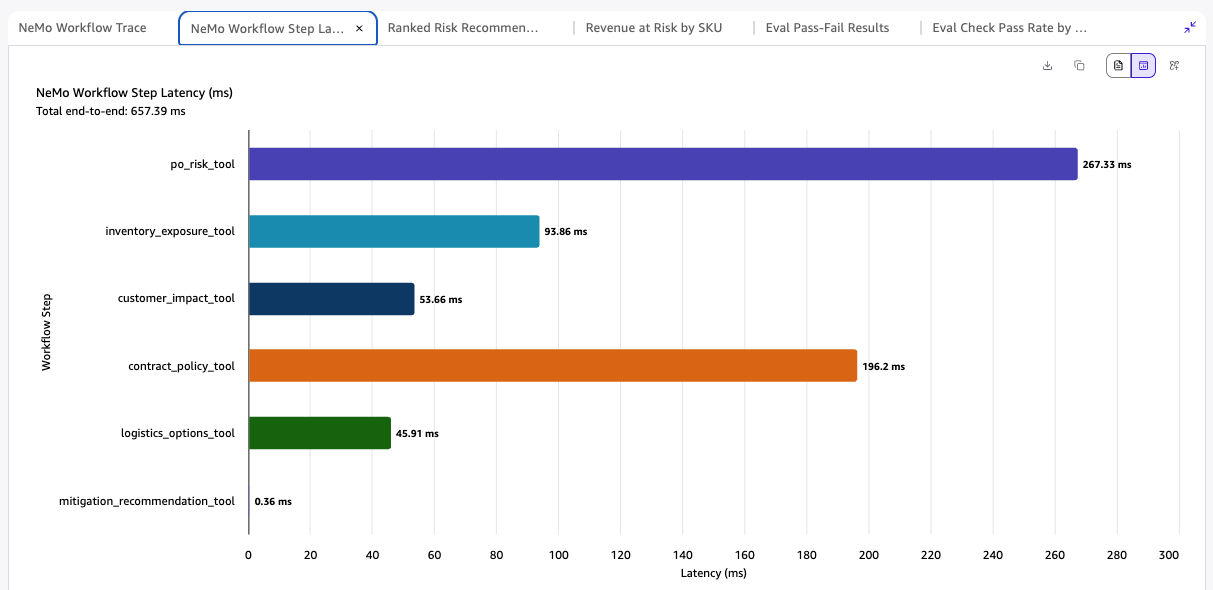
Figure 14 — NeMo Agent Toolkit workflow step latency. Horizontal bar chart showing per-tool execution time across the six-step supply-chain risk orchestration pipeline
Security considerations
We designed this sample for demo deployment. Review and harden it before production.
Recommended production changes include:
- Replace the demo AuthorizerType=NONE setting with a production-ready AgentCore Gateway authorizer, such as CUSTOM_JWT, and configure OAuth/OIDC for Amazon Quick user or service authentication with token validation, issuer validation, audience validation, and key rotation. The custom-header option shown in the demo is only a low-friction setup path for a no-auth demo Gateway and shouldn’t be treated as an authorization control.
- Scope IAM policies to the exact resources and actions required.
- Put data sources behind governed APIs or data-access tools. Treat NeMo Agent Toolkit tools as governed interfaces: validate tool inputs against expected schemas. Validate supplier IDs and SKU codes against explicit allow lists. Parameterize every data query to prevent injection. Validate tool outputs before returning them. And grant each tool access only to the data sources and operations required for that function.
- Apply the same row-level and column-level authorization rules to Amazon Quick Sight datasets and backend data tools, including tenant, region, customer, and supplier filters.
- Use private networking where required.
- Store evaluation artifacts and traces in governed buckets or observability systems.
- Add human approval before write actions, such as supplier changes, ticket creation, customer notification, or ERP updates.
Clean up resources
To delete the stack, run:
Windows PowerShell:
The Amazon S3 bucket is retained by the AWS CloudFormation template. Empty and delete it manually if this was a temporary demo.
Conclusion
This post showed how Amazon Quick and NVIDIA NeMo Agent Toolkit work together to turn supply-chain visibility into a guided decision workflow. Planners work in a governed business workspace with dashboards, knowledge context, chat agents, and action triggering. NeMo Agent Toolkit runs the backend decision workflow. Its trace, per-step latency output, and evaluation metadata help teams find bottlenecks, identify failed checks, and improve the workflow before production use.
The pattern is useful for startups and enterprise teams that need to scale operational decision-making without adding manual review steps for every disruption. You can adapt the same architecture to other domains, such as customer renewal risk, incident response, manufacturing quality, or logistics exception handling.