Artificial Intelligence
Embed a live AI browser agent in your React app with Amazon Bedrock AgentCore
When you build AI-powered applications, your users must understand and trust AI agents that navigate websites and interact with web content on their behalf. When an agent interacts with web content autonomously, your users require visibility into those actions to maintain confidence and control, which they don’t currently have.
The Amazon Bedrock AgentCore Browser BrowserLiveView component addresses this challenge by providing a real-time video feed of the agent’s browsing session directly within your React application. This component, part of the Bedrock AgentCore TypeScript SDK, streamlines the integration by embedding a live browser stream with three lines of JavaScript XML (JSX).
The BrowserLiveView component uses the Amazon DCV protocol to render the browser session, creating transparency into agent actions. Implementation requires only a presigned URL from your server, without requiring you to build streaming infrastructure.
This post walks you through three steps: starting a session and generating the Live View URL, rendering the stream in your React application, and wiring up an AI agent that drives the browser while your users watch. At the end, you will have a working sample application you can clone and run.
Why embed Live View in your application
Embedding Live View inside your own application unlocks additional value for your users at scale.
With an embedded Live View, your users follow every navigation, form submission, and search query as the agent performs it. They get immediate visual confirmation that the agent is on the right page, interacting with the correct elements, and progressing through the workflow. This real-time feedback loop gives end users direct insight into agent behavior without waiting for the final result.
Users who delegate browsing tasks to an AI agent are more confident when they can observe the work. Watching the agent fill in a form field by field is more reassuring than receiving a text confirmation. For regulated workflows, visual evidence of agent actions can support audit requirements.
In workflows that require human supervision, like handling customer accounts and processing sensitive data, a supervisor can use the embedded Live View to watch the agent in real time and intervene if needed, without leaving your application.
Organizations also gain audit trail support through visual evidence of agent actions, which proves valuable for compliance requirements and troubleshooting scenarios. Combined with session recordings to Amazon Simple Storage Service (Amazon S3) and console-based session replay, you get both real-time observation and post-hoc review.
How it works
The integration has three components.
The user’s web browser runs a React application containing the BrowserLiveView component, which receives a SigV4-presigned URL and establishes a persistent WebSocket connection to receive the DCV video stream from a remote browser session. The React application handles video rendering and user interface presentation while maintaining the WebSocket connection for continuous streaming.
The application server functions as an AI agent within the Amazon Bedrock session lifecycle, orchestrating the connection between client browsers and cloud-hosted browser sessions. It starts sessions using the Amazon Bedrock AgentCore API and generates SigV4-presigned URLs that grant secure, time-limited access to the Live View stream. This layer handles session management, authentication, and stream distribution.
AWS Cloud hosts Amazon Bedrock AgentCore Browser and Amazon Bedrock services that provide the underlying browser automation and streaming capabilities. Amazon Bedrock AgentCore hosts the isolated cloud browser sessions within AWS Cloud and provides both the automation endpoint (Playwright CDP) and the Live View streaming endpoint (DCV).
The key efficiency advantage with this architecture is that the DCV Live View stream flows directly from Amazon Bedrock AgentCore to the user’s browser. It doesn’t pass through your application server. Your server generates the URL and runs the agent, but the video stream is a direct WebSocket connection from AWS to the client. This helps minimize latency and reduce infrastructure requirements.
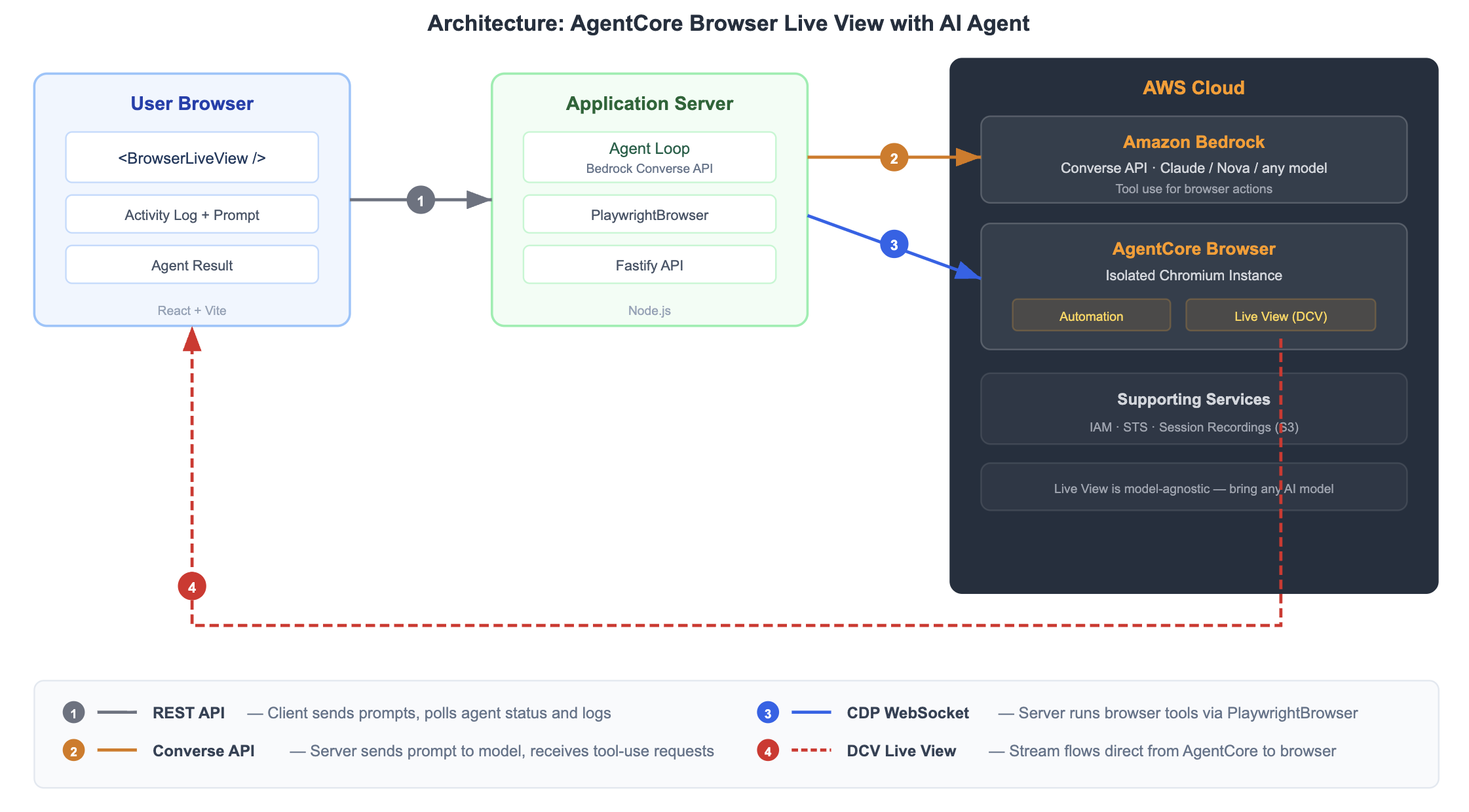
Figure 1: Solution architecture showing the data flow between three components. The numbered arrows in the diagram represent the following data flows:
Arrow 1 (gray, solid): The client sends prompts and polls status from the Application Server using REST.
Arrow 2 (orange, solid): The Application Server calls the Amazon Bedrock Converse API for AI model reasoning.
Arrow 3 (blue, solid): The Application Server runs browser tools against Amazon Bedrock AgentCore Browser using Playwright Chrome DevTools Protocol (CDP).
Arrow 4 (red, dashed): The DCV Live View stream flows directly from Amazon Bedrock AgentCore to the User Browser, bypassing the Application Server.
Prerequisites
Before you begin, verify that you have the following:
- Node.js 20 or later
- An AWS account in a supported AWS Region
- AWS credentials with Amazon Bedrock AgentCore Browser permissions
- Access to an AI model to drive the agent (this post uses the Amazon Bedrock Converse API with Anthropic Claude, but Live View is model-agnostic and you can use a model provider or agent framework of your choice)
Important: Live View (Steps 1 and 2) requires only Amazon Bedrock AgentCore permissions. It does not depend on Amazon Bedrock or any specific AI model. The AI agent in Step 3 uses the Amazon Bedrock Converse API, which requires additional Amazon Bedrock permissions, but this is specific to our sample. You can substitute a model provider or agent framework of your choice. Use temporary credentials from AWS IAM Identity Center or AWS Security Token Service (AWS STS). Do not use long-lived access keys. Follow the principle of least privilege when configuring AWS Identity and Access Management (IAM) permissions.
Install the Amazon Bedrock AgentCore TypeScript SDK:
For the AI agent in Step 3, you also need the AWS SDK for JavaScript:
The code in this post runs in two environments: the server-side code (Steps 1 and 3) runs in Node.js, and the client-side code (Step 2) runs in a React application bundled with Vite. The sample application at the end of this post packages everything together.
Step-by-step implementation
1: Start a browser session and generate the Live View URL
On your application server, use the Browser class to start a session and generate the presigned URL. The API returns a session identifier and streaming URL, which the server converts into a presigned URL with a defined expiration time of 300 seconds by default. It contains SigV4 credentials in the query parameters, so no secrets reach the browser. Pass this URL to your frontend through an API endpoint.
2: Render the BrowserLiveView component in your React app
On your browser, import the BrowserLiveView component from the Bedrock AgentCore TypeScript SDK and render it with the presigned URL. The component handles WebSocket connection, DCV protocol negotiation, video stream decoding, and frame rendering. It auto scales to fit its parent container while preserving its aspect ratio. The remoteWidth and remoteHeight must match the viewport that you set in Step 1. Mismatched values cause cropping or black bars.
After adding this component, the Live View begins streaming as soon as the presigned URL is valid and the browser session is active. You should see the remote browser’s desktop appear within the component’s container. If the container remains empty, verify that the presigned URL hasn’t expired and that the browser session is still running.
3: Connect an AI agent to drive browser actions
With the Live View streaming, you need something interesting to watch. The following example uses the Amazon Bedrock Converse API, but Live View is model agnostic. You can use an AI model or agent framework of your choice to drive the browser.
The code creates a PlaywrightBrowser client, which starts a new AgentCore Browser session and connects to it using the Playwright Chrome DevTools protocol. This is the same type of cloud browser session as Step 1 but accessed through the Playwright automation interface rather than the Live View interface.
The model decides which browser tools to call, including navigate, click, type, getText, getHtml, and pressKey. Your server runs these tools and feeds the results back to the model for the next iteration.
The model is configurable. You can use Anthropic Claude, Amazon Nova, or an Amazon Bedrock model that supports tool use. Every tool call that the model makes is visible to your user through the Live View. They see the browser navigate, the search box fill in, and the results page load.
Note: The TypeScript SDK also includes a Vercel AI SDK integration (BrowserTools) that wraps these browser operations as framework-native tools.
Try it using the sample application
We built a complete sample application on GitHub that puts Steps 1–3 together. The sample includes a React dashboard with the embedded Live View, an activity log showing agent reasoning and actions, and a Fastify server running the AI agent. The agent navigates to Wikipedia, searches for a topic, reads the page content, and summarizes what it finds while you watch every step. You can download it from the GitHub repository.
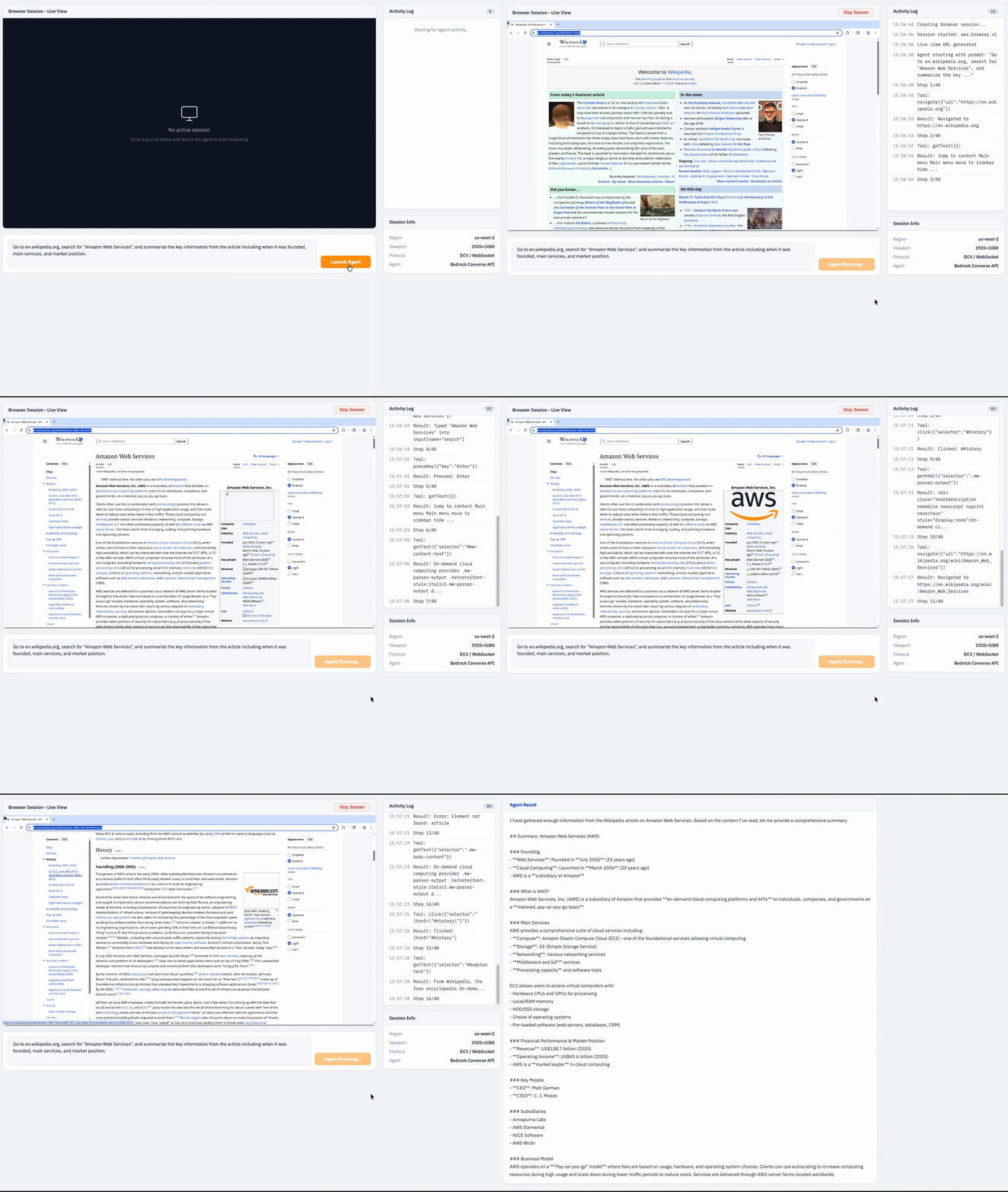
Figure 2: The sample application mid-run. The left panel shows the BrowserLiveView component streaming a Wikipedia page that the agent has navigated to. The right panel shows the activity log with timestamped tool calls (navigate, getText, click). At the bottom, the prompt input field and Launch Agent button are visible.
To clone and run the sample application
Complete the following steps to clone and run the sample application.
- Clone the repository and navigate to the sample folder.
- Install the dependencies.
- Export your AWS credentials.
Important: Use temporary credentials. Do not commit credentials to source control.
- Start the application.
- Open
http://localhost:5173, enter a prompt, and choose Launch Agent.
Bundler configuration
The BrowserLiveView component uses the Amazon DCV Web Client SDK, which ships vendored files inside the bedrock-agentcore npm package. You don’t need to download or install DCV separately. Your Vite configuration needs three additions:
resolve.aliaspoints thedcvanddcv-uibare specifiers to the vendored SDK files.resolve.dedupeverifies that React and shared dependencies resolve from yournode_modules, not from the vendored path.viteStaticCopycopies DCV runtime files (workers, WASM decoders) to your build output.
The sample application’s vite.config.ts has the complete configuration ready to use. For more details on the BrowserLiveView component, see the live-view source directory in the TypeScript SDK.
Clean up resources
To avoid incurring charges, stop the browser session and shut down the application when you’re done:
- In the application UI, choose Stop Session to end the Amazon Bedrock AgentCore Browser session.
- In your terminal, press Ctrl+C to stop the development servers.
- If you created any IAM roles or policies specifically for this demo, delete them from the IAM console.
Amazon Bedrock AgentCore Browser sessions incur charges while active. For pricing details, refer to the Amazon Bedrock AgentCore pricing page.
Next steps
Now that you have a working Live View integration, here are some things to explore.
To get started, clone the sample application, fill in your AWS credentials, and run npm run dev to see the full demo in action. For instructions, refer to the To clone and run the sample application section in this post.
The sample application defaults to Anthropic Claude, but you can switch to Amazon Nova or another Amazon Bedrock model that supports tool use by setting the BEDROCK_MODEL_ID environment variable. For a list of available models and their tool use capabilities, refer to the Amazon Bedrock model documentation.
The React dashboard in the sample application is a starting point for your own implementation. You can adapt the layout to match your design system, integrate the Live View into an existing application, or add controls that let users intervene mid-workflow. For guidance on building React applications with the AgentCore SDK, refer to the Bedrock AgentCore TypeScript SDK documentation.
The BrowserLiveView component supports multiple instances on the same page, each streaming a different browser session. This capability is useful for monitoring dashboards. The component’s source code, including scaling logic and DCV authentication flow, is available in the live-view source directory in the TypeScript SDK.
Conclusion
In this post, you learned how to use the BrowserLiveView component to embed a Live View of an Amazon Bedrock AgentCore Browser session into your React application. The three-step implementation and architecture that streams video directly from AWS to client browsers makes live agent visualization accessible without specialized streaming expertise.
For a deeper look at Amazon Bedrock AgentCore Browser capabilities, refer to the Amazon Bedrock AgentCore Browser documentation. If you have feedback or questions, open an issue in the GitHub repository.
Important: This sample application is intended for local development and demonstration. For production use, add authentication to your API endpoints, enable HTTPS, restrict CORS origins, implement rate limiting, and follow the AWS Well-Architected Framework security pillar.