AWS DevOps & Developer Productivity Blog
Accelerate CloudFormation development with the IaC MCP Server
Organizations adopt Infrastructure as Code (IaC) to manage cloud environments reliably, repeatably, and at scale. As teams grow and infrastructure complexity increases, IaC becomes the backbone of consistent deployments, compliance enforcement, and operational agility. The developer’s experience around IaC, however, remains fragmented — engineers routinely context-switch between documentation portals, linting tools, deployment consoles, and logging systems just to complete a single deploy cycle. This friction compounds across teams: slower iteration means delayed feature releases, longer incident recovery times, and increased operational risk. When a deployment fails, diagnosing the root cause across disconnected interfaces can take longer than writing the template itself — turning a feedback loop that could take hours of manual investigation into a more streamlined process.
The AWS Infrastructure as Code (IaC) MCP Server brings AWS CloudFormation documentation search, template validation, and deployment troubleshooting into your AI assistant, so you can move through a full AWS CloudFormation development cycle without leaving the chat interface. Developing AWS CloudFormation templates often means switching between documentation pages, linters, the deployment console, and AWS CloudTrail Logs. Each context switch adds friction to the inner development loop — the tight cycle of writing, validating, deploying, and fixing infrastructure code. This fragmented workflow increases time-to-deployment, delays feedback, and reduces developer productivity, particularly for teams managing complex, multi-resource stacks at scale.
The AWS Infrastructure as Code (IaC) Model Context Protocol (MCP) Server unifies these capabilities in one place. This post demonstrates how the IaC MCP Server tools work together in a real workflow — from authoring and validation through deployment and runtime troubleshooting — all within a single AI assistant conversation.
In this post, you can move through a complete CloudFormation development cycle using your AI assistant. You generate a template for an Amazon Simple Storage Service (Amazon S3) bucket, an AWS Lambda function, an AWS Identity and Access Management (IAM) execution role, and an Amazon CloudWatch Logs log group. You then validate, deploy, diagnose a deployment failure, and redeploy, all in a single interface.
Solution overview
The walkthrough follows four steps that map to IaC MCP Server tools:
- Author: Search CloudFormation documentation and generate a template
- Validate: Check syntax with cfn-lint and compliance with cfn-guard
- Deploy: Deploy the stack using a CloudFormation service role
- Troubleshoot: Diagnose a deployment failure using CloudTrail correlation
Figure 1 shows the four-step workflow. Steps 1, 2, and 4 run inside the IaC MCP Server, while Step 3 uses the AWS CLI directly.
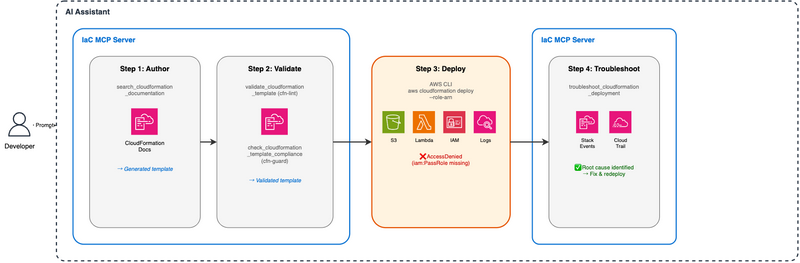
Figure 1. End-to-end CloudFormation workflow with the IaC MCP Server
In the prerequisites, you deploy a CloudFormation service role stack that deliberately omits the iam:PassRole permission. During the walkthrough, you use the AI assistant to generate and deploy an application stack. When CloudFormation tries to assign the Lambda execution role, the deployment fails with AccessDenied. The troubleshoot tool then correlates stack events with CloudTrail to pinpoint the root cause.
For an introduction to each IaC MCP Server tool, see Introducing the AWS Infrastructure as Code MCP Server.
Prerequisites
Before you start the walkthrough, set up your AWS account and AI assistant and deploy the service role stack that the walkthrough depends on.
To follow along, you need:
- An AWS account with permissions to create IAM roles and CloudFormation stacks
- Kiro or another MCP-compatible AI assistant with the IaC MCP Server configured
- AWS Command Line Interface (AWS CLI) configured with valid credentials (see Configuring the AWS CLI if you haven’t set this up yet)
This walkthrough uses the us-east-1 Region. You can use a different Region, but make sure to use the same Region consistently across each step.
Clone the companion repository and deploy the service role stack:
git clone https://github.com/aws-samples/sample-accelerate-cloudformation-with-iac-mcp-server.git

cd sample-accelerate-cloudformation-with-iac-mcp-server

aws cloudformation deploy \
  --template-file iac-mcp-blog-role-stack.yaml \
  --stack-name iac-mcp-blog-role-stack \
  --capabilities CAPABILITY_NAMED_IAM
This role grants CloudFormation permission to create S3 buckets, Lambda functions, and CloudWatch Logs log groups, but deliberately omits iam:PassRole — you’ll diagnose this gap in Step 4.
You use the --capabilities CAPABILITY_NAMED_IAM flag to acknowledge that the stack creates IAM resources with custom names.
We provide this role template for demonstration purposes only and do not intend it for production use.
Note the role ARN from the stack outputs. You must use this ARN in Step 3:
aws cloudformation describe-stacks \
  --stack-name iac-mcp-blog-role-stack \
  --query "Stacks[0].Outputs[?OutputKey=='ServiceRoleArn'].OutputValue" \
  --output text
Walkthrough
The four steps that follow map to IaC MCP Server tools: authoring with documentation search, validating with cfn-lint and cfn-guard, deploying with a CloudFormation service role, and troubleshooting with CloudTrail correlation.
Step 1: Generate a CloudFormation template
Start by asking your AI assistant to search CloudFormation documentation and generate a template. The IaC MCP Server calls the search_cloudformation_documentation tool behind the scenes to retrieve up-to-date resource property references.
Prompt:
Create a CloudFormation template with an S3 bucket, a Lambda function (Python 3.13 runtime, inline hello-world code), an IAM execution role for the function, and a CloudWatch Logs log group. Include common security configurations. Save it as iac-mcp-blog-app-stack.yaml in the current directory.
The AI assistant calls the search_cloudformation_documentation tool to look up resource properties for AWS::S3::Bucket, AWS::Lambda::Function, AWS::IAM::Role, and AWS::Logs::LogGroup. You can see the tool invocations in Kiro’s chat interface. The search results include up-to-date property references and example configurations, which the AI assistant uses to generate a template.
The generated template should include resources similar to the following (your output may vary):
- An S3 bucket with versioning, encryption, and public access block
- A Lambda function with inline Python code
- An IAM role with a least-privilege policy for CloudWatch Logs
- A log group with a retention policy
The following snippet shows the key resources. Your AI assistant’s output may differ in naming or structure, but the core configuration should be similar:
Resources:
  S3Bucket:
    Type: AWS::S3::Bucket
    Properties:
      BucketEncryption:
        ServerSideEncryptionConfiguration:
          - ServerSideEncryptionByDefault:
              SSEAlgorithm: AES256
      PublicAccessBlockConfiguration:
        BlockPublicAcls: true
        BlockPublicPolicy: true
        IgnorePublicAcls: true
        RestrictPublicBuckets: true
      VersioningConfiguration:
        Status: Enabled

  LambdaFunction:
    Type: AWS::Lambda::Function
    Properties:
      Runtime: python3.13
      Handler: index.handler
      Role: !GetAtt LambdaExecutionRole.Arn
      Code:
        ZipFile: |
          def handler(event, context):
              return {"statusCode": 200, "body": "Hello from Lambda!"}
Step 2: Validate the template
Before deploying, ask the AI assistant to validate the template. The IaC MCP Server provides two validation tools that wrap open source checkers: cfn-lint for syntax validation and cfn-guard for policy-as-code compliance checks.
Prompt:
Validate iac-mcp-blog-app-stack.yaml for syntax errors and compliance violations.
The AI assistant runs two checks:
- Syntax validation (
validate_cloudformation_template): Uses cfn-lint to catch structural errors, invalid property names, and schema violations. - Compliance check (
check_cloudformation_template_compliance): Uses cfn-guard to evaluate the template against security rules such as S3 bucket encryption, public access block settings, and log group retention.
If either check reports issues, ask the AI assistant to fix them. Continue iterating until both checks pass.
Note that the compliance check might flag violations related to S3 object lock, access logging, replication, and inline IAM policies. For a production workload, you would address each of these issues. In this walkthrough, the AI assistant resolves them to demonstrate the iterative validate-and-fix workflow. Your results might vary depending on the template the AI assistant generated in Step 1.
After the AI assistant resolves the violations, the S3 bucket resource gains access logging and object lock properties. The following snippet shows the typical shape of these additions (see iac-mcp-blog-app-stack-fixed.yaml in the companion repository for the complete hardened template):
  S3Bucket:
    Type: AWS::S3::Bucket
    Properties:
      # ... existing properties ...
      LoggingConfiguration:
        DestinationBucketName: !Ref S3LoggingBucket
        LogFilePrefix: access-logs/
      ObjectLockEnabled: true
      ObjectLockConfiguration:
        ObjectLockEnabled: Enabled
        Rule:
          DefaultRetention:
            Mode: GOVERNANCE
            Days: 30
Your template now passes both cfn-lint and cfn-guard checks. These security improvements improve your template’s security posture but are unrelated to the deployment failure you’ll encounter next. The failure in Step 3 is caused by missing permission on the service role, not by anything in the template itself.
Step 3: Deploy the stack
With validation complete, deploy the template. This deployment will fail — not because of a template error, but because the CloudFormation service role deployed in the prerequisites is missing iam:PassRole. This is the scenario you’ll diagnose in Step 4.
Now deploy the validated template using the service role you created in the prerequisites:
Prompt:
Deploy iac-mcp-blog-app-stack.yaml as a stack named “iac-mcp-blog-app-stack” in us-east-1 using the service role ARN from iac-mcp-blog-role-stack.
The AI assistant runs the AWS CLI deployment command for you. If your AI assistant doesn’t support running shell commands directly, you can deploy manually with the AWS CLI:
Manual CLI deployment
ROLE_ARN=$(aws cloudformation describe-stacks \
  --stack-name iac-mcp-blog-role-stack \
  --query "Stacks[0].Outputs[?OutputKey=='ServiceRoleArn'].OutputValue" \
  --output text)

aws cloudformation deploy \
  --template-file iac-mcp-blog-app-stack.yaml \
  --stack-name iac-mcp-blog-app-stack \
  --role-arn $ROLE_ARN \
  --capabilities CAPABILITY_NAMED_IAM
The deployment fails. The stack event shows an AccessDenied error on the IAM role resource, but doesn’t identify which permission on the CloudFormation service role is missing or why. At this point, we move from static analysis to runtime troubleshooting.
Step 4: Troubleshoot the failure
Ask the AI assistant to diagnose the failure:
⚠️ Note: CloudTrail events typically take 5–15 minutes to appear. Wait at least 5 minutes after the deployment failure before running the troubleshoot tool for the most complete analysis.
Prompt:
Troubleshoot the failed deployment of iac-mcp-blog-app-stack in us-east-1.
The AI assistant calls troubleshoot_cloudformation_deployment, which:
- Retrieves the stack events and identifies the failed resources
- Correlates the failure timestamps with CloudTrail API calls
- Identifies
AccessDeniederrors and the missing permissions that caused them
The troubleshoot tool identifies that the CloudFormation service role is missing iam:PassRole — the permission required to assign the Lambda execution role to the function. If your template includes the cfn-guard hardening from Step 2 (access logging, object lock), the tool may also surface additional missing S3 permissions such as s3:PutBucketObjectLockConfiguration for the logging bucket.
Prompt:
Fix iac-mcp-blog-role-stack.yaml to add the missing permissions identified by the troubleshoot tool. Save it as iac-mcp-blog-role-stack-fixed.yaml.
The AI assistant adds the missing permissions to the service role template. Now ask the AI assistant to deploy the fix, delete the failed stack, and redeploy:
Prompt:
Deploy iac-mcp-blog-role-stack-fixed.yaml to update iac-mcp-blog-role-stack, then delete the failed iac-mcp-blog-app-stack and redeploy it with the same service role.
The AI assistant runs the necessary CLI commands: updating the role stack, deleting the failed application stack, and redeploying the application stack. The failed stack is in ROLLBACK_COMPLETE state, a terminal state that CloudFormation cannot update in place, so you must delete it before redeploying.
The stack deployment succeeded.
Cost considerations
For information about costs associated with the resources in this walkthrough, including S3 storage, Lambda invocations, CloudWatch Logs, and CloudFormation operations, see AWS Pricing. Confirm that your account usage falls within any applicable free tier limits. If you enabled S3 access logging or object lock through the validation-and-fix workflow in Step 2, the logging bucket stores a small amount of access log data that falls under S3 standard pricing. See AWS Pricing for current rates and confirm that your account is within the Free Tier limits before you deploy.
Cleaning up
To avoid ongoing charges, delete both stacks.
Option A: Clean up with your AI assistant
Ask your AI assistant to run the cleanup for you. The IaC MCP Server lets the AI assistant inspect stack outputs, empty buckets, and delete both stacks in the correct order:
Clean up the
iac-mcp-blog-app-stackandiac-mcp-blog-role-stackstacks inus-east-1. Empty any S3 buckets they created (including access log buckets) before deleting the application stack, then delete the role stack.
Option B: Clean up manually
Delete the application stack first because it was deployed with the service role:
⚠️ Warning: If your template included access logging, the logging bucket may contain objects. CloudFormation cannot delete a non-empty bucket. Empty it first:
aws s3 rm s3://<logging-bucket-name> --recursiveThen proceed with stack deletion.
aws cloudformation delete-stack --stack-name iac-mcp-blog-app-stack
aws cloudformation wait stack-delete-complete --stack-name iac-mcp-blog-app-stack

aws cloudformation delete-stack --stack-name iac-mcp-blog-role-stack
aws cloudformation wait stack-delete-complete --stack-name iac-mcp-blog-role-stack
If any S3 bucket was created with DeletionPolicy: Retain or still contains objects (for example, server access logs), CloudFormation leaves it in place. Empty and delete those buckets from the S3 console or with aws s3 rb s3://<bucket-name> --force.
Next steps
If you manage CloudFormation infrastructure and find yourself losing time to context-switching between docs, linters, consoles, and logs, here’s how to streamline your workflow starting today:
- Set up the IaC MCP Server — Install and configure the IaC MCP Server with an MCP-compatible AI assistant such as Kiro to bring documentation search, validation, and troubleshooting into a single conversational interface.
- Run the walkthrough end-to-end — Clone the companion repository and follow this post step by step to experience the full author-validate-deploy-troubleshoot loop in your own AWS account.
- Integrate into your team’s workflow — Replace manual context-switching by embedding the IaC MCP Server’s tools into your day-to-day CloudFormation development process, reducing iteration time from hours to minutes.
- Extend to AWS CDK — Apply the same conversational workflow to CDK-based infrastructure using the IaC MCP Server’s CDK capabilities described in the introductory blog post.
- Contribute and share feedback — Report issues or suggest enhancements on the AWS MCP GitHub repository to help shape future capabilities.
Conclusion
In this walkthrough, you used the IaC MCP Server to move through a complete CloudFormation development cycle without leaving your AI assistant. The documentation search tool retrieved up-to-date resource property references that the AI assistant used to generate a template. The validation tools caught syntax errors and compliance gaps before deployment. When the deployment failed due to missing permissions on the service role (an issue that static analysis cannot detect), you used the troubleshoot tool to correlate stack events with CloudTrail and pinpoint the root cause in seconds.
By combining static validation with runtime diagnostics, you shorten your develop-validate-fix cycle for CloudFormation. Instead of switching between browser tabs, CLI sessions, and the CloudTrail console, you stay in one interface — turning a multi-step troubleshooting session that previously meant switching between consoles, CLI sessions, and CloudTrail into a few prompts in a single conversation.
To get started, explore the companion GitHub repository for the complete sample code. Learn more about the IaC MCP Server in the introductory blog post and the AWS CloudFormation documentation. To set up Kiro, visit kiro.dev.