Artificial Intelligence
Enforce data residency with Amazon Quick extensions for Microsoft Teams
Organizations with users in multiple geographies face data residency requirements such as General Data Protection Regulation (GDPR) in Europe, country-specific data sovereignty laws, and internal compliance policies. Amazon Quick with Microsoft 365 extensions supports Regional routing to meet these requirements.
Amazon Quick supports multi-Region deployments so you can route users to AWS Region-specific Amazon Quick resources (Quick chat agents, Quick Flows, knowledge bases, and more). Regulated industries such as financial services, healthcare, energy, and telecommunications commonly use this pattern to keep data within specific geographical boundaries.
If you integrate Amazon Quick with Microsoft 365 applications, in this instance Microsoft Teams, users must authenticate and connect to their appropriate Regional Amazon Quick resources. Regional routing makes sure users access the chat agents and resources they build in their Amazon Quick Region. In this post, we will show you how to enforce data residency when deploying Amazon Quick Microsoft Teams extensions across multiple AWS Regions. You will learn how to configure multi-Region Amazon Quick extensions that automatically route users to AWS Region-appropriate resources, helping keep compliance with GDPR and other data sovereignty requirements.
Solution overview
In this post, we present a real-world example with MyCompany, a fictional global organization with European headquarters accessing Amazon Quick in the Europe (Ireland) Region (eu-west-1) and a US branch in the US East (N. Virginia) Region (us-east-1). A single Amazon Quick account has AWS Region-specific chat agents (MyCompany-Knowledge-Agent-eu-west-1 and MyCompany-Knowledge-Agent-us-east-1) containing localized corporate information.
Regional routing requires AWS IAM Identity Center with a trusted token issuer (TTI) for cross-system authentication. This post uses Microsoft Entra ID for group-based access control to demonstrate how organizations can automatically route users to their appropriate AWS Regions, though other identity management approaches are possible. This post focuses on the Amazon Quick extension for Microsoft Teams as the primary example.
The following architecture diagram demonstrates how to automate user routing across multiple AWS Regions by integrating Microsoft Entra ID with IAM Identity Center. By using Microsoft Entra ID group membership to direct users to their designated Regional Amazon Quick deployments, you can maintain data residency within specific geographic boundaries while providing a consistent experience for your global workforce.
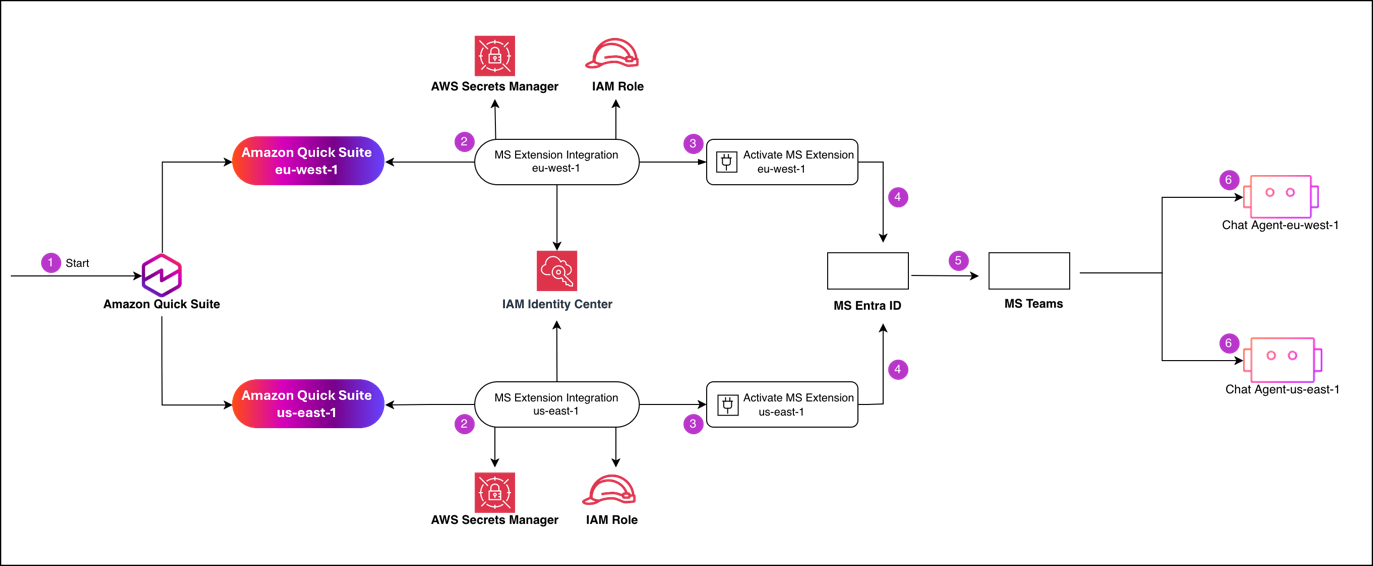
To implement this design, you will follow a multi-phase process that begins with AWS Management Console configuration and concludes with the deployment of Regional add-ons to your users. At a high level, this post shows you how to configure identity and trust one time, then repeat a small set of Regional steps per AWS Region. The following steps summarize the high-level workflow:
- Initiate setup on the Amazon Quick console and choose the AWS Region to configure.
- Configure the Regional Microsoft Teams extension integration, including an AWS Identity and Access Management (IAM) role and AWS Secrets Manager secret for that AWS Region, and trust IAM Identity Center as a token issuer.
- Activate the extension in Amazon Quick to generate the Regional manifest file.
- Register the extension callbacks in your Microsoft Entra ID application and complete the activation callback for the application across all AWS Regions.
- Deploy the Microsoft Teams add-on (
[YOUR_COMPANY_NAME]-Teams-[AWS_REGION]) to your Regional user groups through Microsoft Entra ID. - Map the Regional add-on to its designated knowledge agent (
[YOUR_COMPANY_NAME]-Teams-[AWS_REGION] Agent) to grant users access to localized data.
Prerequisites
Your AWS environment must have Amazon Quick active in your target AWS Regions, along with the identity and secret management services used to handle Regional authentication. For AWS services, you must have the following in place:
- An active Amazon Quick account
- IAM Identity Center configured and managing user identities for your organization with SAML integration with Microsoft Entra ID
- Secrets Manager available in both target AWS Regions for storing authentication credentials
- IAM access to create roles and policies
For Microsoft 365, you must have the following for admin access:
- A Global Administrator or Application Administrator role in Microsoft Entra ID
- Access to Microsoft 365 Admin Center for application deployment
- Permissions to create and configure Enterprise applications in Microsoft Entra ID
Create Microsoft Entra ID application
We start by establishing the shared identity foundation used by every AWS Region. In this first step, you create a Microsoft Entra ID application. The Microsoft 365 extensions use the Microsoft Entra ID application to authenticate users against Amazon Quick through IAM Identity Center. Complete the following steps to create your application:
- In your Azure account, choose App registrations, then choose New registration.
- For Supported account types, choose Accounts in this organizational directory only (Personal use only – Single tenant).
- Choose Register.
- Navigate to the application registration’s Manage – Authentication tab.
- Choose Add Redirect URL.
- Choose Web.
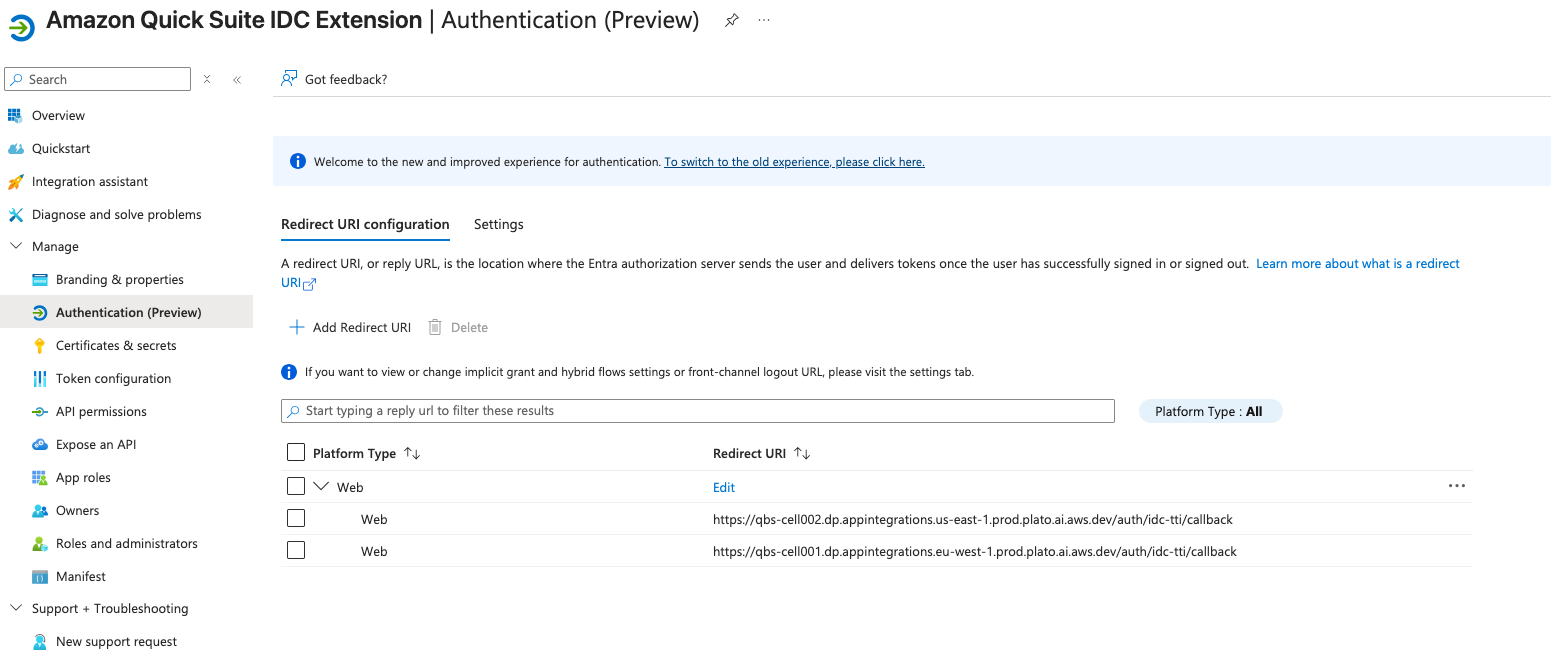
- For this post, we use two redirect URLs, using the pattern
https://qbs-cell001.dp.appintegrations.[AWS_REGION].prod.plato.ai.aws.dev/auth/idc-tti/callback:https://qbs-cell001.dp.appintegrations.eu-west-1.prod.plato.ai.aws.dev/auth/idc-tti/callbackhttps://qbs-cell001.dp.appintegrations.us-east-1.prod.plato.ai.aws.dev/auth/idc-tti/callback
Microsoft Entra ID uses the callback URLs to return the user’s sign-in response to IAM Identity Center for the correct AWS Region (eu-west-1 or us-east-1). Use these exact URLs—they are the actual values required for Amazon Quick deployments.
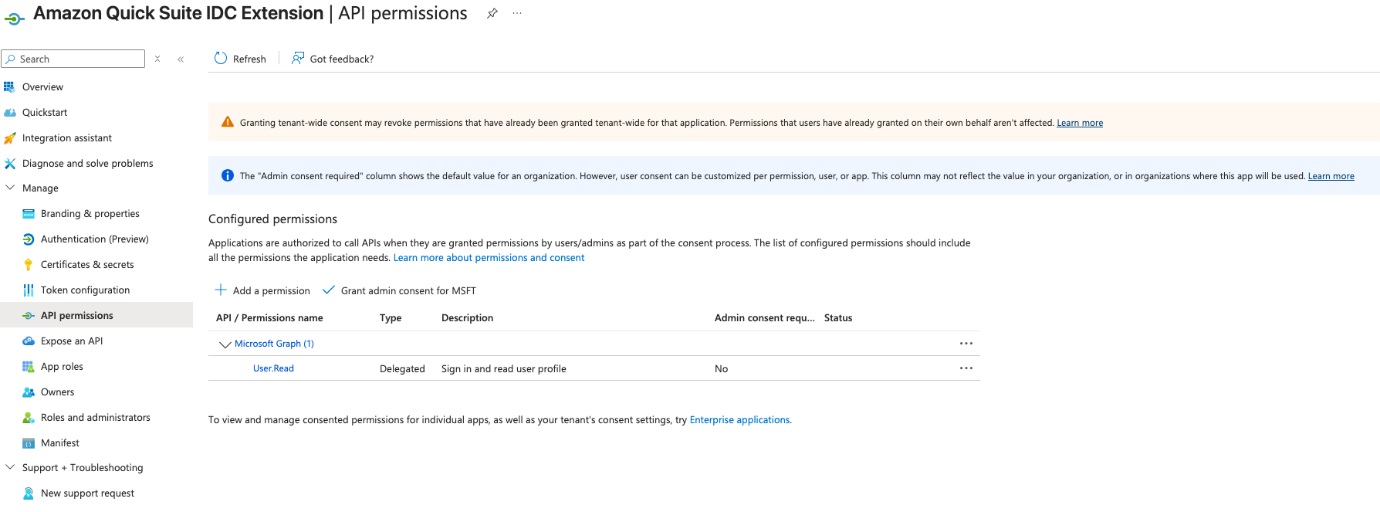
- Grant the Microsoft Graph User.Read permission to allow the application to sign in users and read their basic profile information. This delegated permission does not require admin consent.
In subsequent steps, you will need your Microsoft tenant ID, application client ID, and client secret value.
Create trusted token issuer in IAM Identity Center
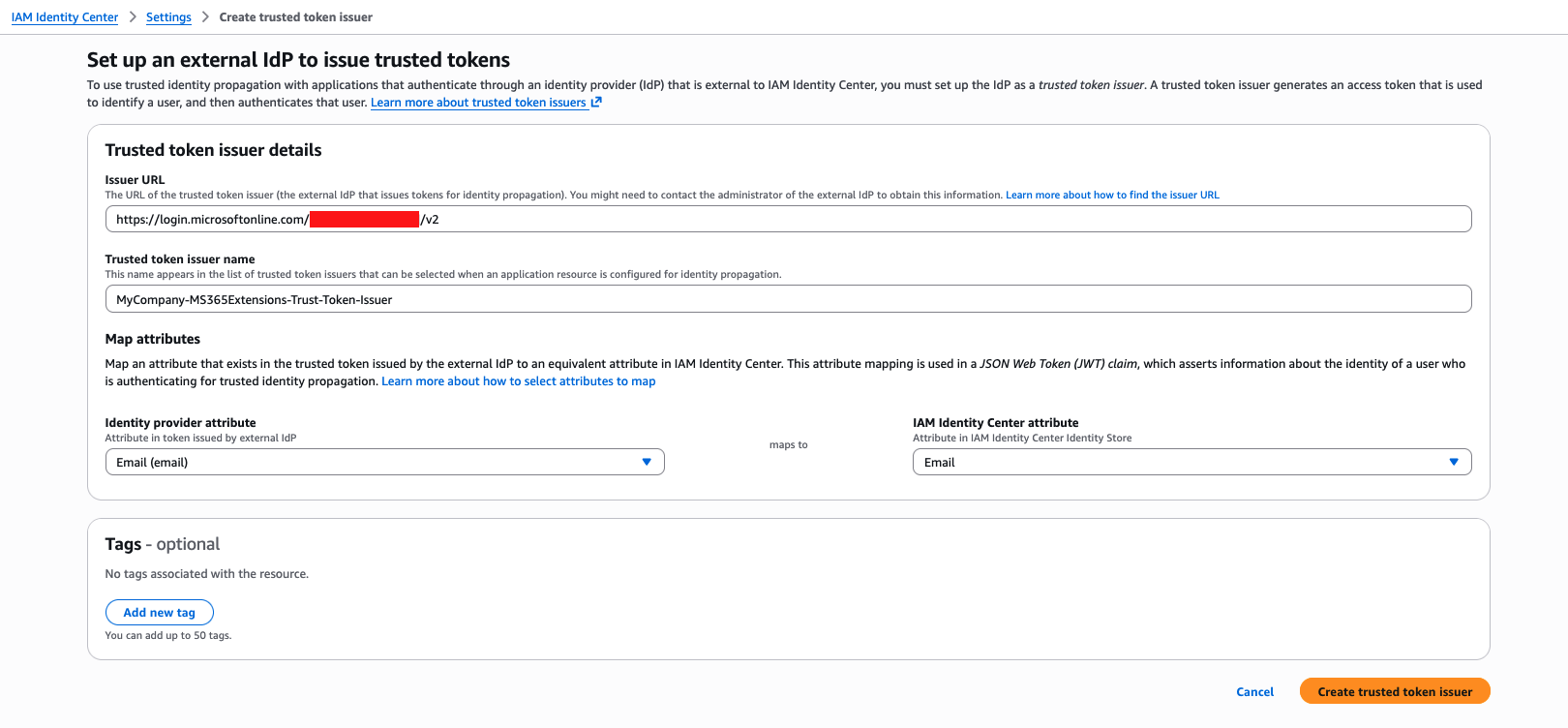
In this step, you create trusted token issuers in IAM Identity Center. A trusted token issuer is a configuration in IAM Identity Center that validates tokens issued by Microsoft Entra ID. You can use it for cross-system authentication, so users can move between Microsoft 365 and AWS without repeated sign-ins. Complete the following steps to configure the trusted token issuer with your Microsoft tenant’s issuer URL and map the email attribute:
- On the IAM Identity Center console, choose Settings in the navigation pane.
- Choose Create trusted token issuer.
- For Issuer URL, enter the URL for your trusted token issuer in the format
https://login.microsoftonline.com/[YOUR_TENANT_ID]/v2.0, using the tenant ID you retrieved from the previous step. - For Trusted token issuer name, enter a name for your trusted token issuer in the format
[YOUR_COMPANY_NAME]-MS365Extensions-Trust-Token-Issuer, using your company name. - Choose Create trusted token issuer.
This configuration applies to each AWS Region where you will be deploying the extensions.
With the global identity components in place, you can now configure each AWS Region with its own secrets, roles, and extension settings that enforce data residency for each geographic AWS Region.
Set up IAM permissions and Secrets Manager entries
In this step, you create the necessary secrets to store Microsoft 365 extension credentials and IAM permissions that grant read access to secrets.
Create one secret per AWS Region (eu-west-1 and us-east-1) in Secrets Manager following the name convention [YOUR_COMPANY_NAME]/MS365/Extensions/[AWS_REGION]:
Create an IAM policy called [YOUR_COMPANY_NAME]-MS365-Extensions-Policy:
Use the following trust relationship:
Each time you activate a new AWS Region, you must create a new secret in Secrets Manager and add the new secret Amazon Resource Name (ARN) to the Resource list in the IAM policy. You must also add the new AWS Region you want to activate to the Service field in the IAM role trust relationship. This field identifies the Regional Service Principal, which is the specific AWS service identity (for example, eu-west-1.prod.appintegrations.plato.aws.internal) that requires permission to assume your IAM roles in that specific AWS Region.
Take note of the created IAM role ARN. You will need it in the next step.
Configure extensions in Amazon Quick
Complete the following steps to create Amazon Quick managed extensions for Microsoft Teams:
- Sign in to the Amazon Quick console.
- In the top right, choose the profile icon.
- Choose the EU (Ireland) Region.
- On the drop-down menu, choose Manage Quick.
- Under Permissions in the navigation pane, choose Extension access.
- Choose Add extension access.
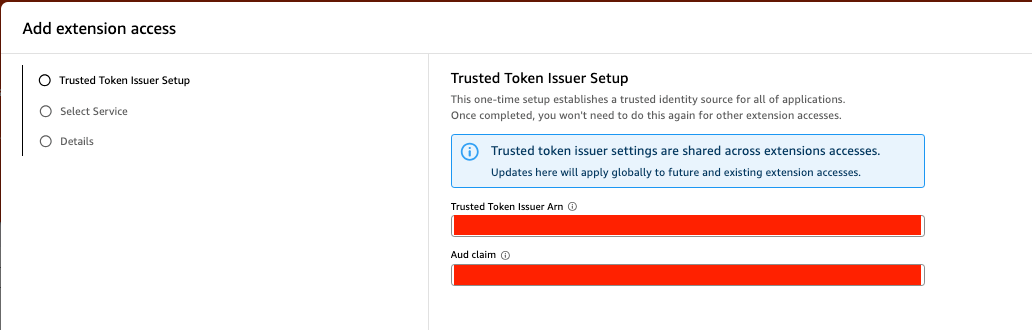
- Set up your trusted token issuer:
- For Trusted Token Issuer Arn, enter the ARN for the trusted token issuer you created.
- For Aud claim, enter your client ID.
The Audience (Aud) claim is a security identifier that validates the authentication token is only used by the specific application it was intended for, preventing unauthorized access from other entities. These settings are shared across extension accesses in this AWS Region.
- Select Microsoft Teams from the available extension types.

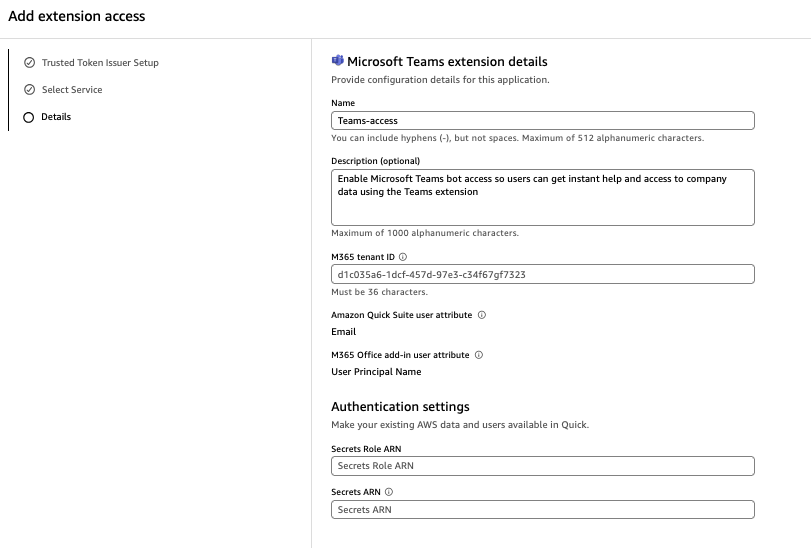
- Configure the extension with your Microsoft 365 tenant ID, security attributes, and authentication settings:
- Enter a name and optional description.
- For Microsoft tenant ID, enter your tenant ID.
- For Secrets Role ARN, enter the ARN for your Secrets Manager role.
- For Secrets ARN, enter the ARN for your secret. The ARN is Region-specific and must point to your Regional AWS resources.
- Return to the Amazon Quick console.
- Choose Extensions in the navigation pane, then choose Create extension.
- Create a Microsoft Teams extension.
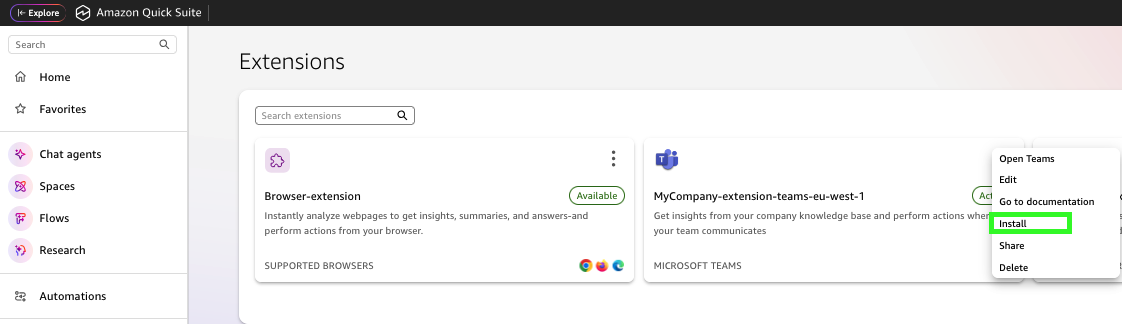
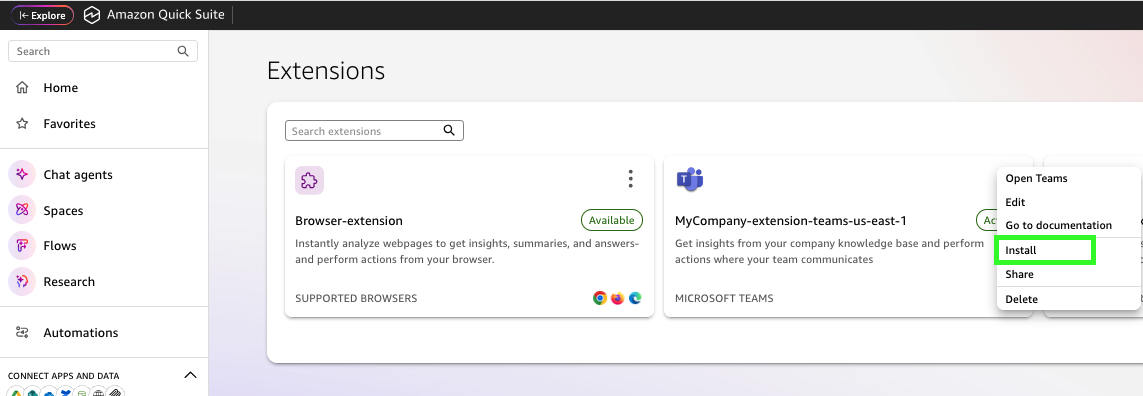
- Choose the options menu (three dots) next to your extension and choose Install.
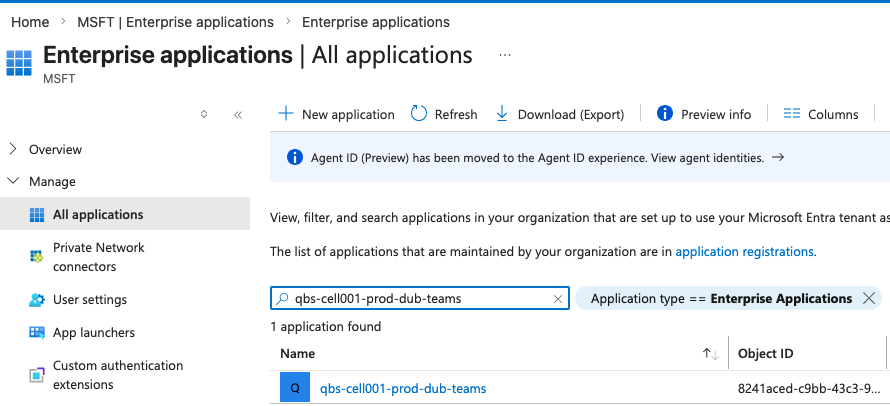
This process creates an Enterprise application in Microsoft Entra ID with the unique URLs and instructions Microsoft 365 Teams needs to communicate with the specific Regional AWS assets. Application installation requires permissions to install an Enterprise application in Microsoft Entra ID.
When the installation is complete, the following entry will be displayed in the Microsoft Entra ID Enterprise application.
- Repeat these steps to create an extension and install the application in the
us-east-1Region. Follow the same naming convention with the AWS Region suffix, and use the secret ARN for theus-east-1Region.
Create chat agents
After the Regional applications are deployed, you create the AWS Region-specific chat agents that each add-on will access. Each AWS Region maintains its own agent with localized knowledge bases. Complete the following steps:
- Open the Amazon Quick console in
eu-west-1. - In the navigation pane, choose Chat agents, then choose Create chat agent.
- Create a Regional chat agent in
eu-west-1with European corporate knowledge. The naming convention includes the AWS Region identifier for easy management across multiple Regions:[YOUR_COMPANY_NAME]-Knowledge-Agent-eu-west-1.

- Repeat these steps to create a chat agent in
us-east-1with US-specific corporate information, called[YOUR_COMPANY_NAME]-Knowledge-Agent-us-east-1.

The final step is deploying the correct Regional add-on to the correct user group in Microsoft 365.
Deploy Microsoft Teams applications
In the last step, you assign each Microsoft Teams application to their respective Regional groups. Complete the following steps:
- In Microsoft Teams Admin Center, choose Team apps.
- Choose Manage apps and filter the applications by “Amazon Quick.”
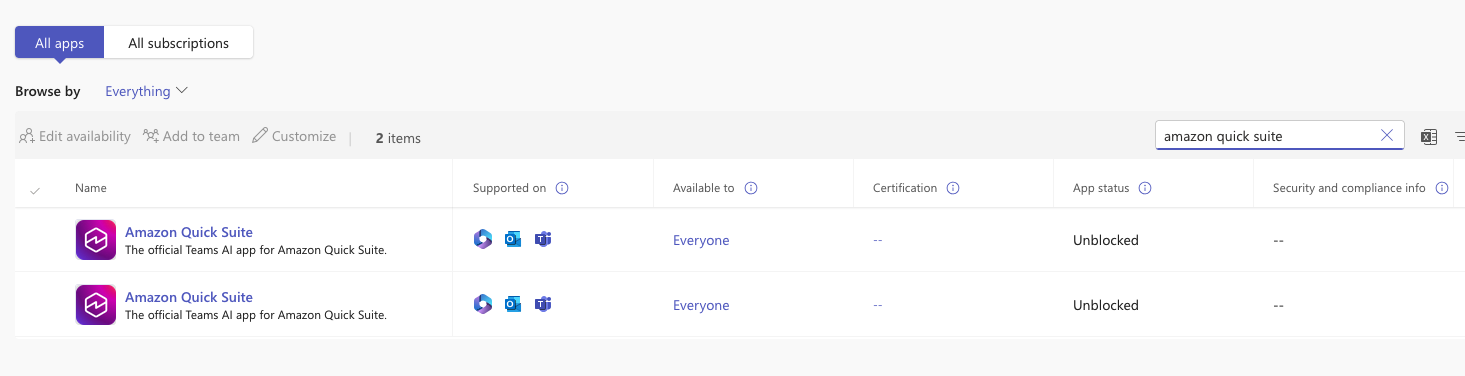
- Choose on the first application (in the
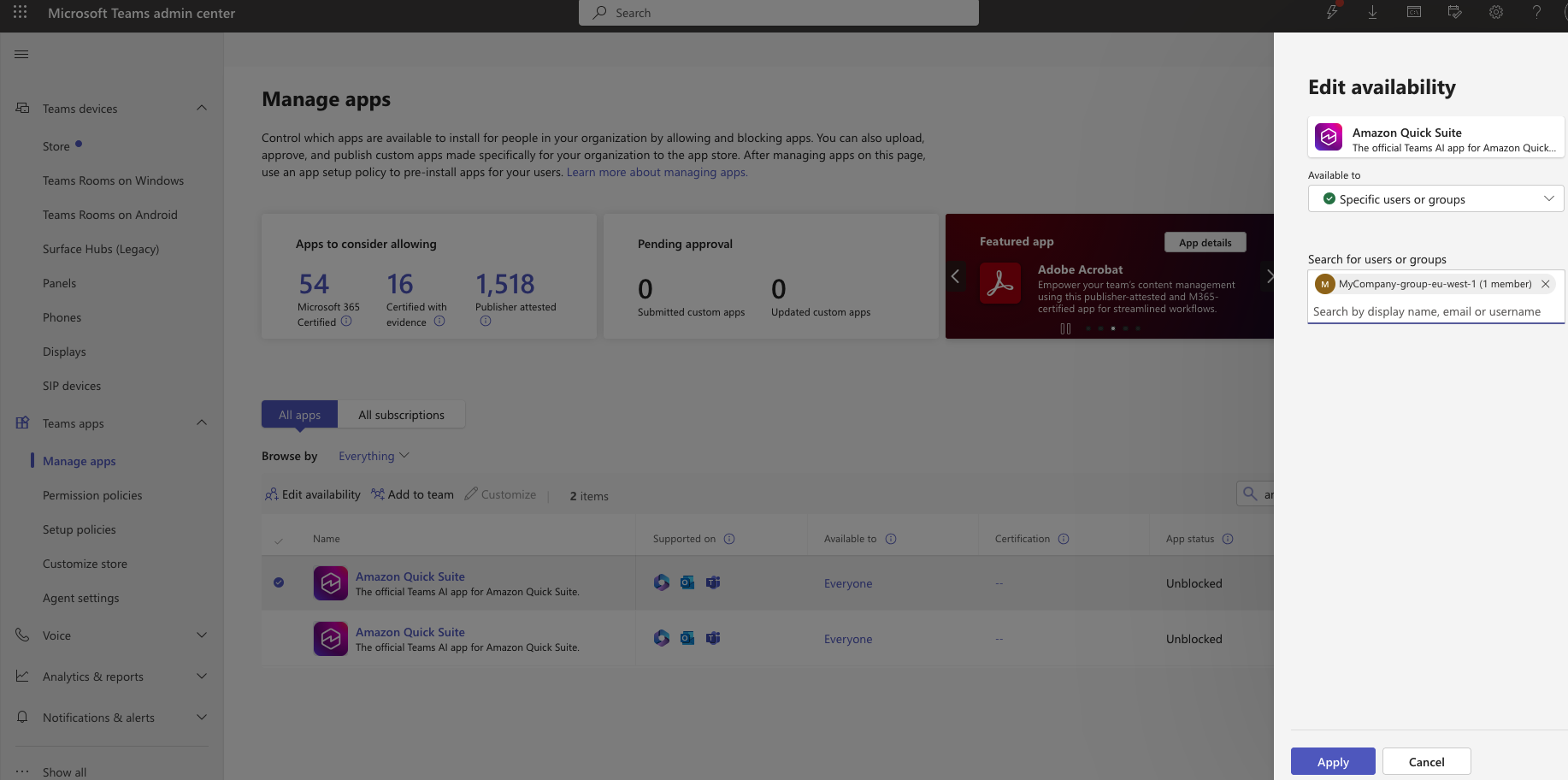
eu-west-1Region) and choose Edit Availability. - Assign the extension to specific Regional user groups rather than the entire organization. This group-based deployment automatically routes your users to their correct Regional Amazon Quick account resources.
- Repeat the same process with the Microsoft Teams application in
us-east-1Region.
The following screenshot shows what the configuration will look like in Microsoft Teams Admin Center.

After deployment propagates, you can validate that users are automatically routed to the correct Regional agent.
Verify the implementation
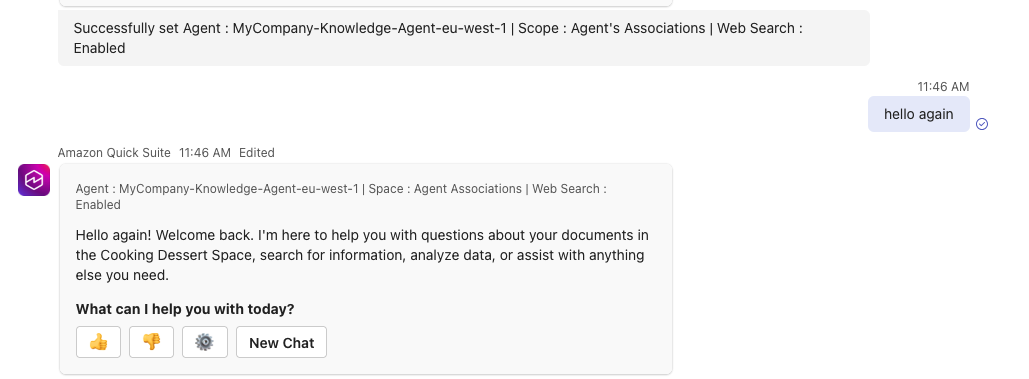
EU users can use MyCompany-Teams-eu-west-1 agent when they are interacting with the Microsoft Teams extension. The plugin will select the My Assistant chat agent as default, so you must choose the settings (gear) icon and choose the MyCompany-Knowledge-Agent-eu-west-1 chat agent.
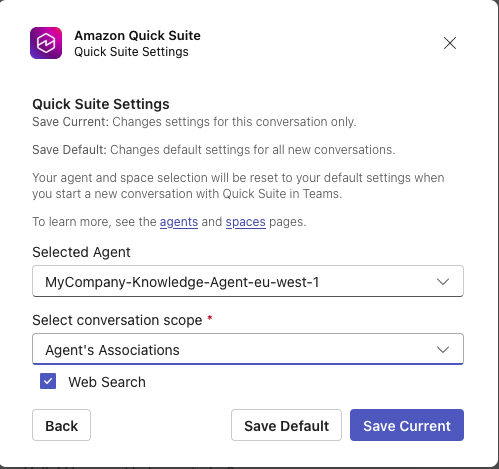
The following screenshot shows an example of interacting with the chat agent.
US users can use the MyCompany-Knowledge-Agent-us-east-1 chat agent, demonstrating successful Regional routing without manual configuration.
Troubleshooting
The following tips can help you troubleshoot some common issues you might encounter while setting up Amazon Quick extensions:
- Quick extension does not show in Microsoft Teams:
- Wait 24–48 hours for Microsoft 365 deployment propagation
- Verify the user is in the correct Microsoft Entra ID group
- Clear the Microsoft Office add-on cache and restart Teams
- Issues with authentication in Amazon Quick extension:
- Verify the redirect URLs match exactly in Microsoft Entra ID
- Check the trusted token issuer configuration
- Confirm the IAM role trust relationship includes the correct service principal
- Wrong agent listed in the Amazon Quick extension:
- Verify user group membership (should only be in one Regional group)
- Check the manifest-to-group assignment in Microsoft 365 Admin Center
- Have the user sign out and sign in again
- The agents drop-down list in the Amazon Quick extension is empty:
- Validate the agent is shared with users on the Amazon Quick console
- Verify the agent exists in the same AWS Region as the extension
- Check agent permissions are set to at least User level
Clean up
To avoid ongoing charges, clean up the resources you created as part of this post if you no longer need them.
Conclusion
This multi-Region Amazon Quick extension solution for Microsoft 365 provides compliant, AWS Region-aware AI capabilities to your global workforce. The architecture and implementation steps in this post show how to integrate enterprise AI with productivity tools while maintaining data residency and compliance boundaries.
For more details on AI-powered assistants that enhance productivity without switching applications, refer to Extension access. Refer to Getting started with Amazon Quick to start using Amazon Quick today.